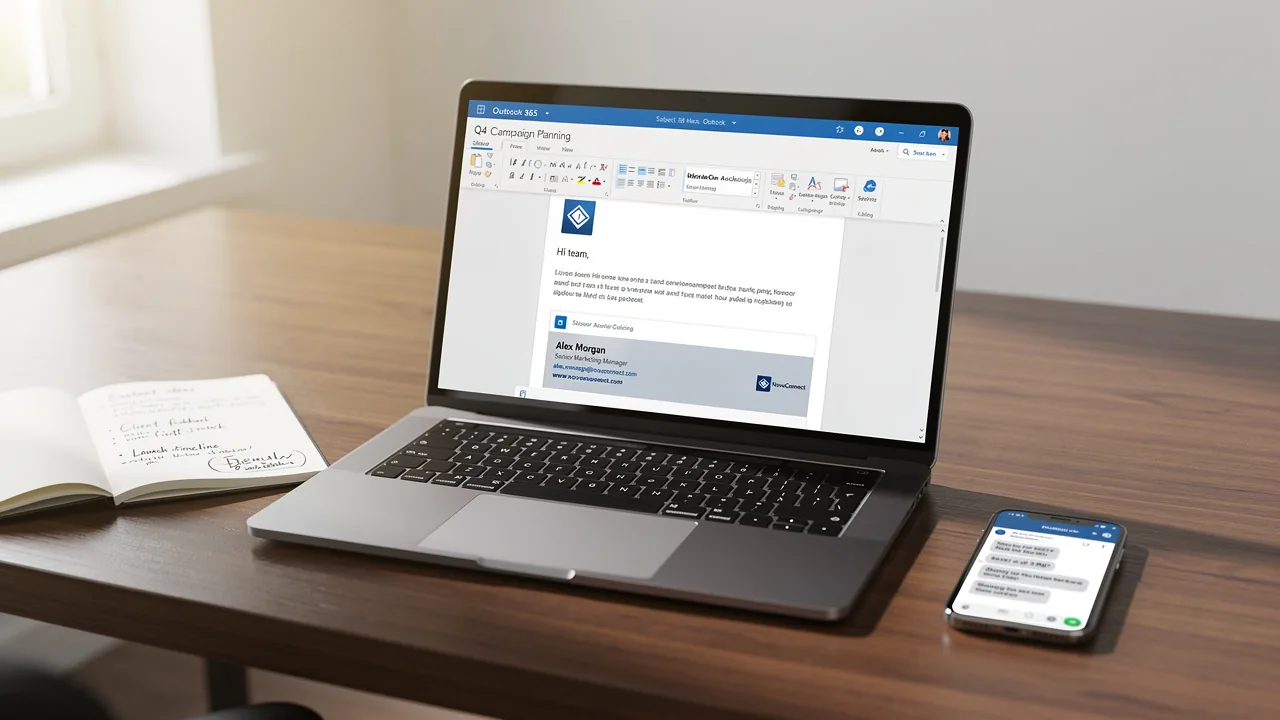
How to Modify Your Signature in Outlook: A Step-by-Step Guide
A professional email signature is a crucial element of effective communication and brand representation. This guide delves into the essential steps for
Sophie Grant
Email Signature Specialist, Scribe
Introduction
A professional email signature is a crucial element of effective communication and brand representation. This guide delves into the essential steps for modifying your signature in Outlook, ensuring that every email sent reflects your professionalism and attention to detail.
A simple signature change can significantly enhance engagement rates and positively influence brand perception.
Discover how to navigate the signature settings in Outlook and transform your email communications effectively.
Access Signature Settings in Outlook
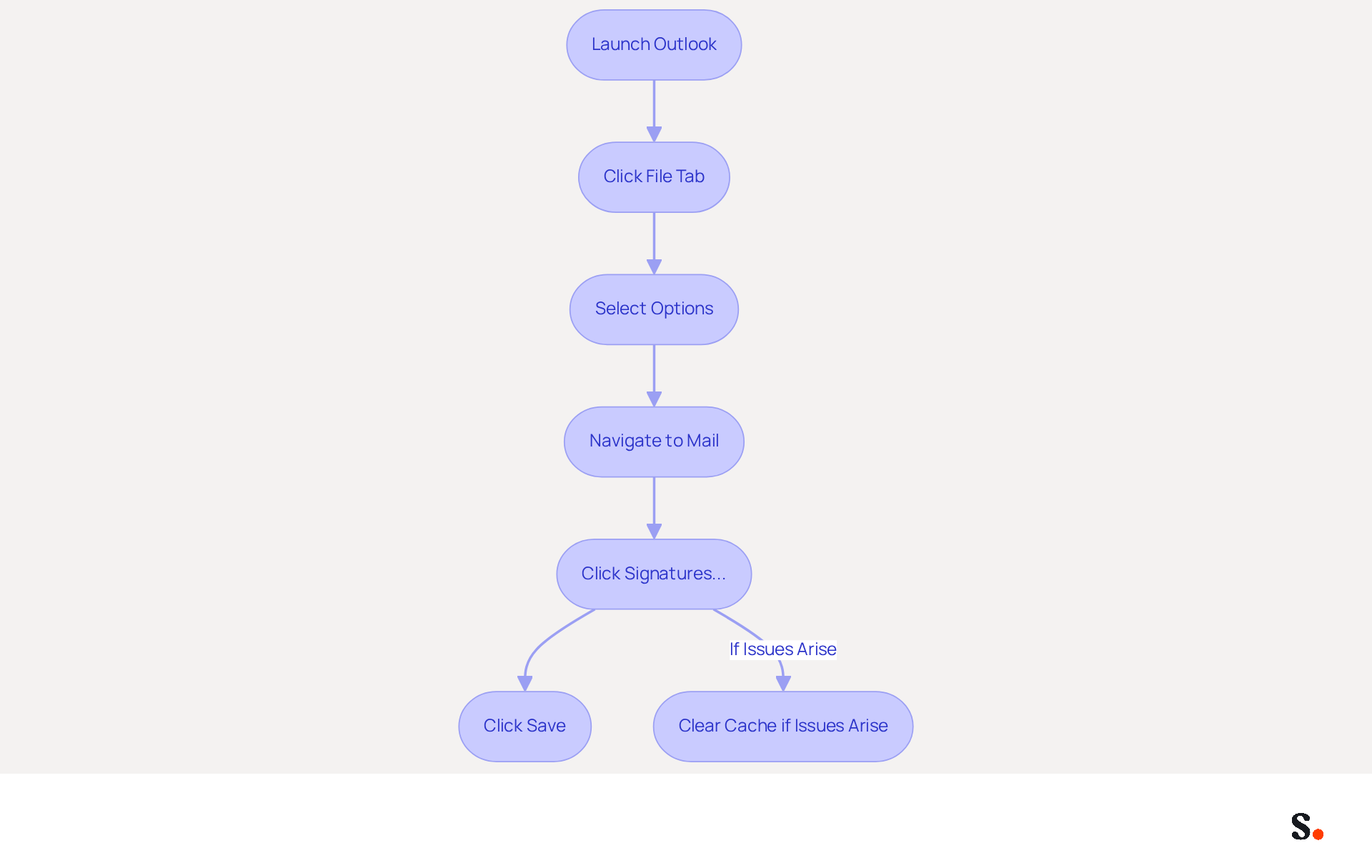
- Launch Outlook on your computer.
- Click the File tab in the top-left corner.
- Select Options from the menu.
- In the Outlook Options dialog, navigate to Mail in the left sidebar.
To learn how to modify signature in Outlook, follow these steps:
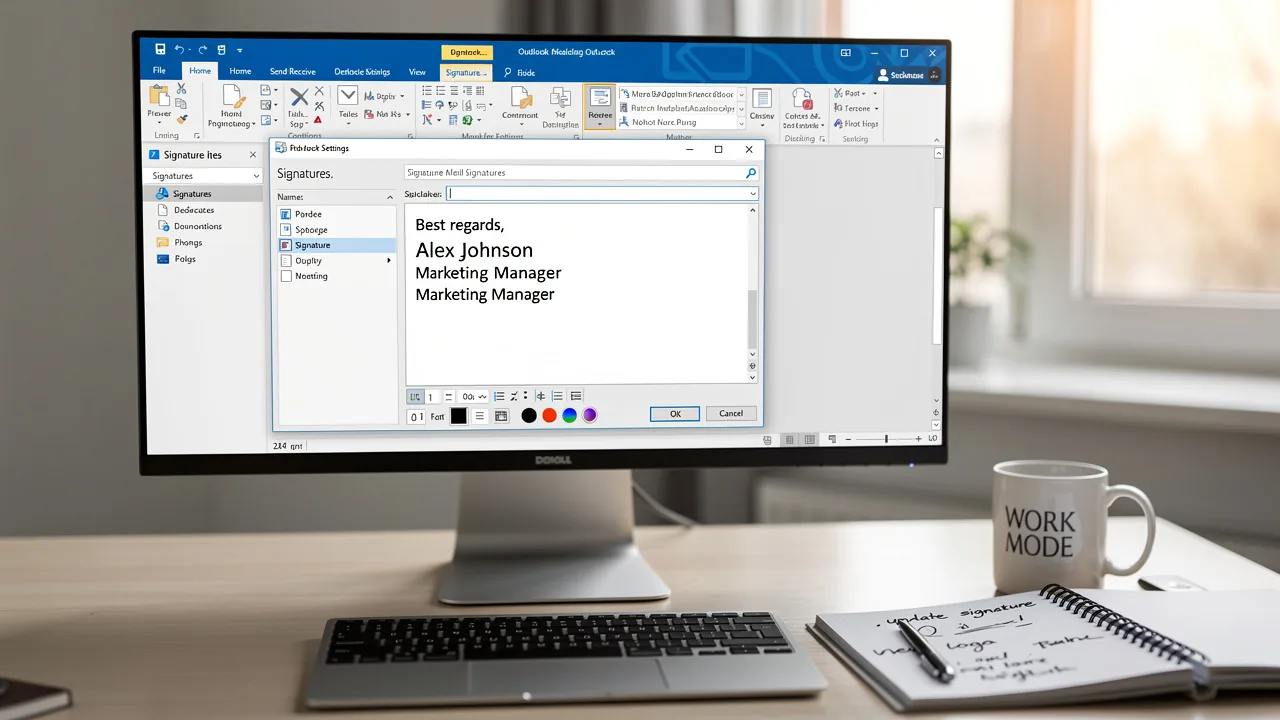
- Click the Signatures... button to open the Signatures and Stationery window, where you can manage your email identifiers.
- This tool simplifies the process by automatically updating your colleagues' sign-offs with information from your HRIS.
- Any updates made in your Google Workspace will automatically reflect in the application, ensuring your signatures are always current without manual input.
- Once you've made your changes, be sure to click Save to apply them.
- Scribe's SOC 2 Type II compliance ensures that your data is handled securely throughout this process.
- Keep your sign-off concise, ideally limited to 4-6 lines.
- If you include images, ensure they are under 0KB for optimal performance.
- If your mark does not show as anticipated, try clearing the Outlook cache or restarting the application.
- You can also establish various default identifiers for new messages and replies/forwards to effectively learn how to modify signature in Outlook.
- By syncing your Google Workspace with Scribe, you save time and ensure that your teammates' identification details are always current.
Create or Edit Your Email Signature
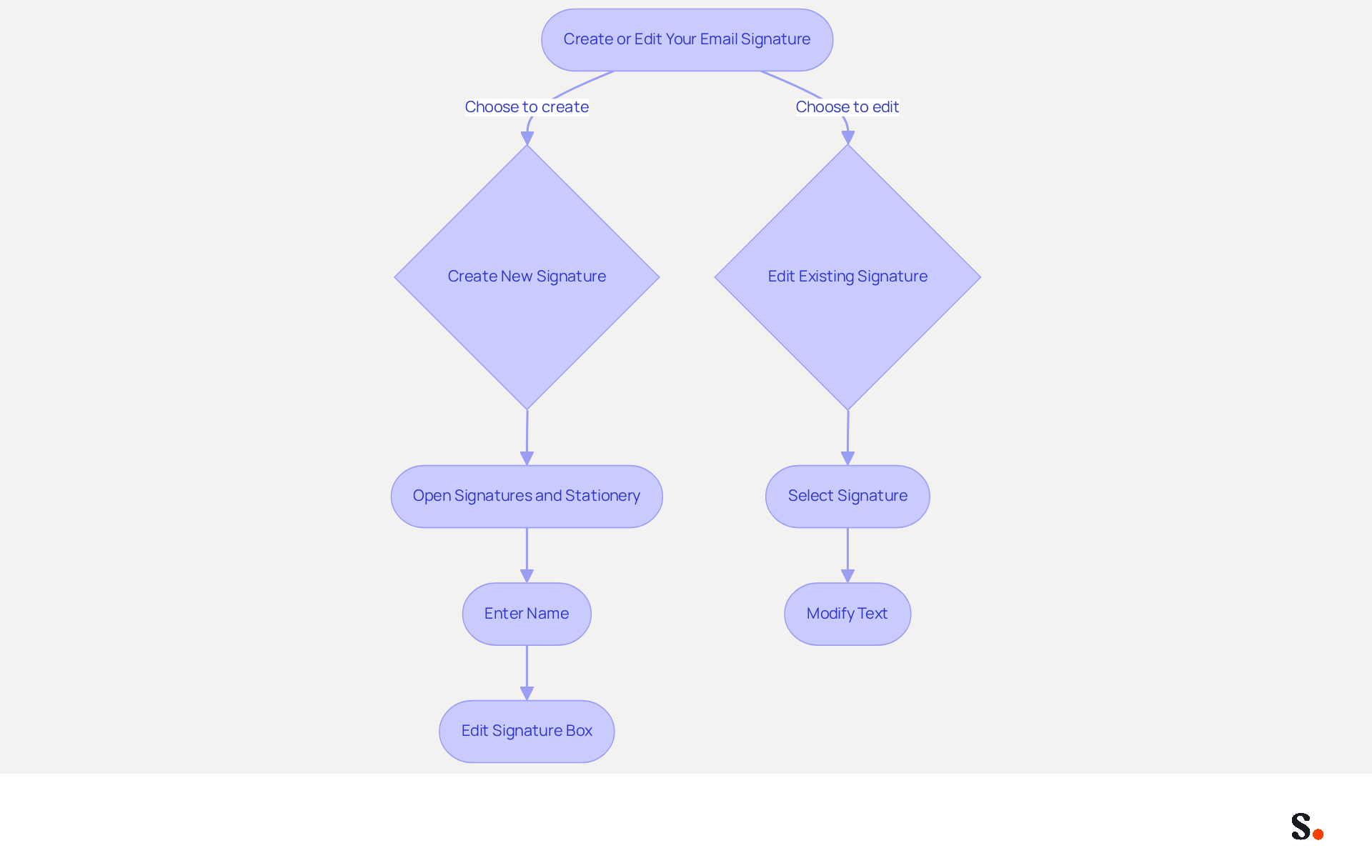
Creating a professional email signature is essential for maintaining brand consistency and enhancing communication effectiveness. To create a new signature or choose an existing one to modify, you can open the Signatures and Stationery window in Outlook and follow the steps on how to modify signature in Outlook. If you are creating a new identifier, enter a name for it and click OK. In the Edit signature box, type your desired text, including your full name, job title, company name, and contact information. This information is crucial for maintaining professionalism and brand consistency. A well-optimized contact block not only enhances your brand's visual identity but can also drive engagement significantly.
Consider using the formatting tools to adjust the font, size, color, and layout of your name for a more personalized touch. Incorporate elements like a professional headshot or company logo to enhance recognition and trust. For teams utilizing this tool, you can streamline this process further. With the automated management of your team's contact information, their identifiers can be auto-filled and synchronized in real-time from your business phone system.
To enable one-click synchronization, grant the application permission to connect with your service provider. This ensures that all changes are updated automatically without any action needed from them, saving time and enhancing branding consistency across your organization. Remember to design for mobile compatibility, regularly review and update your identifier, and test it across various messaging platforms and devices using best practices or tools to ensure it displays correctly.
Scribe is also SOC 2 Type II compliant, ensuring that your data remains secure throughout the synchronization process. With Scribe, you can ensure that your email signatures not only reflect your brand but also enhance engagement and trust with your audience.
Add Images and Hyperlinks to Your Signature
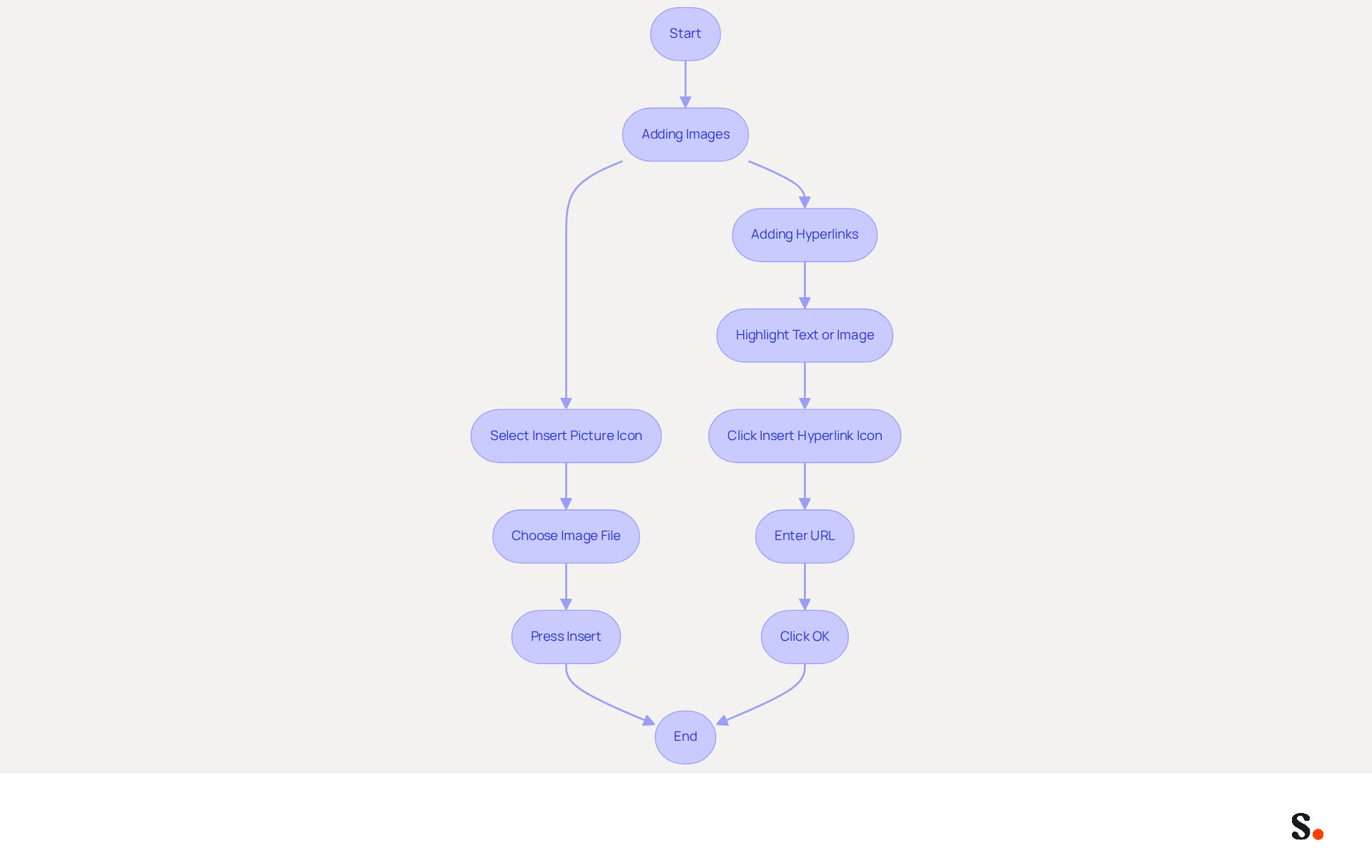
Incorporating images and hyperlinks in your email signature can enhance communication effectiveness. To include an image in your message signature, select the Insert Picture icon in the signature editor. Choose an image file from your computer and press Insert. Make sure the image is hosted on a server that everyone can access to prevent display issues in emails.
To add a hyperlink, highlight the text or tap on the image you wish to link. This can direct recipients to your company website or social media profiles, enhancing engagement. Click the Insert Hyperlink icon, typically represented by a chain link symbol.
In the dialog box that appears, enter the desired URL and click OK. Adding hyperlinks can greatly boost interaction, as messages with clickable links tend to have higher engagement rates, with personalized content leading to transaction rates six times higher than those without personalization. This simple addition can transform your email interactions, making them more engaging and effective.
Set Default Signature Preferences
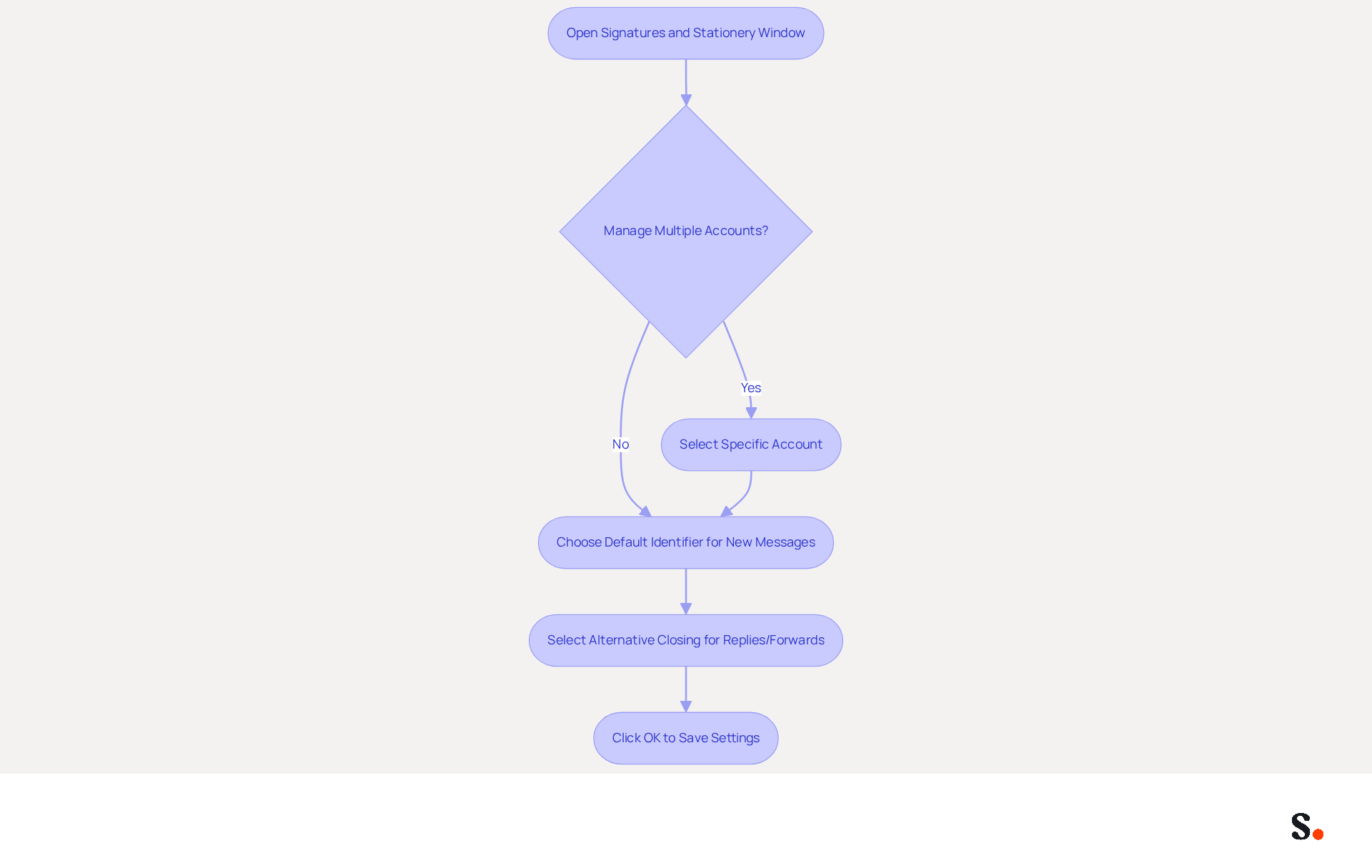
Understanding how to modify signature in Outlook is crucial for establishing a consistent email signature and maintaining professionalism across all communications. To understand how to modify signature in Outlook, open the Signatures and Stationery window and navigate to the Choose default option section. If you manage multiple messaging accounts, select the specific account for which you want to know how to modify signature in Outlook. Under New messages, choose the identifier you wish to establish as the default for all new communications, which includes understanding how to modify signature in Outlook.
Understanding how to modify signature in Outlook is essential, as a consistent email signature ensures uniformity in your communications, which is vital since 69% of consumers view a professional message footer as significant. To enable one-click synchronization, grant the application permission to connect with your email provider. Note that only a Super Admin can provide these permissions. Syncing your Google Workspace with Scribe saves time by automatically updating your teammates' data, allowing for effortless auto-filling of identification information.
For replies and forwards, select an alternative closing if desired, which allows for tailored communication that can enhance engagement, especially when considering how to modify signature in Outlook. This is crucial because 42% of consumers develop a negative perception of a business when they receive messages without understanding how to modify signature in Outlook. With Scribe, any changes in your Google Workspace, like updates to job roles or group memberships, automatically reflect in your contact details without manual input.
To learn how to modify signature in Outlook, click OK to save your settings. The chosen identifiers will now automatically appear in your messages based on your preferences, which simplifies how to modify signature in Outlook and manage your messages. Understanding how to modify signature in Outlook can lead to effectively managing your email signatures, resulting in a 22% increase in response rates and a 15% boost in click-through rates, highlighting its value as a marketing strategy. Failing to implement a cohesive email signature strategy, such as understanding how to modify signature in Outlook, could result in lost opportunities and diminished brand perception.
Conclusion
Crafting an effective email signature in Outlook is not just a simple task; it’s a vital component of professional communication that can influence how you are perceived. Modifying your email signature is straightforward yet essential, significantly enhancing your professional communication. Following these steps allows users to access signature settings, create or edit their signatures, and add images and hyperlinks for greater engagement. This approach guarantees accurate contact information and strengthens your brand identity with each email sent.
Key insights from this guide include:
- The importance of maintaining a concise and professional signature
- The benefits of syncing with Google Workspace for automatic updates
- The impact of well-placed images and hyperlinks on engagement rates
- Establishing default signatures for different accounts and message types
Investing time in your email signature can really pay off, leading to better response rates and a stronger brand image. As email remains a primary mode of communication, taking the necessary steps to modify your signature in Outlook is not just a technical task but a strategic move that can enhance your professional image and foster better connections with your audience.
Frequently Asked Questions
How do I access the signature settings in Outlook?
To access the signature settings in Outlook, launch the application, click the File tab in the top-left corner, select Options from the menu, and navigate to Mail in the left sidebar.
How can I modify my signature in Outlook?
To modify your signature in Outlook, click the Signatures... button to open the Signatures and Stationery window, where you can manage your email identifiers. After making changes, be sure to click Save to apply them.
How does syncing with Google Workspace affect my email signatures?
Syncing with Google Workspace allows your signatures to automatically update with information from your HRIS, ensuring that your signatures are always current without manual input.
What should I keep in mind when creating my email signature?
Keep your sign-off concise, ideally limited to 4-6 lines. If you include images, ensure they are under 0KB for optimal performance.
What should I do if my signature does not display correctly?
If your signature does not show as anticipated, try clearing the Outlook cache or restarting the application.
Can I set different signatures for new messages and replies/forwards?
Yes, you can establish various default identifiers for new messages and replies/forwards in Outlook.
How does Scribe ensure data security during the signature modification process?
Scribe's SOC 2 Type II compliance ensures that your data is handled securely throughout the signature modification process.
List of Sources
- Access Signature Settings in Outlook
- How to add and change an email signature in Outlook | Microsoft Support (https://support.microsoft.com/en-us/outlook/mail/how-to-add-and-change-an-email-signature-in-outlook)
- How To Add An Email Signature in Outlook (2026) (https://hubspot.com/email-signature-generator/add-signature-outlook)
- How to Update Your Outlook Signature (2026) (https://getinboxzero.com/blog/post/how-to-update-signature-in-outlook)
- Release notes for Outlook for Windows (new) - Office release notes (https://learn.microsoft.com/en-us/officeupdates/release-notes-outlook-new)
- Can Outlook Generate statistics or Help track how many Emails each Colleague processes? - Microsoft Q&A (https://learn.microsoft.com/en-ca/answers/questions/5897888/can-outlook-generate-statistics-or-help-track-how)
- Create or Edit Your Email Signature
- Why Email Signatures Must Be In Your 2026 Marketing Plan | Rocketseed (https://rocketseed.com/blog/what-are-the-biggest-email-trends-for-2026)
- Email Signature Design Trends in 2026: What Works and What to Drop (https://bulksignature.com/blog/email-signature-design-trends)
- Top 10+ best practices for email signatures design in 2026 (https://mysignature.io/blog/email-signature-best-practices)
- Email Signature Best Practices for 2026 (+ 15 Pro Examples) (https://wavecnct.com/blogs/email-signature-best-practices-2026)
- Email Signature Best Practices - NEWOLDSTAMP (https://newoldstamp.com/blog/email-signature-best-practices-creative-ideas-beautiful-examples-design-hints-and-free-tools-to-use-now)
- Add Images and Hyperlinks to Your Signature
- How to Add an Image Hyperlink in Outlook (4 Min Guide) (https://wisestamp.com/guides/how-to-add-hyperlink-in-outlook-signature)
- Email Signatures with Images & Hyperlinks - Part One - Megan V. Walker (https://meganvwalker.com/email-signature-images-hyperlinks)
- 49 Top Email Marketing Statistics (https://forbes.com/advisor/business/software/email-marketing-statistics-jun-26)
- 101+ Best Email Marketing Statistics and Insights for 2026 (https://snov.io/blog/email-marketing-statistics)
- How to Add an Image to Your Outlook Signature - NEWOLDSTAMP (https://newoldstamp.com/blog/image-to-outlook-signature)
- Set Default Signature Preferences
- 40+ Email Signature Statistics for 2026 (Data + Insights) (https://wavecnct.com/blogs/email-signature-statistics)
- Email Signatures vanishing - New Outlook | Microsoft Community Hub (https://techcommunity.microsoft.com/discussions/outlookgeneral/email-signatures-vanishing---new-outlook/4418809)
- New email signature management and editor features in Outlook on the web | Topedia Blog (https://blog-en.topedia.com/2026/01/new-email-signature-management-and-editor-features-in-outlook-on-the-web)
- Email Signature Trends in Numbers: Infographic [2026] (https://mailtrap.io/blog/email-signature-trends)
- New Outlook | Microsoft Community Hub (https://techcommunity.microsoft.com/discussions/outlookgeneral/new-outlook/4419115)
Get started with Scribe
Create your signature in minutes
Free 14-day trial — no credit card.