How to Put a Signature on Outlook 365: Step-by-Step Guide
Creating and managing an email signature in Outlook 365 presents challenges that professionals must navigate to enhance brand visibility and ensure consistent
Sophie Grant
Email Signature Specialist, Scribe
Introduction
Creating and managing an email signature in Outlook 365 presents challenges that professionals must navigate to enhance brand visibility and ensure consistent communication. This guide provides a step-by-step approach to setting up and optimizing a signature for professionalism and engagement.
With so many choices, organizations often struggle to maintain consistency in their email signatures, which can impact compliance and marketing performance.
Create Your Email Signature in Outlook 365
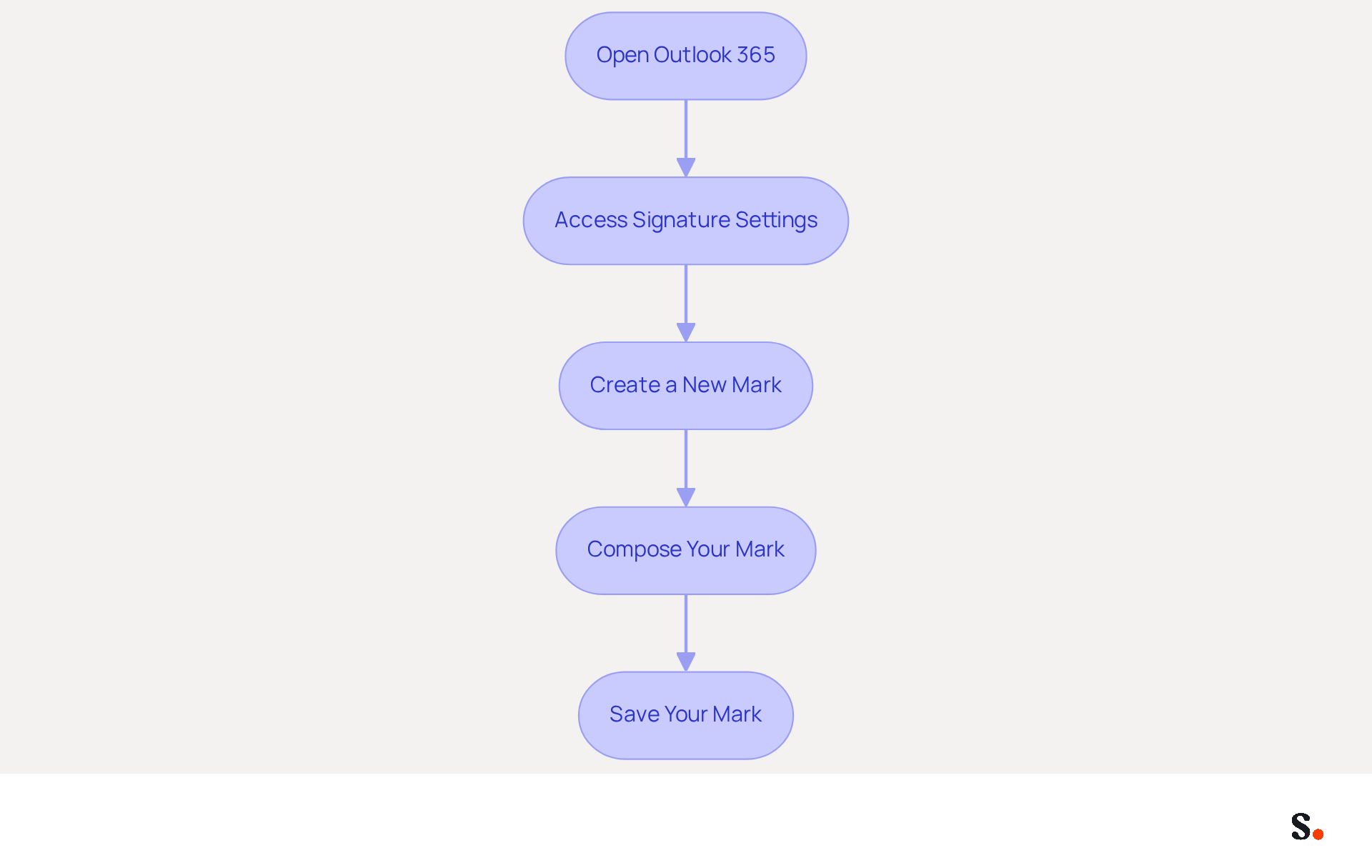
Understanding how to put a signature on Outlook 365 is essential for maintaining brand consistency and enhancing communication. To create your email signature in Outlook 365, follow these steps:
- Open Outlook 365: Launch the Outlook application or navigate to the Outlook web app.
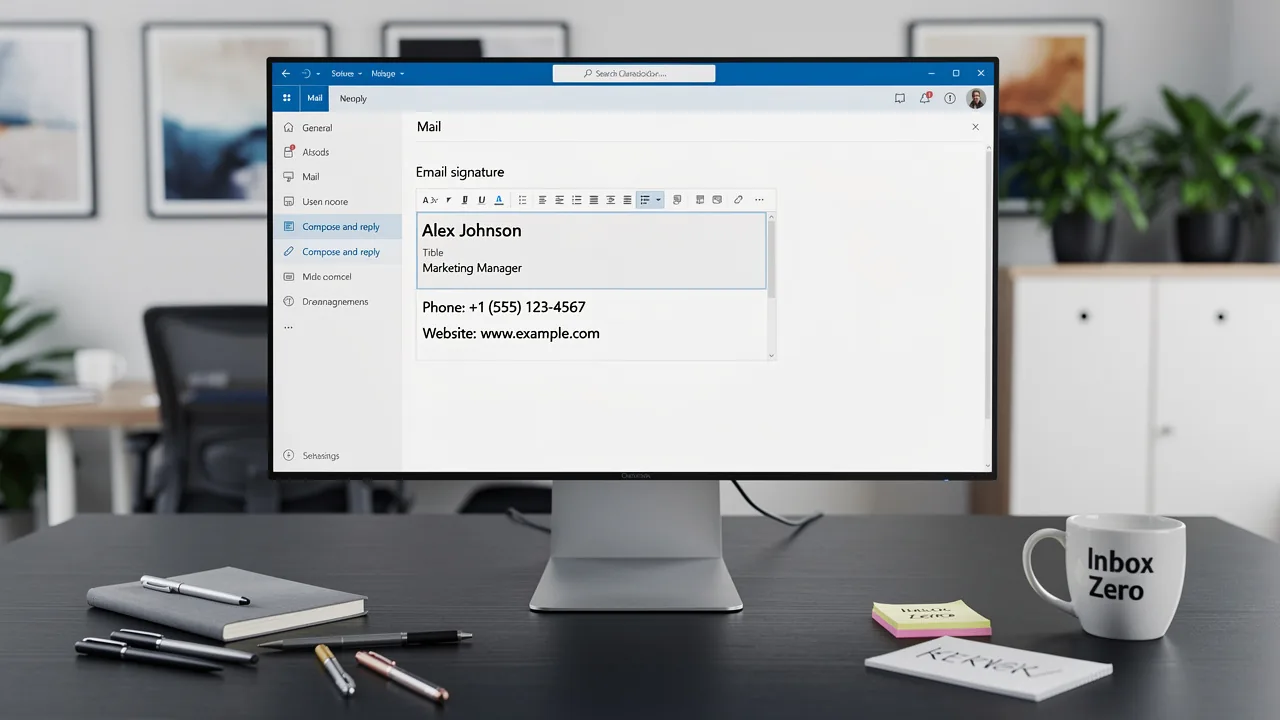
- Access Signature Settings: Click on the gear icon (⚙️) in the upper right corner to open Settings. In the search bar, type 'email footer' and select 'Email footer' from the dropdown.
- Create a New Mark: Click on 'New' to create a new mark. Enter a unique name for your mark to easily identify it later.
- Compose Your Mark: In the editing box, type your desired mark content, including your name, title, and contact information. Incorporating branded elements can boost response rates by as much as 20%, according to research. With Scribe, you can also auto-fill your signing details using data synced from your HRIS, ensuring that your information is always current without any manual input. Additionally, syncing with Google Workspace allows for automatic updates, reflecting any changes in your team’s information seamlessly.
- Save Your Mark: Once you are satisfied with your mark, click 'Save' to store it. You can now use this sign-off in your emails. By utilizing Scribe's automated management features, you can streamline the process and uphold brand consistency throughout your organization. With Scribe, organizations see an impressive average click-through rate of 12% on branding banners, showcasing the effectiveness of well-managed email signatures. Embracing Scribe's automated features not only simplifies signature management but also elevates your brand's visibility and engagement.
Format Your Signature for Professional Appeal
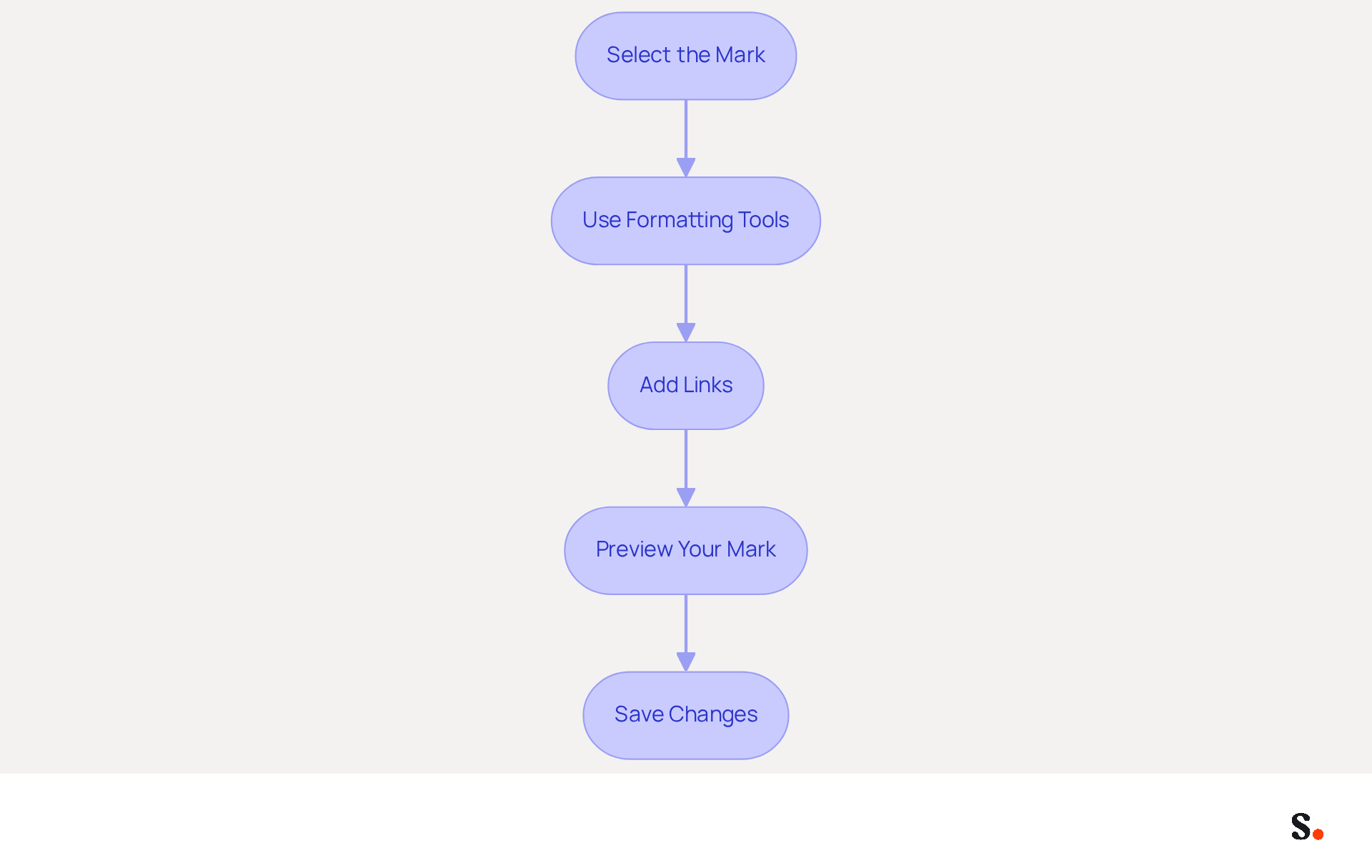
To achieve a polished and professional email signature while leveraging Scribe's automated management capabilities, follow these steps:
- Select the Mark: In the mark settings, choose the mark you want to format.
- Use Formatting Tools: Utilize the formatting toolbar to adjust the font style, size, and color. Choose a font that is easy to read and aligns with your brand's identity.
- Add Links: Include hyperlinks to your website or social media profiles by highlighting the text and clicking the link icon in the toolbar.
- Preview Your Mark: Utilize the preview feature to observe how your mark will appear in messages. Make adjustments as necessary to ensure it appears professional.
- Save Changes: After formatting, click 'Save' to apply your changes.
Using the tool, your teammates' identification information syncs automatically with your HRIS, ensuring that any updates are reflected without requiring action from them. This streamlines processes and maintains consistency in your digital identifiers across the organization. With Scribe's SOC 2 Type II compliance, you can trust that your data is managed securely. Additionally, Scribe empowers Marketing teams to manage digital identifiers independently after the initial IT setup, enhancing efficiency and control over brand representation.
Incorporate Images and Logos into Your Signature
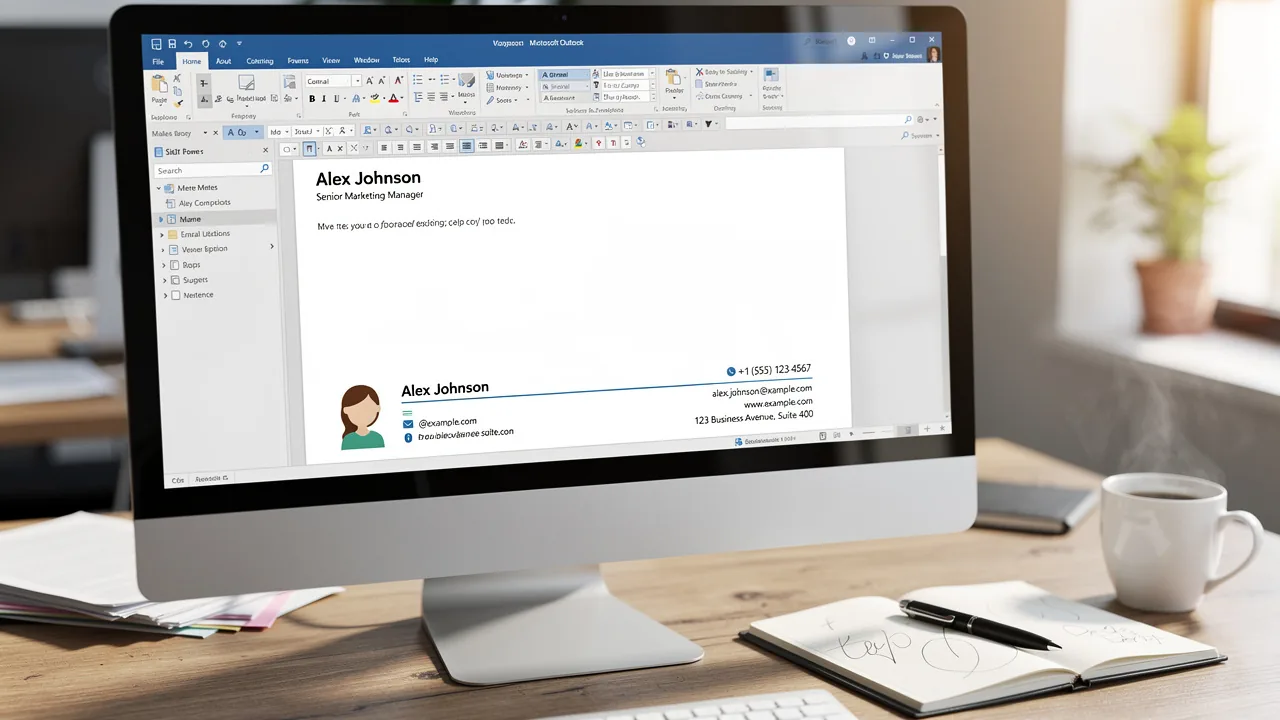
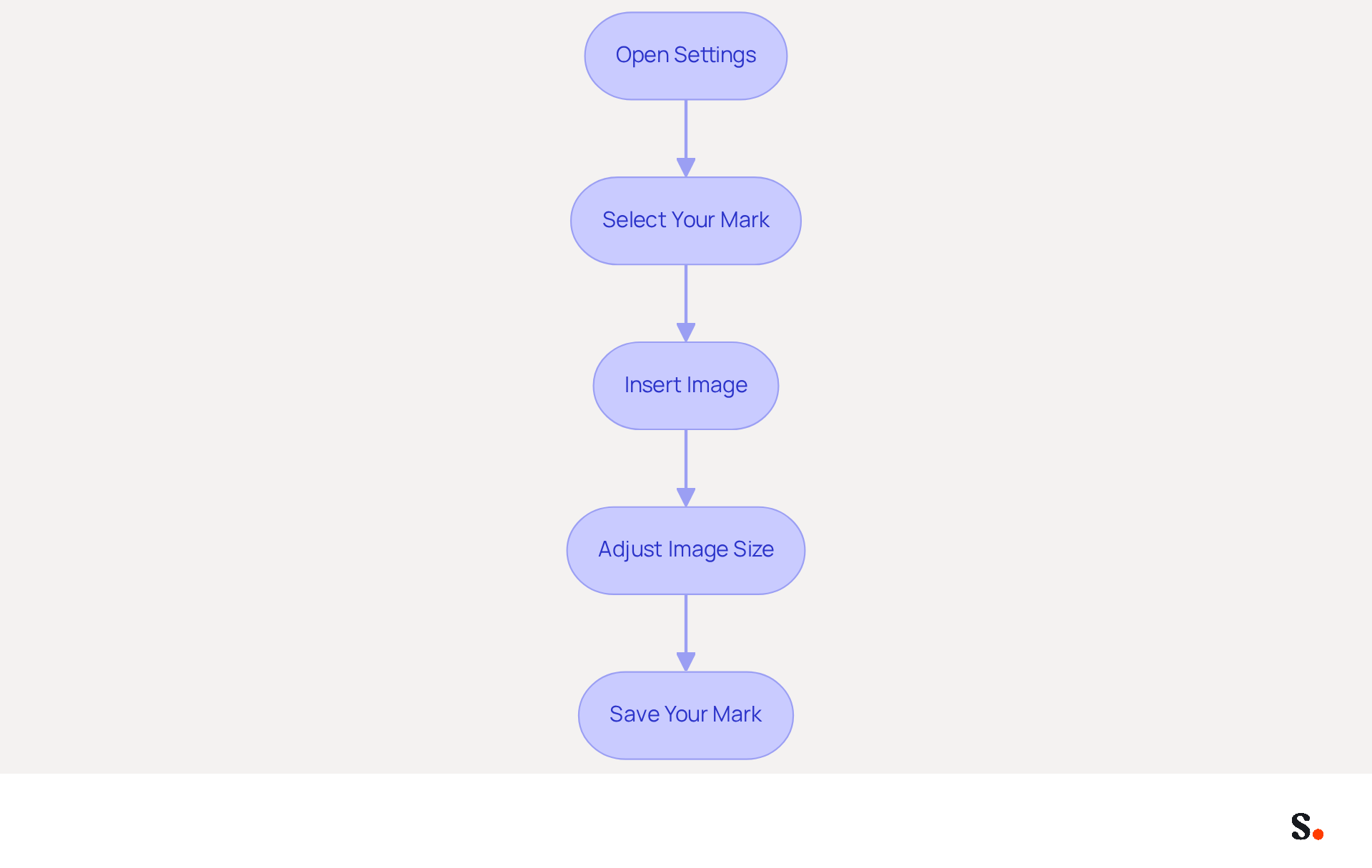
Adding images and logos to your email signature in Outlook 365 is essential for learning how to put a signature on Outlook 365 to enhance brand visibility and professionalism. To do this, follow these steps:
- Open Settings: Navigate back to the settings where you initially created your mark.
- Select Your Mark: Choose the specific mark you wish to edit.
- Insert Image: Click on the image icon in the formatting toolbar. Browse your computer to select the logo or image you want to include.
- Adjust Image Size: After inserting the image, click on it to resize as needed. Ensure it fits well within the branding without overshadowing the text.
- Save Your Mark: Once you have added and adjusted your images, click 'Save' to finalize your mark.
Using images and logos in your emails isn't just about looks; it significantly boosts brand recognition and professionalism. Studies show that 80% of companies believe branded email signatures are vital for building trust, and consistent visual components can lead to a 22% increase in response rates. Specifically, incorporating images and logos can help achieve this increase by making your communications more visually appealing and memorable.
Furthermore, a well-crafted electronic identifier serves as a digital business card, enhancing your identity with each message sent. For example, companies that effectively utilize logos in their email footers have reported improved recall rates by up to 30%. This really highlights how effective visual branding can be in building customer trust and engagement.
With Scribe, any modifications made in your Aircall setup will automatically be reflected in your communication identifiers, ensuring consistency across all interactions. This automated synchronization not only conserves time but also improves the overall management of your correspondence identifiers, enabling effortless updates while ensuring compliance with SOC 2 Type II standards for secure data handling. By following these steps and understanding how to put a signature on Outlook 365, you can create a professional mark that acts as a strategic marketing tool, driving traffic and enhancing your brand's visibility.
Automate Signature Management for Consistency
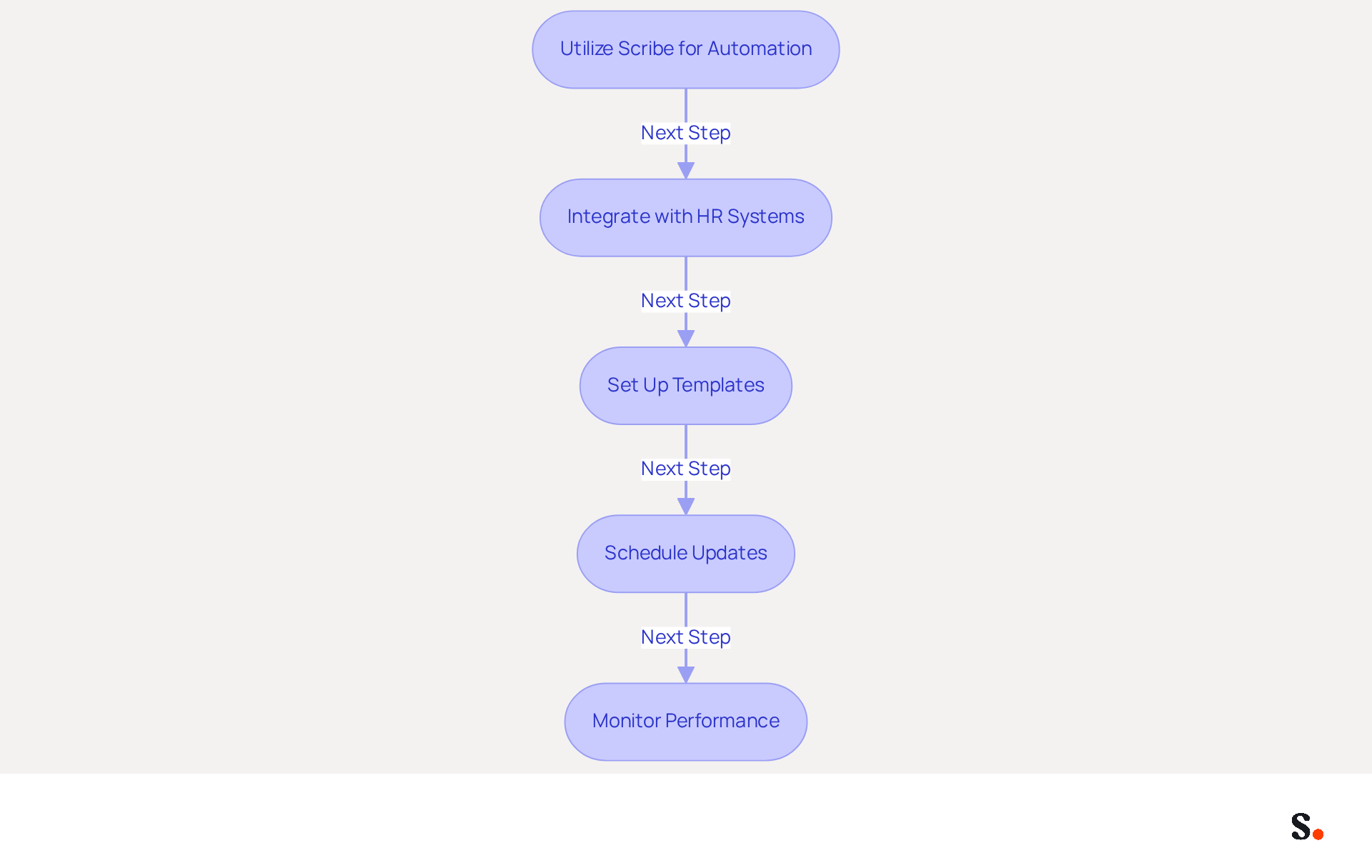
To automate your email signature management effectively, follow these essential steps:
- Utilize Scribe for Automation: Leverage the platform to enhance the creation and management of signatures across your organization. This automation saves time and ensures every message reflects your brand consistently. With Scribe's SAML single sign-on integration, employees can securely access the platform, improving collaboration and efficiency. Scribe's unique positioning enables Marketing teams to manage their digital identifiers independently after the initial IT setup, empowering them to make timely updates without depending on IT.
- Integrate with HR Systems: Connect your email identifiers with HR and identity management systems. This integration allows for automatic updates, ensuring that signatures always display the most current information, such as job titles and contact details, which is crucial for maintaining professionalism. Scribe's GDPR compliance, along with its SOC 2 Type II certification, further ensures that your data management practices meet stringent security standards, including compliance with CCPA.
- Set Up Templates: Develop standardized templates that reflect your organization's identity. Consistent application of logos, colors, and fonts among all team members' identifiers strengthens recognition and trust. Research shows that a professional branded email footer can enhance credibility significantly. Companies like Nike and Headspace have successfully leveraged the platform to ensure brand consistency across their communications.
- Schedule Updates: Utilize Scribe's scheduling feature to plan regular updates for your initials. This proactive approach ensures that outdated signatures can lead to miscommunication and damage your professional image. With Scribe, organizations can implement updates quickly, often within a single day.
- Monitor Performance: Regularly evaluate the effectiveness of your messaging tools as marketing assets. By tracking engagement metrics, you can adjust your strategies to maximize lead generation and enhance overall communication effectiveness. Research shows that businesses with consistent branded digital identifiers experience over a 22% rise in response rates, emphasizing the significance of monitoring and enhancing this channel. Scribe's conversion tracking capabilities can connect engagement to revenue, providing measurable ROI.
When you learn how to put a signature on Outlook 365 and put these steps into action, your email signatures can become powerful marketing tools that keep your brand consistent and compliant. Failing to update signatures can result in lost opportunities and diminished trust.
Conclusion
Creating a professional email signature in Outlook 365 is essential for effective brand communication. By following these steps, users can design, format, and automate their email signatures effectively, making sure every message reflects the organization's identity and professionalism.
Key insights from this guide include the importance of utilizing Scribe's automated management features, which allow Marketing teams to maintain control over digital identifiers after initial IT setup. This capability not only streamlines the signature creation process but also ensures that all team members' signatures are up-to-date and compliant with security standards such as SOC 2 Type II, GDPR, and CCPA. Additionally, incorporating images and logos can significantly boost brand recognition and response rates, making email signatures a powerful marketing tool.
In conclusion, mastering how to put a signature on Outlook 365 can transform a simple email footer into a strategic asset for your organization. Implementing these strategies can redefine how your organization is perceived in every email interaction. By leveraging Scribe's capabilities, businesses can ensure their brand remains consistent across all communications, achieving measurable marketing ROI from their email communications. Embrace these practices to enhance your brand's visibility and engagement, ensuring that every email sent contributes positively to your professional image and marketing efforts.
Frequently Asked Questions
Why is it important to create an email signature in Outlook 365?
Creating an email signature in Outlook 365 is essential for maintaining brand consistency and enhancing communication.
How do I access the signature settings in Outlook 365?
To access the signature settings, click on the gear icon (⚙️) in the upper right corner to open Settings. Then, type 'email footer' in the search bar and select 'Email footer' from the dropdown.
What steps do I need to follow to create a new email signature?
To create a new email signature, click on 'New' to create a new mark, enter a unique name for your mark, compose your mark content in the editing box, and then click 'Save' to store it.
What should I include in my email signature?
Your email signature should include your name, title, and contact information. Incorporating branded elements can also boost response rates.
How does Scribe enhance the email signature creation process?
With Scribe, you can auto-fill your signing details using data synced from your HRIS, ensuring your information is always current without manual input. It also allows for automatic updates when syncing with Google Workspace.
What are the benefits of using Scribe for email signature management?
Using Scribe for email signature management streamlines the process, upholds brand consistency, and can lead to an impressive average click-through rate of 12% on branding banners.
How can Scribe improve engagement through email signatures?
Scribe's automated management features simplify signature management and elevate your brand's visibility and engagement, leading to better communication outcomes.
List of Sources
- Create Your Email Signature in Outlook 365
- Create and Optimize Your Email Signature in Outlook 365 (https://scribe-mail.com/en-US/blog/create-and-optimize-your-email-signature-in-outlook-365)
- Create an email signature in Outlook - Microsoft Support (https://support.microsoft.com/en-us/topic/create-an-email-signature-in-outlook-0f6ec33a-94dc-c87b-ad05-3bd04e89f51c)
- Create an Email Signature in Microsoft 365 | Help - Illinois State (https://help.illinoisstate.edu/display/Technology/Create+an+Email+Signature+in+Microsoft+365)
- How to Create a Microsoft 365 Email Signature (https://exclaimer.com/email-signature-handbook/create-an-office-365-email-signature)
- Format Your Signature for Professional Appeal
- 40+ Email Signature Statistics for 2026 (Data + Insights) (https://wavecnct.com/blogs/email-signature-statistics)
- Email signature do’s & don’ts: from chaos to consistency and performance in every send (https://marketingtechnews.net/news/email-signature-dos-donts-from-chaos-to-consistency-and-performance-in-every-send)
- Email Signature Statistics: A Closer Look at Email Signatures in 2026 (https://mysignature.io/blog/email-signature-statistics)
- The impact of email signatures on your branding (https://signitic.com/en/resources/the-impact-of-email-signatures-on-your-branding)
- Professional Email Signature Etiquette Dos & Don’ts (https://blinq.me/blog/professional-email-signature-etiquette)
- Incorporate Images and Logos into Your Signature
- Why Are Email Signatures Key to Brand Awareness? | QuickMail (https://quickmail.com/role-of-email-signatures-in-brand-awareness)
- The impact of email signatures on your branding (https://signitic.com/en/resources/the-impact-of-email-signatures-on-your-branding)
- 4 Best Practices for a Professional Email Signature with Logo (https://scribe-mail.com/en-US/blog/4-best-practices-for-a-professional-email-signature-with-logo)
- How email signatures can drive brand awareness and organic traffic - NEWOLDSTAMP (https://newoldstamp.com/blog/email-signature-brand-awareness)
- Research Recap: Branded Email Signatures Increase Company Recognition, Trust - Demand Gen Report (https://demandgenreport.com/industry-news/research-recap-branded-email-signatures-increase-company-recognition-trust/47252)
- Automate Signature Management for Consistency
- Central and automatic email signatures for Office 365 (https://codetwo.com/email-signatures/central-and-automatic)
- Company-Wide Email Signature Management | CloudM (https://cloudm.io/blog/optimize-your-process-with-company-wide-email-signature-management)
- 40+ Email Signature Statistics for 2026 (Data + Insights) (https://wavecnct.com/blogs/email-signature-statistics)
- Automating Email Signatures: How IT Teams Streamline Processes & Reduce Risk (https://exclaimer.com/blog/streamlining-it-processes-automated-email-signatures)
- Email signature do’s & don’ts: from chaos to consistency and performance in every send (https://marketingtechnews.net/news/email-signature-dos-donts-from-chaos-to-consistency-and-performance-in-every-send)
Get started with Scribe
Create your signature in minutes
Free 14-day trial — no credit card.