How to Put LinkedIn on Your Email Signature: A Step-by-Step Guide
Despite the clear advantages of including a LinkedIn link in an email signature, many professionals overlook this opportunity to enhance their networking
Sophie Grant
Email Signature Specialist, Scribe

On this page
- Introduction
- Understand the Benefits of Adding LinkedIn to Your Email Signature
- Explore Methods for Integrating LinkedIn into Your Signature
- Follow Step-by-Step Instructions for Adding LinkedIn to Your Email Signature
- Access Resources and Troubleshooting Tips for LinkedIn Integration
- Conclusion
- Frequently Asked Questions
- List of Sources
Introduction
Despite the clear advantages of including a LinkedIn link in an email signature, many professionals overlook this opportunity to enhance their networking potential. This addition can significantly increase your visibility and credibility, making it easier for others to connect with you.
Despite the clear benefits, many professionals struggle to incorporate LinkedIn into their email signatures effectively. Understanding how to effectively integrate LinkedIn into your email signature could be the key to unlocking new professional connections and opportunities.
Get started with Scribe
See why teams switch to Scribe
Free 14-day trial — no credit card.
Understand the Benefits of Adding LinkedIn to Your Email Signature
Learning how to put LinkedIn on email signature can significantly enhance your professional visibility. Here are some key benefits:
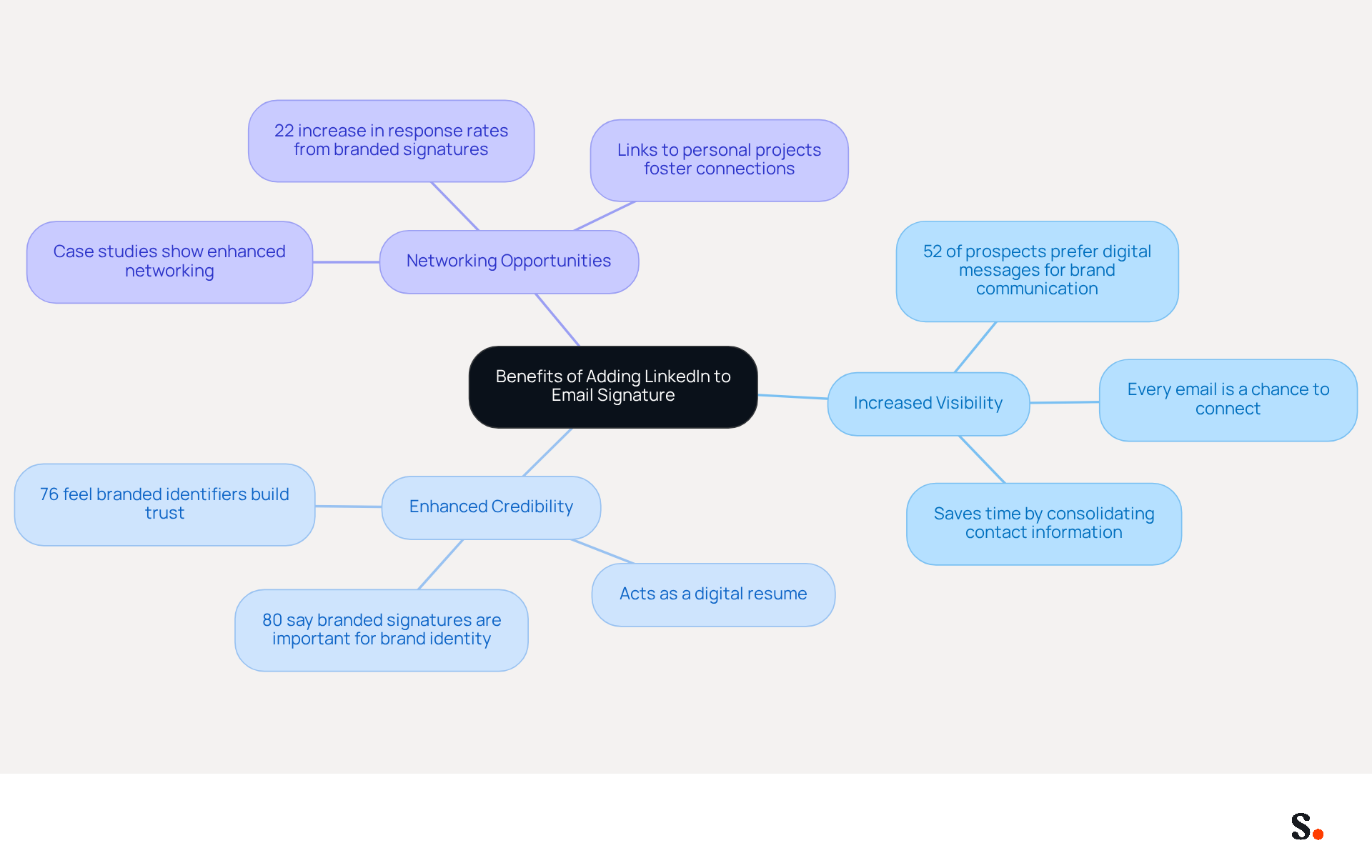
- Increased Visibility: Including a link to your LinkedIn profile makes it easier for recipients to find and connect with you, thereby expanding your professional network. Research shows that 52% of prospects prefer digital messages for brand communication, highlighting the importance of visibility in online interactions.
- Enhanced Credibility: A profile on the platform serves as a digital resume, enabling recipients to confirm your credentials and work history. Studies show that 76% of people feel that branded electronic identifiers build trust in the sender, which highlights the need for a well-designed mark.
- Networking Opportunities: Every message you send becomes a chance to connect with potential clients, partners, or employers, increasing your chances of effective networking. Case studies reveal that effective signatures can significantly enhance networking opportunities and overall professionalism in correspondence.
Understanding how to put LinkedIn on email signature helps ensure that your branding is consistent across all platforms, which is crucial for reinforcing your identity. With Scribe, every modification made in your Aircall configuration will automatically be reflected in your email branding, ensuring effortless updates and 100% brand consistency. Additionally, Scribe's SOC 2 Type II compliance and adherence to GDPR and CCPA standards ensure secure data handling, further enhancing your business image. A well-crafted branded mark can boost response rates by 22%, underscoring the power of cohesive branding.
Together, these benefits strengthen your professional image and open doors to new opportunities in your career or business. Failing to leverage these advantages could restrict your career advancement and networking potential.
Explore Methods for Integrating LinkedIn into Your Signature
Learning how to put LinkedIn on your email signature can significantly enhance your professional networking opportunities. Here are several effective methods to achieve this:
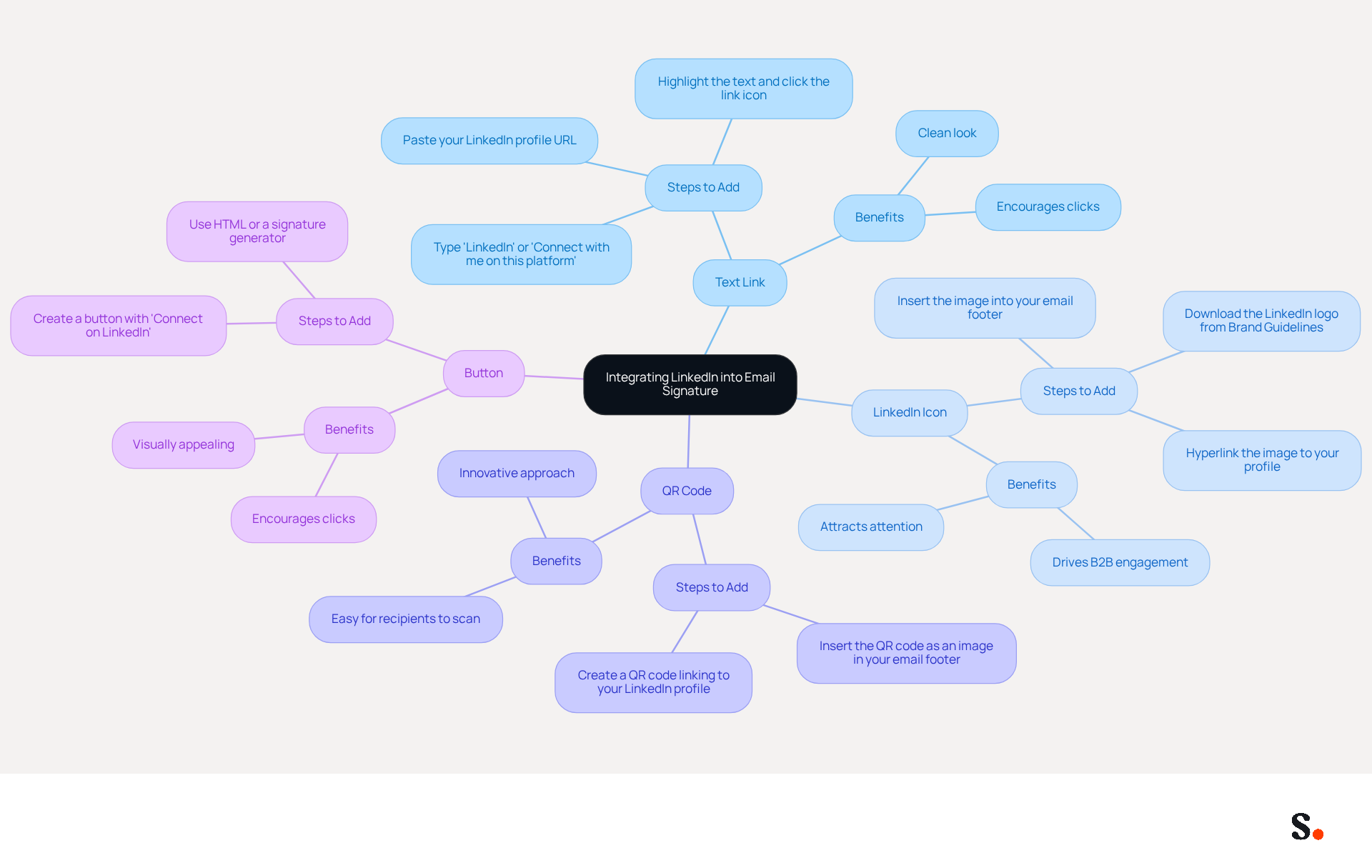
- Text Link: Type 'LinkedIn' or 'Connect with me on this platform' in your signature. Highlight the text, click the link icon, and paste your profile URL from the professional networking site.
- LinkedIn Icon: Use the official logo of the platform. Download the logo from the Brand Guidelines. Insert the image into your email footer and hyperlink it to your profile.
- QR Code: Create a QR code that directs to your professional profile. Insert this QR code as an image in your email footer, allowing recipients to scan it easily.
- Button: Create a button that says 'Connect on LinkedIn'. This can be accomplished using HTML if your messaging client supports it, or by utilizing a generator for digital signatures.
Consider how to put LinkedIn on your email signature in a way that best aligns with your professional style and the email platform you utilize. Choosing the right method can transform your email signature into a powerful networking tool.
Follow Step-by-Step Instructions for Adding LinkedIn to Your Email Signature
Knowing how to put LinkedIn on email signature can significantly enhance your professional presence. Here’s how to add LinkedIn to your email signature, depending on your email client:
For Gmail:
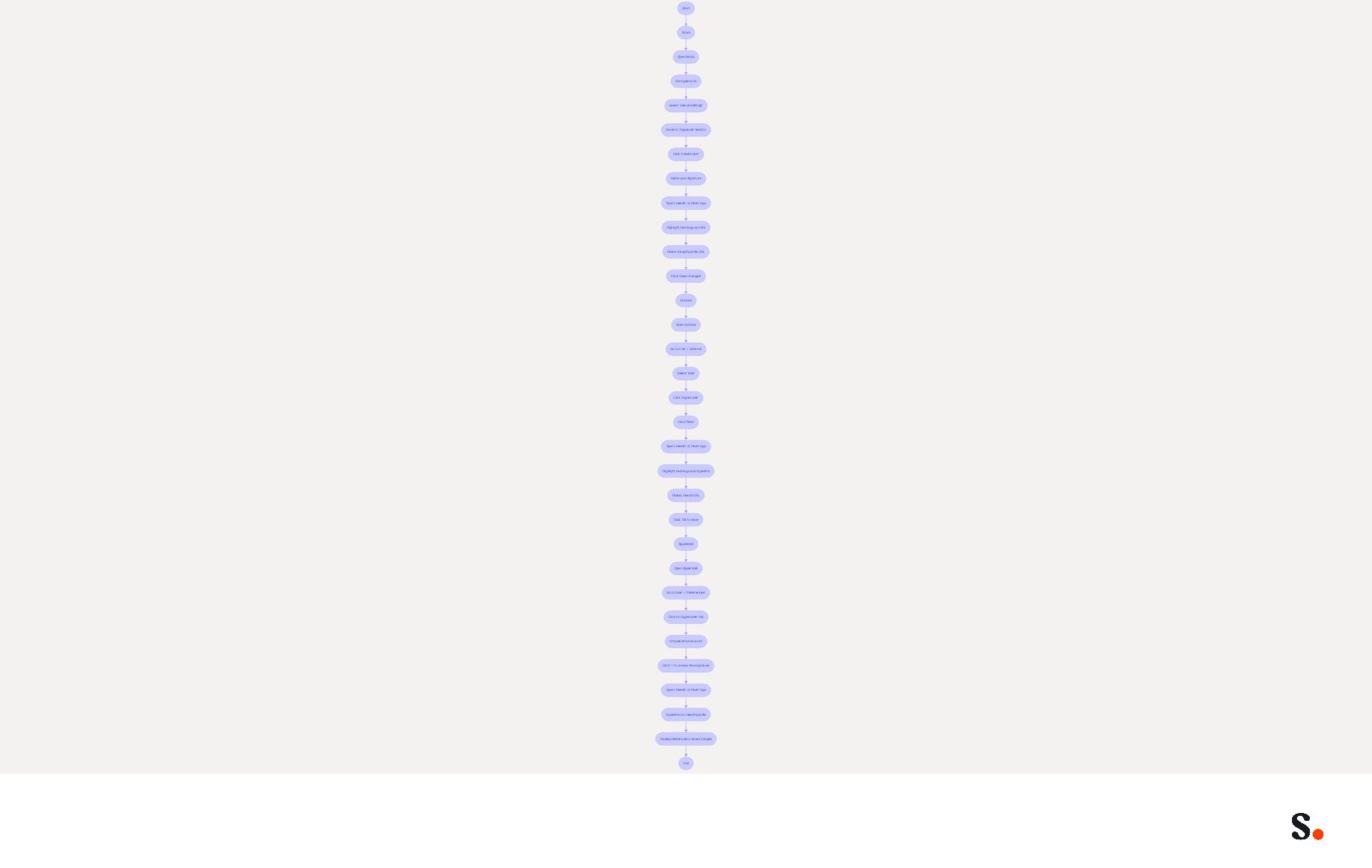
- Open Gmail and click on the gear icon in the top right corner.
- Select 'See all settings'.
- Scroll down to the 'Signature' section.
- Click 'Create new' and name your mark.
- In the editor, type 'LinkedIn' or insert the logo (ensure the logo is up to 30 pixels large for clarity).
- Highlight the text or logo, click the link icon, and paste your profile URL from the professional networking site.
- Click 'Save Changes' at the bottom.
For Outlook:
- Open Outlook and go to 'File' > 'Options'.
- Select 'Mail' and then 'Signatures'.
- Click 'New' to create a new signature.
- Type 'LinkedIn' or insert the logo associated with it.
- Highlight the text or logo, right-click, and select 'Hyperlink'. Paste your LinkedIn URL.
- Click 'OK' to save your mark.
For Apple Mail:
- Open Apple Mail and go to 'Mail' > 'Preferences'.
- Click on the 'Signatures' tab.
- Choose the email account you wish to add the personal touch to.
- Click the '+' button to create a new sign.
- Type 'LinkedIn' or insert the logo associated with it, then hyperlink it to your profile. Note that you may need to set up image links properly to ensure they work.
- Close the preferences window to save changes.
Adding a professional network link to your emails boosts visibility and builds trust, with studies showing it can enhance confidence by 76%. These steps explain how to put LinkedIn on email signature, making your LinkedIn profile accessible and increasing your chances of engagement and networking. Following these guidelines will teach you how to put LinkedIn on email signature, ensuring that your profile is easily accessible in your communications and ultimately leading to increased engagement and networking opportunities.
Scribe's automated email management makes it easy to keep your signatures updated across your team, ensuring brand consistency and compliance with GDPR and SOC 2 Type II standards. Furthermore, Scribe's integration with Google Workspace enables smooth synchronization of your teammates' information, simplifying the process of maintaining precise and current details. As Naimh Bennett, Content Marketing Manager, mentions, "By incorporating a professional network link into your email footer, you enhance visibility, save time, and boost engagement." For those who may not have technical skills, consider focusing on Scribe's user-friendly interface to simplify the process. Neglecting to include how to put LinkedIn on email signature could result in lost opportunities for meaningful connections.
Access Resources and Troubleshooting Tips for LinkedIn Integration
Experiencing challenges in understanding how to put LinkedIn on email signature can hinder your professional branding efforts. Here are some troubleshooting tips to consider:
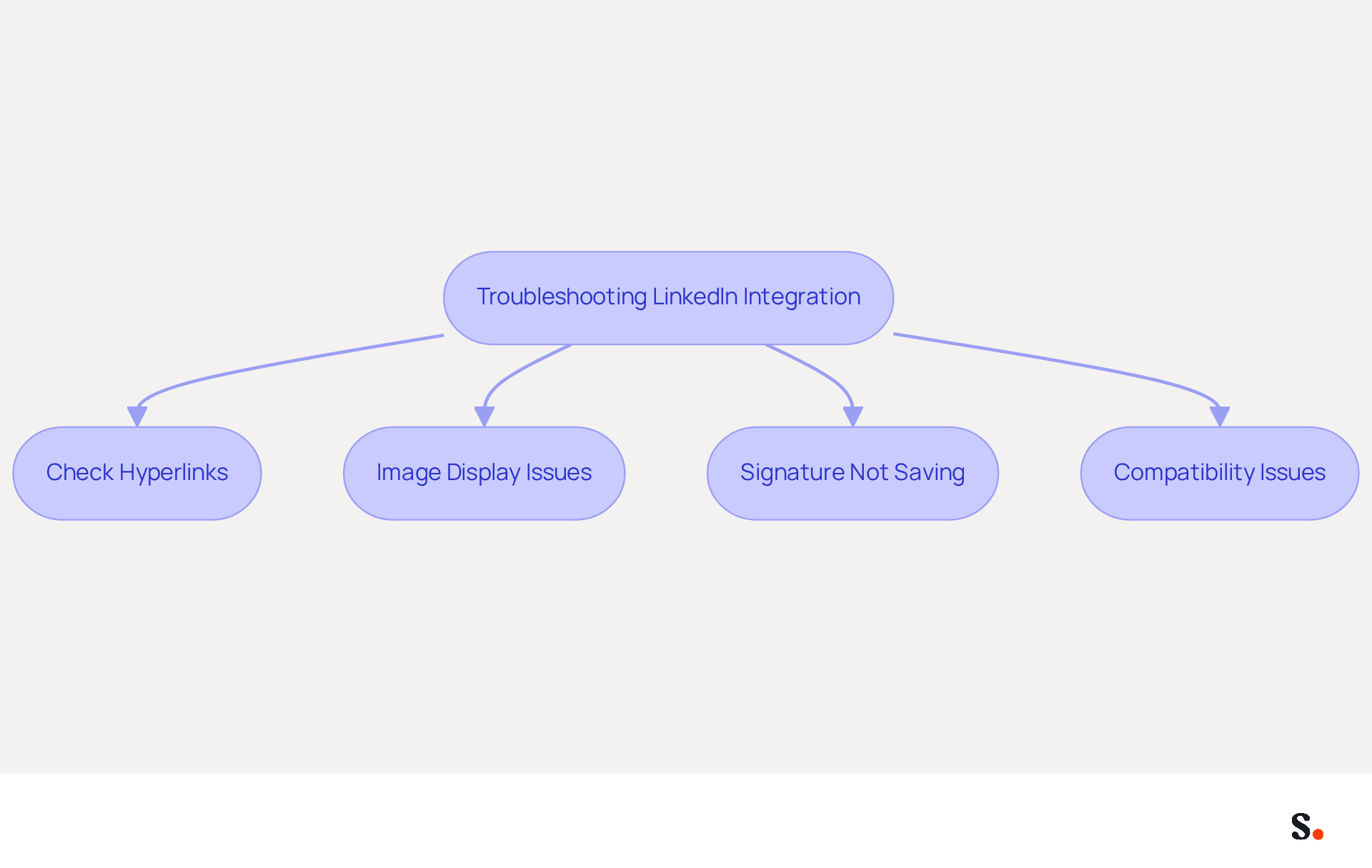
- Check Hyperlinks: Ensure that the URL you pasted is correct and leads directly to your LinkedIn profile. A common mistake is using an outdated or incorrect link.
- Image Display Issues: If the LinkedIn logo does not display, verify that the image is hosted online and accessible. Utilizing reliable image hosting services can resolve visibility problems.
- Signature Not Saving: If your signature changes aren't saving, make sure you click 'Save Changes' in your settings. This step is essential for applying your updates.
- Compatibility Issues: Some messaging clients may not support certain features. Examine the documentation for your specific messaging client to verify compatibility with integration into the platform.
Integrating LinkedIn into your emails by learning how to put LinkedIn on email signature really boosts your professional branding. Studies indicate that 52% of buyers view LinkedIn as the most impactful channel during their research process. By syncing your Google Workspace with Scribe, you can save time and ensure that any changes to your teammates' information are automatically reflected in your signatures. This not only streamlines the management process but also enhances engagement and visibility, especially as mobile devices account for a growing percentage of email opens. Additionally, Scribe's compliance with SOC 2 Type II, GDPR, and CCPA ensures that your data is handled securely, further boosting your professional presence. Resolving these issues can significantly enhance your professional image and communication effectiveness.
Conclusion
Integrating LinkedIn into email signatures is a strategic decision that can transform professional visibility and networking potential. By incorporating this powerful platform into email communications, professionals can enhance their credibility, foster connections, and create opportunities for collaboration. A well-crafted email signature acts as a digital business card, showcasing your professional identity.
The article outlines several effective methods for adding LinkedIn to email signatures, including:
- Using text links
- Icons
- QR codes
- Buttons
Step-by-step instructions for popular email clients like Gmail, Outlook, and Apple Mail ensure that anyone can easily implement these strategies. Additionally, troubleshooting tips address potential challenges that may arise during the integration process, ensuring a seamless experience. Without Scribe, managing email signatures can become a cumbersome task, but with its automated management capabilities, maintaining brand consistency and compliance with security standards is straightforward, further enhancing the professional image.
Leveraging LinkedIn in email signatures goes beyond aesthetics; it’s about fostering genuine connections and maximizing engagement. As the digital landscape continues to evolve, professionals must adapt by utilizing every tool at their disposal. Adopting this practice not only enhances professional communication but also positions individuals for greater success in their careers.
Frequently Asked Questions
What are the benefits of adding LinkedIn to your email signature?
The benefits include increased visibility, enhanced credibility, and networking opportunities. Including a LinkedIn link makes it easier for recipients to connect with you, serves as a digital resume to confirm your credentials, and turns every email into a chance to network.
How does including LinkedIn in an email signature increase visibility?
Including a link to your LinkedIn profile allows recipients to easily find and connect with you, thereby expanding your professional network. Research indicates that 52% of prospects prefer digital messages for brand communication, emphasizing the importance of visibility.
In what way does a LinkedIn profile enhance credibility?
A LinkedIn profile acts as a digital resume, enabling recipients to verify your credentials and work history. Studies show that 76% of people believe that branded electronic identifiers build trust in the sender.
How can adding LinkedIn to my email signature create networking opportunities?
Every email you send becomes a potential connection point with clients, partners, or employers, increasing your chances of effective networking. Effective signatures can significantly enhance networking opportunities and professionalism in correspondence.
How does Scribe help maintain brand consistency when adding LinkedIn to an email signature?
Scribe ensures that any modifications made in your Aircall configuration are automatically reflected in your email branding, allowing for effortless updates and 100% brand consistency.
What compliance standards does Scribe adhere to for secure data handling?
Scribe is compliant with SOC 2 Type II and adheres to GDPR and CCPA standards, ensuring secure data handling and enhancing your business image.
What impact can a well-crafted branded mark have on response rates?
A well-crafted branded mark can boost response rates by 22%, highlighting the importance of cohesive branding in professional communications.
What could happen if I fail to leverage the advantages of adding LinkedIn to my email signature?
Failing to leverage these advantages could restrict your career advancement and networking potential, limiting opportunities in your career or business.
List of Sources
- Understand the Benefits of Adding LinkedIn to Your Email Signature
- How to Include LinkedIn in Your Email Signature: A Step-by-Step Guide (https://scribe-mail.com/en-US/blog/how-to-include-linkedin-in-your-email-signature-a-step-by-step-guide)
- Personal Email Signature Examples, Key Benefits & Tips (https://linkedin.com/pulse/personal-email-signature-examples-key-benefits-tips-newoldstamp-gtnmf)
- 40+ Email Signature Statistics for 2026 (Data + Insights) (https://wavecnct.com/blogs/email-signature-statistics)
- Add a LinkedIn Logo to Your Email Signature | Newoldstamp - NEWOLDSTAMP (https://newoldstamp.com/blog/add-linkedin-logo-email-signature)
- How to Add Your LinkedIn Profile to Your Email Signature (https://topechelon.com/blog/how-add-linkedin-email-signature-button)
- Explore Methods for Integrating LinkedIn into Your Signature
- How to Add LinkedIn to Your Email Signature (Gmail, Outlook, Mac) (https://exclaimer.com/email-signature-handbook/add-linkedin-to-email-signature)
- Add a LinkedIn Logo to Your Email Signature | Newoldstamp - NEWOLDSTAMP (https://newoldstamp.com/blog/add-linkedin-logo-email-signature)
- How to Add Your LinkedIn Profile to Your Email Signature (https://topechelon.com/blog/how-add-linkedin-email-signature-button)
- 40+ Email Signature Statistics for 2026 (Data + Insights) (https://wavecnct.com/blogs/email-signature-statistics)
- How to Include LinkedIn in Your Email Signature: A Step-by-Step Guide (https://scribe-mail.com/en-US/blog/how-to-include-linkedin-in-your-email-signature-a-step-by-step-guide)
- Follow Step-by-Step Instructions for Adding LinkedIn to Your Email Signature
- How to Include LinkedIn in Your Email Signature: A Step-by-Step Guide (https://scribe-mail.com/en-US/blog/how-to-include-linkedin-in-your-email-signature-a-step-by-step-guide)
- How to Add LinkedIn to Your Email Signature (Gmail, Outlook, Mac) (https://exclaimer.com/email-signature-handbook/add-linkedin-to-email-signature)
- Add a LinkedIn Logo to Your Email Signature | Newoldstamp - NEWOLDSTAMP (https://newoldstamp.com/blog/add-linkedin-logo-email-signature)
- Access Resources and Troubleshooting Tips for LinkedIn Integration
- Email signature statistics and trends in 2024 (https://wisestamp.com/blog/email-signature-statistics)
- New LinkedIn Social Feeds in Exclaimer Email Signatures (https://exclaimer.com/blog/add-linkedin-social-feeds-to-your-email-signatures)
- 40+ Email Signature Statistics for 2026 (Data + Insights) (https://wavecnct.com/blogs/email-signature-statistics)
Get started with Scribe
See why teams switch to Scribe
Free 14-day trial — no credit card.