How to Remove Outlook Signature: Step-by-Step Guide for Marketers
Managing email signatures in Outlook presents significant challenges for marketers aiming for brand consistency. This guide provides a straightforward
Sophie Grant
Email Signature Specialist, Scribe
On this page
Introduction
Managing email signatures in Outlook presents significant challenges for marketers aiming for brand consistency. This guide provides a straightforward, step-by-step method for effectively managing Outlook signatures, ensuring that communications remain professional and aligned with organizational standards. This guide addresses common challenges, including:
- Instances where signatures do not disappear
- Settings conflict
Equipped with this knowledge, readers can tackle signature management effectively, understanding that maintaining professionalism in email communications is crucial.
Access Email Signature Settings in Outlook
Accessing email signature settings in Outlook can often be a challenge for users, but following these steps can simplify the process:
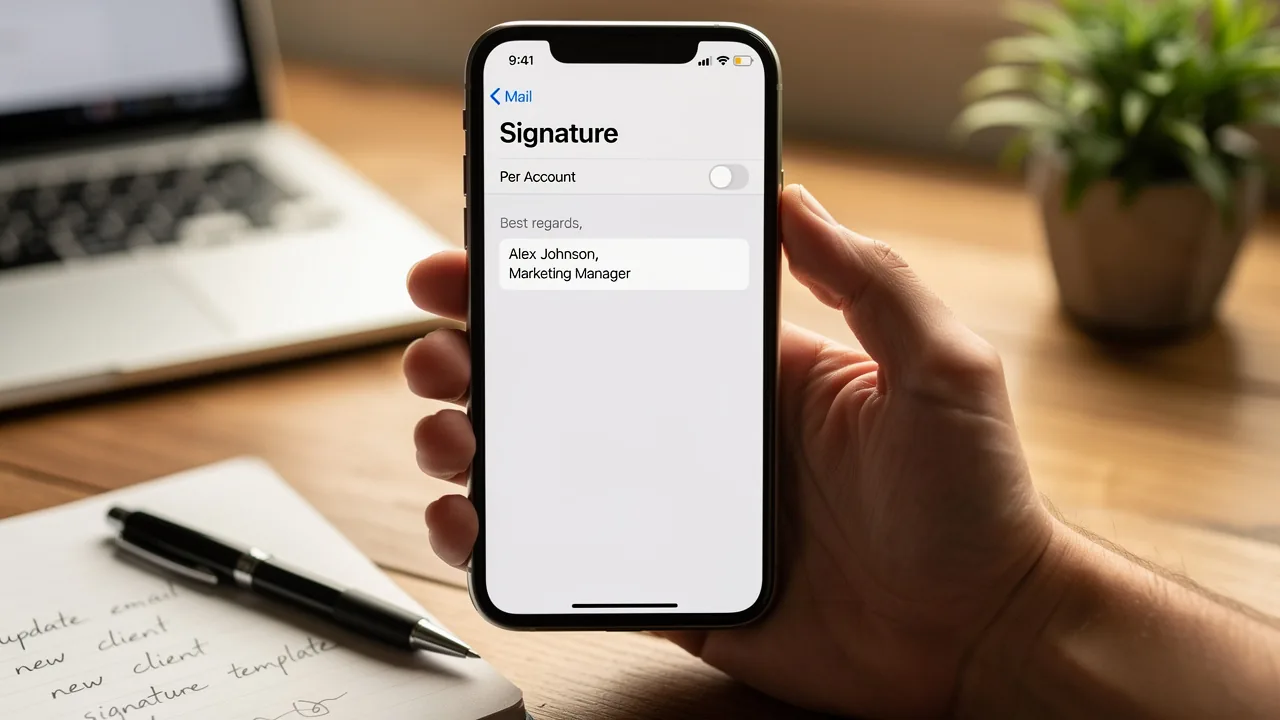
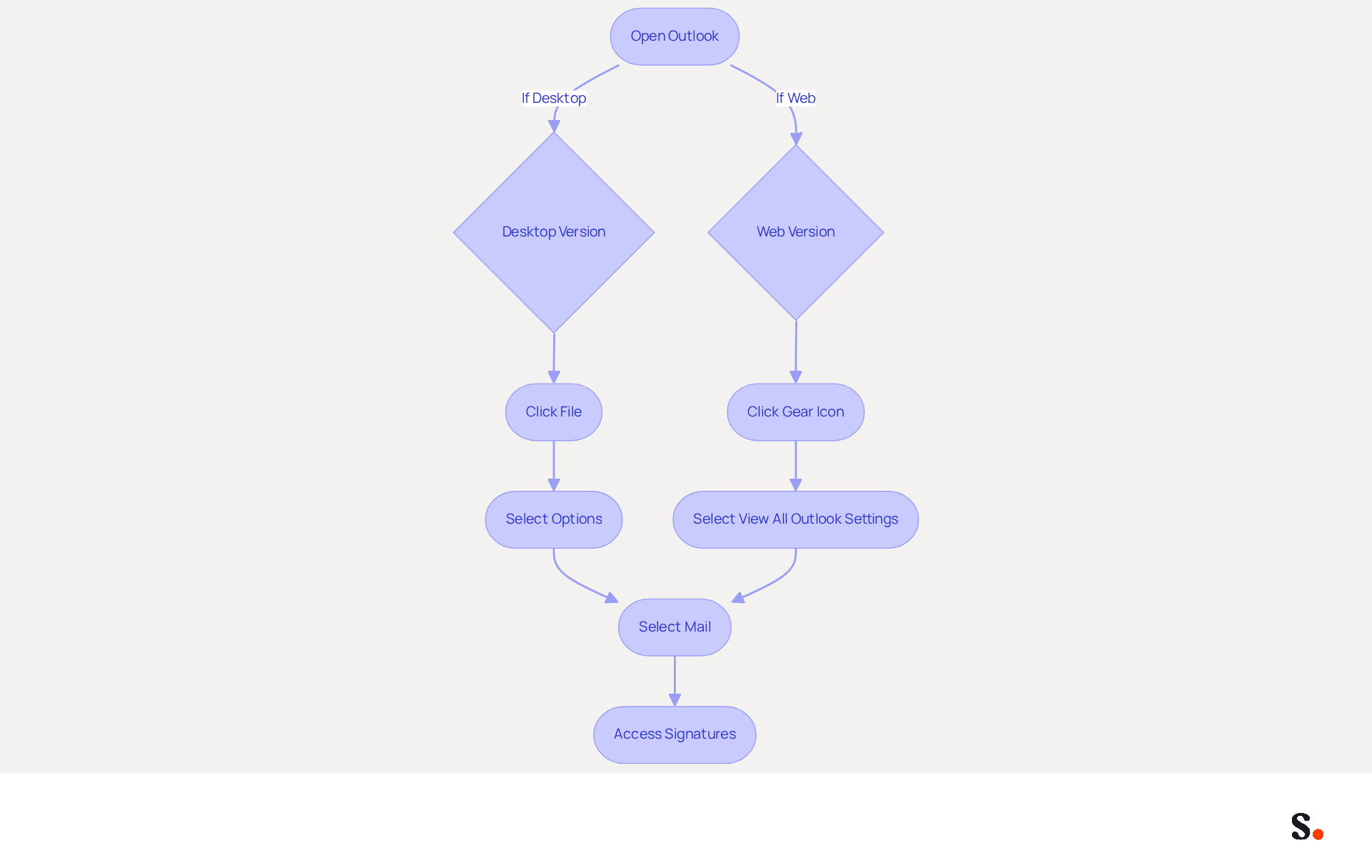
- Open the application: Launch the email program on your desktop or navigate to the web app in your browser.
- Navigate to Options:
- For the desktop version, click on
Filein the top left corner, then selectOptionsfrom the menu. - For the web version, click on the gear icon (⚙️) in the upper right corner and select
View all Outlook settings.
- For the desktop version, click on
- Select Mail: In the options menu, click on
Mailto expand the settings. - Access Signatures: Look for the
Signaturessection. Here, you will find options to create, edit, or remove Outlook signature.
Following these steps allows you to access the necessary settings for modifying your email signature. To set up one-click synchronization with Scribe, simply grant it permission to connect with your service provider. Ensure you are a Super Admin of your service provider to provide these permissions. Additionally, by syncing your Google Workspace with the application, you can streamline this process further. This tool enables one-click synchronization, guaranteeing that any modifications made in your provider are automatically shown in your identifiers. This not only saves time but also enhances brand consistency and security compliance, as the platform is SOC 2 Type II certified. With Scribe, marketing teams can manage digital identifiers independently, ensuring that all modifications are current without manual input. Moreover, Scribe can improve teammate information from HR software and other sources after syncing with the provider, enabling a more thorough management of identifiers. By ensuring synchronization with Scribe, teams can maintain up-to-date signatures effortlessly, reinforcing their brand identity across all communications.
Remove Signature from Outlook Desktop and Web
To maintain a professional appearance in your communications, it is essential to remove the Outlook signature.
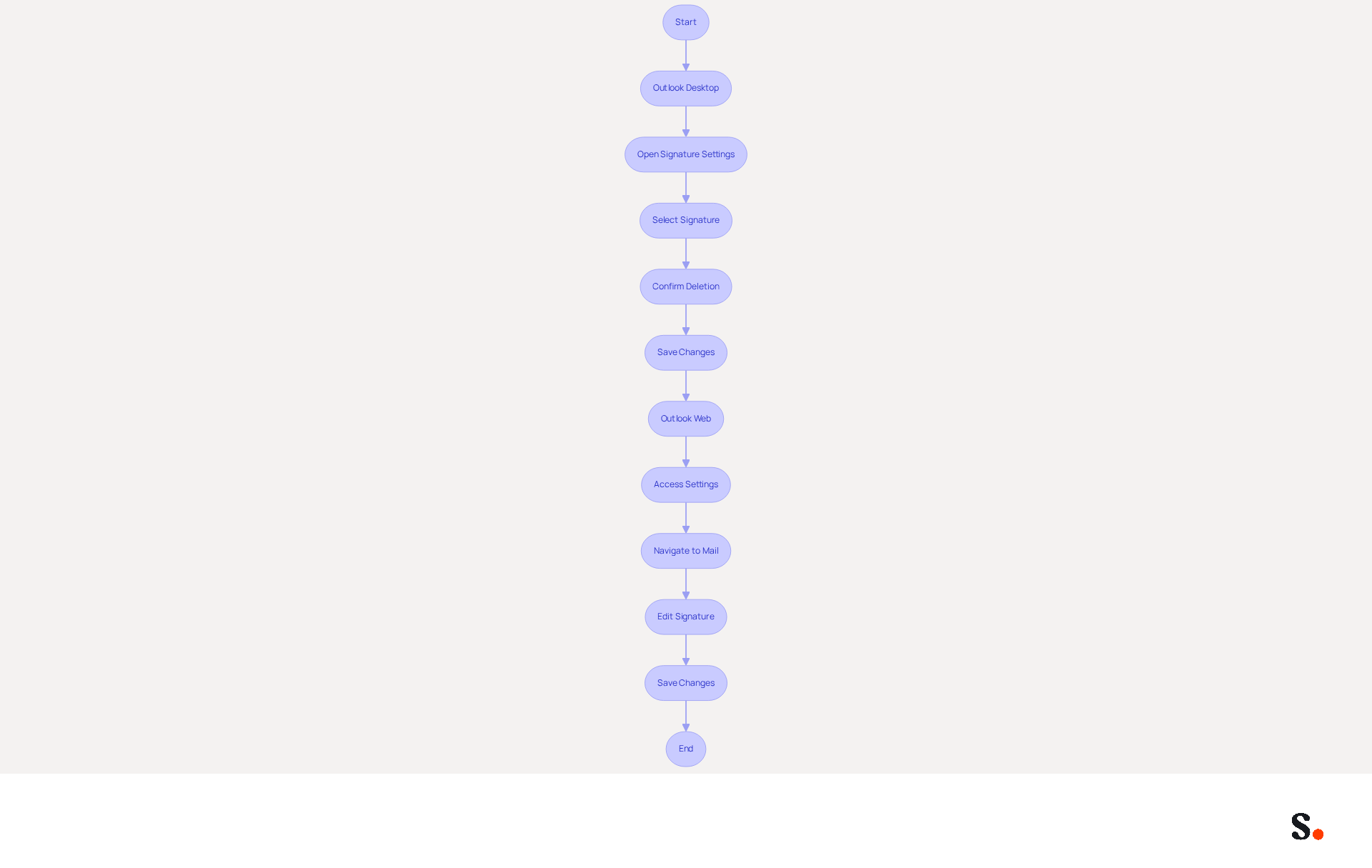
For Outlook Desktop:
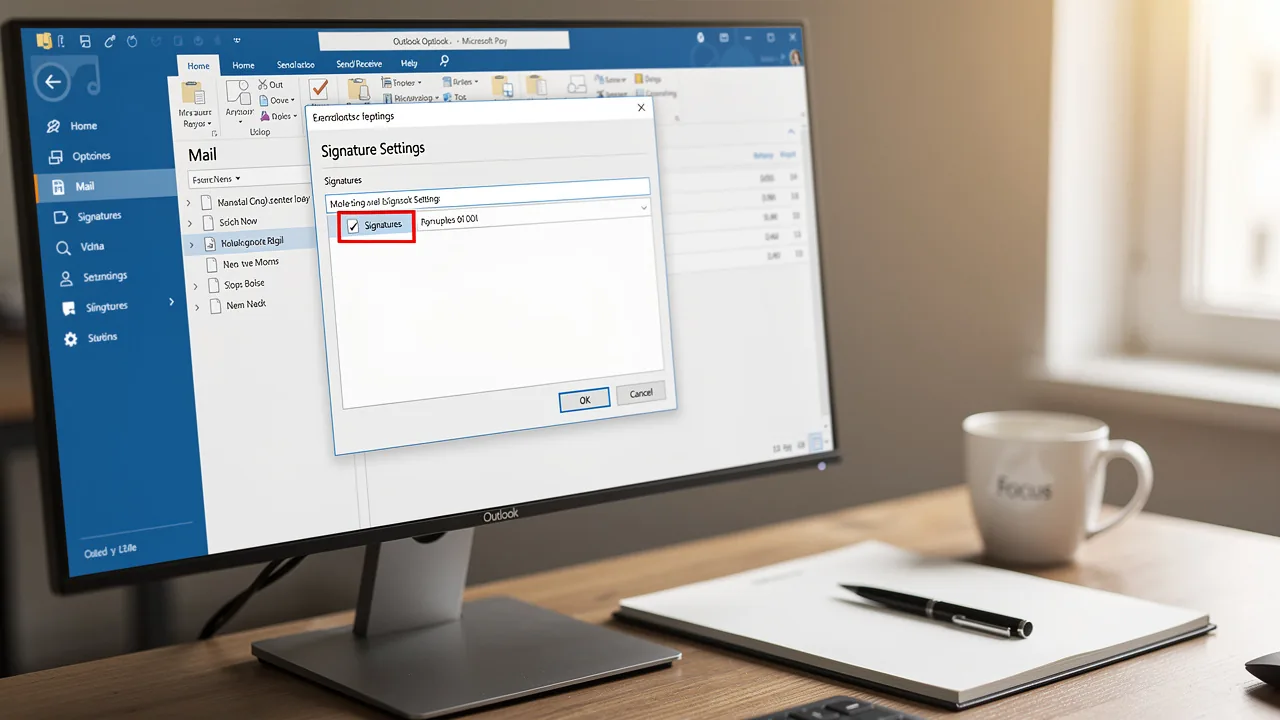
- Open Signature Settings: Navigate to
File>Options>Mail>Signatures. - Select Signature: In the
Select item to editbox, choose the item you wish to remove. - To clean up your email, you may want to remove the Outlook signature. To remove the Outlook signature, click the
Deletebutton. A confirmation dialog will appear. - Confirm Deletion: Click
Yesto verify that you want to remove the selected item. - Save Changes: Click
OKto exit the signature settings.
For Outlook Web:
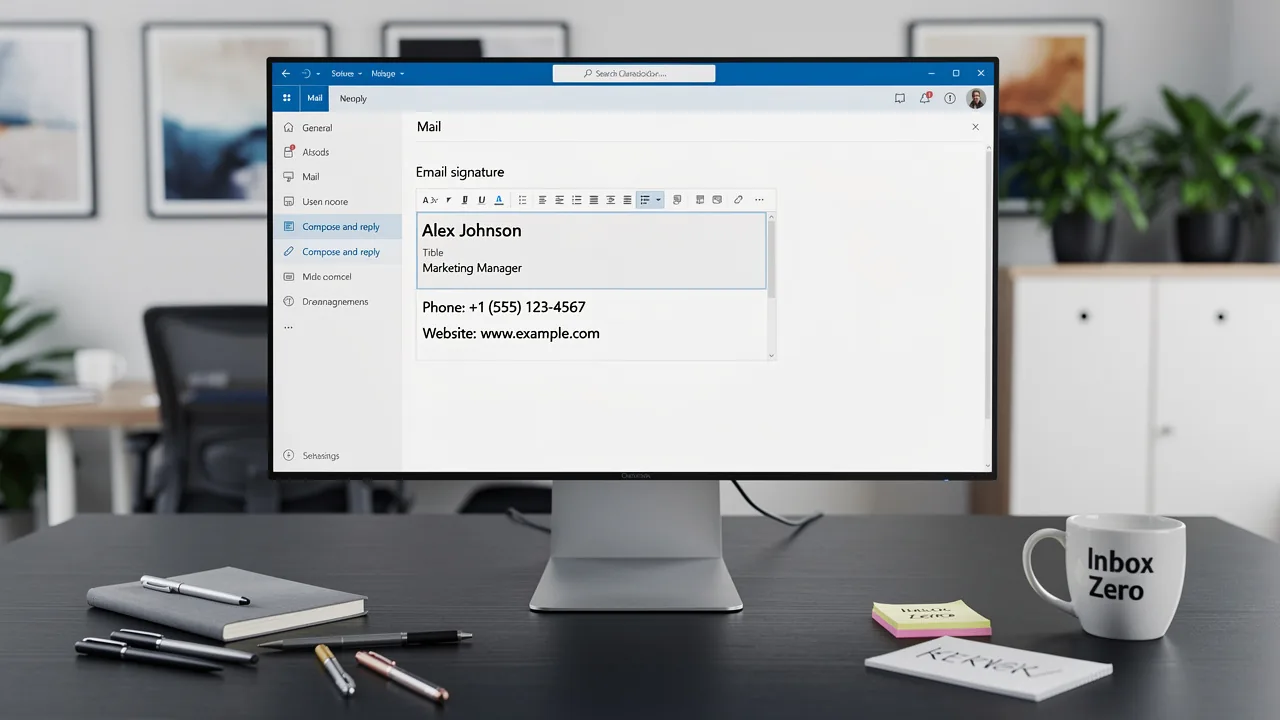
- Access Settings: Click on the gear icon (⚙️) in the upper right corner and select
View all email settings. - Navigate to Mail: Click on
Mail, then selectCompose and reply. - To clean up your email, you may want to remove the Outlook signature. Edit Signature: In the
Email signaturesection, delete any text in the editor box or uncheck the boxes labeledAutomatically include my details on new messages I composeandAutomatically include my details on messages I forward or reply to. - Save Changes: Click
Saveto apply your changes.
Neglecting to update your email signature can lead to miscommunication and a lack of professionalism in your correspondence.
Troubleshoot Common Issues When Removing Signatures
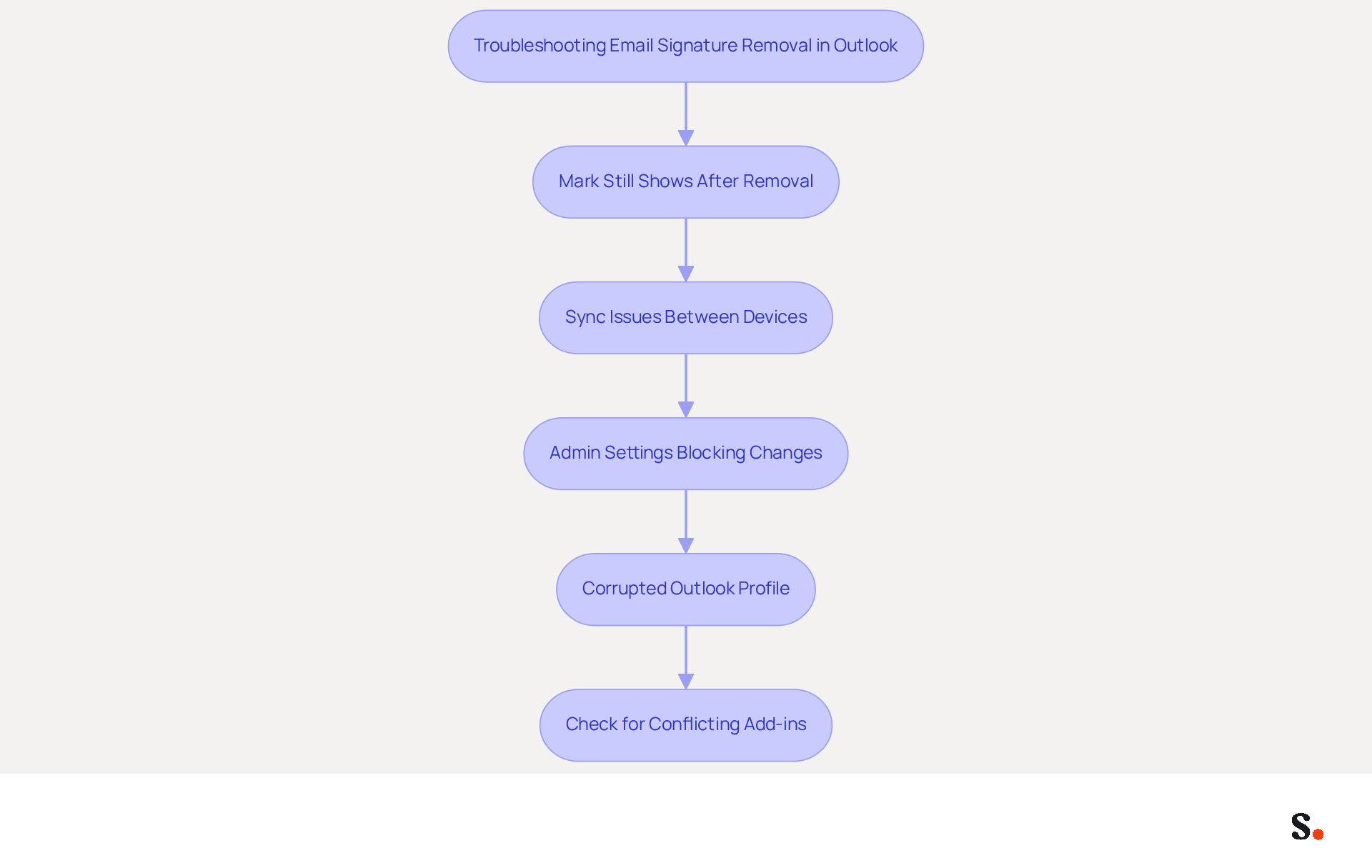
If you're encountering challenges while trying to remove your email signature in Outlook, several troubleshooting tips can help you navigate these issues effectively:
- Mark Still Shows After Removal: If your mark continues to show after you've removed it, try restarting Scribe. Changes typically take effect only after refreshing the application.
- Sync Issues Between Devices: If you use Outlook on multiple devices, ensure that your settings are synchronized. Check if the mark is still present on other devices and remove it there as well.
- Admin Settings Blocking Changes: In certain organizational environments, administrators may limit modifications to email identifiers. If admin settings are blocking your changes, it may hinder your ability to remove Outlook signature effectively. Contact your IT department for assistance if you suspect this is the case.
- Corrupted Outlook Profile: If you are still having trouble, consider creating a new Outlook profile. This can resolve issues related to corrupted settings that may hinder removal of the mark. Creating a new profile can provide a fresh configuration, often leading to successful resolution of identification issues.
- Check for Conflicting Add-ins: Third-party add-ins often interfere with Outlook's functionality, which can affect your ability to remove Outlook signature. Disable any unnecessary add-ins and attempt to remove the sign-off again.
Furthermore, ensure that a default mark is chosen in email settings for new messages and replies/forwards, as this is a vital step in resolving mark-related issues. Statistics indicate that most Outlook issues in Office 365 arise from the desktop application, especially following updates, highlighting the importance of these troubleshooting methods. By implementing these troubleshooting steps, you can enhance your email signature management and ensure a smoother experience with Outlook.
Leverage Automated Tools for Efficient Signature Management
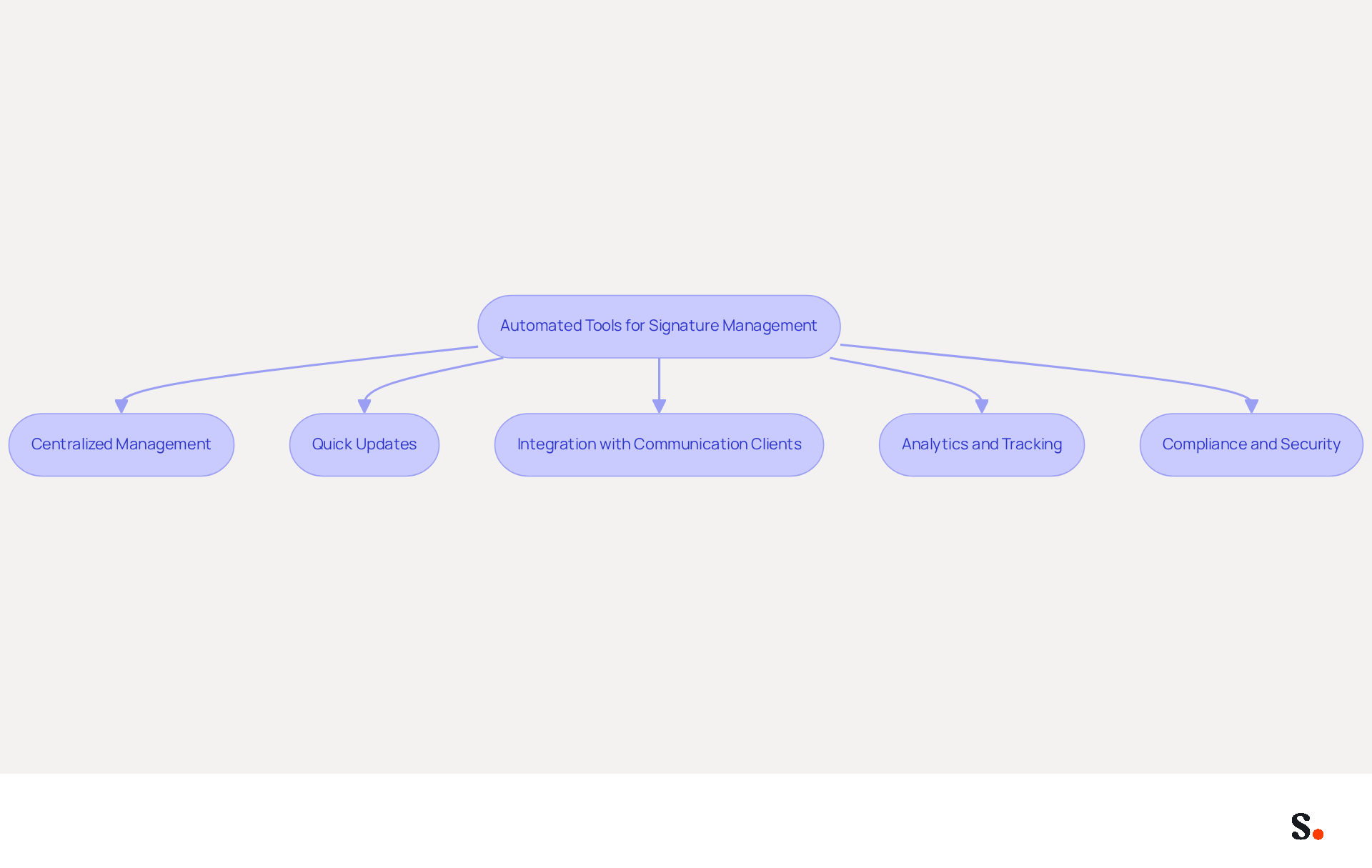
To enhance your management of electronic correspondence identifiers, automated tools like Scribe are essential. Here’s how these tools can help:
- Centralized Management: Automated tools allow you to oversee all messaging identifiers from a single platform, ensuring consistency throughout your organization. This centralized approach is crucial; in fact, 76% of respondents agree that branded email identifiers boost sender trust.
- Quick Updates: With Scribe, you can update sign-offs for your entire team with just one click, allowing you to remove outlook signature requirements for manual changes across multiple accounts. Manual updates can lead to inconsistencies and wasted time, especially for a company with 100 employees that generates 60,000-80,000 branded impressions each month.
- Integration with Communication Clients: Many automated management tools integrate seamlessly with popular communication clients like Outlook, ensuring that your identifiers are always up-to-date and on-brand. This integration helps maintain compliance with legal requirements and company policies, which is essential for building trust with recipients.
- Analytics and Tracking: This platform offers powerful analytics capabilities that enable you to monitor the effectiveness of your messages, assisting you in enhancing engagement. For example, branded digital identifiers can drive a 12% average click-through rate on banner displays, significantly enhancing your marketing efforts.
- Compliance and Security: Scribe is SOC 2 Type II compliant and GDPR compliant, ensuring that your digital identifiers adhere to legal requirements and company policies. Additionally, Scribe offers SAML single sign-on integration, enhancing security and simplifying access for employees.
By adopting these automated solutions, you position your organization to leverage every email as a strategic marketing opportunity.
Conclusion
Marketers often overlook the importance of removing outdated Outlook signatures, which can undermine their brand's professionalism. Following these steps allows users to easily manage their signature settings in Outlook, whether on desktop or web.
This guide highlights how crucial it is to access the right settings for effective signature management. It outlines a straightforward process for removing signatures and provides troubleshooting tips for common issues that may arise. Additionally, leveraging automated tools like Scribe can significantly enhance the management of email signatures, allowing marketing teams to maintain control and consistency without relying heavily on IT support. With Scribe's capabilities, organizations can ensure compliance with security standards while optimizing their email signature management.
Every email is a chance to engage, making effective signature management essential. By utilizing tools that streamline this process, marketers can transform their email signatures into powerful branding assets, driving higher engagement rates and reinforcing their brand identity. Embracing automation not only saves time but also enhances the overall effectiveness of email communications, making it a strategic move for any organization looking to maximize its marketing ROI.
Frequently Asked Questions
How do I access email signature settings in Outlook?
To access email signature settings in Outlook, open the application, then navigate to Options. For the desktop version, click on File in the top left corner and select Options. For the web version, click on the gear icon (⚙️) in the upper right corner and select View all Outlook settings.
Where can I find the Signatures section in Outlook?
In the options menu, click on Mail to expand the settings, and then look for the Signatures section where you can create, edit, or remove your Outlook signature.
How can I set up one-click synchronization with Scribe?
To set up one-click synchronization with Scribe, grant it permission to connect with your service provider. Ensure you are a Super Admin of your service provider to provide these permissions.
What are the benefits of syncing Google Workspace with Scribe?
Syncing Google Workspace with Scribe streamlines the process of managing email signatures, allowing for one-click synchronization. This ensures that any modifications made in your provider are automatically reflected in your identifiers, saving time and enhancing brand consistency and security compliance.
How does Scribe help marketing teams manage digital identifiers?
Scribe allows marketing teams to manage digital identifiers independently, ensuring that all modifications are current without manual input. It can also improve teammate information from HR software and other sources after syncing with the provider.
What certification does Scribe hold for security compliance?
Scribe is SOC 2 Type II certified, which enhances security compliance for managing email signatures and digital identifiers.
List of Sources
- Access Email Signature Settings in Outlook
- 40+ Email Signature Statistics for 2026 (Data + Insights) (https://wavecnct.com/blogs/email-signature-statistics)
- How Email Signatures Impact Marketing Performance (https://letsignit.com/blog/how-email-signatures-impact-marketing-performance)
- Email signature statistics: Why every business should optimize their email signatures — Stripo.email (https://stripo.email/blog/email-signature-statistics-why-every-business-should-optimize-their-email-signatures)
- Email Signature Statistics: A Closer Look at Email Signatures in 2026 (https://mysignature.io/blog/email-signature-statistics)
- Remove Signature from Outlook Desktop and Web
- How to delete existing signatures from Microsoft Outlook (Windows) (https://support.exclaimer.com/hc/en-gb/articles/9167806777885-How-to-delete-existing-signatures-from-Microsoft-Outlook-Windows)
- Remove Outlook Signature (https://help.vccs.edu/TDClient/3230/WCC/KB/Article/161768/Remove-Outlook-Signature)
- How to Remove Your Email Signature in Outlook (Web and Desktop Client) (https://helpdesk.wnpa.org/hc/en-us/articles/41153542006035-How-to-Remove-Your-Email-Signature-in-Outlook-Web-and-Desktop-Client)
- Email Statistics Software for Outlook (https://outlook-apps.com/email-statistics-software)
- How can I delete an email signature in Outlook, when the signature box is empty? - Microsoft Q&A (https://learn.microsoft.com/en-us/answers/questions/4640406/how-can-i-delete-an-email-signature-in-outlook-whe)
- Troubleshoot Common Issues When Removing Signatures
- 4 Steps to Fix Your Outlook Signature Not Showing Issues (https://scribe-mail.com/en-US/blog/4-steps-to-fix-your-outlook-signature-not-showing-issues)
- Outlook Signature Disappears? 6 Common Problems + Fixes (https://conbool.com/blog/outlook-signature-disappears-fixes-problems)
- Outlook Signature Not Working in Office 365: Causes & Fixes (https://exclaimer.com/email-signature-handbook/outlook-signature-not-working-in-office-365)
- How to solve problems with email signatures in Microsoft 365? (https://mail-signatures.com/articles/problems-email-signatures-office-365)
- Email Signatures vanishing - New Outlook | Microsoft Community Hub (https://techcommunity.microsoft.com/discussions/outlookgeneral/email-signatures-vanishing---new-outlook/4418809)
- Leverage Automated Tools for Efficient Signature Management
- Email Signature Trends 2026: Centralized Control & Automation | SIGNandGO posted on the topic | LinkedIn (https://linkedin.com/posts/signngo_email-signature-trends-to-watch-in-2026-activity-7401523471786217473-zAVL)
- How Automated Email Signatures in Outlook Can Help Businesses Spread Their Marketing Message (https://linkedin.com/pulse/how-automated-email-signatures-outlook-can-help-businesses-spread-gc5we)
- Automating Email Signatures: How IT Teams Streamline Processes & Reduce Risk (https://exclaimer.com/blog/streamlining-it-processes-automated-email-signatures)
- Email signature do’s & don’ts: from chaos to consistency and performance in every send (https://marketingtechnews.net/news/email-signature-dos-donts-from-chaos-to-consistency-and-performance-in-every-send)
- 40+ Email Signature Statistics for 2026 (Data + Insights) (https://wavecnct.com/blogs/email-signature-statistics)
Get started with Scribe
Create your signature in minutes
Free 14-day trial — no credit card.