How to Remove Signature from Gmail Mobile: A Step-by-Step Guide
Navigating the Gmail mobile app to remove a signature can be a frustrating experience for many users, yet it is vital for maintaining a professional image in
Sophie Grant
Email Signature Specialist, Scribe
Introduction
Navigating the Gmail mobile app to remove a signature can be a frustrating experience for many users, yet it is vital for maintaining a professional image in digital communication. With over 62% of users relying on Gmail for their correspondence, ensuring that email signatures are up-to-date and consistent is crucial for brand credibility. Many users find it challenging to locate the settings for email signatures on the Gmail mobile app.
What are the best practices for effectively managing email signatures on mobile devices?
By leveraging automated solutions like Scribe, marketing and IT teams can ensure their email signatures reflect their brand's professionalism and consistency, ultimately enhancing their credibility.
Access Gmail Settings to Manage Signatures
It is crucial for maintaining a professional image in communications to know how to remove signature from Gmail mobile. To eliminate the footer in Gmail, follow these steps:
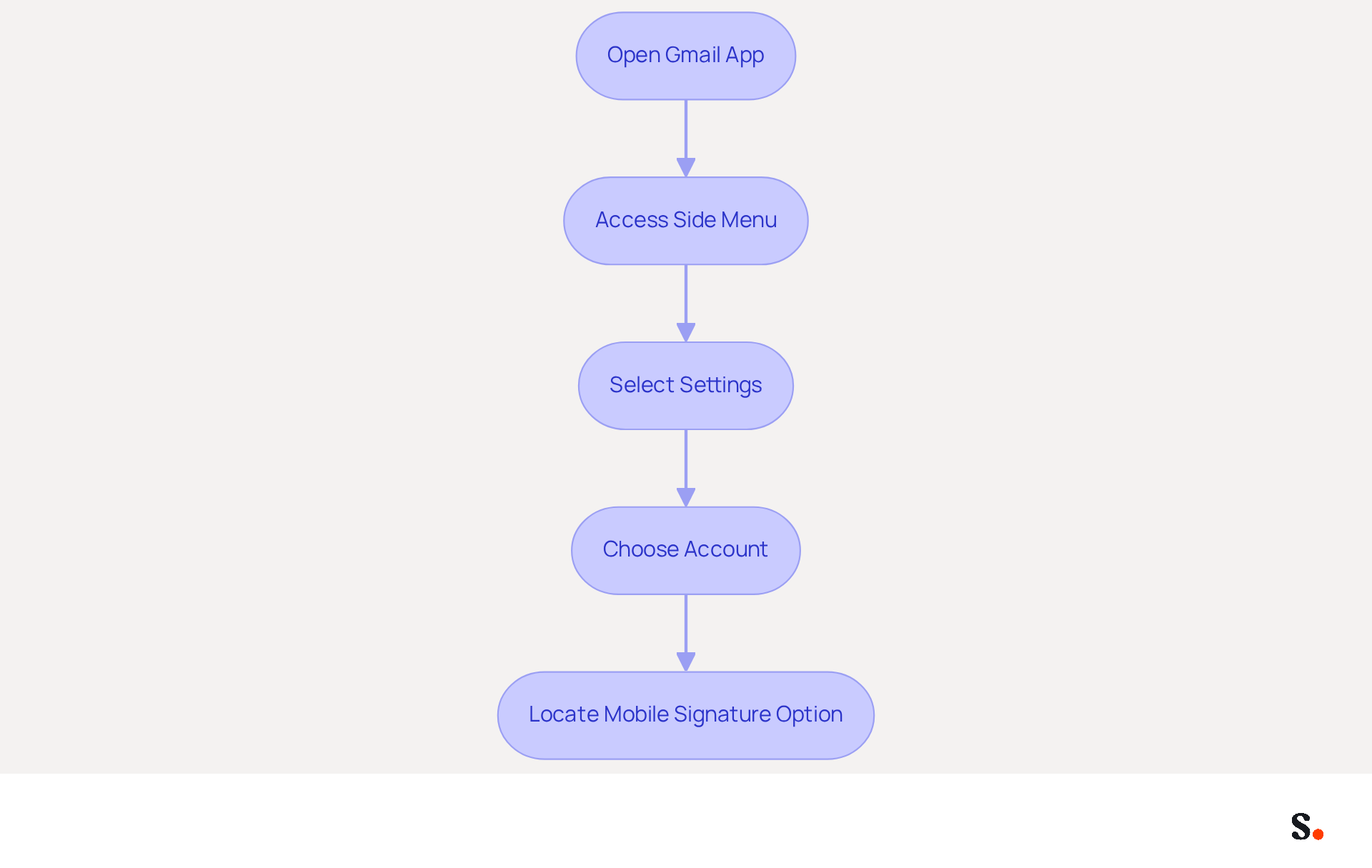
- Open the Gmail app on your mobile device.
- Tap the three horizontal lines (menu icon) in the top-left corner to access the side menu.
- Scroll down and select 'Settings.'
- Select the account for which you wish to eliminate the footer.
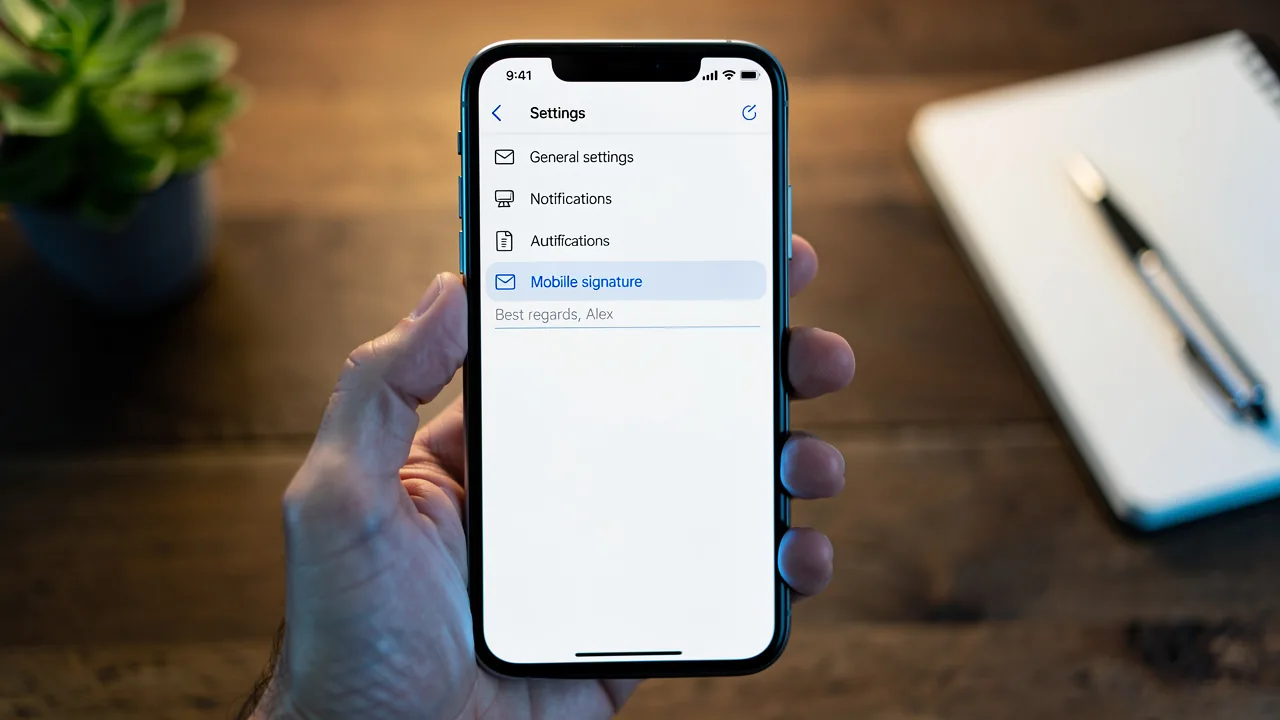
- Locate the 'Mobile Signature' option under the 'General' settings section. This is where you can adjust your messaging settings.
Given that 62.2% of users rely on Gmail for communication, it is essential to understand how to remove signature from Gmail mobile to maintain a professional image. Regular updates to your signature can enhance brand consistency and trust, as 76% of consumers feel more confident when receiving messages with branded signatures. Neglecting to update your signature could undermine your brand's credibility and professionalism.
Delete or Disable Your Current Signature
Changing your email signature in the Gmail app is essential for maintaining a consistent professional image across devices.
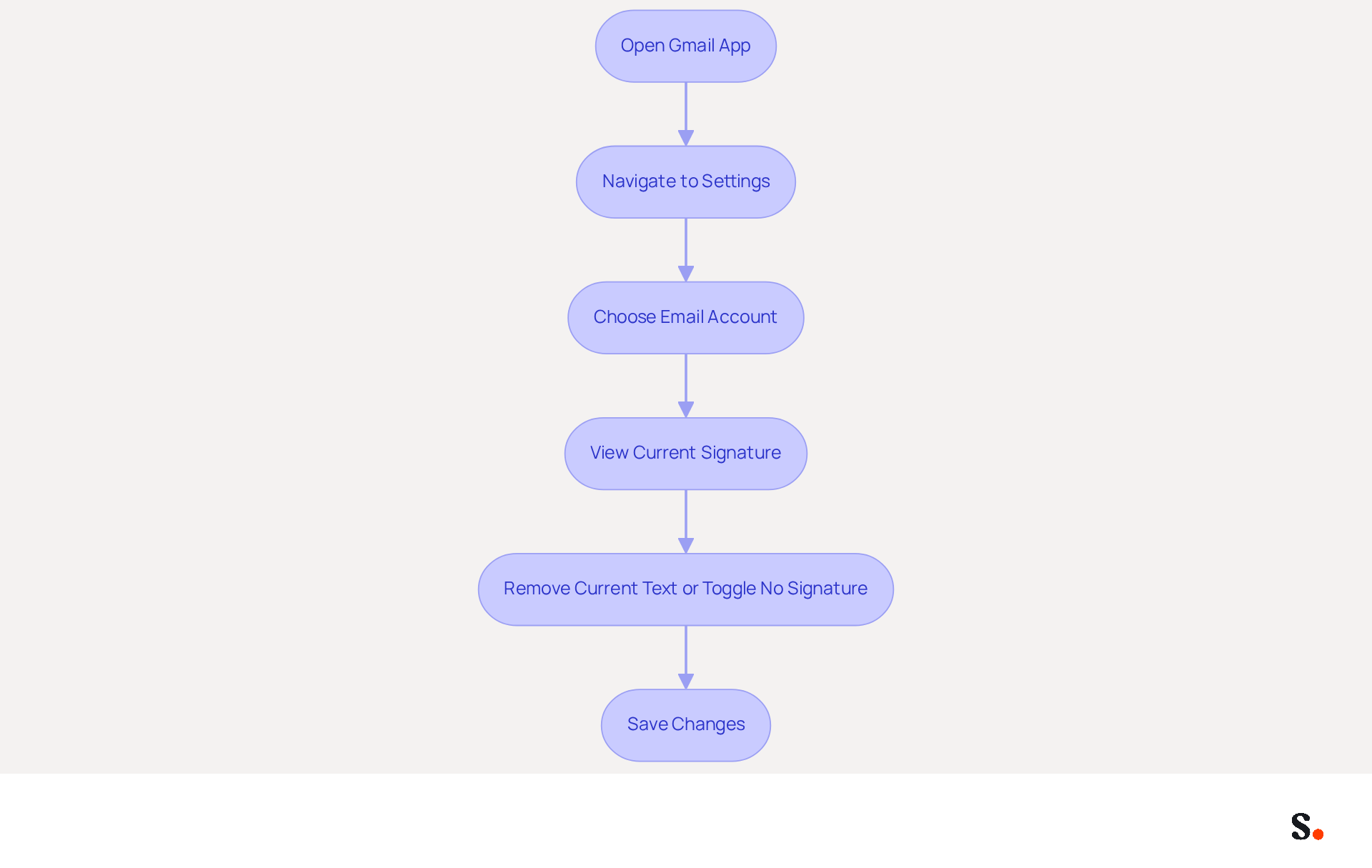
- Open the Gmail app on your mobile device and navigate to the 'Settings' menu by tapping the menu icon in the top-left corner.
- Choose the email account for which you wish to change the sign-off.
- You will see your current signature displayed in the 'Mobile Signature' settings. To learn how to remove signature from gmail mobile, tap on the text field and remove the current text.
- If available, you can also toggle the option to 'No Signature' to disable it completely.
- Once you've made your changes, don't forget to save them by tapping 'Save' or simply hit the back arrow to exit the settings menu. You should now know how to remove signature from gmail mobile for outgoing emails.
It's important to note that if a mobile identifier is set, it will override the desktop identifier. Users often face challenges when their mobile signature settings differ from their desktop settings. To ensure consistency across devices, consider removing the mobile identifier if you want to use the same one as on your desktop. By ensuring your mobile signature aligns with your desktop settings, you enhance your professionalism in every email you send.
Troubleshoot Common Signature Removal Issues
To effectively remove marks from your email, it is essential to follow these steps carefully.
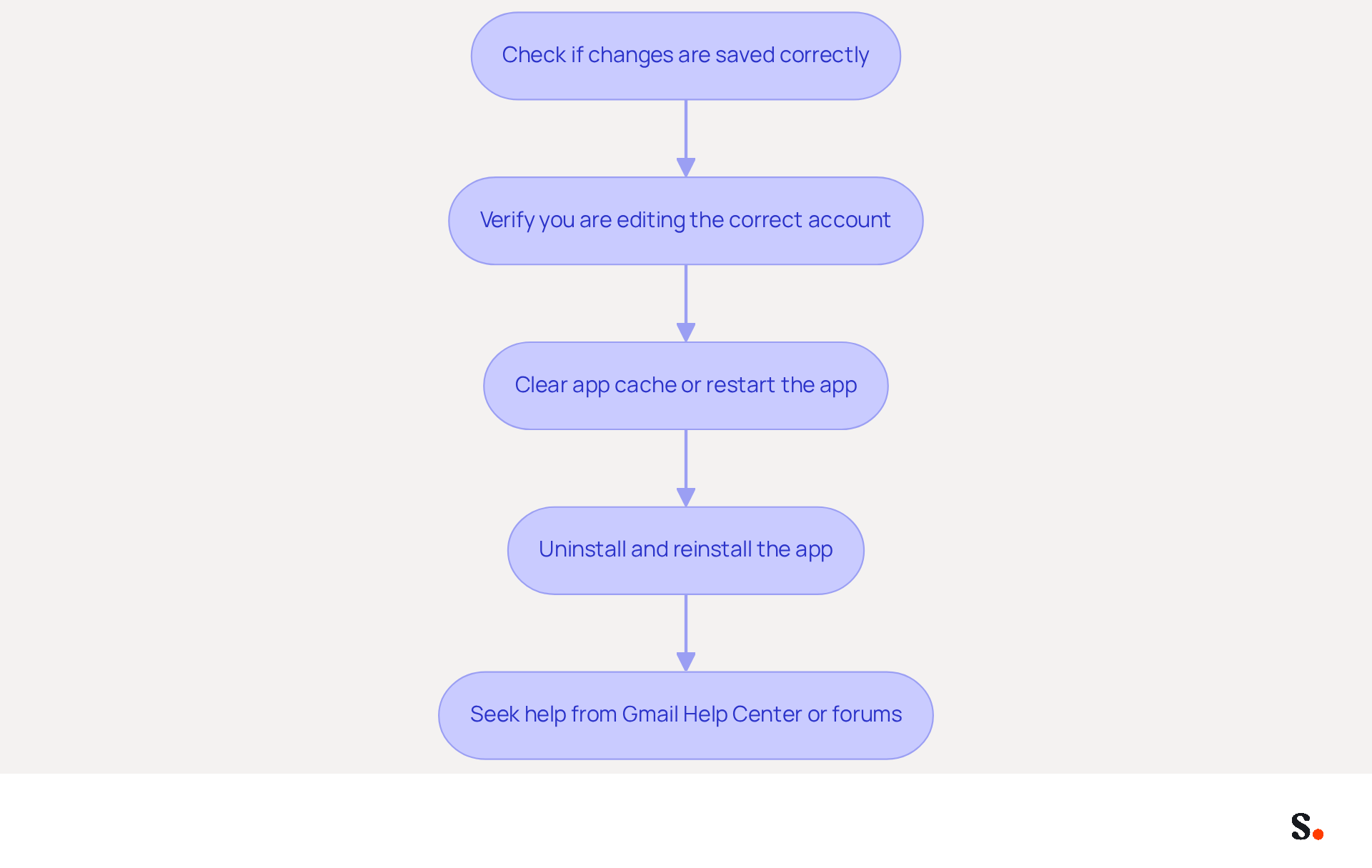
- First, if your mark still appears after deletion, double-check that you have saved your changes correctly. Many users find that their changes do not take effect, leading to confusion and repeated attempts to delete marks.
- Next, verify if you have multiple accounts set up in the email application; ensure you are editing the correct account to avoid confusion.
- If the issue continues, clear the app cache or restart the app. This can often resolve minor glitches that prevent changes from taking effect.
- If issues continue, uninstalling and reinstalling the email application can help reset settings and resolve ongoing problems.
- For persistent issues, seeking assistance from the Gmail Help Center or community forums can provide valuable insights and solutions.
Explore Automated Solutions for Signature Management
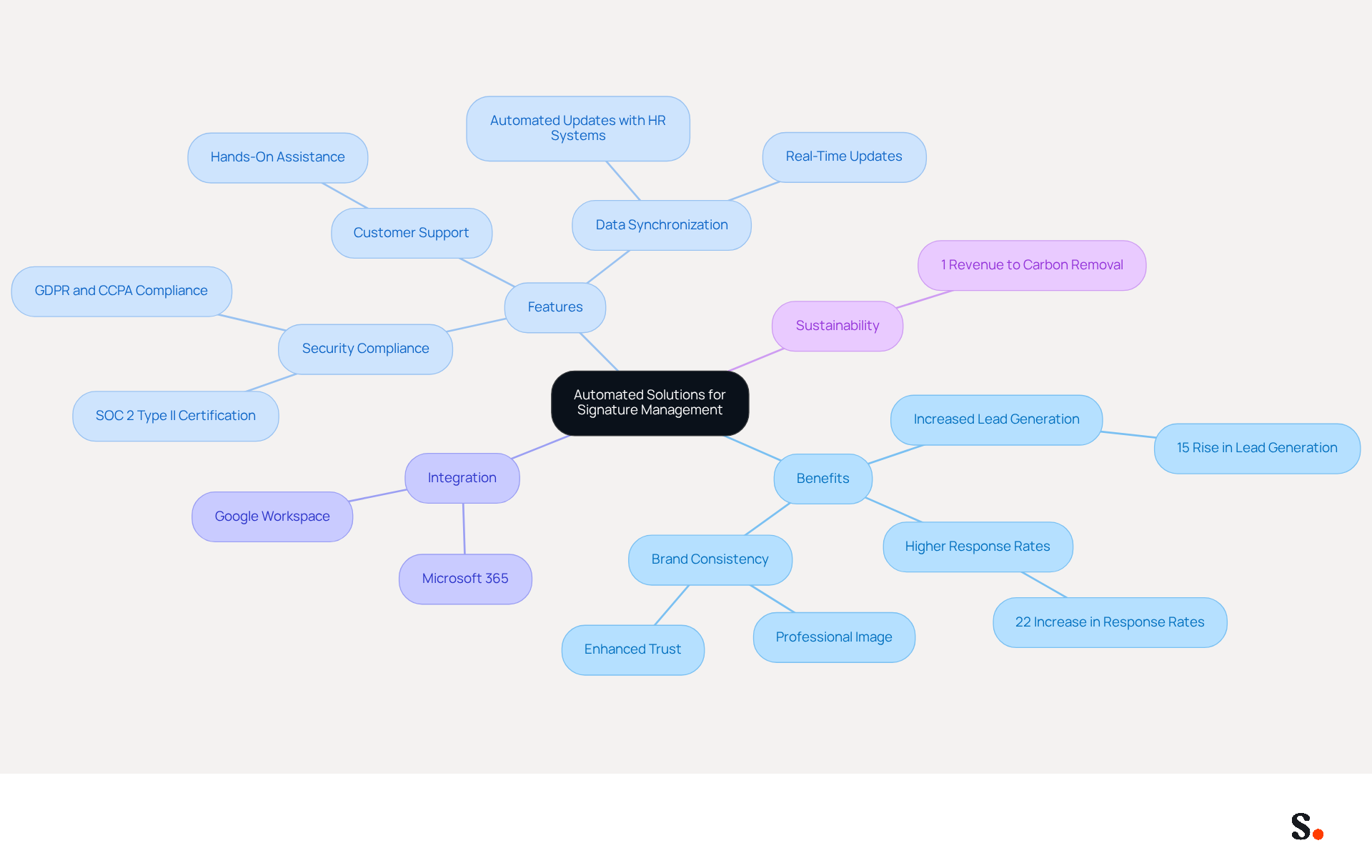
Managing email signatures manually can lead to inconsistencies and wasted time, making automated solutions like Scribe essential for organizations. Consider utilizing automated signature management tools such as Scribe, which simplify the creation and updating of signatures throughout your organization. This automation saves time and enhances brand consistency, ensuring every message accurately reflects your company's identity. Standardized email formats can lead to a 15% increase in lead generation, highlighting the value of Scribe's tools. Scribe's commitment to exceptional customer support ensures you can speak with a real person when you need assistance, enhancing your experience. The platform holds a SOC 2 Type II certification, ensuring robust security and compliance with GDPR and CCPA.
Centralized management ensures all signatures are consistent and professional, significantly reducing the risk of outdated branding that can undermine credibility. Organizations using automated messaging footers experience a 22% increase in response rates, underscoring the importance of this approach. Additionally, Scribe's SAML Single Sign-On integration and GDPR compliance provide an extra layer of security, making it a reliable choice for managing your email identifiers.
Seek features like automated data synchronization with HR systems to keep signatures current without manual updates. Scribe's automated data synchronization ensures signed documents remain current, adapting to personnel changes without requiring employee action. This capability allows marketing teams to focus on strategic initiatives rather than administrative tasks, while also supporting environmental sustainability by allocating 1% of revenue to carbon removal technologies. Moreover, Scribe's average click-through rate on signature banners is 12%, demonstrating its effectiveness in driving engagement.
Research and choose a tool that integrates seamlessly with your existing communication platform, like Google Workspace or Microsoft 365. This integration boosts your email marketing efforts by ensuring every communication is optimized for engagement and effectiveness. Companies using automated signature management can generate around 60,000 to 80,000 branded impressions monthly, highlighting the marketing potential of Scribe.
Conclusion
Effectively managing email signatures is essential for maintaining a professional image in communications. Following these steps allows users to manage their email signatures effectively, ensuring their messages convey the right branding and professionalism.
Key insights from this guide include the importance of regularly updating signatures to enhance brand consistency and trust. With a significant percentage of users relying on Gmail for communication, understanding how to effectively manage signatures is essential. Additionally, troubleshooting common issues can prevent confusion and ensure that changes take effect as intended. For those seeking a more efficient solution, automated tools like Scribe offer a robust alternative, streamlining the signature management process while ensuring compliance with security standards such as SOC 2 Type II, GDPR, and CCPA.
Investing in automated solutions for email signature management not only enhances brand visibility but also positions organizations for long-term success. Organizations can benefit from Scribe's capabilities, which not only simplify the management of signatures but also contribute to measurable marketing ROI. Embracing these tools can empower marketing teams to focus on strategic initiatives, ultimately leading to improved communication and stronger brand representation across all platforms.
Frequently Asked Questions
Why is it important to manage signatures in Gmail?
Managing signatures in Gmail is crucial for maintaining a professional image in communications, as it helps enhance brand consistency and trust.
How can I remove a signature from the Gmail mobile app?
To remove a signature from the Gmail mobile app, follow these steps: Open the Gmail app, tap the three horizontal lines in the top-left corner to access the side menu, scroll down and select 'Settings,' choose the account for which you want to eliminate the footer, and locate the 'Mobile Signature' option under the 'General' settings section.
What percentage of users rely on Gmail for communication?
Approximately 62.2% of users rely on Gmail for communication.
How does having a branded signature affect consumer confidence?
About 76% of consumers feel more confident when receiving messages with branded signatures, which can enhance trust in the communication.
What could happen if I neglect to update my email signature?
Neglecting to update your email signature could undermine your brand's credibility and professionalism.
List of Sources
- Access Gmail Settings to Manage Signatures
- 40+ Email Signature Statistics for 2026 (Data + Insights) (https://wavecnct.com/blogs/email-signature-statistics)
- Email Signature Statistics: A Closer Look at Email Signatures in 2026 (https://mysignature.io/blog/email-signature-statistics)
- Email signature statistics: Why every business should optimize their email signatures — Stripo.email (https://stripo.email/blog/email-signature-statistics-why-every-business-should-optimize-their-email-signatures)
- Email Signature Trends in Numbers: Infographic [2026] (https://mailtrap.io/blog/email-signature-trends)
- Best Email Signature Quotes (2026) - HubSpot (https://hubspot.com/email-signature-generator/best-signature-quotes)
- Delete or Disable Your Current Signature
- Gmail app for Android | SignatureSatori Help Center (https://help.signaturesatori.com/en/articles/10219612-gmail-app-for-android)
- Like it or not, Gmail just brought your desktop signature to mobile (https://androidpolice.com/gmail-just-brought-your-desktop-signature-to-mobile)
- How To Remove An Email Signature From Gmail In 2026 (https://clean.email/blog/email-signature/how-to-remove-email-signature-from-gmail)
- Troubleshoot Common Signature Removal Issues
- Fix Your Missing Gmail Signature: 8 Troubleshooting Steps & Best Practices | Newoldstamp - NEWOLDSTAMP (https://newoldstamp.com/blog/gmail-signature-not-showing-up)
- Troubleshoot issues with Gmail signatures - Gmail Help (https://support.google.com/mail/answer/11468381?hl=en)
- Gmail Mobile Signature Same as Desktop: 2-Minute Fix (https://syncsignature.com/blog/gmail-mobile-signature-same-as-desktop)
- Solving a Gmail signature problem (https://signitic.com/en/guides/solving-a-gmail-signature-problem)
- Read our guide for troubleshooting Gmail signatures issues (https://wisestamp.com/guides/how-to-fix-gmail-signature-not-showing)
- Explore Automated Solutions for Signature Management
- Office 365 Email Signatures: How to Manage Them Centrally (2026 Guide) (https://scribe-mail.com/en-US/blog/master-email-signature-management-in-office-365-a-step-by-step-guide)
- Maximize Marketing ROI with Effective AI Email Signatures (https://scribe-mail.com/en-US/blog/maximize-marketing-roi-with-effective-ai-email-signatures)
- Why you should be using an email signature manager (https://blinq.me/blog/why-you-should-be-using-an-email-signature-manager)
- Scribe: Email signatures marketing on autopilot (2024) (https://nowfound.app/launch/scribe)
- Why Email Signature Management Software is Essential for Marketing Success (https://scribe-mail.com/en-US/blog/why-email-signature-management-software-is-essential-for-marketing-success)
Get started with Scribe
Create your signature in minutes
Free 14-day trial — no credit card.