How to Retract an Email in Office 365: A Step-by-Step Guide
Retracting an email in Office 365 presents unique challenges that can significantly impact professional communication. With the right knowledge, users can
Sophie Grant
Email Signature Specialist, Scribe
Introduction
Retracting an email in Office 365 presents unique challenges that can significantly impact professional communication. With the right knowledge, users can effectively manage their email interactions, minimizing potential miscommunications and preserving their professional image. Users often face obstacles when attempting to retract emails, particularly if the recipient has already viewed the message. Understanding these challenges is crucial for effective email management. This guide provides clear instructions and troubleshooting strategies to navigate the email recall process effectively.
Understand Prerequisites for Email Recall in Office 365
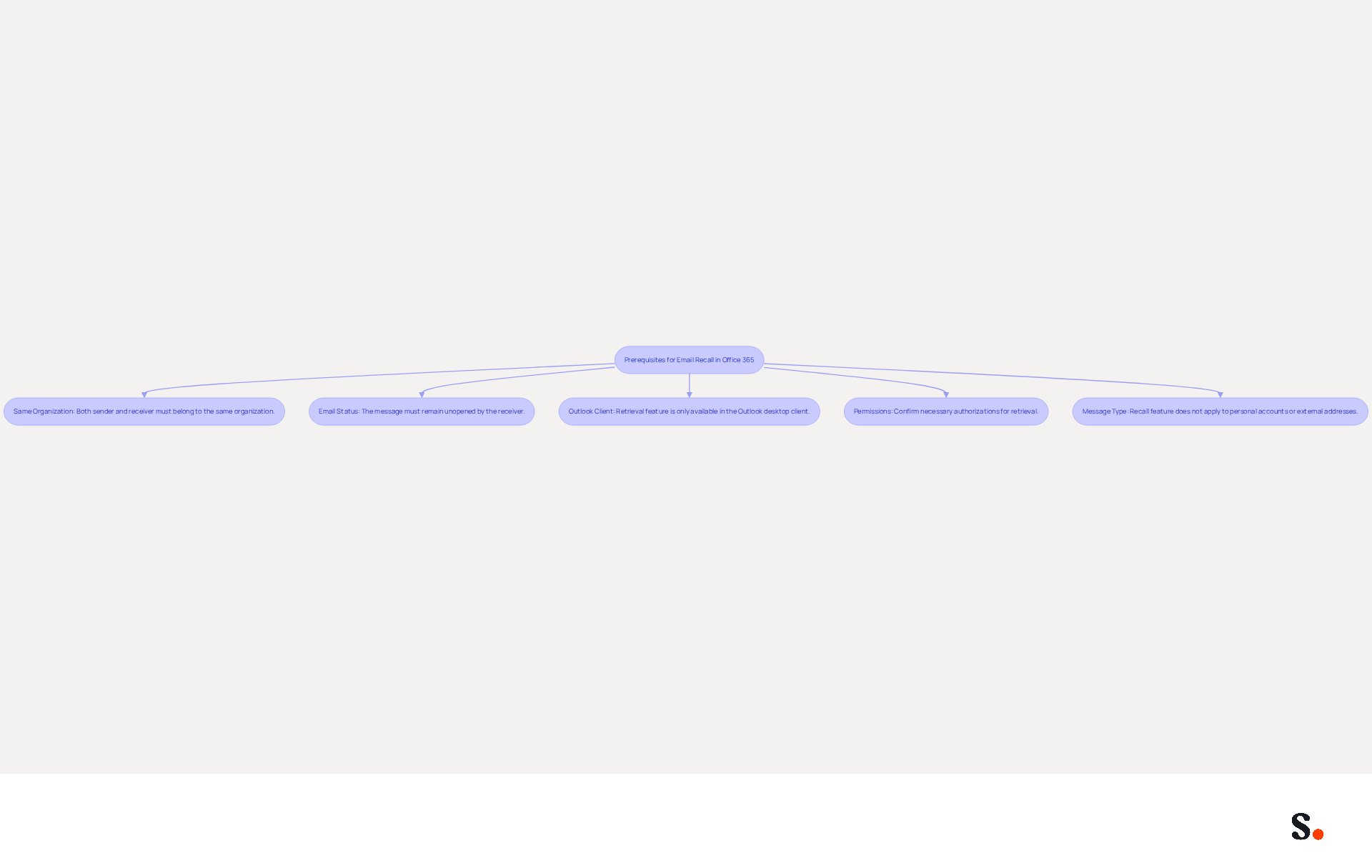
To effectively recall an email in Office 365, certain conditions must be met to ensure success:
- Same Organization: Both the sender and the receiver must belong to the same organization and utilize Microsoft Exchange or Microsoft 365 accounts. This is essential for the retrieval feature to operate correctly.
- Email Status: The message must remain unopened by the receiver. Timing is crucial; once the email is opened, the recall attempt will be unsuccessful. Statistics show that message withdrawals work best if the recipient hasn't opened the email, with a window of up to 120 minutes after sending.
- Outlook Client: The retrieval feature is exclusively available in the Outlook desktop client. It is not supported in the web version or mobile applications, which limits its accessibility.
- Permissions: Confirm that you possess the necessary authorizations to carry out the retrieval. If there is any uncertainty, consult with your IT administrator to avoid complications.
- Message Type: The recall feature does not apply to personal accounts (such as Gmail or Yahoo) or messages sent to external addresses, which can hinder the effectiveness of this tool.
By confirming these prerequisites, users can greatly boost their chances of understanding how to retract an email in Office 365 successfully. Organizations using Microsoft 365 have reported higher success rates in message recall when following these guidelines. Understanding these conditions empowers users to manage communications confidently, ensuring effective damage control in workplace interactions.
Follow Step-by-Step Instructions to Retract an Email
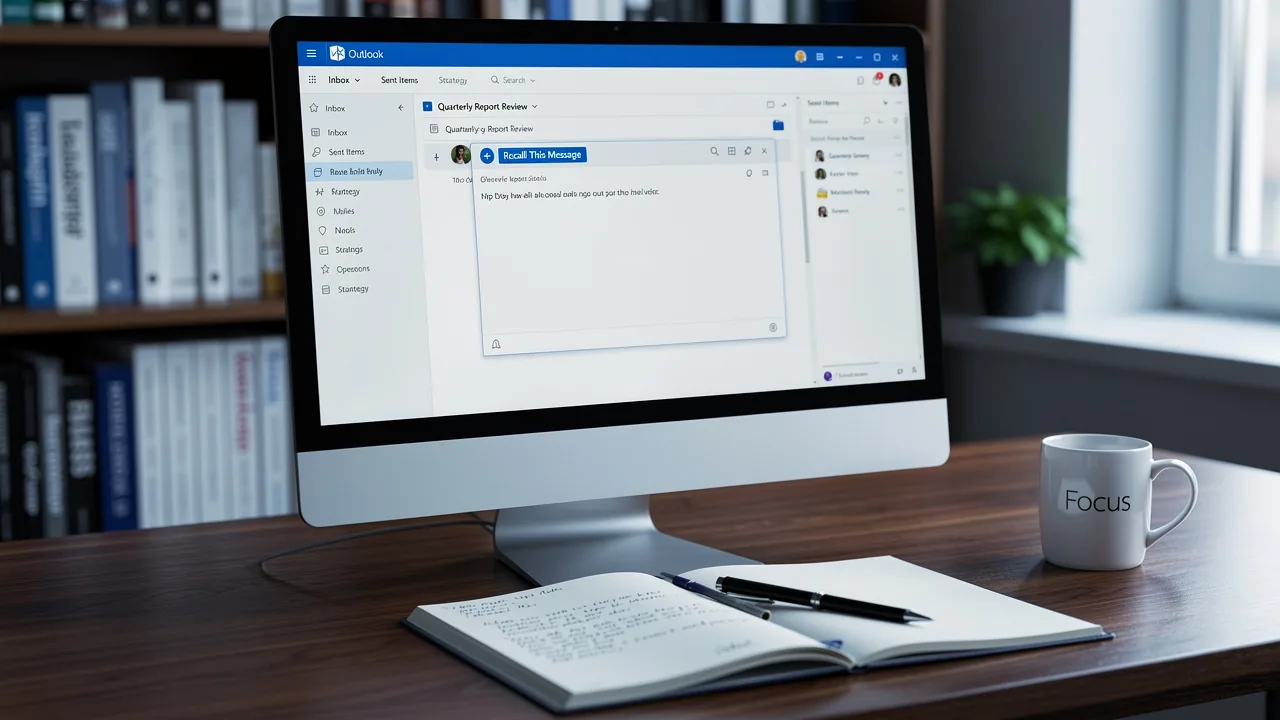
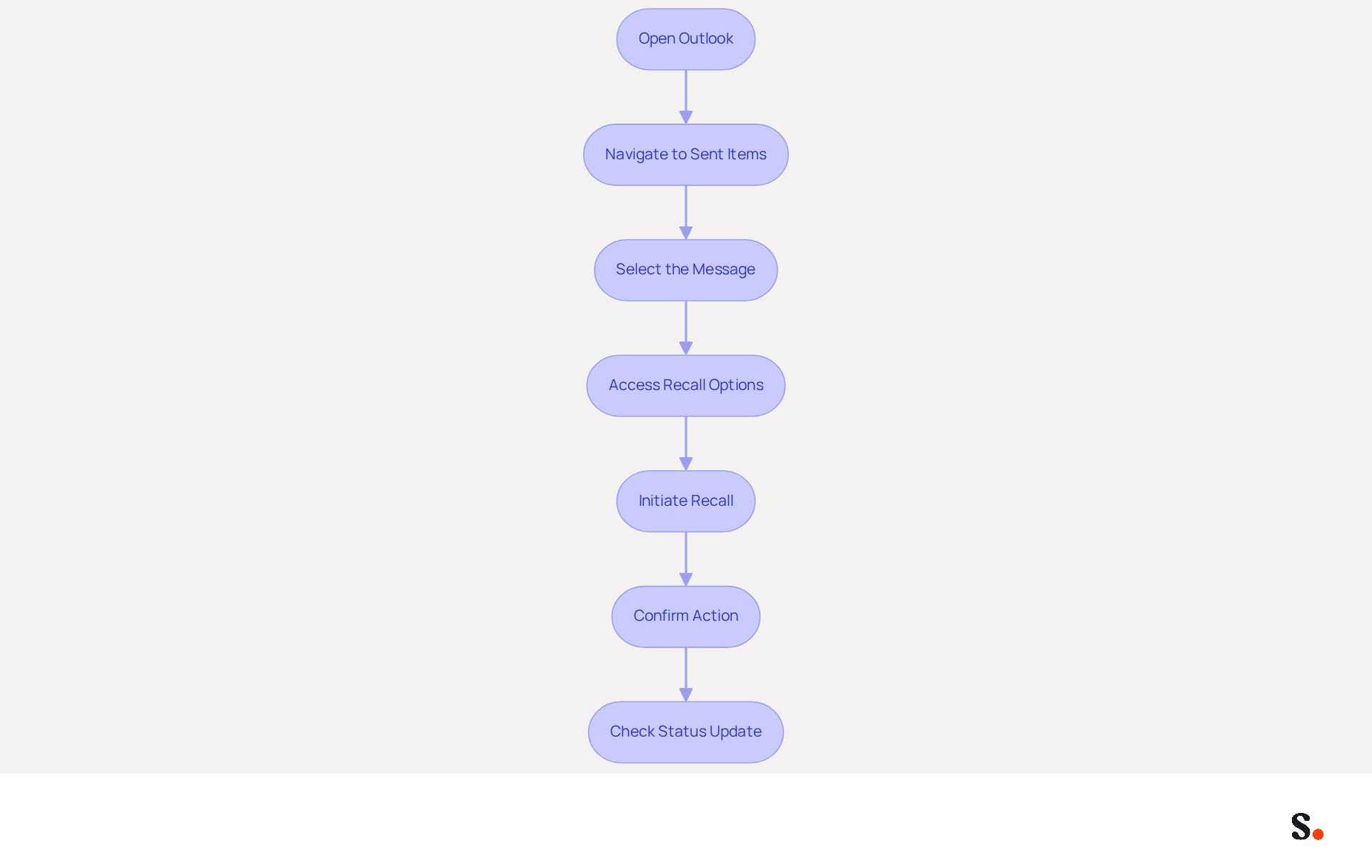
Recalling an email in Office 365 can be a challenging task, especially when users do not know how to retract an email Office 365 effectively. To effectively recall an email, follow these steps:
- Open Outlook: Launch the Outlook desktop application on your computer.
- Navigate to Sent Items: In the left pane, click on the 'Sent Items' folder to view all messages you have dispatched.
- Select the Message: Find the message you wish to recall and double-click it to open it in a new window.
- Access Recall Options: Click on the 'File' tab in the top left corner, then select 'Info'.
- Initiate Recall: Click on 'Resend or Recall', then choose 'Recall This Message'. You’ll encounter two options:
- Delete unread copies of this message: This option will attempt to delete the email from the recipient's inbox.
- Delete unread copies and replace with a new message: This option allows you to send a new message in place of the recalled email.
- Confirm Action: After selecting your preferred option, click 'OK' to validate the action.
- Check Status Update: You will receive a status report in your inbox indicating whether the action was successful or failed.
By following these steps, you can effectively understand how to retract an email Office 365. Comprehending the constraints of the undo feature is essential; it only functions if the individual has not accessed the message and both parties are utilizing Microsoft 365 or Exchange within the same organization. In 2026, the total archive count reached 10,875,938, highlighting the importance of efficient management of communications. Furthermore, case studies show that users frequently encounter difficulties with retrievals due to various factors, such as the user's settings or the timing of the attempt to retrieve. For example, common reasons for failure to retrieve messages include the recipient opening the correspondence, using a different service provider, or having specific settings that influence the retrieval process. Therefore, being proactive and following these steps can significantly enhance your communication strategy. Understanding these steps is crucial, as overlooking them can lead to unretrieved messages and hinder effective communication.
Troubleshoot Common Issues When Retracting Emails
Retrieving an email can be challenging, especially if certain conditions are not met. Here are some troubleshooting tips to consider:
- First, check if the recipient has already opened the email: If they have, the retrieval will not function.
- Verify Email Accounts: Confirm that both you and the recipient are using Microsoft Exchange or Microsoft 365 accounts within the same organization. The retrieval feature is only effective in this environment.
- Use the Correct Client: Ensure you are utilizing the Outlook desktop application, as the retrieval feature is not available in the web version or mobile apps. This limitation can hinder your ability to successfully retract an email.
- Permissions: If the retrieval fails, check with your IT administrator to ensure you have the necessary permissions to perform the action. Organizational policies may restrict this functionality, which is crucial to understand.
- Review Recall Report: After attempting the retrieval, check the status report in your inbox for details on whether the attempt was successful or failed. This report can provide insights into what went wrong, helping you troubleshoot effectively.
- Consider Timing: If you're trying to recall an email sent long ago, it might be too late for retrieval. Timing is essential in the retrieval process; acting swiftly-ideally within 30 seconds of sending the message-can greatly enhance the likelihood of success. Microsoft reports a 90% success rate for recalling messages within the same organization, emphasizing the importance of prompt action.
By addressing these common issues and understanding the limitations of the recall feature, you can enhance your chances of successfully retrieving a message, which is essential when considering how to retract an email in Office 365, ensuring better communication management within your organization.

Explore Tools and Resources for Effective Email Management
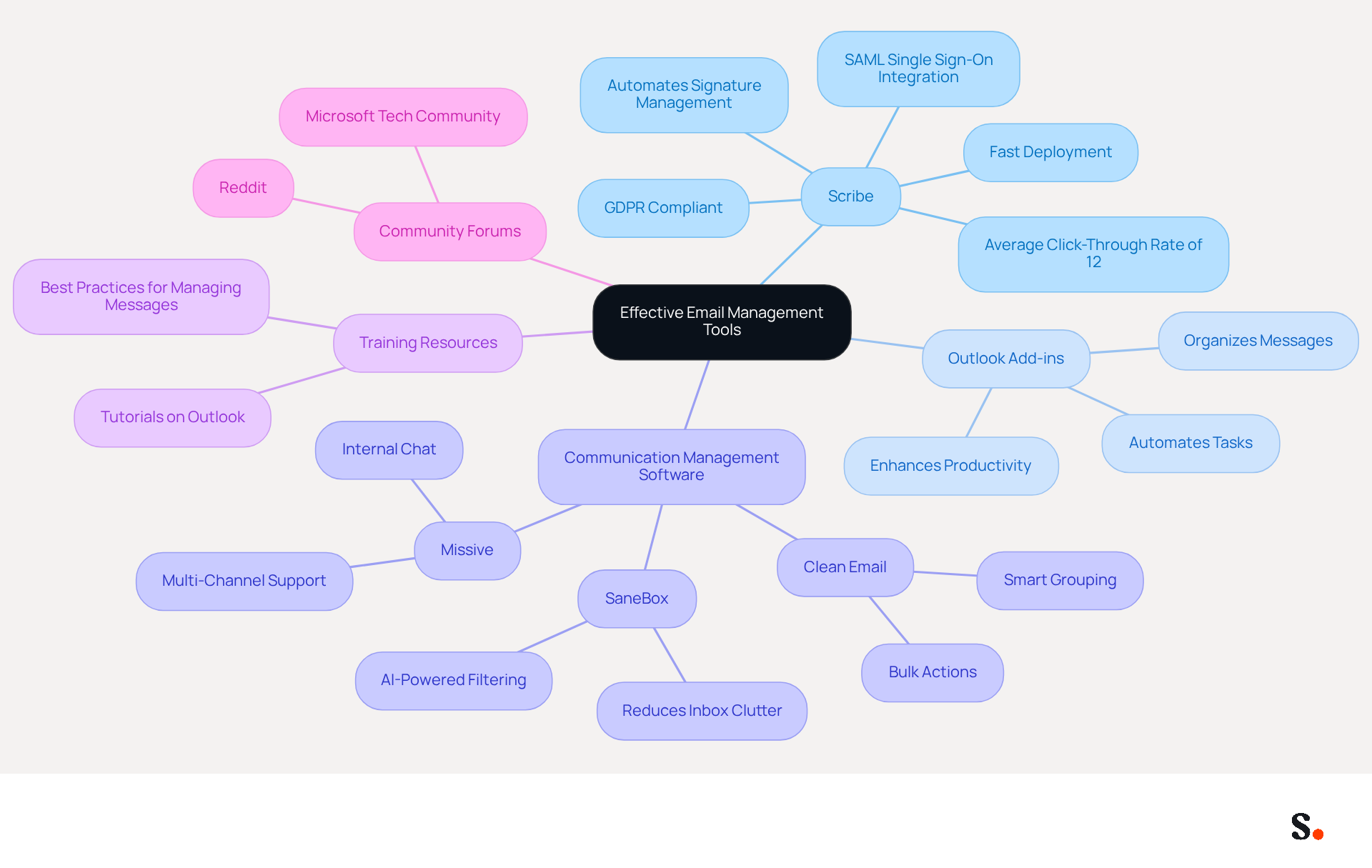
To enhance your email management skills and streamline processes, leveraging effective tools is essential:
- Scribe: An innovative platform that automates signature management, ensuring brand consistency and maximizing marketing opportunities in every message sent. With Scribe's SAML single sign-on integration, employees can securely access the platform through their identity provider, addressing security and compliance challenges. Scribe complies with GDPR, so you can trust that your data handling practices are up to standard. Notably, Scribe offers fast deployment, typically enabling company-wide signature installation in under one day, and is designed for ease of use, allowing marketing teams to manage signatures independently after the initial IT setup. This automation can save you hours each week and boost lead generation, with an average click-through rate of 12% on signature banners.
- Outlook Add-ins: Discover various add-ons available for Outlook that can assist in automating tasks, organizing messages, and enhancing productivity.
- Communication Management Software: Tools like Clean Email, SaneBox, and Missive can assist you in managing your inbox more effectively by organizing, filtering, and prioritizing messages. According to studies, utilizing the appropriate management tool can save hours each week and improve productivity through automated workflows.
- Training Resources: Scribe provides a variety of training materials and tutorials on utilizing Outlook effectively, including best practices for managing messages.
- Community Forums: Engage with online communities such as Microsoft Tech Community or Reddit to share experiences and seek advice on managing communication challenges.
As Emily Hartley notes, "If it works well, you'll forget it's even there - your inbox will be instantly organized, while you focus on the more important parts of your day." By leveraging these tools and resources, you can improve your email management skills and understand how to retract an email in Office 365, thereby reducing the likelihood of needing to recall emails in the future. By making informed choices about these tools, you can significantly enhance your email management efficiency.
Conclusion
Mastering the email recall process in Office 365 is essential for effective organizational communication. By following the outlined steps and prerequisites, users can significantly enhance their chances of successfully recalling messages, thereby minimizing potential miscommunications and errors.
The article detailed essential conditions for email recall, such as:
- Ensuring both sender and recipient are within the same organization
- Using Microsoft Exchange or Microsoft 365 accounts
It also provided a clear, step-by-step guide to executing the recall process, along with troubleshooting tips for common issues that may arise. Emphasizing the importance of timing and the limitations of the recall feature, the article highlighted how proactive measures can lead to better outcomes in email management.
Effective communication is crucial, and tools like Scribe can significantly enhance email management efficiency. With its fast deployment and compliance with security standards such as GDPR and CCPA, Scribe empowers marketing teams to maintain brand consistency and maximize engagement through email signatures. By implementing these strategies and leveraging effective tools, organizations can not only improve their email recall success rates but also enhance overall communication efficiency.
Frequently Asked Questions
What are the prerequisites for recalling an email in Office 365?
To recall an email in Office 365, the sender and receiver must belong to the same organization and use Microsoft Exchange or Microsoft 365 accounts, the email must remain unopened by the receiver, the retrieval feature must be accessed through the Outlook desktop client, the sender must have the necessary permissions, and the recall feature does not apply to personal accounts or messages sent to external addresses.
Why is it important that both sender and receiver are in the same organization?
Both the sender and receiver must be in the same organization to ensure that the retrieval feature operates correctly, as it relies on Microsoft Exchange or Microsoft 365 accounts.
What happens if the recipient opens the email before the recall attempt?
If the recipient opens the email before the recall attempt, the attempt will be unsuccessful. The best chance for a successful recall is if the email remains unopened, ideally within 120 minutes after sending.
Which version of Outlook supports the email recall feature?
The email recall feature is exclusively available in the Outlook desktop client and is not supported in the web version or mobile applications.
What should I do if I am unsure about my permissions to recall an email?
If you are uncertain about your permissions to carry out the recall, it is advisable to consult with your IT administrator to avoid complications.
Can I recall emails sent to personal accounts or external addresses?
No, the recall feature does not apply to personal accounts (such as Gmail or Yahoo) or messages sent to external addresses, which limits the effectiveness of this tool.
List of Sources
- Understand Prerequisites for Email Recall in Office 365
- How to recall an email in Outlook: Requirements, Limitations & Steps | Microsoft Support (https://support.microsoft.com/en-us/outlook/mail/how-to-recall-an-email-in-outlook-requirements-limitations-steps)
- Microsoft Office 365 to Add Message Recall in Exchange Online (https://bleepingcomputer.com/news/microsoft/microsoft-office-365-to-add-message-recall-in-exchange-online)
- Recall an Email in Outlook: Step-by-Step Guide - Technology Org (https://technology.org/how-and-why/how-to-recall-an-email-in-outlook)
- What are the requirements for recalling emails? - Microsoft Q&A (https://learn.microsoft.com/en-us/answers/questions/1351805/what-are-the-requirements-for-recalling-emails)
- «Recall Emails In Office 365: Your Ultimate Guide» (https://dash.cardsplug.com/cardsplug-news/recall-emails-in-office-365-your-ultimate-guide-1764797043)
- Follow Step-by-Step Instructions to Retract an Email
- How to recall an email in Outlook: Requirements, Limitations & Steps | Microsoft Support (https://support.microsoft.com/en-us/outlook/mail/how-to-recall-an-email-in-outlook-requirements-limitations-steps)
- Recall or replace a sent email in Outlook | Microsoft Support (https://support.microsoft.com/en-us/outlook/training/recall-or-replace-a-sent-email-in-outlook)
- «Recall Emails In Office 365: Your Ultimate Guide» (https://dash.cardsplug.com/cardsplug-news/recall-emails-in-office-365-your-ultimate-guide-1764797043)
- How To Recall And Replace An Email In Outlook (https://forbes.com/sites/ariannajohnson/2023/08/30/how-to-recall-and-replace-an-email-in-outlook)
- How to Recall an Email in Outlook | Step-by-Step Guide (https://lenovo.com/us/en/glossary/how-to-recall-an-email-in-outlook?srsltid=AfmBOoqQks1V1E-Lv3ICDHyFkTEPzg3KmbIzAVbv7ycRA61WPU6BUXBx)
- Troubleshoot Common Issues When Retracting Emails
- «Recall Emails In Office 365: Your Ultimate Guide» (https://dash.cardsplug.com/cardsplug-news/recall-emails-in-office-365-your-ultimate-guide-1764797043)
- Why Emails Cannot Be Recalled: Understanding the Limitations | ProFundCom (https://profundcom.net/why-emails-cannot-be-recalled-understanding-the-limitations)
- How does the new message recall work in Microsoft 365 (https://codetwo.com/admins-blog/cloud-based-message-recall)
- Master the Office 365 Recall Message: Step-by-Step Guide (https://scribe-mail.com/en-US/blog/master-the-office-365-recall-message-step-by-step-guide)
- Microsoft Enhances Message Recall for Exchange Online (https://practical365.com/message-recall-enhancements)
- Explore Tools and Resources for Effective Email Management
- 11 best email management software in 2026 (+ how to choose one) · Missive Blog (https://missiveapp.com/blog/email-management-software)
- 16 of the Best Email Management Tools to Use in 2026 (https://wingassistant.com/blog/best-email-management-tools)
- Best Email Management Software Tools & Apps (Top 10 in 2026) (https://crm.org/news/best-email-management-software)
- Best email management tools in 2026: A guide for professionals | Fyxer (https://fyxer.com/blog/best-email-management-tools)
- The Best Email Management Software (2026): Buyer’s Guide & Top Picks (https://serchen.com/blog/the-best-email-management-software)
Get started with Scribe
Manage signatures across your whole team
Free 14-day trial — no credit card.