How to Save Signature in Gmail: A Step-by-Step Guide
Managing email signatures effectively is crucial for professional communication and can significantly influence brand perception. With Gmail boasting around
Sophie Grant
Email Signature Specialist, Scribe
Introduction
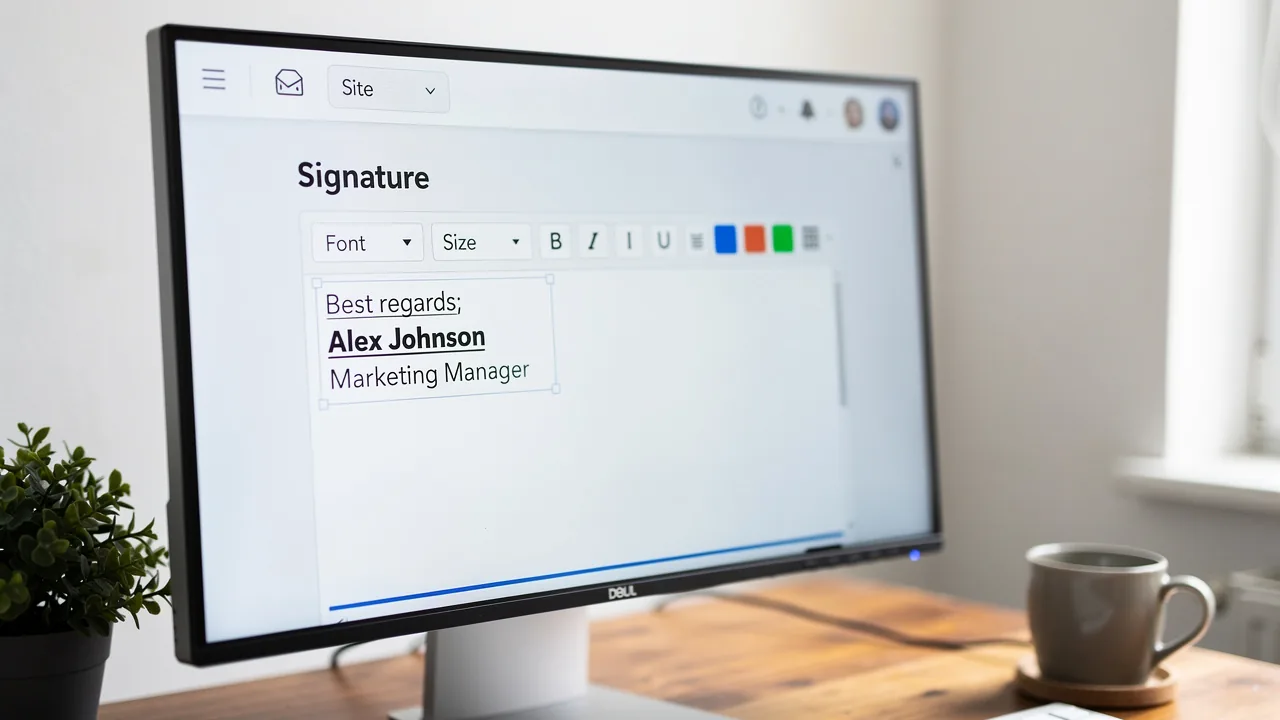
Managing email signatures effectively is crucial for professional communication and can significantly influence brand perception. With Gmail boasting around 1.8 billion active users, the importance of a polished and consistent email signature cannot be overstated. This guide provides a step-by-step approach to saving and customizing Gmail signatures, ensuring that each email reflects the organization's professionalism and branding goals.
Users often face challenges that hinder their ability to maintain a consistent email signature. Addressing these challenges is essential for ensuring that every email reinforces the organization's brand image.
Access Gmail Settings for Signature Setup
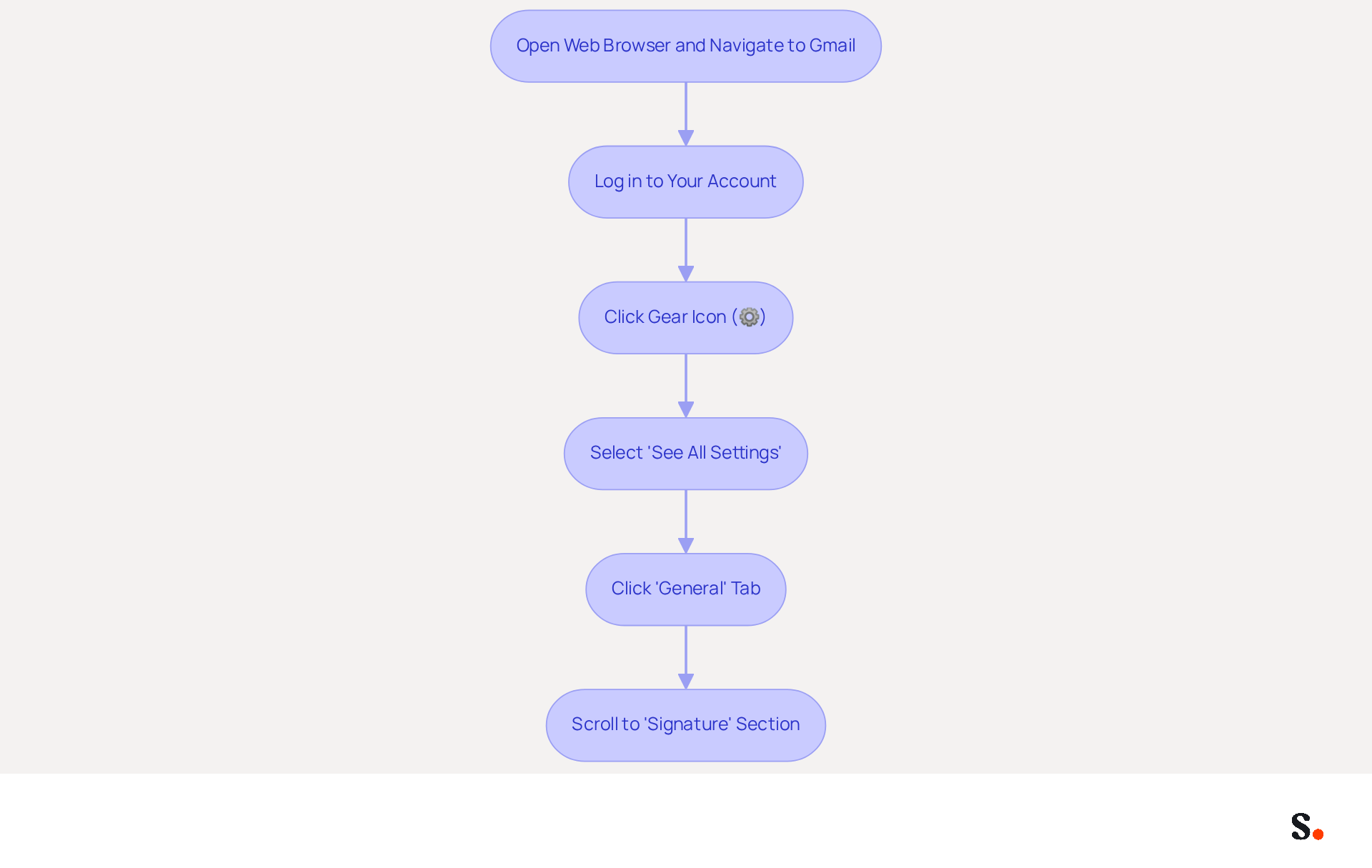
- Open your web browser and navigate to Gmail.
- Log in to your account if prompted.
- In the top right corner, click on the gear icon (⚙️) to open the Settings menu.
- Select 'See all settings' from the dropdown menu.
- In the Settings menu, click on the 'General' tab.
- Scroll down until you find the 'Signature' section. This is where you will learn how to save signature in Gmail and manage your message footer.
Effectively managing email signatures is crucial for maintaining a professional image in your communications, especially when you know how to save signature in Gmail. As of 2026, Gmail has around 1.8 billion active users, based on third-party estimates, establishing it as a leading player in the messaging market with a 24.11% share of message opens. This large user community emphasizes the significance of having a professional correspondence format that represents your brand. Following these steps ensures your communications are consistent and effective. You can leverage Gmail's capabilities to enhance your marketing efforts.
With Scribe, your identifiers are automatically synchronized with your Aircall setup, ensuring that any modifications made are effortlessly updated without requiring action from your teammates. With this automation, you save time and keep your brand consistent in every communication. Additionally, Scribe is SOC 2 Type II compliant, ensuring that your data is handled securely. After configuring your personal mark, consider testing it by sending a few emails to see how it appears to recipients, ensuring it aligns with your branding goals.
Create Your Signature with Customization Options
Creating a professional email signature is essential for maintaining brand consistency and enhancing communication.
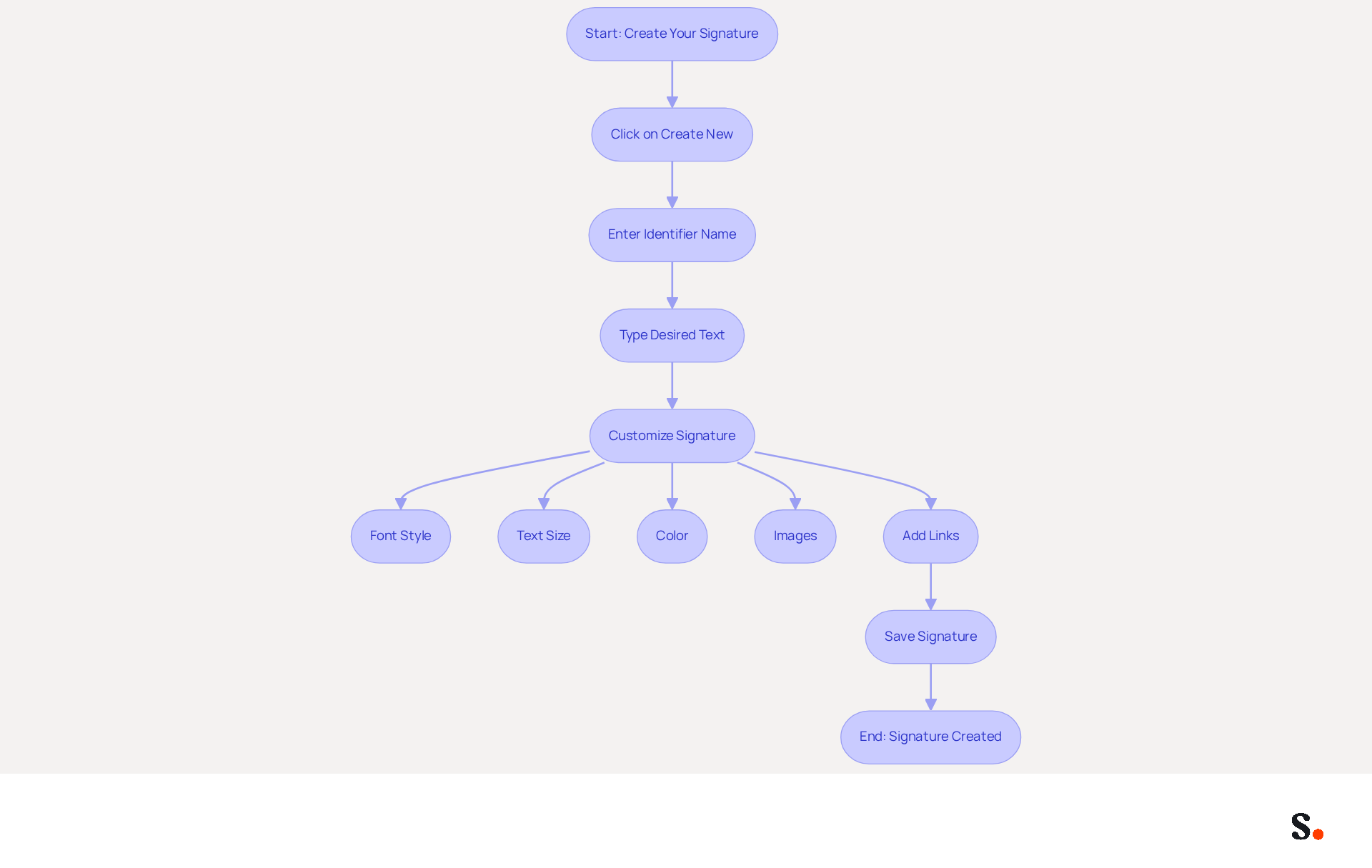
- In the 'Signature' section, click on 'Create new' to understand how to save signature in gmail.
- Enter a name for your identifier; this is for your reference only.
- In the text box that appears, type your desired text.
- Use the formatting options to customize your signature:
- Font Style: Choose a font that reflects your brand identity.
- Text Size: Adjust the size for optimal readability.
- Color: Select colors that align with your branding.
- Images: Click on the 'Insert image' icon to add a logo or other relevant images.
- Consider adding links to your social media profiles or website to enhance your personal mark. Highlight the text and click the link icon to insert the URL.
- Once you are satisfied with your design, you can find out how to save signature in gmail.
To enable one-click synchronization, first ensure you have Super Admin permissions. This will allow you to connect your email provider with Scribe. By utilizing this tool, you can ensure that your teammates' initials are automatically synced with your business phone system, saving time and maintaining brand consistency. Scribe's one-click synchronization feature allows for seamless updates, and with SOC 2 Type II compliance, you can trust that your data is secure.
By ensuring your email signatures are consistently updated, you reinforce your brand's professionalism and reliability.
Save and Set Your Signature as Default
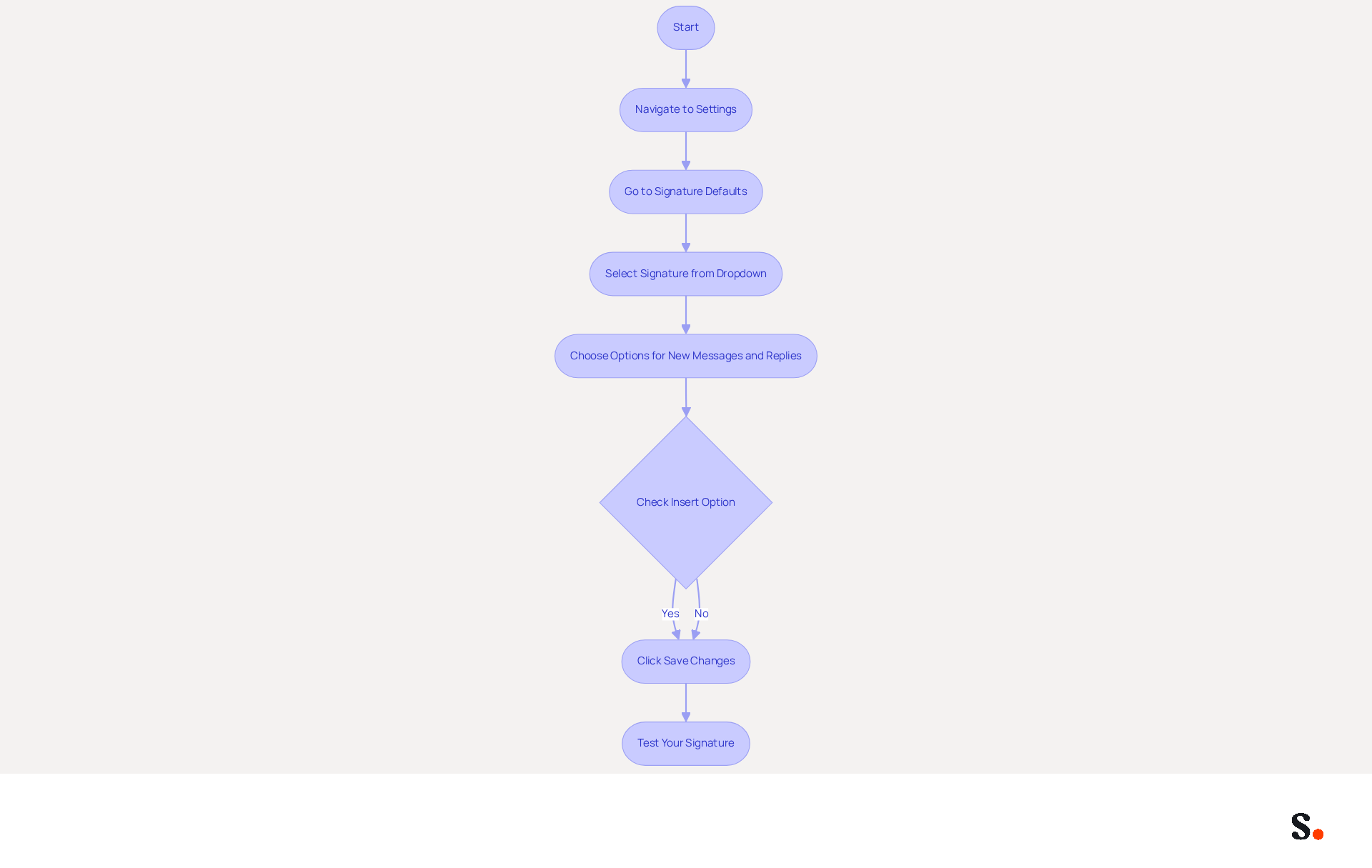
Establishing a consistent email sign-off is crucial for professionals aiming to enhance their brand recognition and communication effectiveness. After creating your personal mark, the next step is to understand how to save signature in Gmail by navigating to the bottom of the settings page. In the 'Signature defaults' section, select your new sign-off from the dropdown menu for both 'New messages' and 'On reply/forward.' If you want your identifier to appear above previous messages, check the option 'Insert this identifier before quoted text in replies and remove the '--' line that precedes it.' Don't forget to click 'Save Changes' at the bottom of the page to learn how to save signature in Gmail and ensure your settings are applied. You can easily test your sign-off by creating a new message and checking if it appears as you intended.
By 2026, approximately 80% of professionals will have adopted a sign-off in their emails, highlighting the importance of a default sign-off for maintaining consistency. Case studies indicate that businesses utilizing management tools for their email footers have enhanced brand recognition and engagement by ensuring their marks are consistently current and professionally formatted. Regular updates to identifiers are essential for maintaining accuracy and professionalism, with many organizations opting for automated solutions like Scribe to streamline this process. By adopting automated solutions like Scribe, organizations can ensure their email signatures reflect professionalism and accuracy, ultimately strengthening their brand image.
Troubleshoot Common Signature Issues
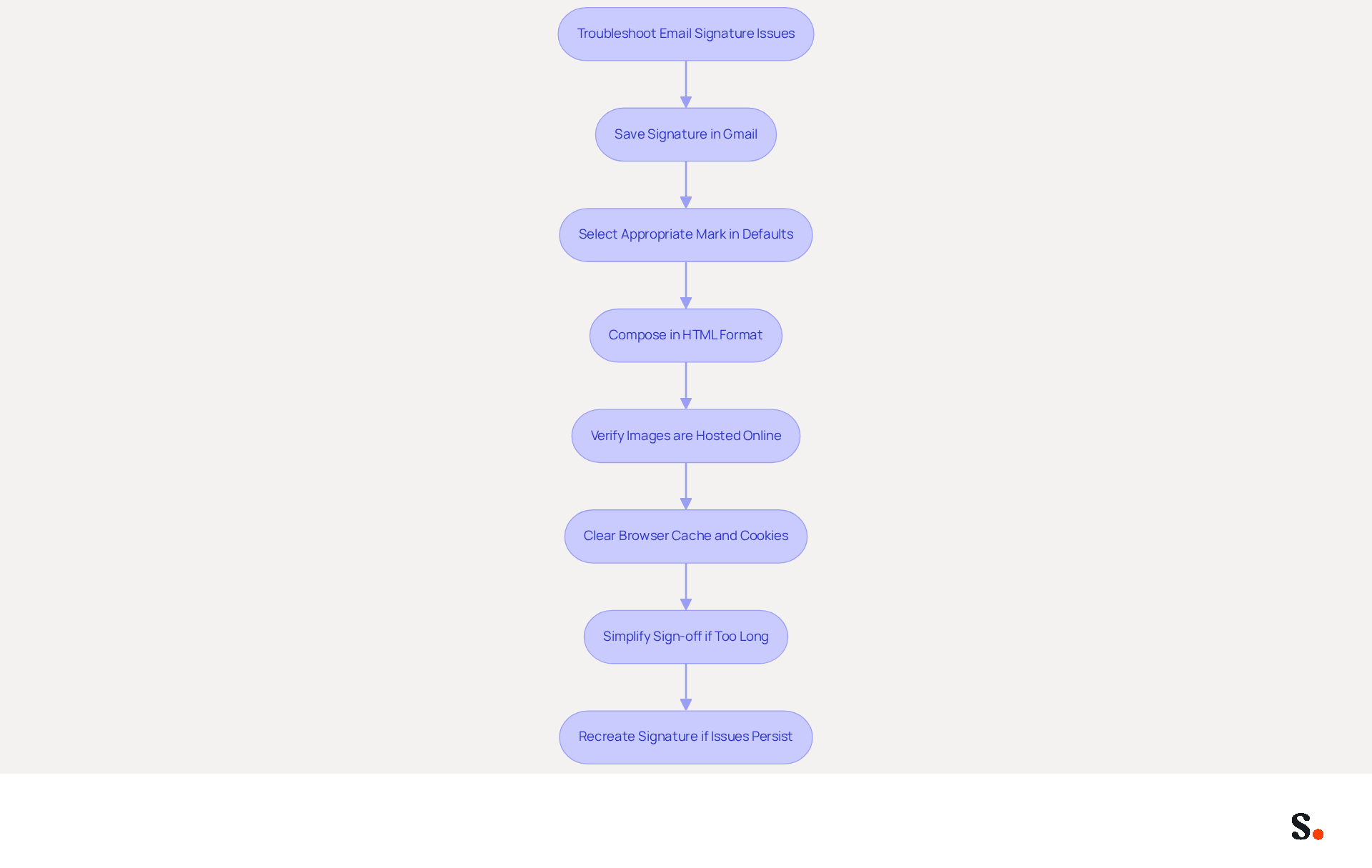
Many users face challenges with their email signatures, often due to simple oversights that can impact professionalism. To start, learn how to save signature in Gmail to ensure that your name appears in emails by saving any changes in your settings. Next, confirm that you have selected the appropriate mark in the 'Defaults for signatures' section. Additionally, make sure your email client is set to compose in HTML format to ensure your email footer displays correctly. If images fail to display, verify that they are hosted online and accessible. To resolve display issues, clear your browser cache and cookies regularly. If you receive a 'too long' error, consider simplifying your sign-off by reducing text or removing unnecessary formatting. For persistent issues, try removing the mark and recreating it from scratch. Understanding and addressing these issues is vital for effective communication in emails.
For example, a company with 100 employees produces around 60,000-80,000 branded impressions each month, emphasizing the significance of a well-functioning brand mark. Furthermore, 42% of consumers indicate feeling negatively toward a business when they receive an email lacking a branded closing, highlighting the importance of professionalism in email communication. Frequent updates to Gmail profiles, including knowing how to save signature in Gmail, can help uphold professionalism and guarantee accurate contact details.
By syncing your Google Workspace with Scribe, which is SOC 2 Type II certified and compliant with GDPR and CCPA, you can save time and ensure that any changes to your teammates' information are automatically reflected in their email footers, enhancing brand consistency and professionalism. Including promotional elements in your signature can also enhance engagement and effectiveness.
Conclusion
In a competitive digital landscape, a professional email signature is not just an accessory; it's a necessity for brand consistency and effective communication. By following the outlined steps, users can effectively save their signatures; however, many users struggle with ensuring their signatures are consistently applied across all emails. This process streamlines communication and highlights how crucial a well-crafted email signature is in the digital world.
Key insights from the guide emphasize the importance of customization options, urging users to take full advantage of these features for maximum impact. Utilizing tools like Scribe can further enhance this process by automating updates and ensuring compliance with security standards such as:
- SOC 2 Type II
- GDPR
- CCPA
With the right approach, organizations can achieve a cohesive brand image and improve engagement through their email communications. Failing to create a professional email signature can result in lost chances for brand visibility and customer connection. Investing time in crafting a professional email signature isn't just smart; it can really boost your brand recognition and how customers see you.
By leveraging the capabilities of Gmail and integrating solutions like Scribe, businesses can ensure their email signatures are not only visually appealing but also functionally effective, driving engagement and reinforcing their brand message with every email sent.
Frequently Asked Questions
How do I access Gmail settings to set up my signature?
To access Gmail settings for signature setup, open your web browser and navigate to Gmail. Log in to your account if prompted, click on the gear icon (⚙️) in the top right corner, select 'See all settings' from the dropdown menu, click on the 'General' tab, and scroll down to the 'Signature' section.
Why is managing email signatures important?
Managing email signatures is crucial for maintaining a professional image in communications. A well-designed signature represents your brand and ensures consistency in your correspondence.
How many active users does Gmail have as of 2026?
As of 2026, Gmail has around 1.8 billion active users, making it a leading player in the messaging market with a 24.11% share of message opens.
What benefits does Scribe provide for managing email signatures?
Scribe automatically synchronizes your identifiers with your Aircall setup, ensuring that any modifications are updated effortlessly without requiring action from your teammates. This automation saves time and maintains brand consistency in communications.
Is Scribe compliant with data security standards?
Yes, Scribe is SOC 2 Type II compliant, ensuring that your data is handled securely.
How can I test my email signature after setting it up?
After configuring your email signature, consider testing it by sending a few emails to see how it appears to recipients, ensuring it aligns with your branding goals.
List of Sources
- Access Gmail Settings for Signature Setup
- 35+ Gmail Statistics And User Trends [2026 Updated] (https://aboutchromebooks.com/gmail-statistics)
- Gmail Statistics: What Google Has Actually Published (2026) (https://dragapp.com/blog/gmail-stats)
- Gmail Statistics 2026 – Visits Data & Market Share (https://demandsage.com/gmail-statistics)
- Gmail Statistics for 2026: Insights on Users and Trends (https://clean.email/blog/email-providers/gmail-statistics)
- Gmail Statistics 2026 — Users, Market Share and the AI Defence Wall (https://sqmagazine.co.uk/gmail-statistics)
- Create Your Signature with Customization Options
- 40+ Email Signature Statistics for 2026 (Data + Insights) (https://wavecnct.com/blogs/email-signature-statistics)
- How to create custom Gmail signature (https://foxnews.com/tech/how-to-create-custom-gmail-signature)
- Why Email Signatures Must Be In Your 2026 Marketing Plan | Rocketseed (https://rocketseed.com/blog/what-are-the-biggest-email-trends-for-2026)
- Email Signature Statistics: A Closer Look at Email Signatures in 2026 (https://mysignature.io/blog/email-signature-statistics)
- Save and Set Your Signature as Default
- Fix Your Missing Gmail Signature: 8 Troubleshooting Steps & Best Practices | Newoldstamp - NEWOLDSTAMP (https://newoldstamp.com/blog/gmail-signature-not-showing-up)
- How To Add A Signature In Gmail (2026) (https://hubspot.com/email-signature-generator/add-signature-gmail)
- Create a Gmail signature - Computer - Gmail Help (https://support.google.com/mail/answer/8395?hl=en&co=GENIE.Platform%3DDesktop)
- How to Add Email Signature in Gmail (2026) (https://wavecnct.com/blogs/email-signature-gmail)
- Troubleshoot Common Signature Issues
- 40+ Email Signature Statistics for 2026 (Data + Insights) (https://wavecnct.com/blogs/email-signature-statistics)
- Fixing Signature Issues in Gmail (https://teachers.tech/fixing-signature-issues-in-gmail)
- Fix Your Missing Gmail Signature: 8 Troubleshooting Steps & Best Practices | Newoldstamp - NEWOLDSTAMP (https://newoldstamp.com/blog/gmail-signature-not-showing-up)
- Email Signature Troubleshooting - Problems & Solutions - Gimmio (https://blog.gimm.io/email-signature-troubleshooting)
Get started with Scribe
Create your signature in minutes
Free 14-day trial — no credit card.