How to Schedule Sending an Email in Outlook: A Step-by-Step Guide
In a professional landscape where timing is crucial, mastering email communication can make all the difference in engagement outcomes. Scheduling emails in
Sophie Grant
Email Signature Specialist, Scribe
Introduction
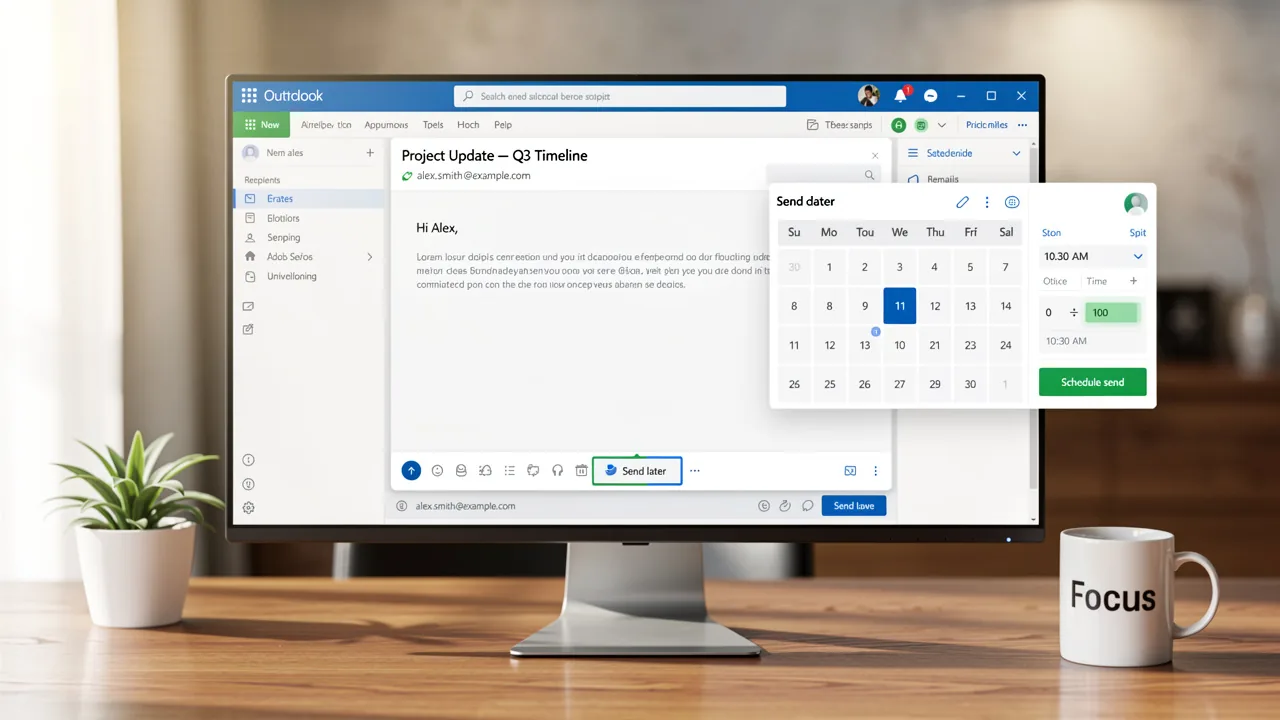
In a professional landscape where timing is crucial, mastering email communication can make all the difference in engagement outcomes. Scheduling emails in Outlook not only allows users to send messages at optimal moments but also enhances overall productivity and communication strategies. Yet, many professionals don't realize just how much this feature can do for them, resulting in lost chances for impactful communication.
How can users leverage Outlook's scheduling capabilities to ensure their messages are received when recipients are most likely to engage? By leveraging Outlook's scheduling capabilities, users can significantly enhance their communication effectiveness and engagement rates.
Understand Email Scheduling in Outlook
Email scheduling in Outlook allows users to strategically time their messages, enhancing communication effectiveness. This feature helps professionals manage their communication effectively, ensuring messages reach recipients at the right time. By scheduling emails, users can avoid sending messages during off-hours or when recipients are less likely to engage. However, many users may not be aware of how to effectively utilize this feature. This functionality is available in both the desktop and web versions of Outlook, making it accessible for various users. Understanding how to use this feature can enhance productivity and improve communication strategies.
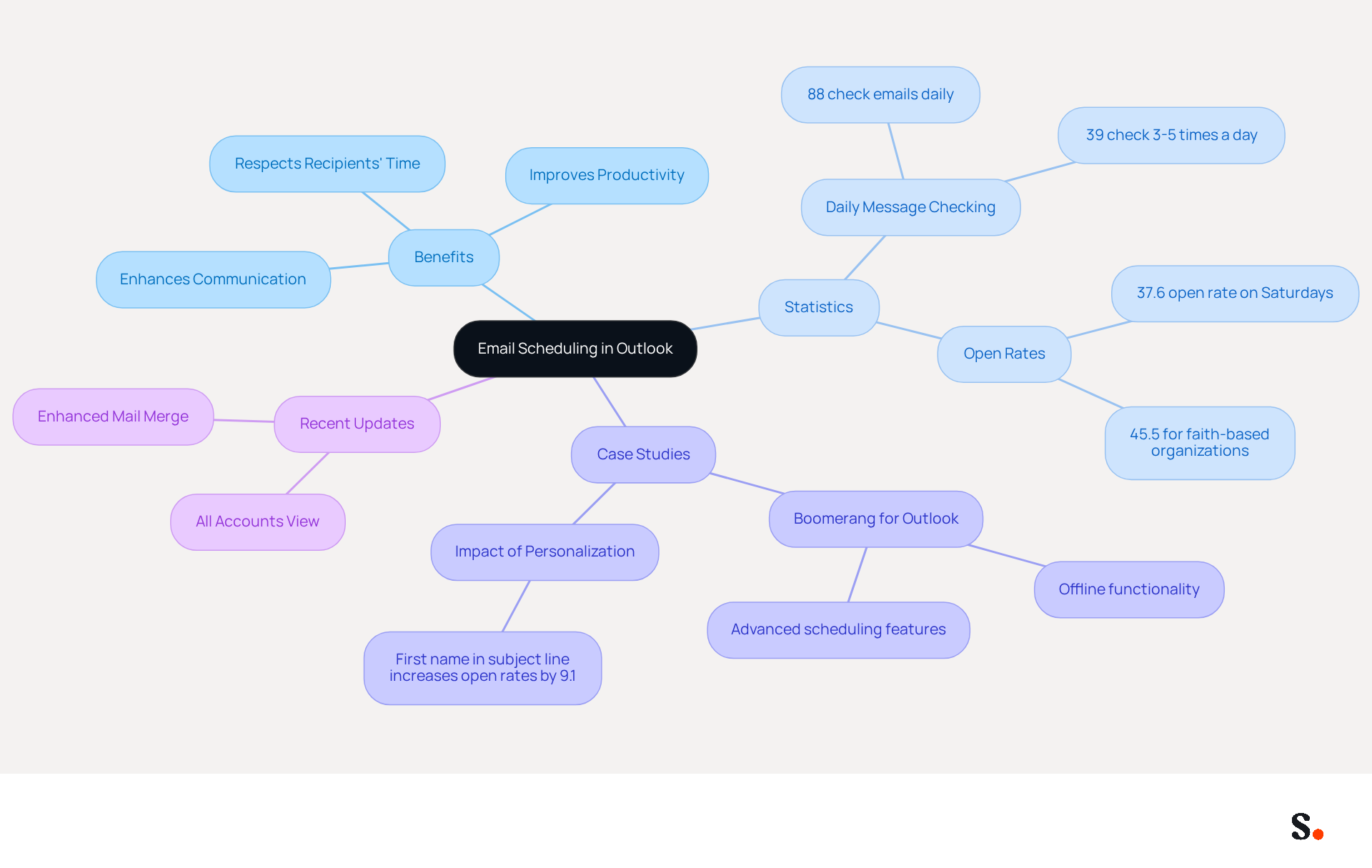
Recent statistics reveal that 88% of people check their messages daily. In fact, 39% do it three to five times a day, which really underscores how crucial timing is in communication. Additionally, messages dispatched during peak engagement periods can greatly enhance open rates; for example, messages sent on Saturdays achieve an open rate of 37.6%.
Case studies demonstrate the effectiveness of scheduling messages in enhancing productivity. Users can schedule emails to avoid sending messages during off-hours, which respects recipients' time and improves response rates. Moreover, tools such as Boomerang for Microsoft offer advanced scheduling capabilities, enabling users to send messages even when not connected, further enhancing messaging processes.
The recent updates to Outlook, including the introduction of an 'All accounts view' and enhanced Mail Merge capabilities, are designed to improve user experience and functionality. These enhancements reflect a broader trend towards integrating advanced scheduling features that address modern interaction needs. By adopting these scheduling tools, professionals can significantly elevate their communication strategies and engagement outcomes.
Follow Step-by-Step Instructions to Schedule an Email
Knowing how to schedule sending an email in Outlook can streamline your communication and ensure timely delivery. To schedule an email in Outlook, follow these steps:
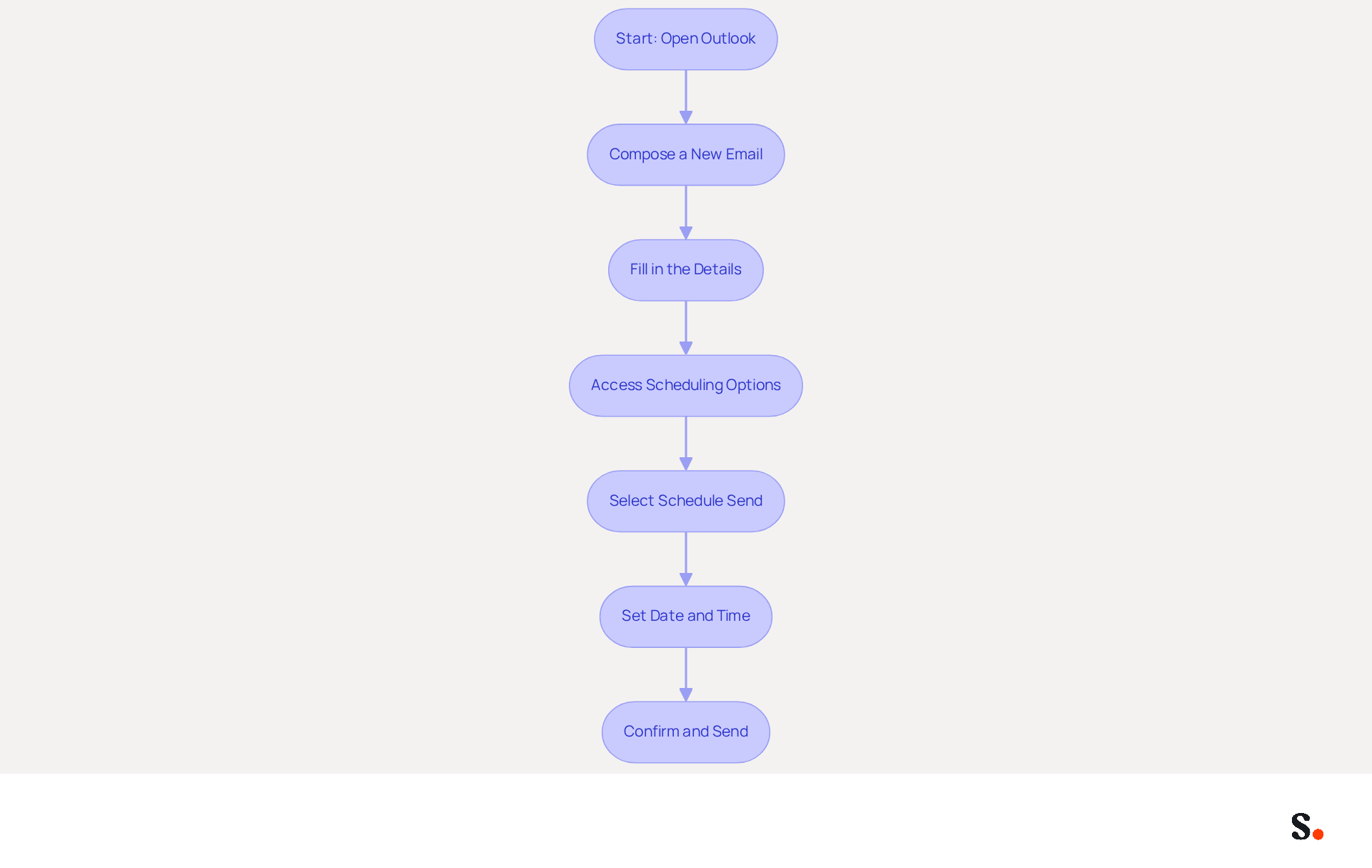
- Open Outlook: Launch the Outlook application on your desktop or navigate to the Outlook web app.
- Compose a New Email: Click on 'New Email' to open a new message window.
- Fill in the Details: Enter the recipient's contact address, subject line, and compose your message as you normally would.
- Access Scheduling Options:
- For the desktop version, go to the 'Options' tab in the message window.
- For the web version, click the dropdown arrow next to the 'Send' button.
- Select Schedule Send: Choose 'Schedule Send' from the dropdown menu.
- Set Date and Time: Specify the date and time you want the message to be sent, ensuring the time zone is correct. Outlook is a flexible tool for planning communications, as it allows users to understand how to schedule sending an email in Outlook up to one year in advance.
- Confirm and Send: Click 'Send' to schedule the message. It will be kept in your Outbox until the designated moment.
Following these steps teaches you how to schedule sending an email in Outlook at just the right time, enhancing your communication strategy. This practice not only aids in managing your time effectively but also aligns with peak productivity hours, ensuring your messages are received when recipients are most likely to engage. For instance, professionals who schedule messages for the start of the workday or just after lunch can avoid disrupting their team's workflow, thereby maintaining a professional environment. By mastering this feature, you can significantly improve your communication efficiency and responsiveness.
Troubleshoot Common Issues When Scheduling Emails
Users frequently encounter challenges when trying to understand how to schedule sending an email in Outlook, which can disrupt effective communication. Here are some troubleshooting tips:
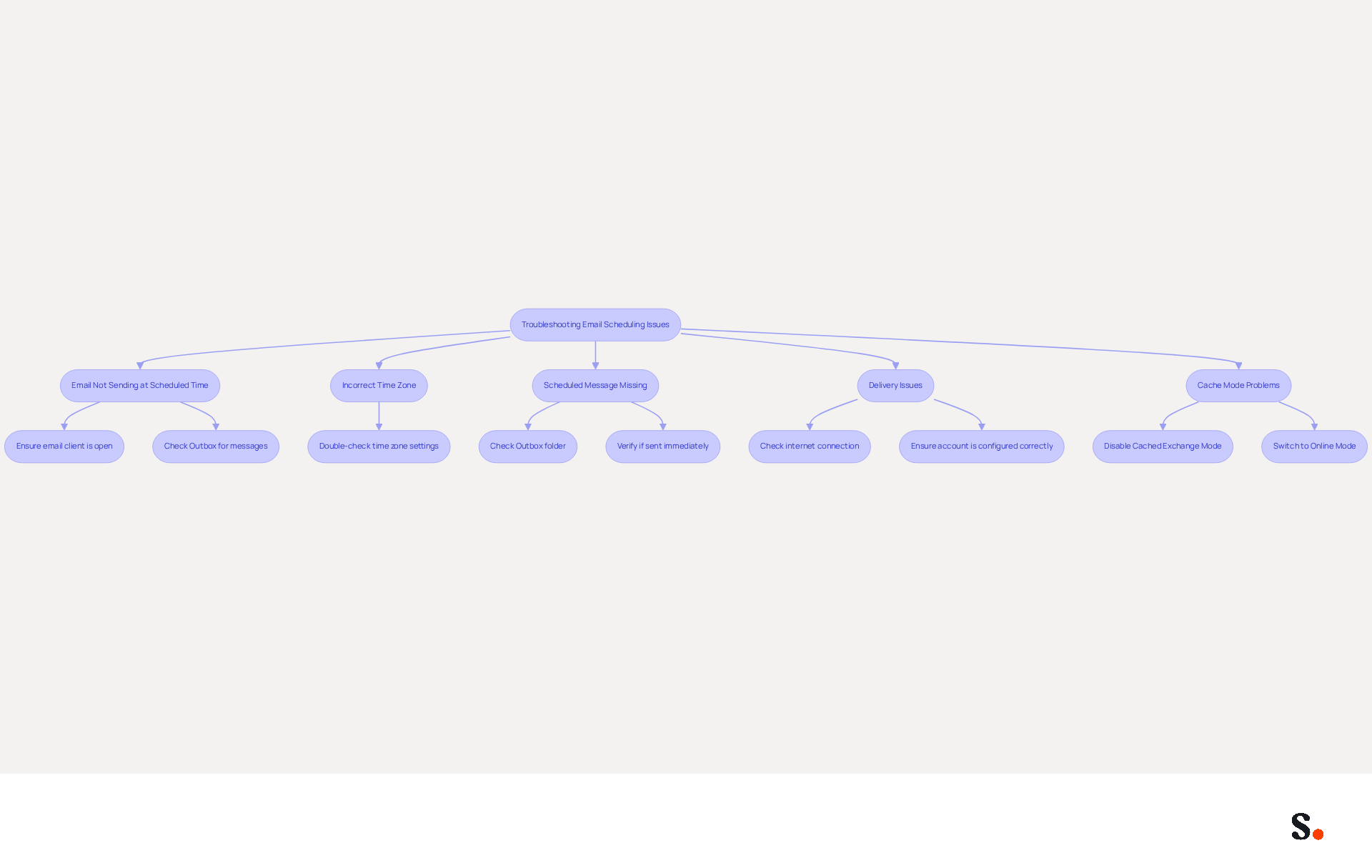
- Email Not Sending at Scheduled Time: Ensure that the email client is open at the scheduled time. If the application is closed, messages remain in the Outbox until reopened, which is relevant when learning how to schedule sending an email in Outlook. This is a frequent problem, as 30% of users encounter send-receive errors, resulting in delayed messages.
- Incorrect Time Zone: Double-check your zone settings in Outlook. If the time zone is incorrect, it may cause confusion for both the sender and recipient about how to schedule sending an email in Outlook.
- Scheduled Message Missing: If you cannot find your scheduled message, check the Outbox folder. Users often struggle to locate their scheduled messages, which highlights the importance of knowing how to schedule sending an email in Outlook to avoid confusion and potential miscommunication. If it’s not there, it may have been sent immediately due to a misconfiguration. Users have reported that messages sometimes appear in the Sent Items folder but do not reach the intended recipient, underscoring the necessity of checking the Outbox.
- Delivery Issues: If messages are not being sent, check your internet connection and ensure that your account is properly configured. A stable connection is essential, as 14% of users face difficulties with messages not downloading correctly, which can impact how to schedule sending an email in Outlook.
- Cache Mode Problems: If you are using Outlook in cached mode, consider disabling it to ensure that scheduled messages send at the correct time. Switching to Online Mode can help resolve issues where messages are delayed because they are stored locally rather than on the server.
By proactively addressing these common issues, users can understand how to schedule sending an email in Outlook to ensure their messages are sent as intended, enhancing communication clarity.
Explore the Benefits of Scheduling Emails in Outlook
Effective email management is crucial for maintaining professional communication, and understanding how to schedule sending an email in Outlook can help address common challenges faced by users.
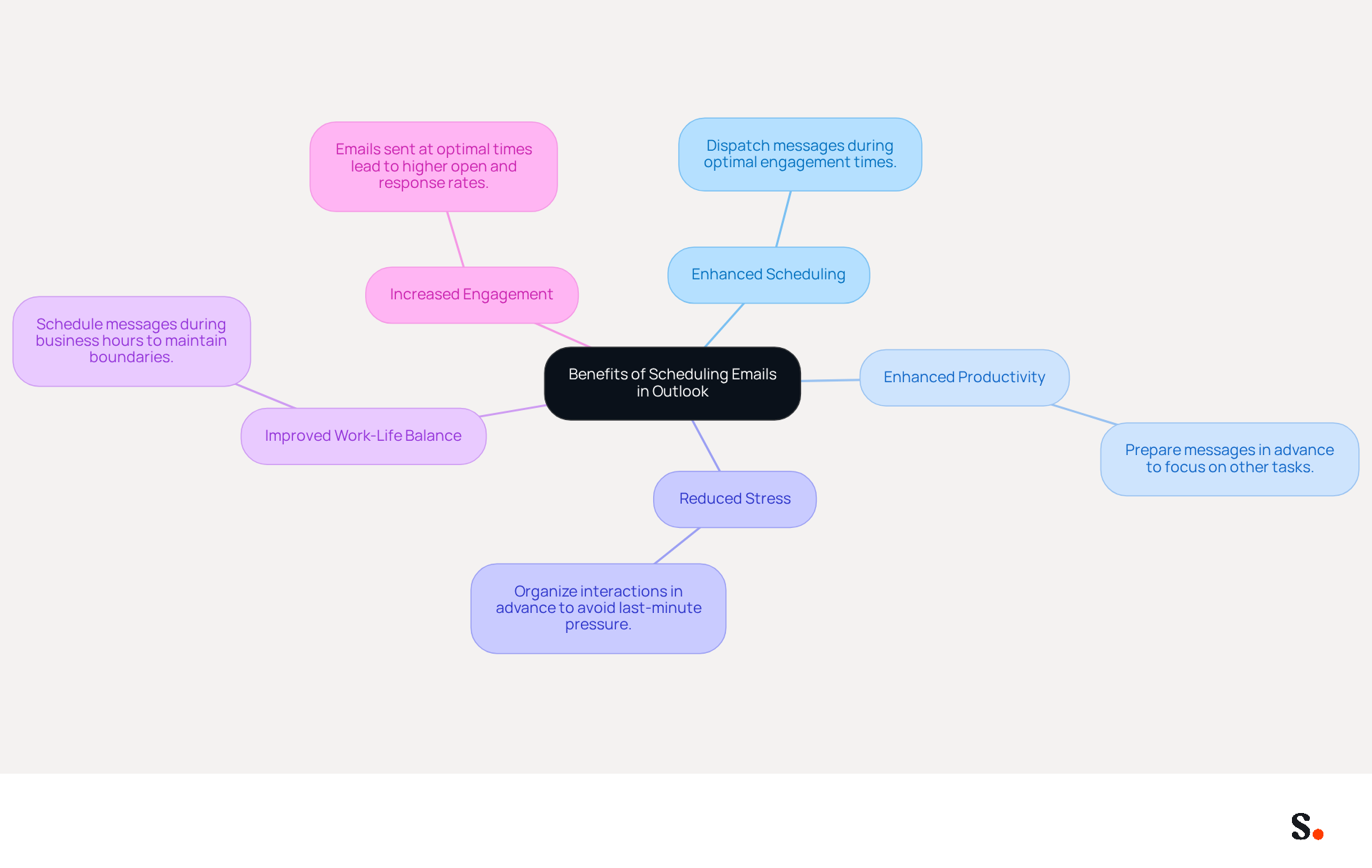
- Enhanced Scheduling: Dispatch messages during periods when recipients are most inclined to engage, boosting the likelihood of a reply.
- Enhanced Productivity: Prepare messages in advance and schedule them, enabling you to concentrate on other tasks without the concern of sending messages at the appropriate moment.
- Reduced Stress: Avoid the pressure of last-minute messages by organizing your interactions in advance.
- Improved Work-Life Balance: Schedule messages to be sent during business hours, even if you draft them outside of those hours, helping maintain boundaries between work and personal activities.
- Increased Engagement: Emails sent at optimal times can lead to higher open and response rates, enhancing your overall effectiveness in conveying messages.
By adopting this feature, professionals can improve their productivity and streamline their communication processes by learning how to schedule sending an email in Outlook.
Conclusion
Effective email scheduling in Outlook is crucial for maximizing communication impact. By strategically timing messages, professionals can send emails when recipients are most likely to engage, which boosts response rates and productivity. This feature not only respects recipients' time but also allows senders to manage their workload more effectively, making it an essential component of effective communication.
Throughout this guide, key steps for scheduling emails have been outlined, from composing a message to troubleshooting common issues. Understanding the scheduling options available in both the desktop and web versions of Outlook empowers users to take control of their communication strategies. Additionally, the benefits of scheduling - such as increased engagement, reduced stress, and improved work-life balance - highlight the importance of this feature in today’s fast-paced work environment.
Embracing email scheduling in Outlook is not just about convenience; it’s about optimizing communication for better outcomes. By implementing these strategies, professionals can enhance their productivity and ensure their messages are delivered at the right time, ultimately leading to more effective interactions. Explore this feature to see how it can help you communicate more effectively.
Frequently Asked Questions
What is email scheduling in Outlook?
Email scheduling in Outlook allows users to strategically time their messages, enhancing communication effectiveness by ensuring messages reach recipients at the right time.
Why is email scheduling important?
Email scheduling helps professionals manage their communication effectively, avoiding sending messages during off-hours or when recipients are less likely to engage, which can improve response rates.
Which versions of Outlook support email scheduling?
Email scheduling is available in both the desktop and web versions of Outlook, making it accessible for various users.
How does timing affect email engagement?
Statistics show that 88% of people check their messages daily, with 39% doing so three to five times a day. Messages sent during peak engagement periods, such as Saturdays, can achieve higher open rates, like 37.6%.
What tools can enhance email scheduling in Outlook?
Tools such as Boomerang for Microsoft offer advanced scheduling capabilities, allowing users to send messages even when not connected, further improving messaging processes.
What recent updates have been made to Outlook regarding email scheduling?
Recent updates include the introduction of an 'All accounts view' and enhanced Mail Merge capabilities, designed to improve user experience and functionality in email scheduling.
How can adopting scheduling tools improve communication strategies?
By adopting scheduling tools, professionals can significantly elevate their communication strategies and engagement outcomes, leading to better productivity and response rates.
List of Sources
- Understand Email Scheduling in Outlook
- 49 Top Email Marketing Statistics (https://forbes.com/advisor/business/software/email-marketing-statistics-jun-26)
- Microsoft reveals all the features coming to New Outlook, but Outlook Classic still beats it (https://windowslatest.com/2026/06/22/microsoft-is-begging-outlook-classic-users-with-new-outlook-features-in-september-but-its-still-a-hot-mess)
- 2026 Marketing Statistics, Trends, & Data (https://hubspot.com/marketing-statistics)
- How to Schedule an Email in Outlook in 2026 | Boomerang (https://boomerangoutlook.com/l/schedule-email-outlook)
- New Outlook for Windows: 15 Improvements, but Users Still Don’t Trust the Switch (https://windowsforum.com/threads/new-outlook-for-windows-15-improvements-but-users-still-dont-trust-the-switch.423059)
- Follow Step-by-Step Instructions to Schedule an Email
- How to Schedule an Email in Outlook in 2026 | Boomerang (https://boomerangoutlook.com/l/schedule-email-outlook)
- Scheduling Emails In Outlook: A Complete Guide — Explained (https://dl.iir.edu.ua/iir-news/scheduling-emails-in-outlook-a-complete-guide-1767647086)
- Step by step guide on how to schedule Email in Outlook (https://m.economictimes.com/news/international/us/step-by-step-guide-on-how-to-schedule-email-in-outlook/articleshow/97065304.cms)
- How To Schedule An Email in Outlook (2026 Guide) (https://gmass.co/blog/schedule-email-outlook)
- Delay or schedule sending email messages in Outlook | Microsoft Support (https://support.microsoft.com/en-us/outlook/mail/delay-or-schedule-sending-email-messages-in-outlook)
- Troubleshoot Common Issues When Scheduling Emails
- Outlook Statistics And Facts (2025) (https://electroiq.com/stats/outlook-statistics)
- Microsoft fixes Outlook email issues (https://cnbc.com/2026/01/22/microsoft-outlook-outage-email-issues.html)
- Fixes or workarounds for recent issues in classic Outlook for Windows | Microsoft Support (https://support.microsoft.com/en-us/support/known-issues/fixes-or-workarounds-for-recent-issues-in-classic-outlook-for-windows)
- When Outlook Scheduled Send goes wrong (https://superuser.com/questions/1818336/when-outlook-scheduled-send-goes-wrong)
- Fix Delayed Email Delivery in Outlook | Louisville Geek IT Solutions (https://louisvillegeek.com/news/how-to-delay-email-delivery-in-microsoft-outlook-without-outlook-open)
- Explore the Benefits of Scheduling Emails in Outlook
- The Best Time To Send Marketing Emails (2026) (https://salesforce.com/marketing/email/best-time-to-send-emails)
- 49 Top Email Marketing Statistics (https://forbes.com/advisor/business/software/email-marketing-statistics-jun-26)
- Best Time to Send Marketing Emails: A Complete Guide (https://business.adobe.com/blog/basics/the-best-time-to-send-emails)
- Are you scheduling your business emails to be sent out (https://michellektraining.medium.com/are-you-scheduling-your-business-emails-to-be-sent-out-6a2fcce1677e)
- The Best Time to Send Email in 2026 (Statistical Analysis) - MailerLite (https://mailerlite.com/blog/best-time-to-send-email)
Get started with Scribe
Create your signature in minutes
Free 14-day trial — no credit card.