How to Send Email Delay in Outlook: Step-by-Step Guide
While mastering timing in email communication is crucial, many professionals struggle to leverage the delay features in Microsoft Outlook effectively. This
Sophie Grant
Email Signature Specialist, Scribe
Introduction
While mastering timing in email communication is crucial, many professionals struggle to leverage the delay features in Microsoft Outlook effectively. This guide explores various methods for delaying email delivery, offering users the opportunity to refine their messaging strategy and avoid common pitfalls. This misalignment can lead to misunderstandings and missed opportunities. Understanding the intricacies of Outlook's delay options reveals not only how to send emails at the right moment but also how to troubleshoot potential issues that may arise along the way.
Understand Email Delay Features in Outlook
Microsoft Outlook provides essential features that empower users to manage their message delivery with greater precision and control. The primary options include:
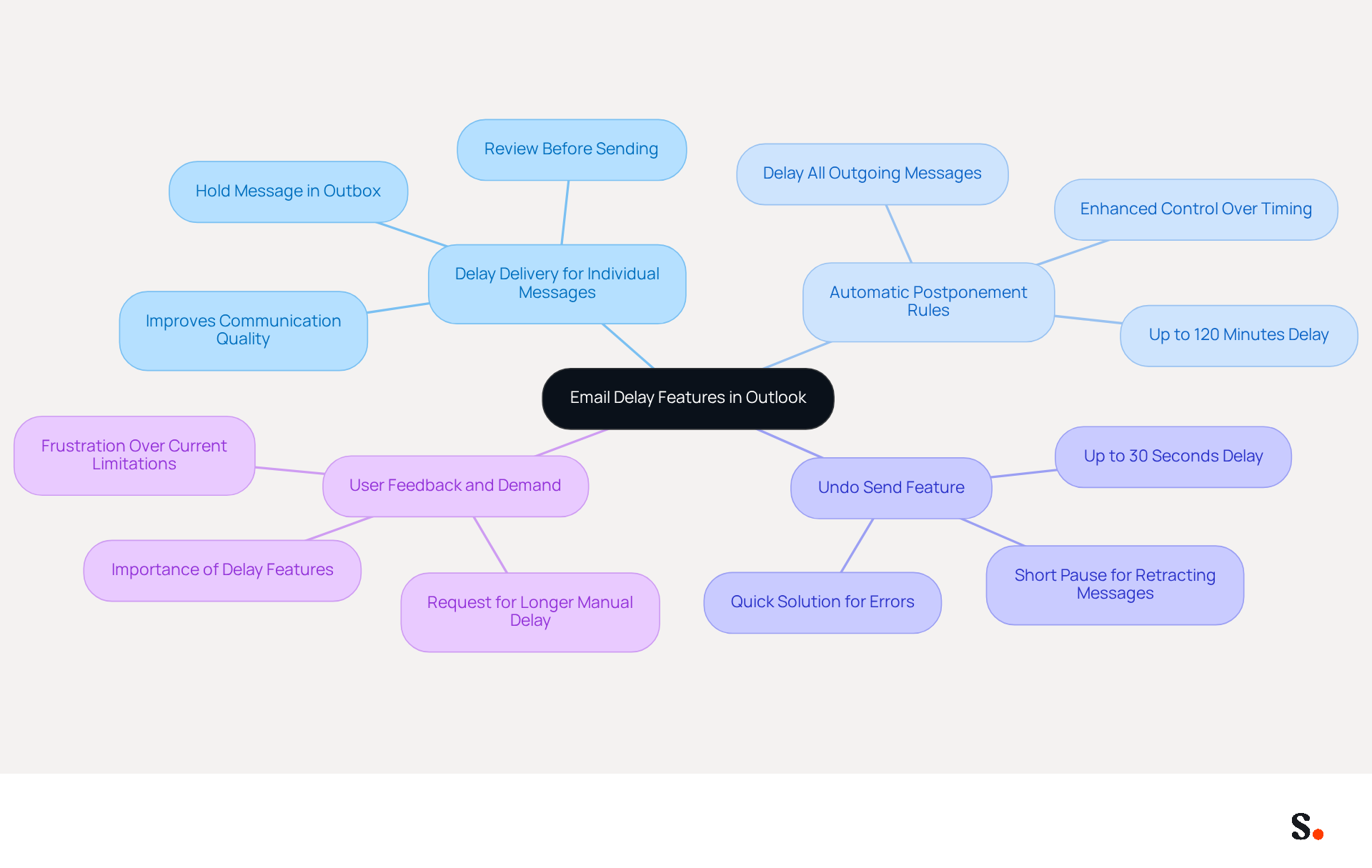
- Delay Delivery for Individual Messages: This feature shows how to send email delay in Outlook by allowing users to hold a specific message in the Outbox for a set period after clicking 'Send'. This is especially beneficial for reviewing the message or ensuring it is sent at a more suitable time, improving the quality of communication.
- Automatic Postponement Rules: One key feature allows users to set rules that automatically delay the sending of all outgoing messages for up to 120 minutes. This feature helps users avoid sending messages too quickly, ensuring that their communications are polished before reaching recipients. Once the rule is established, all messages sent will stay in the Outbox for the designated waiting period, giving users enhanced control over their timing.
- Undo Send Feature: This function enables users to establish a short pause (up to 30 seconds) for all outgoing messages, providing a safety net for those who may wish to retract a message shortly after dispatching. While this option is limited, it acts as a quick solution for identifying errors before the message is sent.
Recent discussions among Outlook users indicate a strong demand for more flexible postponement options, with many expressing frustration over the current limitations. Users often find themselves sending messages too quickly, leading to errors and miscommunications. For example, productivity specialists highlight the significance of having a pause feature to review messages before sending, as it can avert possible miscommunications and mistakes. Users have observed that the current 10-second pause option is inadequate for identifying errors, with many advocating for the reinstatement of longer manual pause options.
Real-world examples illustrate the effectiveness of these features. Businesses that employ the postponed shipment options report enhanced message management and fewer occurrences of sending mistakes, ultimately improving their professional image. By understanding and leveraging these features, users can optimize their communications, particularly by learning how to send email delay in Outlook, ensuring messages are sent at the most suitable times. Embracing these features not only streamlines communication but also enhances professional reputation by minimizing errors and miscommunications.
Delay Delivery for a Single Email
Understanding how to send email delay in Outlook can significantly improve communication timing and effectiveness. To delay the delivery of a single email in Outlook, follow these steps:
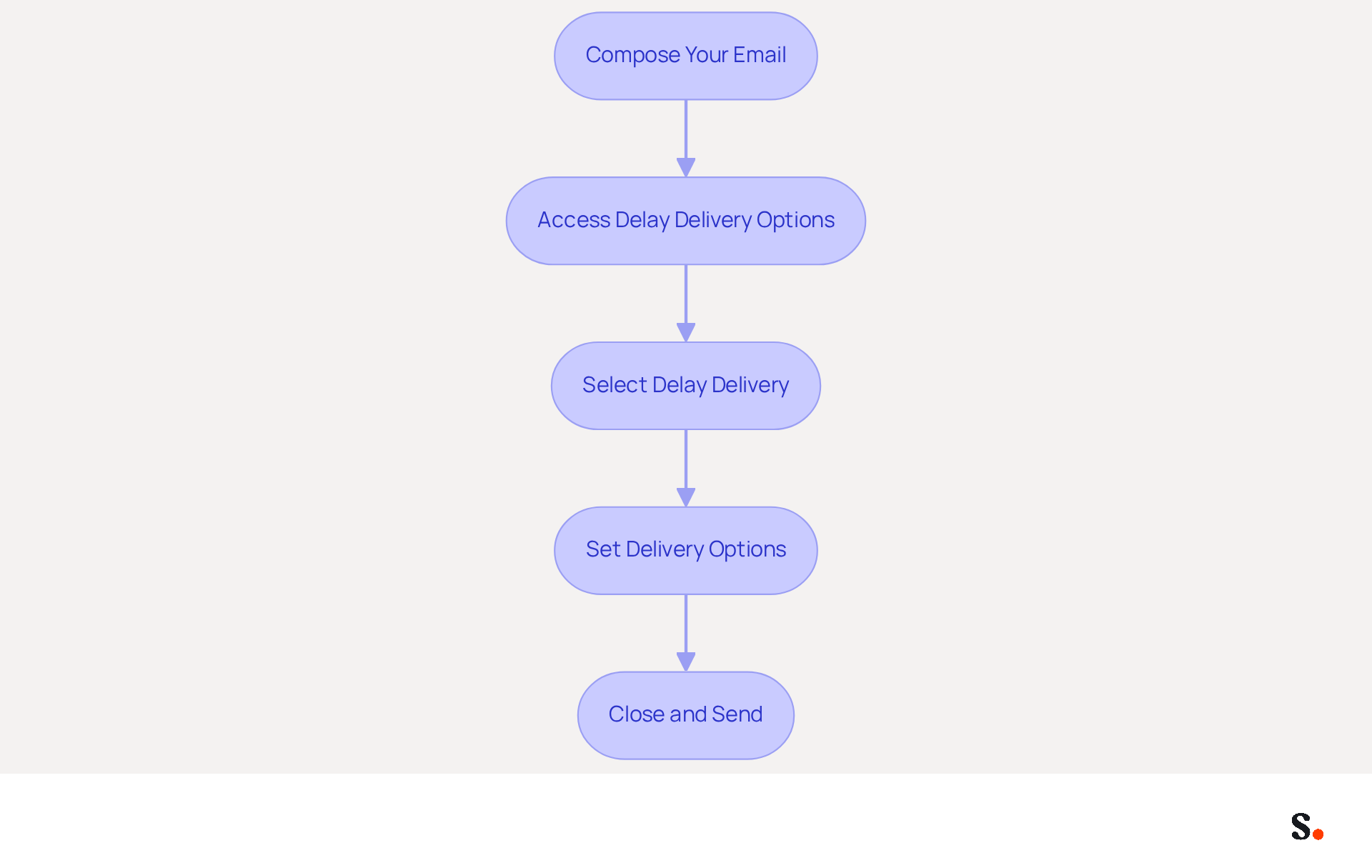
- Compose Your Email: Open Outlook and click on 'New Email' to start composing your message.
- Access Delay Delivery Options: In the message window, navigate to the 'Options' tab located in the ribbon at the top.
- Select Delay Delivery: Click on 'Delay Delivery' in the 'More Options' group. This will open the Properties dialog box.
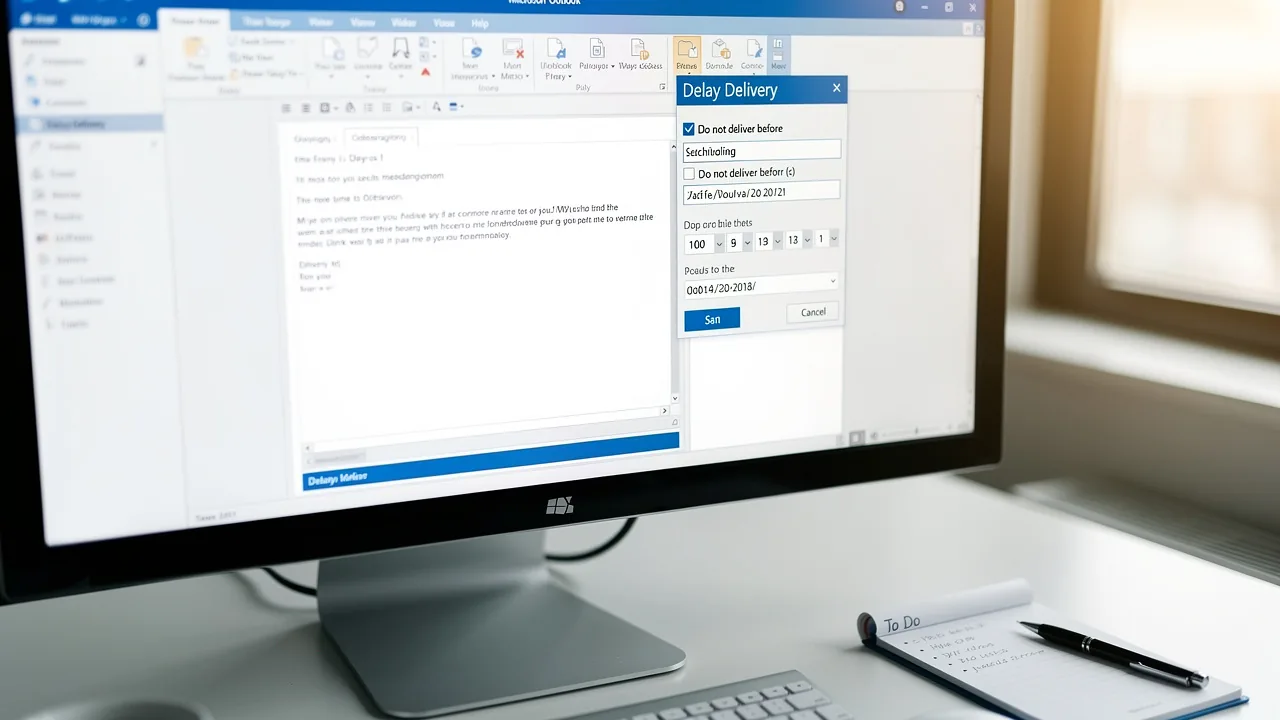
- Set Delivery Options: In the Properties dialog, check the box labeled 'Do not deliver before'. Then, choose the date and time you wish for the message to be sent.
- Close and Send: After setting your desired time for sending, click 'Close' to exit the Properties dialog. Finally, click 'Send' to place your message in the Outbox, where it will stay until the specified time for sending.
By learning how to send email delay in Outlook, you can ensure your message is sent at the right time, improving communication effectiveness. Organizations that have implemented scheduled message transmission have reported enhanced engagement and response rates, demonstrating the significance of timing in marketing communications. On average, messages can be delayed for delivery by up to 120 minutes, allowing for corrections or additional information to be added before sending. This approach helps keep inboxes organized and respects your colleagues' work-life balance, making it a strategic communication method. Note that the postponement feature is not available for IMAP or POP accounts, so ensure you are using an appropriate account type.
Set Up Automatic Delay Rules for Outgoing Emails
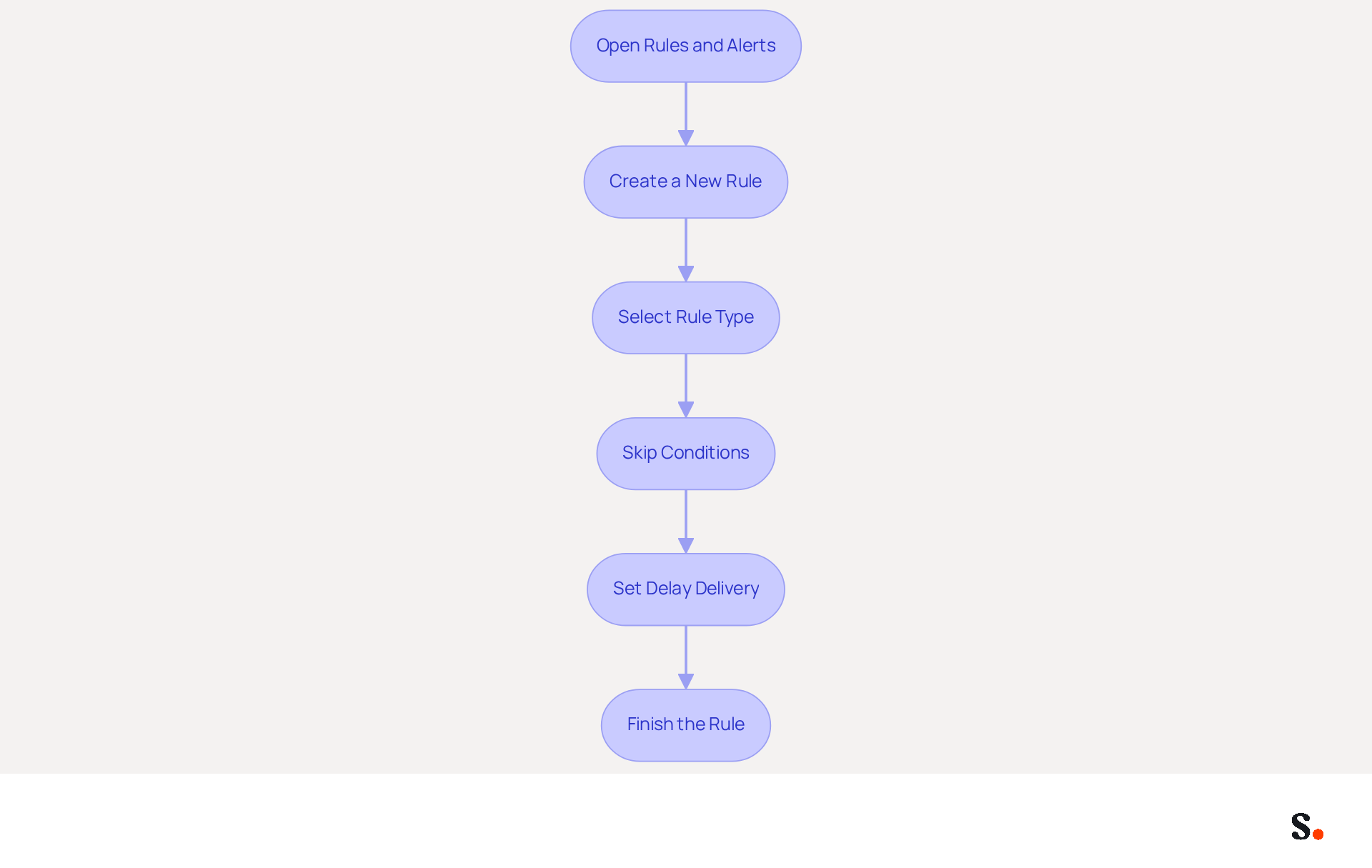
Learning how to send email delay in Outlook can significantly enhance your email management efficiency through the implementation of automatic delay rules. To set up these rules for all outgoing emails, follow these steps:
- Open Rules and Alerts: Start by clicking the 'File' tab located in the top left corner of Outlook. Then, select 'Manage Rules & Alerts'.
- Create a New Rule: In the Rules and Alerts dialog, click on 'New Rule'. This will open the Rules Wizard.
- Select Rule Type: Choose 'Apply rule on messages I send' under the 'Start from a blank rule' section and click 'Next'.
- Skip Conditions: When prompted to select conditions, simply click 'Next' again to apply this rule to all outgoing messages. Confirm by clicking 'Yes' when prompted.
- Set Delay Delivery: In the next window, check the box for 'defer delivery by a number of minutes'. Then, click on the underlined phrase to set your desired delay time, such as 5 minutes.
- Finish the Rule: Click 'Next', then 'Finish' to save your rule. Finally, click 'OK' to exit the Rules and Alerts dialog.
This rule demonstrates how to send email delay in Outlook, ensuring that all your outgoing messages will automatically be delayed by the specified time, giving you a buffer to review or modify them before they are sent. This simple adjustment can prevent miscommunication and enhance your professional image.
Troubleshoot Common Delay Delivery Issues
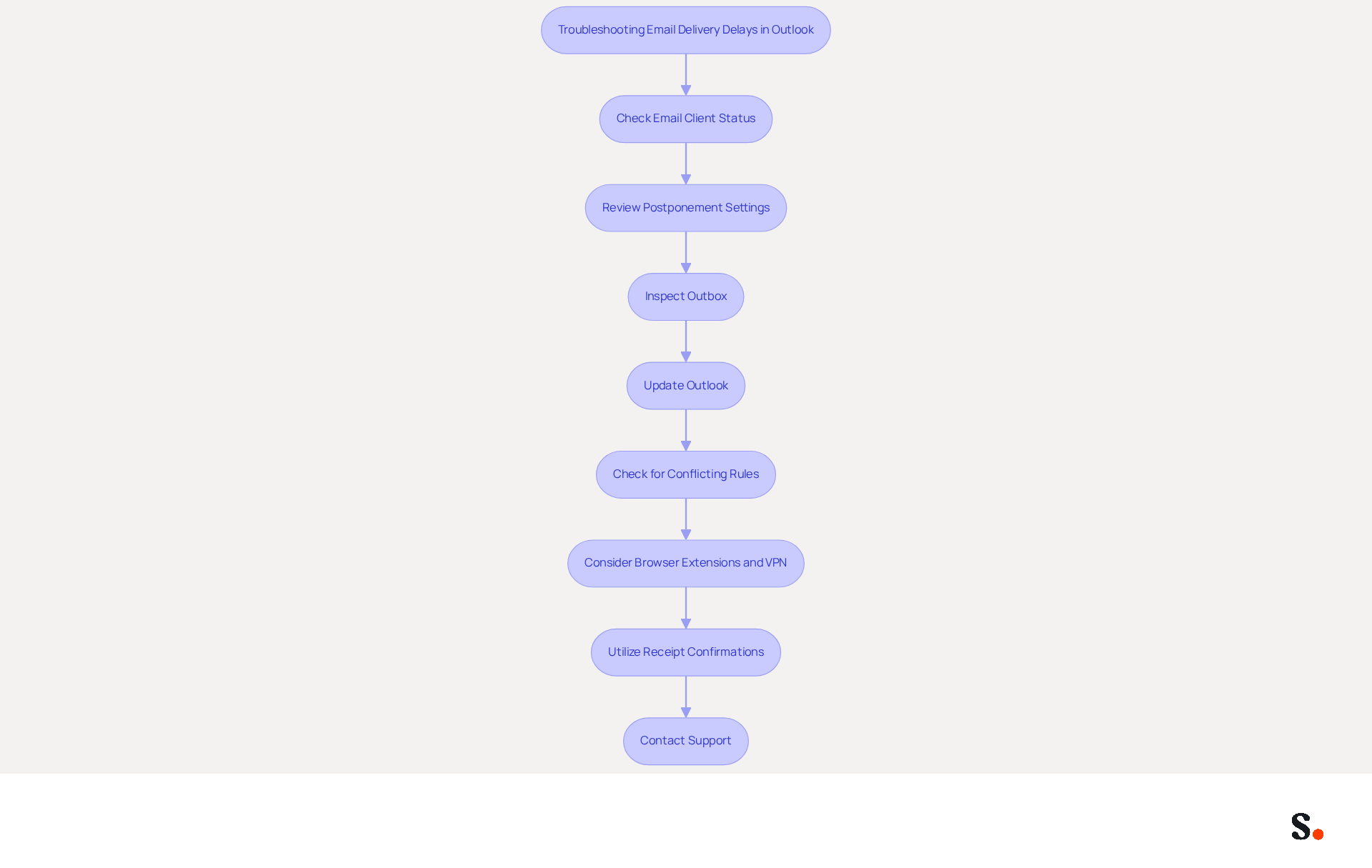
Experiencing delays in email delivery through Outlook can disrupt your communication flow, which is why it's important to understand how to send email delay in Outlook. If you encounter such issues, consider the following troubleshooting steps:
- Check Email Client Status: Ensure that the application is open and connected to the internet. If Outlook is not open or lacks internet connectivity, emails will remain unsent.
- Review Postponement Settings: Double-check your postponement settings in the Rules and Alerts section to ensure they are configured correctly. Make sure the specified delay time is appropriate.
- Inspect Outbox: Look in your Outbox folder to see if the email is stuck there. If it is, check the shipping time settings and ensure they are configured correctly.
- Update Outlook: Ensure that your Outlook application is up to date. Bugs in older versions can cause problems with message delivery.
- Check for Conflicting Rules: If you have multiple rules established, ensure that they do not conflict with one another, which could prevent messages from being sent as expected.
- Consider Browser Extensions and VPN: Check if any browser extensions, particularly those related to antivirus software, or VPN usage might be causing delays in sending messages.
- Utilize Receipt Confirmations: For time-sensitive messages, consider enabling receipt confirmations to monitor transmission issues effectively.
- Contact Support: You might want to contact Microsoft support for additional help if issues persist.
Statistics indicate that delayed message transmission can arise from various factors, such as conflicting rules or outdated software. For instance, messages may appear stuck and then send later due to signature add-ins or web add-ins with On-Send actions. A SMTP Failure code c355 signifies that an email client was unable to connect to the server to transmit a message. By following these troubleshooting steps, you can understand how to send email delay in Outlook, which will help resolve common issues related to delayed email delivery and ensure your communications remain effective and timely. Addressing these issues promptly can significantly enhance your email communication efficiency.
Conclusion
Effective communication hinges on the timing of your emails, and mastering Outlook's delay features can make a significant difference. By utilizing features like delaying delivery for individual messages and setting up automatic postponement rules, users can send emails at the right time. This approach reduces errors and provides opportunities for careful revisions, enhancing overall communication quality.
Throughout this guide, we shared key insights on implementing these features effectively. We outlined steps for:
- Delaying a single email
- Creating automatic delay rules
- Troubleshooting common delivery issues
Mastering these features can transform how professionals engage with their audience, leading to increased response rates, as timing plays a crucial role in effective marketing communications.
Every email matters, and mastering the timing of your messages can significantly impact your communication effectiveness. Embracing these Outlook features can streamline communication processes and enhance professional reputation. By implementing these strategies, users can avoid miscommunications and foster a more organized and respectful communication environment.
Frequently Asked Questions
What are the main features for managing email delays in Outlook?
The main features include Delay Delivery for Individual Messages, Automatic Postponement Rules, and the Undo Send Feature.
How does the Delay Delivery feature work in Outlook?
The Delay Delivery feature allows users to hold a specific message in the Outbox for a set period after clicking 'Send', enabling them to review the message or send it at a more suitable time.
What are Automatic Postponement Rules in Outlook?
Automatic Postponement Rules allow users to set rules that automatically delay the sending of all outgoing messages for up to 120 minutes, ensuring communications are polished before reaching recipients.
What is the Undo Send Feature in Outlook?
The Undo Send Feature provides a short pause (up to 30 seconds) for all outgoing messages, allowing users to retract a message shortly after dispatching it.
Why do users want more flexible postponement options in Outlook?
Users express frustration over current limitations, often sending messages too quickly, which can lead to errors and miscommunications. Many advocate for longer manual pause options to better review messages before sending.
How do businesses benefit from using email delay features in Outlook?
Businesses that utilize postponed shipment options report enhanced message management and fewer sending mistakes, which improves their professional image and communication effectiveness.
List of Sources
- Understand Email Delay Features in Outlook
- Delay or schedule sending email messages in Outlook | Microsoft Support (https://support.microsoft.com/en-us/outlook/mail/delay-or-schedule-sending-email-messages-in-outlook)
- Using Delayed Delivery / Scheduled Send to Have a Message Sent at a Later Date/Time (https://its.uiowa.edu/services/microsoft-365-email-calendaring/using-delayed-delivery-scheduled-send-have-message-sent)
- Setting a Delay to All Outgoing Emails in New Outlook - Microsoft Q&A (https://learn.microsoft.com/en-us/answers/questions/5740143/setting-a-delay-to-all-outgoing-emails-in-new-outl)
- How to Delay Delivery for All Messages in New Outlook (Outlook Version 1.2023.607.100)? - Microsoft Q&A (https://learn.microsoft.com/en-us/answers/questions/1312123/how-to-delay-delivery-for-all-messages-in-new-outl)
- Delay Delivery for a Single Email
- Delay or schedule sending email messages in Outlook | Microsoft Support (https://support.microsoft.com/en-us/outlook/mail/delay-or-schedule-sending-email-messages-in-outlook)
- How to delay or schedule sending email in Outlook | Harvard T.H. Chan School of Public Health (https://hsph.harvard.edu/information-technology/news/how-to-delay-or-schedule-sending-email-in-outlook)
- Fix Delayed Email Delivery in Outlook | Louisville Geek IT Solutions (https://louisvillegeek.com/news/how-to-delay-email-delivery-in-microsoft-outlook-without-outlook-open)
- Delay sending emails throughout the whole of my accounts not just individual emails - Microsoft Q&A (https://learn.microsoft.com/en-ca/answers/questions/5697420/delay-sending-emails-throughout-the-whole-of-my-ac)
- How to delay delivery in Outlook in 2026 | Boomerang (https://boomerangoutlook.com/l/outlook-delay-delivery)
- Troubleshoot Common Delay Delivery Issues
- Microsoft fixes Outlook email issues (https://cnbc.com/2026/01/22/microsoft-outlook-outage-email-issues.html)
- New Outlook delays (typically 2.5 hours) in actually sending emails - after reporting unable to do so (immediately after initiating Send) - Microsoft Q&A (https://learn.microsoft.com/en-us/answers/questions/5927278/new-outlook-delays-(typically-2-5-hours)-in-actual)
- Fix Delayed Email Delivery in Outlook | Louisville Geek IT Solutions (https://louisvillegeek.com/news/how-to-delay-email-delivery-in-microsoft-outlook-without-outlook-open)
- Issue with emails being delayed when sent | Microsoft Community Hub (https://techcommunity.microsoft.com/discussions/outlookgeneral/issue-with-emails-being-delayed-when-sent/4477243)
Get started with Scribe
Create your signature in minutes
Free 14-day trial — no credit card.