How to Set a Default Signature in Outlook: A Step-by-Step Guide
Navigating the complexities of email signatures in Outlook is essential for professionals seeking to elevate their communication. A well-crafted signature not
Sophie Grant
Email Signature Specialist, Scribe
Introduction
Navigating the complexities of email signatures in Outlook is essential for professionals seeking to elevate their communication. A well-crafted signature not only conveys essential contact information but also reinforces brand identity and trustworthiness.
In this guide, we'll walk you through the step-by-step process of setting a default signature in Outlook, ensuring that every email sent reflects a consistent and professional image.
Technical glitches can undermine the effectiveness of a well-crafted signature. By proactively addressing these challenges, users can ensure their professional image remains intact, regardless of technical setbacks.
Understand Email Signatures in Outlook
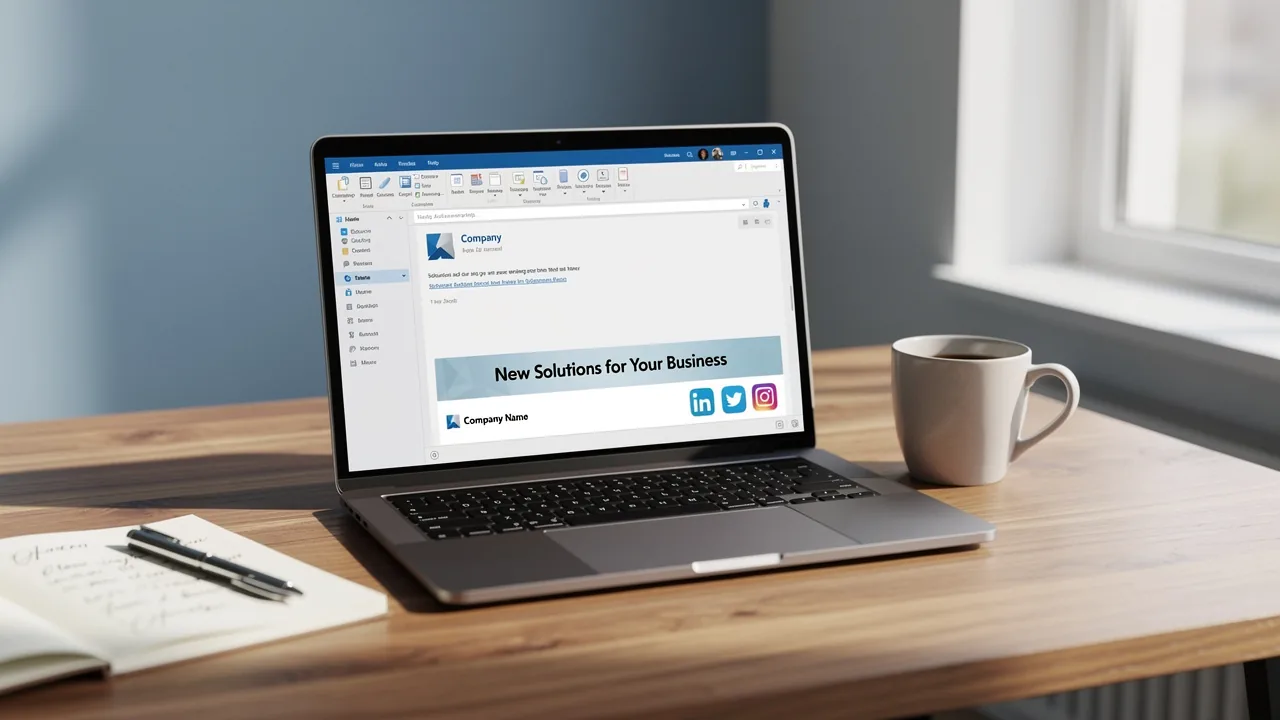
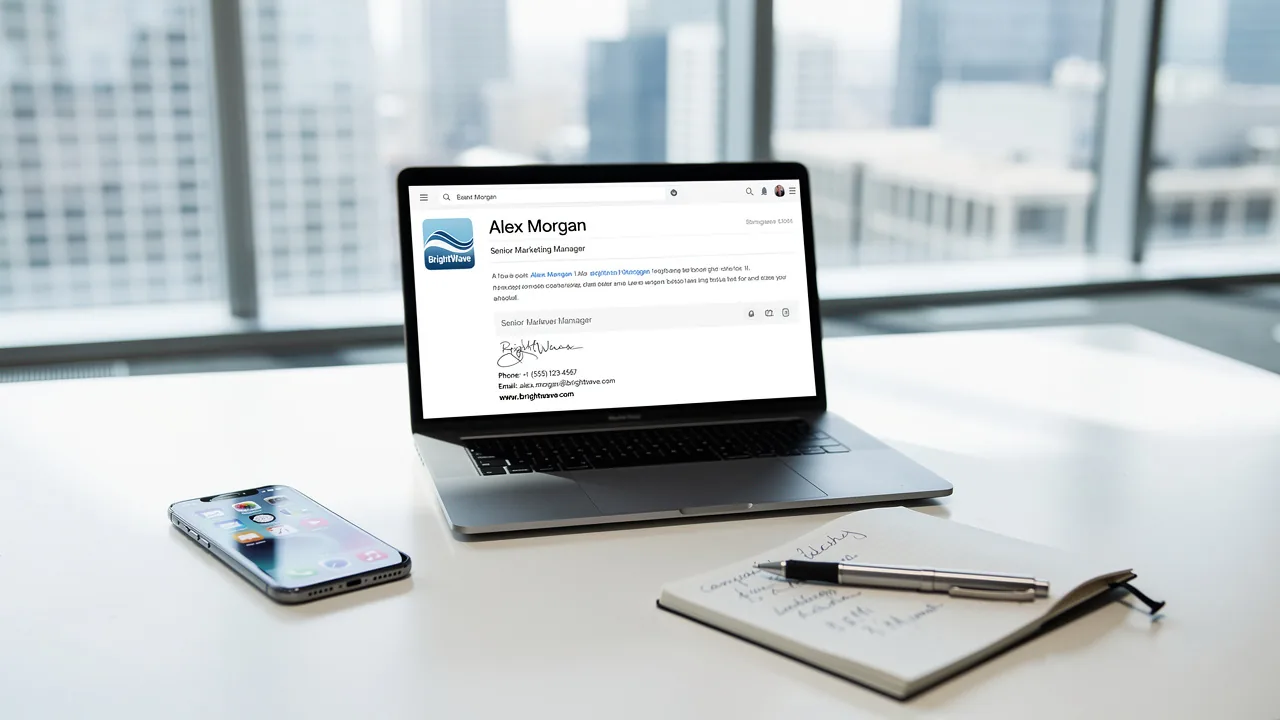
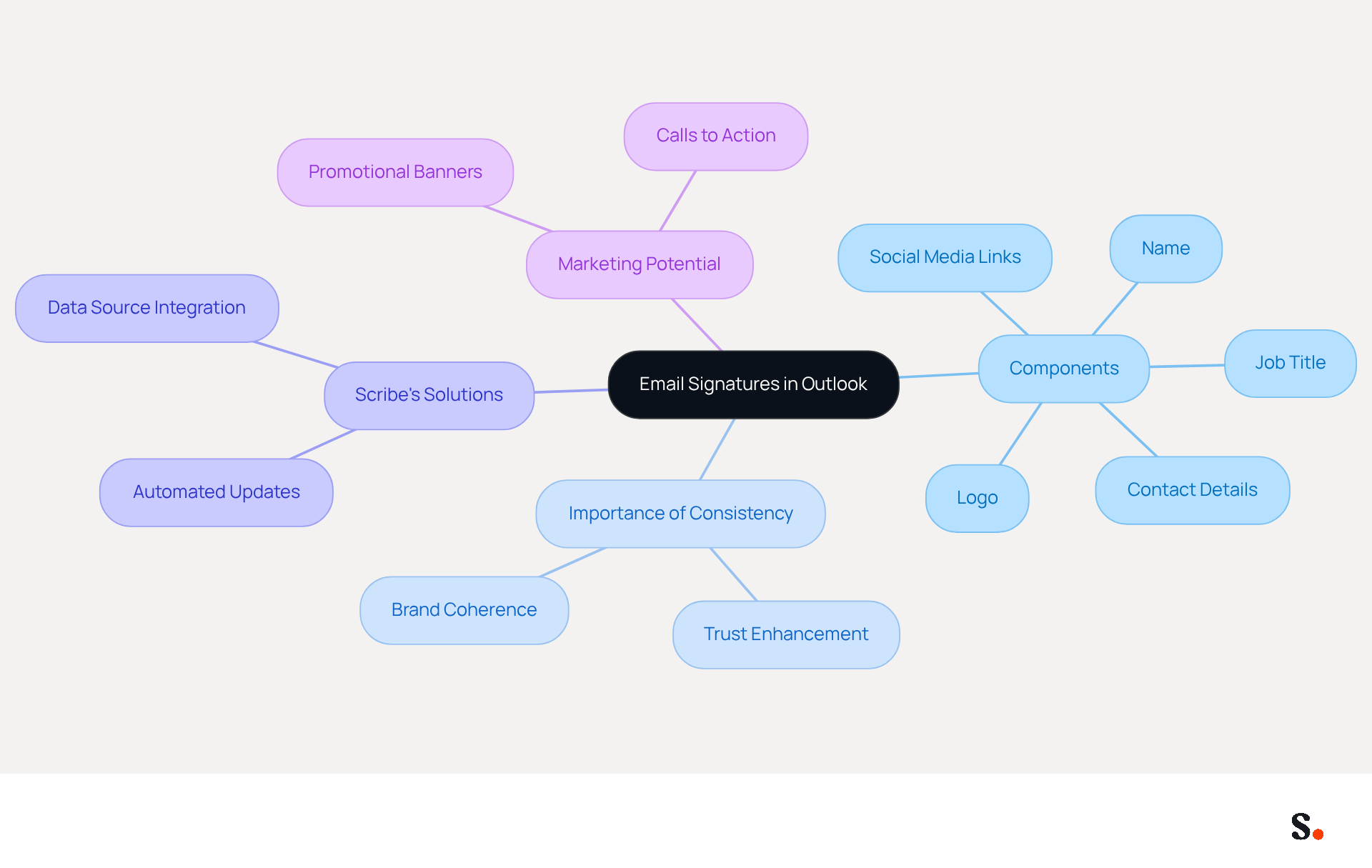
Email appendages in the email client serve as vital components that enhance communication effectiveness. They automatically attach to the end of your messages, typically containing your name, job title, company name, contact details, and often a logo or social media links. A well-designed email footer provides essential contact information and strengthens your brand identity. It can also serve as a marketing tool by including promotional messages or links to your website.
For businesses striving for consistency across all employee communications, understanding how to set a default signature in Outlook is essential for customizing email identifiers. However, without a streamlined approach, achieving this consistency can be a daunting task. This is where Scribe's automated solutions excel, enabling companies to optimize the management of email identities. By utilizing Scribe, organizations can ensure that every team member's mark remains up-to-date and aligned with the company's branding standards. Scribe auto-fills information using your business phone system as a data source, ensuring that any changes made in your Aircall configuration are automatically reflected in Scribe outputs without any action needed from your teammates.
This is significant, as research indicates that 76% of participants believe a work communication footer enhances trust in the sender, highlighting the importance of professional presentation in correspondence. Moreover, organizations that uphold consistent branding in their correspondence experience 85% improved brand coherence and three times greater campaign engagement. This leads to enhanced trust and engagement, ultimately benefiting the organization.
Adding engaging elements like promotional banners and clear calls to action can really boost the effectiveness of your digital communications. For instance, studies show that effective CTAs can increase clicks by 371% and sales by 1617%. This illustrates how a strategic approach to electronic correspondences can transform them into powerful marketing tools, maximizing the impact of professional interactions without additional effort.
By leveraging Scribe's capabilities, businesses can maintain a professional appearance while capitalizing on the marketing potential of their communications. This ultimately drives engagement and reinforces their brand identity.
Create Your Default Email Signature
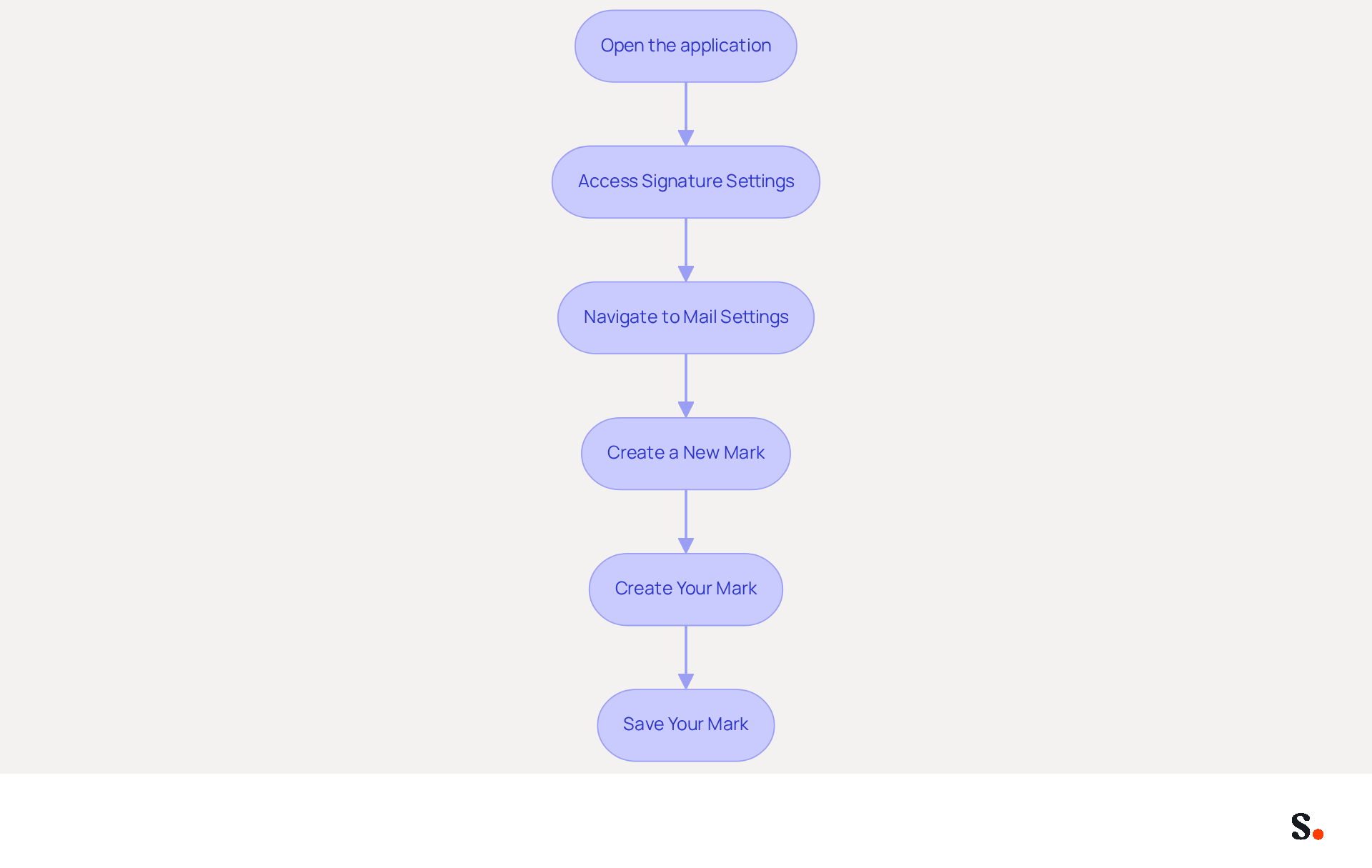
Creating a default signature in Outlook is essential for maintaining a professional image in your communications. To create your default email signature in Outlook, follow these steps:
- Open the application: Launch the email client on your computer.
- Access Signature Settings: Click on the 'File' tab in the top left corner, then select 'Options' from the menu.
- Navigate to Mail Settings: In the Outlook Options window, click on 'Mail' in the left sidebar, then click on the 'Signatures...' button.
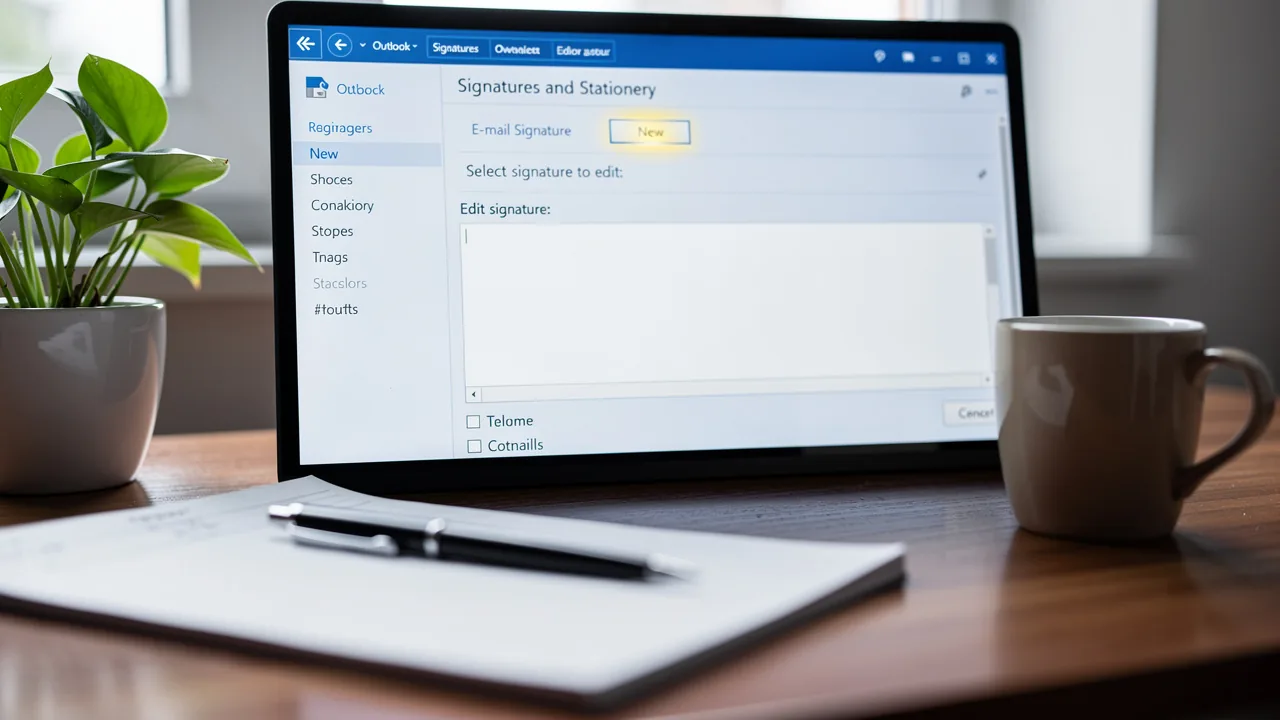
- Create a New Mark: In the Signatures and Stationery dialog box, click on 'New' to create a new mark. Enter a name for your mark and click 'OK'.
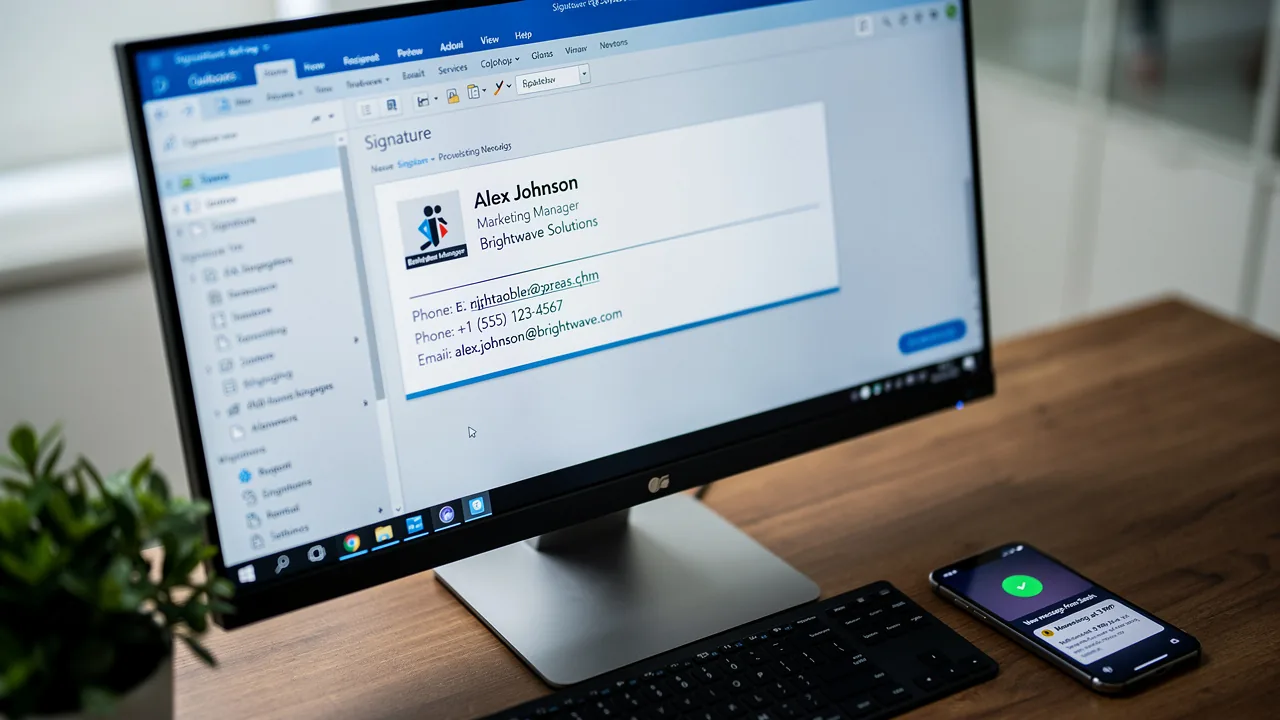
- Create Your Mark: In the editing area, type your mark text and format it using the available tools (font, size, color). Include essential information such as your name, title, company name, and contact details. To enhance engagement, consider adding a call to action or a link to your company’s website. Remember to adhere to brand colors, using no more than two to maintain consistency. Studies indicate that consistent branding in digital communications can increase revenue by 33%, highlighting its value for your marketing strategy.
- Save Your Mark: Once you are satisfied with your design, click 'OK' to save your mark.
By following these steps on how to set a default signature in Outlook, you will create a personalized email signature that enhances your professional image and ensures consistency in your communications. Furthermore, by syncing your Google Workspace and Aircall with Scribe, you can save time as any modifications made to your teammates' information will be automatically reflected in Scribe profiles. This automation simplifies updates and maintains brand consistency in all communications. Reviewing case studies on effective email communications can help you refine your approach.
Set Your Signature as Default for Outgoing Emails
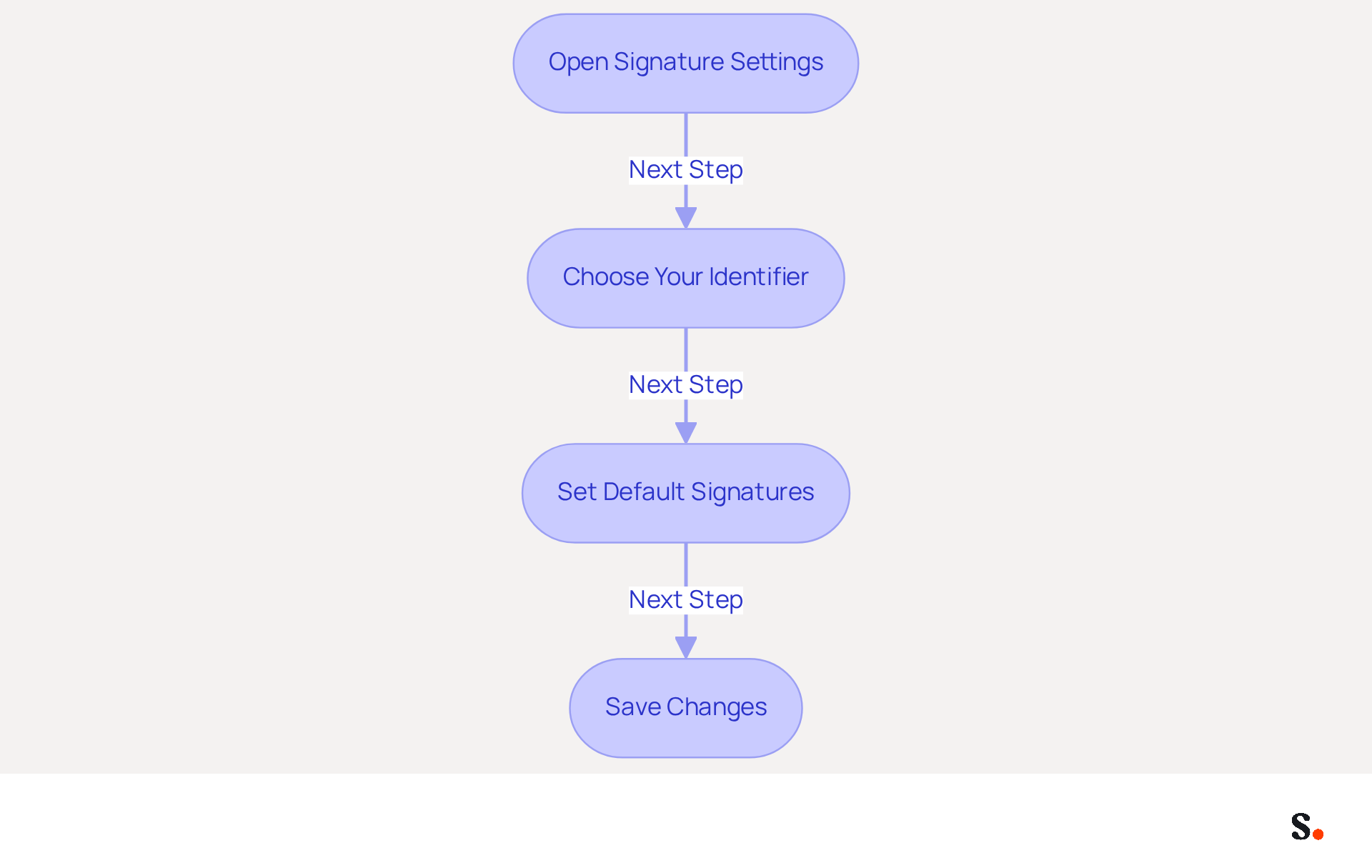
Knowing how to set a default signature in Outlook is essential for maintaining a professional image in your communications. To set your newly created signature as the default for outgoing emails in Outlook, follow these steps:
- Open Signature Settings: Access the 'Signatures and Stationery' dialog box by navigating to the appropriate settings in Outlook.
- Choose Your Identifier: In the 'Choose default identifier' section, select your email account from the dropdown menu if you manage multiple accounts.
- Set Default Signatures: Under 'New messages', select your newly created entry from the dropdown list. If you want the sign-off to show in replies and forwards, select it under 'Replies/forwards' as well.
- Save Changes: Click 'OK' to save your settings and close the dialog box.
Once you understand how to set a default signature in Outlook, your default sign-off will automatically appear in every new message or response, helping you maintain a professional and consistent image in your communications. Research shows that 76% of marketers believe customized footers enhance sender trust. Additionally, 80% of respondents consider a personalized footer essential to a company's identity. This practice is vital for effective corporate communication. Furthermore, with Scribe's automated synchronization features, any modifications made in your Google Workspace, such as updates to teammate information, will be automatically reflected in your correspondence without manual input. This approach saves time and ensures compliance with security standards such as SOC 2 Type II. It also safeguards your data and enhances brand consistency. A 100-employee firm is generating approximately 60,000-80,000 branded impressions monthly based on 30-40 outbound messages per worker per day, highlighting the significant impact of consistent branding in correspondence. Ultimately, a well-managed email signature can significantly influence how your brand is perceived in every interaction.
Troubleshoot Common Signature Issues
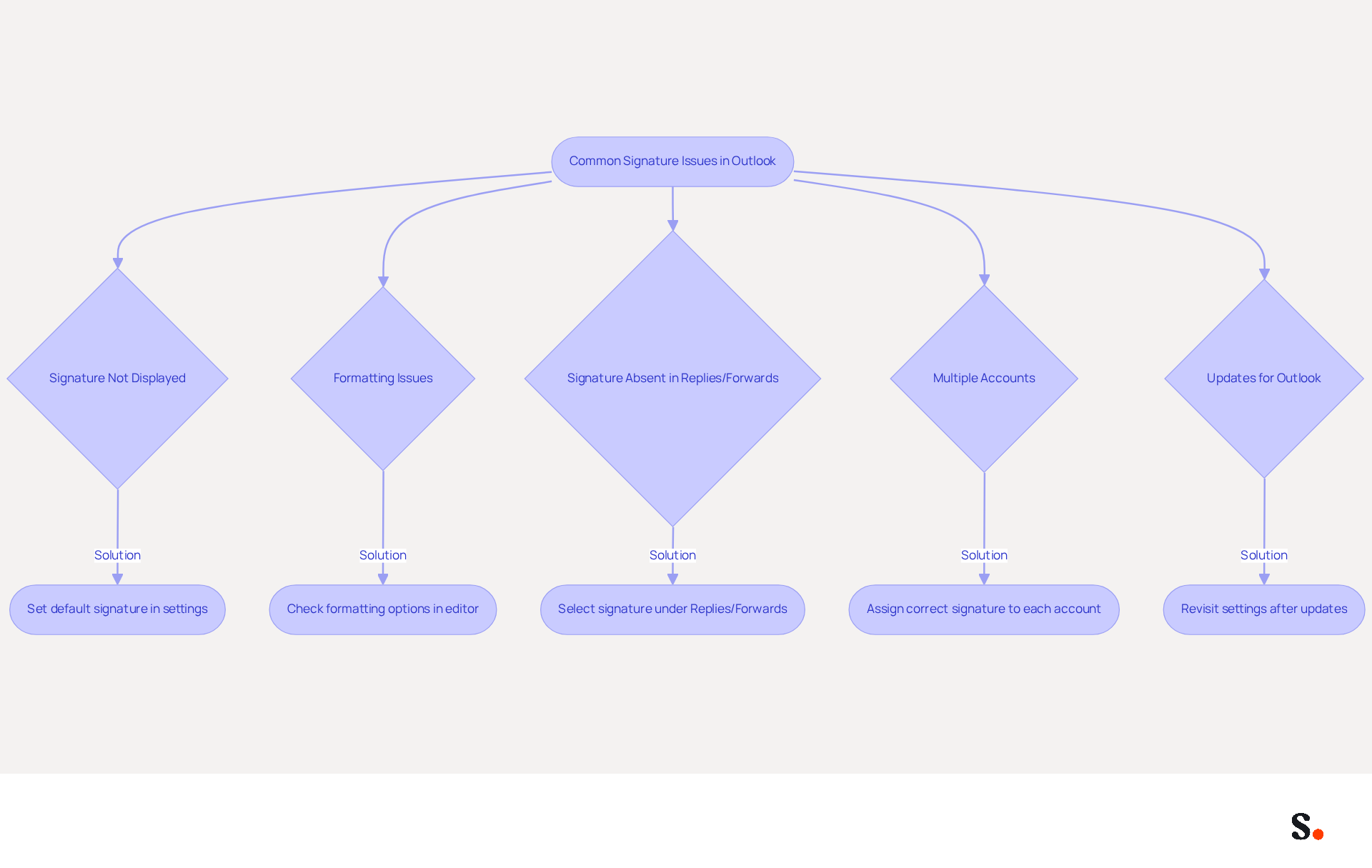
Experiencing issues with your email signature in Outlook can undermine your professional communications. Consider the following common problems and their solutions:
- Signature Not Displayed: If your mark is absent from new messages, make sure to learn how to set a default signature in Outlook for new communications in the mark settings. This is crucial; 42% of consumers view businesses without a branded email format negatively.
- Formatting Issues: If your sign-off appears incorrectly, check the formatting options in the sign-off editor. Use compatible fonts and ensure images are properly linked. Formatting issues often arise from hidden elements that word processors introduce when creating signatures.
- Signature Absent in Replies/Forwards: If your sign-off does not show up in replies or forwarded messages, verify that it is chosen under the 'Replies/forwards' section in the sign-off settings. It's crucial to keep your brand consistent in every message you send.
- Multiple Accounts: For users with various email accounts, confirm that the correct sign-off is assigned to each account in the settings. This helps avoid confusion and ensures a professional image is maintained.
- Updates for Outlook: Modifications to the application can occasionally reset configurations, resulting in personal identifiers vanishing. If this happens, revisit the settings to understand how to set a default signature in Outlook. Regularly updating Outlook can significantly reduce problems related to disappearing email identifiers.
Addressing these common issues not only resolves technical glitches but also reinforces your brand's professionalism.
Conclusion
Establishing a professional brand identity begins with creating a default signature in Outlook, a task often overlooked yet essential. By following the outlined steps, users can ensure that their email signatures reflect their organization’s values and enhance trust among recipients. This process streamlines communication and can turn email signatures into powerful marketing tools, as evidenced by increased engagement rates seen by organizations that utilize them effectively.
Throughout the guide, key insights were shared on the importance of email signatures, including their role in enhancing trust and coherence in branding. The steps to create and set a default signature were clearly laid out, emphasizing the ease of use and the benefits of automation through tools like Scribe. By integrating with platforms such as Google Workspace and Aircall, Scribe simplifies the management of email signatures, ensuring that any updates are automatically reflected across all communications, thus saving time and maintaining brand consistency.
It's clear that a well-crafted email signature plays a vital role in how others perceive your professionalism. Organizations are encouraged to leverage the power of email signatures not only to present a professional image but also to harness their potential as a marketing asset. By adopting these practices, businesses can enhance their communication strategies and drive measurable results, reinforcing the importance of every detail in professional correspondence.
Frequently Asked Questions
What is the purpose of an email signature in Outlook?
An email signature in Outlook serves as a vital component that enhances communication effectiveness by automatically attaching essential information such as your name, job title, company name, contact details, and often a logo or social media links to the end of your messages.
How can a well-designed email signature benefit a business?
A well-designed email signature provides essential contact information, strengthens brand identity, and can serve as a marketing tool by including promotional messages or links to the company's website.
Why is it important for businesses to set a default signature in Outlook?
Setting a default signature in Outlook is important for businesses to ensure consistency across all employee communications and to customize email identifiers effectively.
How does Scribe help organizations manage email signatures?
Scribe helps organizations optimize the management of email identities by auto-filling information using the business phone system as a data source, ensuring that any changes made in the Aircall configuration are automatically reflected in Scribe outputs without requiring action from teammates.
What impact does a professional email signature have on trust and engagement?
Research indicates that 76% of participants believe a work communication footer enhances trust in the sender, and organizations with consistent branding in their correspondence experience 85% improved brand coherence and three times greater campaign engagement.
How can engaging elements like promotional banners and calls to action enhance email effectiveness?
Adding engaging elements such as promotional banners and clear calls to action can significantly boost the effectiveness of digital communications, with studies showing that effective CTAs can increase clicks by 371% and sales by 1617%.
What overall benefits do businesses gain by leveraging Scribe for their email communications?
By leveraging Scribe's capabilities, businesses can maintain a professional appearance, capitalize on the marketing potential of their communications, drive engagement, and reinforce their brand identity.
List of Sources
- Understand Email Signatures in Outlook
- 4 Best Practices for Your Outlook Signature Line in Marketing (https://scribe-mail.com/en-US/blog/4-best-practices-for-your-outlook-signature-line-in-marketing)
- The impact of email signatures on your branding (https://signitic.com/en/resources/the-impact-of-email-signatures-on-your-branding)
- 4 Best Practices for Your Work Email Signature Strategy (https://scribe-mail.com/en-US/blog/4-best-practices-for-your-work-email-signature-strategy)
- Don't Underestimate the Marketing Power of Your Email Signature (https://marketingprofs.com/opinions/2015/29032/dont-underestimate-the-marketing-power-of-your-email-signature)
- Research Recap: Branded Email Signatures Increase Company Recognition, Trust - Demand Gen Report (https://demandgenreport.com/industry-news/research-recap-branded-email-signatures-increase-company-recognition-trust/47252)
- Create Your Default Email Signature
- Outlook: Adding Email Signatures (https://td.usnh.edu/TDClient/60/Portal/KB/Article/4666/Outlook-Adding-Email-Signatures)
- Create an Email Signature in Outlook (Windows & Mac Desktop) | Microsoft | Alamo Colleges District (https://alamocolleges.screenstepslive.com/a/1211525-create-an-email-signature-in-outlook-windows-mac-desktop)
- Email Signature Best Practices - NEWOLDSTAMP (https://newoldstamp.com/blog/email-signature-best-practices)
- How to Set Up a Signature in Outlook (7 Easy Steps) (https://securemailmerge.com/knowledge/how-to-set-a-signature-in-outlook)
- Set Your Signature as Default for Outgoing Emails
- 40+ Email Signature Statistics for 2026 (Data + Insights) (https://wavecnct.com/blogs/email-signature-statistics)
- Automatic Signature in Outlook: Adding and Changing with Ease - NEWOLDSTAMP (https://newoldstamp.com/blog/automatic-signature-in-outlook)
- Default email signatures for replies and forwards - Microsoft Q&A (https://learn.microsoft.com/en-us/answers/questions/1119661/default-email-signatures-for-replies-and-forwards)
- Best Practices for Email Signatures for Business Owners (https://scribe-mail.com/en-US/blog/best-practices-for-email-signatures-for-business-owners)
- Troubleshoot Common Signature Issues
- How to solve problems with email signatures in Microsoft 365? (https://mail-signatures.com/articles/problems-email-signatures-office-365)
- Email Signature Troubleshooting - Problems & Solutions - Gimmio (https://blog.gimm.io/email-signature-troubleshooting)
- Fix Outlook Signature Disappears: 4 Steps to Restore Yours (https://scribe-mail.com/en-US/blog/fix-outlook-signature-disappears-4-steps-to-restore-yours)
- 40+ Email Signature Statistics for 2026 (Data + Insights) (https://wavecnct.com/blogs/email-signature-statistics)
Get started with Scribe
Create your signature in minutes
Free 14-day trial — no credit card.