How to Set Up Email Signature on iPhone: A Step-by-Step Guide
While setting up an email signature on an iPhone appears straightforward, it is essential for maintaining professionalism in communication. A well-crafted
Sophie Grant
Email Signature Specialist, Scribe
Introduction
While setting up an email signature on an iPhone appears straightforward, it is essential for maintaining professionalism in communication. A well-crafted signature conveys vital information and reinforces brand identity and trust. However, users often struggle with formatting and compatibility issues when setting up their signatures, which can detract from the professionalism of communications, potentially harming brand perception.
How can one ensure that their email signature is not only functional but also visually appealing and effective across various platforms? This guide will outline the steps to create and implement an effective email signature on an iPhone, highlighting common pitfalls and best practices.
Prepare Your iPhone for Email Signature Setup
To effectively manage your email settings on your iPhone, follow these essential steps.
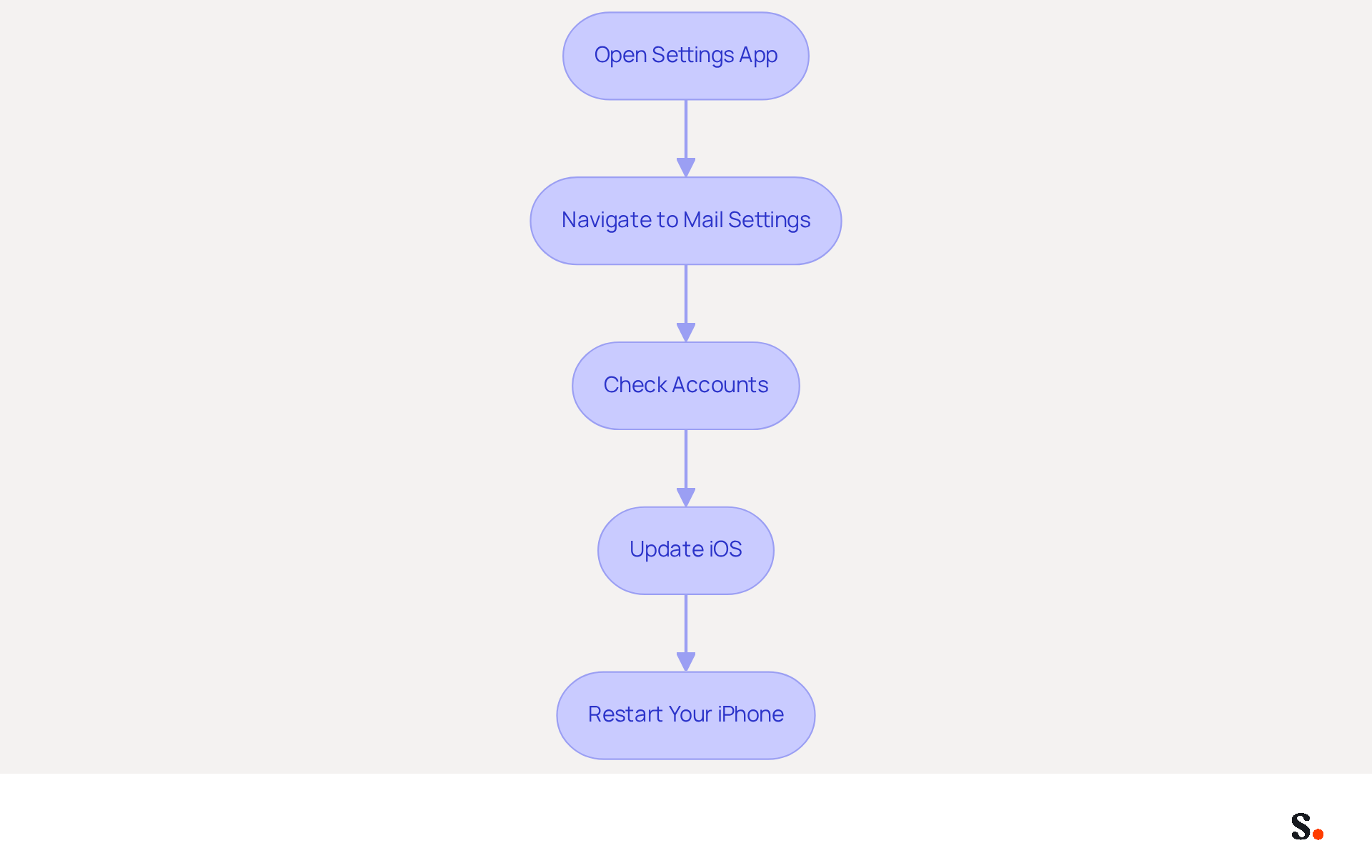
- Open the Settings App: Locate the Settings icon on your iPhone's home screen and tap it to open.
- Navigate to Mail Settings: Scroll down and select 'Mail' from the list of options. This will take you to the Mail settings where you can manage various email-related configurations.
- Check Accounts: Ensure that your accounts are properly set up. If you haven't added your account yet, tap 'Accounts' and follow the prompts to include your account. If your accounts are not set up correctly, you may encounter issues when trying to manage your email settings.
- Update iOS: Ensure your iPhone is updated to the latest version of iOS. Go to 'General' > 'Software Update' to check for updates. Keeping your device updated ensures compatibility with the latest features and resolves any issues that may impact messaging functionality.
- Restart Your iPhone: After making changes, it's a good idea to restart your device to confirm all settings are applied correctly. Press and hold the power button, then slide to power off. Turn it back on after a few seconds.
These steps will guide you on how to set up email signature on iPhone for the message footer setup process. Furthermore, when you sync your Google Workspace with Scribe, any modifications made to your team’s information will automatically refresh in your communications, saving you time and ensuring brand consistency across all interactions. Moreover, Scribe's seamless integration with Calendly enables automatic updates to your contact details, enhancing your team's efficiency. With Scribe's SOC 2 Type II compliance, you can trust that your data is handled securely, providing peace of mind as you manage your email branding. With these preparations, you can confidently manage your email branding and ensure seamless communication across your team.
Create a Visually Appealing Email Signature
Creating an effective email signature requires careful consideration of various elements to ensure clarity and professionalism.
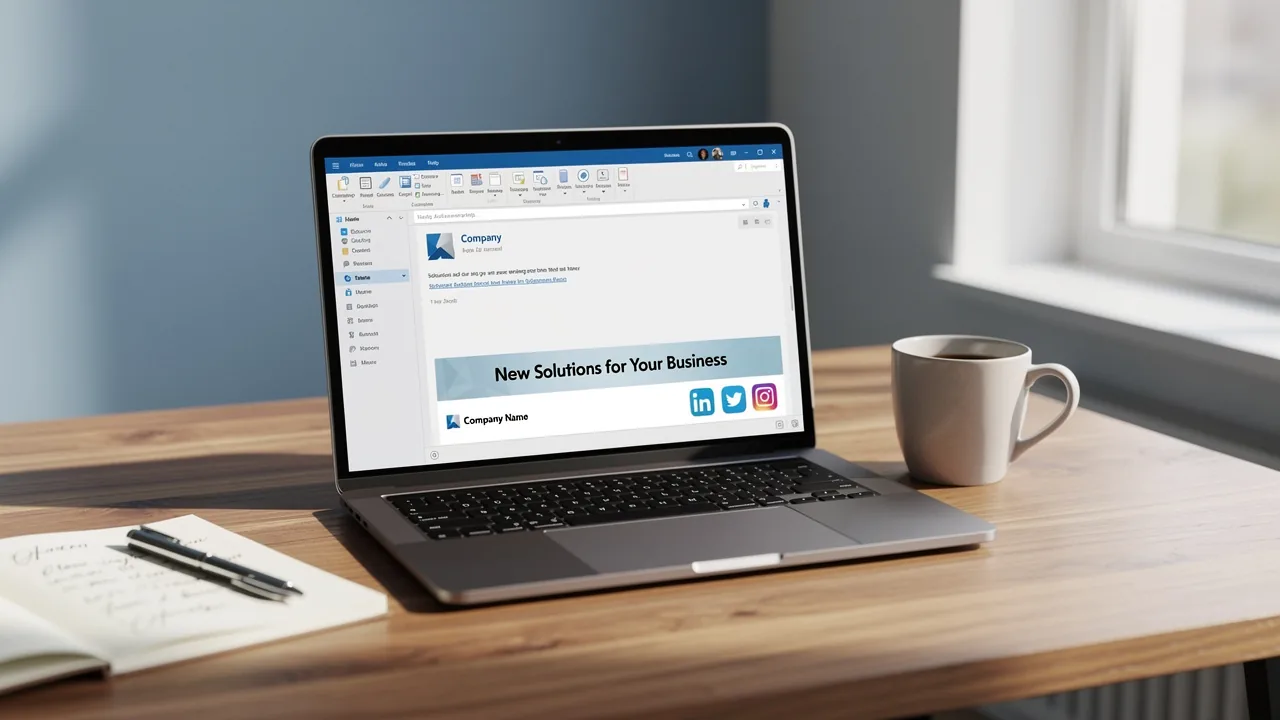
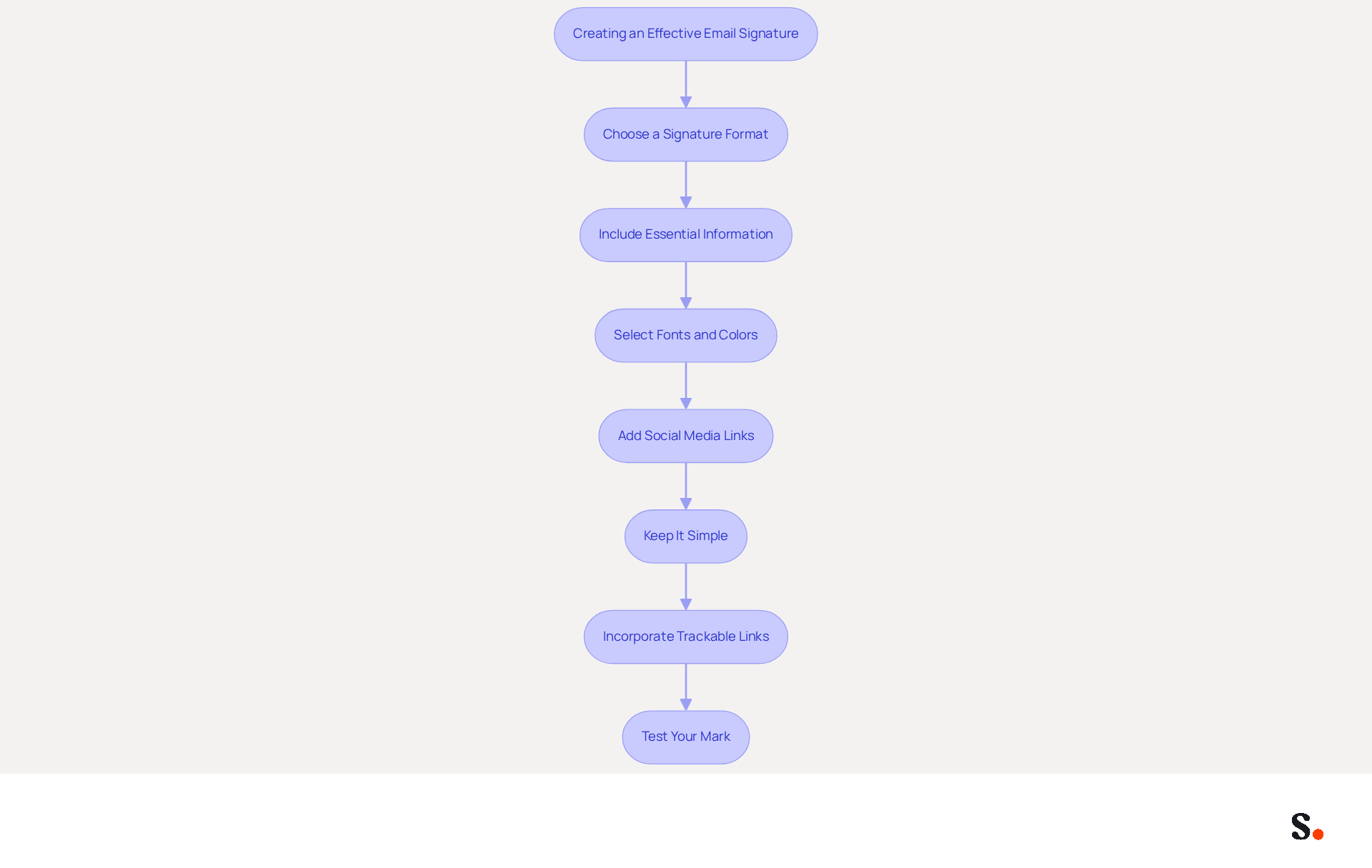
- Choose a Signature Format: Most users find that a text mark ensures clarity and professionalism. Decide whether you want a simple text format or a more complex HTML version that includes images and links.
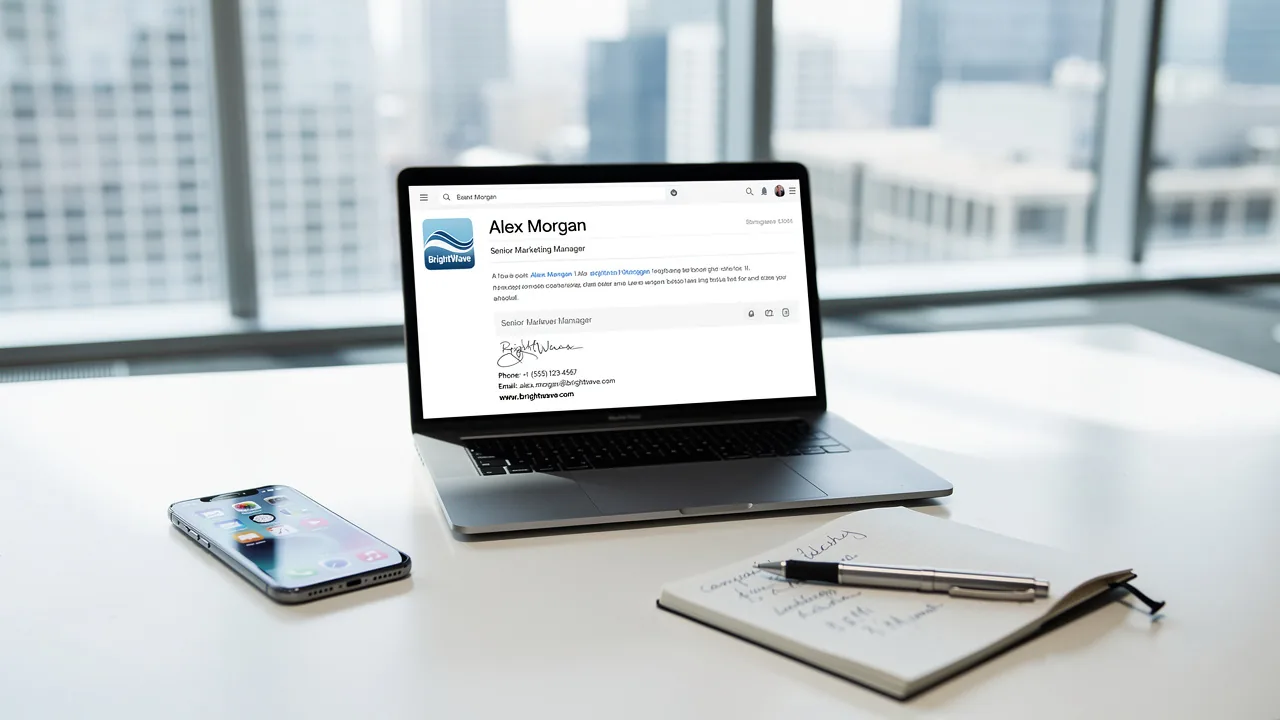
- Include Essential Information: Your endorsement should contain your full name, job title, company name, and contact information. Optionally, you can add your company logo or a professional photo to enhance brand recognition.
- Select Fonts and Colors: Use fonts that are easy to read and colors that align with your brand. Stick to a maximum of two different fonts and a color palette that complements your branding to maintain a cohesive look.
- Add Social Media Links: If applicable, include small icons that link to your professional social media profiles. Ensure these icons are subtle and do not overshadow the branding, as this aligns with findings that 75.8% of users include social media links to boost engagement.
- Keep It Simple: Clutter can confuse recipients and weaken your message's impact. Avoid overcrowding your mark with excessive information or graphics. When your mark is clean and concise, it effectively conveys professionalism, as Helga Zabalkanska states, "A clean and simple message footer is more effective."
- Incorporate Trackable Links: Including trackable links in your message footer allows you to monitor engagement and assess the effectiveness of your footer. This is crucial for demonstrating ROI and optimizing your marketing strategies.
- Test Your Mark: By testing your mark, you can confirm it communicates effectively across all platforms. Before finalizing, send a test message to yourself or a colleague to check how the mark appears across different messaging clients. Adjust as necessary to guarantee it displays correctly, keeping in mind that 42% of all messages are accessed on mobile devices, so ensure your closing is optimized for mobile.
Ultimately, a well-crafted message footer not only enhances your professional image but also serves as a powerful tool for engagement and brand reinforcement. With Scribe, you can automate the management of your correspondence identifiers, ensuring they are always current with real-time synchronization from your business phone system, such as Aircall. This seamless integration allows for effortless updates, while Scribe's SOC 2 Type II compliance ensures that your data is handled securely. With the average office worker sending 30-40 business messages per day, a well-crafted message footer can significantly enhance your brand's visibility.
Add Your Email Signature to iPhone Settings
To enhance your professional communication, it is crucial to understand how to set up email signature on iPhone properly.
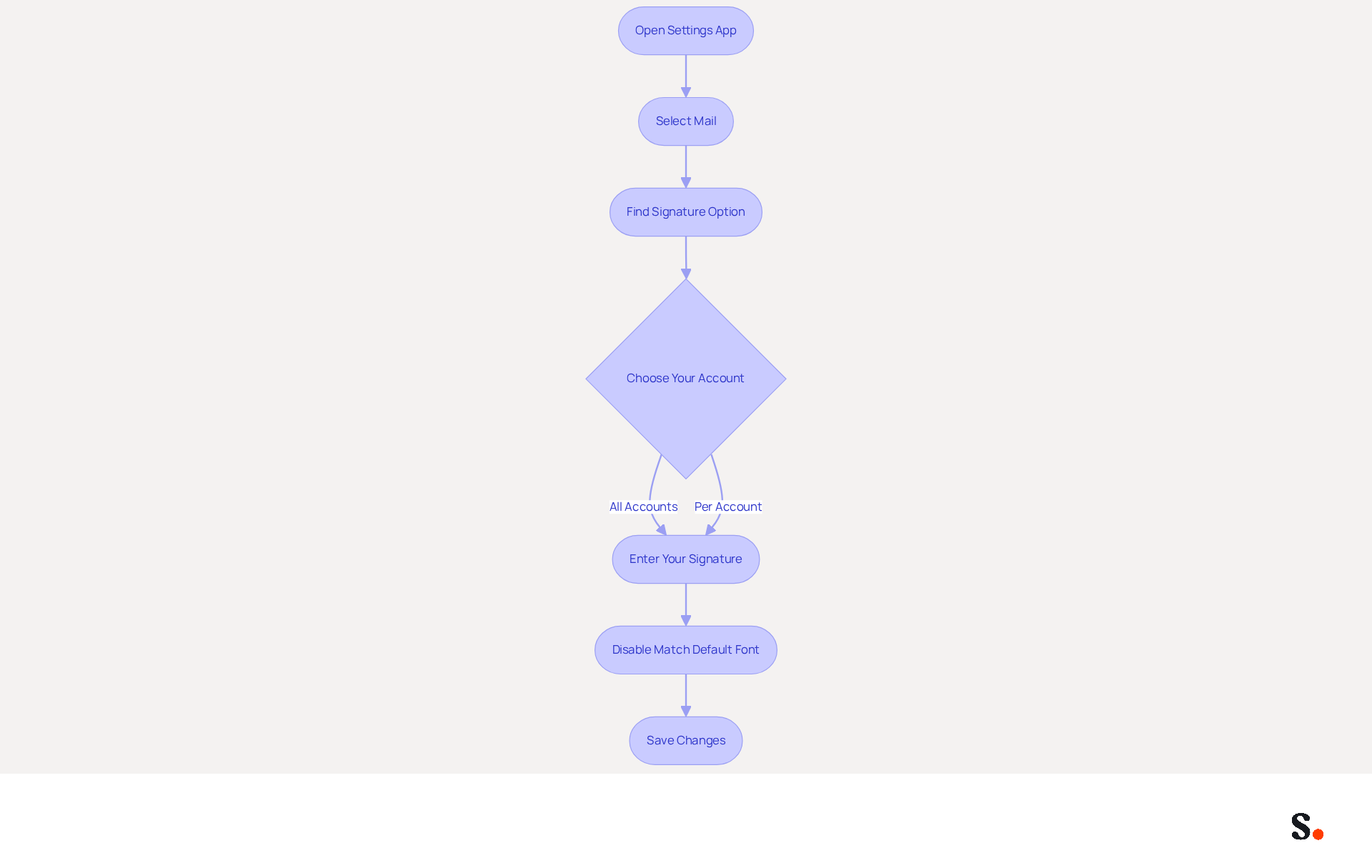
- Open the Settings App: Tap the Settings icon on your iPhone's home screen.
- Select Mail: Scroll down and tap on 'Mail' to access the mail settings.
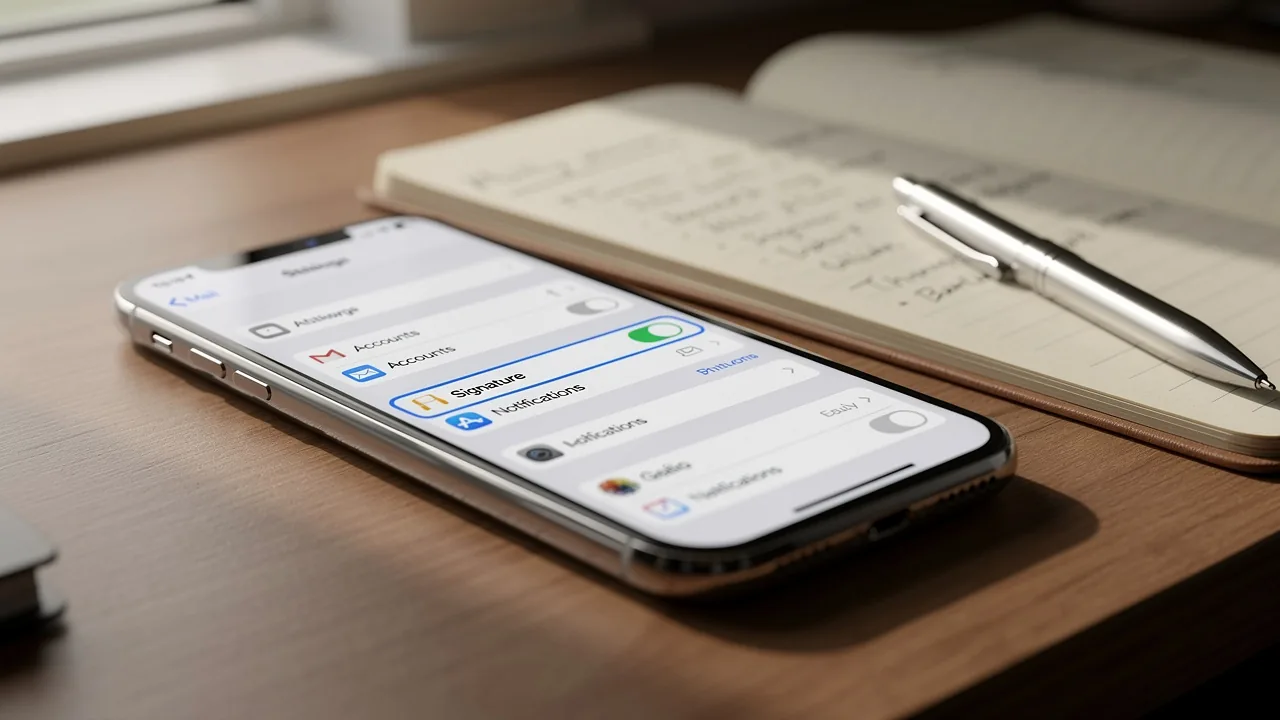
- Find the Signature Option: Scroll down to the 'Signature' section, located under the 'Composing' category.
- Choose Your Account: If you manage multiple accounts, decide whether to apply your signature to all of them or just one. Tap 'All Accounts' or 'Per Account' as needed.
- Enter Your Signature: Tap the text field and paste or type your newly created email closing. Ensure that it includes core identity elements such as your full name, job title, and company name. If you are using an HTML format, ensure it is arranged correctly and avoid large images or heavy branding.
- Disable Match Default Font: If using a formatted sign-off, uncheck 'Always match my default message font' to maintain your design.
- Save Changes: After entering your autograph, tap 'Mail' in the upper left corner to save your changes and return to the previous menu.
By following these steps on how to set up email signature on iPhone, you will successfully add your message footer to your iPhone settings, making it ready for use in outgoing correspondence. Many professionals overlook the importance of actively managing their digital identifiers. Ensuring your signature is well-crafted and updated is essential for maintaining professionalism and enhancing trust in communications. Regular evaluations of electronic identifiers are crucial, particularly since 44.4% of users modify their details only 2-4 times annually. A well-designed digital identifier can lead to a 22% increase in response rates and a 76% rise in trust, making it an essential element of your professional communication. Furthermore, by syncing your Google Workspace with Scribe, you can save time and guarantee that any changes in your team’s information are automatically reflected in your communications, enhancing brand consistency and compliance with security standards like SOC 2 Type II. By ensuring your digital identifier is consistently updated, you not only maintain professionalism but also significantly improve your communication effectiveness.
Troubleshoot Common Email Signature Issues
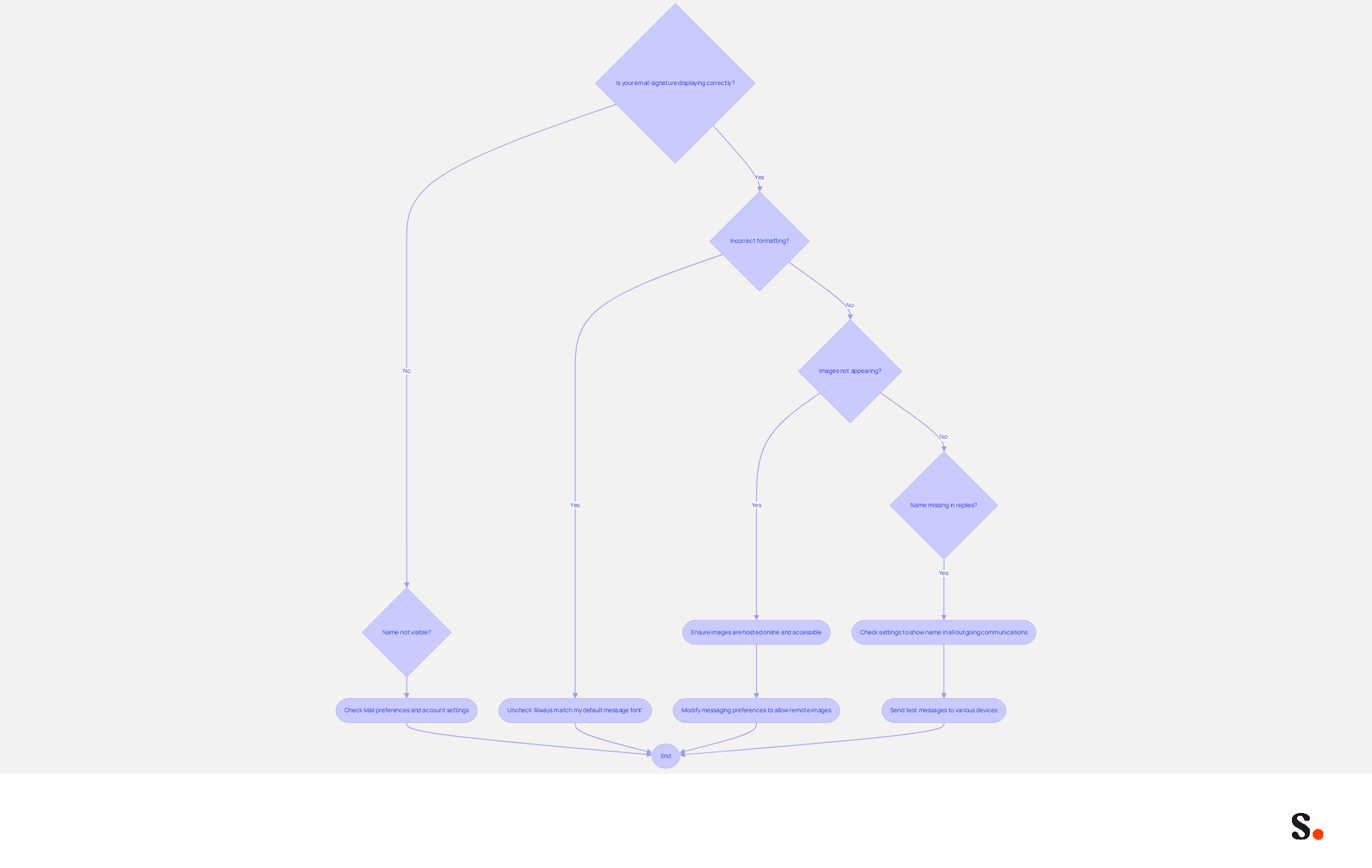
Many users encounter issues with their email signatures, leading to confusion and miscommunication. If your name is not visible in emails, first check that you have saved your modifications in the Mail preferences and are using the correct email account. This issue can usually be resolved by ensuring that the mark is linked to the correct account.
If your mark displays with incorrect formatting, revisit the settings and ensure that 'Always match my default message font' is unchecked. This adjustment helps preserve the intended design of your mark.
If images in your email do not appear, check that they are hosted online and accessible. You may need to reinsert them or modify your messaging preferences to allow remote images, as this is a common cause of display issues.
If your name does not appear in replies or forwarded messages, check your settings to confirm it is set to show in all outgoing communications. This oversight may result in inconsistencies in your communications.
To ensure your mark appears correctly across platforms, send test messages to various devices and mail clients. This practice can help identify if the issue is specific to one platform, allowing for targeted troubleshooting.
By following these troubleshooting steps and utilizing Scribe's automated updates and compliance features, you can resolve common email signature issues and ensure seamless communication.
Conclusion
Setting up an email signature on an iPhone can be deceptively simple, yet it holds significant implications for professional communication. Following these steps helps users create email signatures that are visually appealing and effectively convey essential information, reinforcing their brand identity in every correspondence.
Key insights from this guide include:
- The importance of preparing your iPhone settings
- Creating a clean and professional signature
- Troubleshooting common issues that may arise
Users often encounter challenges when setting up their email signatures, which can lead to frustration and inconsistency. Using tools like Scribe can significantly simplify this process, as evidenced by numerous user testimonials, allowing for real-time updates and ensuring compliance with security standards such as SOC 2 Type II. This integration not only saves time but also guarantees brand consistency across all communications.
A well-crafted email signature can truly enhance your marketing efforts, improving visibility and trust in professional interactions. By prioritizing the management of digital identifiers, professionals can significantly improve their communication effectiveness and foster stronger connections with their audience. By neglecting to manage digital identifiers, professionals risk losing valuable opportunities for connection and engagement.
Frequently Asked Questions
How do I prepare my iPhone for email signature setup?
To prepare your iPhone for email signature setup, open the Settings app, navigate to Mail settings, check your accounts, ensure your iOS is updated, and restart your iPhone after making changes.
Where can I find the Mail settings on my iPhone?
You can find the Mail settings by scrolling down in the Settings app and selecting 'Mail' from the list of options.
What should I do if my email accounts are not set up correctly?
If your email accounts are not set up correctly, tap 'Accounts' in the Mail settings and follow the prompts to add or configure your account.
How can I ensure my iPhone is updated to the latest version of iOS?
To ensure your iPhone is updated, go to 'General' and then 'Software Update' in the Settings app to check for and install any available updates.
Why is it important to restart my iPhone after making changes?
Restarting your iPhone after making changes is important to confirm that all settings are applied correctly.
How does syncing Google Workspace with Scribe benefit my email communications?
Syncing Google Workspace with Scribe ensures that any modifications made to your team’s information automatically refresh in your communications, saving time and ensuring brand consistency.
What is the benefit of Scribe's integration with Calendly?
Scribe's integration with Calendly allows for automatic updates to your contact details, enhancing your team's efficiency.
How does Scribe ensure the security of my data?
Scribe is SOC 2 Type II compliant, which means it handles your data securely, providing peace of mind as you manage your email branding.
List of Sources
- Prepare Your iPhone for Email Signature Setup
- Set Up an Email Signature on iPhone or iPad - Kualo (https://kualo.com/knowledgebase/email-apple/setting-up-your-email-signature-on-your-iphone)
- 49 Top Email Marketing Statistics (https://forbes.com/advisor/business/software/email-marketing-statistics)
- Mobile Email Usage Statistics (https://clean.email/blog/insights/mobile-email-statistics-report)
- The ultimate mobile email statistics overview: All mobile email stats (https://emailmonday.com/mobile-email-usage-statistics)
- How to create an email signature in iPhone, Mac, iPad & Watch (https://signitic.com/en/resources/email-signature-apple)
- Create a Visually Appealing Email Signature
- 40+ Email Signature Statistics for 2026 (Data + Insights) (https://wavecnct.com/blogs/email-signature-statistics)
- Email Signature Best Practices (https://uschamber.com/co/grow/thrive/email-signature-best-practices)
- How to Create an Email Signature in 2024: The Ultimate Guide (https://linkedin.com/pulse/how-create-email-signature-2024-ultimate-guide-helga-zabalkanska-ncerf)
- Email Signature Best Practices - NEWOLDSTAMP (https://newoldstamp.com/blog/email-signature-best-practices)
- Email Signature Best Practices Guide With Examples - MailerLite (https://mailerlite.com/blog/email-signature-best-practices)
- Add Your Email Signature to iPhone Settings
- Email signature statistics: Why every business should optimize their email signatures — Stripo.email (https://stripo.email/blog/email-signature-statistics-why-every-business-should-optimize-their-email-signatures)
- 40+ Email Signature Statistics for 2026 (Data + Insights) (https://wavecnct.com/blogs/email-signature-statistics)
- How to create an email signature in iPhone, Mac, iPad & Watch (https://signitic.com/en/resources/email-signature-apple)
- Set Up an Email Signature on iPhone or iPad - Kualo (https://kualo.com/knowledgebase/email-apple/setting-up-your-email-signature-on-your-iphone)
- How to change your email signature on iPhone (step-by-step guide) | Jotform Blog (https://jotform.com/ai/agents/how-to-change-email-signature-on-iphone)
- Troubleshoot Common Email Signature Issues
- Troubleshoot issues with Gmail signatures - Gmail Help (https://support.google.com/mail/answer/11468381?hl=en)
- Why is my signature not showing up in Outlook | NewOldStamp - NEWOLDSTAMP (https://newoldstamp.com/blog/signature-not-showing-up-in-outlook)
- How to solve problems with email signatures in Microsoft 365? (https://mail-signatures.com/articles/problems-email-signatures-office-365)
- Email Signature Troubleshooting - Problems & Solutions - Gimmio (https://blog.gimm.io/email-signature-troubleshooting)
- Email signature statistics and trends in 2024 (https://wisestamp.com/blog/email-signature-statistics)
Get started with Scribe
Create your signature in minutes
Free 14-day trial — no credit card.