How to Setup Signature in Gmail: 5 Easy Steps for Marketers
A professional email signature is essential for effective communication and significantly impacts brand perception. With over 10,000 marketing and IT teams
Sophie Grant
Email Signature Specialist, Scribe
Introduction
A professional email signature is essential for effective communication and significantly impacts brand perception. With over 10,000 marketing and IT teams leveraging Scribe globally, the necessity of a well-crafted signature is underscored, especially as digital interactions continue to dominate.
This guide will walk marketers through the essential steps to set up a signature in Gmail, ensuring that every email sent reflects their brand's professionalism and credibility.
However, technical issues may arise, causing the signature to fail to display correctly. Addressing these technical challenges is vital for ensuring that your brand is consistently represented in every email.
Access Gmail Settings for Signature Setup
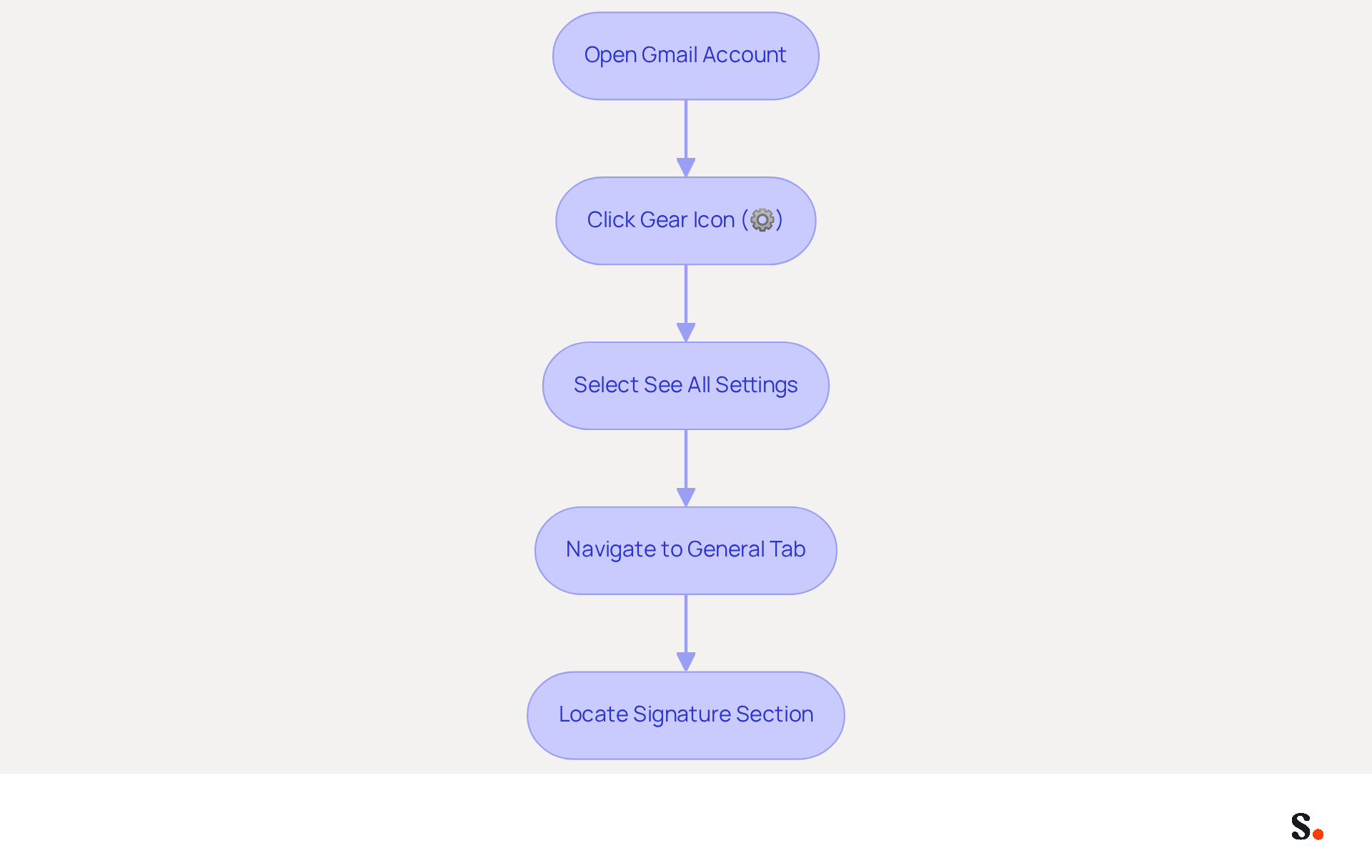
- Open your Gmail account in a web browser.
- Click on the gear icon (⚙️) in the top right corner to access the settings menu.
- From the dropdown menu, select 'See all settings.'
- Navigate to the 'General' tab, where you will find the 'Signature' section.
- Here, you can create and manage your messaging identifiers. Be sure to scroll down to locate this section.
Creating a professional email footer is essential for effective communication in today's digital landscape. In 2026, with dark mode becoming the default for major email clients, ensuring your email footer is compatible is crucial. A well-crafted mark can enhance trust, with 76% of consumers indicating increased confidence in brands that utilize branded marks. Additionally, 52% of professionals incorporate a call-to-action (CTA) in their email footers, which can significantly boost engagement. Remember, 44.4% of users update their contact details two to four times a year, so having up-to-date information is vital. Syncing your Google Workspace with Scribe saves time by automatically updating your teammates' identification information. This ensures that any changes in their roles or contact details are reflected without manual input. Following these steps will assist you in understanding how to setup signature in Gmail, creating a professional email footer that aligns with current best practices and maximizes your marketing efforts. Ensuring your email footer is consistently updated can significantly enhance your professional image and foster stronger client relationships.
Create Your Email Signature
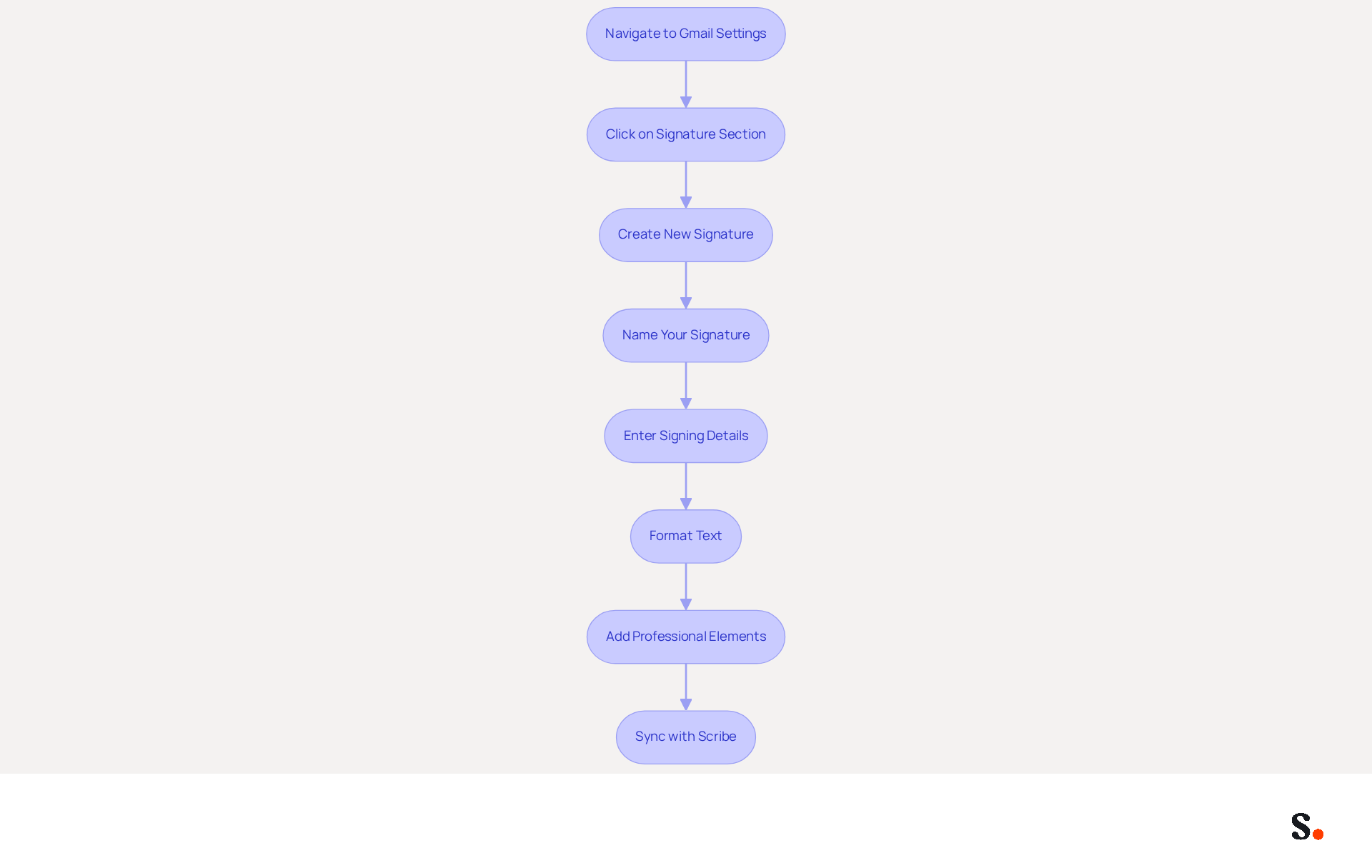
Creating a professional email signature is essential for establishing credibility and enhancing communication effectiveness. To understand how to setup signature in Gmail, start by navigating to the 'Signature' section in your Gmail settings and clicking on 'Create new.' To begin, when learning how to setup signature in Gmail, you'll see a prompt asking you to name your signature - choose something that reflects its purpose, like 'Professional Signature' or 'Marketing Signature.'
After naming, a text box will appear where you can enter your signing details, which is part of how to setup signature in Gmail. Include essential information such as your full name, job title, company name, direct phone number, and website link. Including these components in your footer enhances credibility and trust. In fact, 76% of recipients report that branded footers increase their confidence in the sender.
Next, format the text as desired using the available options for font size, style, and color. A clean, single-column layout is recommended. Studies show that left-aligned, single-column formats can generate three times higher click rates for calls to action.
Consider adding a professional headshot or company logo to your email footer, as these elements can increase response rates by approximately 32%. Additionally, including links to your social media profiles can enhance networking opportunities and brand visibility. Remember, a well-optimized message footer can drive up to 40% higher engagement than generic sign-offs, making it a valuable marketing tool. Regular updates to your email footer are essential to ensure accuracy and relevance. Be mindful that the design can affect spam filters, impacting deliverability.
With Scribe, you can streamline this process further by syncing your Google Workspace data, ensuring that any changes to your teammates' information are automatically reflected in their identifiers without any manual input. This automated management not only saves time but also ensures compliance with SOC 2 Type II standards, keeping your data secure. By neglecting your email signature, you risk losing valuable connections and opportunities in your professional network.
Customize Your Signature with Branding Elements
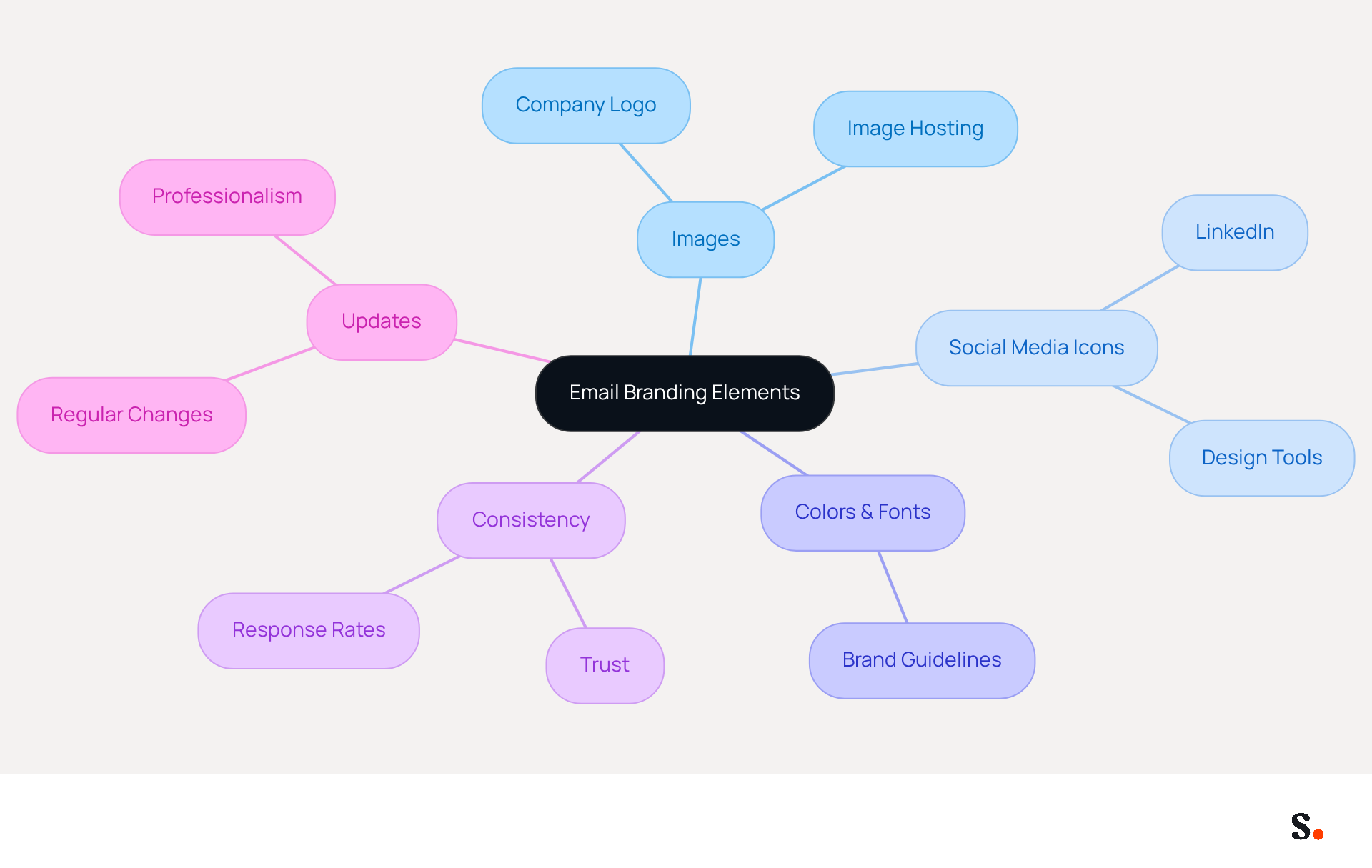
Creating a professional email footer is essential for reinforcing your brand identity and enhancing engagement with recipients. Start by using the formatting toolbar in your Gmail editor to incorporate branding elements into your footer. Click on the 'Insert image' icon to add high-quality images, such as your company logo, ensuring they are visually appealing.
Make sure the image is hosted online and accessible. You can either upload it directly from your computer or use a URL to link to the image. Enhance your email signature by adding social media icons that link to your professional profiles. These icons can be sourced online or created using design tools, allowing for a personalized touch. Notably, LinkedIn icons in correspondence generate the highest engagement and profile visits in B2B contexts.
Incorporate colors and fonts that adhere to your brand guidelines to ensure a cohesive and recognizable appearance. Consistency in these elements is essential, as 80% of respondents believe a branded communication footer is crucial for a company's brand identity. Additionally, with Scribe, any modifications made in your Aircall configuration will automatically be reflected in your email branding, ensuring seamless brand consistency across all communications. Scribe is also SOC 2 Type II certified and compliant with GDPR and CCPA, addressing security and compliance concerns for your organization.
Regularly update your email footer to reflect any changes in your branding or contact information. This practice not only keeps your mark up to date but also reinforces your brand's professionalism, as 76% of recipients report that branded marks increase their trust in the sender. Moreover, businesses with consistent branded digital communication see a 22% rise in response rates. With over 10,000 marketing and IT teams utilizing Scribe globally, you can rely on our solutions to effectively improve your messaging strategy. By prioritizing your email branding, you not only enhance your professional image but also foster greater trust and engagement with your audience.
Set Signature Defaults and Manage Multiple Signatures
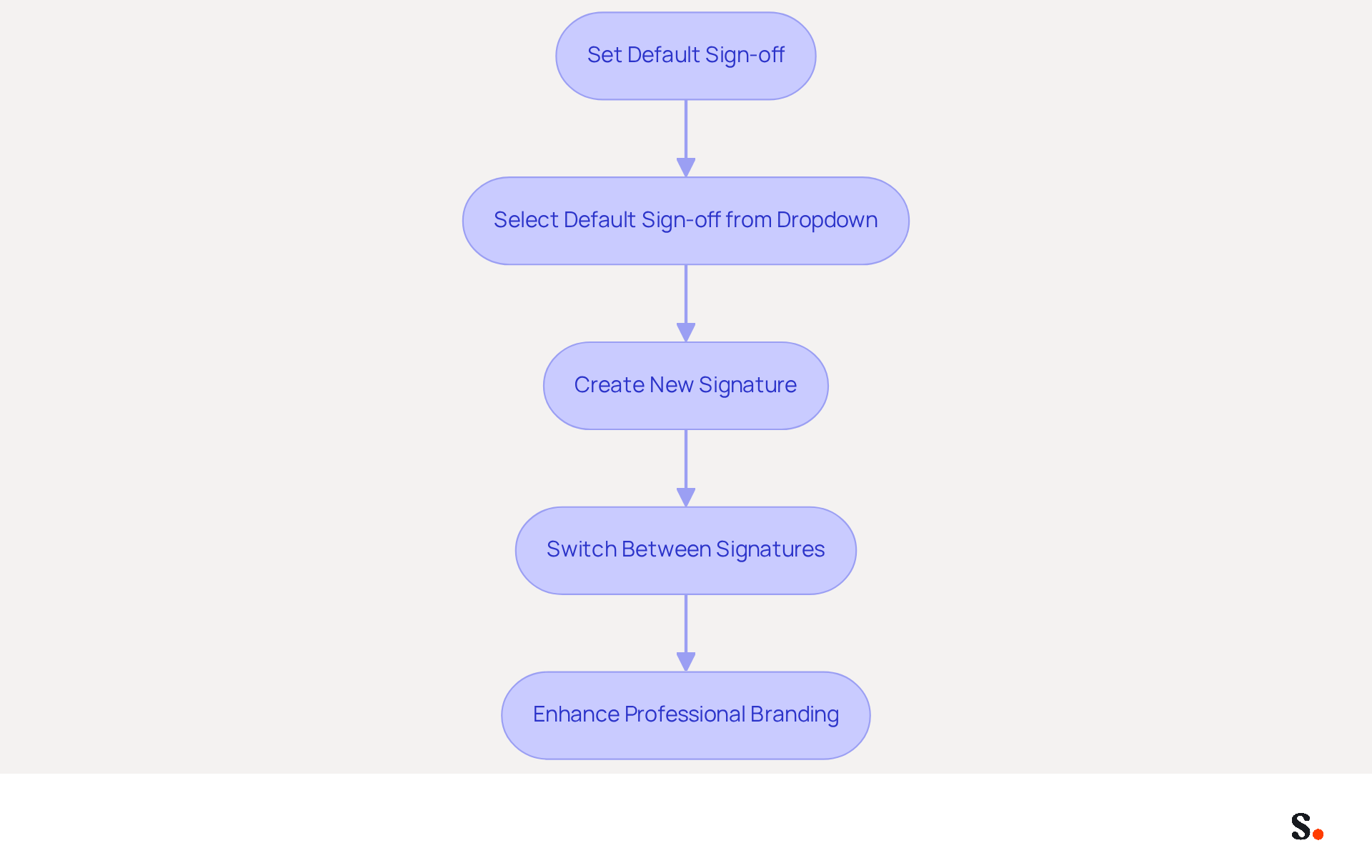
Setting a default sign-off for new emails and replies is essential for maintaining a professional image in your communications. This feature automates the appearance of your preferred sign-off, ensuring consistency across all interactions.
Utilize the dropdown menus to select the default sign-off for each category, allowing you to maintain consistent branding across different types of correspondence. This flexibility allows professionals to maintain consistent branding across different types of correspondence, enhancing their communication effectiveness.
If you wish to create more entries, click 'Create new' again and repeat the process. This capability enables you to customize your identifiers for particular audiences or objectives, improving personalization and interaction in your communications.
To switch between different options while composing a message, click on the icon in the message compose window and select the preferred choice. This feature allows you to adjust your messaging in real-time, ensuring that the identifier corresponds with the particular context of the correspondence being sent.
Based on recent information, a considerable number of users are now handling multiple digital identifiers in Scribe, indicating the increasing trend of personalized communication. Utilizing these features not only streamlines your communication process but also enhances your professional branding.
Troubleshoot Common Signature Issues
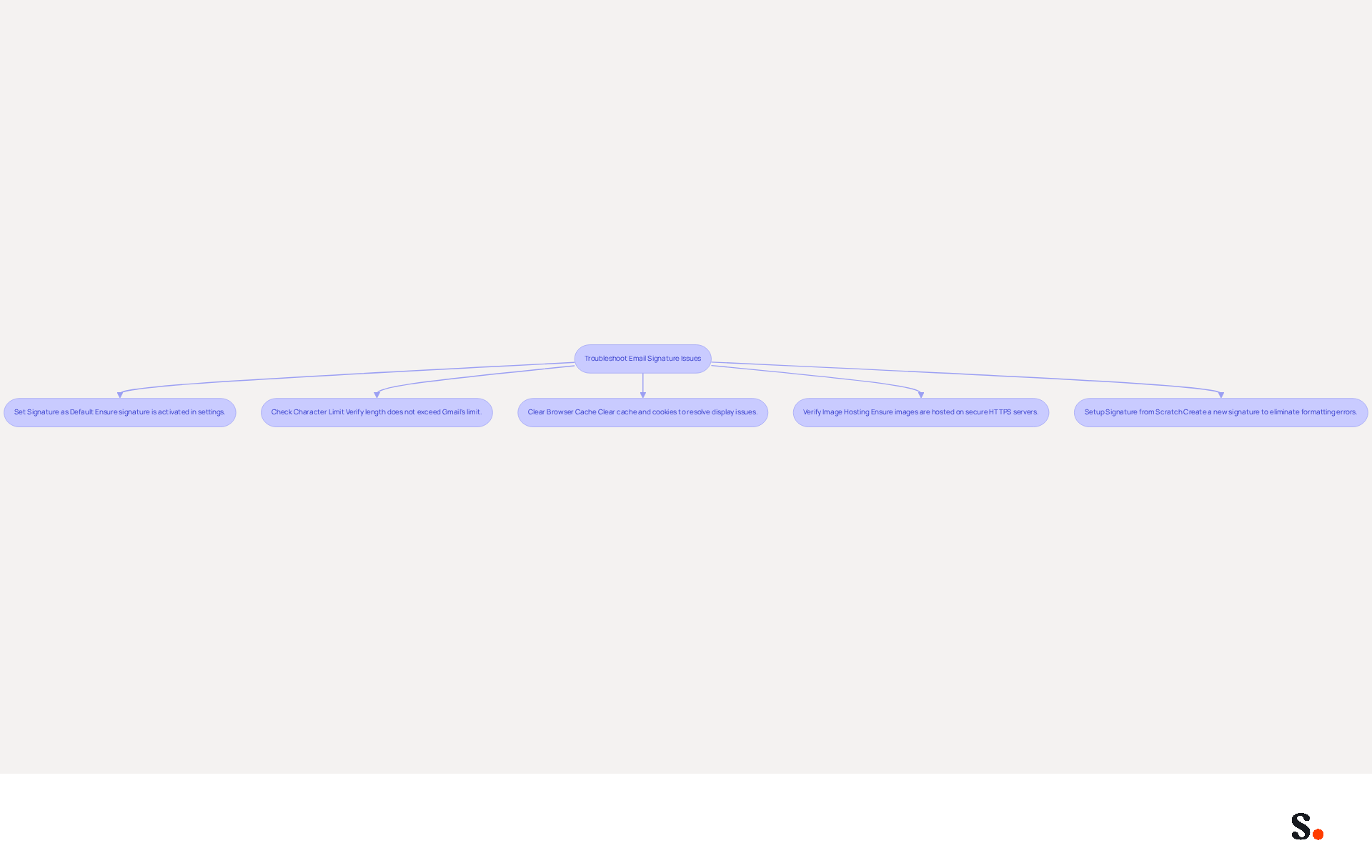
To ensure effective email communication, it is essential to understand how to setup signature in Gmail and address common issues related to it. First, confirm how to setup signature in Gmail as the default in your settings; otherwise, it will not appear in your messages. Next, verify the length of your sign-off, as Gmail imposes a character limit that, if exceeded, may hinder proper display. Additionally, clearing your browser's cache and cookies can help resolve display issues that might affect how your name appears. If your images are not displaying, ensure they are hosted on a publicly accessible server with a secure HTTPS URL, as insecure images will fail to load. Finally, if issues persist, consider how to setup signature in Gmail from scratch to eliminate any hidden formatting errors that could be causing problems. Neglecting these steps can lead to miscommunication and a lack of professionalism in your email correspondence.
Conclusion
A professional email signature in Gmail serves as a strategic asset that enhances communication and strengthens brand identity. By following the outlined steps, marketers can effectively set up their signatures to reflect their professionalism and ensure consistency across all communications. Establishing credibility and fostering trust among recipients is vital, especially in a competitive market.
Throughout the guide, key insights were shared on how to:
- Access Gmail settings
- Create and customize signatures
- Manage multiple signatures
- Troubleshoot common issues
Emphasizing the importance of branding elements, such as logos and social media links, highlights how a well-crafted signature can lead to increased engagement and higher response rates. Additionally, leveraging tools like Scribe can streamline the management of email signatures, ensuring that updates are automatically reflected and compliant with security standards.
Ultimately, investing time in setting up and maintaining an effective email signature can yield substantial benefits for marketers. It is a powerful tool for enhancing brand visibility and fostering stronger client relationships. By prioritizing effective email signatures, organizations can significantly enhance their brand visibility and client relationships, ultimately driving measurable marketing success.
Frequently Asked Questions
How do I access the Gmail settings to set up my signature?
To access the Gmail settings for signature setup, open your Gmail account in a web browser, click on the gear icon (⚙️) in the top right corner, select 'See all settings' from the dropdown menu, and navigate to the 'General' tab where you will find the 'Signature' section.
Why is having a professional email signature important?
A professional email signature is essential for establishing credibility and enhancing communication effectiveness. It can increase trust, as 76% of consumers feel more confident in brands that use branded marks.
What information should I include in my email signature?
Your email signature should include your full name, job title, company name, direct phone number, and website link. This information enhances credibility and trust with recipients.
How can I format my email signature in Gmail?
You can format your email signature using the available options for font size, style, and color in the signature setup section. A clean, single-column layout is recommended for better engagement.
Should I include images in my email signature?
Yes, adding a professional headshot or company logo can increase response rates by approximately 32%. Including links to your social media profiles can also enhance networking opportunities.
How often should I update my email signature?
Regular updates to your email signature are essential to ensure accuracy and relevance, especially since 44.4% of users update their contact details two to four times a year.
How does Scribe help with managing email signatures?
Scribe helps streamline the process by syncing your Google Workspace data, ensuring that any changes to your teammates' information are automatically reflected in their identifiers without manual input.
What impact can a well-optimized email signature have on engagement?
A well-optimized email signature can drive up to 40% higher engagement than generic sign-offs, making it a valuable marketing tool.
List of Sources
- Access Gmail Settings for Signature Setup
- Email Signature Statistics: A Closer Look at Email Signatures in 2026 (https://mysignature.io/blog/email-signature-statistics)
- 100 Compelling Email Statistics for 2026 | PGM Solutions (https://porchgroupmedia.com/blog/100-compelling-email-statistics-to-inform-your-strategy-in-2023)
- Email Signature Trends 2026: What Designers Are Actually Using (https://markaplugin.com/blog/email-signature-trends-2026)
- 40+ Email Signature Statistics for 2026 (Data + Insights) (https://wavecnct.com/blogs/email-signature-statistics)
- "Email Signature Trends for 2026: What's In, What's Out" | Crossware posted on the topic | LinkedIn (https://linkedin.com/posts/crossware-ltd_new-year-new-trends-even-for-your-email-activity-7394554686046908416-vD_O)
- Create Your Email Signature
- The impact of email signatures on your branding (https://signitic.com/en/resources/the-impact-of-email-signatures-on-your-branding)
- Email Signature Statistics: A Closer Look at Email Signatures in 2026 (https://mysignature.io/blog/email-signature-statistics)
- Email Signature Design Trends in 2026: What Works and What to Drop (https://bulksignature.com/blog/email-signature-design-trends)
- 40+ Email Signature Statistics for 2026 (Data + Insights) (https://wavecnct.com/blogs/email-signature-statistics)
- Top 10+ best practices for email signatures design in 2026 (https://mysignature.io/blog/email-signature-best-practices)
- Customize Your Signature with Branding Elements
- Research Recap: Branded Email Signatures Increase Company Recognition, Trust - B2BMX INSIGHTS (https://demandgenreport.com/industry-news/research-recap-branded-email-signatures-increase-company-recognition-trust/47252)
- 40+ Email Signature Statistics for 2026 (Data + Insights) (https://wavecnct.com/blogs/email-signature-statistics)
- The impact of email signatures on your branding (https://signitic.com/en/resources/the-impact-of-email-signatures-on-your-branding)
- Why Are Email Signatures Key to Brand Awareness? | QuickMail (https://quickmail.com/role-of-email-signatures-in-brand-awareness)
- WiseStamp's "In The Eyes of The Customer" Report Reveals that Branded Email Signatures Receive Double the Total Fixations of Unbranded Email Signatures (https://prnewswire.com/news-releases/wisestamps-in-the-eyes-of-the-customer-report-reveals-that-branded-email-signatures-receive-double-the-total-fixations-of-unbranded-email-signatures-302823803.html)
- Set Signature Defaults and Manage Multiple Signatures
- Create a Gmail signature - Computer - Gmail Help (https://support.google.com/mail/answer/8395?hl=en&co=GENIE.Platform%3DDesktop)
- Google Workspace Updates: Create and use multiple signatures in Gmail (https://workspaceupdates.googleblog.com/2020/03/multiple-signatures-gmail.html)
- How to Create and Use Multiple Signatures in Gmail - NEWOLDSTAMP (https://newoldstamp.com/blog/more-than-one-signature-in-gmail)
- How do I manage multiple signatures with Gmail? (https://signitic.com/en/guides/how-do-i-manage-multiple-signatures-with-gmail)
- Troubleshoot Common Signature Issues
- Solving a Gmail signature problem (https://signitic.com/en/guides/solving-a-gmail-signature-problem)
- What To Do When Your Gmail Signature is Not Showing Up (https://appointlet.com/blog/gmail-signature-not-showing-up)
- Fixing Signature Issues in Gmail (https://teachers.tech/fixing-signature-issues-in-gmail)
- Fix Your Missing Gmail Signature: 8 Troubleshooting Steps & Best Practices | Newoldstamp - NEWOLDSTAMP (https://newoldstamp.com/blog/gmail-signature-not-showing-up)
- How to Fix Your Gmail Signature for Brand Consistency and Efficiency (https://scribe-mail.com/en-US/blog/how-to-fix-your-gmail-signature-for-brand-consistency-and-efficiency)
Get started with Scribe
Create your signature in minutes
Free 14-day trial — no credit card.