How to Setup Your Outlook Signature in 4 Easy Steps
Setting up an email signature in Outlook presents a critical opportunity to enhance brand identity and professional communication. With the right approach
Sophie Grant
Email Signature Specialist, Scribe
Introduction
Setting up an email signature in Outlook presents a critical opportunity to enhance brand identity and professional communication. With the right approach, users can create a signature that conveys essential contact information while reflecting their organization’s branding. Many professionals fail to recognize the importance of consistent signature management, which can damage their credibility.
How can one ensure that their email signature stands out while maintaining brand integrity and compliance? This guide provides a clear framework for creating and managing an effective Outlook signature, ensuring that every email sent not only complies with branding standards but also elevates their overall communication strategy.
Access Signature Settings in Outlook
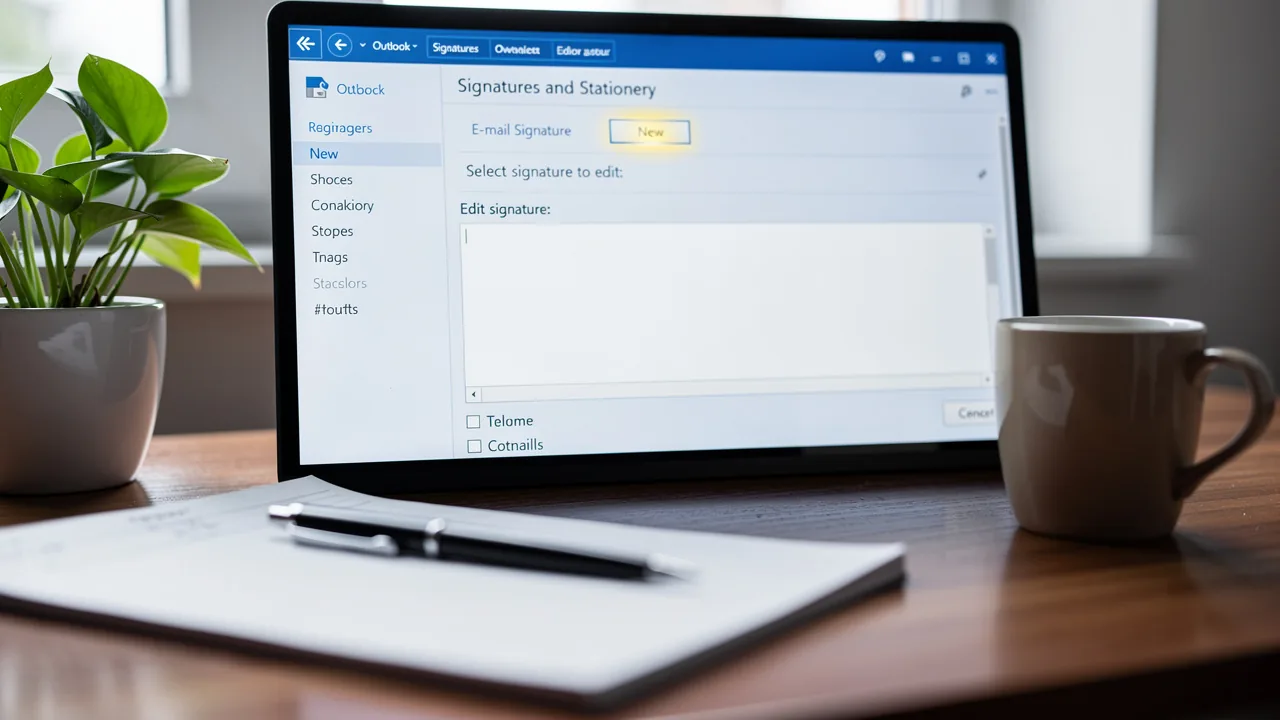
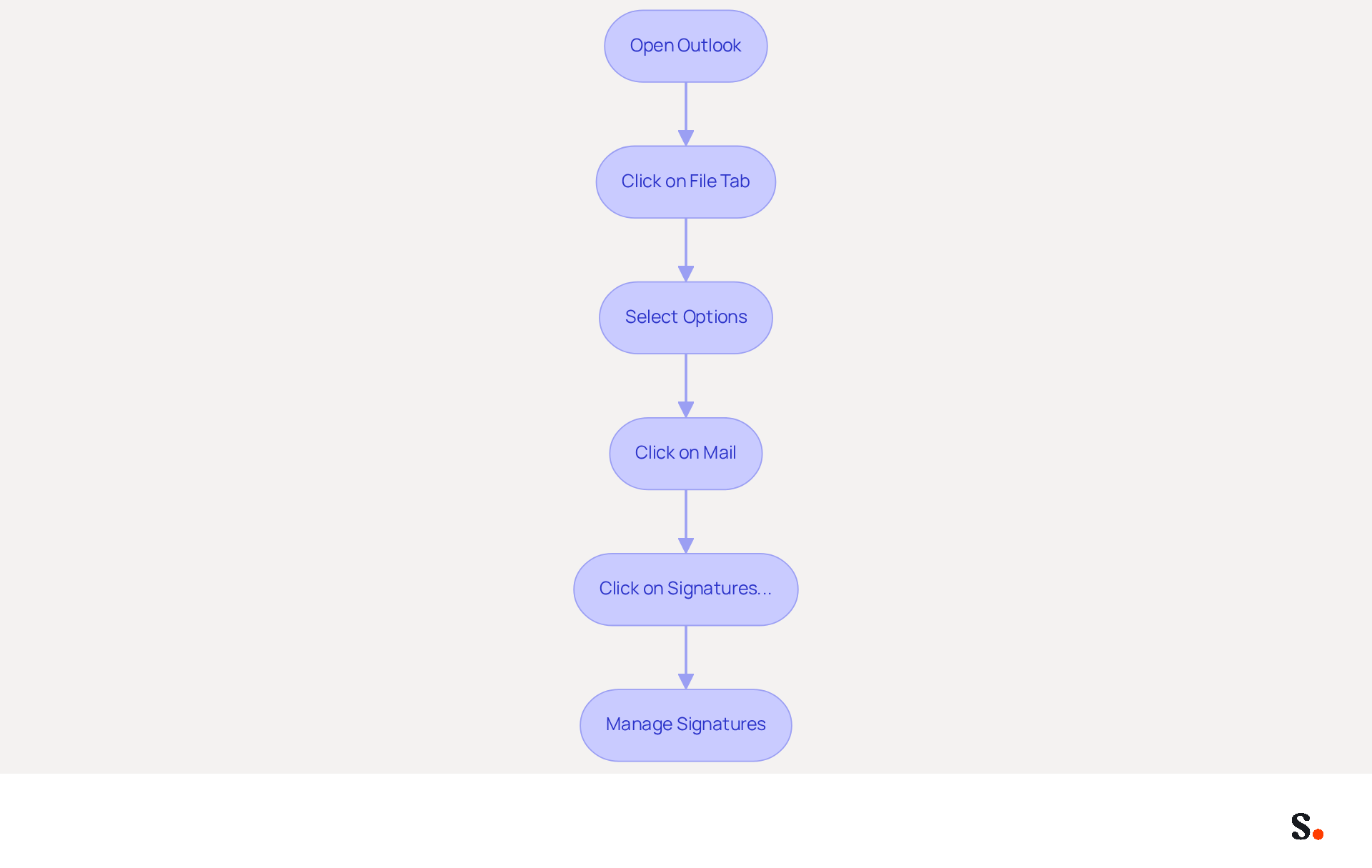
Accessing the settings to setup Outlook signature management in Outlook is straightforward, yet many users overlook key steps that ensure effective communication. To begin, open Outlook on your computer. Next, click on the 'File' tab located in the top-left corner. From the menu, select 'Options'. In the Outlook Options window, click on 'Mail' from the left sidebar. Then, click on the 'Signatures...' button to open the Signatures and Stationery dialog box. This is where you can easily manage your existing signatures or create a new one to enhance your email communication.
Following these steps will enable you to efficiently access the settings necessary to setup Outlook signature or modify your email signatures. Furthermore, if you sync your Google Workspace with Scribe, any modifications made to your teammates' information will automatically refresh in the application, saving you time and ensuring brand consistency across all communications. Moreover, with Aircall synchronization, any changes in your Aircall configuration will also be reflected in your Scribe profiles, improving your email management. By integrating these tools, you not only streamline your email management but also enhance your team's communication consistency.
Create Your Email Signature
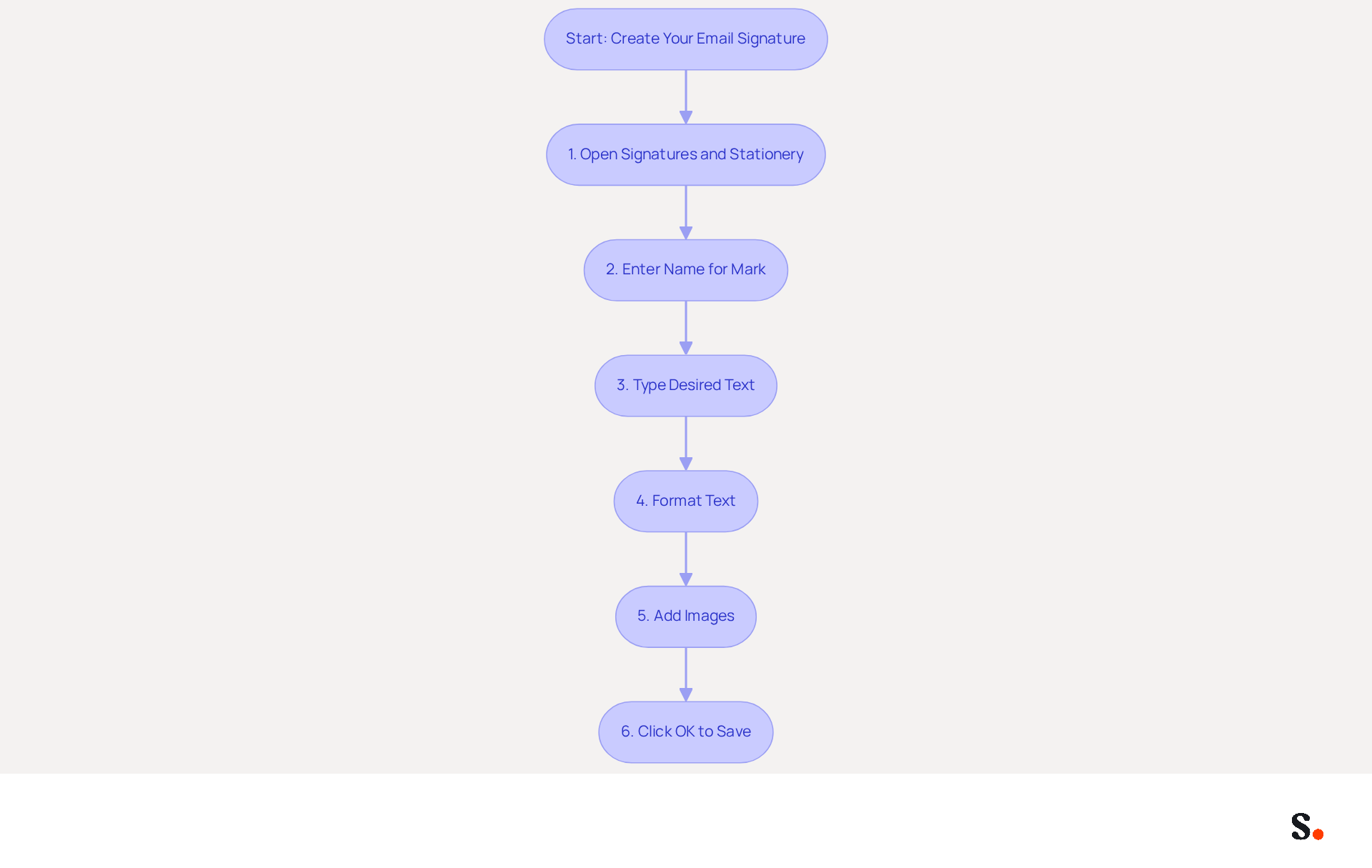
- To setup outlook signature, open the Signatures and Stationery dialog box in Outlook and click 'New' to create a new personal mark.
- Enter a name for your mark, such as 'Work Mark'.
- In the editing box, type your desired text for the sign-off, ensuring to include essential details like your full name, job title, company name, and contact information.
- Format your text using the available options (font, size, color) to align with your style. For optimal readability, use web-safe fonts like Arial or Helvetica at a size of 14-16px.
- If desired, add images such as your company logo by clicking the image icon and selecting a file from your computer. Keep in mind that images should be optimized for quick loading and clarity.
- Once satisfied with your mark, click 'OK' to save it.
Creating a digital identifier can be a tedious task without the right tools. This straightforward process helps you to setup outlook signature that effectively represents you or your business, supporting a cohesive brand image. Scribe streamlines this process with automated communication management, ensuring your identifiers are always up to date. To enable synchronization, ensure you grant Scribe permission to connect with your service provider. This guarantees that all signing information is consistently current without needing action from your teammates. Remember, a well-crafted message footer can greatly influence engagement, with studies indicating that 75.9% of professionals think message footers aid in closing sales. Additionally, ensure your mark includes any necessary legal disclaimers and test it across various devices and email clients to guarantee proper display. A consistently updated email signature can elevate your professional image and improve communication outcomes. Scribe's SOC 2 Type II compliance also ensures that your data remains secure throughout this process.
Enhance Your Signature with Branding Elements
In today's competitive landscape, effective branding in email signatures is essential for maximizing engagement and trust.
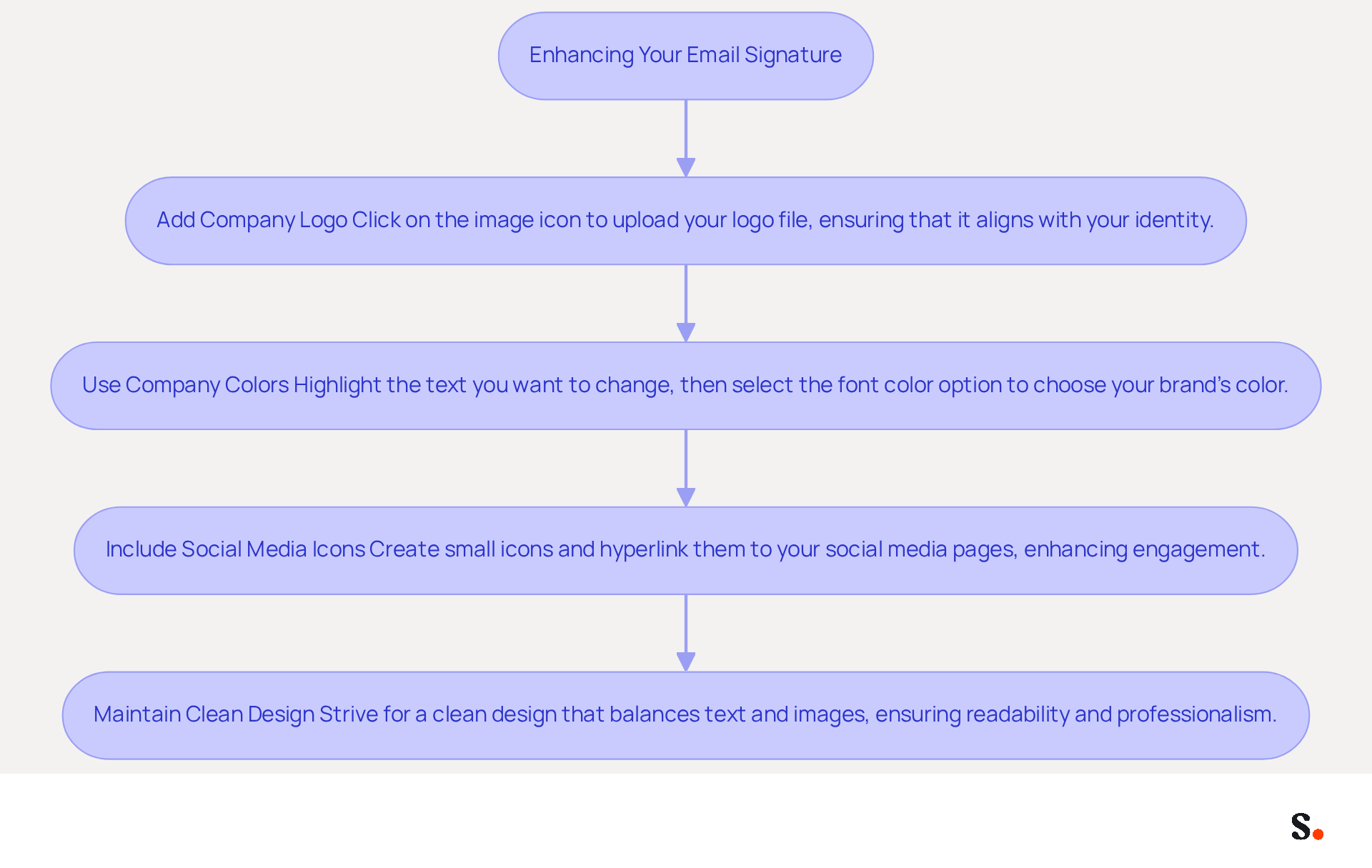
- In the signature editing box, consider adding your company logo.
- Click on the image icon to upload your logo file, ensuring that it aligns with your identity.
- Use company colors for text to maintain consistency.
- Highlight the text you want to change, then select the font color option to choose your brand's color, reinforcing brand recognition.
- Include social media icons linked to your professional profiles.
- Create small icons and hyperlink them to your social media pages, enhancing engagement and driving traffic to your profiles.
- Strive for a clean design that balances text and images, ensuring readability and professionalism.
Adding these branding elements enhances the visual appeal of your email signature and boosts its effectiveness as a marketing tool. Businesses that implement consistent messaging formats experience a 22% rise in response rates, while these formats have an engagement rate of 40%, in contrast to 3% for traditional campaigns. Furthermore, 43% of recipients develop a more positive view of the brand due to professional branding, and 80% of businesses regard a branded communication footer as a crucial component, with 76% of recipients indicating that it enhances their trust in the sender. By strategically aligning your correspondence footer with your branding objectives and ensuring regular updates through the platform, which is SOC 2 Type II certified and compliant with GDPR and CCPA, you can turn every message into a powerful marketing opportunity. Furthermore, Scribe's distinctive banners achieve an average click-through rate of 12%, making them an effective tool for driving engagement. By neglecting to align your email signatures with your branding strategy, you risk losing valuable connections and opportunities.
Set Default Signature Preferences
To ensure a consistent brand image in your communications, follow these steps to setup outlook signature preferences.
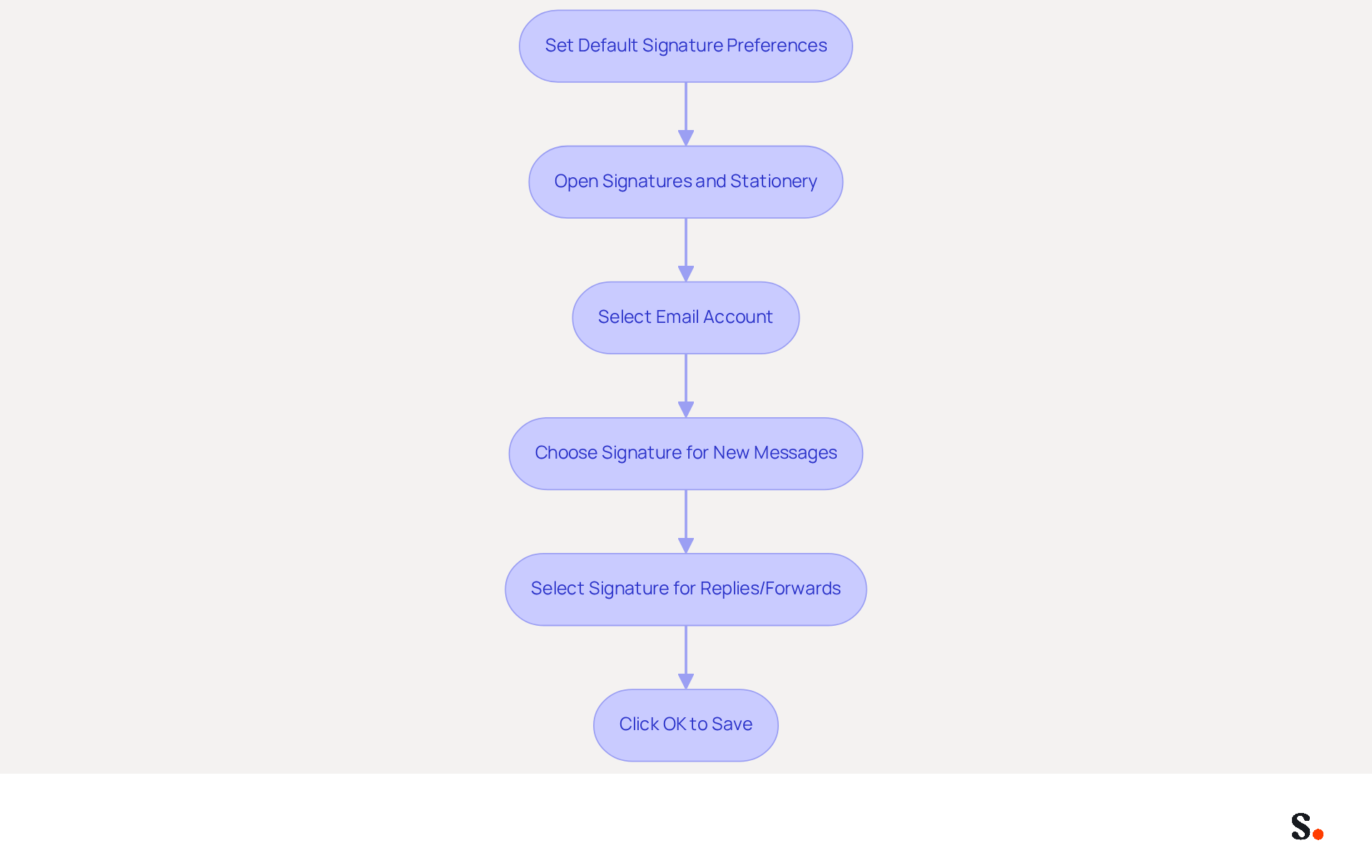
- In the Signatures and Stationery dialog box, under 'Choose default option', select your email account from the dropdown menu.
- For 'New messages', choose the designation you just created from the dropdown list.
- If you wish to include the sign-off in replies and forwards, select the same sign-off for 'Replies/forwards'.
- Click 'OK' to save your settings.
By setting these preferences, you can setup outlook signature to ensure your message footer appears in all new communications and replies, maintaining consistent branding. Research shows that 80% of marketers recognize the importance of a branded footer, which enhances engagement. Furthermore, organizations that adopt centralized management of digital footers report improved compliance and governance, facilitating the maintenance of identity consistency across various platforms. Joining the Affiliate Program allows you to promote brand consistency while earning a 50% commission and providing new subscribers with a $30 credit. This dual advantage not only enhances your marketing approach but also aids your team's cooperation in managing digital identifiers efficiently. With Scribe's automated synchronization with Aircall, any changes made in your configuration will be reflected in your email signatures, ensuring seamless updates and compliance with SOC 2 Type II standards and GDPR/CCPA. Ultimately, these practices not only enhance your brand's visibility but also streamline your team's efforts in maintaining a professional image.
Conclusion
Setting up an email signature in Outlook is essential for professionals who want to project a strong brand image. Following these steps allows users to create a signature that conveys key information and reflects their brand. This process is made even more efficient with tools like Scribe, which simplify managing signatures and ensure that every team member's signature remains consistent and up-to-date.
The article detailed the straightforward steps to:
- Access signature settings
- Create a personalized signature
- Enhance it with branding elements
- Set default preferences
Each of these steps is designed to maximize engagement and maintain a professional image. Research indicates that a well-designed email signature can significantly enhance recipient perceptions and response rates. Furthermore, Scribe's compliance with SOC 2 Type II, GDPR, and CCPA ensures that user data remains secure throughout this process.
Using these practices helps improve communication and ensures that the brand remains consistent across the organization. By leveraging Scribe's capabilities, teams can transform their email signatures into powerful marketing tools that drive engagement and foster trust. This strategic approach not only enhances communication but also solidifies a brand's presence in the marketplace.
Frequently Asked Questions
How do I access the signature settings in Outlook?
To access the signature settings in Outlook, open Outlook on your computer, click on the 'File' tab in the top-left corner, select 'Options', then click on 'Mail' from the left sidebar. Finally, click on the 'Signatures...' button to open the Signatures and Stationery dialog box.
What can I do in the Signatures and Stationery dialog box?
In the Signatures and Stationery dialog box, you can manage your existing signatures or create a new one to enhance your email communication.
How does syncing Google Workspace with Scribe benefit my email management?
Syncing Google Workspace with Scribe ensures that any modifications made to your teammates' information automatically refresh in the application, saving you time and ensuring brand consistency across all communications.
What is the benefit of integrating Aircall with Scribe?
Integrating Aircall with Scribe allows any changes in your Aircall configuration to be reflected in your Scribe profiles, which improves your email management and enhances communication consistency within your team.
List of Sources
- Create Your Email Signature
- Best practices for business email signatures in 2026 (https://bybrand.io/blog/best-practices)
- Email Signature Design Trends in 2026: What Works and What to Drop (https://bulksignature.com/blog/email-signature-design-trends)
- The Complete Email Signature Guide 2026: Best Practices and Policy (https://opensense.com/complete-email-signature-guide)
- Top 10+ best practices for email signatures design in 2026 (https://mysignature.io/blog/email-signature-best-practices)
- Email Signature Best Practices for 2026 (+ 15 Pro Examples) (https://wavecnct.com/blogs/email-signature-best-practices-2026)
- Enhance Your Signature with Branding Elements
- Best practices for business email signatures in 2026 (https://bybrand.io/blog/best-practices)
- The impact of email signatures on your branding (https://signitic.com/en/resources/the-impact-of-email-signatures-on-your-branding)
- Research Recap: Branded Email Signatures Increase Company Recognition, Trust - Demand Gen Report (https://demandgenreport.com/industry-news/research-recap-branded-email-signatures-increase-company-recognition-trust/47252)
- Why Email Signatures Must Be In Your 2026 Marketing Plan | Rocketseed (https://rocketseed.com/blog/2026-marketing-plan-email-signatures)
- Best Practices for a Correct Email Signature That Boosts Branding (https://scribe-mail.com/en-US/blog/best-practices-for-a-correct-email-signature-that-boosts-branding)
- Set Default Signature Preferences
- The New Outlook for Windows: An IT Guide to Email Signatures (https://exclaimer.com/email-signature-handbook/new-outlook-windows-email-signatures)
- Tips for Adding a Default Signature to Your Microsoft Outlook Email (https://tech42llc.com/tips-for-adding-a-default-signature-to-your-microsoft-outlook-email)
- Set a default signature for one email address, and a different default signature for another - Microsoft Q&A (https://learn.microsoft.com/en-us/answers/questions/4691511/set-a-default-signature-for-one-email-address-and)
- How to Change Your Default Signature in Outlook: A Step-by-Step Guide (https://scribe-mail.com/en-US/blog/how-to-change-your-default-signature-in-outlook-a-step-by-step-guide)
Get started with Scribe
Create your signature in minutes
Free 14-day trial — no credit card.