How to Unsend an Email in Apple Mail: Step-by-Step Guide
In the realm of email communication, a single misstep can lead to misunderstandings or lost opportunities. Apple Mail's unsend feature offers users a valuable
Sophie Grant
Email Signature Specialist, Scribe
Introduction
In the realm of email communication, a single misstep can lead to misunderstandings or lost opportunities. Apple Mail's unsend feature offers users a valuable safety net, allowing them to retract messages shortly after sending, thus enhancing communication management. This lack of awareness can result in missed opportunities for correction. By mastering this function, users can ensure their emails reflect professionalism and accuracy.
Understand the Unsend Feature in Apple Mail
The unsend feature in Apple’s application serves as a critical tool for users, allowing them to retract messages shortly after sending, thus preventing potential miscommunications. This feature is available for a limited time, typically ranging from 10 to 30 seconds, depending on user settings. Users must enable this feature in the Mail settings to utilize it effectively. The functionality operates by postponing the actual dispatch of the message, offering a brief opportunity for users to rethink their decision. Understanding how to unsend an email in Apple Mail can enhance communication management skills, as it allows for swift corrections and helps maintain professionalism in communications.
Statistics reveal that Apple Mail supports an undo send window of 10 seconds by default, which can be extended up to 30 seconds based on user preferences. This flexibility is particularly beneficial for users who may need a moment to double-check their messages before finalizing them. Research indicates that the implementation of the retract feature has greatly enhanced user satisfaction, as it effectively resolves common messaging errors. Experts concur that possessing the capability to retract messages not only boosts user confidence but also aids in improved management practices overall, particularly in a context where compliance and consumer expectations are increasingly significant. Ultimately, leveraging the unsend feature can significantly enhance communication effectiveness and uphold professional standards.
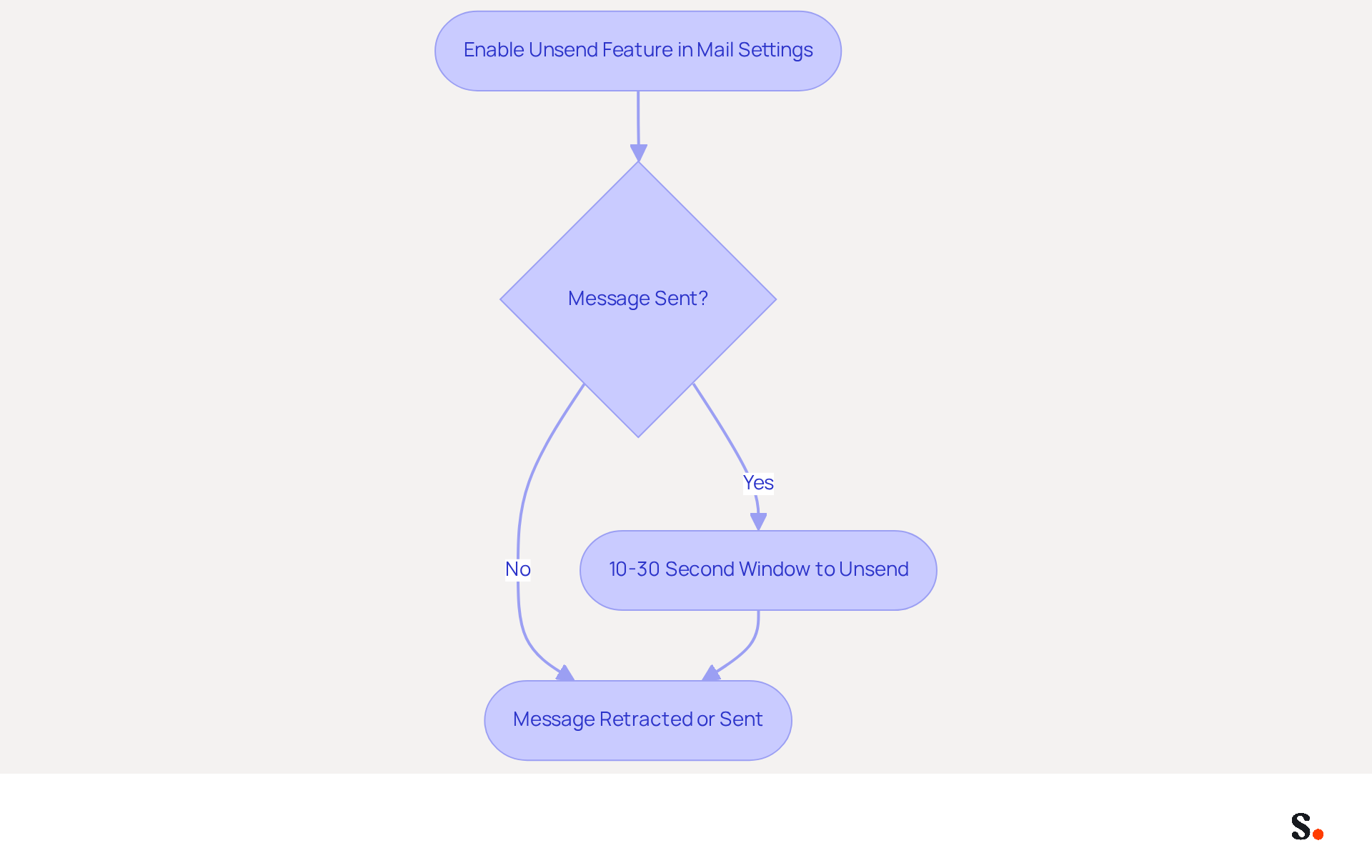
Follow Step-by-Step Instructions to Unsend an Email
To effectively manage your email communications in Apple Mail, follow these essential steps to unsend a message:
- Enable the Unsend Feature: Navigate to
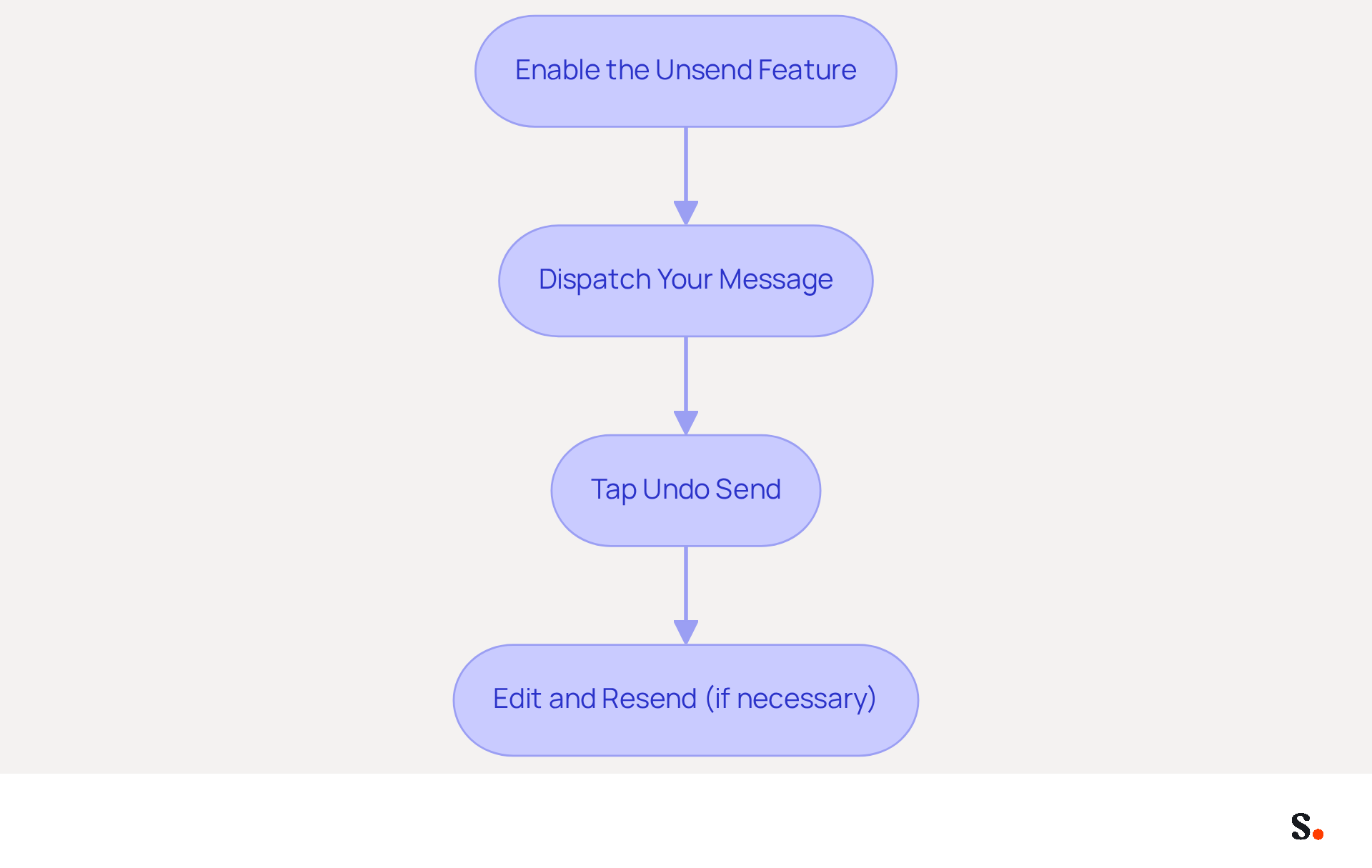
Settings>Messages>Composing. Here, you can set theUndo Delayto your preferred duration: Off, 10, 20, or 30 seconds. As mentioned by Nelson Aguilar, "In the Settings app, go to Mail Undo Delay and then choose either delay time: Off, 10 seconds (default), 20 seconds, or 30 seconds." - Dispatch Your Message: Draft your message as you typically would and click
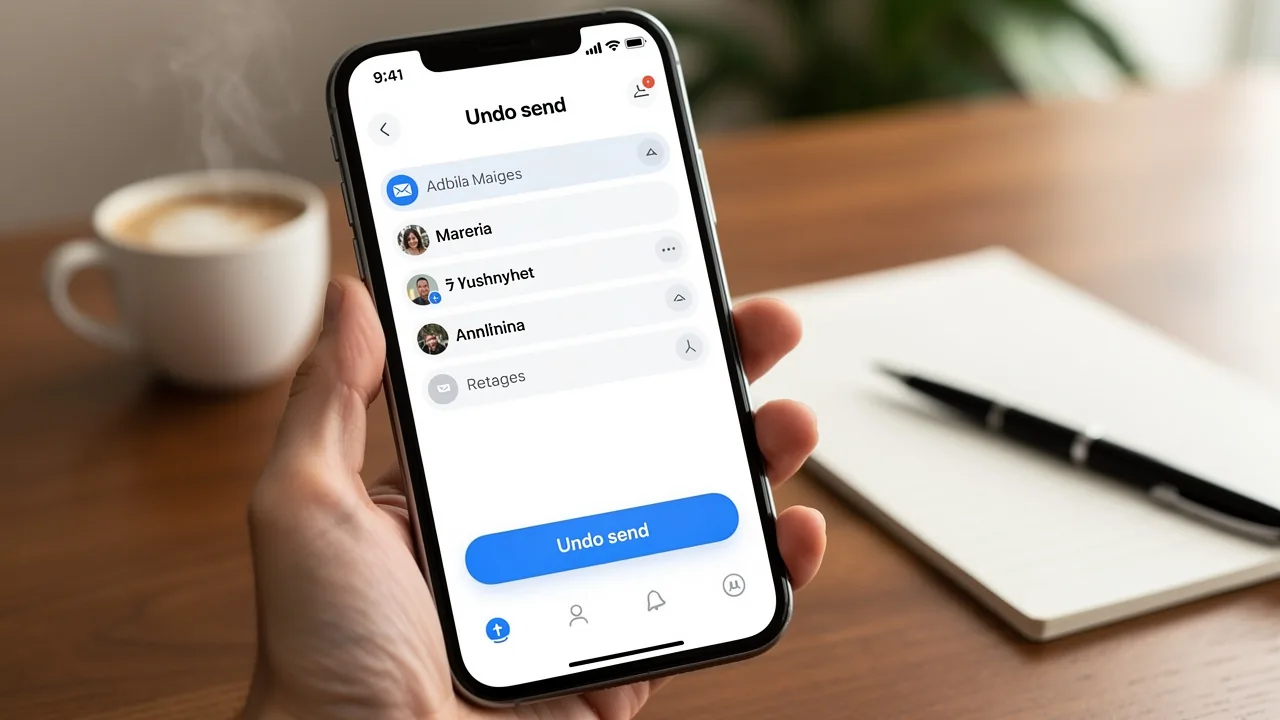
Dispatch. - Tap Undo Send: Immediately after sending, look for the
Undo Sendoption that appears at the bottom of your inbox. To successfully retract the message, it is essential to know how to unsend an email in Apple Mail by tapping the 'Undo Send' option within the specified delay. Michael Potuck explains, "You’ll only get the chance to unsend a message if you catch it almost immediately after hitting the send button." - Edit and Resend (if necessary): After tapping
Undo, you can modify the message and resend it if required. This functionality allows for corrections to be made prior to the message being delivered, ensuring accuracy. As Potuck further clarifies, "Once you tap the 'Undo Send' button, you’ll see the draft again, just tap 'Cancel' to unsend it."
By learning how to unsend an email in Apple Mail, you will enhance your communication management and reduce the likelihood of errors. Utilizing this feature can significantly enhance your email communication strategy, ensuring professionalism and accuracy.
Troubleshoot Common Issues When Unsending Emails
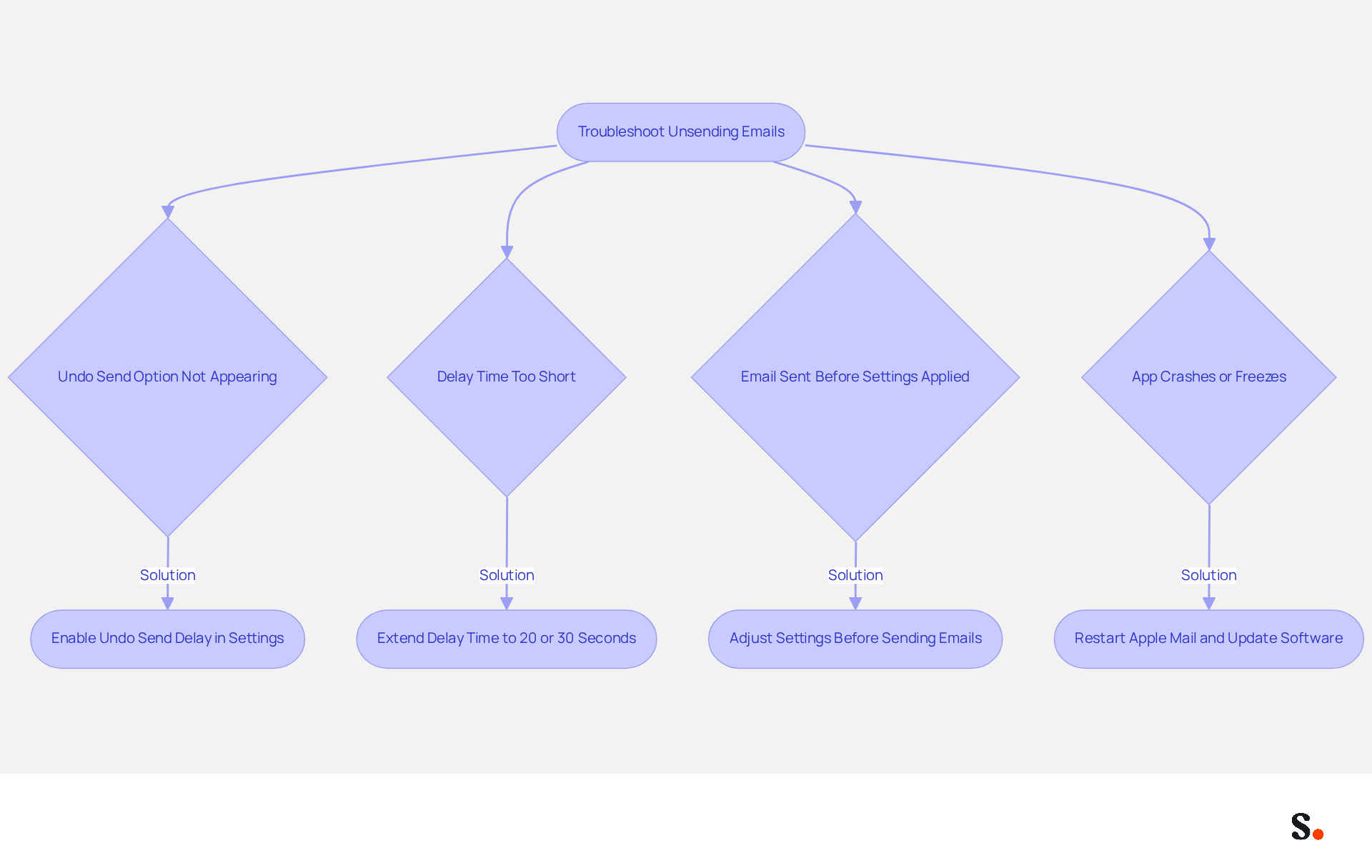
Navigating the unsend feature in Apple Mail can present several challenges that users must address:
- Undo Send Option Not Appearing: Ensure that the
Undo Send Delayis enabled in your settings; otherwise, the option will not be visible. - Delay Time Too Short: To increase your chances of successfully retracting an email, extend the delay time in your settings to 20 or 30 seconds.
- Email Sent Before Settings Applied: Be aware that any adjustments to your settings will not affect emails that have already been sent. Always adjust your preferences before sending important emails to ensure they take effect.
- App Crashes or Freezes: In the event of an app crash while attempting to retract an email, restart Apple Mail and ensure that your software is up to date.
Addressing these challenges ensures that you can effectively learn how to unsend an email in Apple Mail, enhancing your email management efficiency.
Explore Tools and Resources for Effective Email Management
To enhance your email management skills, consider leveraging tools that streamline processes and improve consistency:
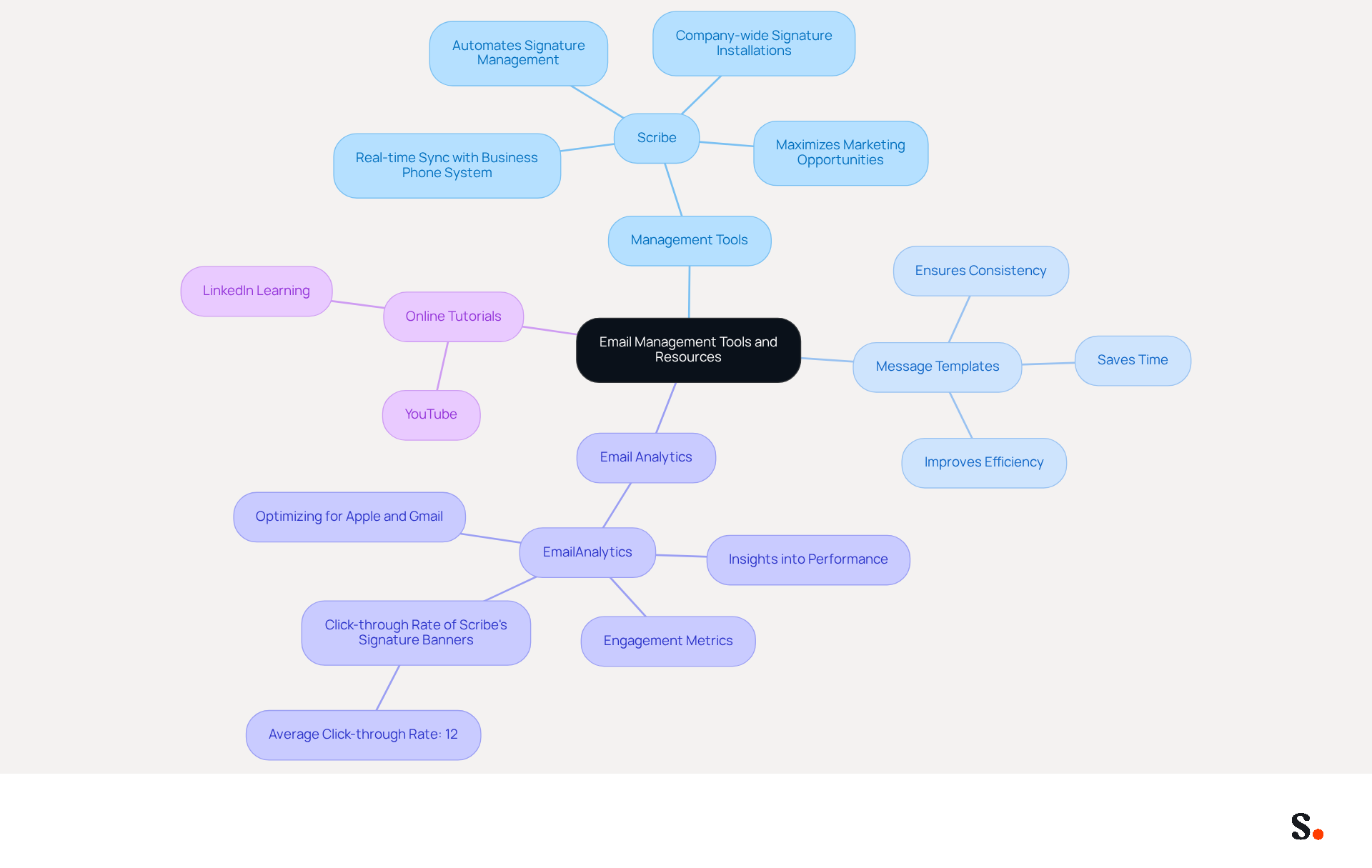
- Management Tools: While there are various applications available, Scribe stands out by automating signature management, ensuring brand consistency and maximizing marketing opportunities in every message sent. Scribe automatically syncs your teammates' signature information with your business phone system, so they don’t have to do anything. This real-time sync means any changes update automatically, allowing for clear communication and strong brand integrity. Scribe can deploy company-wide signature installations in under a day, minimizing downtime and enabling non-technical users to manage their signatures independently after the initial IT setup.
- Message Templates: Implementing templates for common responses can save time and ensure consistency in your communications, making your interactions more efficient.
- Email Analytics: Tools like EmailAnalytics offer insights into performance, assisting you in understanding engagement metrics and refining your strategies for improved results. According to recent data, optimizing for dominant messaging clients like Apple and Gmail can significantly enhance your marketing effectiveness. Notably, Scribe's signature banners have shown an average click-through rate of 12%, demonstrating their potential impact on engagement.
- Online tutorials that explain how to unsend an email in Apple Mail are available on websites like YouTube and platforms like LinkedIn Learning, providing visual guidance and tips.
By integrating these resources, you can significantly elevate your email management efficiency and effectiveness.
Conclusion
Mastering the unsend feature in Apple Mail is crucial for maintaining professionalism in communication. This feature allows users to retract messages shortly after sending, providing a vital window for corrections. Enabling the unsend option helps users manage their emails better and lowers the chances of miscommunication.
The article outlined the step-by-step process to utilize the unsend feature effectively, including:
- Enabling the feature
- Sending a message
- Tapping the undo option within the designated time frame
Additionally, common troubleshooting tips were provided to address potential issues, providing users with the knowledge to effectively use the feature. The integration of tools like Scribe further supports effective email management by automating signature updates and enhancing brand consistency.
Using the unsend feature regularly can really boost your communication and help you come across as more professional. By leveraging available resources and tools, such as Scribe, users can streamline their email processes and maximize engagement. Adopting these strategies not only refines email management but also positions users as adept communicators in their professional environments.
Frequently Asked Questions
What is the unsend feature in Apple Mail?
The unsend feature in Apple Mail allows users to retract messages shortly after sending them, helping to prevent potential miscommunications.
How long do users have to unsend an email in Apple Mail?
Users typically have a limited time of 10 to 30 seconds to unsend an email, depending on their settings.
How can users enable the unsend feature in Apple Mail?
Users must enable the unsend feature in the Mail settings to utilize it effectively.
How does the unsend feature work in Apple Mail?
The unsend feature operates by postponing the actual dispatch of the message, giving users a brief opportunity to rethink their decision before the email is sent.
What are the benefits of using the unsend feature in Apple Mail?
The unsend feature enhances communication management skills, allows for swift corrections, and helps maintain professionalism in communications.
What is the default undo send window in Apple Mail?
The default undo send window in Apple Mail is 10 seconds, but it can be extended up to 30 seconds based on user preferences.
How does the unsend feature impact user satisfaction?
Research indicates that the implementation of the unsend feature has greatly enhanced user satisfaction by effectively resolving common messaging errors.
Why is the ability to retract messages important for users?
The ability to retract messages boosts user confidence and aids in improved management practices, particularly in contexts where compliance and consumer expectations are significant.
List of Sources
- Understand the Unsend Feature in Apple Mail
- iOS 16: How to Unsend Emails in Apple Mail (https://macrumors.com/how-to/unsend-emails-ios)
- 6 of My All-Time Favorite Quotes About Marketing (https://cmswire.com/digital-marketing/6-expert-quotes-for-transforming-email-marketing)
- Regret That Email? Here’s How to Unsend It in iOS 26 (https://idropnews.com/how-to/how-to-unsend-email-ios-26/253543)
- Apple releases iOS 16, allowing users to unsend messages - UPI.com (https://upi.com/Top_News/US/2022/09/12/apple-releases-ios-16-users-unsend-messages-schedule-emails/1161662987400)
- How to Unsend an Email in Outlook, Gmail, Apple Mail, etc. (https://bulksignature.com/blog/how-to-unsend-an-email-in-outlook-gmail-apple-mail-etc)
- Follow Step-by-Step Instructions to Unsend an Email
- Regret That Email? Here’s How to Unsend It in iOS 26 (https://idropnews.com/how-to/how-to-unsend-email-ios-26/253543)
- Send an Accidental Email? Here's How to Unsend It on Your iPhone - CNET (https://cnet.com/tech/services-and-software/send-an-accidental-email-heres-how-to-unsend-it-on-your-iphone)
- Unsend email with iPhone: iOS 16 guide (https://9to5mac.com/2022/09/21/unsend-email-with-iphone)
- Apple releases iOS 16, allowing users to unsend messages - UPI.com (https://upi.com/Top_News/US/2022/09/12/apple-releases-ios-16-users-unsend-messages-schedule-emails/1161662987400)
- iOS 16 lets you unsend emails in your iPhone's Mail app — here's how to do it (https://businessinsider.com/reference/how-to-unsend-an-email-on-iphone)
- Troubleshoot Common Issues When Unsending Emails
- You Can Unsend an Email 10 Seconds After It's Sent in iOS 16 Mail App (https://forums.macrumors.com/threads/you-can-unsend-an-email-10-seconds-after-its-sent-in-ios-16-mail-app.2347218/page-3)
- Send an Accidental Email? Here's How to Unsend It on Your iPhone - CNET (https://cnet.com/tech/services-and-software/send-an-accidental-email-heres-how-to-unsend-it-on-your-iphone)
- Use Microsoft Viva Insights in Outlook | Microsoft Support (https://support.microsoft.com/en-us/viva/insights/use-microsoft-viva-insights-in-outlook)
- Explore Tools and Resources for Effective Email Management
- The 9 Best Email Apps in 2026 | Zapier (https://zapier.com/blog/best-email-app)
- Best Email Management Software Tools & Apps (Top 10 in 2026) (https://crm.org/news/best-email-management-software)
- Email Client Market Share: Trends & Statistics 2026 (https://litmus.com/email-client-market-share)
- Top 16 Email Management Software of 2026 (https://getinboxzero.com/blog/post/email-management-software)
Get started with Scribe
Create your signature in minutes
Free 14-day trial — no credit card.