How to Unsend an Email in Gmail: Step-by-Step Guide
In a world where a single email can lead to significant miscommunication, mastering Gmail's unsend feature is crucial. This feature provides users with a brief
Sophie Grant
Email Signature Specialist, Scribe
Introduction
In a world where a single email can lead to significant miscommunication, mastering Gmail's unsend feature is crucial. This feature provides users with a brief opportunity to retract messages immediately after sending, helping to prevent misunderstandings.
We’ll explore how to extend the unsend time window and troubleshoot common issues to make the most of this feature. Understanding how to navigate these challenges can significantly enhance your email communication effectiveness.
Understand the Gmail Unsend Feature
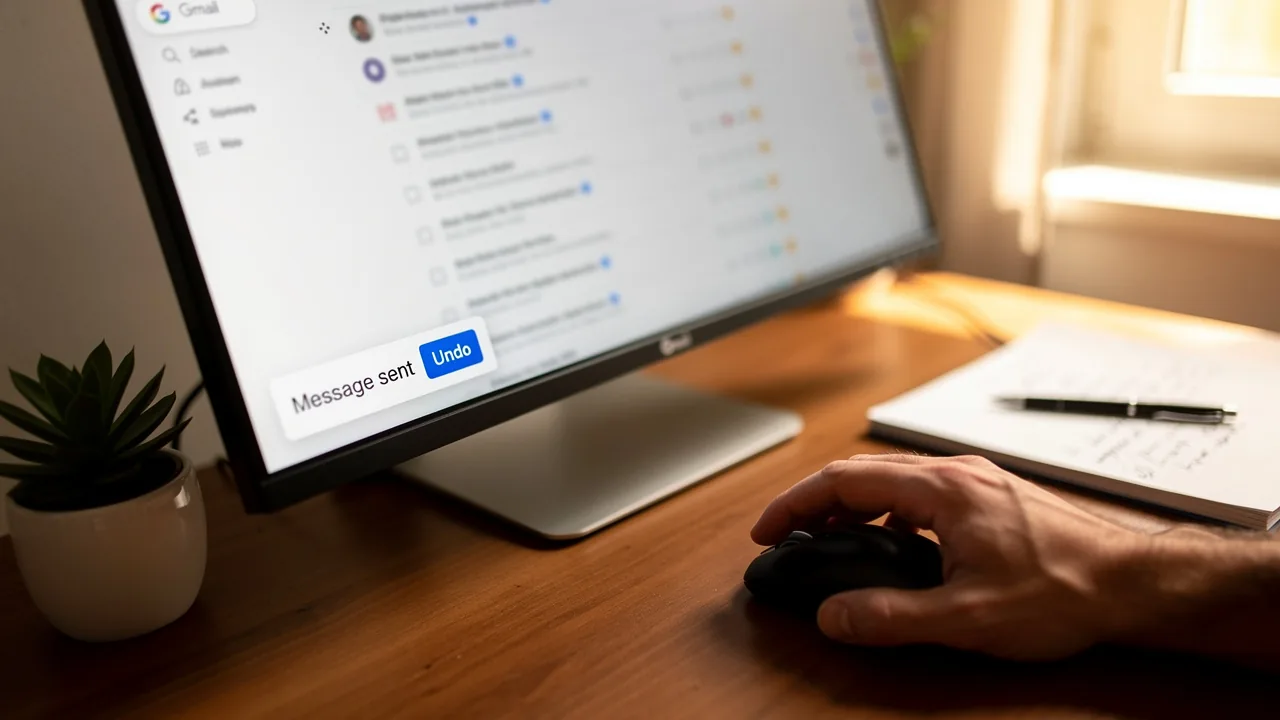
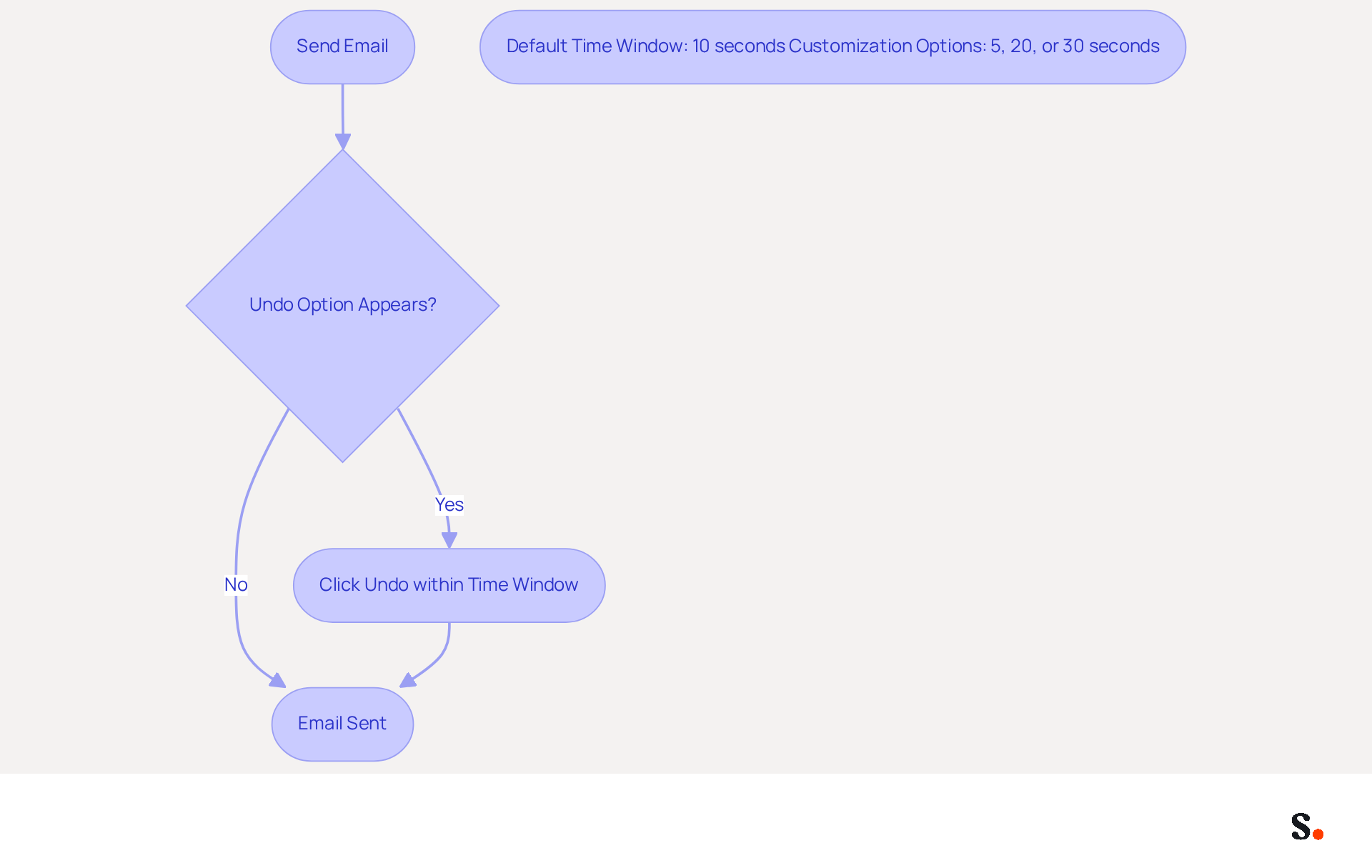
The Gmail Unsend option provides a crucial safety net for users, allowing them to know how do you unsend an email in Gmail immediately after sending. When you send a message, a notification appears at the bottom left of your screen stating 'Message sent' along with an 'Undo' option. Rather than recalling a message, it briefly holds the email, giving you a short window to cancel the send.
The default time window for this option is set to 10 seconds, but users can customize it to 5, 20, or 30 seconds in the settings. Understanding how do you unsend an email in Gmail is vital for regular users, as it helps prevent awkward errors and misunderstandings.
Significantly, around 30% of Gmail users actively employ the unsend feature, emphasizing its importance in daily communication. Experts note that this feature boosts user confidence and fosters more effective communication.
Unsending Emails on Mobile and Desktop
Understanding how do you unsend an email in Gmail can help prevent miscommunication and uphold professionalism in your correspondence.
Unsending on Desktop
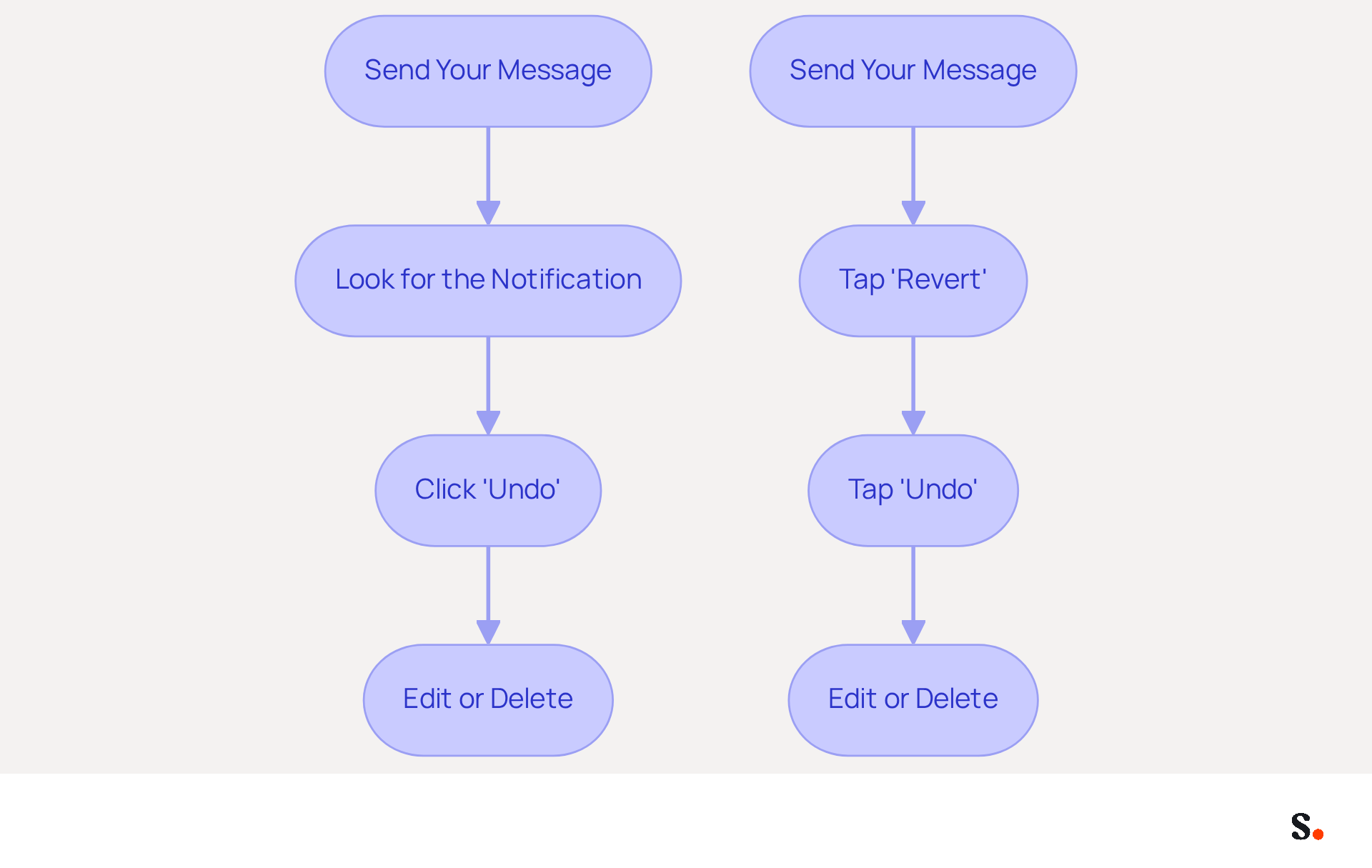
- Send Your Message: Compose your message and click 'Send'.
- Look for the Notification: After sending, a notification will appear at the bottom left of your screen saying 'Message sent'.
- Click 'Undo': Click the 'Undo' link within the notification. Your message will be retracted, and a draft will open for you to edit or delete.
Unsending on Mobile
- Send Your Message: Open the Gmail app, compose your message, and tap 'Send'.
- Tap 'Revert': Right after sending, a notification will show up at the bottom of the screen. Tap 'Undo' to retract the message.
- Edit or Delete: The message will return to your drafts, allowing you to make changes or remove it entirely.
By following these steps, you’ll discover how do you unsend an email in Gmail quickly, whether you’re on desktop or mobile. Choosing a 30-second cancellation period is recommended, as it provides ample time to address any errors, improving your management efficiency. Given that the platform boasts 1.8 billion users, utilizing the 'Undo Send' feature is crucial for maintaining professionalism and preventing possible embarrassment in communications.
Extend Your Unsend Time Window
Sending an email without a second thought can lead to regrettable mistakes, but knowing how do you unsend an email in Gmail can help mitigate this risk. To extend the time window for unsending emails in Gmail, follow these steps:
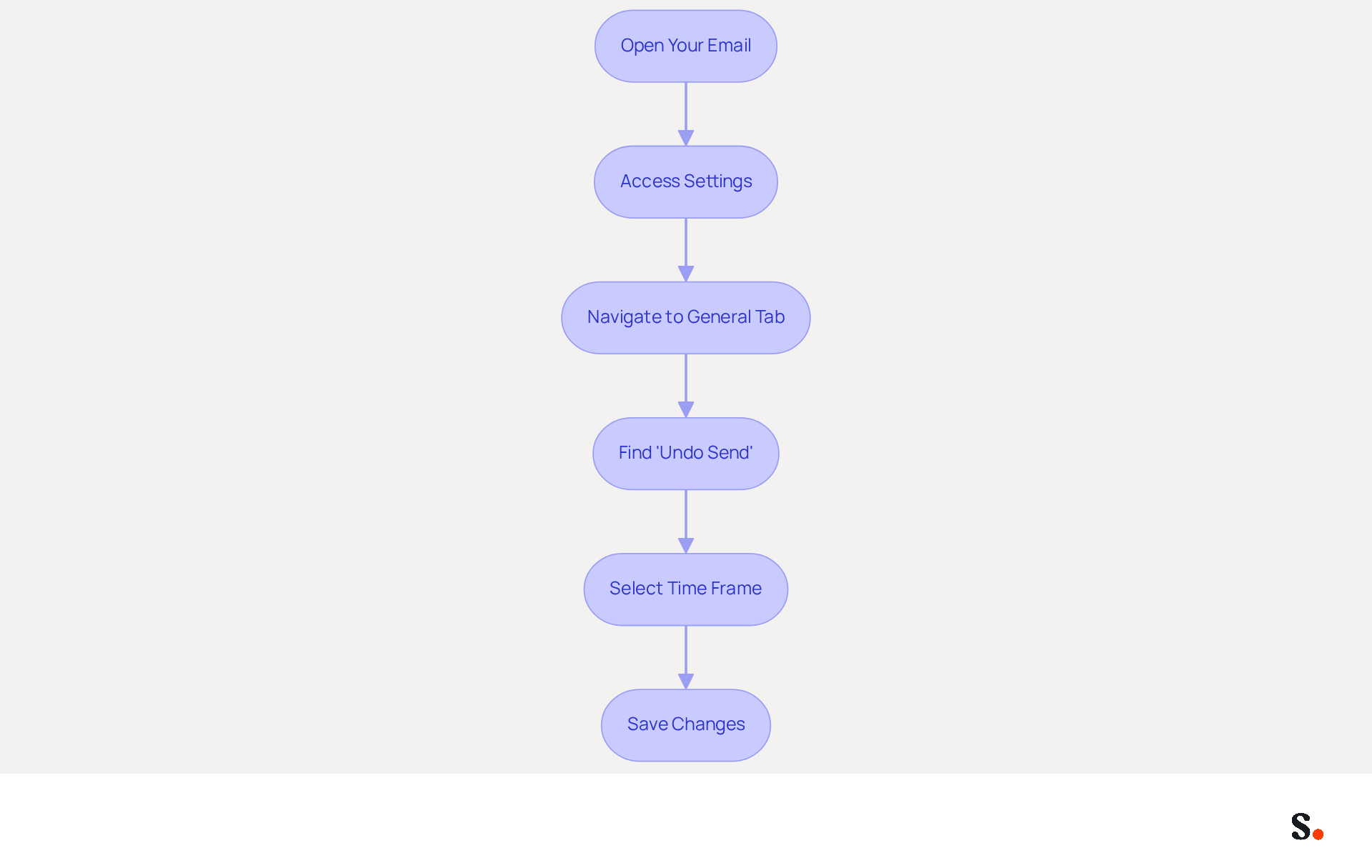
- Open your email: Log into your email account on a desktop.
- Access Settings: Click on the gear icon in the top right corner and select 'See all settings'.
- Navigate to General Tab: In the settings menu, click on the 'General' tab.
- Find 'Undo Send': Locate the 'Undo Send' section.
- Select Time Frame: Click the dropdown menu next to 'Send cancellation period' and choose your preferred time (5, 10, 20, or 30 seconds). Interestingly, about 30% of Gmail users choose to extend their unsend time to 30 seconds, allowing for better error correction. The default undo send window is set to 5 seconds, so modifying this setting can significantly improve your message management.
- Save Changes: Scroll down and click 'Save Changes' at the bottom of the page.
By extending the unsend time window, you can reconsider your messages, which is especially beneficial in fast-paced work environments, and it raises the question of how do you unsend an email in Gmail. As Mark O'Toole notes, 'For high-stakes messages - anything sensitive, anything to a senior individual, anything you might regret - use Schedule Send and select 5-10 minutes in the future.' This highlights the importance of adaptable messaging options for improving overall communication management and decreasing the chances of sending messages with mistakes. Additionally, it's crucial to remember that Workspace admins cannot recall emails once they leave Google's servers, which is a key consideration for email management.
Troubleshoot Common Unsend Issues
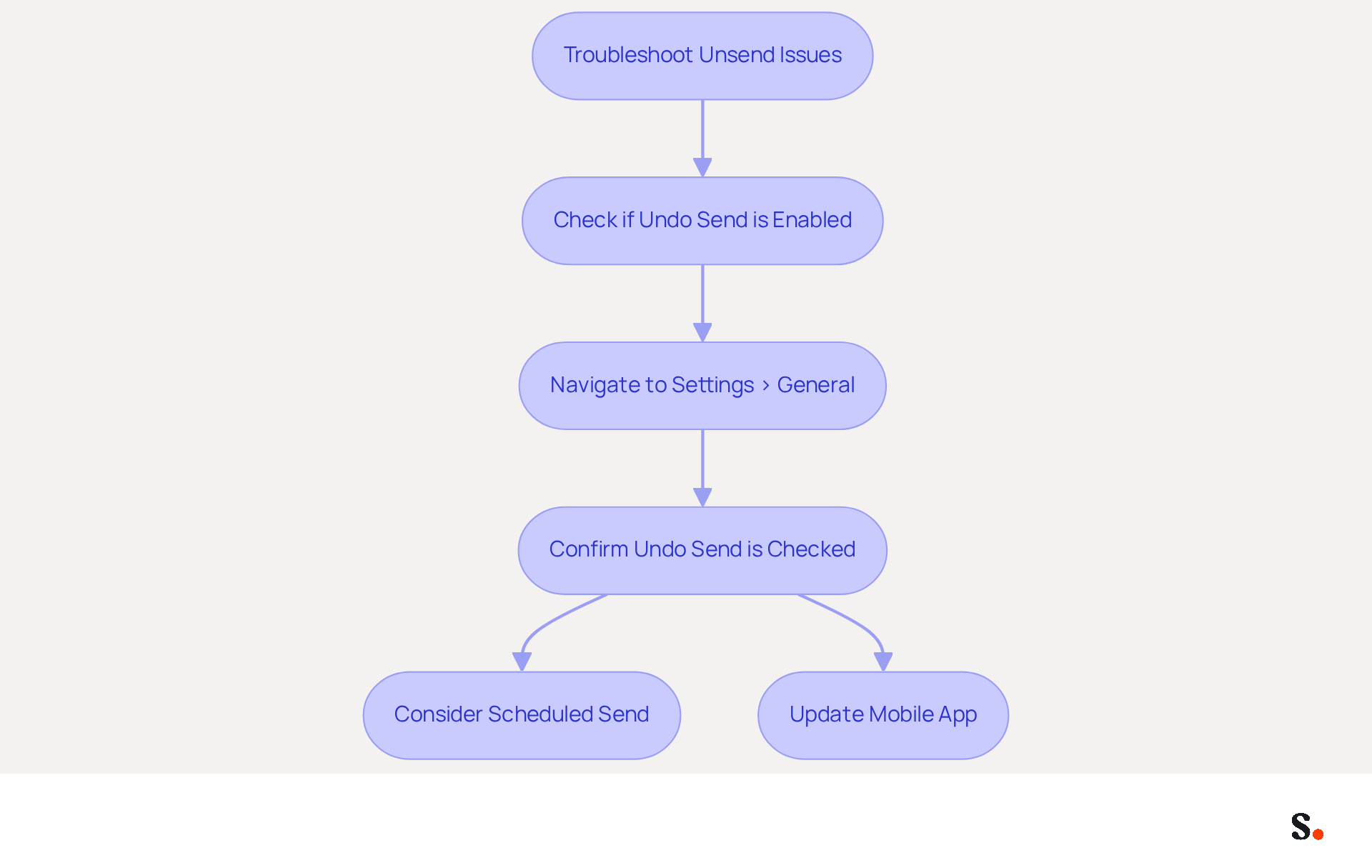
Experiencing issues with how do you unsend an email in Gmail can be frustrating, but there are effective solutions available. If the 'Reversal' option does not appear, users often find themselves unable to recall emails, leading to the question of how do you unsend an email in Gmail, due to the limited time window, which highlights the need for prompt action after sending.
Additionally, to understand how do you unsend an email in Gmail, check if the 'Undo Send' option is enabled in your settings. Navigate to Settings > General and confirm that 'Enable Undo Send' is checked. The function will not operate unless you know how do you unsend an email in Gmail. Once the message is dispatched and the time window has passed, you cannot retract it, leading to the question of how do you unsend an email in Gmail.
To mitigate this risk moving forward, consider utilizing the scheduled send option, which provides you more time for review before the message is sent. If you are using the mobile app, ensure it is updated to the latest version. If the function is not operating as anticipated, try restarting the app to fix any temporary glitches.
Did you know that 21% of emails are opened within the first hour? This highlights just how crucial it is to use the Unsend option wisely. By implementing these strategies, you can enhance your email management and ensure timely communication.
Conclusion
In a world where miscommunication can have significant repercussions, mastering the Gmail unsend feature is essential for maintaining professionalism. This feature acts as a safety net, allowing users to retract messages shortly after sending them. Customizing the unsend time window allows users to manage their emails more effectively, giving them time to correct mistakes before sending.
The article outlined the step-by-step process for unsending emails on both desktop and mobile platforms, emphasizing the importance of adjusting the unsend time settings for better control. It also addressed common issues users may encounter, providing troubleshooting tips to ensure the feature works effectively. With around 30% of Gmail users utilizing this feature, it serves as a crucial tool for effective communication.
Ultimately, leveraging the Gmail unsend feature not only helps in correcting errors but also fosters confidence in communication. By mastering this feature, users can transform their email practices, reducing errors and enhancing professionalism. Embracing such tools empowers users to communicate with greater precision and confidence, setting a standard for professionalism in digital correspondence.
Frequently Asked Questions
What is the Gmail Unsend feature?
The Gmail Unsend feature allows users to cancel the sending of an email immediately after it has been sent, providing a brief window to undo the action.
How does the Gmail Unsend feature work?
After sending a message, a notification appears at the bottom left of the screen stating 'Message sent' along with an 'Undo' option. Users can click 'Undo' to cancel the send within a short time frame.
What is the default time window for the Gmail Unsend feature?
The default time window for the Gmail Unsend feature is set to 10 seconds.
Can users customize the time window for the Gmail Unsend feature?
Yes, users can customize the time window to 5, 20, or 30 seconds in the settings.
Why is it important to understand how to unsend an email in Gmail?
Understanding how to unsend an email in Gmail is vital for preventing awkward errors and misunderstandings in communication.
How many Gmail users actively use the unsend feature?
Approximately 30% of Gmail users actively employ the unsend feature.
What benefits does the Gmail Unsend feature provide to users?
The Gmail Unsend feature boosts user confidence and fosters more effective communication by allowing users to quickly correct mistakes.
List of Sources
- Understand the Gmail Unsend Feature
- Google Inc launches feature that lets users 'unsend' email in Gmail (https://financialpost.com/business-insider/google-inc-launches-feature-that-lets-you-unsend-email-in-gmail)
- Gmail adds an 'undo Send' email tool for its users (https://bbc.com/news/newsbeat-33256814)
- Google adds undo send feature to Gmail (https://wivb.com/news/local-news/google-adds-undo-send-feature-to-gmail)
- Unsending Emails on Mobile and Desktop
- Finally! Gmail Now Lets You Unsend Emails (https://cw33.com/news/gmail-officially-adds-undo-send-feature-heres-how-to-turn-it-on)
- How to undo send in Gmail for up to 30 seconds (https://blog.google/products-and-platforms/products/gmail/how-to-unsend-email-gmail)
- Gmail Statistics: What Google Has Actually Published (2026) (https://dragapp.com/blog/gmail-stats)
- This Gmail Recall Stops Sent Messages From Being Delivered (https://forbes.com/sites/daveywinder/2025/10/18/how-to-destroy-your-sent-gmail-email---you-have-30-seconds-to-act)
- Extend Your Unsend Time Window
- Extend Your 'Undo Send' Window in Gmail, We Beg of You (https://lifehacker.com/extend-your-undo-send-window-in-gmail-we-beg-of-you-1847430661)
- How to undo send in Gmail for up to 30 seconds (https://blog.google/products-and-platforms/products/gmail/how-to-unsend-email-gmail)
- How to Unsend an Email in Gmail (and Extend the 30-Second Window) (https://supportbee.com/blog/how-to-unsend-email-in-gmail)
- Troubleshoot Common Unsend Issues
- 8 Email Marketing Statistics to Reinforce Your Strategy | Mailjet (https://mailjet.com/blog/email-best-practices/stats-email-marketing)
- 100 Compelling Email Statistics for 2026 | PGM Solutions (https://porchgroupmedia.com/blog/100-compelling-email-statistics-to-inform-your-strategy-in-2023)
- Gmail's Undo Send Not Working: How to Fix (2026) (https://getinboxzero.com/blog/post/gmail-undo-send-not-working)
- Gmail adds an 'undo Send' email tool for its users (https://bbc.com/news/newsbeat-33256814)
Get started with Scribe
Create your signature in minutes
Free 14-day trial — no credit card.