How to Unsend an Email on Outlook: Step-by-Step Guide
Retracting an email is essential for upholding professionalism and ensuring clear communication. With Outlook's features like 'Undo Send' and 'Recall', users
Sophie Grant
Email Signature Specialist, Scribe
Introduction
Retracting an email is essential for upholding professionalism and ensuring clear communication. With Outlook's features like 'Undo Send' and 'Recall', users have powerful tools at their disposal to correct mistakes swiftly. However, the effectiveness of these options often depends on specific conditions and user settings, which can complicate the recall process.
What should you do if a crucial email is sent in haste, and how can you effectively recall it? Understanding the nuances of email recall can prevent miscommunication and enhance professional interactions.
Understand the Options for Unsending Emails in Outlook
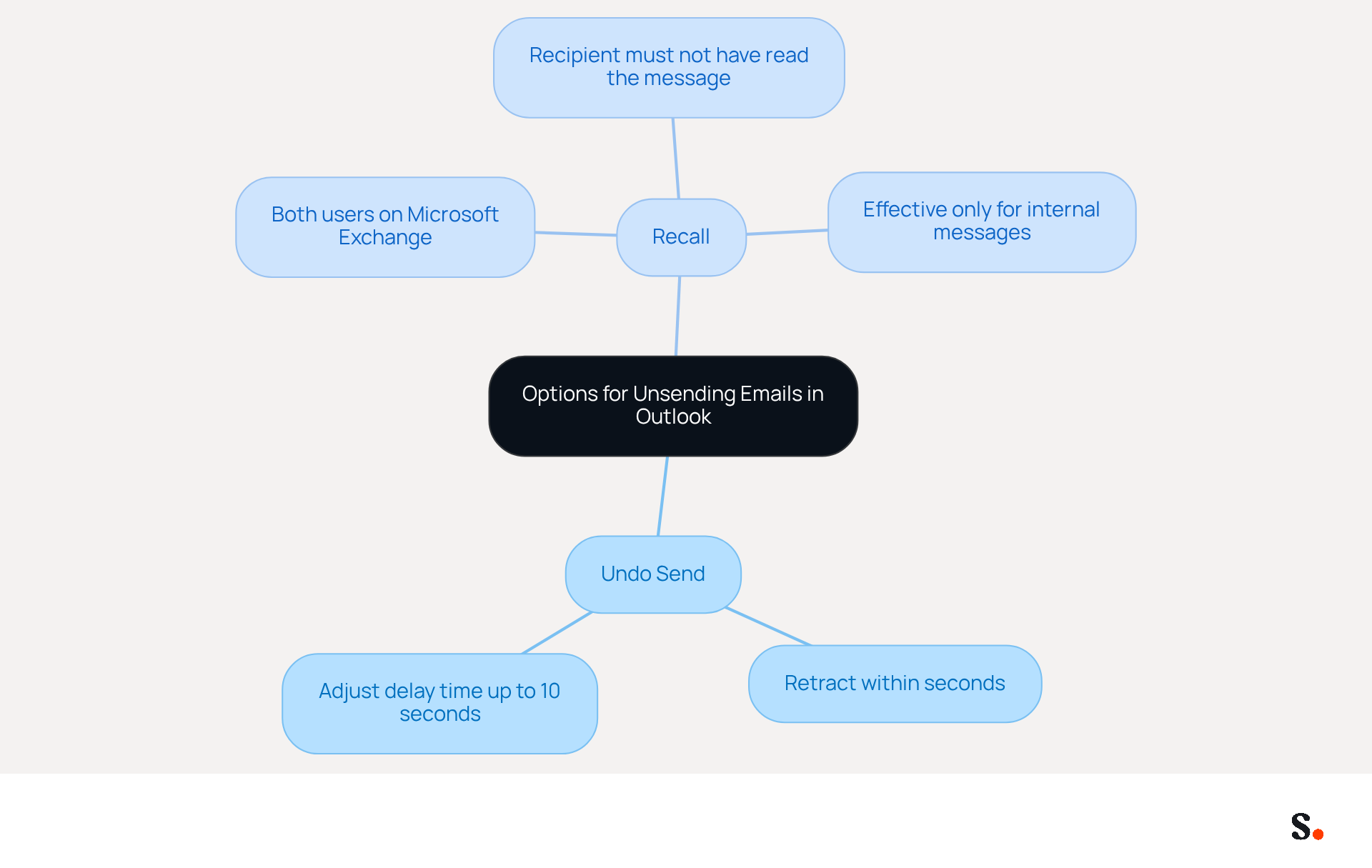
Retracting a message in Outlook can be crucial for maintaining professionalism. Users have two primary methods to retract a message, which include how to unsend an email on Outlook with the 'Undo Send' option and the 'Recall' function.
I need to learn how to unsend an email on Outlook. This option, which explains how to unsend an email on Outlook, allows you to retract a message within seconds of sending it. It is particularly useful for quick corrections or if you want to know how to unsend an email on Outlook immediately after realizing you made a mistake. To turn on this feature, go to File > Options > Mail and adjust the 'Undo Send' settings to your preferred delay time, which can be set for up to 10 seconds.
- Recall: This function retrieves a message that has already been sent, but it operates under specific conditions. Both the sender and recipient must be using Microsoft Exchange, and the recipient must not have read the message yet. To retrieve a message, go to your Sent Items, open the message, and select Actions > Retrieve This Message. Recent updates suggest that the retrieval function has enhanced considerably, with a success rate surpassing 90%, up from a prior 40%. However, it is crucial to mention that retrieval attempts are only effective for internal messages within the same organization. Additionally, personal email accounts cannot use the recall function.
The right choice can enhance your communication outcomes.
Use the 'Undo Send' Feature to Stop an Email
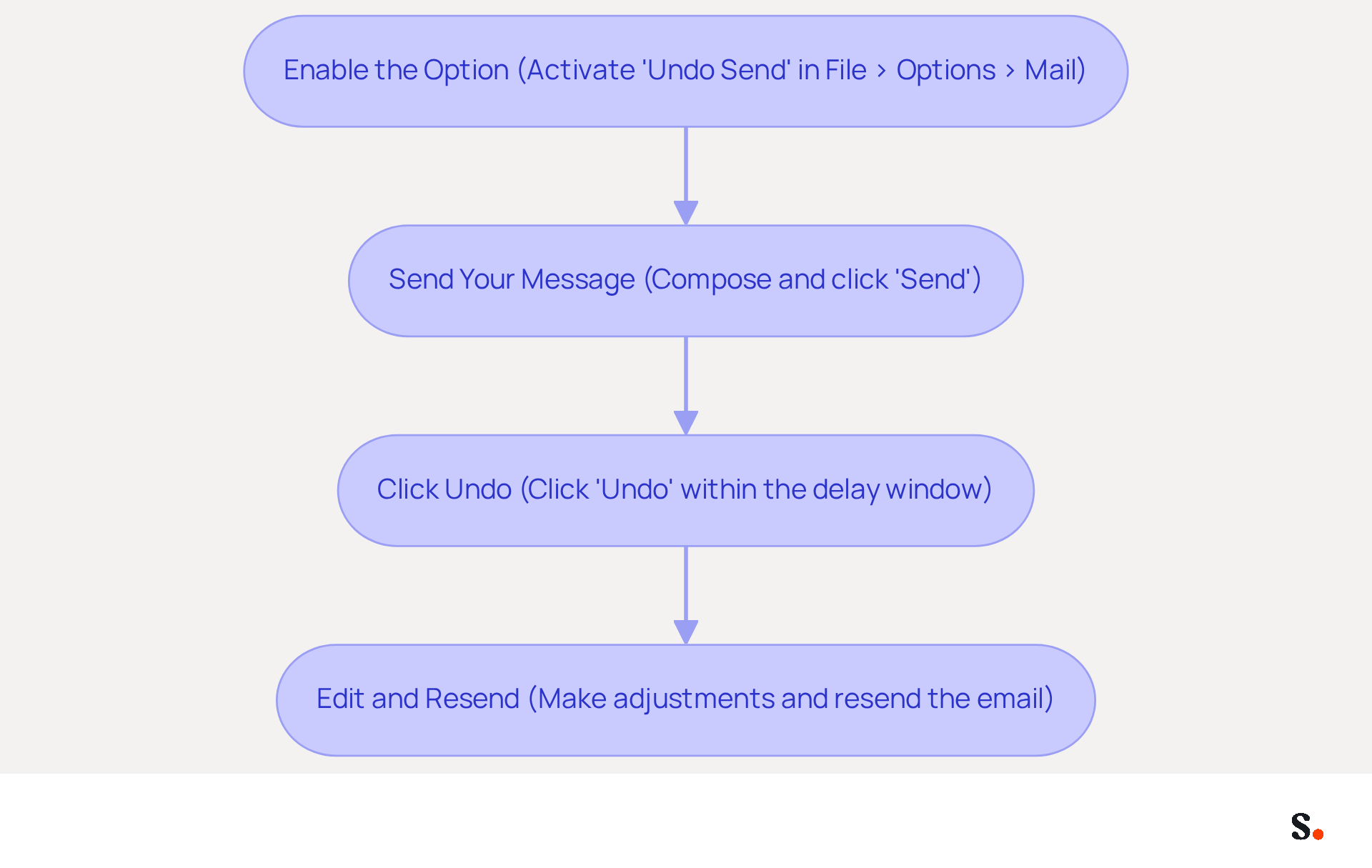
To maximize the effectiveness of the 'Undo Send' feature in Outlook, it is crucial to follow specific steps that ensure its proper use:
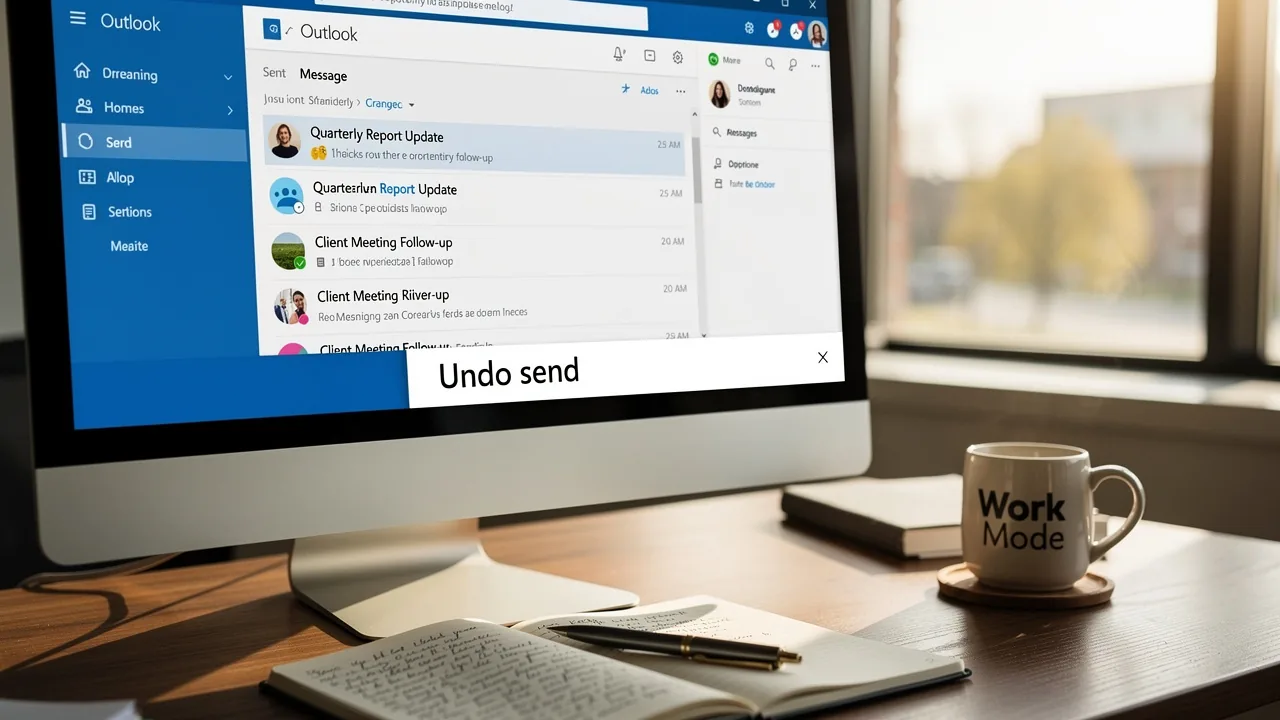
- Enable the option: First, ensure the 'Undo Send' function is activated by navigating to File > Options > Mail. In the 'Undo Send' section, set your desired delay time, which can be up to 10 seconds. Note that this feature is available only on Outlook for Microsoft 365 and Outlook Web, and it is not supported in the Outlook mobile app.
- Send Your Message: Compose your message as you normally would and click 'Send'.
- Click 'Undo': Right after sending, a notification will show at the bottom of your screen indicating that your message has been sent. Click the 'Undo' button within the specified time frame to retract the message. Studies show that users typically take about 5 to 10 seconds to click 'Undo' after sending a message, highlighting the importance of this brief window for making corrections. However, keep in mind that when learning how to unsend an email on Outlook, the 'Undo Send' option only provides a short window for message retraction and is less reliable than the 'Recall Email' function, which attempts to remove a message from recipients' mailboxes after it has been sent.
- Edit and Resend (if necessary): Once you click 'Undo', the email will reopen in the compose window, allowing you to make any necessary adjustments before resending it. This feature is particularly helpful for quickly fixing typos or adding attachments you might have missed.
Companies using this feature have noted a marked increase in communication efficiency, as it acts as a safeguard against accidental sends. Productivity specialists highlight that swift message corrections can avert miscommunication and improve overall workflow. As Giedrius Pakalka observes, "Undo Send is simpler and more dependable within its brief delay window," making it an essential tool for effective message management. Failing to utilize this feature can lead to miscommunication and potential misunderstandings.
Recall a Sent Email in Outlook: Step-by-Step Instructions
Understanding how to unsend an email on Outlook can be a crucial step in managing communication effectively. To recall a sent email, follow these steps:
-
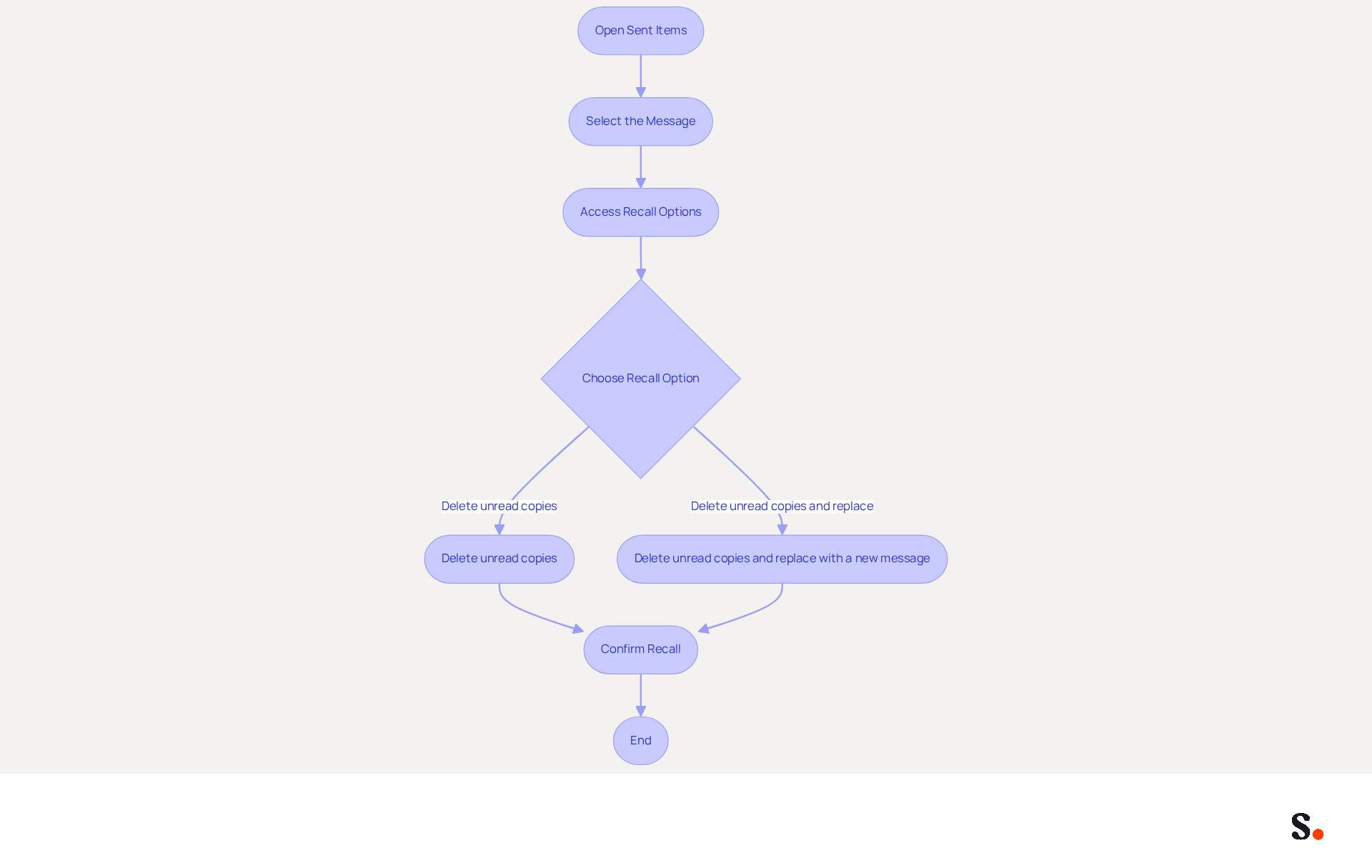
Open Sent Items: Navigate to your Sent Items folder in Outlook.
-
Select the Message: Find the message you wish to recall and double-click it to open it in a new window.
-
Access Recall Options: In the open message window, go to the Message tab. Click on Actions in the ribbon, then select Recall This Message.
-
Choose Recall Option: You will be presented with two options:
- Delete unread copies of this message: This option will attempt to delete the email from the recipient's inbox if it has not been read.
- Delete unread copies and replace with a new message: This option allows you to substitute the original correspondence with a new one.
-
Confirm Recall: Simply click OK to confirm your choice. You might receive an alert regarding the success or failure of the retrieval attempt, based on the user's message settings.
The retrieval option works best when the recipient is using Microsoft Exchange and has not yet opened the message. Previously, users faced a low success rate of only 40% when attempting to recall messages. Now, users can confidently recall messages with a success rate exceeding 90%. Furthermore, emails dispatched to individuals outside your organization cannot be recalled due to privacy and legal restrictions. The maximum age for messages that can be retrieved is set to a default of 365 days, and the retrieval capability is restricted to internal communications within Microsoft 365. Recent improvements also feature optional notification alerts for users, enhancing clarity about retrieval attempts. Understanding how to unsend an email on Outlook can significantly enhance your email management strategy.
Recognize the Limitations of Email Recall in Outlook
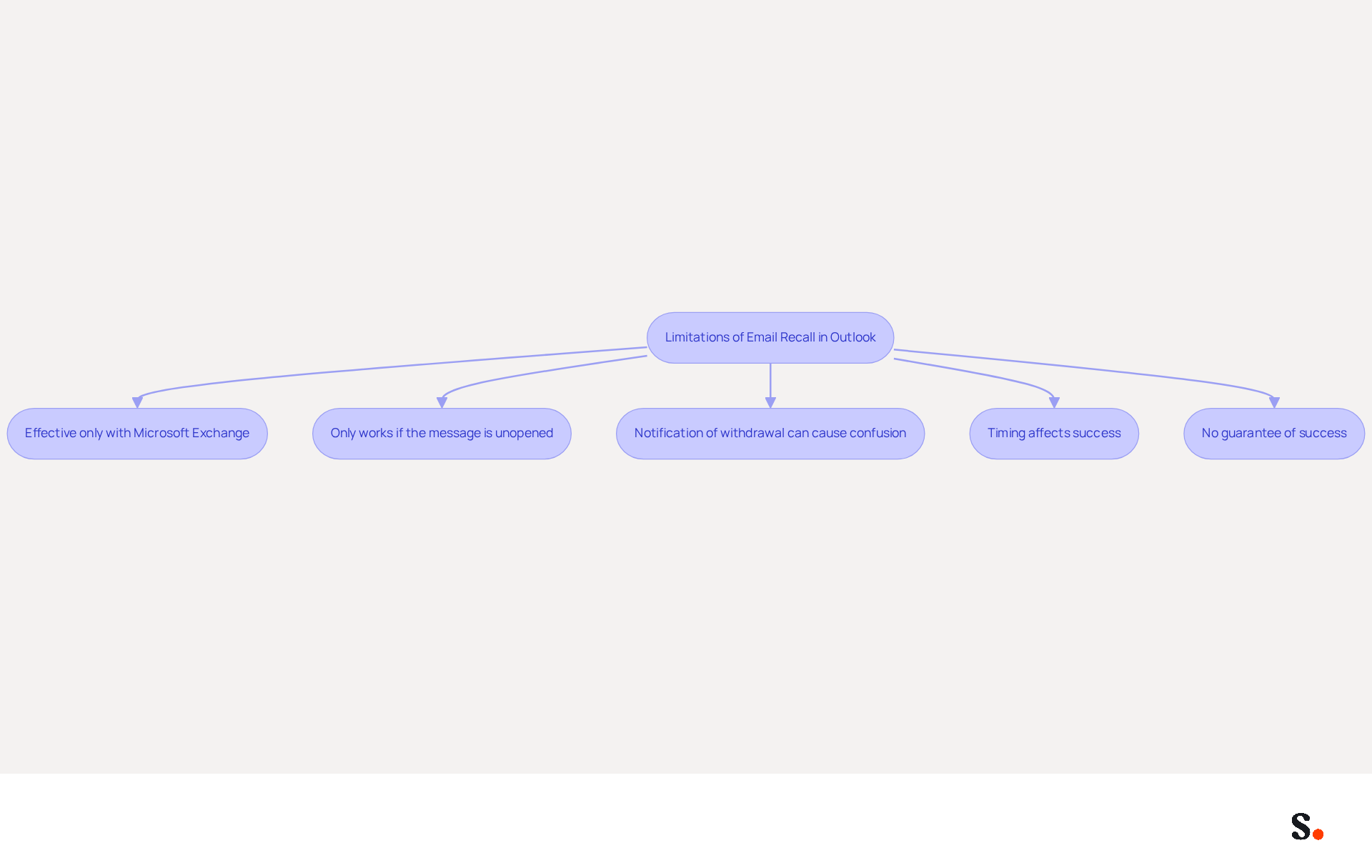
While the ability to recall an email offers a sense of control, it is crucial to understand the inherent limitations that accompany this feature:
- One significant limitation is that the retrieval feature is only effective when both the sender and receiver are using Microsoft Exchange. If the receiver uses an alternative messaging service, the retrieval effort will not be successful.
- A retrieval can only be performed if the message remains unopened by the receiver. If the receiver has already viewed the message, the retrieval will inevitably be unsuccessful.
- Another limitation involves the notification of withdrawal that the recipient may receive. When a withdrawal is attempted, this notification can lead to confusion or embarrassment for the sender, especially since users have reported mixed results with these notifications.
- Timing plays a crucial role in the success of email retrieval. The sooner you try to retrieve a message after sending it, the greater the likelihood of success. Delays can lead to the message being viewed before the retraction is handled, reducing the chances of a favorable result.
- Lastly, it is important to note that there is no guarantee of success in retrieving an email. Even if all conditions are met, elements such as the receiver's messaging configurations, server conditions, and inbox rules can significantly affect the outcome. For instance, recalls may fail if messages are sent to recipients outside the organization or if inbox rules are in place.
Comprehending these limitations will assist you in managing your expectations and selecting the best course of action when handling sent messages. As communication specialists note, the psychological impact of recalling an email can be significant, often leading to feelings of anxiety or embarrassment for the sender.
Conclusion
Effective communication hinges on the ability to retract emails when necessary, making it crucial to understand Outlook's features. Utilizing the 'Undo Send' feature allows users to retract messages immediately, while the 'Recall' function helps retrieve emails under specific conditions. Understanding the necessity of enabling the 'Undo Send' feature and the specific conditions for successful email recall, such as both sender and recipient using Microsoft Exchange, is crucial.
Ultimately, mastering these features can significantly enhance email management strategies. Without these features, users may face challenges in correcting mistakes in their communications. Mastering these features not only enhances email management but also boosts professional confidence in communication. By implementing these strategies, professionals can navigate their email correspondence with enhanced assurance and clarity.
Frequently Asked Questions
What are the two primary methods to unsend an email in Outlook?
The two primary methods to unsend an email in Outlook are the 'Undo Send' option and the 'Recall' function.
How does the 'Undo Send' option work in Outlook?
The 'Undo Send' option allows users to retract a message within seconds of sending it. To enable this feature, go to File > Options > Mail and adjust the 'Undo Send' settings to your preferred delay time, which can be set for up to 10 seconds.
What conditions must be met for the 'Recall' function to work in Outlook?
For the 'Recall' function to work, both the sender and recipient must be using Microsoft Exchange, and the recipient must not have read the message yet.
How can I use the 'Recall' function to retrieve a message?
To retrieve a message using the 'Recall' function, go to your Sent Items, open the message, and select Actions > Retrieve This Message.
What is the success rate of the 'Recall' function in Outlook?
Recent updates suggest that the success rate of the 'Recall' function has improved to over 90%, up from a prior rate of 40%.
Are there any limitations to the 'Recall' function?
Yes, the 'Recall' function is only effective for internal messages within the same organization, and it cannot be used with personal email accounts.
List of Sources
- Understand the Options for Unsending Emails in Outlook
- How to recall an email in Outlook: Requirements, Limitations & Steps | Microsoft Support (https://support.microsoft.com/en-us/outlook/mail/how-to-recall-an-email-in-outlook-requirements-limitations-steps)
- How to Unsend an Email in Outlook (Recall and Undo Send Explained) - ClerkBase (https://clerkbase.com/how-to-unsend-an-email-in-outlook)
- How does the new message recall work in Microsoft 365 (https://codetwo.com/admins-blog/cloud-based-message-recall)
- Microsoft Enhances Message Recall for Exchange Online (https://practical365.com/message-recall-enhancements)
- Microsoft is bringing a much-needed feature to Outlook (https://neowin.net/news/microsoft-is-bringing-a-much-needed-feature-to-outlook)
- Use the 'Undo Send' Feature to Stop an Email
- Unsend an Email in Outlook: Recall & Undo Send (2026) (https://leavemealone.com/blog/how-to-unsend-an-email-in-outlook)
- How to Unsend an Email in Outlook (Recall and Undo Send Explained) - ClerkBase (https://clerkbase.com/how-to-unsend-an-email-in-outlook)
- How to Undo a Sent Email in Outlook: The Complete Guide (https://letsignit.com/blog/undo-sent-email-outlook)
- How to Unsend an Email in Outlook – Full Guide - Technology Org (https://technology.org/how-and-why/how-to-unsend-an-email-in-outlook)
- Enable Undo Send in Outlook to Avoid Last-Minute Email Mistakes | AMTRA Solutions posted on the topic | LinkedIn (https://linkedin.com/posts/amtra-solutions_microsoftoutlook-microsoft365-techtip-activity-7414354079168139267-IiGd)
- Recall a Sent Email in Outlook: Step-by-Step Instructions
- Microsoft Enhances Message Recall for Exchange Online (https://practical365.com/message-recall-enhancements)
- How does the new message recall work in Microsoft 365 (https://codetwo.com/admins-blog/cloud-based-message-recall)
- TECH SOLUTIONS MOVING YOUR LIFE FORWARD - TECH-ARROW (https://tech-arrow.com/?p=10837)
- Recall Email in New Outlook for Swift Email Corrections - AdminDroid Blog (https://blog.admindroid.com/recall-email-in-new-outlook)
- Recognize the Limitations of Email Recall in Outlook
- How does the new message recall work in Microsoft 365 (https://codetwo.com/admins-blog/cloud-based-message-recall)
- TECH SOLUTIONS MOVING YOUR LIFE FORWARD - TECH-ARROW (https://tech-arrow.com/?p=10837)
- Recall Email in New Outlook for Swift Email Corrections - AdminDroid Blog (https://blog.admindroid.com/recall-email-in-new-outlook)
Get started with Scribe
Create your signature in minutes
Free 14-day trial — no credit card.