Master Adding an Email Signature in Outlook: A Step-by-Step Guide
Adding an email signature in Outlook represents a critical opportunity to strengthen brand identity and build trust in professional communications. With the
Sophie Grant
Email Signature Specialist, Scribe
Introduction
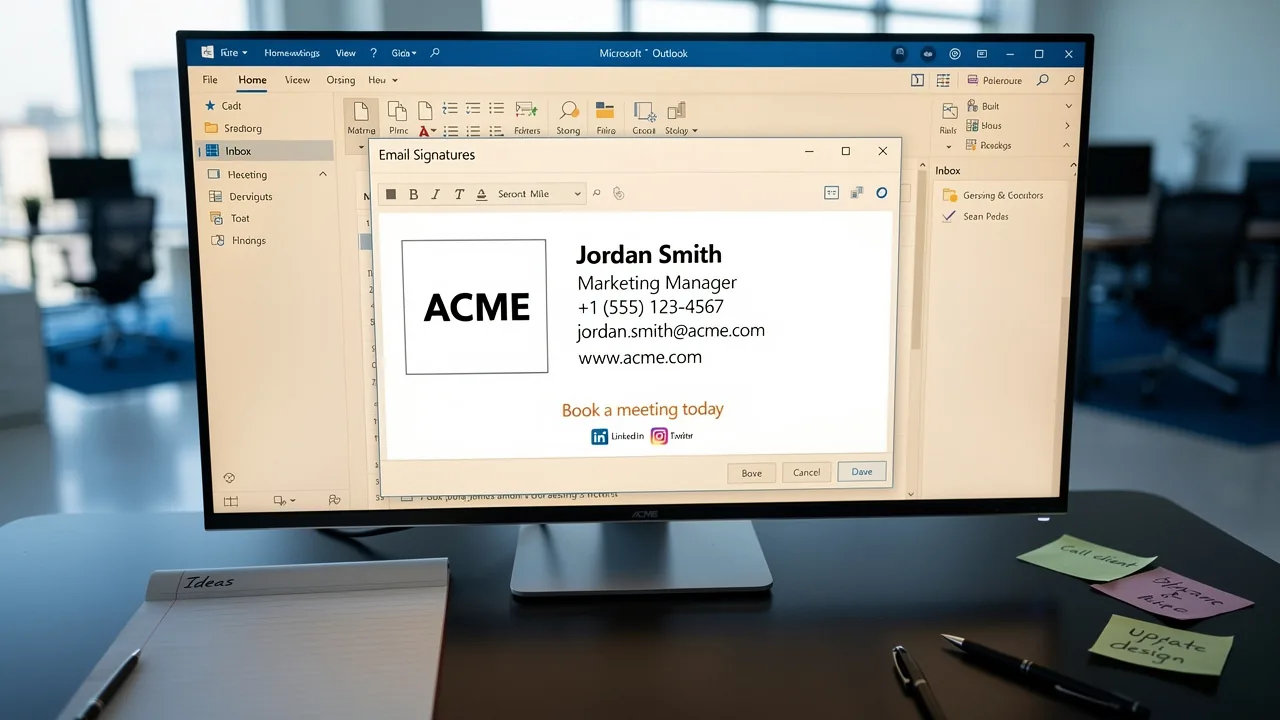
Adding an email signature in Outlook represents a critical opportunity to strengthen brand identity and build trust in professional communications. With the right approach, email signatures can serve as powerful marketing tools, driving engagement and visibility for organizations. This struggle often leads to inconsistent branding and missed opportunities for engagement. Understanding how to add an email signature in Outlook is crucial for aligning it with branding goals and marketing strategies.
Understand Email Signatures in Outlook
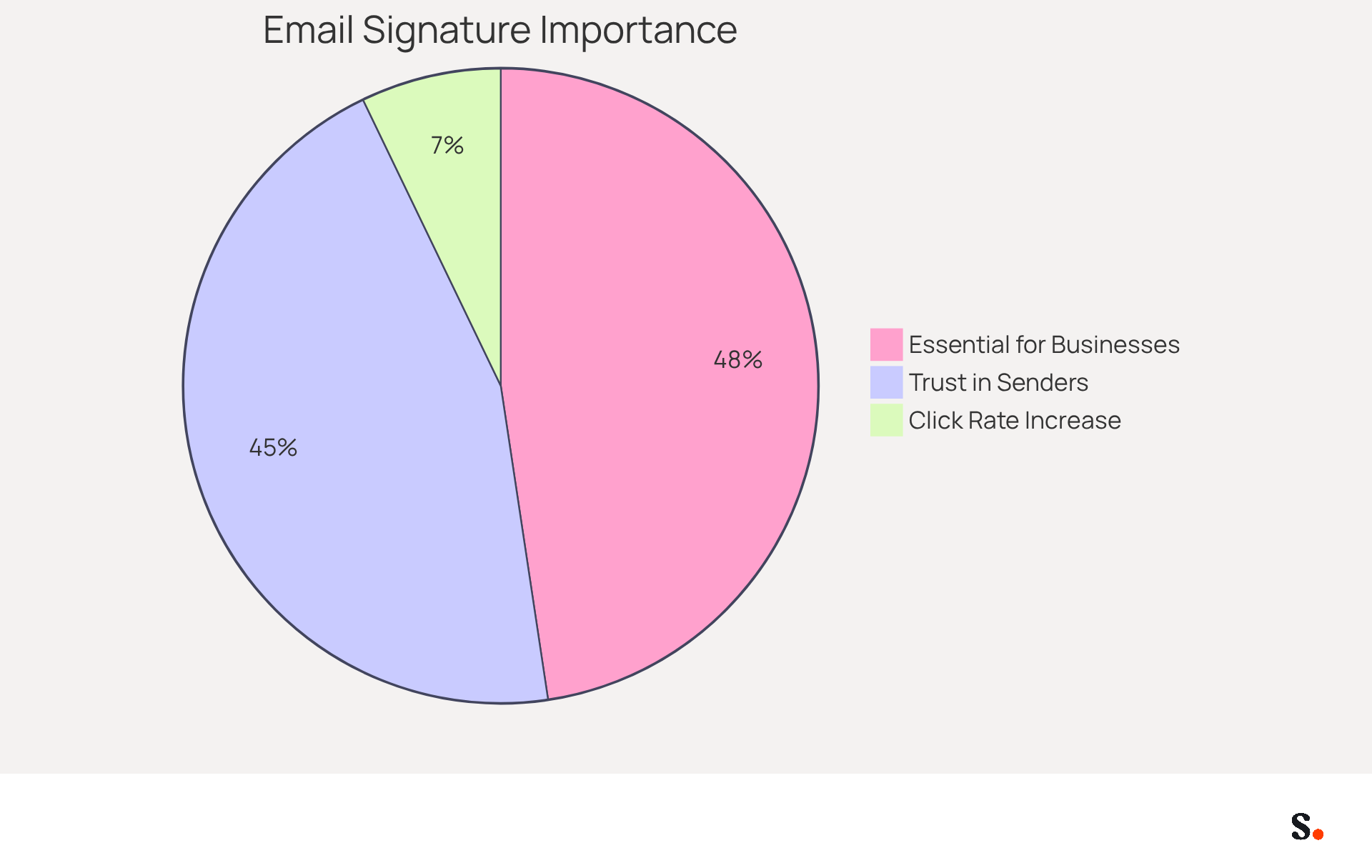
A message footer serves as a vital component of professional communication, encapsulating essential information about the sender. In Outlook, adding an email signature in Outlook enables you to customize email footers to reflect your brand identity, making them a powerful marketing tool. Incorporating your company’s branding elements ensures consistency across all communications, making your messages more professional and recognizable. A well-crafted email footer can significantly enhance your marketing efforts by including links to your website or social media profiles, driving traffic and engagement. Research shows that:
- 80% of businesses consider a customized message footer essential to their identity.
- 76% of recipients have greater trust in the sender when communications include personalized footers.
- Messages with consistent identifiers experience a click rate rise from 3% to 15%, highlighting their effectiveness in engaging recipients.
By utilizing these insights, organizations can convert their digital identifiers into strategic assets that enhance brand visibility and cultivate trust with clients.
With Scribe, managing digital footers becomes even more effective. This platform offers automated management of electronic signatures with real-time synchronization from your business phone system, ensuring that your teammates' information is always current without any manual intervention. This feature saves time and helps maintain consistent branding across your organization. Scribe's rapid implementation enables organization-wide installation of documents usually within one day, facilitating management for non-technical users. Furthermore, Scribe is SOC 2 Type II compliant, ensuring that your data is secure while you streamline your communication processes. By leveraging Scribe's capabilities, organizations can enhance their brand engagement and trust-building by adding an email signature in Outlook to their email footers.
Create Your Email Signature in Outlook
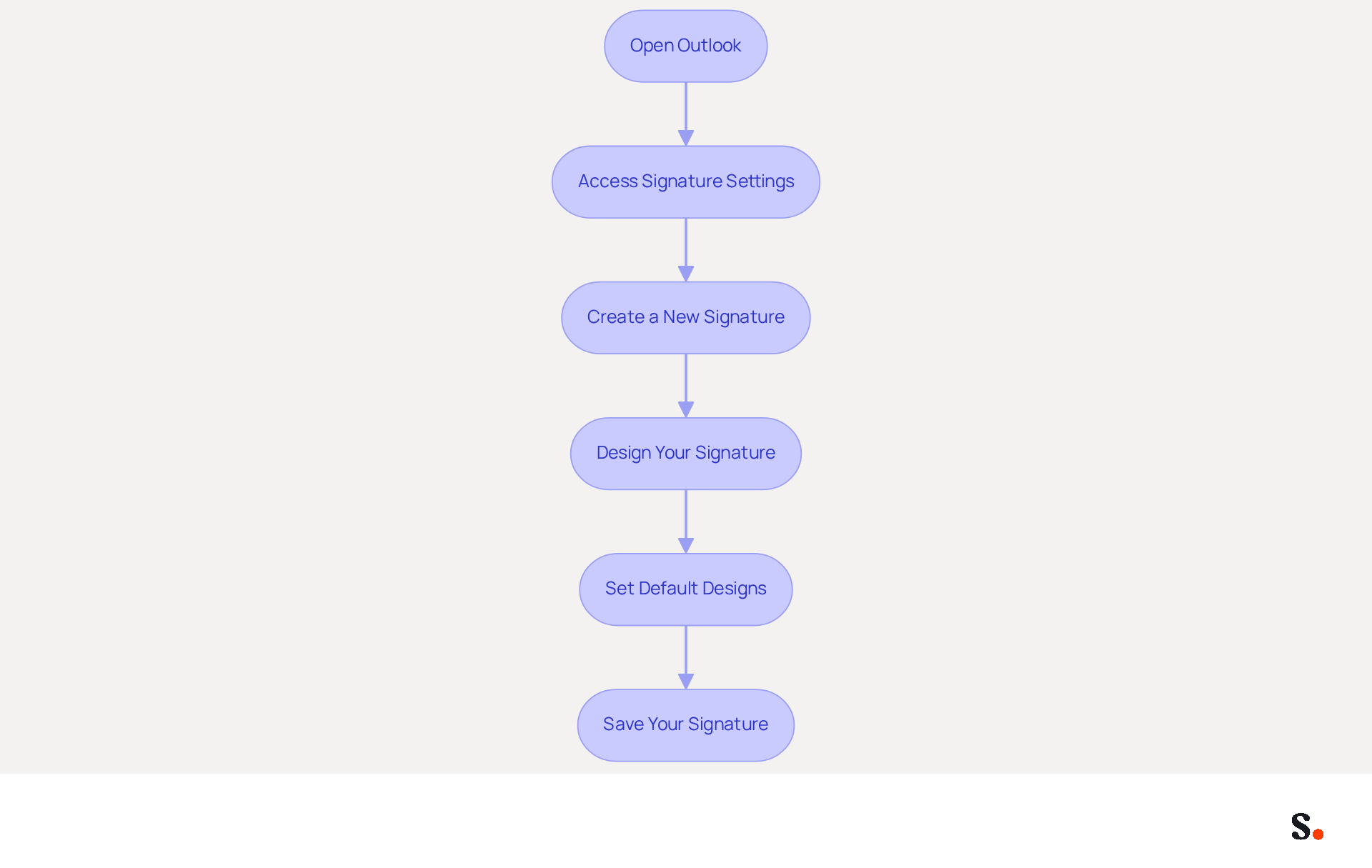
Adding an email signature in Outlook is essential for effective communication and brand representation. To create your email signature using Scribe's automated management features, follow these steps:
- Open Outlook: Launch the Outlook application on your computer.
- Access Signature Settings: Click on 'File' in the top-left corner, then select 'Options'. In the Mail category, click on 'Signatures'.
- Create a New Signature: In the Signatures and Stationery window, click 'New'. Enter a name for your signature and click 'OK'.
- Design Your Signature: In the editing box, type your signature. Format the text using the available options (font, size, color). You can also add images or logos by clicking on the image icon. Optimizing images for messaging is crucial; exceeding 50KB may lead to deliverability issues. A well-crafted digital identifier enhances credibility and engagement. Research shows that 76% of professionals believe branded identifiers boost trust in the sender, while 64-70% think a professional digital identifier increases trust and credibility.
- Set Default Designs: Select your new design as the default for new messages and replies/forwards if desired. This ensures consistency in your communications and enhances lead generation opportunities.
- Save Your Signature: Click 'OK' to save your changes. Your signature is now ready for use in your messages.
By utilizing Scribe's one-click synchronization, your identifiers will automatically refresh based on modifications made in your provider or Aircall setup, ensuring consistency across all communications. Additionally, Scribe's SOC 2 Type II compliance guarantees that your data is handled securely, allowing you to focus on your marketing efforts with peace of mind. With Scribe's automated management, adding an email signature in Outlook will ensure that your professionalism is reflected and your brand's credibility is enhanced.
Incorporate Marketing Elements into Your Signature
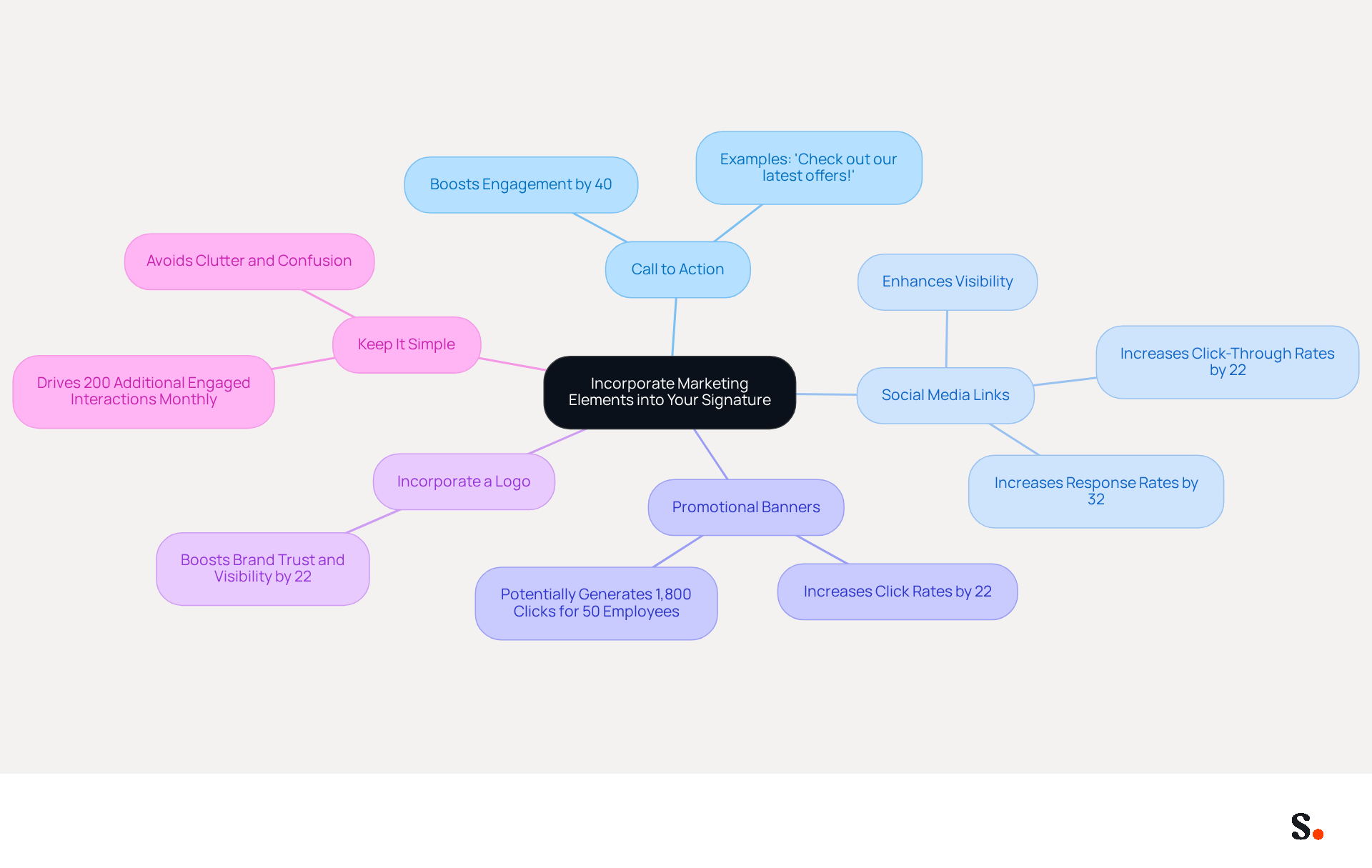
To transform your email signature into an effective marketing tool, consider implementing these strategic elements:
- Add a Call to Action (CTA): Incorporate a concise CTA that prompts recipients to engage, such as 'Check out our latest offers!' or 'Join our mailing list for updates!' A well-placed, clear CTA can increase engagement by 40%.
- Include Social Media Links: Adding icons that link to your company’s social media profiles allows recipients to connect with you across various platforms, enhancing your visibility. This strategy can enhance click-through rates by 22% and response rates by 32%.
- Use Promotional Banners: If relevant, integrate a visually appealing promotional banner that highlights current offers or events. Banners can increase click rates by 22%, potentially generating up to 1,800 clicks for a team of 50 employees when effectively integrated into email signatures.
- Incorporate a Logo: Including your company logo reinforces identity and enhances recognition. Including a logo can boost brand trust and visibility by 22%.
- Keep It Simple: While incorporating marketing elements, ensure your signature remains clean and professional. Cluttered signatures can confuse recipients and dilute your message, while a clean format can drive 200 additional engaged interactions monthly for those sending 10,000 messages.
By refining your email signature, you not only enhance your brand's visibility but also foster stronger connections with your audience.
Troubleshoot and Optimize Your Email Signature
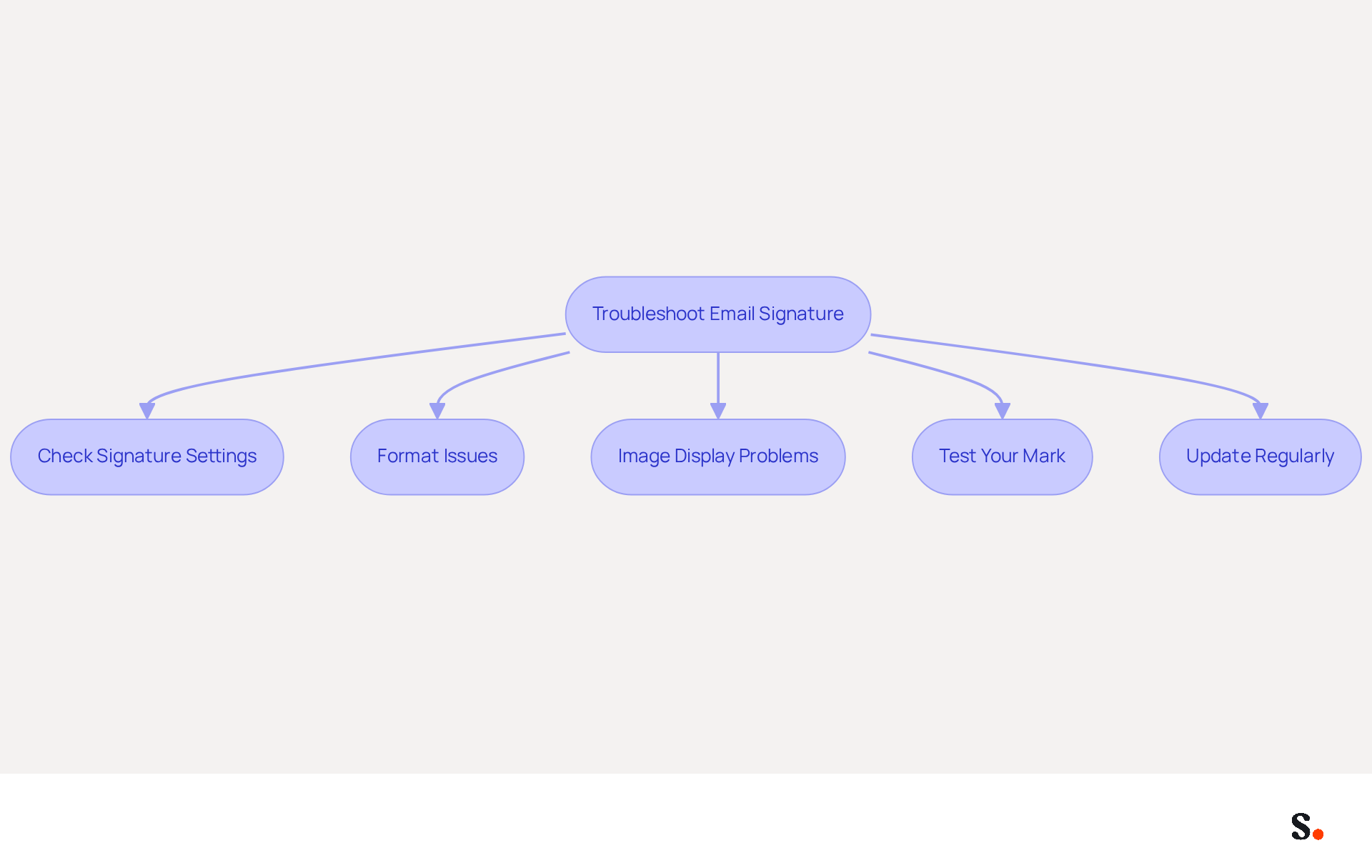
Experiencing issues with adding an email signature in Outlook can negatively impact your professional communication. Here are some troubleshooting tips to help you resolve common problems:
- Check Signature Settings: Ensure that your sign-off is set as the default for new emails and replies. Go to 'File' > 'Options' > 'Mail' > 'Signatures' to verify.
- Format Issues: Inconsistent appearance of your email signature across devices can create confusion; therefore, it is essential to check the formatting. Use standard fonts and avoid excessive HTML elements that may not render correctly.
- Image Display Problems: Many users struggle with images not displaying correctly in emails, leading to miscommunication. Ensure images are hosted online or embedded correctly, and check their size and format for compatibility.
- Test Your Mark: Send trial messages to yourself and colleagues to observe how the mark appears in various mail clients. Adjust as necessary based on feedback.
- Update Regularly: Keep your personal mark updated with any changes in your contact information or branding elements. Failing to update your signature can lead to outdated information, which may harm your professional image.
You might find it beneficial to sync your Google Workspace with the tool, as it can streamline your email management. This integration saves time by automatically updating your teammates' information, including the auto-fill feature for their detail entries, ensuring that any changes in Google Workspace are reflected in the application without manual input. Moreover, if you utilize Aircall, syncing your configurations will improve brand consistency across all identifiers. The automated management system not only simplifies the process but also ensures compliance with SOC 2 Type II standards, providing secure data handling. By following these troubleshooting steps and leveraging Scribe's capabilities, you can ensure that adding an email signature in Outlook is effective and professional, enhancing your communication efforts.
Conclusion
Incorporating an email signature in Outlook is essential for enhancing professional communication and establishing a strong brand identity. By effectively utilizing email signatures, organizations can turn a basic footer into an effective marketing tool that builds trust and engages recipients.
Throughout this guide, key steps have been outlined for creating and optimizing email signatures in Outlook. From understanding the importance of a well-crafted signature to incorporating marketing elements like calls to action and social media links, each aspect contributes to a cohesive brand presence. Additionally, troubleshooting tips address potential challenges that may arise during the setup process, ensuring professionalism in all communications.
Ultimately, leveraging tools like Scribe can streamline the management of email signatures, ensuring consistency and compliance with security standards such as SOC 2 Type II. By embracing these practices, organizations can not only enhance their brand visibility but also drive engagement and foster stronger connections with their audience. Investing time in mastering email signatures in Outlook leads to enhanced professionalism and improved marketing outcomes.
Frequently Asked Questions
What is the purpose of an email signature in Outlook?
An email signature serves as a vital component of professional communication, encapsulating essential information about the sender and reflecting the brand identity.
How can an email signature enhance marketing efforts?
A well-crafted email footer can enhance marketing efforts by including links to a company's website or social media profiles, driving traffic and engagement.
What statistics support the importance of customized email signatures?
Research shows that 80% of businesses consider a customized message footer essential to their identity, 76% of recipients have greater trust in senders with personalized footers, and messages with consistent identifiers experience a click rate rise from 3% to 15%.
How does Scribe help in managing email signatures?
Scribe offers automated management of electronic signatures with real-time synchronization from your business phone system, ensuring that teammates' information is always current without manual intervention.
What are the benefits of using Scribe for email signature management?
Scribe saves time, maintains consistent branding across the organization, enables rapid implementation of documents usually within one day, and is SOC 2 Type II compliant, ensuring data security.
Why is it important to maintain consistent branding in email communications?
Consistent branding in email communications makes messages more professional and recognizable, which can enhance brand visibility and cultivate trust with clients.
List of Sources
- Understand Email Signatures in Outlook
- The impact of email signatures on your branding (https://signitic.com/en/resources/the-impact-of-email-signatures-on-your-branding)
- 2026 Marketing Trends: Email Signatures as a Marketing Tool (https://bluechiptt.com/blog/5-marketing-trends-for-2026-and-how-your-email-signature-fits-in)
- Research Recap: Branded Email Signatures Increase Company Recognition, Trust - B2BMX INSIGHTS (https://demandgenreport.com/industry-news/research-recap-branded-email-signatures-increase-company-recognition-trust/47252)
- The ultimate guide to email signatures in 2026 (https://signitic.com/en/resources/email-signature)
- Why Email Signatures Must Be In Your 2026 Marketing Plan | Rocketseed (https://rocketseed.com/blog/2026-marketing-plan-email-signatures)
- Create Your Email Signature in Outlook
- Email Signature Statistics: A Closer Look at Email Signatures in 2026 (https://mysignature.io/blog/email-signature-statistics)
- How To Add An Email Signature in Outlook (2026) (https://hubspot.com/email-signature-generator/add-signature-outlook)
- 40+ Email Signature Statistics for 2026 (Data + Insights) (https://wavecnct.com/blogs/email-signature-statistics)
- Create an email signature in Outlook - Microsoft Support (https://support.microsoft.com/en-us/topic/create-an-email-signature-in-outlook-0f6ec33a-94dc-c87b-ad05-3bd04e89f51c)
- Incorporate Marketing Elements into Your Signature
- 10 ideas for marketing campaigns in email signatures (https://signitic.com/en/resources/10-ideas-for-marketing-campaigns-in-email-signatures)
- 2026 Marketing Trends: Email Signatures as a Marketing Tool (https://bluechiptt.com/blog/5-marketing-trends-for-2026-and-how-your-email-signature-fits-in)
- The Complete Email Signature Guide 2026: Best Practices and Policy (https://opensense.com/complete-email-signature-guide)
- Why Email Signatures Must Be In Your 2026 Marketing Plan | Rocketseed (https://rocketseed.com/blog/what-are-the-biggest-email-trends-for-2026)
- All the Best Email Signature Practices for Marketing Success (https://scribe-mail.com/en-US/blog/all-the-best-email-signature-practices-for-marketing-success)
- Troubleshoot and Optimize Your Email Signature
- Email Signature Troubleshooting - Problems & Solutions - Gimmio (https://blog.gimm.io/email-signature-troubleshooting)
- justanswer.com (https://justanswer.com/email/lyeqn-email-signatures-no-longer-loading-automatically.html)
- Email signature statistics: Why every business should optimize their email signatures — Stripo.email (https://stripo.email/blog/email-signature-statistics-why-every-business-should-optimize-their-email-signatures)
- Why Does My Email Signature Keep Disappearing in Outlook? (https://scribe-mail.com/en-US/blog/why-does-my-email-signature-keep-disappearing-in-outlook)
Get started with Scribe
Create your signature in minutes
Free 14-day trial — no credit card.