Master Adding HTML Signature to Gmail: A Step-by-Step Guide
In a competitive professional landscape, effective email communication is crucial for success. Custom HTML signatures have become essential tools for
Sophie Grant
Email Signature Specialist, Scribe

On this page
- Introduction
- Understand HTML Signatures and Their Importance
- Follow Step-by-Step Instructions to Add Your HTML Signature in Gmail
- Troubleshoot Common Issues with HTML Signatures in Gmail
- Optimize Your HTML Signature with Design Tips and Marketing Strategies
- Conclusion
- Frequently Asked Questions
- List of Sources
Introduction
In a competitive professional landscape, effective email communication is crucial for success. Custom HTML signatures have become essential tools for professionals looking to enhance their email communications. These digital signatures convey essential contact information and act as branding tools that enhance engagement and build trust with recipients.
As organizations recognize the importance of effective email signatures, many professionals wonder how to add an HTML signature to Gmail without common mistakes. This guide provides a clear, step-by-step method for mastering HTML signatures in Gmail, turning each email into a strategic marketing opportunity.
Understand HTML Signatures and Their Importance
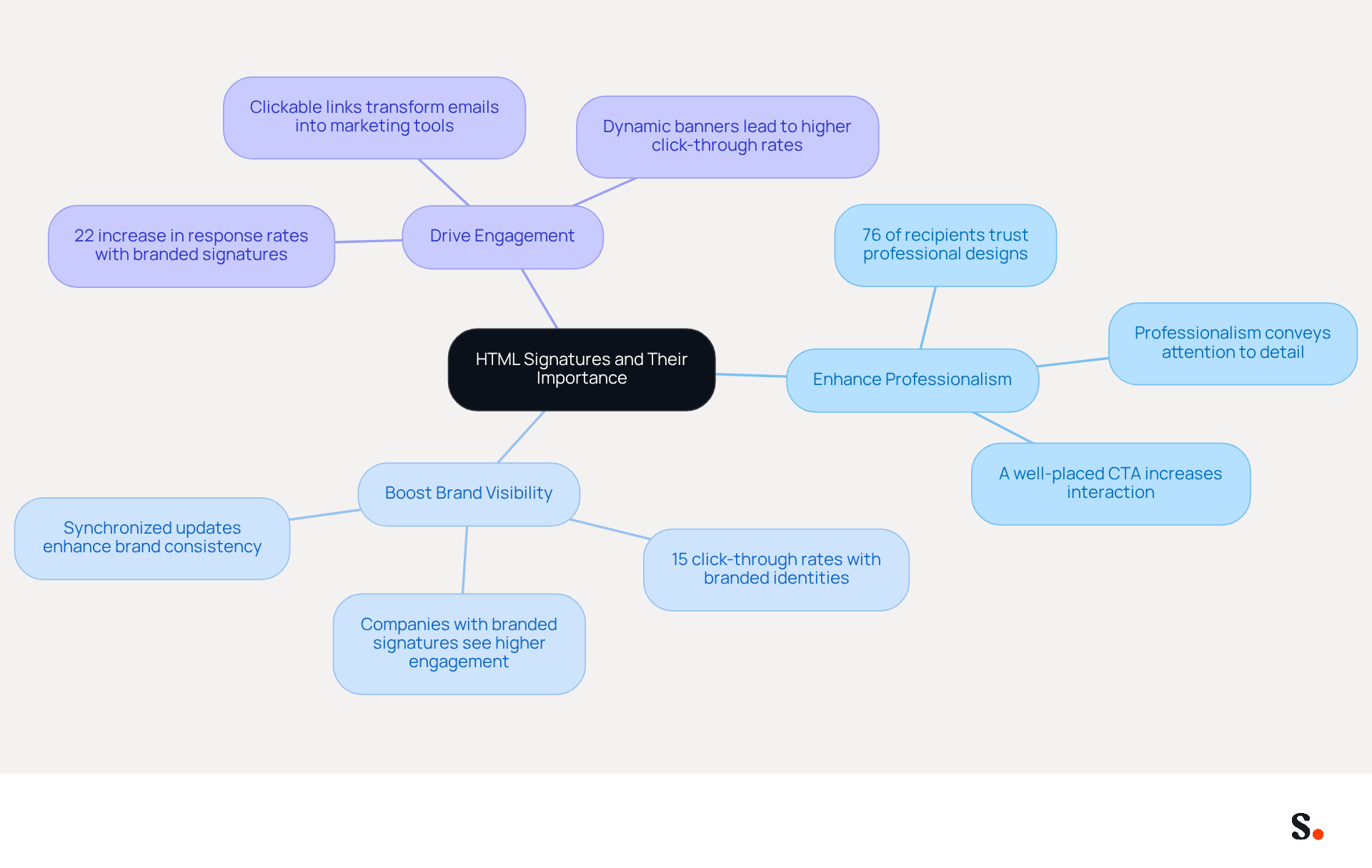
Customizable email identifiers allow the addition of images, links, and styled text, making them both visually attractive and practical. They serve as a digital business card, providing essential contact information while promoting brand identity. By utilizing HTML signatures, businesses can:
- Enhance Professionalism: A well-designed HTML signature conveys professionalism and attention to detail, which is crucial in establishing trust with recipients. Research indicates that 76% of recipients report increased trust in senders with professional designs, highlighting the importance of a polished signature. Furthermore, a strategically positioned call-to-action (CTA) can result in heightened interaction and conversion rates, further improving the effectiveness of communication.
- Boost Brand Visibility: Incorporating logos and brand colors reinforces brand identity in every message sent. Companies with branded identities often see click-through rates exceeding 15%, demonstrating the effectiveness of consistent branding in driving engagement. With Scribe, your electronic identifiers are automatically synchronized with your business phone system and Google Workspace, ensuring that any updates to your team’s information are reflected in real-time, enhancing brand consistency across all communications.
- Drive Engagement: Adding an HTML signature to Gmail allows you to include clickable links to websites, social media, or promotional campaigns, transforming every message into a marketing opportunity. Indeed, businesses utilizing consistent branded digital identifiers report over a 22% increase in response rates, highlighting the potential for improved interaction. Scribe’s automated management features enable effortless updates, ensuring your initials are always current without manual input, thus saving valuable time.
Understanding the benefits of customizable email identifiers is crucial for enhancing communication and marketing effectiveness. Moreover, ensuring mobile adaptability is vital, as numerous users check messages on their phones, making it essential for web-based formats to be visually appealing across all devices. With Scribe’s SOC 2 Type II compliance, you can be confident that your data is secure, allowing you to concentrate on enhancing your email marketing.
Follow Step-by-Step Instructions to Add Your HTML Signature in Gmail
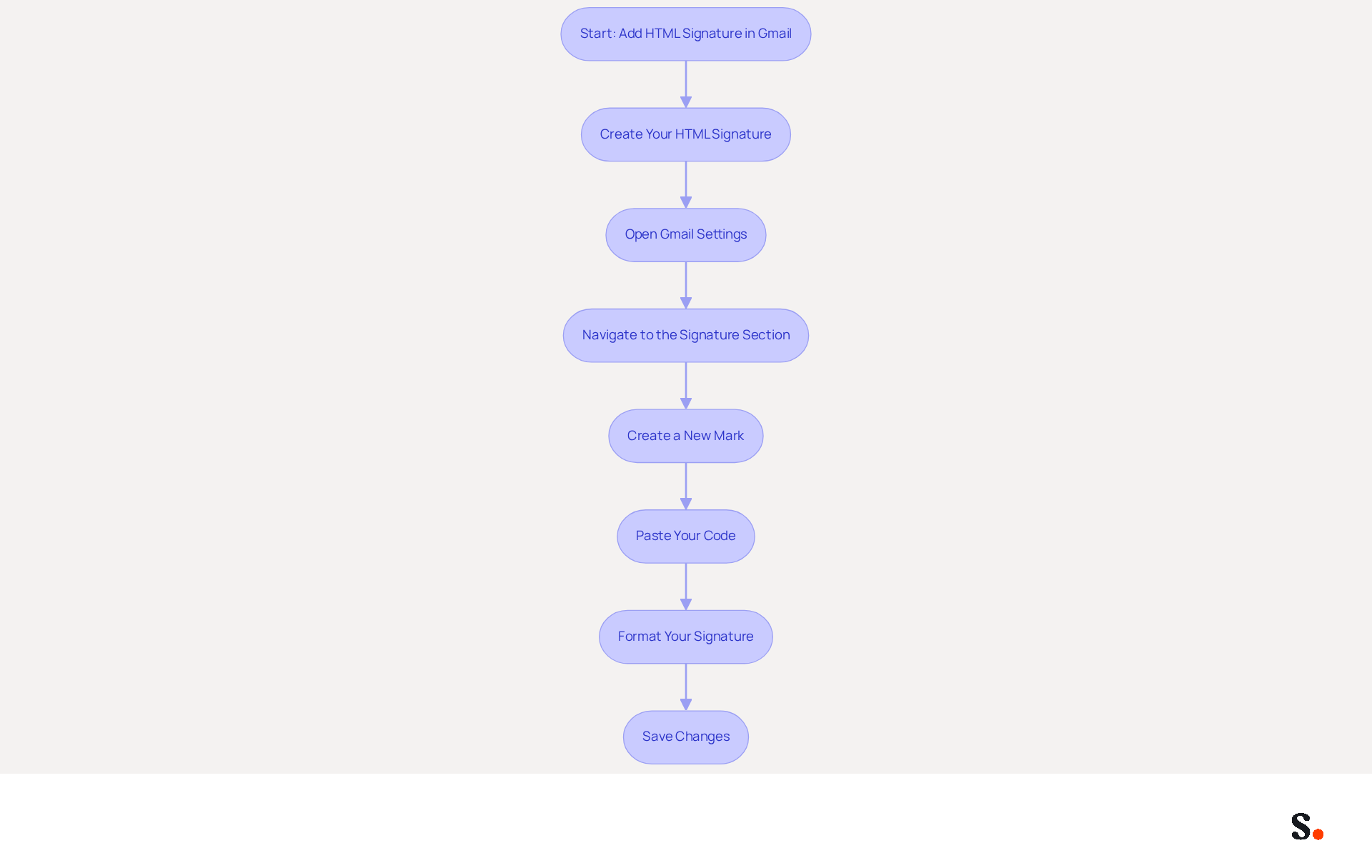
Adding an HTML signature to Gmail is essential for enhancing your professional communications. To add your HTML signature in Gmail using Scribe, follow these steps:
- Create Your HTML Signature: Utilize an HTML editor or a signature generator to craft your personalized identifier. Ensure it includes your name, title, company logo, and any relevant links.
- Open Gmail Settings: Log into your Gmail account. Click on the gear icon in the top right corner and select 'See all settings'.
- Navigate to the Signature Section: In the 'General' tab, scroll down to the 'Signature' section.
- Create a New Mark: Click on '+ Create New' and name your mark.
- Paste Your Code: Open your web-based document in a browser, select all (Ctrl+A), and copy (Ctrl+C). Next, go back to the email signature editor and paste (Ctrl+V) your code into the area for the signature.
- Format Your Signature: Adjust any formatting if necessary. Ensure that images are hosted online and accessible, as images should be kept under 1MB to avoid loading issues. Remember that the email service imposes a 10,000-character restriction on the source code of your sign-off, so consider this while designing it.
- Save Changes: Scroll down and click 'Save Changes' at the bottom of the settings page.
Following these steps helps you seamlessly add an HTML signature to Gmail, enhancing your communications. An effective HTML email footer can create 60,000 to 80,000 branded impressions each month for a company with 100 employees, enhancing your brand visibility. Furthermore, 76% of email recipients experience a heightened sense of trust toward senders when branded elements are incorporated in emails. This highlights the importance of implementing effective email management practices.
With Scribe, you can streamline this process even further. By syncing your Google Workspace with Scribe, your teammates' identification information is automatically updated, saving you time and ensuring brand consistency. Scribe's SOC 2 Type II compliance guarantees that your data is handled securely, allowing you to focus on your marketing efforts without worrying about data safety. Common issues like broken formatting or images not displaying can hinder your email's effectiveness, so ensure you test your email across different devices and browsers. Addressing these common pitfalls ensures your emails resonate effectively with your audience.
Troubleshoot Common Issues with HTML Signatures in Gmail
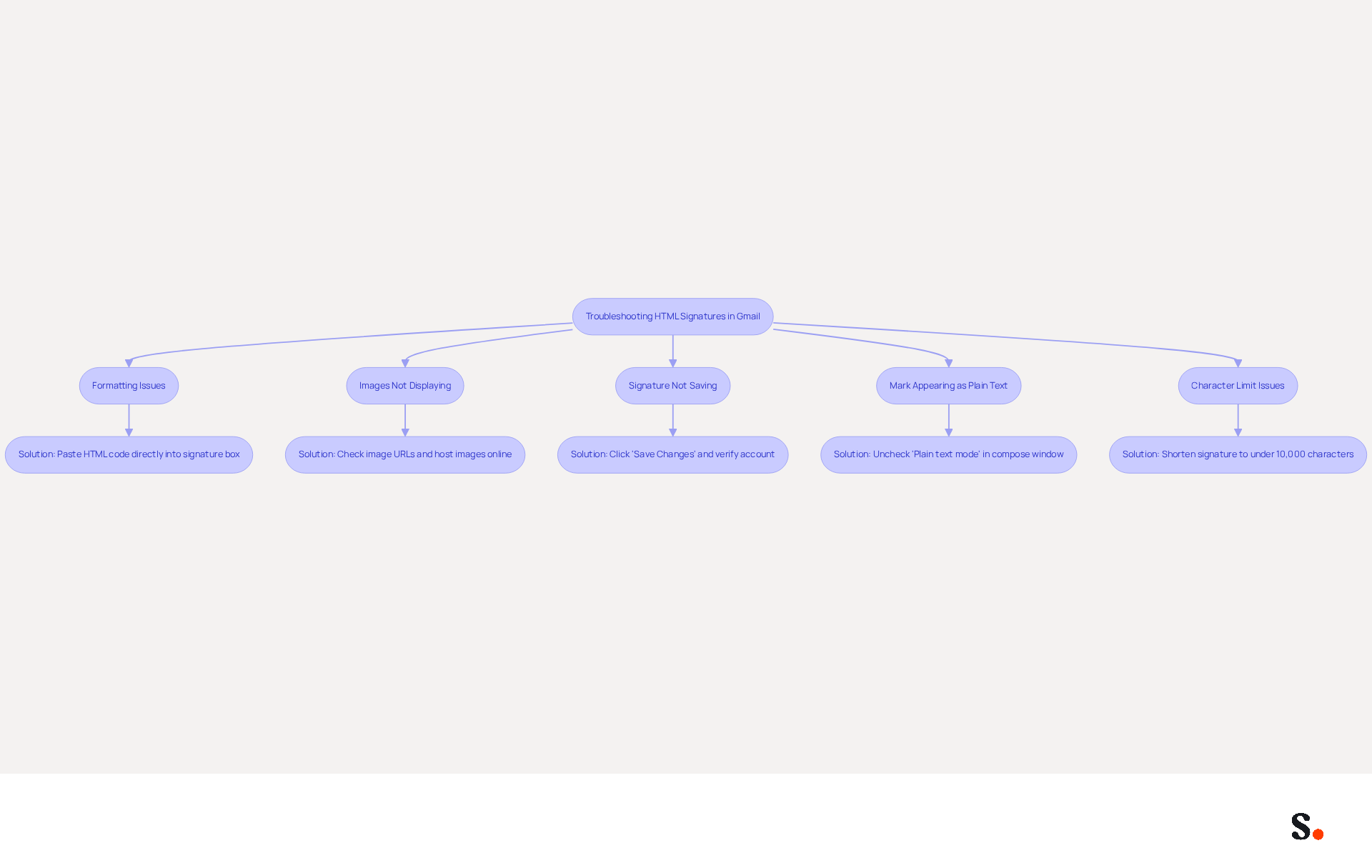
Users frequently encounter challenges when adding an HTML signature to Gmail, but effective solutions exist to address these challenges. Here are some effective troubleshooting strategies:
- Formatting Issues: If your signature looks misaligned or loses its formatting, paste the HTML code directly into the signature box without any extra formatting. Using a plain text editor can help clean the code if necessary.
- Images Not Displaying: If images aren’t displaying, check the image URLs to make sure they’re correct. Ensure that all images used in your email footer are hosted on a publicly accessible server. Remember, images need to be hosted online to display correctly in email footers.
- Signature Not Saving: Users often find that their signatures do not save, leading to frustration; ensure you click 'Save Changes' at the bottom of the settings page. Additionally, verify that you are logged into the correct email account for adding HTML signature to Gmail.
- Mark Appearing as Plain Text: If your mark appears as plain text, ensure that the 'Plain text mode' is unchecked in the compose window, as this setting can strip HTML formatting.
- Character Limit Issues: Be aware that Gmail imposes a character limit of approximately 10,000 characters for email footers. If your mark exceeds this limit, it may not save or display correctly. Consider shortening your name or using a tool that helps manage this.
By syncing your Google Workspace with Scribe, you can simplify the management of your messages, ensuring that any updates to your teammates' information are automatically reflected in Scribe. This not only saves time but also aids in maintaining consistency across your organization's communications. Addressing these common issues not only ensures a professional appearance but also enhances overall communication effectiveness. Given that a significant majority of businesses leverage digital identifiers for brand promotion, addressing these issues is crucial. For example, a case study involving a marketing team demonstrated that by adhering to these troubleshooting steps, they enhanced their branding visibility and formatting consistency across various email clients, resulting in improved brand recognition.
Optimize Your HTML Signature with Design Tips and Marketing Strategies
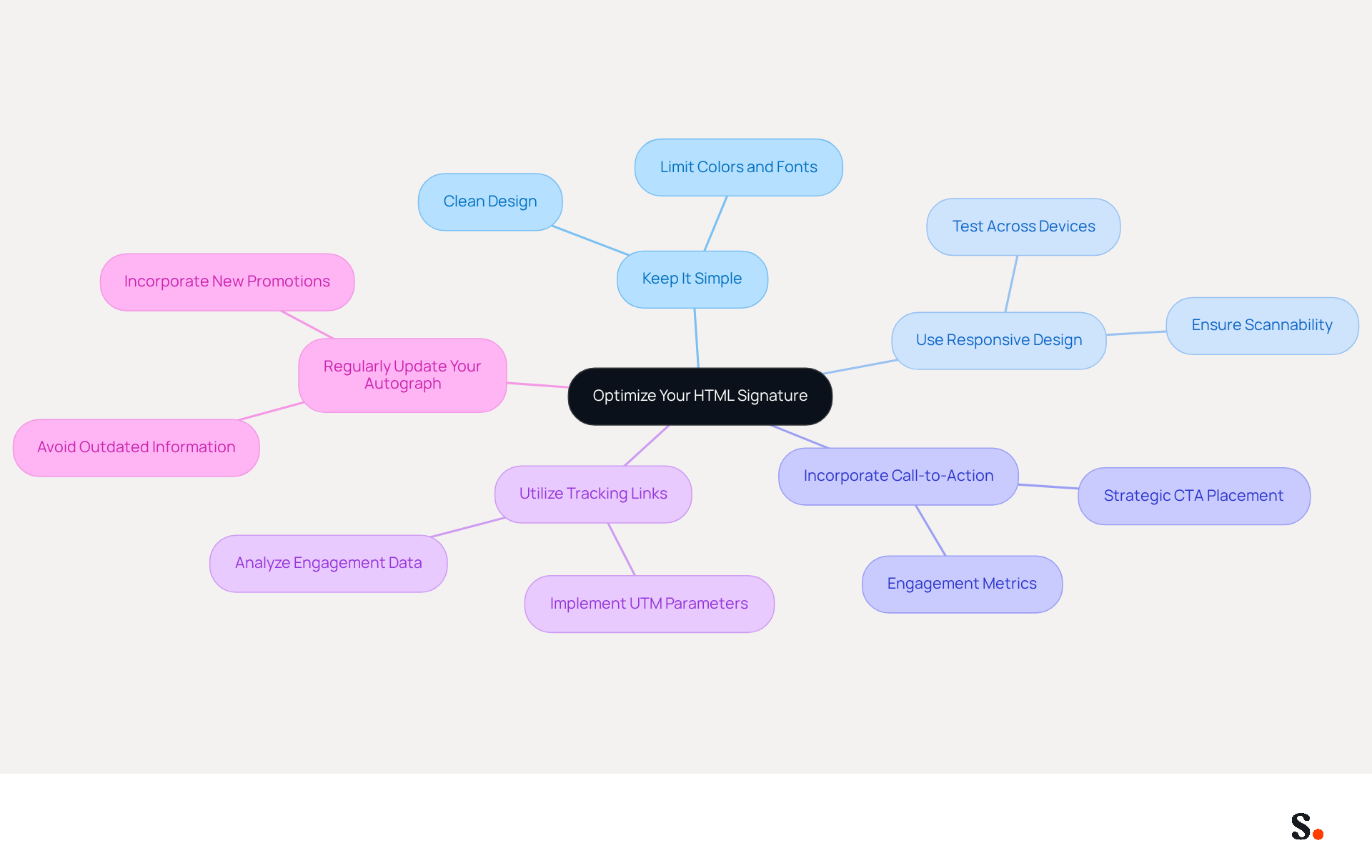
To maximize the impact of your HTML signature, it's essential to implement effective design and marketing strategies:
- Keep It Simple: A clean and uncluttered design is visually appealing and maintains professionalism. Limit the number of colors and fonts to create a cohesive look.
- Use Responsive Design: Ensure your email footer displays well on both desktop and mobile devices. Testing across various screen sizes is crucial for confirming its responsiveness, as 60% of business emails are opened on mobile devices, necessitating a design that is both scannable and fast-loading.
- Incorporate Call-to-Action (CTA): Including a strategic CTA, such as a link to your latest blog post or a promotional offer, encourages recipient engagement. Signatures with clear CTAs can drive 40% more meeting bookings compared to those without, highlighting the importance of a focused approach to engagement.
- Utilize Tracking Links: Implement UTM parameters in your links to track engagement and effectiveness. This data can inform future marketing strategies, allowing for better planning and execution of campaigns.
- Regularly Update Your Autograph: Regular updates help avoid outdated information, which can lead to missed opportunities-potentially thousands each year for a medium-sized organization. Keeping your autograph fresh with new promotions, events, or changes in contact information is essential for consistent engagement.
When you combine these strategies with Scribe's automated synchronization with Aircall, you can keep your branding consistent and up-to-date. This feature ensures your branding remains consistent and enables quick updates, making your signature a powerful marketing tool that enhances your brand's visibility and engagement.
Conclusion
Implementing an HTML signature in Gmail is a strategic decision that can significantly impact professional communication. By implementing a well-designed HTML signature, businesses can create a consistent touchpoint for brand visibility, enhancing their professional communication and reinforcing brand identity. The process, however, requires attention to detail, as many users encounter challenges in achieving the desired visual appeal and functionality across various devices.
Throughout this guide, key steps have been outlined to help users create and troubleshoot their HTML signatures effectively. From crafting the signature using an HTML editor to addressing common issues like formatting and image display, each aspect plays a crucial role in ensuring that the signature serves its purpose. Moreover, the integration of Scribe's features, such as automated updates and compliance with security standards like SOC 2 Type II, further enhances the reliability and effectiveness of email signatures.
Ultimately, optimizing an HTML signature is about more than just aesthetics; it is a vital component of a comprehensive marketing strategy. By applying design tips and using tracking links, organizations can enhance engagement and achieve measurable results. Embracing these practices not only fosters professionalism but also positions brands for success in a competitive landscape. Investing in a well-crafted HTML signature can ultimately differentiate a brand in a crowded marketplace.
Frequently Asked Questions
What are HTML signatures and why are they important?
HTML signatures are customizable email identifiers that allow the addition of images, links, and styled text. They serve as digital business cards, providing essential contact information while promoting brand identity.
How do HTML signatures enhance professionalism?
A well-designed HTML signature conveys professionalism and attention to detail, which helps establish trust with recipients. Research shows that 76% of recipients report increased trust in senders with professional designs.
What impact do HTML signatures have on brand visibility?
Incorporating logos and brand colors in HTML signatures reinforces brand identity in every message. Companies with branded identities often see click-through rates exceeding 15%, demonstrating the effectiveness of consistent branding.
How can HTML signatures drive engagement?
HTML signatures can include clickable links to websites, social media, or promotional campaigns, turning every message into a marketing opportunity. Businesses using consistent branded digital identifiers report over a 22% increase in response rates.
What features does Scribe offer for managing HTML signatures?
Scribe offers automated management features that enable effortless updates to HTML signatures, ensuring that information is always current without manual input, thus saving valuable time.
Why is mobile adaptability important for HTML signatures?
Mobile adaptability is crucial because many users check messages on their phones. It is essential for web-based formats to be visually appealing across all devices.
How does Scribe ensure data security for users?
Scribe is SOC 2 Type II compliant, ensuring that user data is secure, allowing businesses to focus on enhancing their email marketing without concerns about data safety.
List of Sources
- Understand HTML Signatures and Their Importance
- Optimize Your Signature HTML Outlook for Effective Marketing (https://scribe-mail.com/en-US/blog/optimize-your-signature-html-outlook-for-effective-marketing)
- 40+ Email Signature Statistics for 2026 (Data + Insights) (https://wavecnct.com/blogs/email-signature-statistics)
- Master HTML Signatures in Gmail: Best Practices for Marketing Success (https://scribe-mail.com/en-US/blog/master-html-signatures-in-gmail-best-practices-for-marketing-success)
- Why Every Business Needs a Professional HTML Email Signature in 2026 (https://nasirportfolio.github.io/email-marketing-articles/professional-html-email-signature.html)
- The ultimate guide to email signatures in 2026 (https://signitic.com/en/resources/email-signature)
- Follow Step-by-Step Instructions to Add Your HTML Signature in Gmail
- How to Add Signature in Gmail: Step by Step Guide (2026) (https://wpmanageninja.com/how-to-add-signature-in-gmail)
- How to create custom Gmail signature (https://foxnews.com/tech/how-to-create-custom-gmail-signature)
- How to Add Email Signature in Gmail (2026) (https://wavecnct.com/blogs/email-signature-gmail)
- How to Add a HTML Signature to Gmail: Step-by-Step Guide (https://scribe-mail.com/en-US/blog/how-to-add-a-html-signature-to-gmail-step-by-step-guide)
- Make Your Brand Stand Out: Easily Add an HTML Email Signature to Gmail and Outlook.
Here at Legal Growth, we help to make your brand stand out in customer emails. Add a professionally designed flare to each email sent from Gmail and Outlook with HTML email signatures. They can help promote important information such as contact details. Read on to learn how adding an HTML signature to your business emails is easy.
What HTML email signatures are and why they matter
HTML email signatures are necessary because they allow you to include stylised text and images in your email signature. It helps promote your brand or website or add personality to your emails. Additionally, HTML email signatures can include clickable links, making it easy for recipients to contact or visit your website. A good example is when you get an email from one of us here at Legal Growth.
Create an HTML email signature, Simply today.
When it comes to creating an HTML email signature, there are a few simple steps that you need to follow. To get started, you'll need to create a file called signature.html and then save it in your email signature folder. In this file, you can include any text or images you'd like to appear in your signature.
Next, you'll need to add the following code to your email template:
Your HTML content goes here.
Be sure to replace "Your HTML content goes here." with the actual content of your signature. You can also customise the appearance of your signature by adding some CSS styling. For example, you can add the following code to create a border around your signature:
.signature {
border: 1px solid black;
}
How to add an HTML email signature in Outlook and Gmail
Adding an HTML email signature in Outlook and Gmail is a great way to show your brand personality and add some flair to your emails. It can also be a great way to promote your business or website. This post will show you how to add an HTML email signature in Outlook and Gmail.
To add an HTML email signature in Outlook, follow these steps:
1. Open Outlook and click on the File tab.
2. Select Options from the menu.
3. Click on the Mail tab.
4. Select the Signature option and click on the Edit button in the Signature section.
5. In the Edit Signature window, enter your signature text in the text box and click on the OK button.
6. Click the OK button in the Options window to save your changes.
To add an HTML email signature in Gmail, follow these steps:
1. Open Gmail and click on the Settings gear icon.
2. Select Settings from the menu.
3. Click on the General tab.
4. In the Signature section, type your signature text in the text box and click on the Save Changes button.
Of course, if you are struggling to follow any of these tips or tricks, then please email or phone one of our team at Legal Growth, where we can take all the stress of it, smooth the process out and get you a professional-looking Signature that fits your brand the best.
Here are some tips for creating an HTML email signature:
-Keep your signature file size small. Large files can slow down the loading of your email messages.
-Include a link to your website or social media profile. It will help your contacts learn more about you and your business.
-Include a tagline that expresses who you are and what you do.
-Make sure your signature looks good on all devices. Test it on different devices and browsers to ensure that it looks correct.
Following these simple steps will help you create an HTML email signature that is both stylish and professional. If you want to learn more about adding an HTML email signature in Outlook and Gmail, check out our other post.
— Legal Growth (https://legalgrowth.co.uk/news/make-your-brand-stand-out-easily-add-an-html-email-signature-to-gmail-and-outlook)
- Troubleshoot Common Issues with HTML Signatures in Gmail
- Email Signature Troubleshooting - Problems & Solutions - Gimmio (https://blog.gimm.io/email-signature-troubleshooting)
- Gmail Signature Troubleshooting | WiseStamp Help Center (https://support.wisestamp.com/en/articles/13366705-gmail-signature-troubleshooting)
- Why HTML Email Signatures Break When People Reply | IT Support Essex | Trichromic LLP (https://trichromic.co.uk/news/why-html-email-signatures-break-when-people-reply)
- Fix Your Missing Gmail Signature: 8 Troubleshooting Steps & Best Practices | Newoldstamp - NEWOLDSTAMP (https://newoldstamp.com/blog/gmail-signature-not-showing-up)
- Optimize Your HTML Signature with Design Tips and Marketing Strategies
- How to Run a Successful Email Signature Marketing Campaign - NEWOLDSTAMP - NEWOLDSTAMP (https://newoldstamp.com/blog/email-signature-marketing-guide)
- The Complete Email Signature Guide 2026: Best Practices and Policy (https://opensense.com/complete-email-signature-guide)
- Email Signature Best Practices for 2026 (+ 15 Pro Examples) (https://wavecnct.com/blogs/email-signature-best-practices-2026)
- Email Signature Trends 2026: What Designers Are Actually Using (https://markaplugin.com/blog/email-signature-trends-2026)
- Email signatures for marketing purposes (https://codetwo.com/email-signatures/marketing)
Get started with Scribe
Create your signature in minutes
Free 14-day trial — no credit card.