Master How to Insert HTML Signature in Gmail: A Step-by-Step Guide
While email signatures may seem trivial, they hold the potential to significantly enhance brand identity and communication effectiveness. HTML signatures not
Sophie Grant
Email Signature Specialist, Scribe

On this page
- Introduction
- Understand HTML Email Signatures and Their Importance
- Follow Step-by-Step Instructions to Add Your HTML Signature in Gmail
- Troubleshoot Common Issues When Inserting HTML Signatures
- Explore Tools and Resources for Effective HTML Signature Management
- Conclusion
- Frequently Asked Questions
- List of Sources
Introduction
While email signatures may seem trivial, they hold the potential to significantly enhance brand identity and communication effectiveness. HTML signatures not only enhance professionalism but also serve as strategic marketing assets that can drive engagement and traffic. Yet, many find themselves confused by the technical aspects of adding these signatures in Gmail, which can lead to missed branding opportunities.
How can one seamlessly integrate an HTML signature into Gmail while ensuring it reflects their brand's identity and maximizes its potential? Understanding how to effectively implement an HTML signature in Gmail can be the key to unlocking your brand's full potential.
Understand HTML Email Signatures and Their Importance
Many businesses overlook the potential of digital sign-offs, missing out on valuable marketing opportunities. Digital sign-offs are more than just a virtual farewell; they are effective marketing instruments that can improve your brand's visibility and professionalism. Unlike plain text formats, rich text formats allow for the inclusion of images, logos, and clickable links, making them visually appealing and functional. Here are some key reasons why you should consider using HTML signatures:
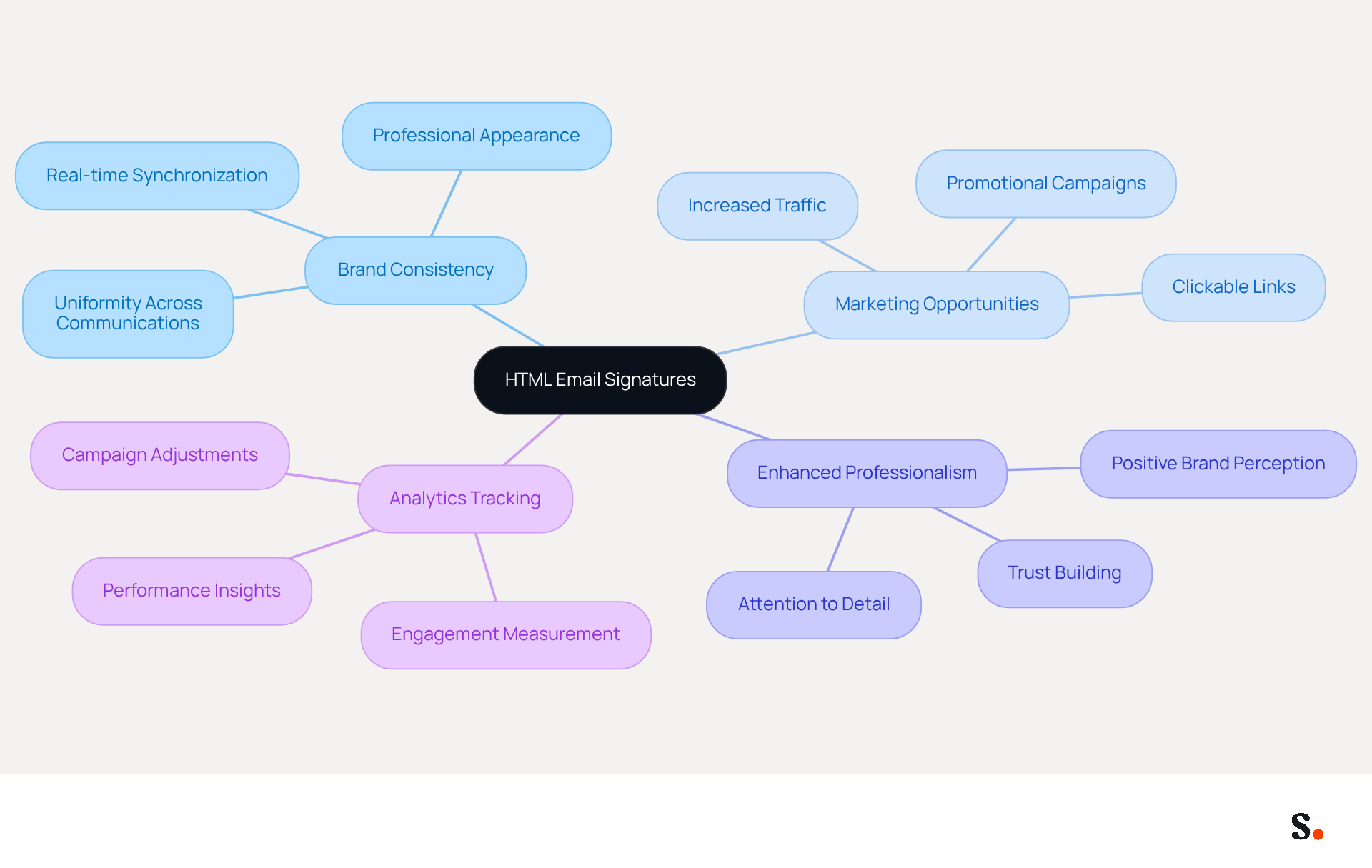
- Brand Consistency: HTML signatures ensure that every email sent reflects your brand's identity, maintaining a professional appearance across all communications. With Scribe, your digital identifiers are automatically synchronized with your business phone system, ensuring that any updates are reflected in real-time, enhancing brand consistency.
- Marketing Opportunities: By incorporating links to your website, social media, or promotional campaigns, you can turn every message into a marketing opportunity, potentially increasing traffic and engagement. Scribe's automated email management enables you to utilize these opportunities efficiently.
- Enhanced Professionalism: A well-crafted email footer conveys professionalism and attention to detail, which can positively influence how recipients perceive your brand. Scribe's SOC 2 Type II compliance guarantees that your data is protected, providing an additional layer of trust.
- Analytics Tracking: Some digital formats can be integrated with tracking tools, allowing you to measure engagement and effectiveness, providing valuable insights into your marketing efforts. With Scribe, you can monitor the effectiveness of your messaging, connecting engagement to quantifiable marketing returns.
In conclusion, by leveraging Scribe, you can discover how to insert html signature in gmail, transforming your email signatures into powerful marketing tools that enhance your brand's visibility and professionalism.
Follow Step-by-Step Instructions to Add Your HTML Signature in Gmail
Adding a professional digital signature in Gmail can significantly enhance your communication effectiveness. To add your HTML signature in Gmail, follow these detailed steps:
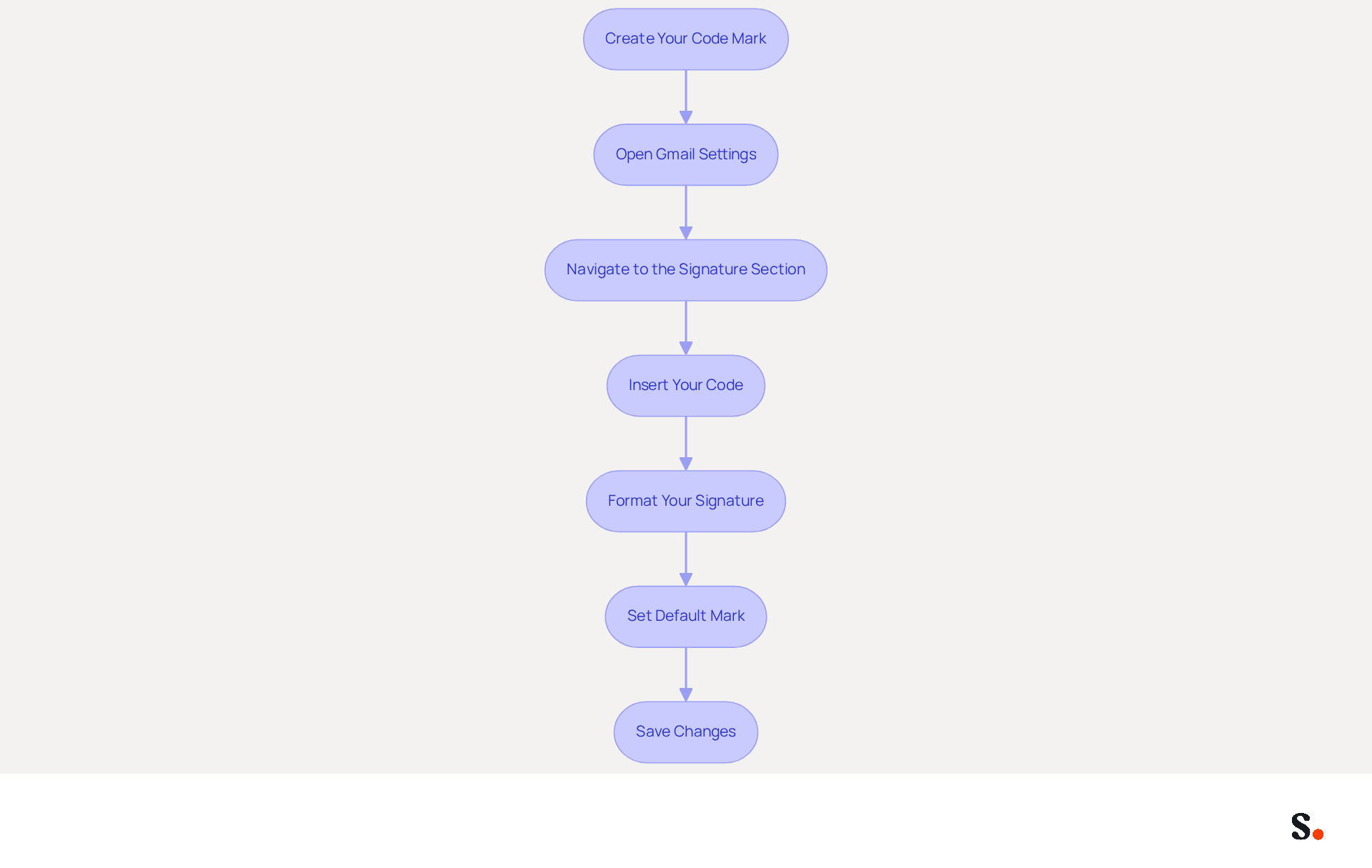
- Create Your Code Mark: Utilize a code editor or a generator to craft your mark. Ensure it includes all necessary elements like your name, title, company logo, and contact information.
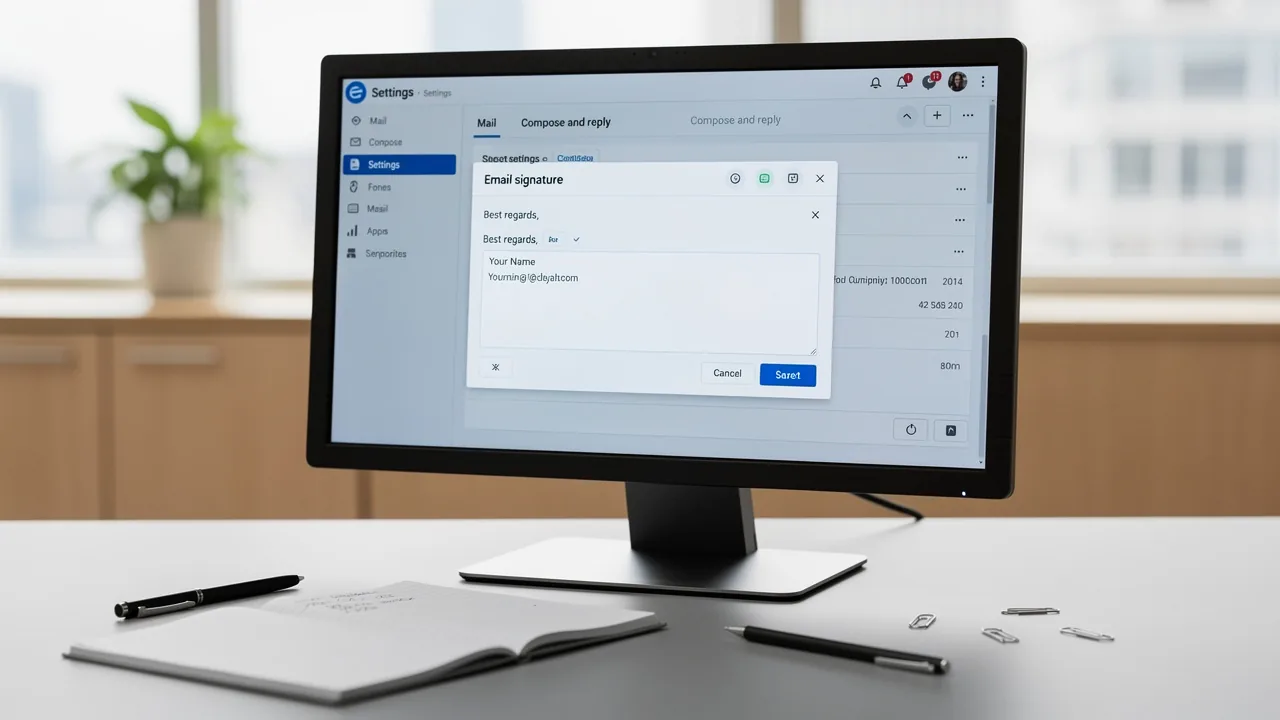
- Open Gmail Settings: Log into your Gmail account. Click on the gear icon in the top right corner and select 'See all settings'.
- Navigate to the Signature Section: In the 'General' tab, scroll down to the 'Signature' section. Here, you will see options to create a new sign.
- Insert Your Code: Open your web document in a browser. Select all (Ctrl+A) and copy (Ctrl+C) the rendered mark. To learn how to insert html signature in gmail, return to Gmail, click on the box for your personal mark, and paste (Ctrl+V) your HTML mark.
- Format Your Signature: After pasting, you may need to adjust the formatting. Ensure that all elements appear correctly and that links are functional. Ensuring your signature displays correctly across devices can be challenging. Remember, a mobile-friendly design is crucial, as many users access messages on their mobile devices.
- Set Default Mark: If you want this mark to be your default for new messages and replies, select it from the dropdown menus in the mark section.
- Save Changes: Scroll down to the bottom of the settings page and click 'Save Changes' to apply your new sign-off.
By following these steps, you can successfully add a professional digital mark to your Gmail account, enhancing your communications. Research shows that targeted CTAs can boost engagement significantly. For example, companies that have adopted effective HTML identifiers have reported a 22% increase in response rates, illustrating the potential influence of well-designed digital identifiers on customer engagement and sales.
Furthermore, by integrating Scribe with your Google Workspace, you can automate the management of your messaging identifiers. This indicates that any updates to your teammates' information, such as job titles or contact details, will be automatically reflected in their profiles without any manual input. With Scribe, you can trust that your information is secure while you manage your email signatures efficiently. With over 10,000 marketing and IT teams utilizing Scribe globally, you can rely on its capabilities to ensure 100% brand consistency and measurable marketing ROI from your email branding.
Troubleshoot Common Issues When Inserting HTML Signatures
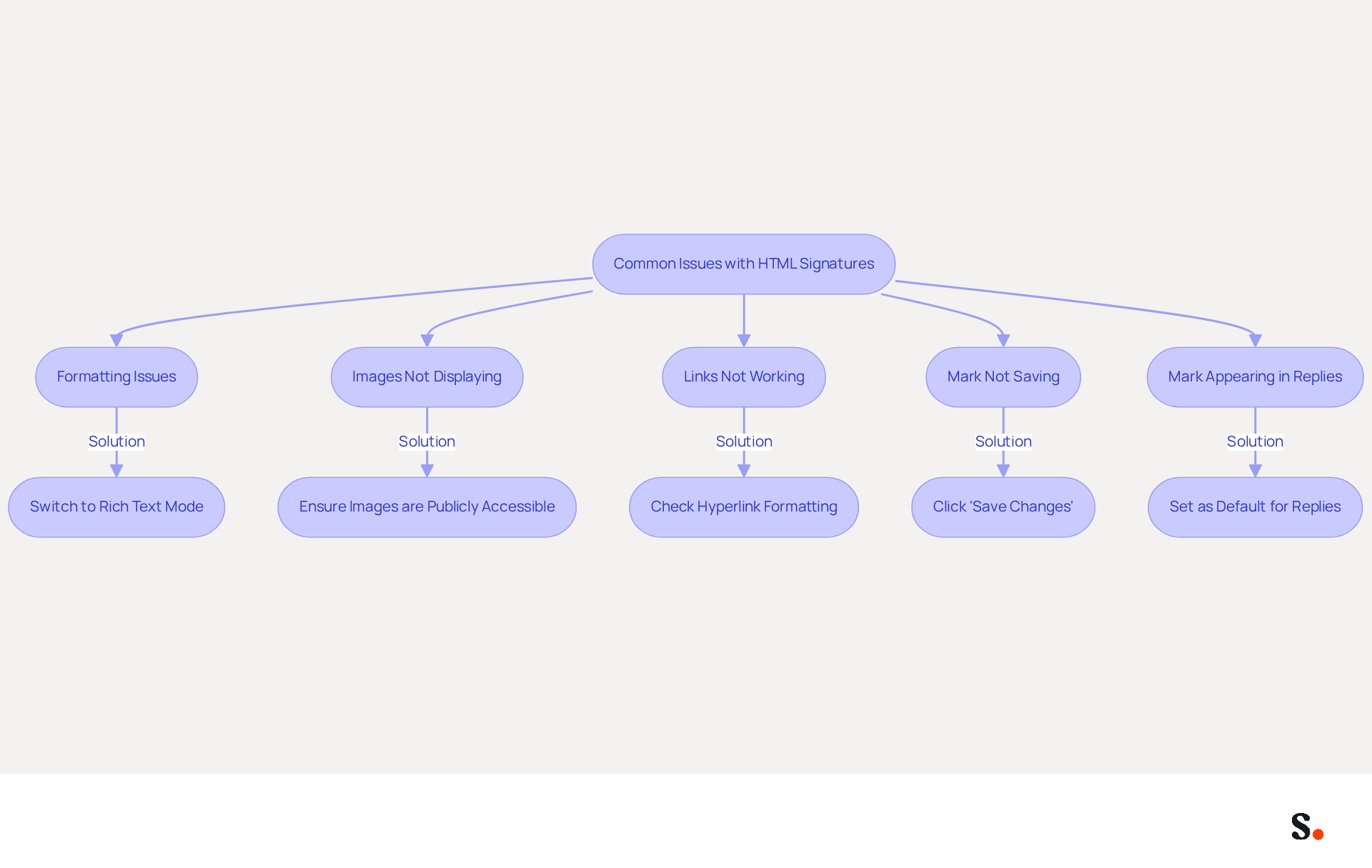
Users frequently encounter challenges when they need to know how to insert HTML signature in Gmail, which can complicate email signature management. Here are some common problems and how to troubleshoot them:
- Formatting Issues: When signatures do not appear correctly, check that you are not in 'Plain Text Mode'. Switch to 'Rich Text Mode' if necessary, as Gmail may strip unsupported formatting, leading to a messy appearance.
- Images Not Displaying: If your email footer images aren't displaying, make sure they're hosted on a server that's publicly accessible. Gmail may strip images that are not accessible, resulting in broken links or missing visuals. Recommended image dimensions are 70-100 pixels in height and 300-400 pixels in width to ensure proper display.
- Links Not Working: Double-check that all hyperlinks are correctly formatted in your HTML code. Test each link after adding the endorsement to ensure they lead to the intended pages. Email clients often adjust hyperlink styles automatically, which can affect their appearance.
- Mark Not Saving: If your mark does not save, ensure you click 'Save Changes' at the bottom of the settings page. If problems continue, consider clearing your browser cache and cookies to resolve potential conflicts.
- Mark Appearing in Replies: If your mark is not showing in replies, ensure you have set it as the default mark for replies in the mark settings. Gmail places sign-offs at the bottom of replies, which may make them seem absent if they are below quoted text.
By being aware of these common issues and their solutions, addressing these common issues proactively can significantly enhance your email signature management experience in Gmail.
Explore Tools and Resources for Effective HTML Signature Management
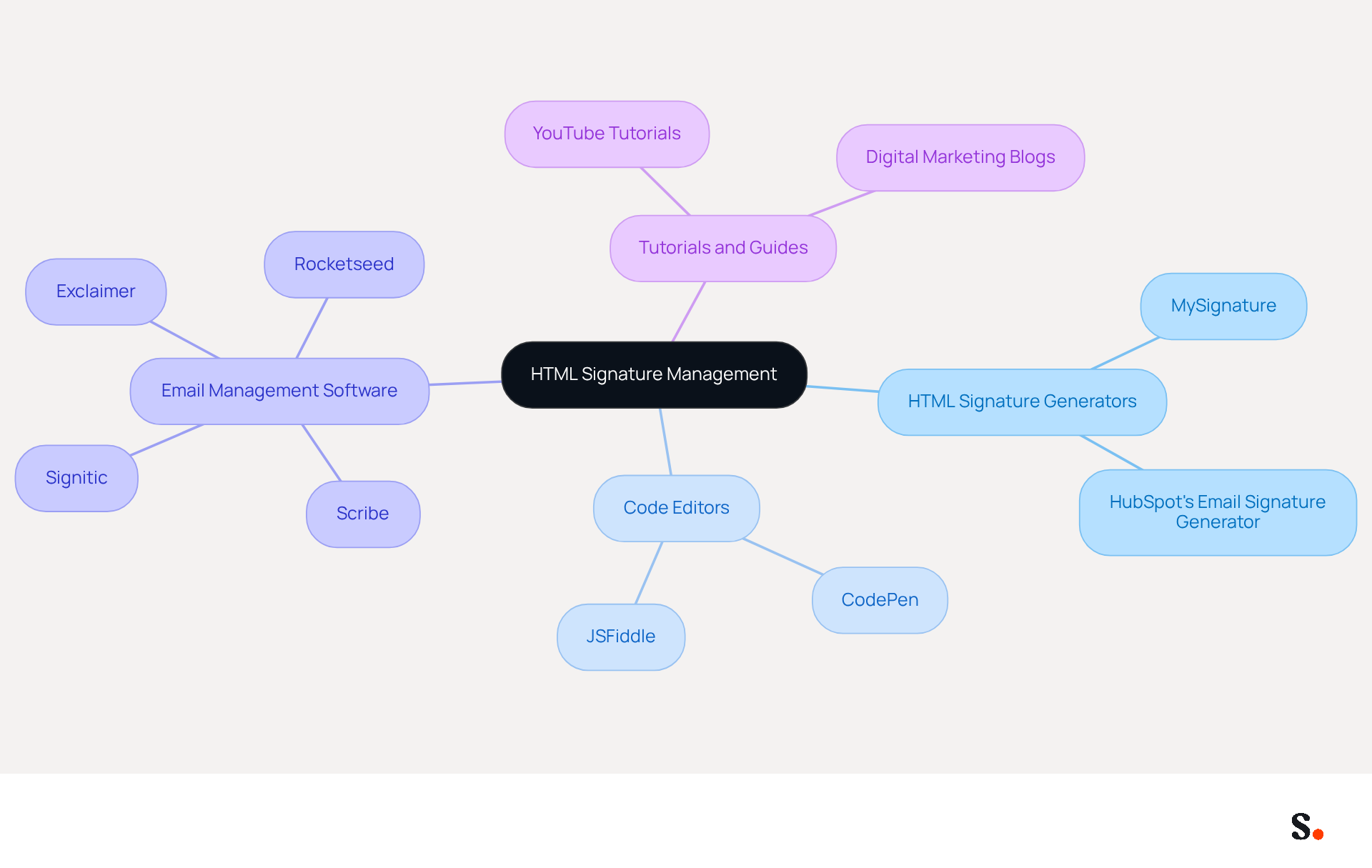
To effectively create and manage HTML email signatures, it is crucial to understand how to insert HTML signature in Gmail using the right tools. Consider utilizing the following resources:
- HTML Signature Generators: Platforms such as MySignature and HubSpot's Email Signature Generator enable users to create professional HTML signatures without requiring coding knowledge. These tools provide customizable templates that can greatly enhance the process of creating signatures. Companies that use branded email footers experience a 15% increase in website click-through rates (CTR), highlighting the importance of effective footer management.
- Code Editors: Online code editors like CodePen or JSFiddle allow you to create and preview your mark in real-time. These tools offer a live view of your HTML code, making it easier to spot and fix mistakes before finalizing your document. Ensuring your email signature displays correctly across different platforms can be challenging.
- Email Management Software: For businesses aiming to uphold brand consistency, dedicated email management solutions like Scribe automate the creation and updating of email identifiers across teams. Scribe's commitment to exceptional customer support guarantees that you can communicate with a person, not a machine, for any help you might require. This, along with Scribe's SOC 2 Type II compliance, ensures that your data is protected while optimizing the management process. Additionally, the organization directs 1% of its revenue to support emerging carbon removal technologies, reflecting its commitment to environmental sustainability. With Scribe, all employees present a unified brand image in their communications, and the automated synchronization of email identifiers with platforms like Aircall enhances brand consistency.
- Tutorials and Guides: Resources such as YouTube and specialized digital marketing blogs often feature tutorials on creating effective email footers. These guides can offer valuable tips and best practices, such as keeping the layout simple and using web-safe fonts, to enhance both the design and functionality of your email.
Using these tools can simplify how to insert HTML signature in Gmail, helping you maintain a professional appearance. Incorporating case studies, such as the effectiveness of a focused design in increasing conversion rates, can further illustrate the benefits of well-managed email signatures.
Conclusion
Creating an HTML signature in Gmail is essential for enhancing brand visibility and professionalism in communications. The step-by-step guide enables users to transform their email signatures into effective marketing tools that reflect their brand identity and engage recipients.
This article has outlined the importance of HTML signatures, emphasizing:
- Brand consistency
- Marketing opportunities
- Professionalism
It has also provided detailed instructions on how to insert an HTML signature in Gmail, troubleshoot common issues, and explore tools for effective signature management. With Scribe's capabilities, organizations can ensure that their email signatures are not only visually appealing but also compliant with security standards like SOC 2 Type II, GDPR, and CCPA, while maintaining ease of use for non-technical users.
Investing in a well-designed HTML signature can transform your email communications into a powerful marketing asset. By leveraging tools like Scribe, businesses can automate and manage their email signatures efficiently, ensuring that every email sent reflects their brand's commitment to quality and professionalism. Embrace the potential of HTML signatures today and turn every email into an opportunity for connection and growth.
Frequently Asked Questions
What is the importance of HTML email signatures for businesses?
HTML email signatures are important because they serve as effective marketing instruments that improve brand visibility and professionalism, turning every email into a potential marketing opportunity.
How do HTML signatures contribute to brand consistency?
HTML signatures ensure that every email reflects the brand's identity, maintaining a professional appearance across all communications. Scribe automatically synchronizes digital identifiers with the business phone system, ensuring real-time updates for enhanced brand consistency.
What marketing opportunities do HTML signatures provide?
HTML signatures allow for the inclusion of links to websites, social media, or promotional campaigns, turning every message into a marketing opportunity that can increase traffic and engagement.
How do HTML signatures enhance professionalism?
A well-crafted email footer conveys professionalism and attention to detail, positively influencing how recipients perceive the brand. Scribe's SOC 2 Type II compliance also ensures data protection, adding an extra layer of trust.
Can HTML signatures be tracked for analytics?
Yes, some digital formats can be integrated with tracking tools, allowing businesses to measure engagement and effectiveness, providing valuable insights into marketing efforts. Scribe enables monitoring of messaging effectiveness and connects engagement to quantifiable marketing returns.
How can Scribe help with HTML email signatures?
Scribe helps users discover how to insert HTML signatures in Gmail, transforming email signatures into powerful marketing tools that enhance brand visibility and professionalism.
List of Sources
- Understand HTML Email Signatures and Their Importance
- The impact of email signatures on your branding (https://signitic.com/en/resources/the-impact-of-email-signatures-on-your-branding)
- Top 10 Benefits Of Email Signatures | Rocketseed (https://rocketseed.com/blog/benefits-of-using-email-signatures)
- 40+ Email Signature Statistics for 2026 (Data + Insights) (https://wavecnct.com/blogs/email-signature-statistics)
- Why Every Business Needs a Professional HTML Email Signature in 2026 (https://nasirportfolio.github.io/email-marketing-articles/professional-html-email-signature.html)
- Master Gmail Signature HTML: Best Practices for Marketing Success (https://scribe-mail.com/en-US/blog/master-gmail-signature-html-best-practices-for-marketing-success)
- Follow Step-by-Step Instructions to Add Your HTML Signature in Gmail
- Master Gmail Signature HTML: Best Practices for Marketing Success (https://scribe-mail.com/en-US/blog/master-gmail-signature-html-best-practices-for-marketing-success)
- Email Signature Statistics: A Closer Look at Email Signatures in 2026 (https://mysignature.io/blog/email-signature-statistics)
- How to Add HTML Signature to Gmail (Step-by-Step Guide) - NEWOLDSTAMP (https://newoldstamp.com/blog/html-email-signature-gmail)
- Make Your Brand Stand Out: Easily Add an HTML Email Signature to Gmail and Outlook.
Here at Legal Growth, we help to make your brand stand out in customer emails. Add a professionally designed flare to each email sent from Gmail and Outlook with HTML email signatures. They can help promote important information such as contact details. Read on to learn how adding an HTML signature to your business emails is easy.
What HTML email signatures are and why they matter
HTML email signatures are necessary because they allow you to include stylised text and images in your email signature. It helps promote your brand or website or add personality to your emails. Additionally, HTML email signatures can include clickable links, making it easy for recipients to contact or visit your website. A good example is when you get an email from one of us here at Legal Growth.
Create an HTML email signature, Simply today.
When it comes to creating an HTML email signature, there are a few simple steps that you need to follow. To get started, you'll need to create a file called signature.html and then save it in your email signature folder. In this file, you can include any text or images you'd like to appear in your signature.
Next, you'll need to add the following code to your email template:
Your HTML content goes here.
Be sure to replace "Your HTML content goes here." with the actual content of your signature. You can also customise the appearance of your signature by adding some CSS styling. For example, you can add the following code to create a border around your signature:
.signature {
border: 1px solid black;
}
How to add an HTML email signature in Outlook and Gmail
Adding an HTML email signature in Outlook and Gmail is a great way to show your brand personality and add some flair to your emails. It can also be a great way to promote your business or website. This post will show you how to add an HTML email signature in Outlook and Gmail.
To add an HTML email signature in Outlook, follow these steps:
1. Open Outlook and click on the File tab.
2. Select Options from the menu.
3. Click on the Mail tab.
4. Select the Signature option and click on the Edit button in the Signature section.
5. In the Edit Signature window, enter your signature text in the text box and click on the OK button.
6. Click the OK button in the Options window to save your changes.
To add an HTML email signature in Gmail, follow these steps:
1. Open Gmail and click on the Settings gear icon.
2. Select Settings from the menu.
3. Click on the General tab.
4. In the Signature section, type your signature text in the text box and click on the Save Changes button.
Of course, if you are struggling to follow any of these tips or tricks, then please email or phone one of our team at Legal Growth, where we can take all the stress of it, smooth the process out and get you a professional-looking Signature that fits your brand the best.
Here are some tips for creating an HTML email signature:
-Keep your signature file size small. Large files can slow down the loading of your email messages.
-Include a link to your website or social media profile. It will help your contacts learn more about you and your business.
-Include a tagline that expresses who you are and what you do.
-Make sure your signature looks good on all devices. Test it on different devices and browsers to ensure that it looks correct.
Following these simple steps will help you create an HTML email signature that is both stylish and professional. If you want to learn more about adding an HTML email signature in Outlook and Gmail, check out our other post.
— Legal Growth (https://legalgrowth.co.uk/news/make-your-brand-stand-out-easily-add-an-html-email-signature-to-gmail-and-outlook) - Simple Steps to Create and Add an Gmail HTML Signature - MySignature (https://mysignature.io/gmail-html-signature)
- Troubleshoot Common Issues When Inserting HTML Signatures
- Gmail Signature Troubleshooting | WiseStamp Help Center (https://support.wisestamp.com/en/articles/13366705-gmail-signature-troubleshooting)
- Remedierea problemelor legate de semnăturile din Gmail - Gmail Ajutor (https://support.google.com/mail/answer/11468381?hl=en-EN)
- Troubleshoot issues with Gmail signatures - Gmail Help (https://support.google.com/mail/answer/11468381?hl=en-na)
- Fixing Signature Issues in Gmail (https://teachers.tech/fixing-signature-issues-in-gmail)
- Email Signature Troubleshooting - Problems & Solutions - Gimmio (https://blog.gimm.io/email-signature-troubleshooting)
- Explore Tools and Resources for Effective HTML Signature Management
- Email Signature Design Trends in 2026: What Works and What to Drop (https://bulksignature.com/blog/email-signature-design-trends)
- Email signature statistics: Why every business should optimize their email signatures — Stripo.email (https://stripo.email/blog/email-signature-statistics-why-every-business-should-optimize-their-email-signatures)
- 10 Best Email Signature Software Reviewed In 2026 (https://thecmo.com/tools/best-email-signature-software)
- Best Email Signature Management Software: Top 12 Tools (2026)
- NEWOLDSTAMP (https://newoldstamp.com/blog/email-signature-software)
Get started with Scribe
Create your signature in minutes
Free 14-day trial — no credit card.