Master How to Insert HTML Signature in Outlook: A Step-by-Step Guide
In an era where digital communication is paramount, the details of email signatures can significantly influence business interactions. A well-crafted HTML
Sophie Grant
Email Signature Specialist, Scribe

On this page
- Introduction
- Understand the Importance of HTML Signatures in Marketing
- Follow Step-by-Step Instructions to Insert Your HTML Signature in Outlook
- Troubleshoot Common Issues with HTML Signatures in Outlook
- Explore Tools and Resources for Efficient Email Signature Management
- Conclusion
- Frequently Asked Questions
- List of Sources
Introduction
In an era where digital communication is paramount, the details of email signatures can significantly influence business interactions. A well-crafted HTML signature not only enhances brand visibility but also serves as a powerful marketing tool that can drive engagement and build trust. Yet, many find the process of inserting these signatures into Outlook to be quite challenging, which can lead to missed opportunities for a polished professional image. Organizations must navigate this process effectively to ensure their email communications reflect their brand identity and maximize marketing impact.
Understand the Importance of HTML Signatures in Marketing
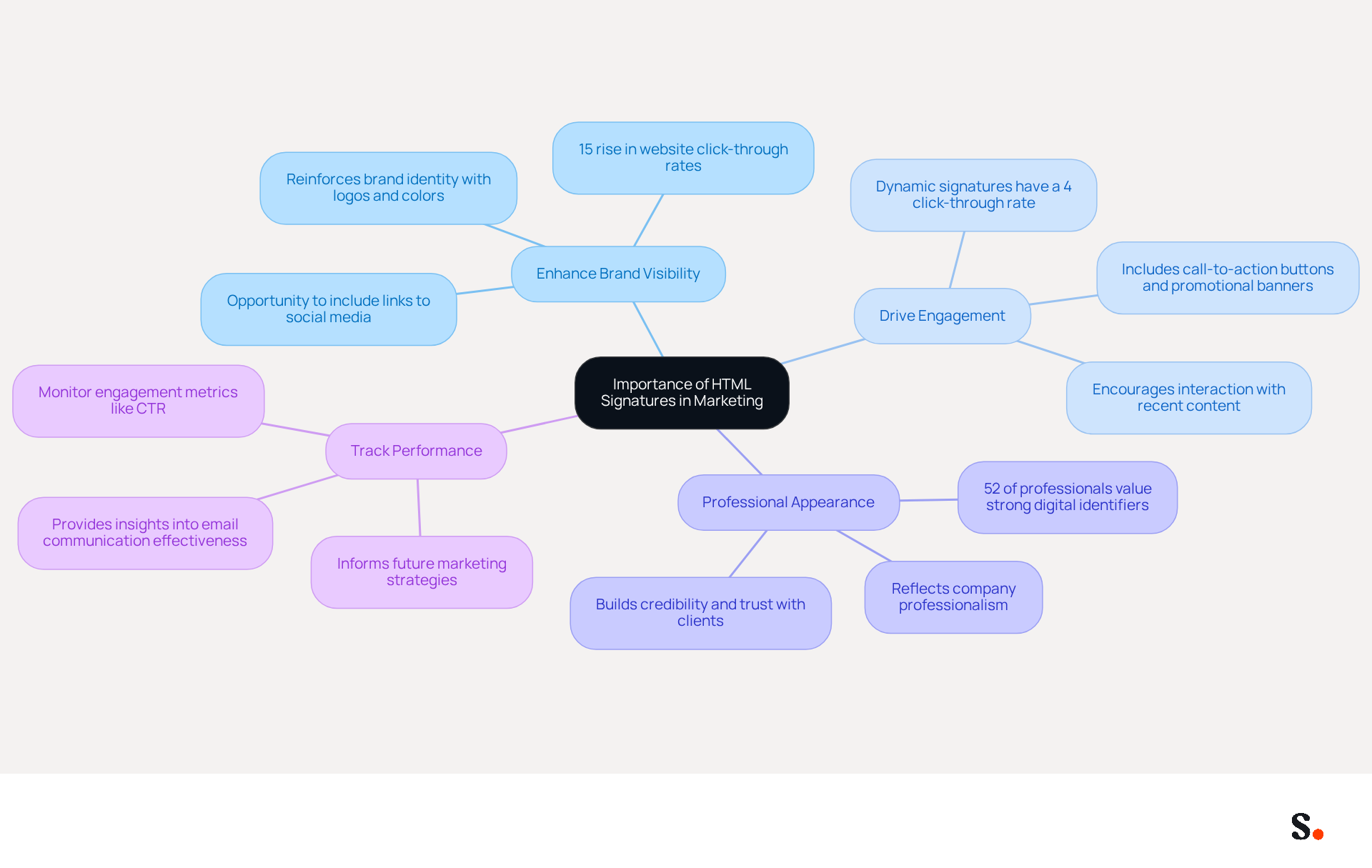
In today's competitive landscape, digital identifiers serve as essential tools for enhancing marketing efficiency and brand visibility. By incorporating HTML signatures, businesses can:
- Enhance Brand Visibility: Each email sent is an opportunity to reinforce brand identity. A well-designed email footer can display your logo, brand colors, and links to your website or social media, significantly boosting brand awareness. Organizations that utilize branded digital identifiers see a 15% rise in website click-through rates compared to those that do not.
- Drive Engagement: Email footers can include clickable elements such as call-to-action buttons, promotional banners, or links to recent blog posts, encouraging recipients to engage further with your content. Dynamic digital identifiers have an average click-through rate of 4%, which is significantly higher than the 2.5% for standard marketing messages.
- Professional Appearance: A well-crafted digital signature, especially when you know how to insert html signature in outlook, not only looks professional but also builds credibility and trust with clients and partners. In fact, 52% of professionals believe that a strong digital identifier is crucial for building trust and effective communication.
- Track Performance: Using coded email identifiers allows businesses to monitor engagement metrics, such as click-through rates on links, providing valuable insights into the effectiveness of their email communications. This data can inform future marketing strategies and improve overall performance.
By leveraging these strategic tools, businesses can significantly elevate their marketing efforts and foster deeper connections with their audience.
Follow Step-by-Step Instructions to Insert Your HTML Signature in Outlook
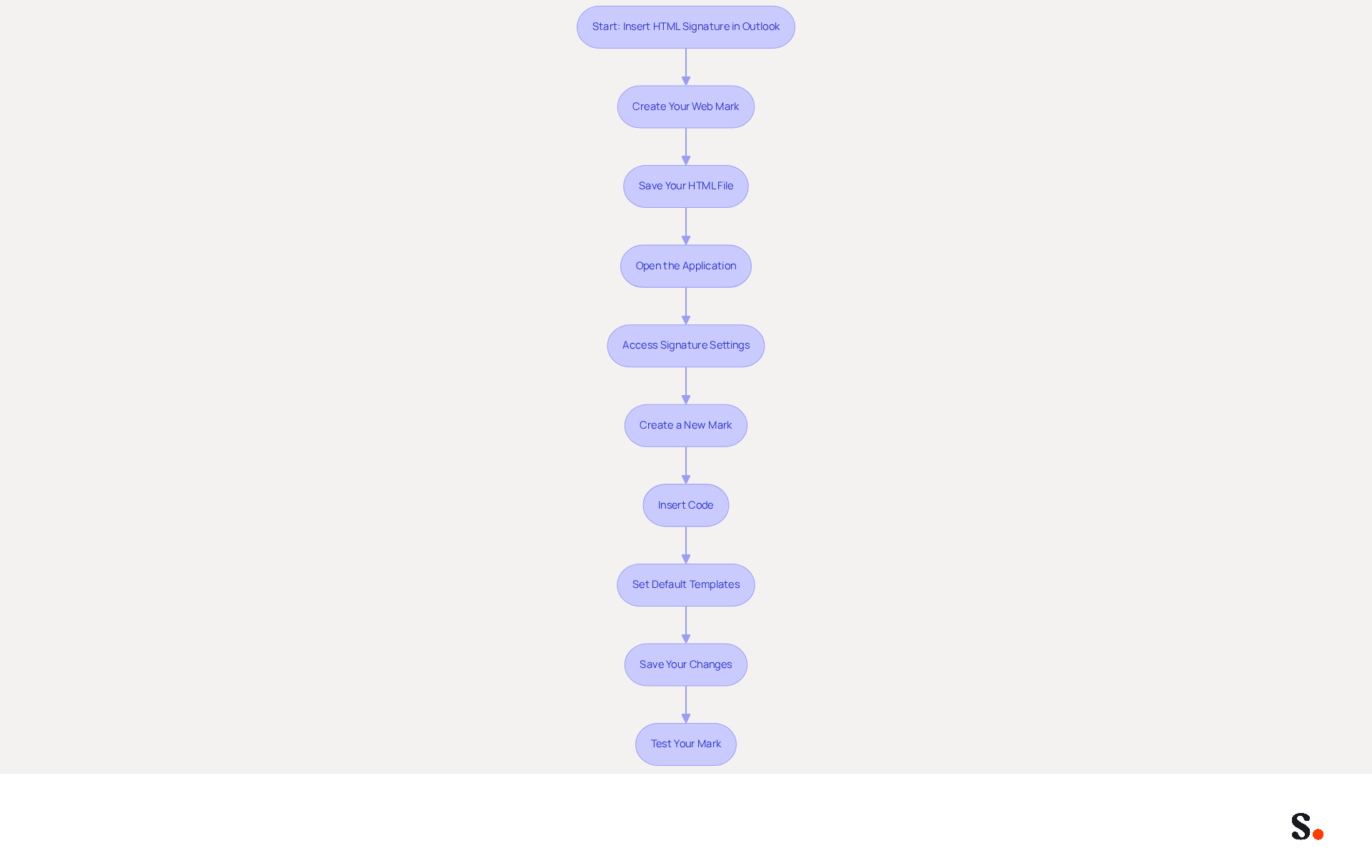
Inserting an HTML signature in Outlook can often be a challenging task for many users, but following these steps can simplify the process:
- Create Your Web Mark: Start by creating your web mark in a simple text editor, such as Notepad, or use a web editor if you prefer. Ensure it includes essential elements such as your name, title, company logo, and any relevant links.
- Save Your HTML File: Make sure to save your signature as an HTML file, like
signature.html, so you can easily find it later. - Open the Application: Launch the email program on your computer.
- Access Signature Settings: Click on
Filein the top left corner, then selectOptions. In the Outlook Options window, click onMail, and then click onSignatures. - Create a New Mark: In the Signatures and Stationery window, click on
Newto create a new mark. Name your signature appropriately (e.g., 'My Web Signature'). - Insert Code: Open your saved file in a web browser (like Chrome). Select all the content (Ctrl + A), copy it (Ctrl + C), and then return to the Signatures and Stationery window in Outlook. In the
Edit labelbox, paste your HTML code (Ctrl + V). - Set Default Templates: If desired, set this template as your default for new messages and replies/forwards by selecting it from the dropdown menus.
- Save Your Changes: Click
OKto save your new identifier and close the settings window. - Test Your Mark: Create a new message to ensure your formatted mark appears correctly. Verify that all links and images function as intended.
Following these steps will help you understand how to insert an HTML signature in Outlook with ease. Furthermore, if your organization utilizes Scribe to sync with Google Workspace, this automation not only saves time but also ensures that your email signature is always up-to-date, reflecting the latest information about your team. Branded communication footers are essential for building trust, with 76% of professionals believing they improve sender credibility. Moreover, companies employing consistent branded elements report a 22% increase in response rates, making this a worthwhile investment in your professional image. Ultimately, leveraging Scribe for email signature management can significantly enhance your professional image and streamline communication processes.
Troubleshoot Common Issues with HTML Signatures in Outlook
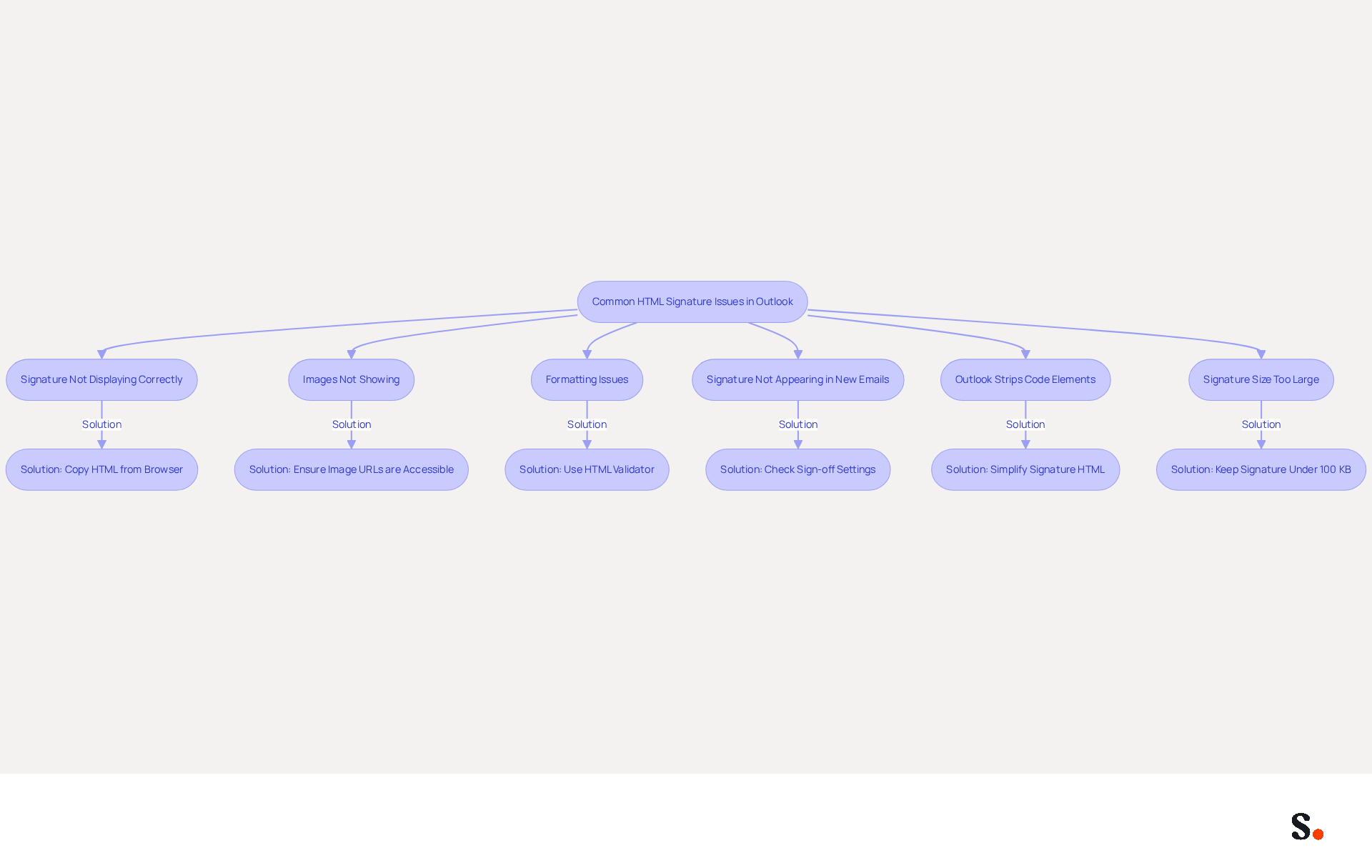
Users often encounter challenges when they need to know how to insert html signature in outlook, which can lead to significant communication issues. Here are some common problems and their solutions:
- Signature Not Displaying Correctly: If your signature shows up as code instead of formatted text, make sure you copied the HTML from a web browser, not a text editor. Always paste it into the editor for your email application.
- Images Not Showing: If images in your email are not displaying, ensure that the image URLs are accessible. If using local images, consider uploading them to a web server and linking to them instead. Outlook often blocks linked images by default, which can lead to display issues.
- Formatting Issues: If your signature appears different than anticipated, examine the code for any mistakes. Use an HTML validator to ensure your code is clean and compliant with standards. Complex designs with multiple columns and intricate patterns are unlikely to retain their formatting when replied to or forwarded.
- Signature Not Appearing in New Emails: If your signature isn’t appearing in new emails, check the sign-off settings in Scribe to confirm it’s set as the default for new messages. Administrative privileges may be necessary to activate approvals in Office 365 OWA.
- Outlook Strips Code Elements: Some code elements may be removed by Outlook due to security settings. Simplify your signature by avoiding complex HTML and CSS styles. A significant 76% of professionals report greater trust in senders who use branded communications, highlighting the importance of a unified brand identity.
- Signature Size Too Large: If your signature is too large, it may not load properly. Aim to keep your document under 100 KB to ensure quick loading times. Gmail, for example, shows an error if the message footer exceeds approximately 10,000 characters in code.
By addressing these challenges, users can improve their communications by learning how to insert html signature in outlook to present a polished and professional image. Tackling these common issues helps you create a smoother experience with web-based elements in Outlook.
Explore Tools and Resources for Efficient Email Signature Management
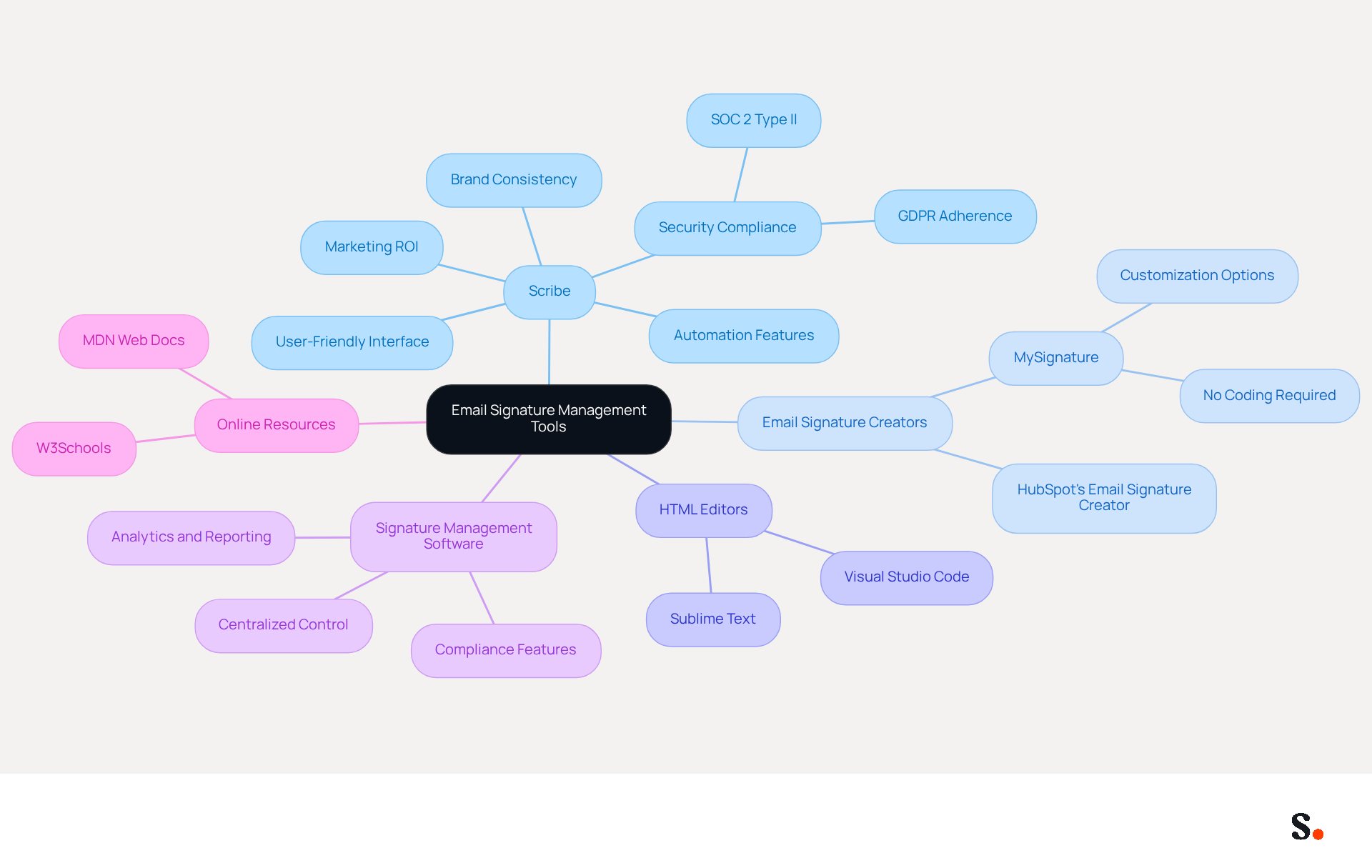
To streamline the process of creating and managing HTML email signatures, consider utilizing the following tools and resources:
- Scribe: As an innovative platform, Scribe automates the creation and management of electronic correspondences, allowing businesses to maintain brand consistency effortlessly. With features like on-brand templates and automated updates, Scribe is ideal for teams of all sizes. Additionally, Scribe commits 1% of its revenue to support emerging carbon removal technologies. This demonstrates its dedication to environmental sustainability. Scribe ensures that your data is secure with SOC 2 Type II compliance and adheres to GDPR regulations, making it a reliable choice for email management.
- Email Signature Creators: Tools like HubSpot's Email Signature Creator and MySignature enable users to design professional digital identifiers without requiring coding abilities. These generators often provide templates and customization options to suit your brand.
- HTML Editors: For those comfortable with coding, using HTML editors like Visual Studio Code or Sublime Text can help create and edit files more efficiently, providing syntax highlighting and error checking.
- Signature Management Software: While there are various options available, Scribe stands out by enabling Marketing teams to manage email branding independently after the initial IT setup, ensuring consistency and compliance across the organization. With an average click-through rate of 12% on branded banners, Scribe enhances marketing performance significantly. This leads to increased engagement and conversion rates, ultimately driving business growth.
- Online Resources: Websites like W3Schools and MDN Web Docs provide tutorials and documentation on web development and CSS, which can be advantageous for users aiming to improve their design styles.
By utilizing these tools, especially Scribe's automated features and strong customer support, you can learn how to insert HTML signature in Outlook, streamlining your email signature management and leading to better engagement with your audience.
Conclusion
Incorporating HTML signatures into Outlook presents both challenges and opportunities for enhancing brand visibility. Many users find the process of inserting HTML signatures in Outlook challenging, but with the right steps, they can create professional and effective email signatures that reflect their brand identity and foster trust and credibility with recipients.
The article delves into the importance of HTML signatures in marketing, highlighting their ability to drive engagement through clickable elements and track performance metrics. It provides a comprehensive step-by-step guide for inserting HTML signatures in Outlook, addressing common issues and offering solutions to ensure a seamless experience. Additionally, it emphasizes the role of tools like Scribe, which empowers marketing teams to manage email signatures independently, ensuring brand consistency and compliance with security standards.
This mastery can redefine how organizations communicate and engage with their audience. By leveraging the right tools and best practices, organizations can enhance their professional image, improve engagement rates, and achieve measurable marketing ROI. Embracing this approach not only streamlines email signature management but also positions businesses to make a lasting impact in their digital communications.
Frequently Asked Questions
What is the importance of HTML signatures in marketing?
HTML signatures are essential tools for enhancing marketing efficiency and brand visibility, allowing businesses to reinforce brand identity, drive engagement, maintain a professional appearance, and track performance.
How do HTML signatures enhance brand visibility?
HTML signatures enhance brand visibility by displaying logos, brand colors, and links to websites or social media in email footers, which can lead to a 15% increase in website click-through rates for organizations that use them.
In what ways can HTML signatures drive engagement?
HTML signatures can drive engagement by including clickable elements such as call-to-action buttons, promotional banners, or links to recent blog posts, resulting in an average click-through rate of 4%, compared to 2.5% for standard marketing messages.
Why is a professional appearance important in digital signatures?
A well-crafted digital signature looks professional and builds credibility and trust with clients and partners. Research shows that 52% of professionals believe a strong digital identifier is crucial for effective communication.
How can businesses track performance using HTML signatures?
Businesses can track performance by using coded email identifiers to monitor engagement metrics, such as click-through rates on links, which provide valuable insights into the effectiveness of their email communications and inform future marketing strategies.
List of Sources
- Understand the Importance of HTML Signatures in Marketing
- Best practices for business email signatures in 2026 (https://bybrand.io/blog/best-practices)
- Email signature statistics: Why every business should optimize their email signatures — Stripo.email (https://stripo.email/blog/email-signature-statistics-why-every-business-should-optimize-their-email-signatures)
- 40+ Email Signature Statistics for 2026 (Data + Insights) (https://wavecnct.com/blogs/email-signature-statistics)
- Master HTML Signatures in Gmail: Best Practices for Marketing Managers (https://scribe-mail.com/en-US/blog/master-html-signatures-in-gmail-best-practices-for-marketing-managers)
- WiseStamp Launches the Industry's First AI-Powered Email Signature Platform, Eliminating the Gap Between Brand Design and Instant Deployment (https://prnewswire.com/news-releases/wisestamp-launches-the-industrys-first-ai-powered-email-signature-platform-eliminating-the-gap-between-brand-design-and-instant-deployment-302774232.html)
- Follow Step-by-Step Instructions to Insert Your HTML Signature in Outlook
- 40+ Email Signature Statistics for 2026 (Data + Insights) (https://wavecnct.com/blogs/email-signature-statistics)
- Email signature statistics: Why every business should optimize their email signatures — Stripo.email (https://stripo.email/blog/email-signature-statistics-why-every-business-should-optimize-their-email-signatures)
- How do I add an HTML signature to Outlook? (https://signitic.com/en/resources/how-do-i-add-an-html-signature-to-outlook)
- Make Your Brand Stand Out: Easily Add an HTML Email Signature to Gmail and Outlook.
Here at Legal Growth, we help to make your brand stand out in customer emails. Add a professionally designed flare to each email sent from Gmail and Outlook with HTML email signatures. They can help promote important information such as contact details. Read on to learn how adding an HTML signature to your business emails is easy.
What HTML email signatures are and why they matter
HTML email signatures are necessary because they allow you to include stylised text and images in your email signature. It helps promote your brand or website or add personality to your emails. Additionally, HTML email signatures can include clickable links, making it easy for recipients to contact or visit your website. A good example is when you get an email from one of us here at Legal Growth.
Create an HTML email signature, Simply today.
When it comes to creating an HTML email signature, there are a few simple steps that you need to follow. To get started, you'll need to create a file called signature.html and then save it in your email signature folder. In this file, you can include any text or images you'd like to appear in your signature.
Next, you'll need to add the following code to your email template:
Your HTML content goes here.
Be sure to replace "Your HTML content goes here." with the actual content of your signature. You can also customise the appearance of your signature by adding some CSS styling. For example, you can add the following code to create a border around your signature:
.signature {
border: 1px solid black;
}
How to add an HTML email signature in Outlook and Gmail
Adding an HTML email signature in Outlook and Gmail is a great way to show your brand personality and add some flair to your emails. It can also be a great way to promote your business or website. This post will show you how to add an HTML email signature in Outlook and Gmail.
To add an HTML email signature in Outlook, follow these steps:
1. Open Outlook and click on the File tab.
2. Select Options from the menu.
3. Click on the Mail tab.
4. Select the Signature option and click on the Edit button in the Signature section.
5. In the Edit Signature window, enter your signature text in the text box and click on the OK button.
6. Click the OK button in the Options window to save your changes.
To add an HTML email signature in Gmail, follow these steps:
1. Open Gmail and click on the Settings gear icon.
2. Select Settings from the menu.
3. Click on the General tab.
4. In the Signature section, type your signature text in the text box and click on the Save Changes button.
Of course, if you are struggling to follow any of these tips or tricks, then please email or phone one of our team at Legal Growth, where we can take all the stress of it, smooth the process out and get you a professional-looking Signature that fits your brand the best.
Here are some tips for creating an HTML email signature:
-Keep your signature file size small. Large files can slow down the loading of your email messages.
-Include a link to your website or social media profile. It will help your contacts learn more about you and your business.
-Include a tagline that expresses who you are and what you do.
-Make sure your signature looks good on all devices. Test it on different devices and browsers to ensure that it looks correct.
Following these simple steps will help you create an HTML email signature that is both stylish and professional. If you want to learn more about adding an HTML email signature in Outlook and Gmail, check out our other post.
— Legal Growth (https://legalgrowth.co.uk/news/make-your-brand-stand-out-easily-add-an-html-email-signature-to-gmail-and-outlook)
- Troubleshoot Common Issues with HTML Signatures in Outlook
- Why HTML Email Signatures Break When People Reply | IT Support Essex | Trichromic LLP (https://trichromic.co.uk/news/why-html-email-signatures-break-when-people-reply)
- Email Signature Troubleshooting - Problems & Solutions - Gimmio (https://blog.gimm.io/email-signature-troubleshooting)
- How to solve problems with email signatures in Microsoft 365? (https://mail-signatures.com/articles/problems-email-signatures-office-365)
- How to Fix Email Signature on Outlook - Microsoft Q&A (https://learn.microsoft.com/en-us/answers/questions/5811461/how-to-fix-email-signature-on-outlook)
- 4 Steps to Fix Your Outlook Signature Not Showing Issues (https://scribe-mail.com/en-US/blog/4-steps-to-fix-your-outlook-signature-not-showing-issues)
- Explore Tools and Resources for Efficient Email Signature Management
- Compare Email Signature Management Solutions for Your Marketing Needs (https://scribe-mail.com/en-US/blog/compare-email-signature-management-solutions-for-your-marketing-needs)
- Top 10 Email Signature Management Tools in 2026 (Compared) (https://mailbutler.io/blog/email/email-signature-management-tools)
- Best Email Signature Generators & Management Software [2026] (https://syncsignature.com/blog/best-email-signature-generators)
- Best Email Signature Management Software (Evaluated May 2026) (https://wisestamp.com/guides/best-email-signature-management-software)
- Best Email Signature Management Software: Top 12 Tools (2026)
- NEWOLDSTAMP (https://newoldstamp.com/blog/email-signature-software)
Get started with Scribe
Create your signature in minutes
Free 14-day trial — no credit card.