Master Office 365 Mail Recall: Step-by-Step Instructions for Success
While email recall in Office 365 offers a valuable opportunity for correction, its effectiveness is often undermined by specific limitations and user
Sophie Grant
Email Signature Specialist, Scribe
Introduction
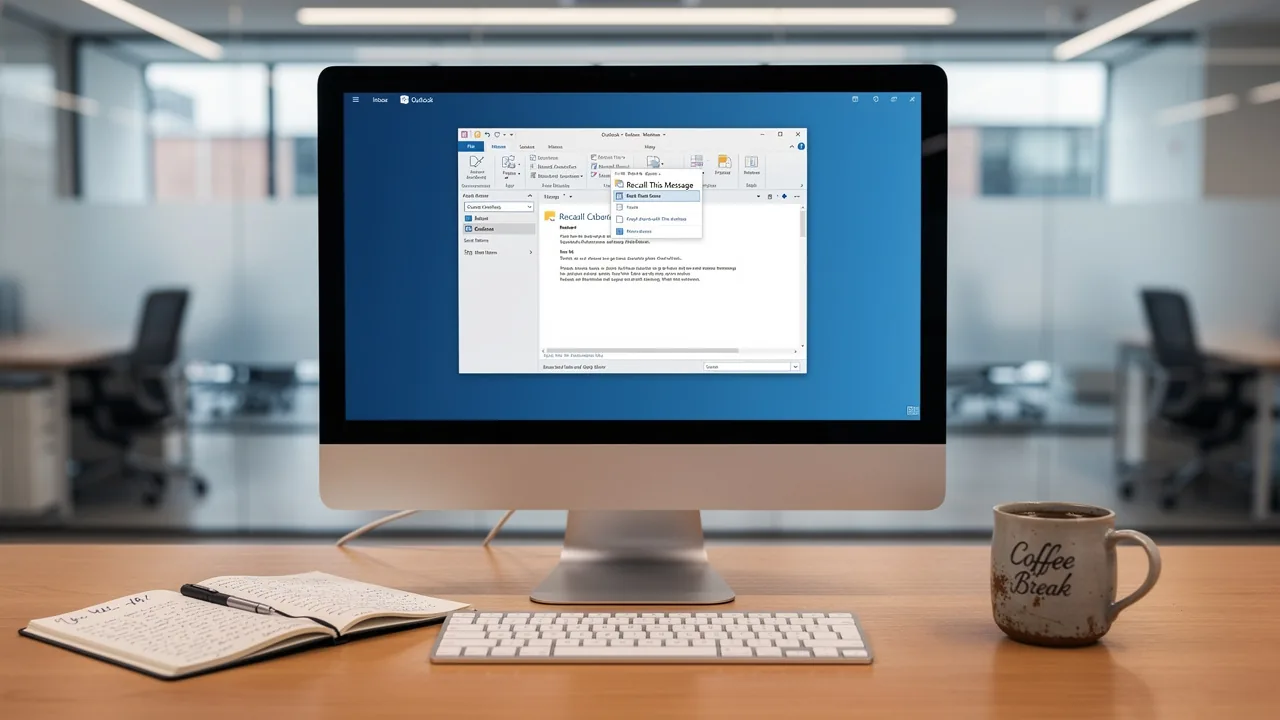
While email recall in Office 365 offers a valuable opportunity for correction, its effectiveness is often undermined by specific limitations and user misunderstandings. This feature lets you pull back messages, giving you a chance to fix mistakes before they reach the recipient, but it has certain requirements and limitations that can make it tricky to use effectively.
What happens when a recall fails, or when the recipient has already opened the email? Without a clear grasp of these factors, professionals risk undermining their communication efforts. Recognizing these challenges is essential for leveraging email recall effectively and maintaining professional communication standards.
Understand Email Recall in Office 365
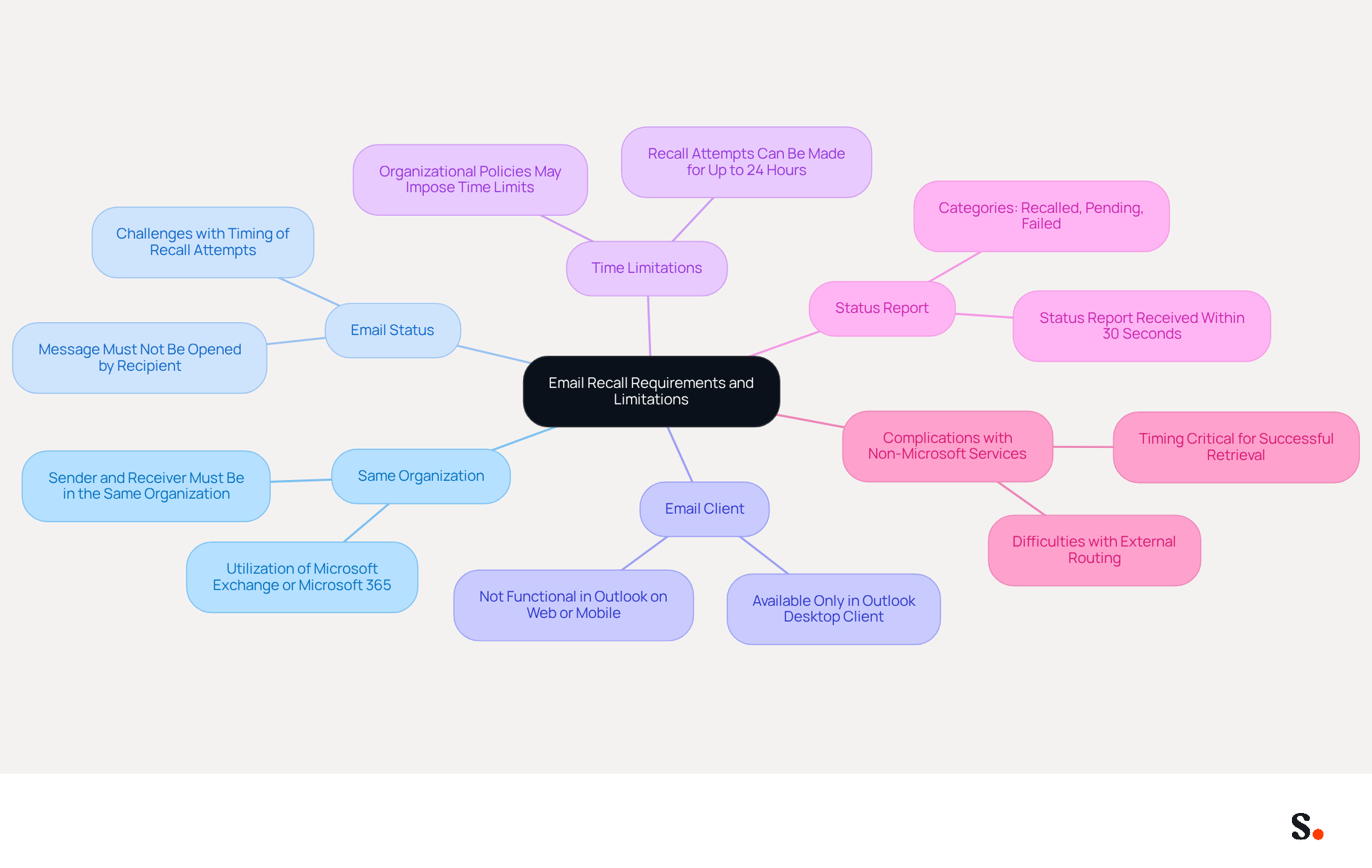
Office 365 mail recall is a powerful tool for retracting messages to correct communication errors, but it comes with specific conditions that users must understand. The ability to retract messages enables users to withdraw a communication that has already been sent, provided certain criteria are met. This feature helps correct errors like typos, wrong addresses, or missing attachments. When a user initiates a withdrawal, the system attempts to retrieve the email from the inboxes of recipients who haven't read it yet. However, it is crucial to note that the message retrieval feature only works if both the sender and recipient are using Microsoft Exchange or Microsoft 365 within the same organization. Understanding these limitations is crucial for maximizing the feature's potential.
Recent enhancements to the email retrieval feature have significantly improved its effectiveness. Microsoft asserts that the new method has raised the success rate of message retrievals to 90%, a substantial improvement from the previous 40% success rate. This upgrade is part of a broader initiative to roll out cross-tenant retrieval starting in mid-August 2026, with full availability expected by mid-September 2026. Organizations must add at least one trusted tenant to the allow list to enable this feature, which is disabled by default and requires tenant admins to take action.
The enhanced feature also enables organizations to activate notification alerts for users, offering clarity on why a message may have vanished from their inbox. This is especially significant as silent removals can cause confusion among individuals who may have already read the message. Additionally, the implementation of a maximum age setting for messages that can be recalled, defaulting to 365 days, ensures compliance with privacy and legal standards. According to Tony Redmond, "The default is 365 days, and the setting can vary from 5 minutes to ten years."
Case studies emphasize the practical uses of the email retrieval feature. For example, organizations have effectively employed the consolidated message summary report, which offers a single status update for all users, streamlining the process and minimizing confusion. This enhancement enables users to view the status of each recipient in a single report, enhancing the overall user experience.
In summary, understanding the parameters and recent advancements of the Office 365 mail recall feature is essential for effectively utilizing this tool. Organizations must remain vigilant about potential security risks associated with message retrieval capabilities.
Review Requirements and Limitations for Recall
Before attempting to recall an email in Office 365, users must understand the specific requirements and limitations that govern this process:
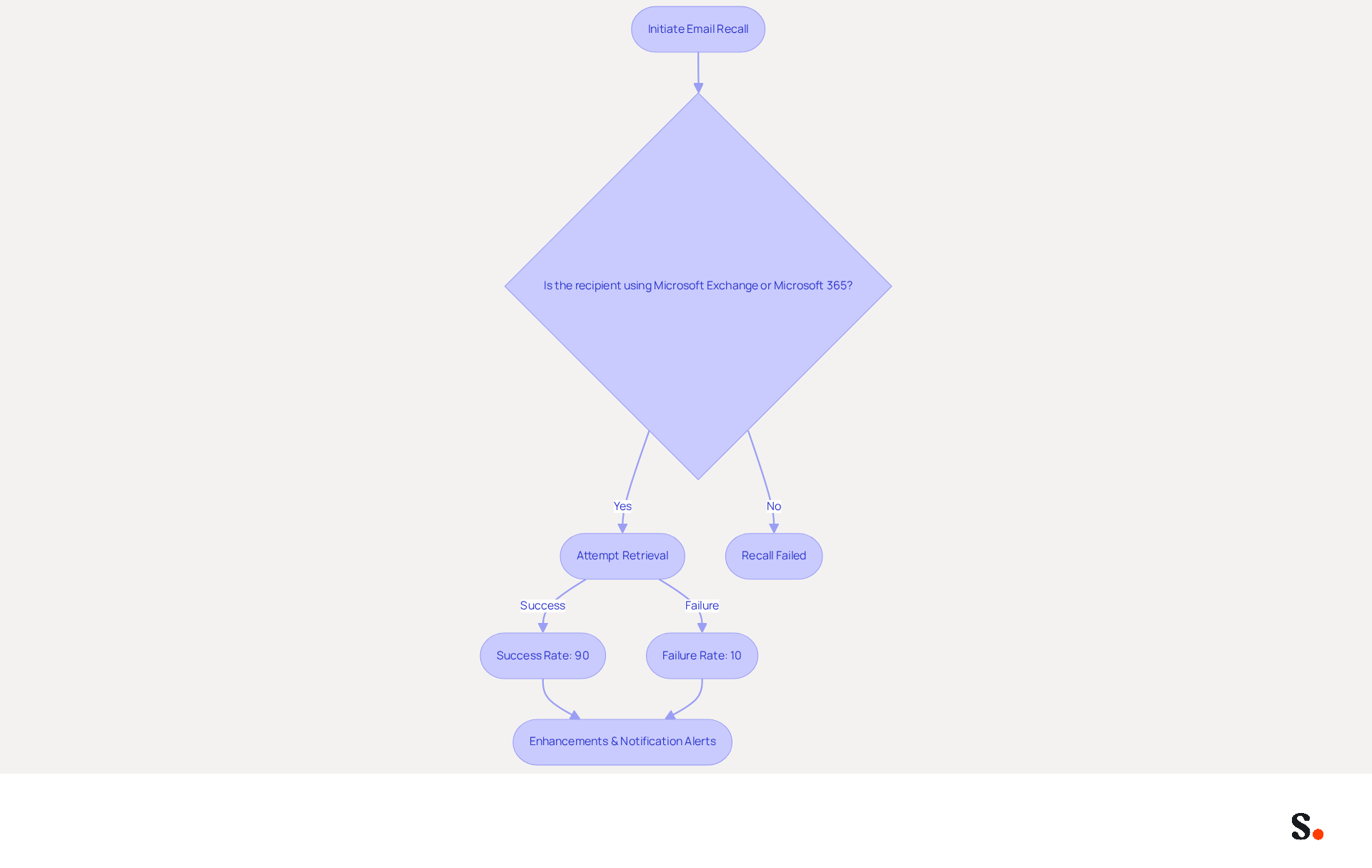
- Same Organization: Both the sender and the receiver must belong to the same organization and utilize Microsoft Exchange or Microsoft 365. This is essential as the retrieval feature is designed to function only within the confines of the organization.
- Email Status: The message must not have been opened by the recipient. If the message has been viewed, the retrieval will fail, creating a challenge for users who may not act quickly enough.
- Email Client: The retrieval feature is exclusively available in the Outlook desktop client; it does not function in Outlook on the web or mobile versions. This limitation can impact users who depend on various platforms for managing their correspondence.
- Time Limitations: Organizations may impose specific time limits on how long after sending an email a cancellation can be attempted. This can vary by organization, making it essential to understand internal policies.
- Status Report: After initiating a return, users will receive a status report within 30 seconds, categorizing the attempt as Recalled, Pending, or Failed. This categorization helps users understand the outcome of their retrieval attempts.
- Complications with Non-Microsoft Services: Users should be aware that organizations using non-Microsoft services may face difficulties with retrieval attempts, highlighting the critical role of timing in successful retrieval.
Comprehending these factors is essential for ensuring a successful retrieval attempt. Recent enhancements in Office 365 mail recall have improved the retrieval process, achieving a 90% success rate compared to the classic version's 40%. However, constraints still remain, such as the inability to retrieve messages sent to external recipients or those forwarded manually. By understanding these factors, users can navigate the retrieval process more effectively, ultimately increasing their chances of success.
Follow Step-by-Step Instructions to Recall an Email
To effectively manage your communications in Office 365, understanding the email recall process is essential:
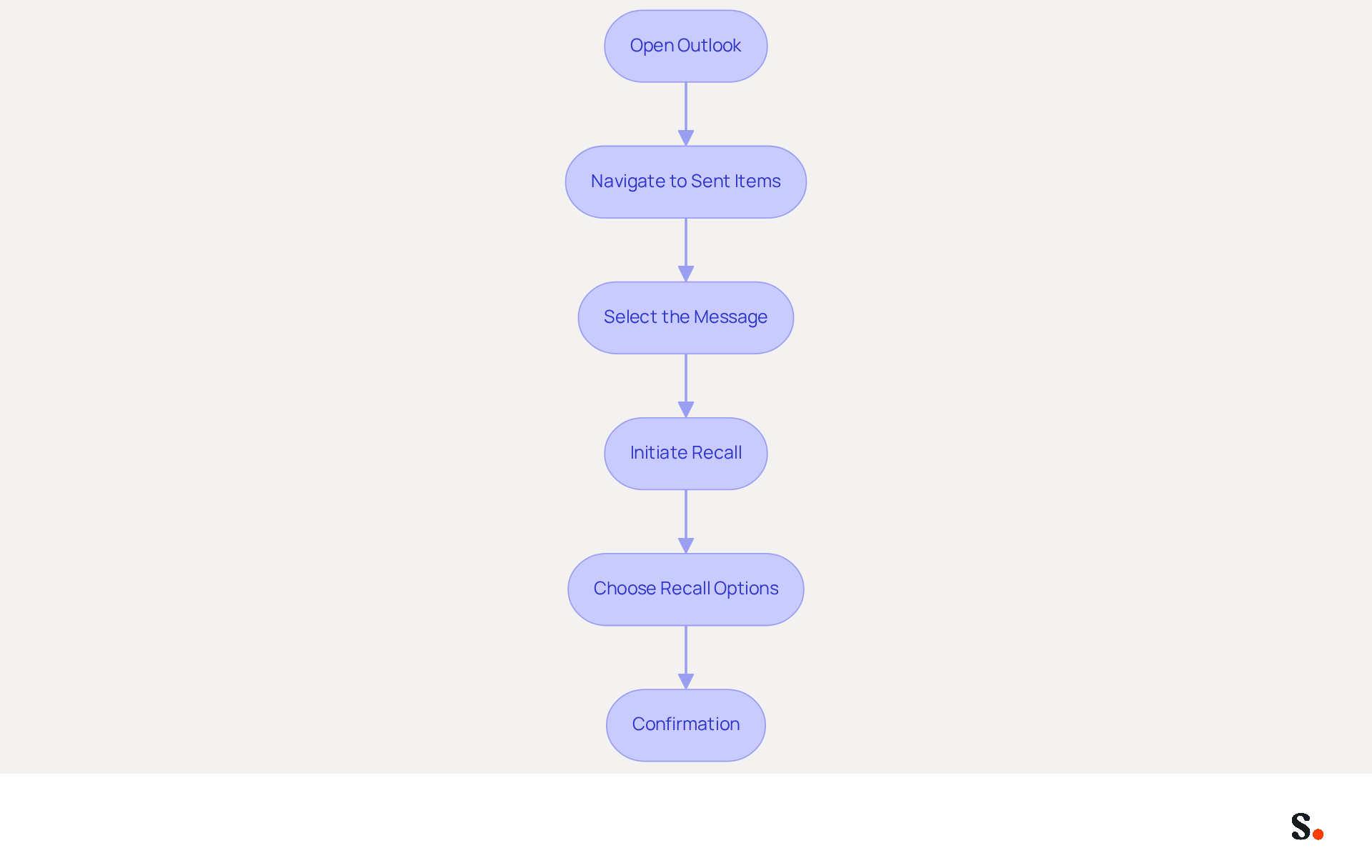
- Open Outlook: Launch the Outlook desktop application on your computer.
- Navigate to Sent Items: In the left pane, click on 'Sent Items' to view your dispatched messages.
- Select the Message: Locate the message you wish to recall and double-click it to open it in a new window.
- Initiate Recall: In the open message window, go to the 'Message' tab. Click on 'Actions' in the Move group, then select 'Recall This Message.'
- Choose Recall Options: You will be prompted to choose whether to delete unread copies of the email or replace it with a new message. Select your preferred option and click 'OK.'
- Confirmation: You’ll get a notification letting you know if the recall was successful or not. Check your inbox for this message.
Email Recall Success Rates in Office 365
The message recall feature has improved significantly, now boasting a success rate of over 90%. This is a notable increase from the original version, which had an average success rate of only 40%. However, it is crucial to comprehend that the Office 365 mail recall function is most effective when utilized for messages sent within the organization and to mailboxes in Exchange Online.
Case Studies on Email Recall
Testing has shown that emails sent to distribution lists can be recalled successfully, although there is still a risk that recipients may see the original email before it is retracted. Additionally, organizations have found that configuring their third-party tools properly is crucial for ensuring that message retrieval works effectively, especially after the introduction of External Round-trip Routing in August 2024. It is also crucial to mention that messages sent to external recipients cannot be retrieved, and optional notification features for recipients were introduced to improve communication regarding retrieval attempts.
Recognizing these limitations can enhance your email management strategy and improve overall communication efficiency.
Troubleshoot Common Recall Issues
If you encounter difficulties with Office 365 mail recall, it is essential to implement effective troubleshooting strategies. Consider the following tips:
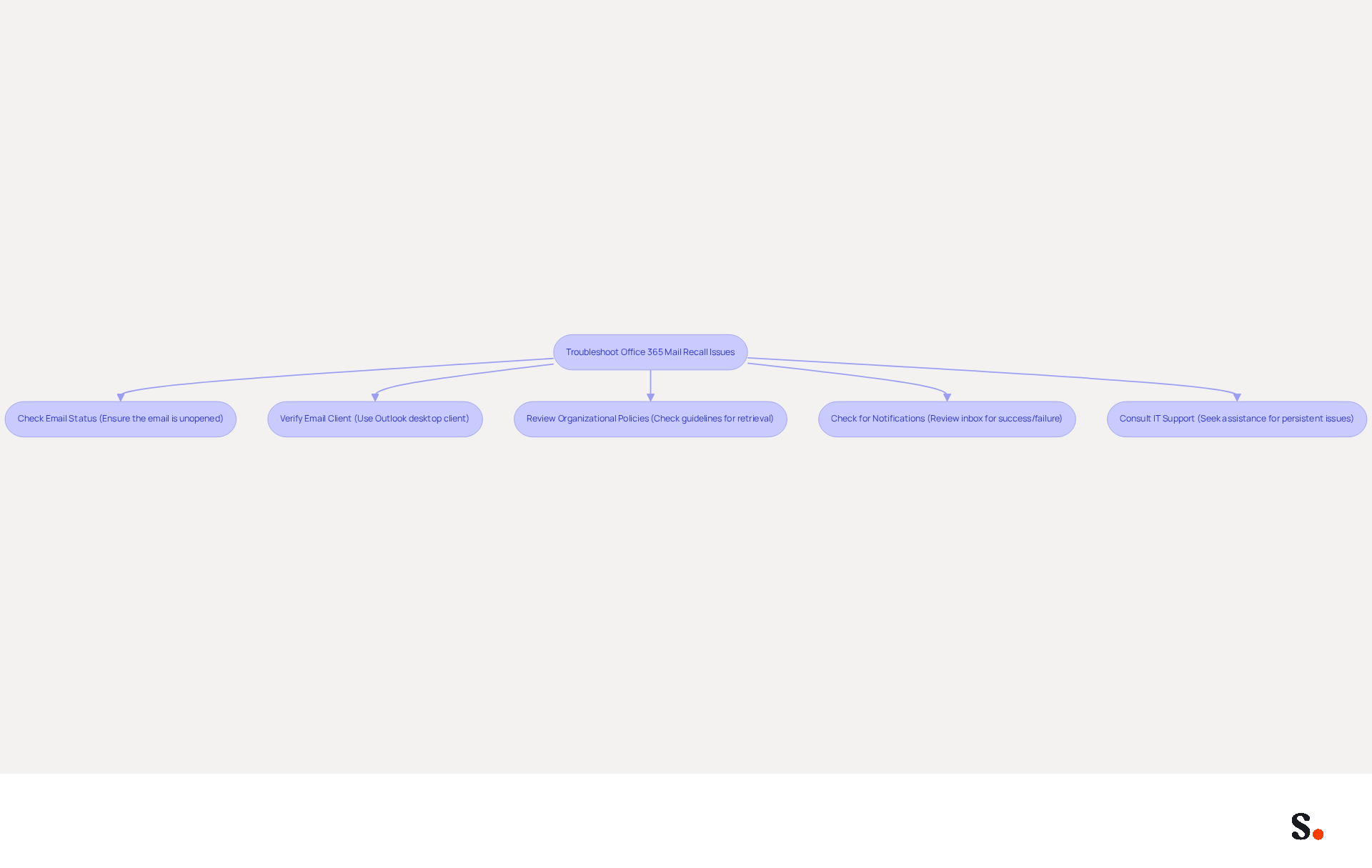
- Check Email Status: Ensure that the individual has not opened the email. If they have, the retrieval will not function.
- Verify Email Client: Confirm that both you and the recipient are using the Outlook desktop client. Recall does not function in web or mobile versions.
- Review Organizational Policies: Some organizations may have specific guidelines regarding message retrieval, including time limits or restrictions on external communications.
- Check for Notifications: After initiating a retrieval, check your inbox for a notification regarding the success or failure of the attempt. This will provide insight into what went wrong.
- Consult IT Support: If issues persist, reach out to your IT department for assistance, as they may have additional insights or solutions based on your organization's setup.
Many users struggle with the Office 365 mail recall feature for message retrieval, leading to frustration and inefficiency. The prior success rate for retrievals was only 40%, but the new messaging approach has raised this success rate to 90%. By adhering to these steps, users can significantly increase their chances of successful email retrieval. Mastering these techniques can transform your email management and communication effectiveness.
Conclusion
Mastering the Office 365 email recall process is not just beneficial; it is essential for effective communication management within organizations. This powerful tool allows users to retract messages, correcting errors and minimizing miscommunication. To maximize the effectiveness of this tool, users must understand its specific requirements and limitations. Key insights from the article highlight the importance of:
- Using the recall feature within the same organization
- The necessity of the recipient not having opened the email
Recent updates to the recall feature have increased its success rate to over 90%, making it a more dependable option for users. Additionally, the article outlines:
- Step-by-step instructions for initiating a recall
- Troubleshooting common issues
- Understanding organizational policies that may affect the process
Utilizing the Office 365 email recall feature can significantly improve communication efficiency and mitigate the effects of errors. By familiarizing oneself with the requirements and limitations, users can navigate the recall process more effectively. Organizations should encourage their teams to utilize this tool, ensuring that communication remains clear and professional, ultimately fostering a more productive work environment.
Frequently Asked Questions
What is the purpose of the Office 365 mail recall feature?
The Office 365 mail recall feature allows users to retract messages that have already been sent to correct communication errors, such as typos, wrong addresses, or missing attachments.
Under what conditions does the mail recall feature work?
The mail recall feature works only if both the sender and recipient are using Microsoft Exchange or Microsoft 365 within the same organization.
How has the effectiveness of the email retrieval feature improved recently?
Recent enhancements have raised the success rate of message retrievals to 90%, up from the previous 40% success rate.
What is the timeline for the rollout of cross-tenant retrieval?
Cross-tenant retrieval is expected to start in mid-August 2026, with full availability anticipated by mid-September 2026.
What must organizations do to enable the cross-tenant retrieval feature?
Organizations must add at least one trusted tenant to the allow list to enable the cross-tenant retrieval feature, which is disabled by default and requires action from tenant admins.
What new feature has been added to help users understand message retrieval?
Organizations can activate notification alerts for users, providing clarity on why a message may have disappeared from their inbox.
What is the maximum age setting for messages that can be recalled?
The default maximum age setting for messages that can be recalled is 365 days, but it can be adjusted to range from 5 minutes to ten years.
How do case studies illustrate the practical uses of the email retrieval feature?
Case studies show that organizations have effectively used the consolidated message summary report, which provides a single status update for all users, streamlining the process and minimizing confusion.
Why is it important to understand the parameters of the Office 365 mail recall feature?
Understanding the parameters and recent advancements of the mail recall feature is essential for effectively utilizing the tool and remaining vigilant about potential security risks associated with message retrieval capabilities.
List of Sources
- Understand Email Recall in Office 365
- Microsoft 365 Cross-Tenant Email Recall: How It Works (https://it-connect.tech/microsoft-365-cross-tenant-email-recall-is-coming-soon)
- neowin.net (https://neowin.net/news/microsoft-is-bringing-a-much-needed-feature-to-outlook)
- Microsoft Enhances Message Recall for Exchange Online (https://practical365.com/message-recall-enhancements)
- Cross-Tenant Message Recall in Exchange Online | Microsoft Community Hub (https://techcommunity.microsoft.com/blog/exchange/cross-tenant-message-recall-in-exchange-online/4535800)
- How does the new message recall work in Microsoft 365 (https://codetwo.com/admins-blog/cloud-based-message-recall)
- Review Requirements and Limitations for Recall
- Microsoft 365 Cross-Tenant Email Recall: How It Works (https://it-connect.tech/microsoft-365-cross-tenant-email-recall-is-coming-soon)
- Recall Email in New Outlook for Swift Email Corrections - AdminDroid Blog (https://blog.admindroid.com/recall-email-in-new-outlook)
- Work with Cloud-based Message Recall (https://learn.microsoft.com/en-us/exchange/mail-flow-best-practices/work-with-cloud-based-message-recall)
- Microsoft Adds Cross-Tenant Message Recall to Exchange Online -- Redmondmag.com (https://redmondmag.com/blogs/redmond-dispatch/2026/07/microsoft-adds-cross-tenant-message.aspx)
- How does the new message recall work in Microsoft 365 (https://codetwo.com/admins-blog/cloud-based-message-recall)
- Follow Step-by-Step Instructions to Recall an Email
- How does the new message recall work in Microsoft 365 (https://codetwo.com/admins-blog/cloud-based-message-recall)
- How to recall an email in Outlook: Requirements, Limitations & Steps | Microsoft Support (https://support.microsoft.com/en-us/outlook/mail/how-to-recall-an-email-in-outlook-requirements-limitations-steps)
- How to Recall an Email in Outlook | Step-by-Step Guide (https://lenovo.com/us/en/glossary/how-to-recall-an-email-in-outlook?srsltid=AfmBOorN7QOu_c8IkZBWeGWtGovPddObA3UCuz4dkiqYXe818PfaOKE2)
- How to Recall an Email in Outlook (2026 Step-by-Step) - Leave Me Alone (https://leavemealone.com/blog/how-to-recall-an-email-in-outlook-step-by-step)
- Troubleshoot Common Recall Issues
- Microsoft Enhances Message Recall for Exchange Online (https://practical365.com/message-recall-enhancements)
- New and Improved Message Recall Feature for Exchange Online (https://office365itpros.com/2023/02/17/message-recall-new-version)
- Microsoft 365 Cross-Tenant Email Recall: How It Works (https://it-connect.tech/microsoft-365-cross-tenant-email-recall-is-coming-soon)
Get started with Scribe
See why teams switch to Scribe
Free 14-day trial — no credit card.