Master Outlook Classic Signature Location in 4 Simple Steps
Many organizations overlook the complexities of email signature management, risking brand inconsistency and professionalism in their communications. With many
Sophie Grant
Email Signature Specialist, Scribe
On this page
- Introduction
- Identify Outlook Signature Storage Locations
- Access Signature Folders in Different Outlook Versions
- Create and Edit Your Outlook Signatures
- To Create a New Signature:
- To Edit an Existing Signature:
- Troubleshoot Signature Management Issues
- Signature Not Appearing:
- Signature Formatting Issues:
- Signature Not Saving:
- Conclusion
- Frequently Asked Questions
- List of Sources
Introduction
Many organizations overlook the complexities of email signature management, risking brand inconsistency and professionalism in their communications. With many organizations relying on Outlook for their email needs, knowing how to locate and manage signatures effectively can significantly enhance marketing efforts. Many users struggle to find where their signatures are stored in Outlook.
What steps can users take to simplify this process and ensure their email signatures align with brand identity while meeting security standards? Without effective management, brand identity may suffer and security risks may arise.
Identify Outlook Signature Storage Locations
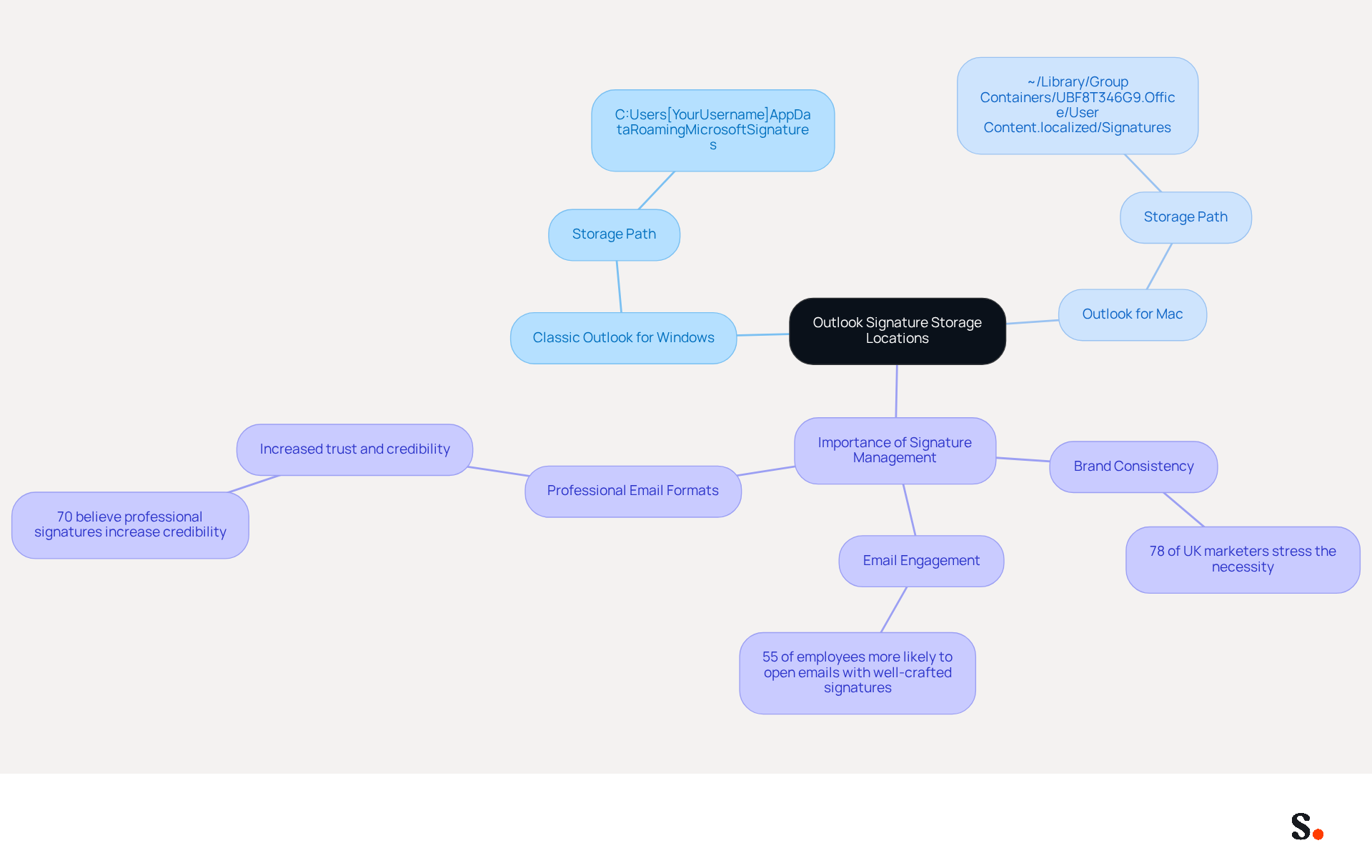
Understanding where your email signatures are stored is essential for effective management and brand consistency. In Classic Outlook for Windows, signatures are typically found in the following directory:
C:\Users\[YourUsername]\AppData\Roaming\Microsoft\Signatures
This folder contains all your saved email signatures. For users of Outlook for Mac, signatures are stored in:
~/Library/Group Containers/UBF8T346G9.Office/User Content.localized/Signatures
Knowing where to find these locations helps you manage your signatures more efficiently, whether you need to back them up, transfer them, or edit them. Significantly, 78% of UK marketers stress the necessity of maintaining consistent branded identifiers in all company communications, underscoring the requirement for efficient identifier management. Furthermore, almost 55% of employees are more inclined to open an email with a well-crafted closing, emphasizing the importance of maintaining professional email formats.
With this tool, you can automate the management of these approvals, ensuring they are always current and synced with your HRIS. This indicates no action is required from your teammates, and any modifications in your connected source will be automatically updated in the application. Additionally, with Scribe's SOC 2 Type II compliance, you can trust that your data is managed securely, allowing your organization to achieve 100% brand consistency and measurable marketing ROI from email branding. By automating signature management, you not only streamline processes but also elevate your brand's presence in every email communication.
Access Signature Folders in Different Outlook Versions
Navigating the various versions of Outlook to access your signature folders can be challenging without clear guidance:
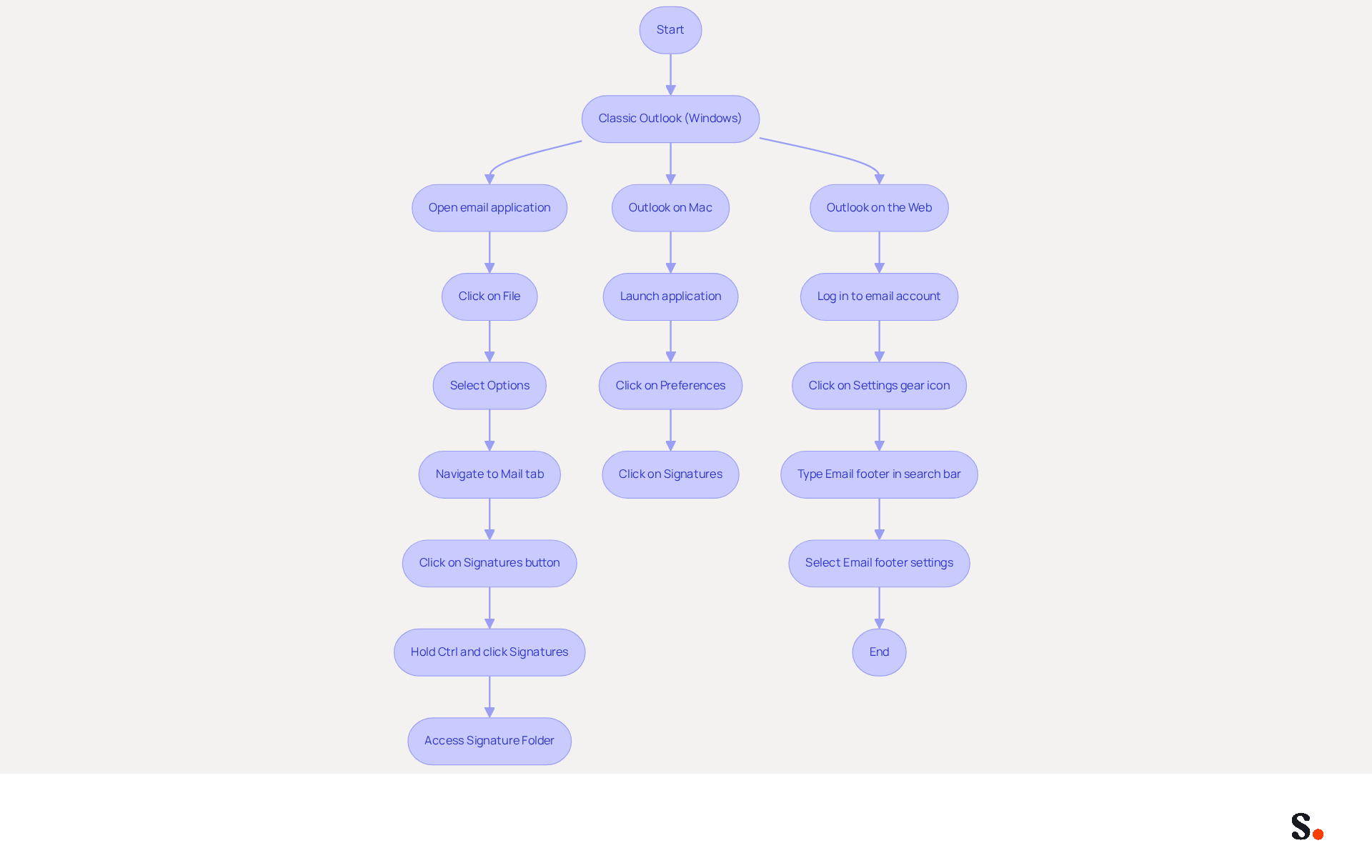
For Classic Outlook (Windows):
- Open the email application and click on File in the top left corner.
- Select Options from the menu.
- Navigate to the Mail tab.
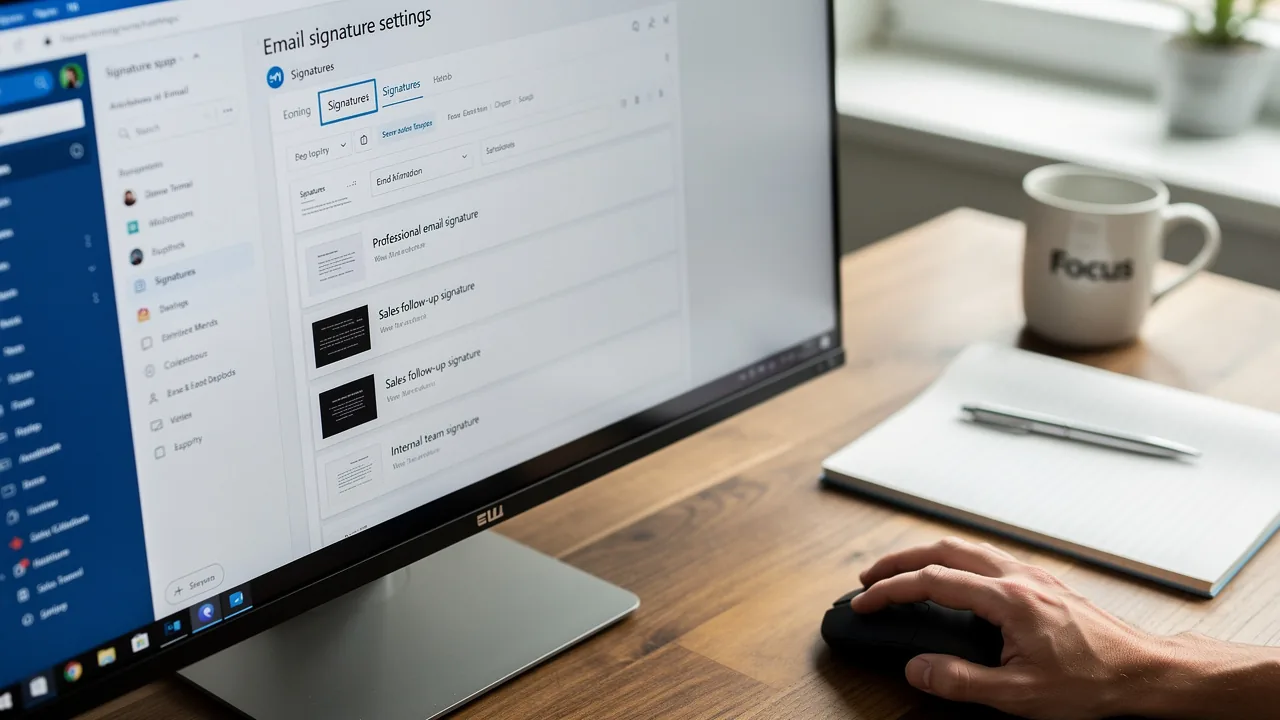
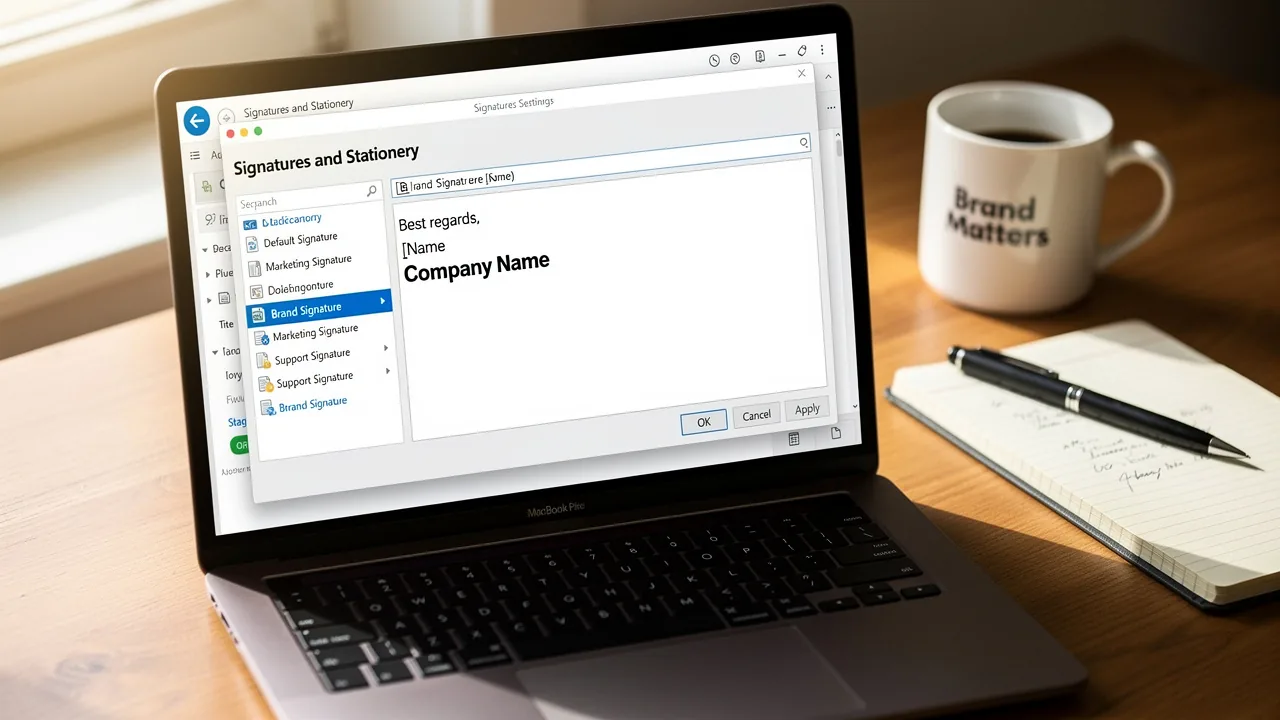
- Click on the Signatures button to open the Signatures and Stationery dialog box.
- For direct access to the folder, hold down the Ctrl key and click on the Signatures button. This action will open the folder where all your signatures are stored.
For Outlook on Mac:
- Launch the application and click on the program in the menu bar.
- Select Preferences.
- Click on Signatures to view and manage your signatures.
For Outlook on the Web:
- Log in to your email account.
- Click on the Settings gear icon in the top right corner.
- Type Email footer in the search bar and select it to access your settings.
By following these steps, you can streamline your signature management process. Furthermore, syncing your Google Workspace with Scribe can greatly enhance your management of your messaging identifiers. This integration enables automatic updates, ensuring that any changes made to your teammates' information in Google Workspace are reflected without manual input. Scribe's SOC 2 Type II certification and adherence to GDPR and CCPA further bolster its trustworthiness, making it an ideal solution for organizations pursuing 100% brand consistency and measurable marketing ROI from digital branding.
Create and Edit Your Outlook Signatures
Enhancing your brand identity through effective email identifiers is crucial in today's digital communication landscape. Creating and modifying your email identifiers is a straightforward task that can significantly improve your brand identity, particularly when using Scribe's automated email signature management features. Here’s how to do it:
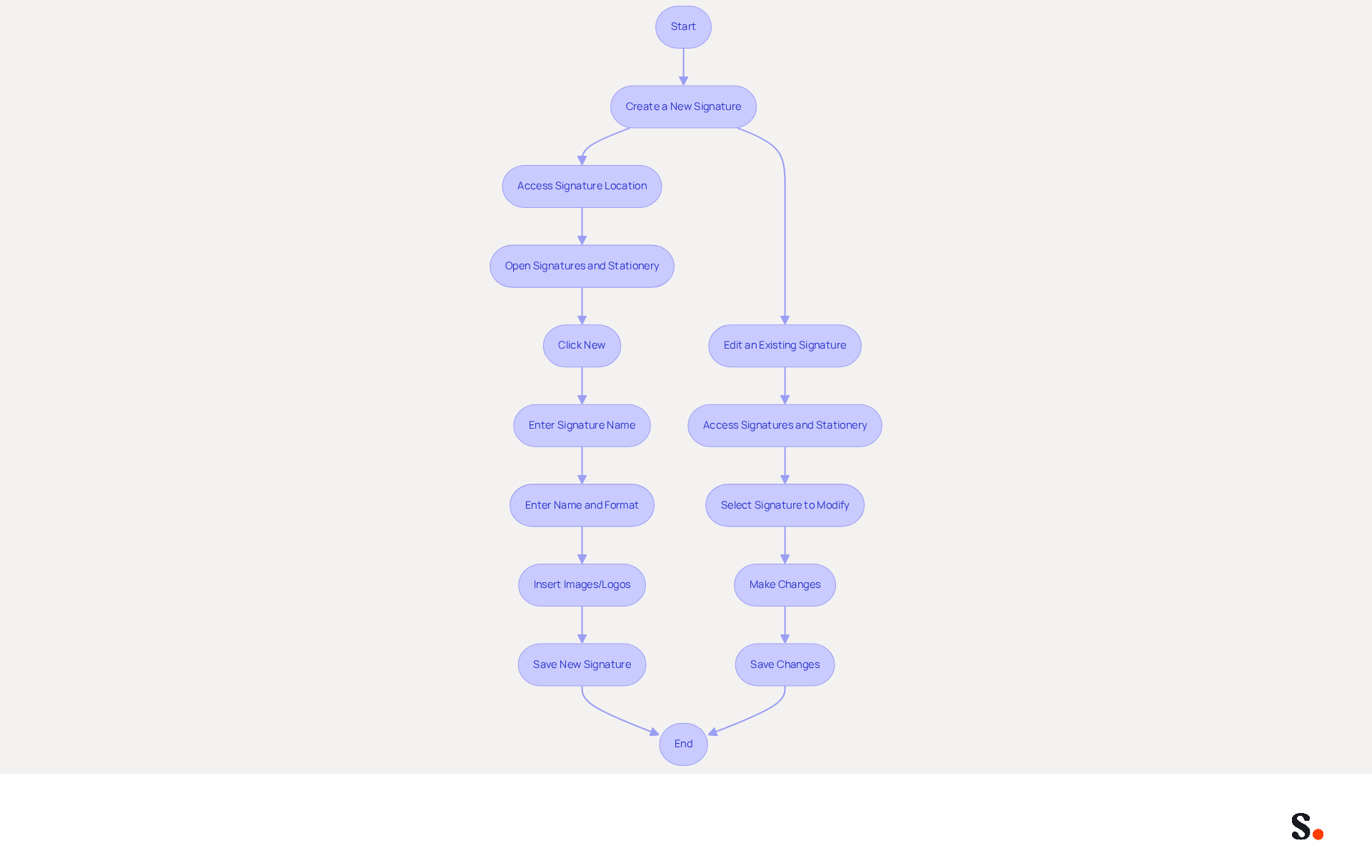
To Create a New Signature:
- To access the Outlook Classic Signature Location, open Outlook and navigate to File > Options > Mail.
- Click on the button located in the outlook classic signature location.
- In the Signatures and Stationery dialog box, click on New.
- Enter a name for your new label and click OK.
- In the editing box, enter your name. Use the formatting tools to adjust the font, size, and color to align with your brand.
- To add images or logos, click on the Insert Picture icon and select your image file. Ensure that images are optimized for visibility and hosted securely to maintain professionalism.
- Once you’re satisfied with your mark, click Save.
To Edit an Existing Signature:
- Follow steps 1-2 above to access the Signatures and Stationery dialog box.
- Choose the mark you wish to modify from the list.
- Make your changes in the editing box, ensuring that all information is current and accurate.
- Click Save to apply the changes.
By following these steps, you can create and customize your digital identifiers to effectively reflect your brand identity. Consistent and professional email identifiers can significantly boost response rates, enhancing trust among recipients and making them a vital component of your email communications. Regular updates to your identifiers are essential to prevent outdated information and ensure compliance with current regulations. With the tool, your teammates' signing details are automatically synced with your business phone system, saving time and ensuring real-time updates without any action needed from them. Additionally, Scribe's SOC 2 Type II compliance ensures that your data is protected, making it an ideal solution for managing digital identities efficiently.
Troubleshoot Signature Management Issues
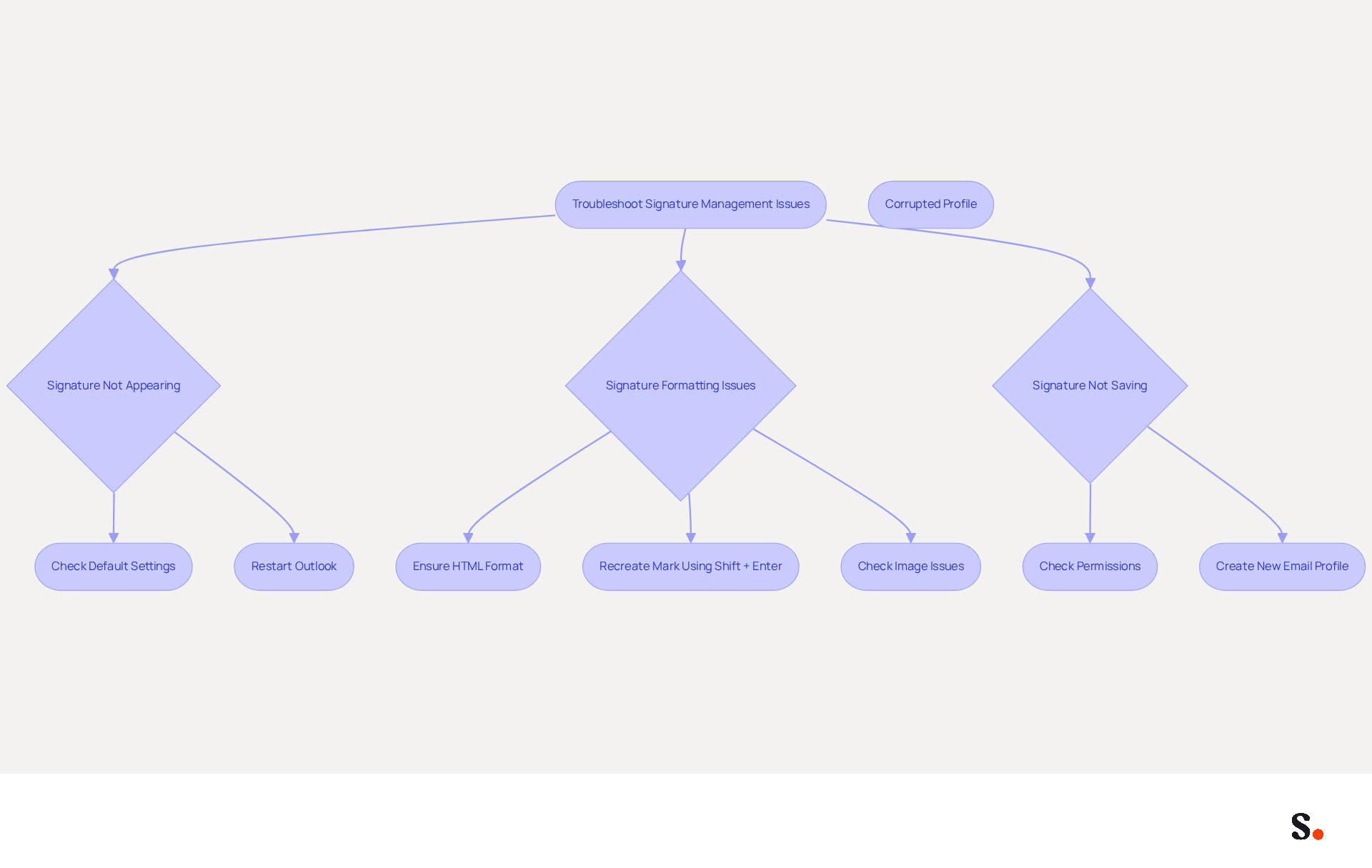
Managing Outlook signatures can often present challenges that, if unresolved, may hinder effective communication. If you encounter issues with your Outlook signatures, here are some common problems and their solutions:
Signature Not Appearing:
- Check Default Settings: Ensure that your signature is set as the default for new emails and replies. Go to File > Options > Mail > Signatures and verify the settings.
- Restart Outlook: A quick restart of Outlook might just clear up those pesky temporary glitches.
Signature Formatting Issues:
- HTML Format: Ensure that your signature is saved in HTML format for proper display. If you’re experiencing formatting issues, recreate the mark using the Shift + Enter method to avoid hidden formatting.
- Image Issues: If images are not displaying, check the image file path and ensure the images are accessible.
Signature Not Saving:
- Permissions: Ensure you have the necessary permissions to save changes in the signatures folder. If you're on a corporate account, it’s a good idea to touch base with your IT department.
- Corrupted Profile: If issues persist, consider creating a new email profile. Go to Control Panel > Mail > Show Profiles and add a new profile.
By following these troubleshooting steps, you can effectively manage and resolve common signature issues in Outlook. Addressing these signature management issues is crucial for maintaining professionalism in your email communications.
Conclusion
Many organizations struggle to maintain brand consistency in their email communications due to ineffective signature management. Mastering the location and management of email signatures in Outlook Classic is essential for maintaining professionalism. By understanding where signatures are stored and how to access them, users can ensure that their email identifiers effectively reflect their brand identity.
In this guide, we’ve explored where to find Outlook signatures on both Windows and Mac, provided step-by-step instructions for creating and editing signatures, and offered troubleshooting tips for common issues. Utilizing tools like Scribe can further streamline this process, allowing for automated updates and ensuring compliance with security standards such as SOC 2 Type II, GDPR, and CCPA.
By adopting automated solutions, organizations can ensure that every email sent not only reflects their brand identity but also maximizes their marketing impact. Organizations seeking to achieve 100% brand consistency should consider leveraging automated solutions like Scribe, which empower marketing teams to manage email signatures independently.
Frequently Asked Questions
Where are email signatures stored in Classic Outlook for Windows?
In Classic Outlook for Windows, email signatures are typically found in the directory: C:\Users[YourUsername]\AppData\Roaming\Microsoft\Signatures.
Where can I find email signatures in Outlook for Mac?
In Outlook for Mac, email signatures are stored in the directory: ~/Library/Group Containers/UBF8T346G9.Office/User Content.localized/Signatures.
Why is it important to know the storage locations of email signatures?
Knowing the storage locations of email signatures helps you manage them more efficiently, whether you need to back them up, transfer them, or edit them.
What percentage of UK marketers emphasize the need for consistent branded identifiers in communications?
78% of UK marketers stress the necessity of maintaining consistent branded identifiers in all company communications.
How does a well-crafted email closing affect employee engagement?
Almost 55% of employees are more inclined to open an email with a well-crafted closing, highlighting the importance of maintaining professional email formats.
How can Scribe assist in managing email signatures?
Scribe can automate the management of email signatures, ensuring they are always current and synced with your HRIS, which eliminates the need for action from teammates.
What compliance does Scribe have regarding data management?
Scribe is SOC 2 Type II compliant, ensuring that your data is managed securely.
What benefits does automating signature management provide?
Automating signature management streamlines processes and elevates your brand's presence in every email communication, contributing to 100% brand consistency and measurable marketing ROI.
List of Sources
- Identify Outlook Signature Storage Locations
- 40+ Email Signature Statistics for 2026 (Data + Insights) (https://wavecnct.com/blogs/email-signature-statistics)
- Email signature statistics and trends in 2024 (https://wisestamp.com/blog/email-signature-statistics)
- Cloud Email Signatures Solve an Outlook Problem (https://office365itpros.com/2022/11/25/email-signatures-cloud)
- Outlook Signatures Saved To The Cloud | Velonex Technologies (https://velonexit.com/2020/08/outlook-signatures-cloud)
- Email Signatures vanishing - New Outlook | Microsoft Community Hub (https://techcommunity.microsoft.com/discussions/outlookgeneral/email-signatures-vanishing---new-outlook/4418809)
- Access Signature Folders in Different Outlook Versions
- What's new in new Outlook for Windows | Microsoft Support (https://support.microsoft.com/en-us/outlook/getstarted/what-s-new-in-new-outlook-for-windows)
- Cyber attackers are hijacking Microsoft Outlook, Teams and 365 log-ins, FBI says (https://kark.com/news/national-news/cyber-attackers-are-hijacking-microsoft-outlook-teams-and-365-log-ins-fbi-says)
- Outlook Statistics For 2026: Key Trends Shaping the Future (https://clean.email/blog/email-providers/outlook-statistics)
- Outlook Email Statistics: Key Metrics, Trends, and Insights - SEO Sandwitch (https://seosandwitch.com/outlook-email-stats)
- Outlook Statistics 2026: Users, Market Share, Security & M365 Seats (https://sqmagazine.co.uk/outlook-statistics)
- Create and Edit Your Outlook Signatures
- 40+ Email Signature Statistics for 2026 (Data + Insights) (https://wavecnct.com/blogs/email-signature-statistics)
- The Complete Email Signature Guide 2026: Best Practices and Policy (https://opensense.com/complete-email-signature-guide)
- Email Signature Best Practices for 2026 (+ 15 Pro Examples) (https://wavecnct.com/blogs/email-signature-best-practices-2026)
- Create an email signature from a template | Microsoft Support (https://support.microsoft.com/en-us/outlook/create-an-email-signature-from-a-template)
- Troubleshoot Signature Management Issues
- 40+ Email Signature Statistics for 2026 (Data + Insights) (https://wavecnct.com/blogs/email-signature-statistics)
- Email Signature Statistics 2026: ROI, Benchmarks, and Data | Signkit (https://beta.signkit.io/blog/email-signature-statistics)
- 100+ Email Marketing and Email Signature Statistics for 2026 - MySignature (https://mysignature.io/insights)
- What the Exclaimer State of Business Email 2025 Report Says About Email Signatures | Conversational Geek Stats (https://stats.conversationalgeek.com/analysis/exclaimer-2025-email-signatures)
- Email Signatures vanishing - New Outlook | Microsoft Community Hub (https://techcommunity.microsoft.com/discussions/outlookgeneral/email-signatures-vanishing---new-outlook/4418809)
Get started with Scribe
Create your signature in minutes
Free 14-day trial — no credit card.