Master Outlook Schedule Send Email: A Step-by-Step Guide
Effective timing in email communication is crucial for enhancing engagement and productivity in the marketing and IT sectors. The Outlook Schedule Send feature
Sophie Grant
Email Signature Specialist, Scribe
Introduction
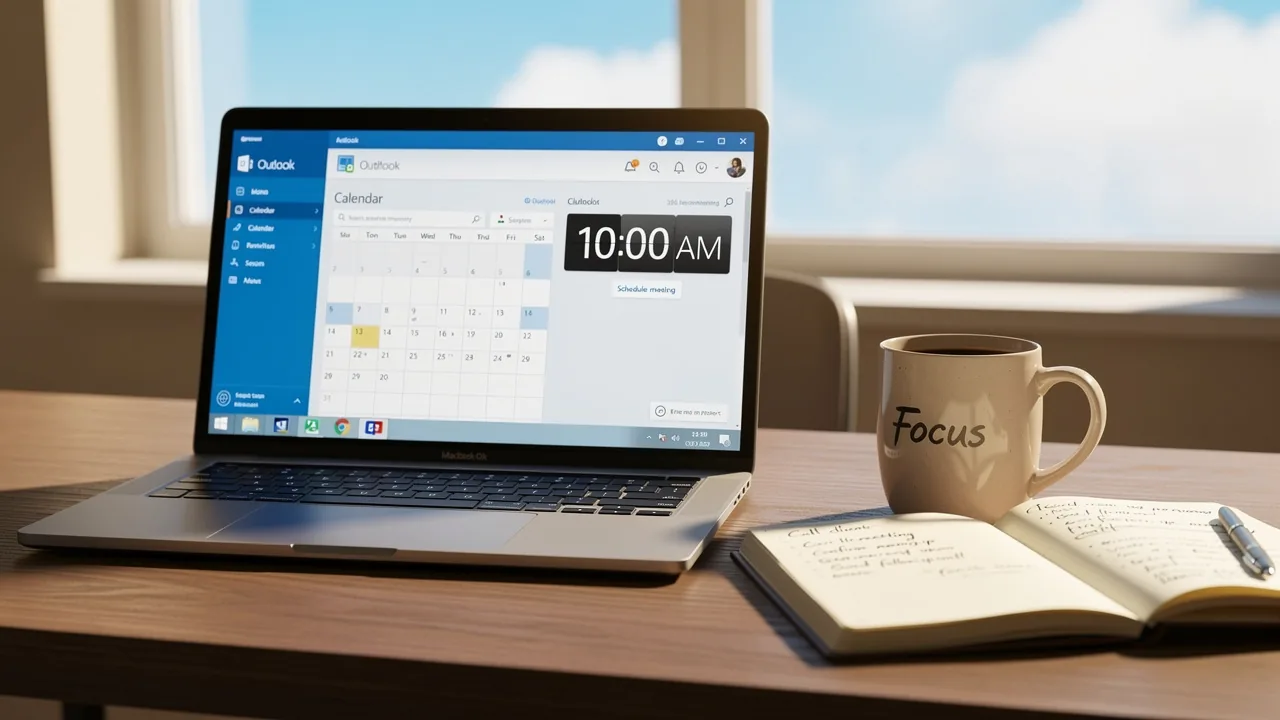
Effective timing in email communication is crucial for enhancing engagement and productivity in the marketing and IT sectors. The Outlook Schedule Send feature offers a powerful solution, allowing users to strategically dispatch emails at optimal moments, ensuring messages reach recipients when they are most likely to respond. Many users find it challenging to leverage the full capabilities of the Outlook Schedule Send feature. This guide will outline best practices and common pitfalls to avoid. In this guide, we’ll explore how to schedule emails effectively in Outlook, offering practical steps and insights to enhance your communication strategy and improve marketing results.
Understand the Outlook Schedule Send Feature
The Outlook Schedule Send email feature empowers professionals to optimize their message delivery timing, ensuring maximum engagement. This feature is crucial for professionals who want to use the Outlook schedule to send email messages that reach recipients at the best times for engagement, such as during business hours or when recipients are most likely to respond. By utilizing this feature, users can improve their time management and use the Outlook schedule to send emails, avoiding late-night or weekend sends that may disrupt communication flow.
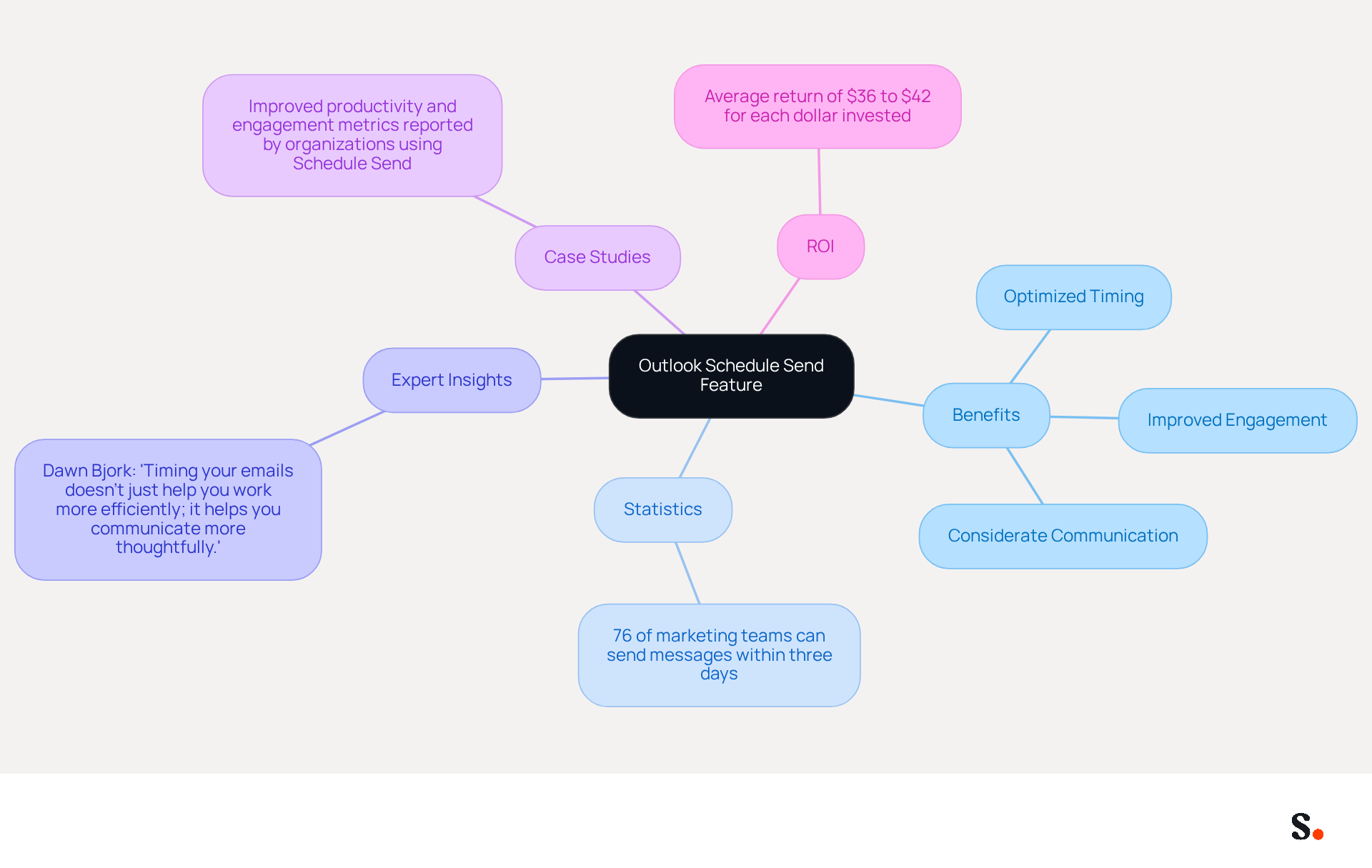
Statistics show that 76% of marketing teams are now able to send messages within three days, highlighting the importance of timely communication. This efficiency can be achieved through the Outlook Schedule Send Email feature, which allows users to organize their communications effectively. Furthermore, the ability to schedule messages helps users communicate more considerately, respecting recipients' out-of-office times and preferences.
Experts agree that using the Outlook Schedule Send email feature can really boost how well your messages perform, as it enables timely delivery when recipients are most receptive. As Dawn Bjork, a Microsoft Certified Trainer, states, 'Timing your messages doesn't just help you work more efficiently; it helps you communicate more thoughtfully.' Users can receive scheduling suggestions if all recipients are outside their working hours, promoting better communication practices.
Case studies illustrate the effectiveness of this capability: organizations that adopted the Schedule Send functionality reported improved productivity and engagement metrics. By ensuring messages are dispatched at the appropriate moment, businesses can greatly enhance their communication strategies and overall marketing initiatives through the Outlook Schedule Send email feature.
By mastering the Outlook Schedule Send Email feature, professionals can not only streamline their communication but also drive substantial returns on their marketing investments. Furthermore, it's important to note that messages scheduled with Delay Delivery remain in the Outbox until the designated future date and time, ensuring that users have control over their dispatch. With the average ROI for digital marketing ranging from $36 to $42 for each dollar invested, utilizing such aspects can result in significant financial advantages for marketing managers.
Schedule an Email in Outlook: Step-by-Step Instructions
The ability to use the Outlook schedule to send email messages can streamline your communication efforts, but many users overlook its availability on mobile versions.
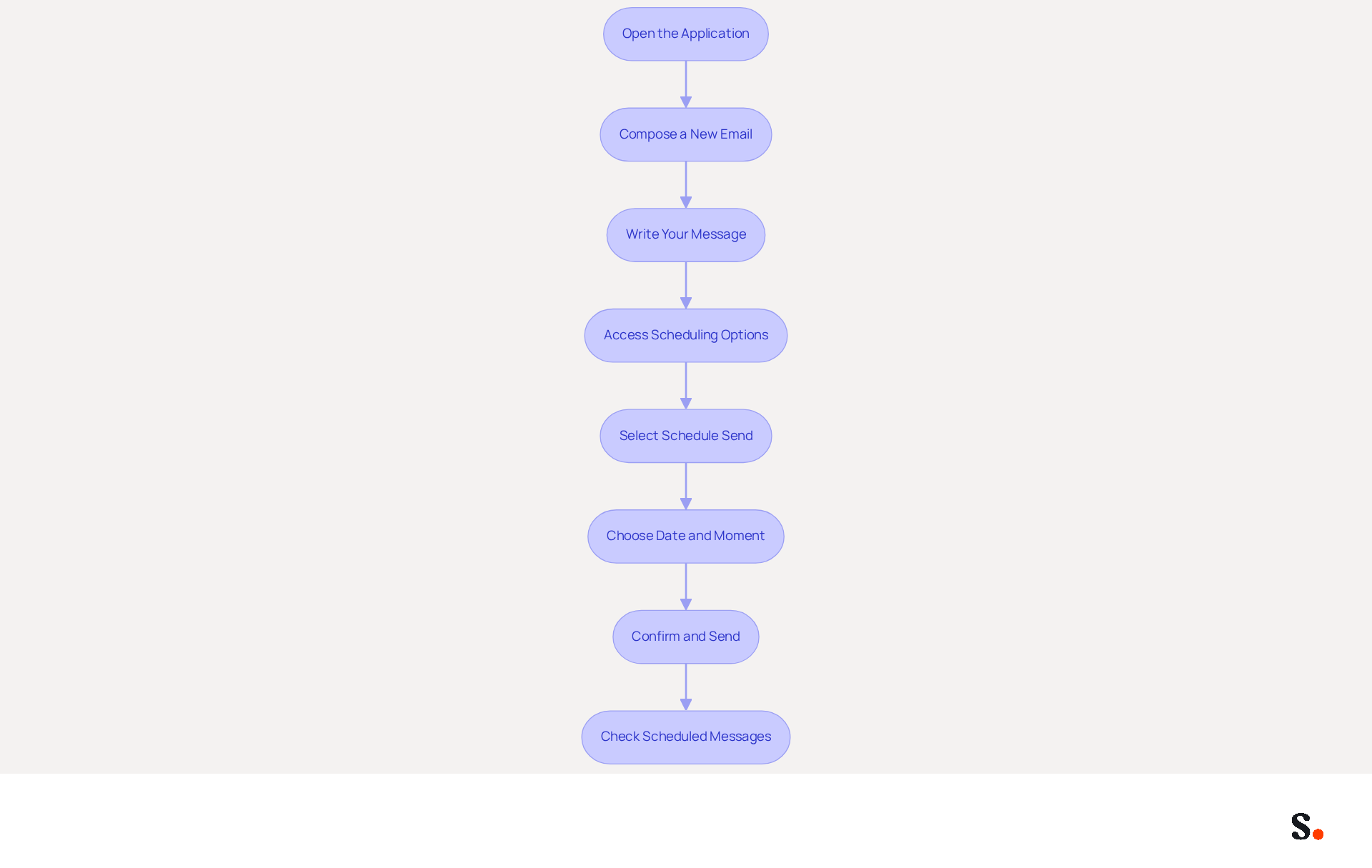
- Open the application: Launch the email program on your computer or access it on the web. Note that the scheduling feature is specifically available in the Outlook desktop app; mobile versions do not support scheduling of messages.
- Compose a New Email: Click on 'New Email' to open a blank message window.
- Write Your Message: Fill in the recipient's address, subject line, and the content of your message as you normally would.
- Access Scheduling Options: Look for the 'Send' button, and click the small down arrow next to it. This will reveal additional options.
- Select Schedule Send: From the dropdown menu, choose 'Schedule Send'. This will open a scheduling window.
- Choose Date and Moment: In the scheduling window, select the desired date and moment for your email to be sent. Ensure that you take into account time zones if your recipients are in different locations.
- Confirm and Send: After selecting the date and moment, click 'Send'. Your message will now be placed in line for delivery at the designated moment.
- Check Scheduled Messages: To view or edit your scheduled messages, navigate to the 'Outbox' folder where you can see all messages set for future delivery.
Following these steps allows you to outlook schedule send email messages efficiently. This ensures they reach your recipients at the most suitable times. Leveraging this feature can transform your email strategy, ensuring your messages reach recipients at optimal times.
Troubleshoot Common Issues with Scheduled Emails
Understanding the common pitfalls of using the Outlook schedule to send email can prevent communication breakdowns.
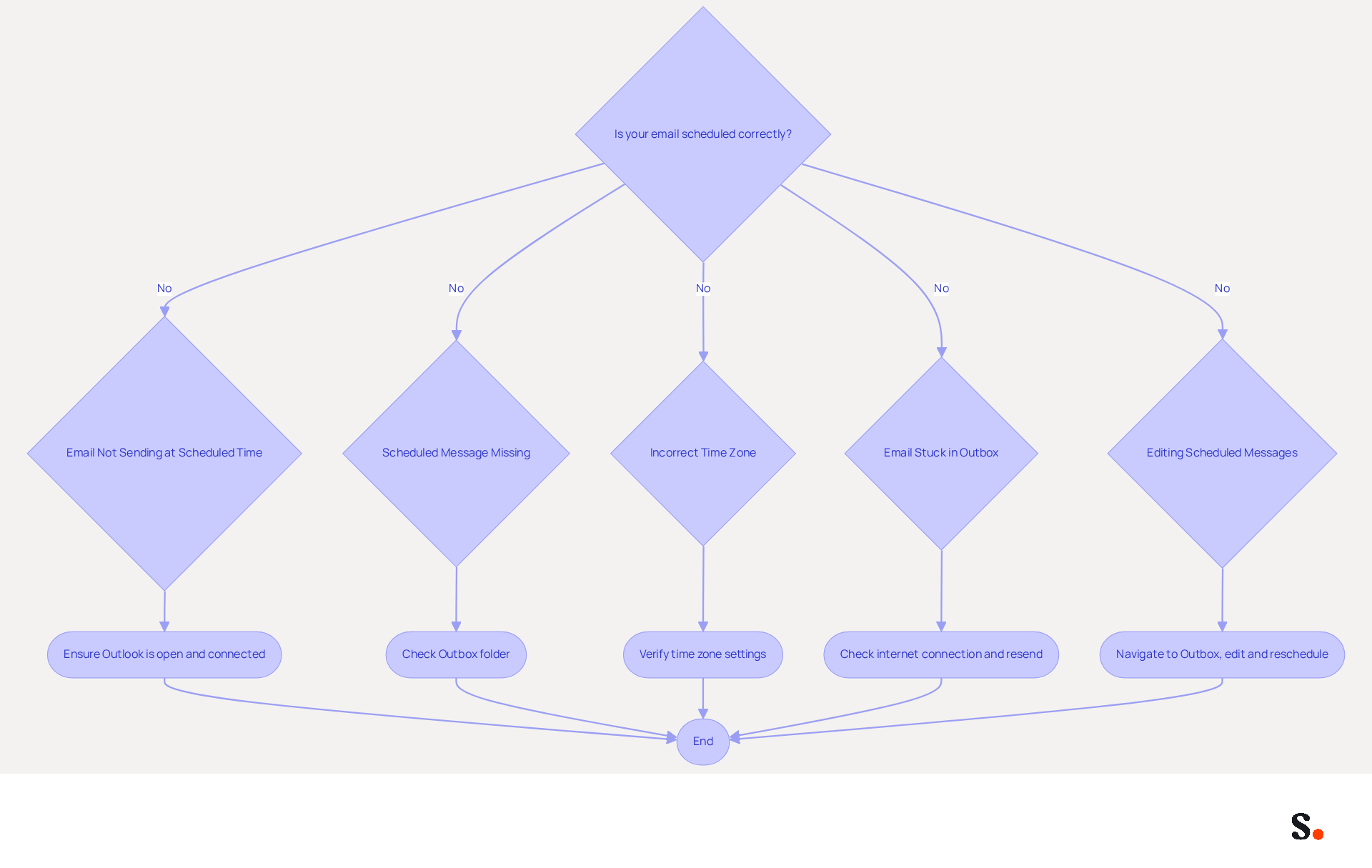
- Email Not Sending at Scheduled Time: When the application is closed, the message won't send, leading to missed communications. Ensure that the email client remains open and connected to the internet to allow the Outlook schedule to send email at the scheduled time.
- Scheduled Message Missing: If a scheduled message cannot be found, check the 'Outbox' folder. Users often struggle to locate their scheduled messages, leading to confusion and delays. If it’s absent, it may not have been saved correctly, necessitating a manual check.
- Incorrect Time Zone: Check the zone settings in Outlook. An incorrect computer time zone can disrupt the Outlook schedule send email timing, leading to messages being delivered at unexpected times.
- Email Stuck in Outbox: Emails may become stuck in the Outbox due to connectivity issues. Ensure a stable internet connection and try to resend the message to resolve this issue.
- Editing Scheduled Messages: To modify a scheduled message, navigate to the 'Outbox', double-click the message, make the necessary changes, and then reschedule it for sending.
Addressing these common issues can significantly enhance the reliability of the Outlook schedule send email communications. A user experienced a delay when a message scheduled for Friday evening was not delivered until 8:00 AM on Monday morning, underscoring the need for proper settings. Furthermore, troubleshooting actions such as verifying internet stability and checking system clock settings can greatly enhance the reliability of scheduled sends. By proactively addressing these issues, users can ensure timely and effective communication.
Explore the Benefits of Scheduling Emails in Outlook
Effective communication hinges on the strategic timing of messages, a critical factor for marketing success.
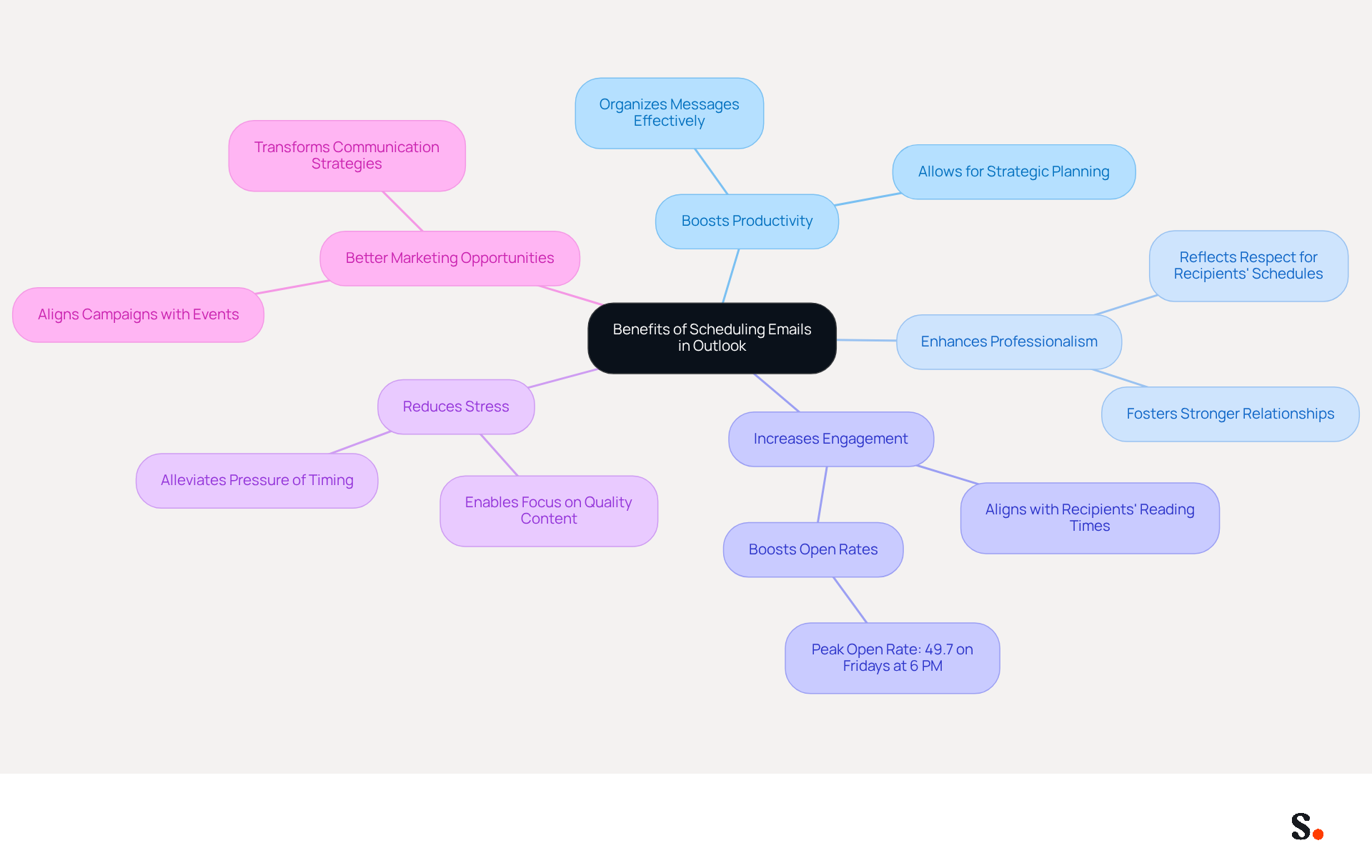
- Using Outlook to schedule and send emails allows marketing professionals to organize messages effectively, boosting productivity. By planning ahead, users can boost productivity, preparing messages in advance and dedicating time to strategic initiatives.
- Enhanced Professionalism: Sending messages at optimal times reflects professionalism and respect for recipients' schedules. This consideration can foster stronger relationships and enhance the sender's reputation, making it a vital practice for effective communication.
- Increased Engagement: Timing messages to coincide with when recipients are most likely to read them can significantly boost open rates and engagement. Research indicates that effective scheduling can significantly enhance audience interaction, making it a vital strategy for marketers. Messages sent between 9 AM and 11 AM generally experience the highest open rates, with a peak open rate of 49.7% occurring on Fridays at 6 PM.
- Reduced Stress: Marketers often struggle with timing their communications effectively, leading to missed opportunities. Knowing that messages will be dispatched at the right time alleviates the pressure of remembering to send them later. This capability enables marketers to concentrate on creating quality content instead of being concerned about timing, resulting in a more relaxed and efficient workflow.
- Better Marketing Opportunities: For marketing professionals, scheduling messages can align campaigns with specific events or promotions, enhancing their effectiveness. By mastering scheduling, marketers can transform their communication strategies and achieve better results.
As Michelle Kaye notes, "Email scheduling has proven to be a game-changer when it comes to effective communication." By using the Outlook schedule to send email, we can streamline communication and enhance overall marketing strategies, leading to improved interactions and outcomes.
Conclusion
Effective communication hinges on timing, and mastering the Outlook Schedule Send feature is crucial for professionals aiming to enhance their communication strategies. By leveraging this tool, users can ensure their emails reach recipients at the most opportune times, thereby maximizing engagement and fostering better relationships. This capability streamlines communication and shows respect for recipients' schedules.
This guide provides practical strategies for effectively utilizing the Schedule Send feature. From understanding its benefits, such as increased engagement and reduced stress, to step-by-step instructions for scheduling emails, the information equips users with the knowledge needed to optimize their email communications. Additionally, troubleshooting common issues ensures that users can navigate potential pitfalls, further enhancing the reliability of their scheduled messages.
In a professional landscape where effective communication is essential for success, mastering the Outlook Schedule Send feature can significantly impact marketing outcomes. By adopting this practice, professionals can transform their email strategies, leading to improved interactions and measurable results. Embrace the power of scheduling emails in Outlook to enhance your workflow and drive better engagement in your marketing efforts.
Frequently Asked Questions
What is the Outlook Schedule Send feature?
The Outlook Schedule Send feature allows professionals to optimize the timing of their email delivery, ensuring messages reach recipients at the most engaging times, such as during business hours.
Why is the timing of email delivery important?
Timing is crucial for maximizing engagement, as sending emails when recipients are most likely to respond can improve communication flow and overall effectiveness.
How does the Outlook Schedule Send feature improve time management?
It enables users to schedule emails to avoid sending them late at night or on weekends, which can disrupt communication and lead to lower engagement.
What statistics highlight the importance of timely communication?
Statistics show that 76% of marketing teams can send messages within three days, emphasizing the need for timely communication.
How does the Outlook Schedule Send feature promote considerate communication?
It allows users to respect recipients' out-of-office times and preferences by providing scheduling suggestions if all recipients are outside their working hours.
What benefits have organizations reported from using the Schedule Send functionality?
Organizations that adopted this feature reported improved productivity and engagement metrics, enhancing their communication strategies and marketing initiatives.
What does Dawn Bjork, a Microsoft Certified Trainer, say about the importance of timing in communication?
She states that timing messages helps users work more efficiently and communicate more thoughtfully.
How does the Delay Delivery option work in Outlook?
Messages scheduled with Delay Delivery remain in the Outbox until the designated future date and time, giving users control over when their emails are sent.
What is the average ROI for digital marketing, and how does the Outlook Schedule Send feature contribute to it?
The average ROI for digital marketing ranges from $36 to $42 for each dollar invested, and using the Outlook Schedule Send feature can help drive substantial returns by improving communication effectiveness.
List of Sources
- Understand the Outlook Schedule Send Feature
- Send Email at the Right Time: How Schedule Send Works in Outlook - The Software Pro (https://thesoftwarepro.com/schedule-email-in-outlook-schedule-send-delay-delivery-scheduling-emails)
- Email Marketing Statistics | Ultimate List | CodeCrew (https://codecrew.us/blog/email-marketing-stats-you-need-to-know-the-ultimate-list)
- Schedule email in Microsoft Outlook on the web | IT News (https://blogs.k-state.edu/it-news/2024/12/17/schedule-email-in-microsoft-outlook-on-the-web)
- Schedule send in Outlook | Microsoft Support (https://support.microsoft.com/en-us/viva/insights/schedule-send-in-outlook)
- Outlook will add properly scheduled email (https://pcworld.com/article/1346584/outlook-gaining-properly-scheduled-email.html)
- Schedule an Email in Outlook: Step-by-Step Instructions
- Delay or schedule sending email messages in Outlook | Microsoft Support (https://support.microsoft.com/en-us/outlook/mail/delay-or-schedule-sending-email-messages-in-outlook)
- How To Schedule An Email in Outlook (2026 Guide) (https://gmass.co/blog/schedule-email-outlook)
- Use Microsoft Viva Insights in Outlook | Microsoft Support (https://support.microsoft.com/en-us/viva/insights/use-microsoft-viva-insights-in-outlook)
- How to Get the User Email Statistics Report in Microsoft 365 (https://admindroid.com/how-to-get-user-email-activity-report-in-microsoft-365)
- Step by step guide on how to schedule Email in Outlook (https://m.economictimes.com/news/international/us/step-by-step-guide-on-how-to-schedule-email-in-outlook/articleshow/97065304.cms)
- Troubleshoot Common Issues with Scheduled Emails
- Microsoft 365 Outlook Sign-In Failures (Apr 27, 2026): Causes, Impact, Fixes (https://windowsforum.com/threads/microsoft-365-outlook-sign-in-failures-apr-27-2026-causes-impact-fixes.415555)
- When Outlook Scheduled Send goes wrong (https://superuser.com/questions/1818336/when-outlook-scheduled-send-goes-wrong)
- What to do when Microsoft Outlook delayed delivery isn’t working | Crossware365 (https://crossware365.com/blog/delayed-delivery-isnt-working)
- Microsoft Outlook schedule send not sending all emails scheduled - Microsoft Q&A (https://learn.microsoft.com/en-my/answers/questions/4740163/microsoft-outlook-schedule-send-not-sending-all-em)
- Explore the Benefits of Scheduling Emails in Outlook
- The Best Time To Send Marketing Emails (2026) (https://salesforce.com/marketing/email/best-time-to-send-emails)
- The Best Time to Send Email in 2026 (Statistical Analysis) - MailerLite (https://mailerlite.com/blog/best-time-to-send-email)
- Best Time to Send Marketing Emails: A Complete Guide (https://business.adobe.com/blog/basics/the-best-time-to-send-emails)
- Are you scheduling your business emails to be sent out (https://michellektraining.medium.com/are-you-scheduling-your-business-emails-to-be-sent-out-6a2fcce1677e)
- Best Times to Schedule an Email (https://solinitymarketing.com/post/best-times-to-schedule-an-email)
Get started with Scribe
Create your signature in minutes
Free 14-day trial — no credit card.