Master Outlook: Send Emails Later with These Simple Steps
Outlook's email scheduling feature presents a significant opportunity for professionals to optimize their communication strategies. Utilizing this feature
Sophie Grant
Email Signature Specialist, Scribe
Introduction
Outlook's email scheduling feature presents a significant opportunity for professionals to optimize their communication strategies. Utilizing this feature allows professionals to strategically time their emails, increasing the likelihood of engagement from recipients. However, many users find it challenging to determine the best times to send emails for maximum impact.
This guide outlines the step-by-step process for scheduling emails in Outlook. It also addresses potential troubleshooting issues and explores additional tools to enhance the scheduling experience. Understanding how to navigate this feature can fundamentally change the way you connect with your audience.
Understand Outlook's Email Scheduling Feature
Outlook's Scheduling Feature revolutionizes communication management by enabling the Outlook send email later function, ensuring optimal timing for engagement. This feature helps ensure messages are sent at the best times, avoiding off-hours when recipients might not be as engaged. By strategically organizing messages, users can overcome the challenge of timing, allowing them to compose texts when it suits them and ensuring timely delivery.
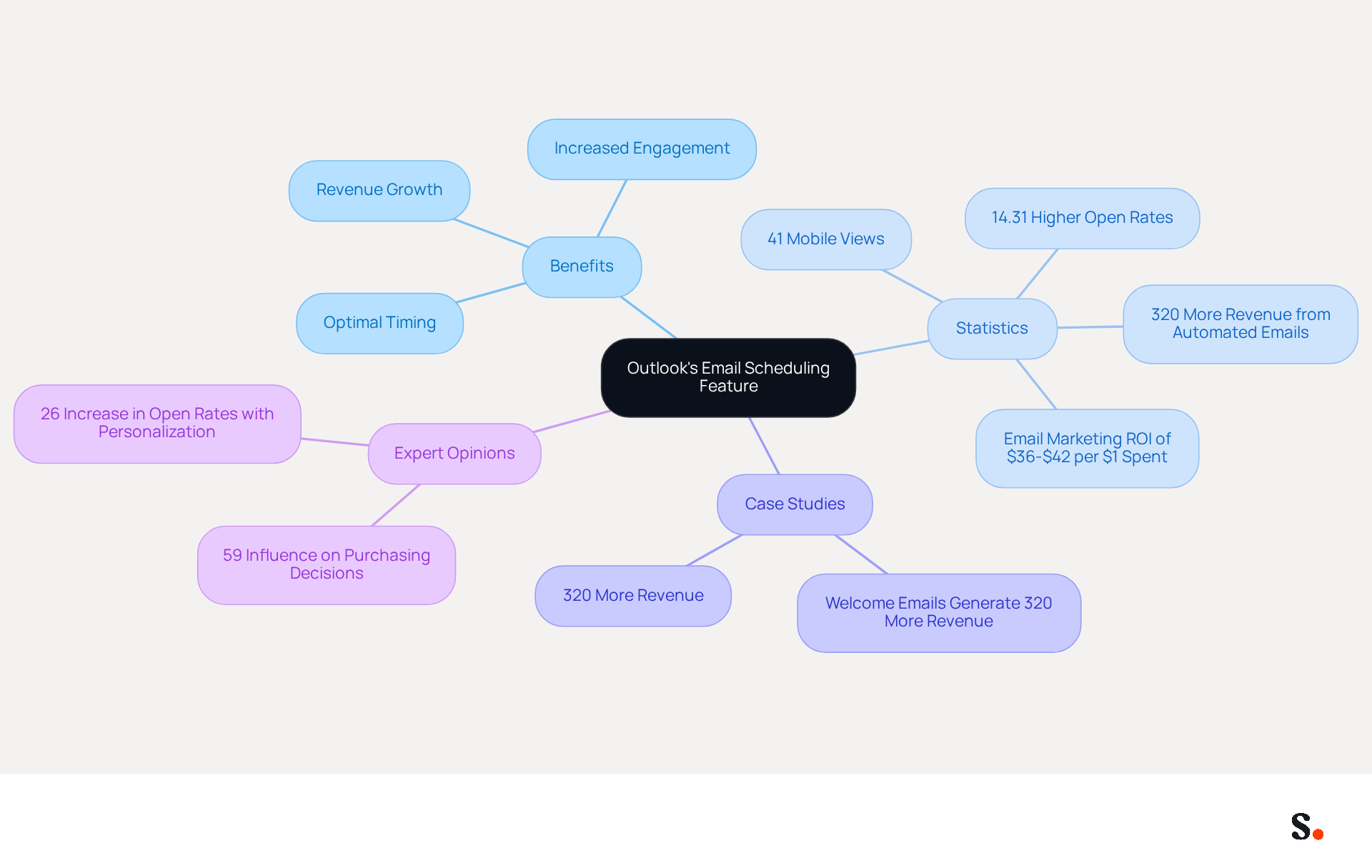
Current statistics reveal that 41% of message views occur on mobile devices, underscoring the necessity of optimizing timing for maximum engagement. Furthermore, targeted campaigns, which can be efficiently organized through planning, achieve a 14.31% higher open rate compared to non-targeted ones, illustrating the potential for enhanced interaction. This highlights the need to align message timing with consumer behavior, especially for mobile users.
Case studies demonstrate the effectiveness of message planning. For example, businesses that employ automated messaging flows, including scheduled communications, report generating up to 320% more revenue than those relying solely on manual sending. This demonstrates that utilizing features like 'Outlook send email later' can lead to significant financial benefits, with digital marketing typically yielding $36 to $42 for every dollar spent.
Expert opinions further reinforce the value of this feature. Numerous marketing experts promote the strategic implementation of message timing to align with consumer behavior, as communications sent during peak engagement periods can greatly impact purchasing choices. With 59% of consumers recognizing that marketing messages influence their purchasing decisions, the timing of delivery becomes crucial.
Moreover, messages with customized subject lines experience a 26% increase in open rates, further highlighting the significance of personalization in message timing. By incorporating these strategies, marketers can enhance engagement metrics and drive better results.
Ultimately, leveraging Outlook's scheduling capabilities, such as the ability to send email later, can significantly enhance both engagement and revenue outcomes for businesses.
Schedule Emails in Outlook: Step-by-Step Instructions
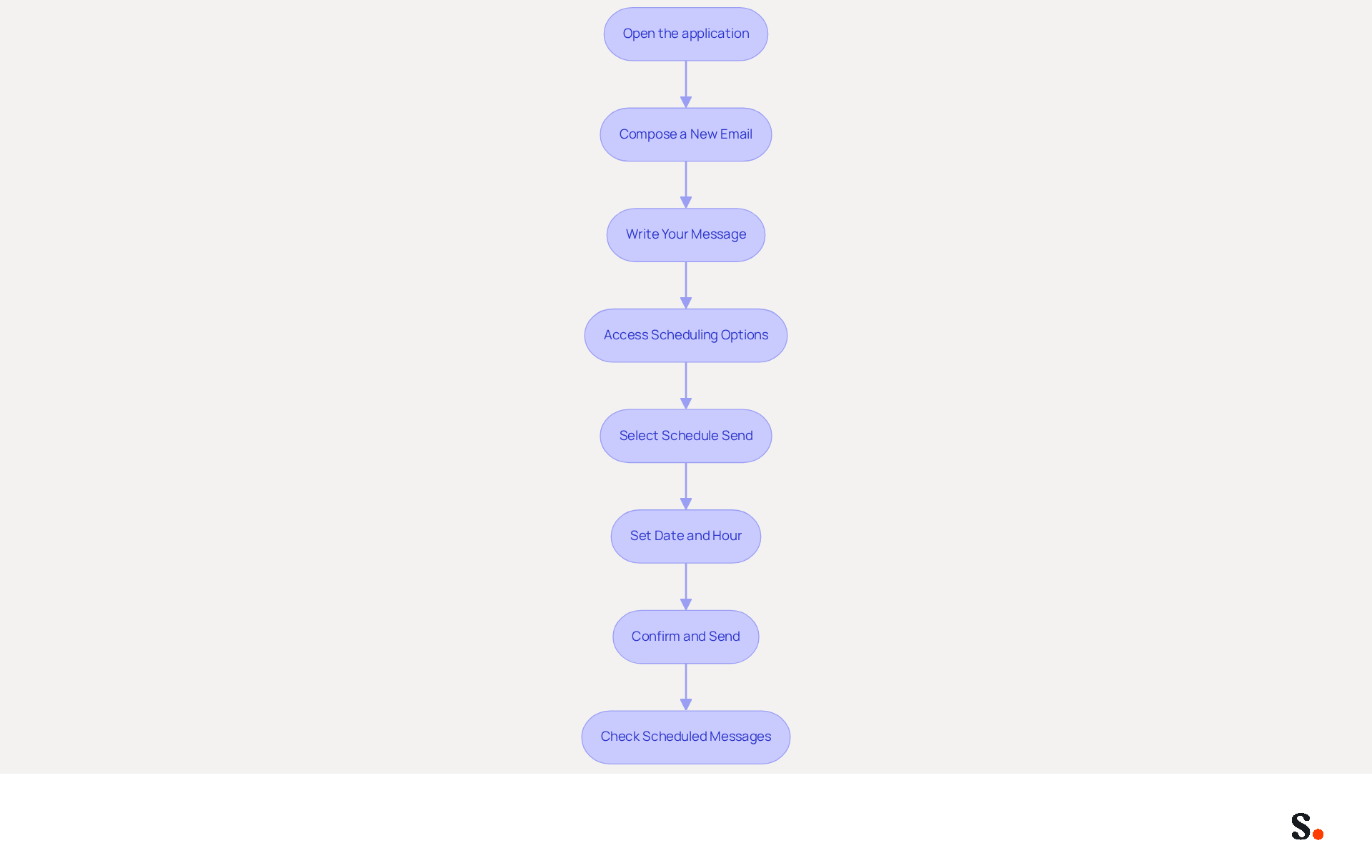
- Open the application: To begin, launch the email program on your computer or access it via the web.
- Compose a New Email: Next, click on 'New Email' to open a blank message window.
- Write Your Message: Fill in the recipient's address, subject line, and content of the message as you normally would.
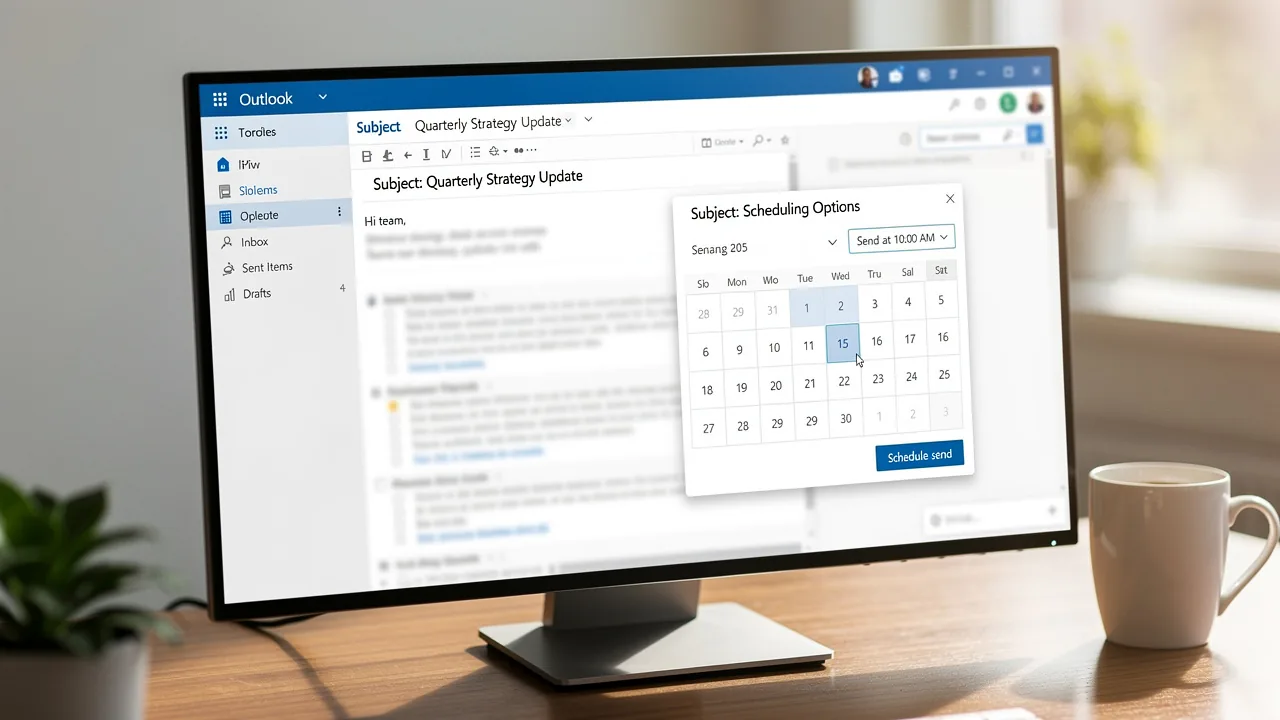
- Access Scheduling Options: To access scheduling options in the desktop version, navigate to the 'Options' tab within the message window. For Outlook send email later on the web, you need to click the dropdown arrow next to the 'Send' button.
- To proceed with scheduling your message in Outlook, select 'Schedule Send' by choosing 'Delay Delivery' in the desktop version or 'outlook send email later' in the web version.
- Set Date and Hour: Specify the date and hour you want the message to be sent, ensuring that the time zone is correct.
- Confirm and Send: Click 'Send' in the desktop version or 'Schedule send' in the web version. Your message will be stored in the Outbox until you decide to outlook send email later.
- Check Scheduled Messages: You can view your scheduled messages in the Outbox folder, and with Outlook, you can send email later. If you need to make changes, simply open the message and adjust the settings as necessary.
Statistics on Message Planning: Research indicates that over 200 million users rely on Microsoft Outlook, with approximately 30% utilizing message planning features to enhance productivity. This capability allows users to manage their time effectively, ensuring that important communications are sent at optimal moments.
Scribe: A recent analysis of communication activity trends revealed that organizations employing scheduling tools saw a marked improvement in communication efficiency. For example, a company that strategically timed their communications experienced a 25% increase in response rates, leading to enhanced collaboration and productivity among team members.
Troubleshoot Common Issues with Email Scheduling
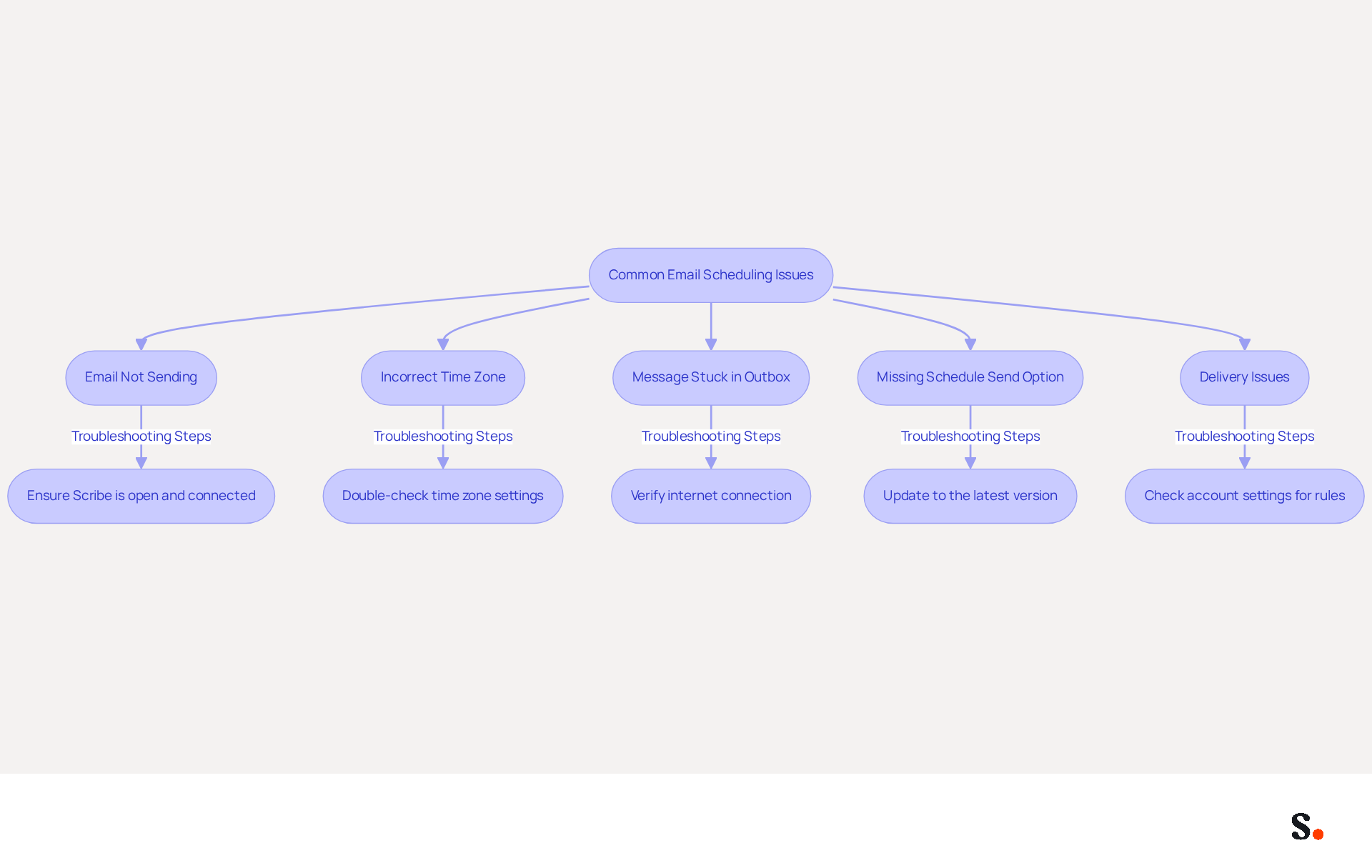
To ensure successful email delivery, several common issues must be addressed.
- Email Not Sending at Scheduled Moment: Ensure that Scribe is open and connected to the internet at the designated moment. When Outlook is closed, messages can get stuck in the Outbox, which may cause delays in communication, prompting the need to use Outlook to send email later. About 30% of users encounter send-receive errors that can lead to this problem.
- Incorrect Time Zone: Double-check that your computer's zone settings match the zone you selected when scheduling the message. Mismatched time zones can cause an outlook send email later scenario, resulting in messages being sent at unexpected times and leading to confusion and missed communications.
- Message Stuck in Outbox: If a message is stuck in the Outbox, verify your internet connection so you can outlook send email later. If the connection is stable, try resending the message manually. Many users report difficulties with emails failing to download correctly, impacting their ability to send messages.
- If you do not see the 'Schedule send' option, make sure you are using the most recent version of the email application to utilize the Outlook send email later feature. Not seeing the 'Schedule send' option? This could be due to using an outdated version of your email application, which may limit your access to new features. Nearly 50% of Outlook users are recent adopters of Outlook 365, indicating a shift towards the latest features.
- Delivery Issues: If messages are not being delivered, check for any rules or filters that may be affecting outgoing communications. Review your account settings to ensure everything is configured correctly. Technical issues, like conflicting rules, can prevent your messages from being sent properly. Troubleshooting these settings can restore functionality and enhance message management. Addressing these issues can significantly improve your email management and communication efficiency.
Enhance Email Scheduling with Additional Tools and Integrations
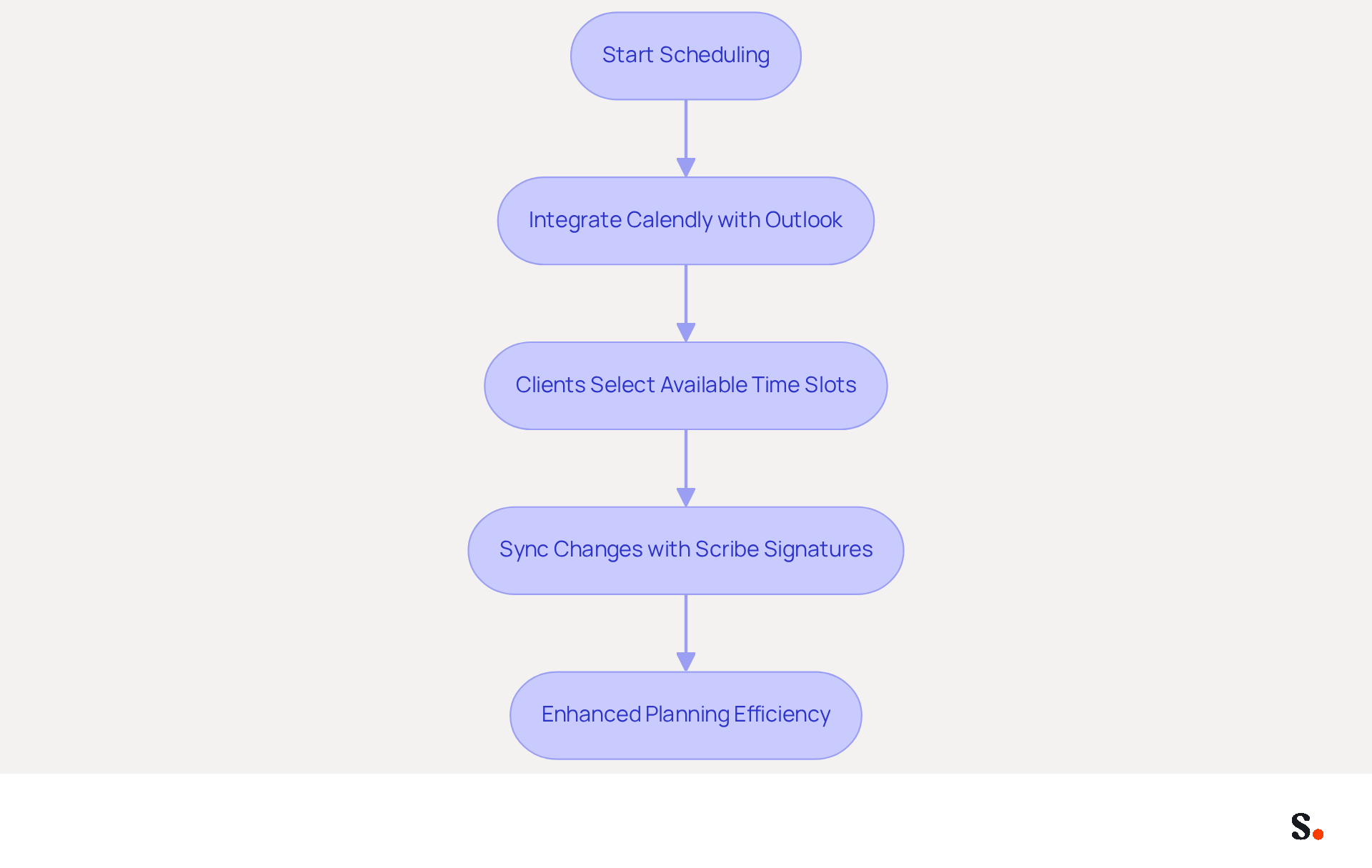
Scheduling meetings can often be a cumbersome process, but integrating Calendly with Outlook offers a streamlined solution. This tool allows clients and colleagues to select available time slots, which reduces the tedious back-and-forth often associated with scheduling meetings and enhances planning efficiency. All changes you make in Calendly will automatically sync with your Scribe signatures, which helps maintain brand consistency in your communications.
Furthermore, Scribe's SOC 2 Type II certification and compliance with GDPR and CCPA enhance security and trust in your communications. A case study indicates that users of similar scheduling tools save approximately 12 hours per person each week, and Scribe users report comparable time savings, underscoring the efficiency benefits of this integration.
Conclusion
Mastering Outlook's email scheduling feature is crucial for optimizing communication strategies. By utilizing the ability to send emails later, individuals can ensure their messages reach recipients at the most opportune times, enhancing engagement and productivity. This capability streamlines communication and aligns with consumer behavior, leading to better business results.
This article highlights the significant benefits of scheduling emails in Outlook. From understanding the mechanics of the scheduling feature to troubleshooting common issues, users are equipped with the knowledge to maximize their email management. The statistics highlighting increased open rates and revenue generation further emphasize the importance of strategic timing in communication. Additionally, integrating tools like Calendly with Outlook enhances the scheduling experience, making it even more efficient.
In a landscape where effective communication can significantly impact business outcomes, leveraging Outlook's scheduling capabilities is essential. By adopting these practices, organizations can achieve greater brand consistency and measurable marketing ROI. By embracing these scheduling practices, businesses can not only enhance their communication but also gain a competitive edge in their industry.
Frequently Asked Questions
What is Outlook's email scheduling feature?
Outlook's email scheduling feature allows users to send emails at a later time, optimizing communication management by ensuring messages are delivered at the best times for engagement.
Why is timing important for sending emails?
Timing is crucial because sending messages during peak engagement periods can significantly impact how recipients interact with them, especially since 41% of message views occur on mobile devices.
How does targeted messaging affect email open rates?
Targeted campaigns, which can be organized through planning, achieve a 14.31% higher open rate compared to non-targeted ones, indicating that aligning message timing with consumer behavior enhances interaction.
What financial benefits can businesses gain from using scheduled messaging?
Businesses that utilize automated messaging flows, including scheduled communications, report generating up to 320% more revenue than those relying solely on manual sending.
How do marketing messages influence consumer behavior?
59% of consumers acknowledge that marketing messages influence their purchasing decisions, making the timing of delivery essential for effective marketing.
What impact does personalization have on email engagement?
Messages with customized subject lines see a 26% increase in open rates, highlighting the importance of personalization in enhancing engagement metrics.
How can leveraging Outlook's scheduling capabilities benefit businesses?
By using Outlook's scheduling features, such as the ability to send emails later, businesses can significantly improve engagement and revenue outcomes.
List of Sources
- Understand Outlook's Email Scheduling Feature
- 49 Top Email Marketing Statistics (https://forbes.com/advisor/business/software/email-marketing-statistics-jun-26)
- Outlook will add properly scheduled email (https://pcworld.com/article/1346584/outlook-gaining-properly-scheduled-email.html)
- Email Marketing Statistics | Ultimate List | CodeCrew (https://codecrew.us/blog/email-marketing-stats-you-need-to-know-the-ultimate-list)
- 100 Compelling Email Statistics for 2026 | PGM Solutions (https://porchgroupmedia.com/blog/100-compelling-email-statistics-to-inform-your-strategy-in-2023)
- Schedule Emails in Outlook: Step-by-Step Instructions
- Message Statistics Report (https://outlookfreeware.com/en/products/all/OutlookReportMessagesStatistics)
- How to Get the User Email Statistics Report in Microsoft 365 (https://admindroid.com/how-to-get-user-email-activity-report-in-microsoft-365)
- Step by step guide on how to schedule Email in Outlook (https://m.economictimes.com/news/international/us/step-by-step-guide-on-how-to-schedule-email-in-outlook/articleshow/97065304.cms)
- Use Microsoft Viva Insights in Outlook | Microsoft Support (https://support.microsoft.com/en-us/viva/insights/use-microsoft-viva-insights-in-outlook)
- Troubleshoot Common Issues with Email Scheduling
- Outlook Statistics And Facts (2025) (https://electroiq.com/stats/outlook-statistics)
- Top Common Outlook Problems and How to Fix Them (https://cubexsoft.com/blog/most-common-outlook-problems?srsltid=AfmBOoqmDzM1We-hpcWiPis1iaVpN8cgpx6tjNDQz9HEaECLwlj5rtoL)
- Microsoft Outlook schedule send not sending all emails scheduled - Microsoft Q&A (https://learn.microsoft.com/en-us/answers/questions/4740163/microsoft-outlook-schedule-send-not-sending-all-em)
- Microsoft fixes Outlook email issues (https://cnbc.com/2026/01/22/microsoft-outlook-outage-email-issues.html)
- Is Outlook down? Thousands of Microsoft users report issues accessing their email (https://nbcbayarea.com/news/national-international/is-outlook-down-microsoft-users-report-issues-email/3911309)
- Enhance Email Scheduling with Additional Tools and Integrations
- Best Outlook Scheduling Tool: 5 Apps for 2026 (https://koalendar.com/blog/outlook-scheduling-tool)
- 20+ Must-Know Email Marketing Statistics in 2026 (https://salesmate.io/blog/email-marketing-statistics)
- Email Marketing Statistics | Ultimate List | CodeCrew (https://codecrew.us/blog/email-marketing-stats-you-need-to-know-the-ultimate-list)
- 2026 Marketing Statistics, Trends, & Data (https://hubspot.com/marketing-statistics)
- 9 Game-Changing Add-ins You Need in New Outlook | eWay-Blog (https://eway-crm.com/blog/technology/from-good-to-great-game-changing-new-outlook-add-ins-thatll-make-you-pro)
Get started with Scribe
Create your signature in minutes
Free 14-day trial — no credit card.