Master Outlook Signatures Location: A Step-by-Step Guide
For professionals, understanding how Outlook stores signatures is crucial for maintaining brand consistency and effective communication. This guide provides a
Sophie Grant
Email Signature Specialist, Scribe
Introduction
For professionals, understanding how Outlook stores signatures is crucial for maintaining brand consistency and effective communication. This guide provides a comprehensive overview of where Outlook signatures are stored across various platforms, offering step-by-step instructions to help users easily locate and manage their signatures.
Many users struggle to keep their email signatures updated due to inconsistent storage locations and outdated guidelines. Organizations must implement a systematic approach to manage email signatures effectively, ensuring they reflect current branding and communication standards.
Understand Outlook Signature Storage Locations
Understanding the outlook signatures location is crucial for effective management and timely updates.
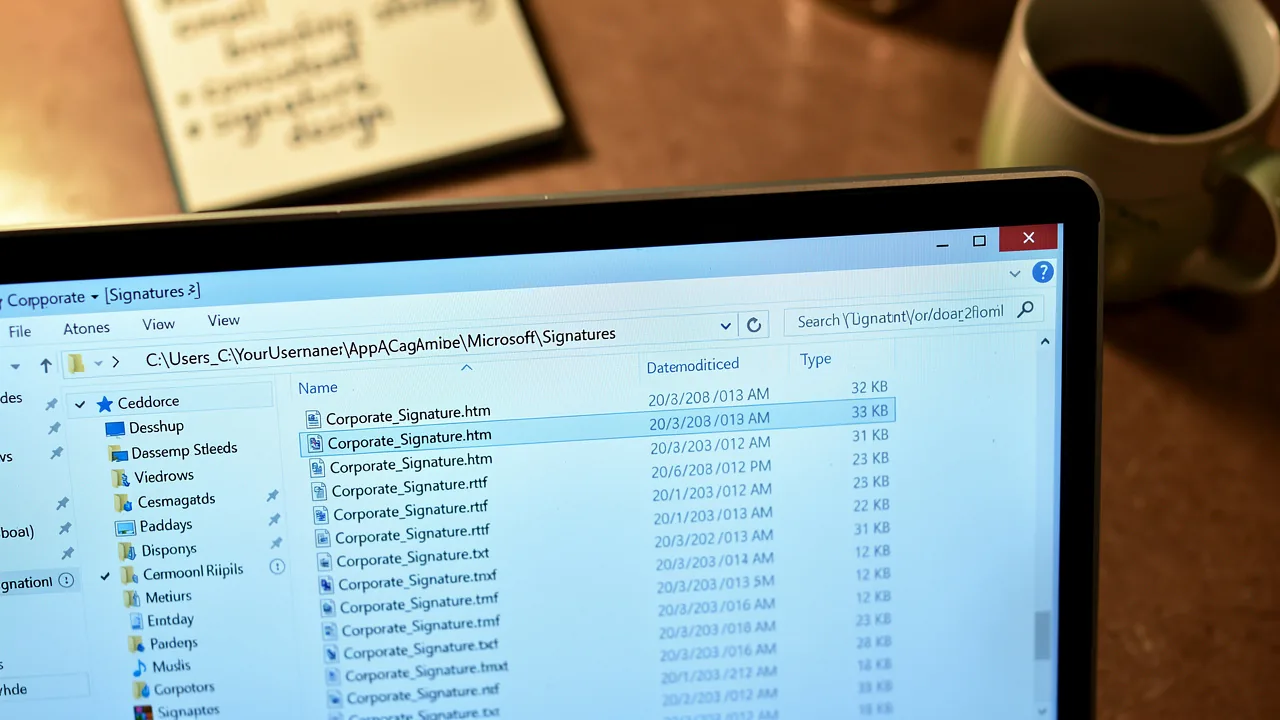
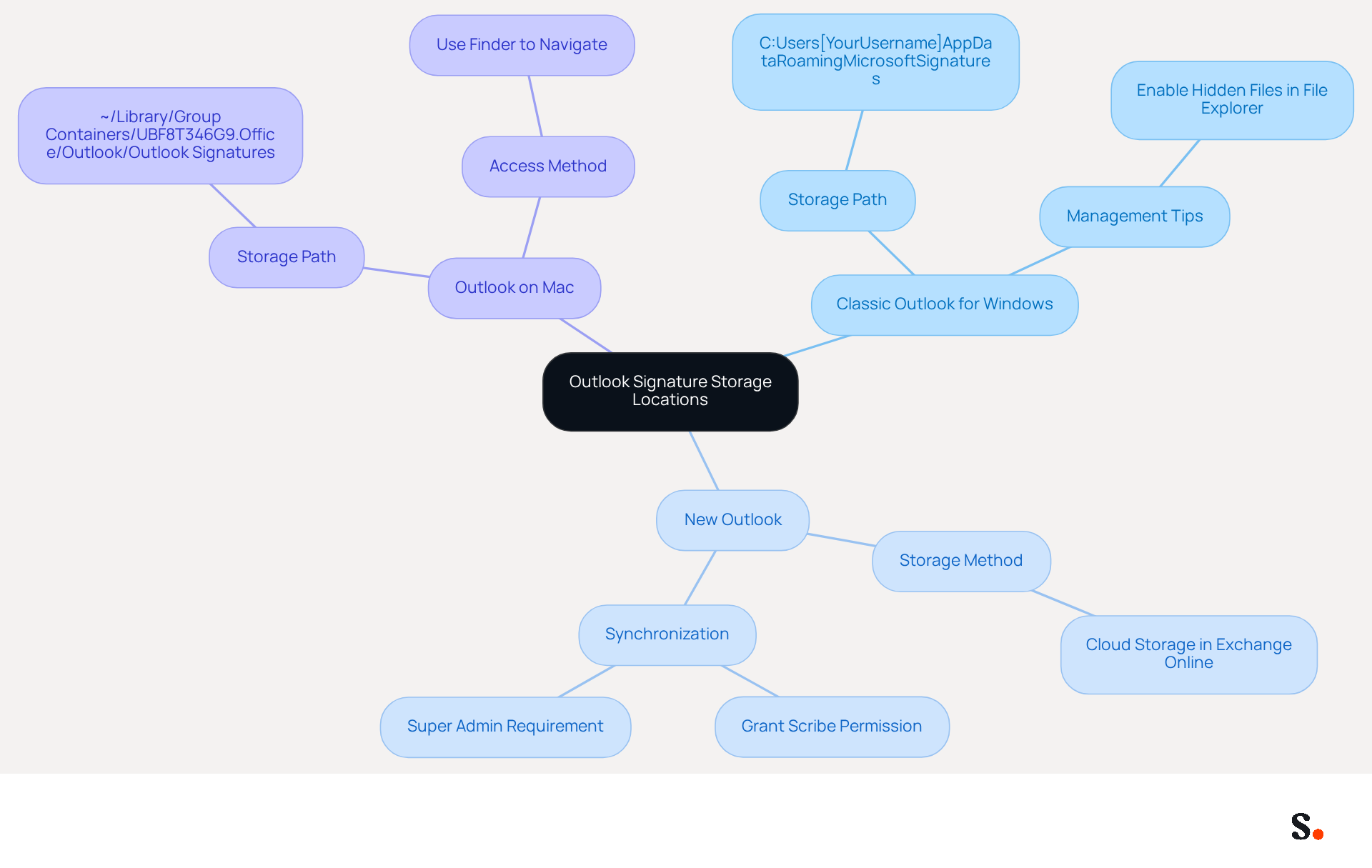
In Classic Outlook for Windows, the outlook signatures location is usually the AppData folder. The path is usually:
C:\Users\[YourUsername]\AppData\Roaming\Microsoft\Signatures. Users may encounter challenges in locating their signatures due to hidden files in the AppData folder, so ensure you enable the option to view hidden files in your File Explorer settings.
For New Outlook (Windows and Outlook on the Web), signatures are stored in the cloud and synchronized across devices. This means they are stored in your Exchange Online mailbox, which enhances accessibility and consistency across devices. By syncing your Google Workspace with the platform, you can streamline this process, ensuring that any updates to your teammates' information are automatically reflected in the application without manual input. To enable synchronization, you must grant Scribe permission to connect with your email provider, and you need to be a Super Admin of your email provider to provide these permissions.
For Outlook on Mac, signatures are stored in:
~/Library/Group Containers/UBF8T346G9.Office/Outlook/Outlook Signatures. To access this location, open Finder, select 'Go' from the menu, and then choose 'Go to Folder', ensuring you can manage your signatures effectively.
Understanding these storage locations is essential for effectively managing your digital identifiers, whether you are backing them up, transferring them to another device, or troubleshooting issues. Significantly, approximately 31.6% of users modify their contact details only once every few years, while nearly 44.4% adjust them every six months or less. This highlights the risk of outdated information leading to missed opportunities in communication and marketing. Moreover, 67% of users of management platforms for signatures anticipate that these will assist with lead generation, underscoring the importance of effective management in marketing strategies. With Scribe's automated synchronization, you can save time and ensure brand consistency across all email footers, while also benefiting from its SOC 2 Type II compliance for enhanced security. Without proper management, outdated signatures can hinder communication and branding efforts, ultimately affecting business success.
Locate Signatures in Different Outlook Versions
If you’re not familiar with the various Outlook versions, locating your Outlook signatures location can be a challenge. To locate your email signatures in different versions of Outlook, follow these steps:
-
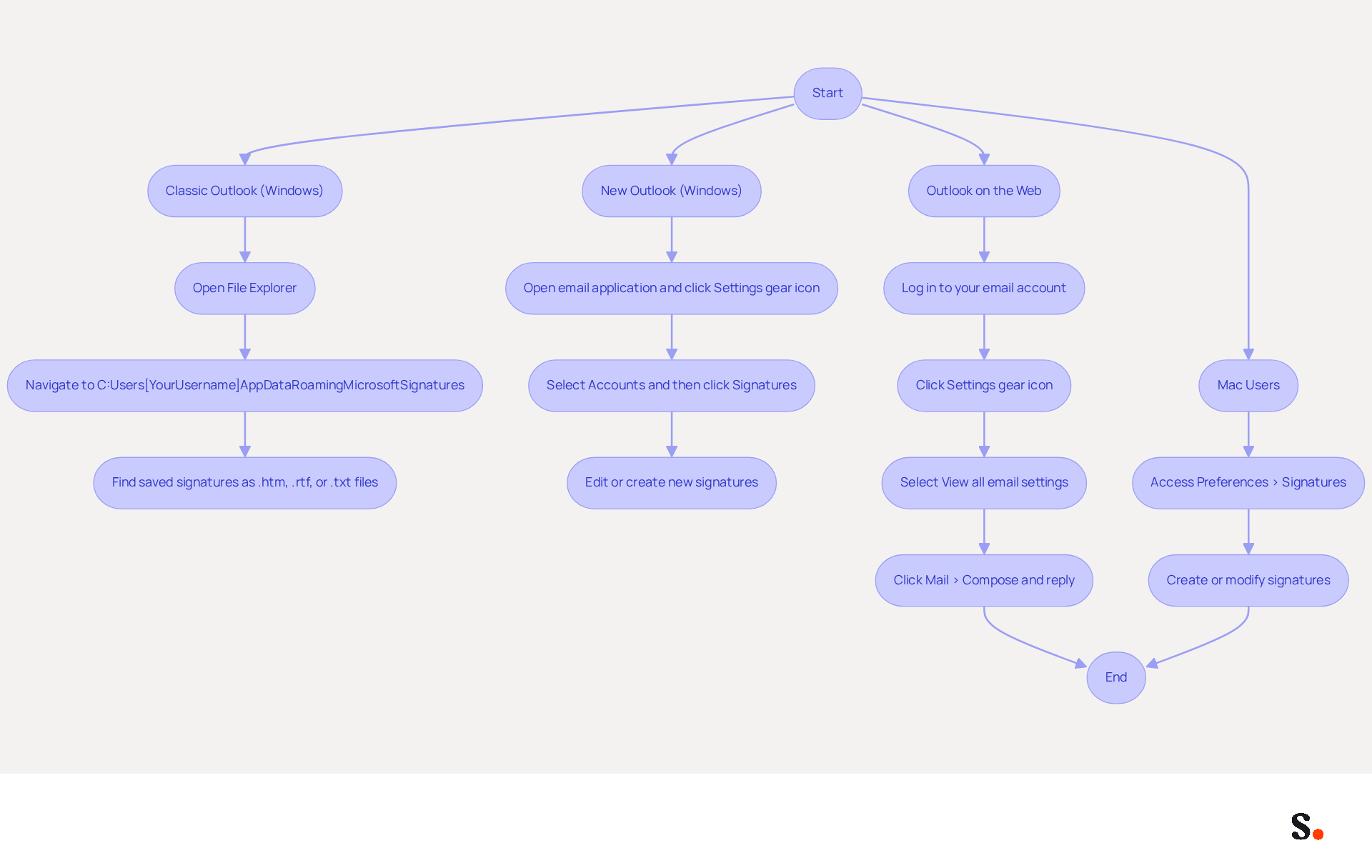
For Classic Outlook (Windows):
- Open File Explorer.
- Navigate to the outlook signatures location at
C:\Users\[YourUsername]\AppData\Roaming\Microsoft\Signatures. - Here, you will find all your saved signatures as
.htm,.rtf, or.txtfiles.
-
For New Outlook (Windows):
- Open the email application and click on the Settings gear icon in the top right corner.
- Select Accounts and then click on Signatures.
- You will find the outlook signatures location here, where you can edit or create new signatures.
-
For Outlook on the Web:
- Log in to your email account.
- Click on the Settings gear icon.
- Select View all email settings at the bottom.
- Click on Mail > Compose and reply to locate your settings.
-
For Mac Users:
- Access the Outlook signatures location.
- Go to Preferences > Signatures.
- You will see your initials listed here, and you can create or modify them as needed.
Grasping how to find message identifiers is essential, particularly given that 89.9% of individuals utilize one primary message identifier. It's important to keep your information current; about 44.4% of professionals update their credentials two to four times a year. By following these steps, you can easily manage your message identifiers across different versions of the application, ensuring brand consistency and effective communication. Furthermore, by syncing your Google Workspace and Aircall with Scribe, you can automate the management of your communication identifiers, saving time and ensuring that any modifications made in your team’s information are automatically reflected in Scribe. This integration not only streamlines your processes but also reinforces your commitment to secure and effective communication.
Troubleshoot Signature Issues in Outlook
To troubleshoot signature issues in Outlook effectively, consider the following steps:
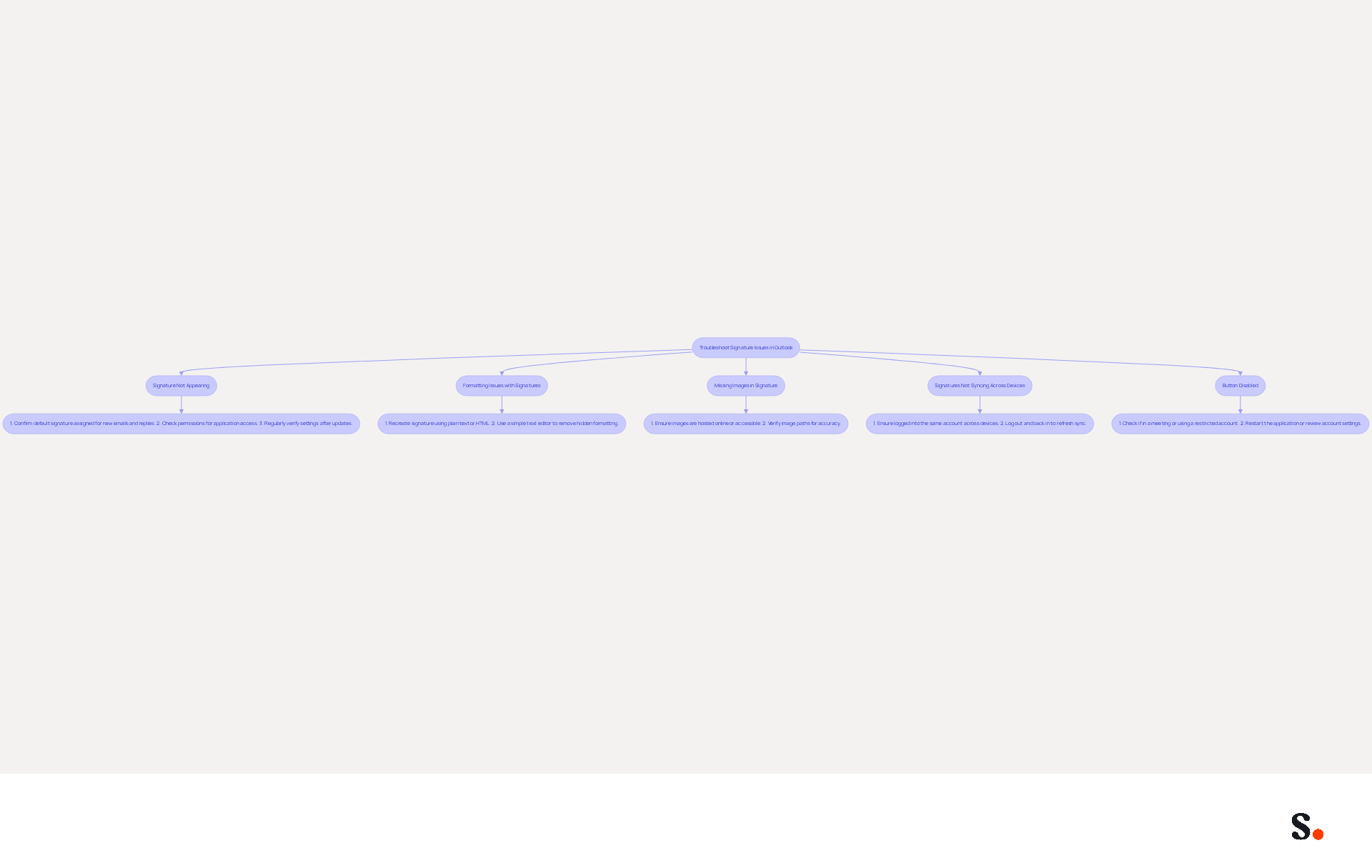
- Signature Not Appearing: Confirm that a default signature is assigned for new emails and replies. Navigate to File > Options > Mail > Signatures to verify your settings at the outlook signatures location. Notably, 90% of instances where signatures do not appear arise from not being set as the default option. Additionally, ensure that the application has permission to connect with your provider by granting Super Admin access. Regular checks after updates to Outlook or Microsoft 365 are crucial, as these can reset local settings and impact message identifiers. Scribe's one-click sync with Google Workspace ensures your email changes are automatically updated, saving you time.
- Formatting Issues with Signatures: If your sign-off displays inconsistently, recreate it using plain text or HTML. Utilize a simple text editor to eliminate hidden formatting before pasting it back into your email client. This approach helps avoid common formatting problems that arise from using complex editors. Scribe's automated management of communication identifiers can help maintain consistent formatting across all correspondences, reducing the likelihood of these issues.
- Missing Images in Signature: Ensure that images are either hosted online or stored in a location accessible by Outlook. Many users struggle with images not displaying in their signatures, leading to potential branding issues. Verify the image paths for accuracy. Images in email signatures may be blocked or fail to load based on how they are embedded, which can lead to significant branding inconsistencies. Scribe's synchronization capabilities ensure that any updates to image links or paths are automatically managed, enhancing your brand's visibility.
- Signatures Not Syncing Across Devices: For users of the New email application, ensure you are logged into the same account across all devices. If issues persist, log out and back in to refresh synchronization. Sync problems frequently occur when transitioning between desktop and web versions of Outlook, impacting the visibility of the email footer. With Scribe, any modifications made in your Google Workspace will be automatically synced, ensuring that your identifiers are consistent across all platforms.
- Button Disabled: If the button is grayed out, check if you are in a meeting or using a restricted account. Restart the email application or review your account settings to resolve this issue. Keeping your Outlook profile updated is important; otherwise, you might face issues with the outlook signatures location when managing your email signatures. Scribe's SOC 2 Type II compliance guarantees that your data stays protected while you manage your digital identifiers independently after the initial setup.
By applying these troubleshooting steps and utilizing Scribe's automated solutions for managing communication identifiers, you can effectively resolve common issues, ensuring that your messages remain professional and consistent. Companies using Scribe have seen a 30% increase in email engagement, showcasing the impact of consistent branding.
Utilize Tools for Efficient Signature Management
To enhance the efficiency of your email signature management, consider the advantages of using Scribe:
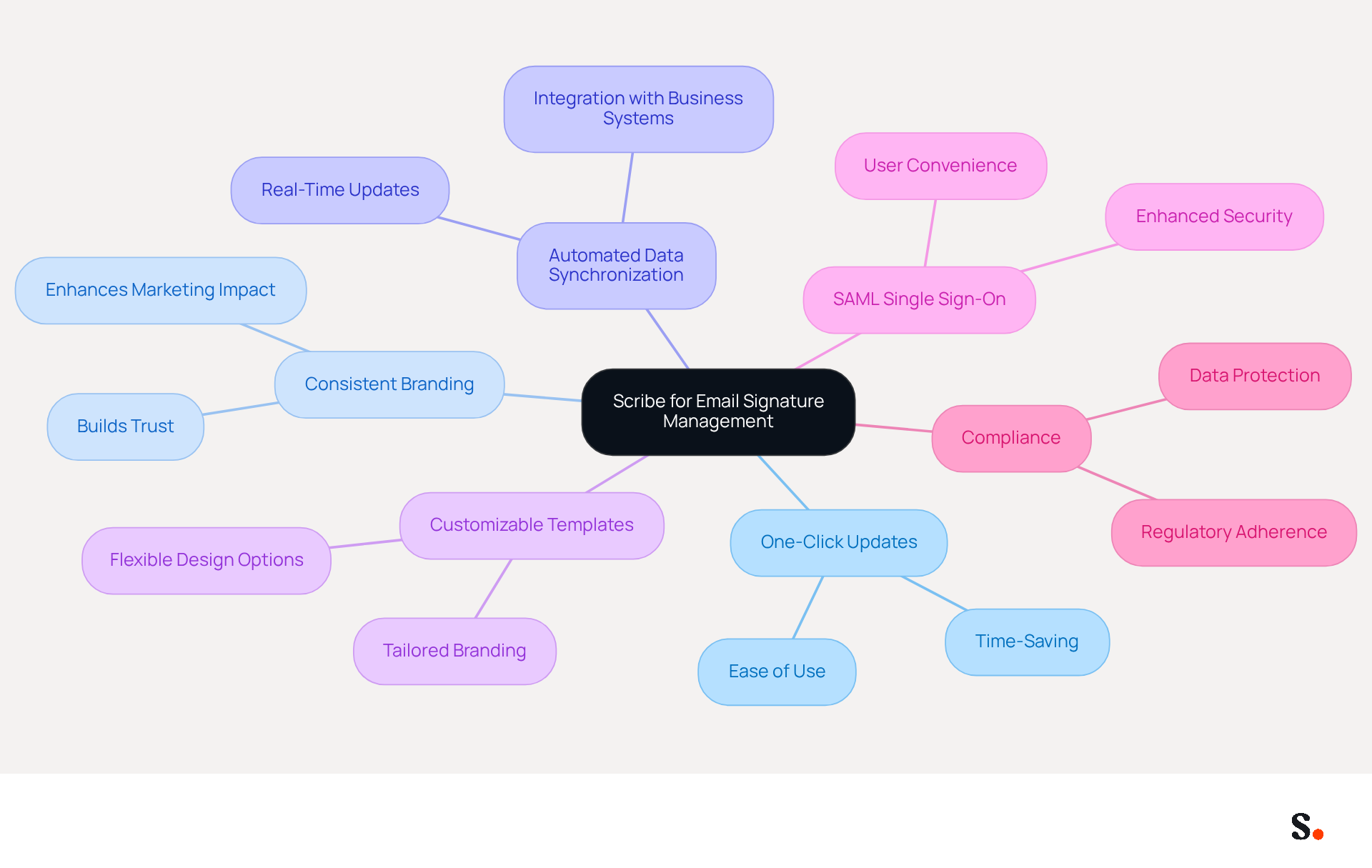
- Scribe: Imagine a tool that simplifies your email signature management, letting you update everything with just one click. This platform ensures consistent branding across all communications, enhancing your marketing impact with every email. With features like automated data synchronization from your business phone system, customizable templates, and SAML single sign-on integration, this platform empowers marketing teams to maintain a cohesive brand identity effortlessly. Furthermore, Scribe is compliant with SOC 2 Type II and GDPR, guaranteeing that your data is protected while optimizing your management process for digital signatures.
By leveraging Scribe, you can ensure that your marks are always up-to-date and aligned with your brand's identity. Research indicates that companies using consistent branded email signatures report over 22% increases in response rates, underscoring the importance of effective signature management. This level of consistency can transform your marketing efforts, leading to measurable improvements in engagement.
Conclusion
Many users struggle with managing their Outlook signatures effectively, leading to inconsistencies that can harm professional communication. Understanding where Outlook signatures are stored is crucial for effective management and timely updates. This article outlines the specific storage paths for different versions of Outlook, including:
- Classic Outlook for Windows
- New Outlook
- Outlook on the Web
- Outlook for Mac
It also highlights common troubleshooting steps for signature issues, emphasizing the importance of keeping signatures updated to avoid missed opportunities in communication.
Scribe simplifies email signature management by automating updates and ensuring compliance with important security standards. Leveraging tools like Scribe not only streamlines the management of email signatures but also reinforces brand consistency and improves marketing effectiveness. By adopting best practices for signature management, organizations can enhance their communication strategies, leading to increased engagement and a stronger brand presence. Organizations that prioritize effective email signature management will not only enhance their communication strategies but also strengthen their overall brand presence.
Frequently Asked Questions
Where are Outlook signatures stored in Classic Outlook for Windows?
In Classic Outlook for Windows, signatures are usually stored in the AppData folder at the path: C:\Users[YourUsername]\AppData\Roaming\Microsoft\Signatures.
How can I view my Outlook signatures if they are hidden?
To view your Outlook signatures in the AppData folder, you need to enable the option to view hidden files in your File Explorer settings.
Where are signatures stored in New Outlook and Outlook on the Web?
In New Outlook and Outlook on the Web, signatures are stored in the cloud and synchronized across devices, specifically in your Exchange Online mailbox.
How can I ensure my signatures are synchronized across devices?
To enable synchronization of signatures across devices, you must grant Scribe permission to connect with your email provider, and you need to be a Super Admin of your email provider to provide these permissions.
Where can I find Outlook signatures on a Mac?
On a Mac, Outlook signatures are stored in the following location: ~/Library/Group Containers/UBF8T346G9.Office/Outlook/Outlook Signatures. You can access this by opening Finder, selecting 'Go' from the menu, and then choosing 'Go to Folder'.
Why is understanding signature storage locations important?
Understanding signature storage locations is essential for effectively managing your digital identifiers, backing them up, transferring them to another device, or troubleshooting issues.
What percentage of users modify their contact details frequently?
Approximately 31.6% of users modify their contact details only once every few years, while nearly 44.4% adjust them every six months or less.
How does Scribe help with signature management?
Scribe's automated synchronization helps save time and ensures brand consistency across all email footers, while also providing enhanced security with its SOC 2 Type II compliance.
What risks are associated with outdated signatures?
Outdated signatures can hinder communication and branding efforts, ultimately affecting business success and leading to missed opportunities in communication and marketing.
List of Sources
- Understand Outlook Signature Storage Locations
- Email signature statistics and trends in 2024 (https://wisestamp.com/blog/email-signature-statistics)
- Outlook Roaming Signatures Delayed Until October 2022 (https://office365itpros.com/2022/03/04/outlook-roaming-signatures-2022)
- Email Signature Statistics: A Closer Look at Email Signatures in 2026 (https://mysignature.io/blog/email-signature-statistics)
- 40+ Email Signature Statistics for 2026 (Data + Insights) (https://wavecnct.com/blogs/email-signature-statistics)
- Locate Signatures in Different Outlook Versions
- Email Signature Statistics: A Closer Look at Email Signatures in 2026 (https://mysignature.io/blog/email-signature-statistics)
- Outlook signature location & how to export, import, backup them (https://ablebits.com/office-addins-blog/outlook-signatures-location-export-backup)
- Email signature statistics: Why every business should optimize their email signatures — Stripo.email (https://stripo.email/blog/email-signature-statistics-why-every-business-should-optimize-their-email-signatures)
- Outlook 365 Signature Location: Find Your Email Signature - NEWOLDSTAMP (https://newoldstamp.com/blog/outlook-signature-location)
- New Outlook vs Classic Outlook: Email Signature Differences Explained (https://siggen.dev/blog/new-outlook-vs-classic-email-signature)
- Troubleshoot Signature Issues in Outlook
- Email Signatures vanishing - New Outlook | Microsoft Community Hub (https://techcommunity.microsoft.com/discussions/outlookgeneral/email-signatures-vanishing---new-outlook/4418809)
- Outlook Signature Not Working in Office 365: Causes & Fixes (https://exclaimer.com/email-signature-handbook/outlook-signature-not-working-in-office-365)
- Outlook Signature Disappears? 6 Common Problems + Fixes (https://conbool.com/blog/outlook-signature-disappears-fixes-problems)
- How to solve problems with email signatures in Microsoft 365? (https://mail-signatures.com/articles/problems-email-signatures-office-365)
- Why Did My Outlook Signature Disappear? Common Causes Explained (https://scribe-mail.com/en-US/blog/why-did-my-outlook-signature-disappear-common-causes-explained)
- Utilize Tools for Efficient Signature Management
- Email signature management for teams & AI agents (https://scribe-mail.com/en-US)
- Top 10 Email Signature Management Tools in 2026 (Compared) (https://mailbutler.io/blog/email/email-signature-management-tools)
- 40+ Email Signature Statistics for 2026 (Data + Insights) (https://wavecnct.com/blogs/email-signature-statistics)
- Best Email Signature Management Software: Top 12 Tools (2026)
- NEWOLDSTAMP (https://newoldstamp.com/blog/email-signature-software)
- 10 Best Email Signature Software Reviewed In 2026 (https://thecmo.com/tools/best-email-signature-software)
Get started with Scribe
Create your signature in minutes
Free 14-day trial — no credit card.