Master the Autodiscover Test: Step-by-Step Instructions for Success
For anyone involved in email configuration, understanding the Autodiscover feature is essential as it simplifies the setup process for Microsoft Exchange
Sophie Grant
Email Signature Specialist, Scribe
Introduction
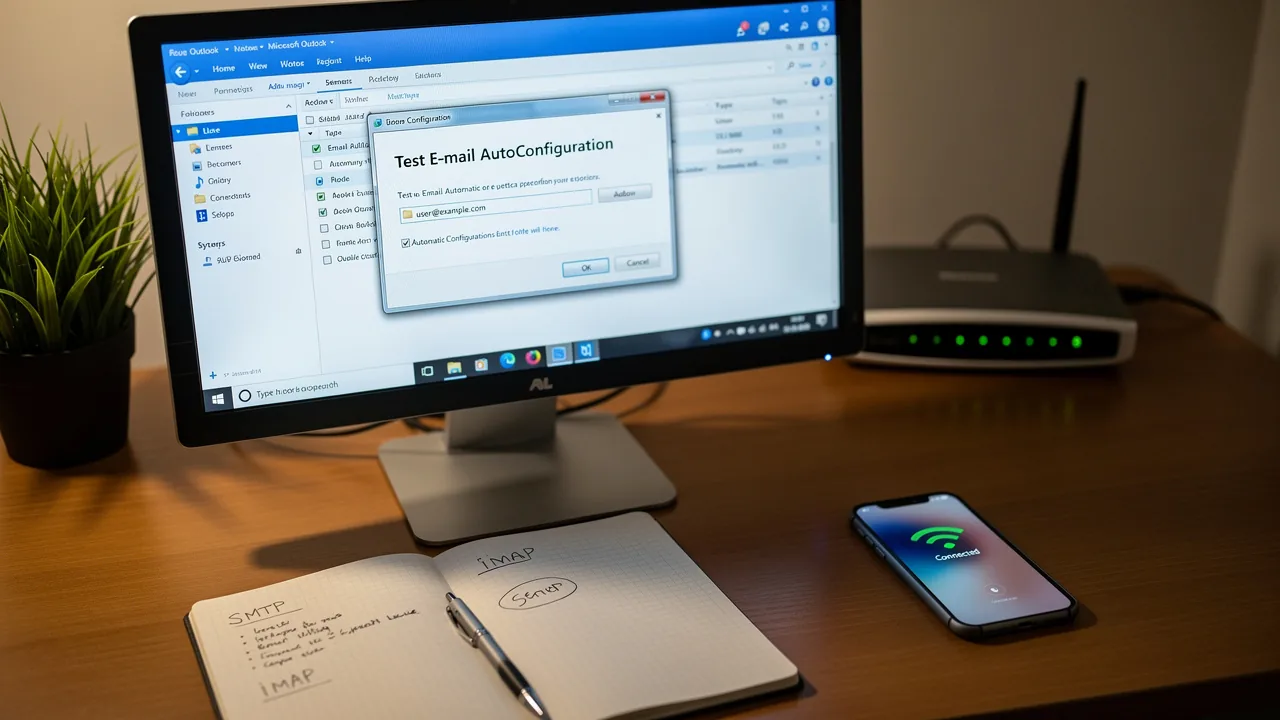
For anyone involved in email configuration, understanding the Autodiscover feature is essential as it simplifies the setup process for Microsoft Exchange users. This guide offers a comprehensive, step-by-step approach to conducting an Autodiscover test, ensuring that both IT professionals and everyday users can effectively troubleshoot and optimize their email systems. Unexpected issues during the Autodiscover test can complicate email configuration. This article outlines the necessary tools and procedures while addressing common pitfalls, enabling users to resolve issues swiftly and improve their email systems.
Understand Autodiscover: Definition and Importance
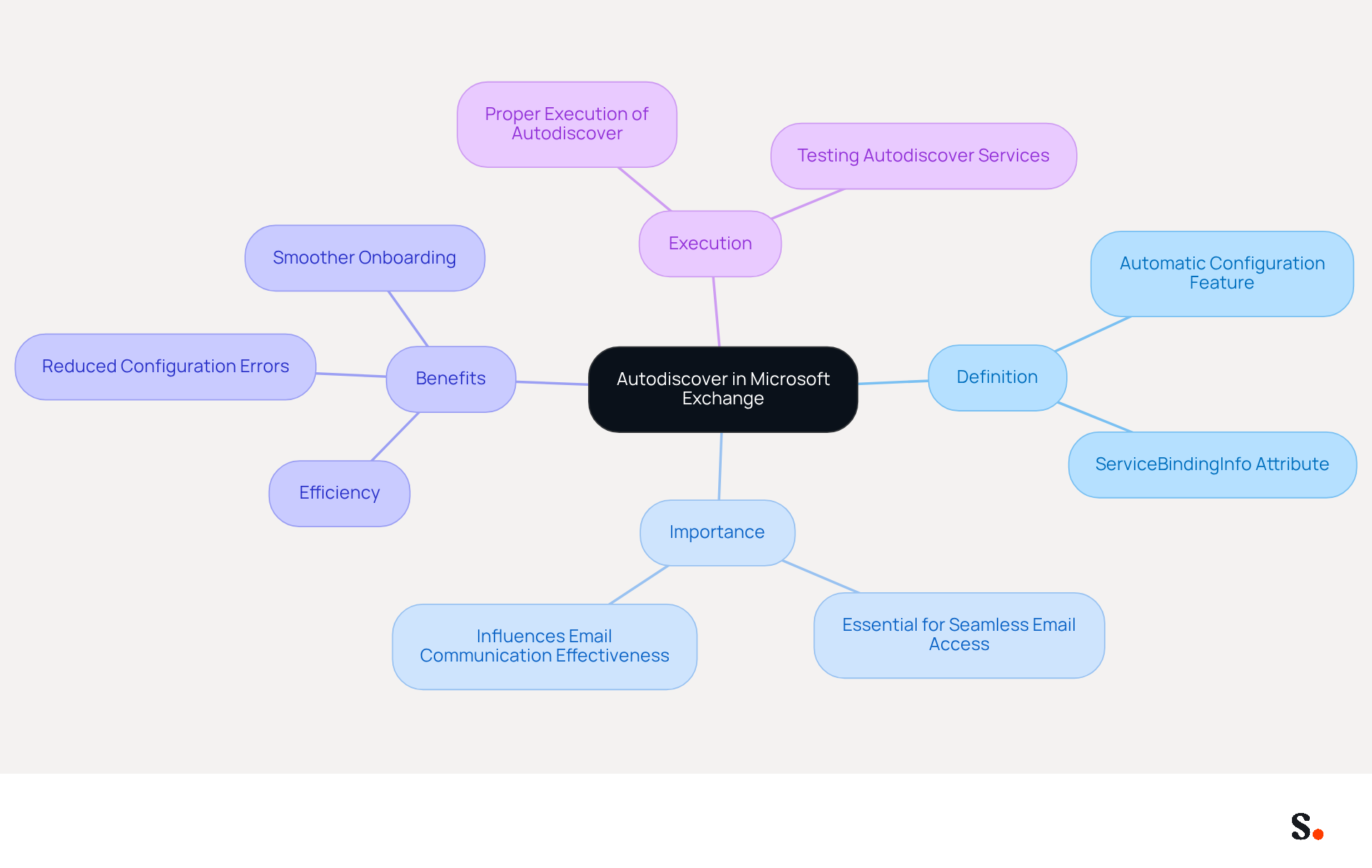
The automatic configuration feature of Microsoft Exchange significantly enhances the efficiency of email client setup. It automatically provides the necessary settings for users to connect to their mailboxes without manual input. This service is essential for seamless email access, significantly reducing the steps needed for account setup. Understanding this feature is vital for both IT professionals and everyday users, as it directly influences the effectiveness of email communications and the overall user experience. Proper execution of the automatic discovery feature can lead to fewer configuration errors and a smoother onboarding process for new users.
Prepare for the Test: Required Tools and Access
Before conducting the Autodiscover test, it is essential to have the right tools and access in place to ensure a smooth process:
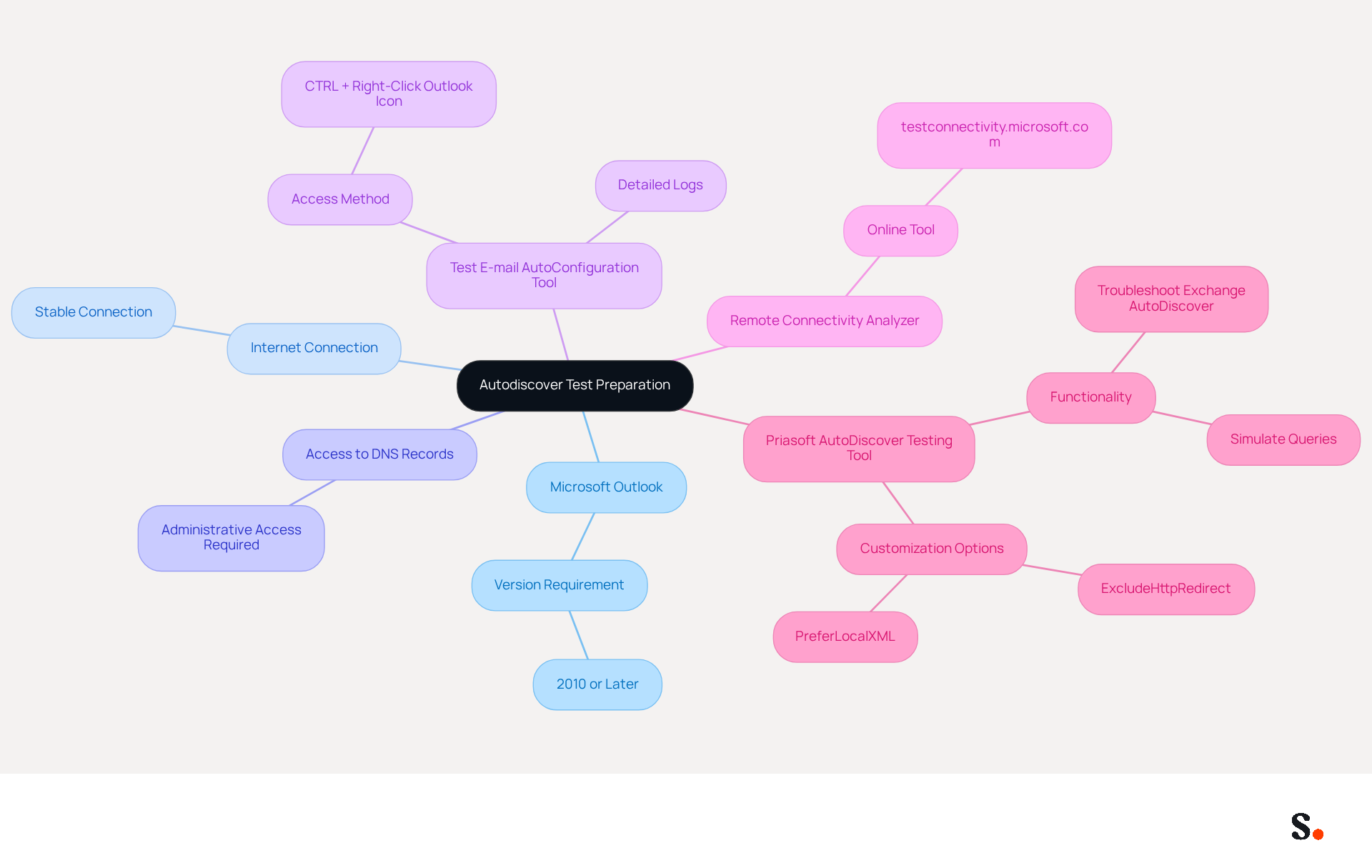
- Microsoft Outlook: Ensure you have a version of the application installed that supports automatic configuration (2010 version or later).
- Internet Connection: A stable internet connection is necessary to access the automatic discovery service.
- Access to DNS Records: Without administrative access to your DNS hosting provider, you may encounter challenges in verifying or modifying DNS records for your domain.
- Test E-mail AutoConfiguration Tool: This integrated utility in Scribe enables you to evaluate automatic discovery capabilities. To access it, hold down the CTRL key and right-click the Outlook icon in the system tray, then select 'Test E-mail AutoConfiguration'.
- Remote Connectivity Analyzer: This online tool from Microsoft can assist in diagnosing configuration problems. You can access it at testconnectivity.microsoft.com.
- Priasoft AutoDiscover Testing Tool: This free utility is designed to troubleshoot and analyze the Exchange AutoDiscover service for both Office 365 and Exchange On-Premises. It enables users to emulate and verify the functionality, offering comprehensive logs that can assist in resolving problems efficiently.
Preparing these tools and access will make the autodiscover test process smoother and help you identify any issues more easily. For instance, the Test E-mail AutoConfiguration tool provides detailed logs that help resolve Autodiscover-related issues, and the Remote Connectivity Analyzer checks if your Exchange server supports MapiHTTP connections. This preparation not only enhances efficiency but also ensures a thorough evaluation of your Autodiscover setup. Ultimately, the right tools empower you to confidently perform an autodiscover test to diagnose and resolve Autodiscover issues.
Conduct the Autodiscover Test: Step-by-Step Instructions
Performing an autodiscover test in Outlook is essential for ensuring proper email configuration. Follow these detailed steps to conduct the test:
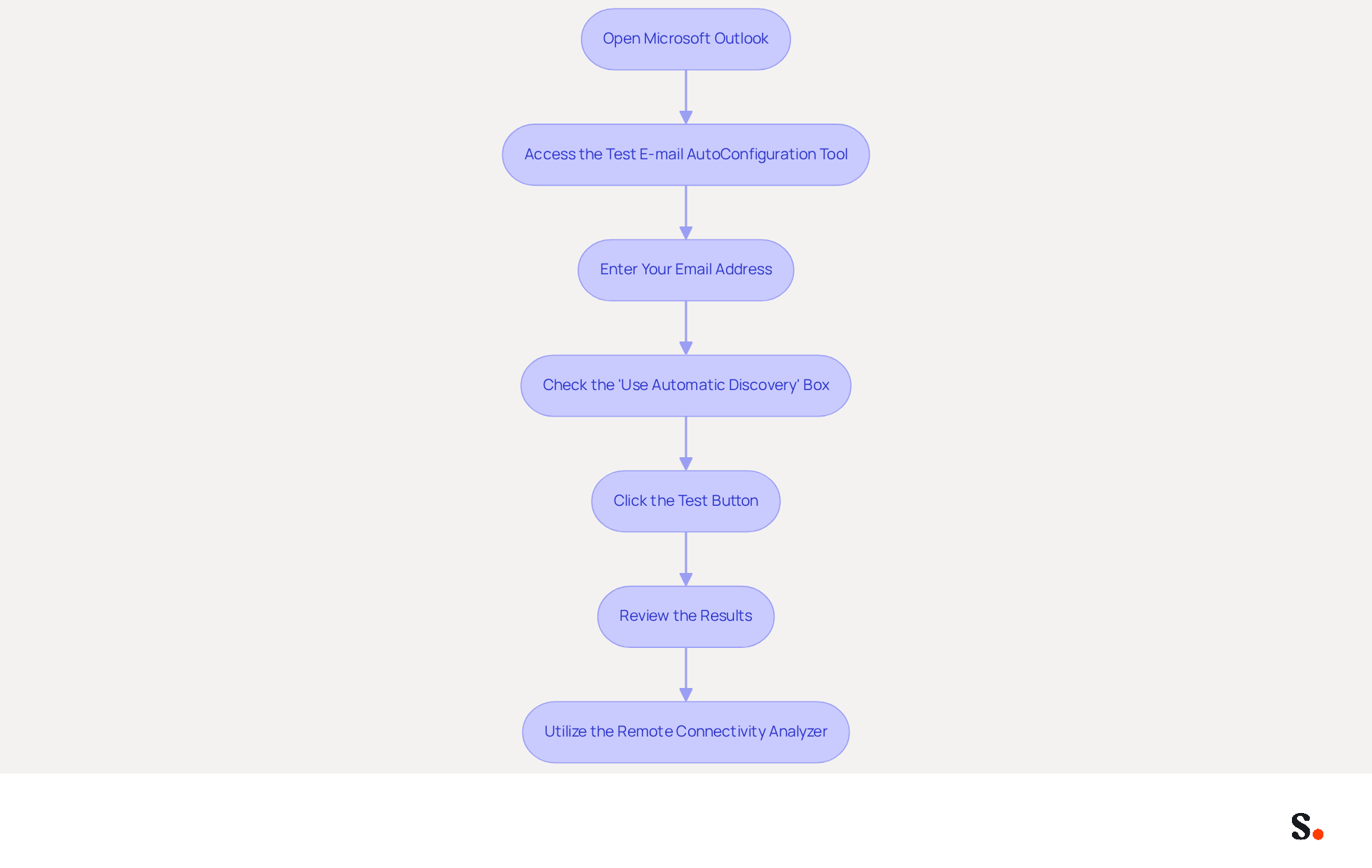
- Open Microsoft Outlook: Launch the application on your computer.
- Access the Test E-mail AutoConfiguration Tool: Right-click the Outlook icon in the system tray while holding the CTRL key. Select 'Test E-mail AutoConfiguration' from the context menu.
- Enter Your Email Address: In the dialog box that appears, input the email address you want to test.
- Check the 'Use Automatic Discovery' Box: Ensure that the 'Use Automatic Discovery' option is checked to allow the tool to retrieve the necessary settings.
- Click the Test Button: Press the 'Test' button to start the assessment. Wait for the results to populate.
- Review the Results: Once the test is complete, review the results displayed in the dialog box. Look for any mistakes or alerts that suggest problems with the configuration. Problems may arise from incorrectly configured external URLs for Outlook services.
- Utilize the Remote Connectivity Analyzer: If you encounter challenges, visit the Microsoft Exchange Remote Connectivity Analyzer (ExRCA) and choose the test option for automatic discovery. Enter your email address and follow the prompts to diagnose further. This tool is crucial for conducting an autodiscover test to troubleshoot Autodiscover-related problems and can provide insights into connectivity failures.
Proper execution of these tests safeguards your email system's functionality, ultimately enhancing communication efficiency. As James Yip, Managing Director, emphasizes, 'Always ensure the basics work' when dealing with configuration settings.
Troubleshoot Common Autodiscover Issues
If you encounter issues during the autodiscover test, it is crucial to address them promptly to avoid disruptions in email functionality.
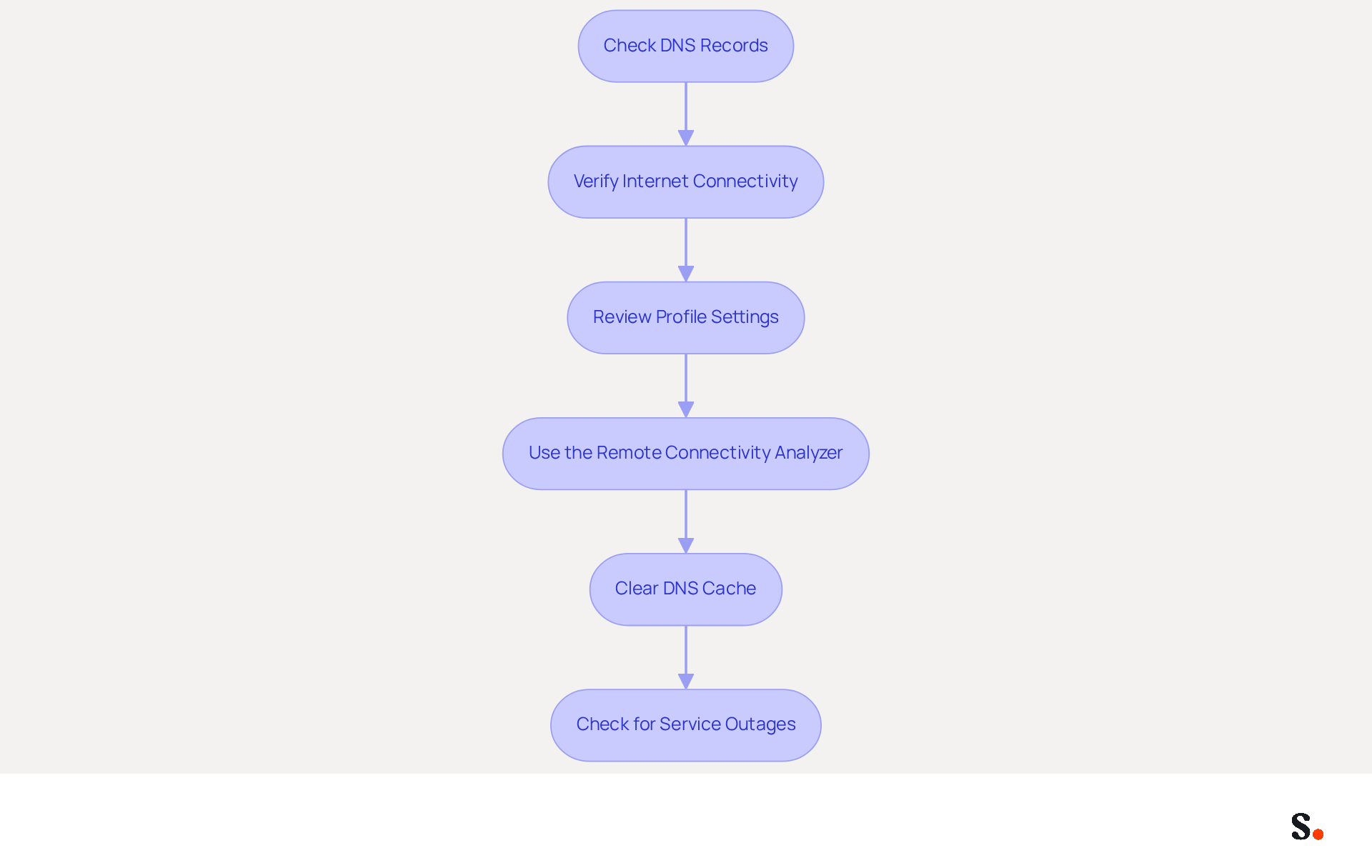
- Check DNS Records: Ensure that the DNS records are correctly configured. A CNAME record must direct to the automatic discovery service. Misconfigured records can lead to significant issues, such as downtime and failed connections. Common misconfigurations include typos in DNS records or multiple CNAMEs assigned to one name.
- Verify Internet Connectivity: Make sure your internet connection is stable and that your firewall isn’t blocking access to the service. Connectivity issues often lead to failures in the autodiscover test, causing frustration and delays.
- Review Profile Settings: Incorrect profile configurations can lead to issues with automatic discovery. Ensure that your email account is set up correctly in Outlook, as discrepancies here can hinder the configuration process.
- Use the Remote Connectivity Analyzer: If the test fails, utilize the Remote Connectivity Analyzer for detailed diagnostics. This tool can offer insights into possible misconfigurations or connectivity problems impacting the autodiscover test.
- Clear DNS Cache: After making changes to your DNS records, clear your local DNS cache to ensure your computer uses the most up-to-date information. Run the command
ipconfig /flushdnsin the command prompt to refresh the cache. - Check for Service Outages: Occasionally, Microsoft services may experience outages that impact functionality. Check the Microsoft service health dashboard to see if there are any ongoing concerns that could be affecting your email configuration.
Implementing these steps can significantly enhance your email setup experience, reducing downtime and improving efficiency. Regular audits of your DNS settings and proactive monitoring can further prevent these issues from arising. Remember that DNS changes may take between 24 to 48 hours to propagate, so patience is essential after making adjustments. Additionally, consider the case study on enabling Autodiscover on VPS/Dedicated Hosting, which illustrates the process and expected outcomes, reinforcing the importance of maintaining proper DNS hygiene.
Conclusion
Ensuring seamless email configuration hinges on mastering the Autodiscover test, a critical step for IT professionals. By grasping the significance of Autodiscover and adhering to the outlined steps, IT professionals can streamline the setup process, reducing errors and enhancing communication efficiency across organizations.
The article provided a comprehensive guide on preparing for the Autodiscover test, detailing the necessary tools and access required for a successful evaluation. Step-by-step instructions were outlined for conducting the test, along with troubleshooting common issues that may arise. Key insights included:
- The importance of verifying DNS records
- Ensuring stable internet connectivity
- Utilizing diagnostic tools like the Remote Connectivity Analyzer to address potential problems
By mastering the Autodiscover testing process, organizations can achieve significant improvements in operational efficiency. Organizations should prioritize regular audits and proactive monitoring of their email configurations to prevent disruptions. By implementing these best practices, IT teams can ensure that their email systems function optimally, ultimately enhancing productivity and user satisfaction.
Frequently Asked Questions
What is Autodiscover in Microsoft Exchange?
Autodiscover is an automatic configuration feature of Microsoft Exchange that enhances the efficiency of email client setup by automatically providing the necessary settings for users to connect to their mailboxes without manual input.
Why is Autodiscover important?
Autodiscover is essential for seamless email access as it significantly reduces the steps needed for account setup, leading to fewer configuration errors and a smoother onboarding process for new users.
Who should understand Autodiscover?
Understanding Autodiscover is vital for both IT professionals and everyday users, as it directly influences the effectiveness of email communications and the overall user experience.
List of Sources
- Understand Autodiscover: Definition and Importance
- Microsoft Exchange Bug Exposes ~100,000 Windows Domain Credentials (https://thehackernews.com/2021/09/microsoft-exchange-bug-exposes-100000.html)
- Microsoft Ending Autodiscover Authentications with Exchange Online -- Redmondmag.com (https://redmondmag.com/articles/2022/11/17/microsoft-ending-autodiscover-authentications-with-exchange--online.aspx)
- New Microsoft Exchange Server Zero-Day Vulnerabilities (https://blog.eclecticiq.com/new-microsoft-exchange-server-zero-day-vulnerabilities)
- Autodiscover service in Exchange Server (https://learn.microsoft.com/en-us/exchange/architecture/client-access/autodiscover)
- Microsoft Exchange Autodiscover Flaw: How Hackers Can Exploit It - (https://msspalert.com/news/microsoft-exchange-autodiscover-flaw)
- Prepare for the Test: Required Tools and Access
- Free utility - AutoDiscover Test Tool (https://priasoft.com/autodiscover-testing-tool)
- The Test E-mail AutoConfiguration Tool And Microsoft Remote Connectivity Analyzer. How And When To Use Them (https://support.intermedia.com/app/articles/detail/a_id/10189/~/the-test-e-mail-autoconfiguration-tool-and-microsoft-remote-connectivity)
- Tools for troubleshooting Outlook autodiscover - markwilson.it (https://markwilson.co.uk/blog/2015/10/tools-for-troubleshooting-outlook-autodiscover.htm)
- Remote Connectivity Analyzer tests for Exchange Online (https://learn.microsoft.com/en-us/exchange/clients-and-mobile-in-exchange-online/remote-connectivity-analyzer-tests)
- Outlook 2016 implementation of Autodiscover | Microsoft Support (https://support.microsoft.com/en-us/outlook/outlook-2016-implementation-of-autodiscover)
- Conduct the Autodiscover Test: Step-by-Step Instructions
- Make Sure Your Implementation of Autodiscover Avoids Common Pitfalls (https://practical365.com/make-sure-your-implementation-of-autodiscover-avoids-common-pitfalls)
- Exchange Autodiscover (https://help.nintex.com/en-us/k2blackpearl/icg/4.6.11/Exchange_Autodiscover.html)
- Remote Connectivity Analyzer tests for Exchange Online (https://learn.microsoft.com/en-us/exchange/clients-and-mobile-in-exchange-online/remote-connectivity-analyzer-tests)
- The Test E-mail AutoConfiguration Tool And Microsoft Remote Connectivity Analyzer. How And When To Use Them (https://support.intermedia.com/app/articles/detail/a_id/10189/~/the-test-e-mail-autoconfiguration-tool-and-microsoft-remote-connectivity)
- Autodiscover service in Exchange Server (https://learn.microsoft.com/en-us/exchange/architecture/client-access/autodiscover)
- Troubleshoot Common Autodiscover Issues
- Autodiscover Troubleshooting (https://hostgator.com/help/article/autodiscover-troubleshooting)
- Make Sure Your Implementation of Autodiscover Avoids Common Pitfalls (https://practical365.com/make-sure-your-implementation-of-autodiscover-avoids-common-pitfalls)
- Maintenance and Troubleshooting Guide (https://docs.oracle.com/en/industries/communications/session-border-controller/8.4.0/mtg/dns-statistics.html)
- The Autodiscover Dilemma: Steps to Overcome It (https://enowsoftware.com/solutions-engine/exchange-center/autodiscover-dilemma)
- 12 Critical DNS Errors That Can Break Your Website (+ Quick Fixes) (https://unstoppabledomains.com/en-us/blog/categories/education/article/12-critical-dns-errors)
Get started with Scribe
Create your signature in minutes
Free 14-day trial — no credit card.