Master the Office 365 Recall Message: Step-by-Step Guide
Recalling an email in Office 365 may seem like a straightforward solution, but the reality is often more complex than it appears. The ability to recall an
Sophie Grant
Email Signature Specialist, Scribe
Introduction
Recalling an email in Office 365 may seem like a straightforward solution, but the reality is often more complex than it appears. The ability to recall an email offers a potential lifeline, yet it comes with specific requirements and limitations that can complicate the process. This guide outlines the step-by-step procedure for successfully recalling an email, emphasizing the essential conditions for success and common pitfalls to avoid. When a recall fails, it can lead to misunderstandings and damage to one's professional reputation, making effective troubleshooting essential.
Understand Requirements and Limitations for Email Recall
Before recalling an email in Office 365, it is vital to grasp the specific requirements and limitations that influence this feature:
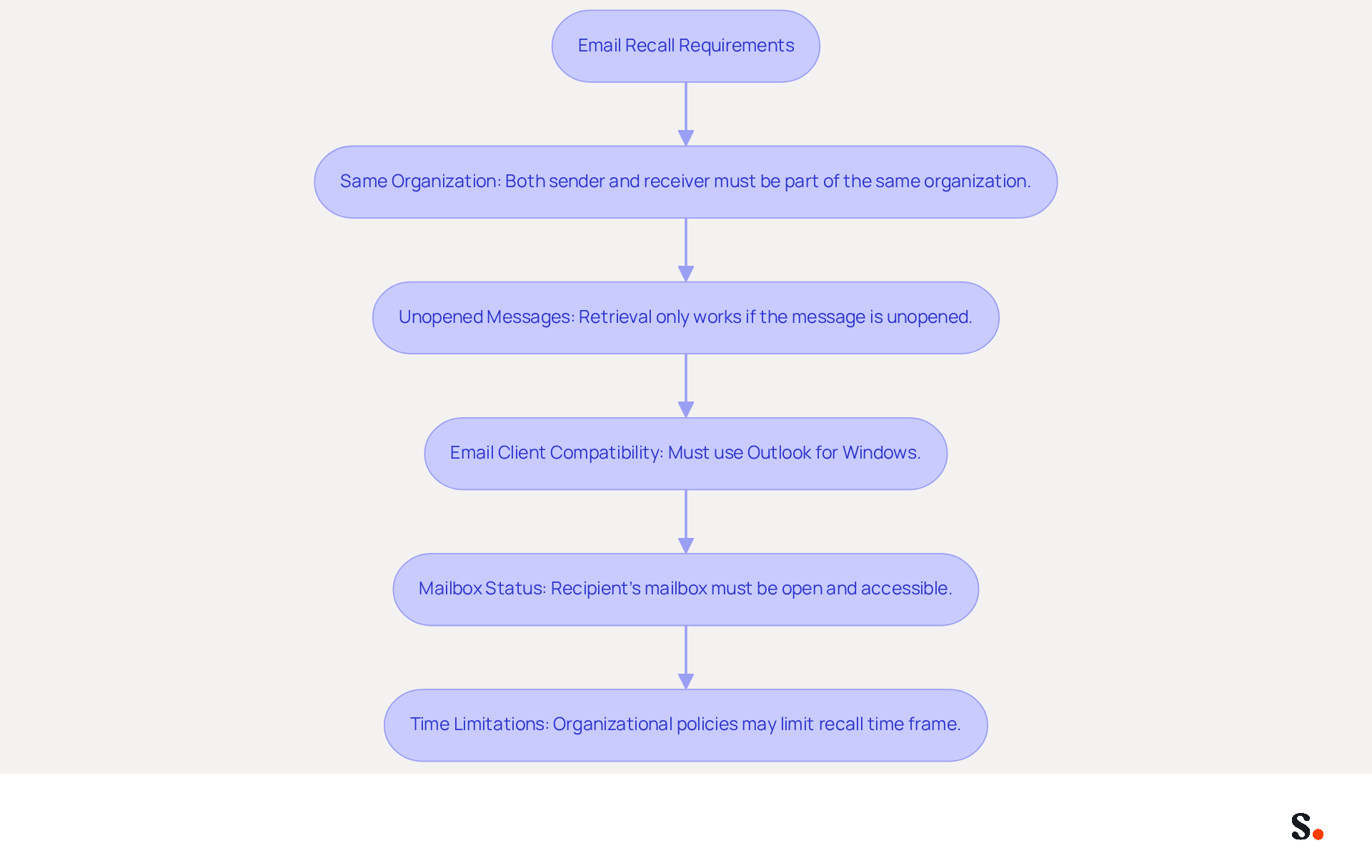
- Same Organization: Both the sender and the receiver must be part of the same organization and using Microsoft Exchange or Microsoft 365. Emails sent to external contacts cannot be recalled.
- Unopened Messages: The retrieval function only operates if the individual has not accessed the message. If the message has been viewed, the retrieval will not succeed.
- Email Client Compatibility: The individual must be using Outlook for Windows. If they are utilizing a different messaging application, the retrieval may not operate as expected.
- Mailbox Status: The addressee's mailbox must be open and accessible. If the individual has rules that automatically transfer the message to another folder, the retrieval may not succeed.
- Time Limitations: Organizational policies may limit the time frame within which a withdrawal can be executed. Familiarize yourself with these policies to avoid issues.
Grasping these requirements is essential for a successful Office 365 recall message, especially since the success rate is notably higher for internal communications. Microsoft reports a 90% success rate for messages within the same organization. However, despite its advantages, users often face challenges when attempting to recall messages, particularly with external communications. Furthermore, recent enhancements to the message retrieval functionality have improved user experience, but limitations still persist, especially concerning the compatibility of messaging clients and the status of the recipient's mailbox. Recognizing these limitations allows users to make informed decisions about their email communications.
Follow Step-by-Step Procedure to Recall an Email
Recalling an email in Office 365 requires careful attention to specific steps to ensure success:
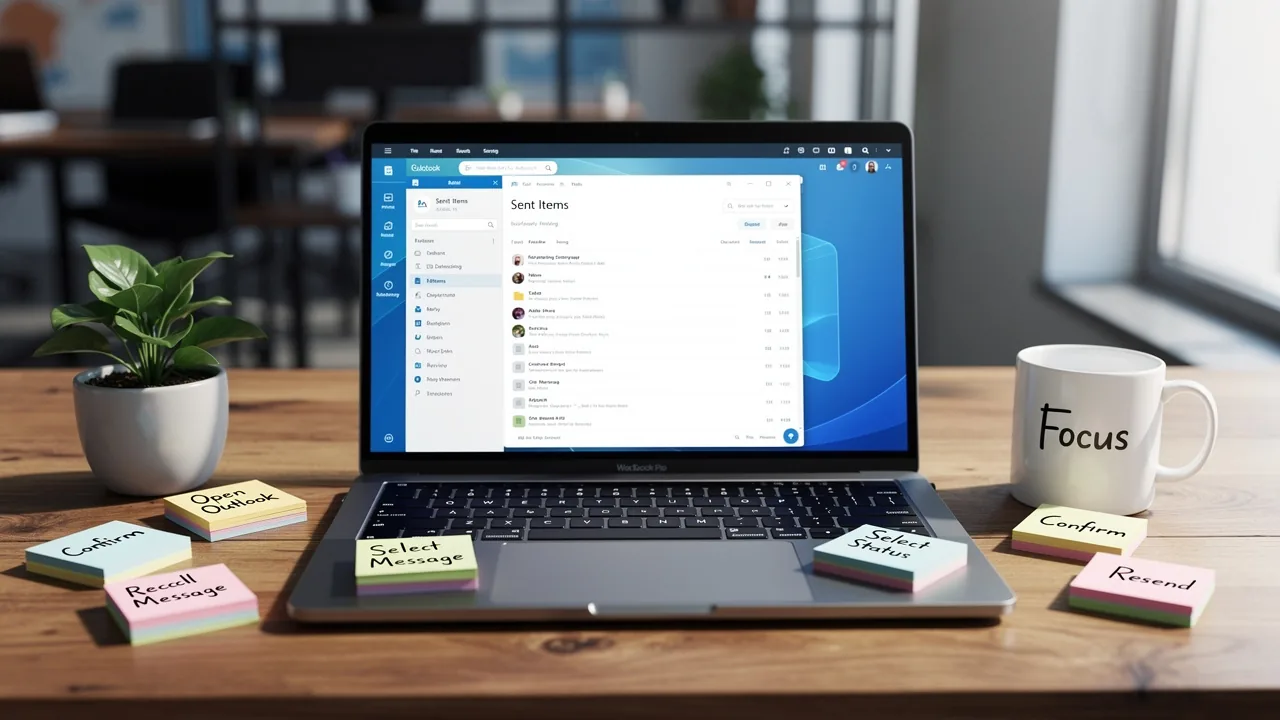
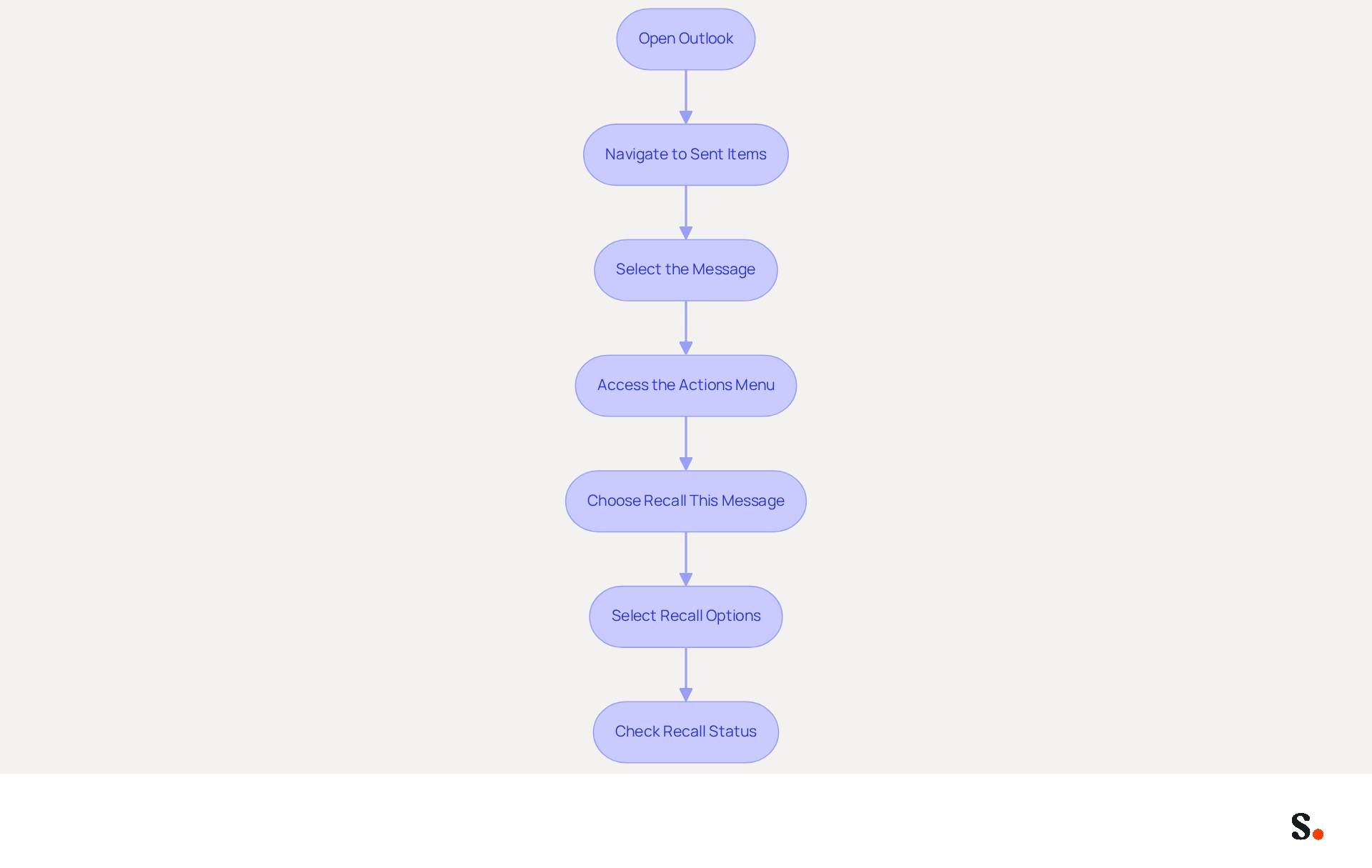
- Open Outlook: Launch the Outlook application on your computer.
- Navigate to Sent Items: In the left pane, click on the 'Sent Items' folder to view all the messages you have dispatched.
- Select the Message: Locate the correspondence you wish to recall. Double-click on it to open it in a new window.
- Access the Actions Menu: In the open message window, go to the 'Message' tab on the ribbon. Look for the 'Actions' button, which may be represented by three dots or a dropdown menu.
- Choose Recall This Message: Click on 'Actions' and select 'Recall This Message' from the dropdown options.
- Select Recall Options: A dialog box will appear, providing you the choice to either delete unread copies of the message or replace it with a new one. Choose your preferred option and click 'OK'.
- Check Recall Status: After initiating the process, you will receive a notification about the success or failure of the attempt. Monitor your inbox for this notification to confirm the outcome.
The effectiveness of recalling a message can be hindered by various factors, such as the recipient's email client and whether they have already opened the message. You should act quickly, ideally within 30 seconds of sending the message, as the retraction period lasts up to 120 minutes. Additionally, messages sent to external services like Gmail, Hotmail, or Yahoo cannot be recalled. If the recall attempt is unsuccessful, sending a follow-up message may be necessary to clarify the situation, as individuals may receive alerts about the notification attempt and some may read the message before it is withdrawn. Ultimately, understanding the limitations of the recall feature can help you navigate potential challenges effectively.
Troubleshoot Common Issues During Email Recall
When recalling an email in Office 365, several factors can impact the success of the retrieval process:
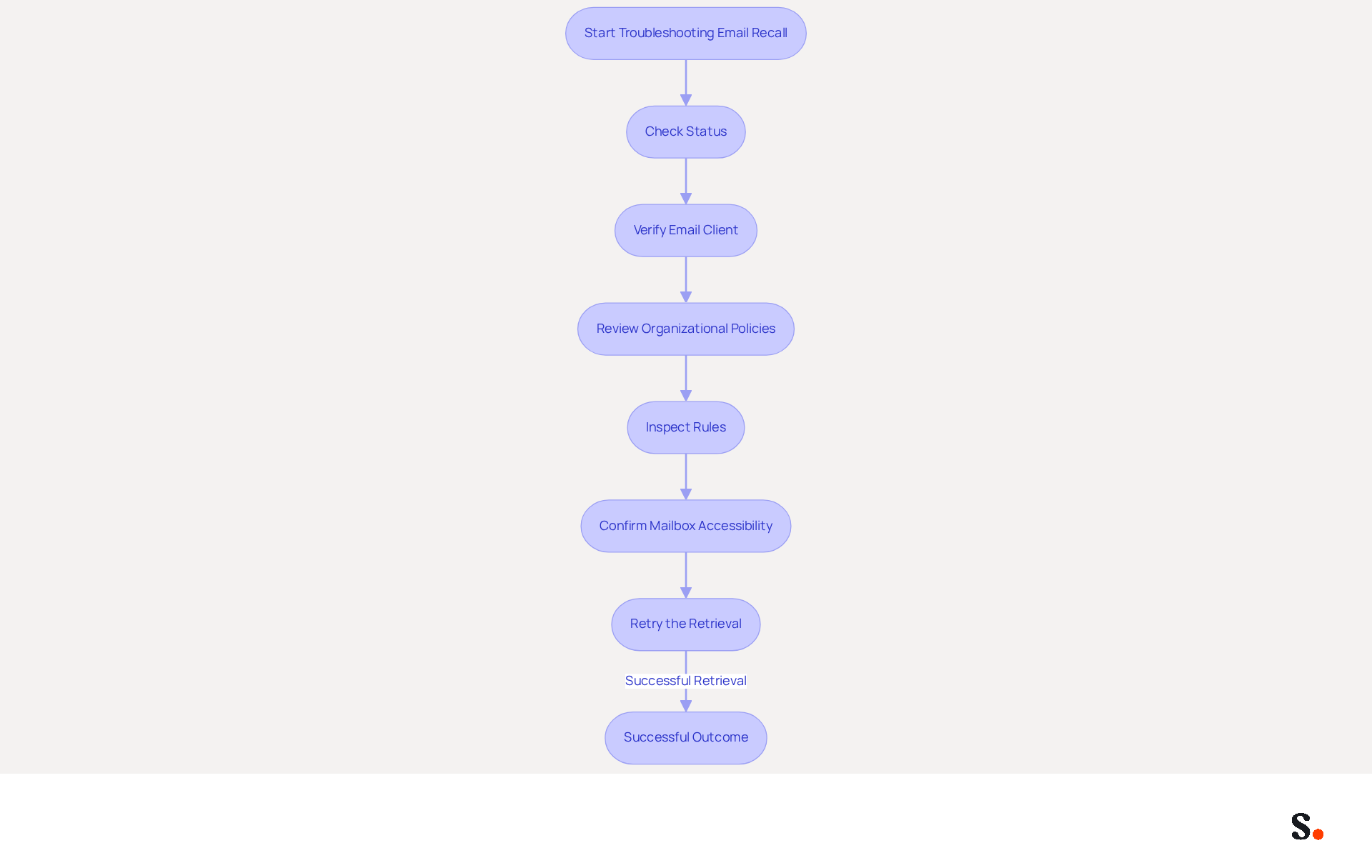
- Check Status: Ensure that the individual has not opened the message. If they have, the retrieval will not function, as the procedure is ineffective once the message is read.
- Verify Email Client: Confirm that the recipient is using Outlook for Windows. The retrieval feature is usually restricted to this client; if they are utilizing a different messaging client, the retrieval may not operate as expected.
- Review Organizational Policies: Check for any organizational policies that may limit the undo feature, such as time constraints on undos or settings that prevent them altogether.
- Inspect Rules: If the individual has rules established that automatically transfer messages to different folders, the recall may fail. Ask the individual to check their rules and ensure the email is still in their inbox.
- Confirm Mailbox Accessibility: Ensure that the user's mailbox is open and accessible. A full mailbox or connectivity issues can hinder retrieval success.
- Retry the Retrieval: If the first attempt to retrieve fails, wait a moment and try again, especially if you think the recipient hasn't opened the message yet.
Also, keep in mind that emails in Office 365 can be delayed for sending anywhere from 1 to 120 minutes, which can help prevent accidental sends. Utilizing the updated feature significantly increases the likelihood of successful message retrieval by employing a background agent instead of relying solely on Outlook clients. Status reports usually arrive within 5 minutes of the attempt, offering prompt feedback on the effectiveness of your actions.
By following these troubleshooting steps and understanding the limitations of the Office 365 recall message feature, you can effectively address common issues that may arise during the Office 365 recall message process.
Explore Tools and Resources for Effective Email Management
Managing email signatures effectively is crucial for maintaining brand consistency and maximizing marketing potential. To enhance your email management experience in Office 365, consider utilizing the following tools and resources:
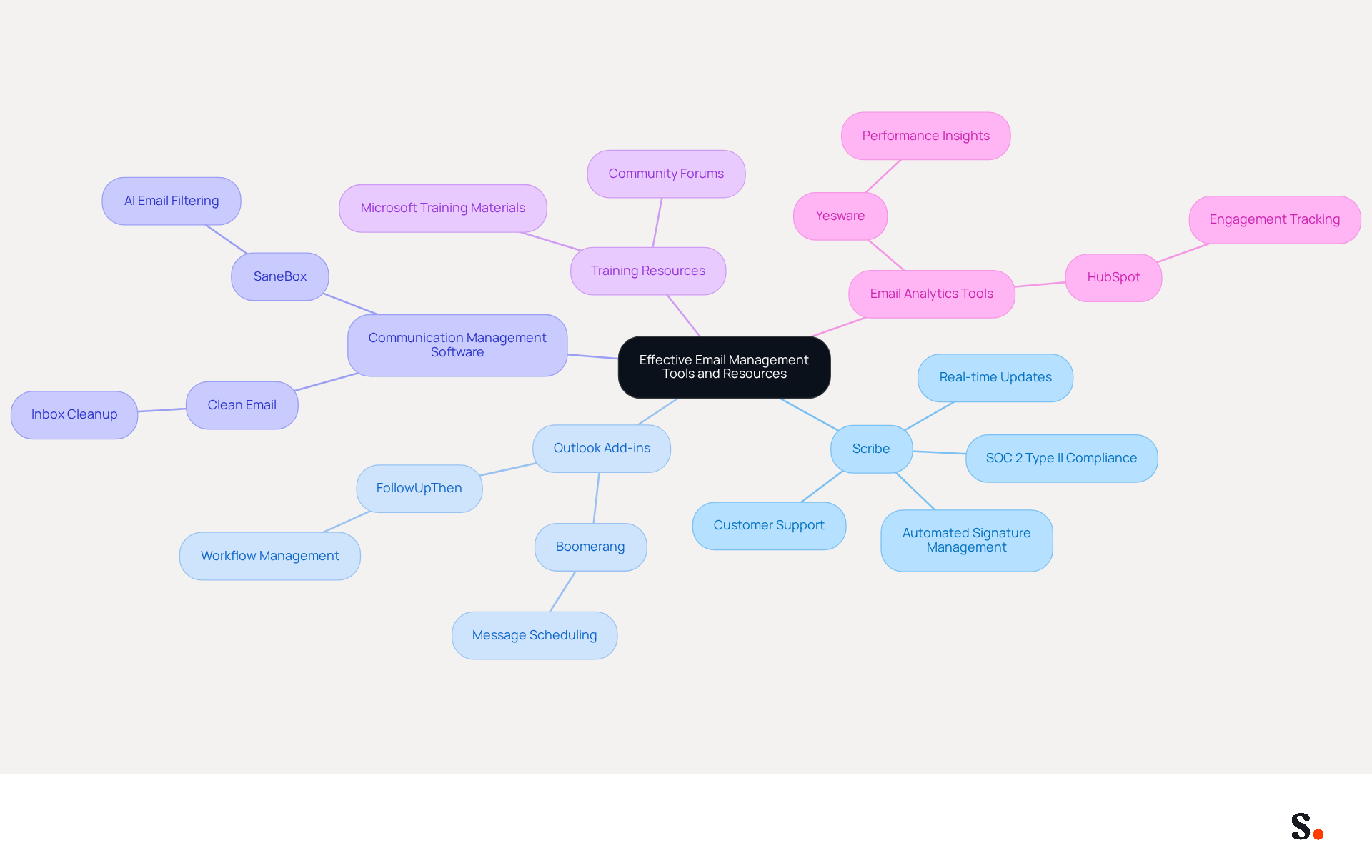
- Scribe: An innovative platform that automates signature management, ensuring brand consistency and maximizing marketing opportunities in every message sent. Scribe automatically updates your teammates' signature information in real-time, eliminating the need for manual updates. Furthermore, Scribe is SOC 2 Type II compliant, guaranteeing your data is secure while streamlining your communications and enhancing your marketing efforts. Our dedicated customer support team is ready to assist you, making your experience efficient and hassle-free.
- Outlook Add-ins: Explore various add-ins available for Outlook that can assist with message organization, scheduling, and tracking. Tools like Boomerang or FollowUpThen can assist in managing your workflow.
- Communication Management Software: Consider using dedicated communication management software that integrates with Office 365, such as Clean Email or SaneBox, to help organize your inbox and automate sorting.
- Training Resources: Utilize Microsoft’s official training materials and community forums to learn more about management best practices and features available in Office 365.
- Email Analytics Tools: Tools like Yesware or HubSpot can provide insights into performance, helping you track engagement and optimize your strategies.
By leveraging these tools and resources, especially Scribe's automated email signature management capabilities and exceptional customer support, you can improve your email management practices and enhance your overall productivity. Embracing these tools can transform your email management, leading to greater efficiency and effectiveness in your communications.
Conclusion
Mastering the email recall process in Office 365 is crucial for upholding communication standards and professionalism. This guide provides essential requirements, clear steps, and troubleshooting tips to help users navigate the recall process confidently.
Key points discussed include:
- The importance of ensuring both sender and recipient are within the same organization
- The necessity of using Outlook for Windows
- The critical time constraints that can affect the success of a recall
Additionally, the guide emphasized the common issues that may arise during the recall process and provided actionable solutions to address these challenges. By following these steps, users can greatly improve the likelihood of a successful email recall.
Using effective email management tools like Scribe enhances the email experience in Office 365. With Scribe's automated signature management and commitment to security through SOC 2 Type II compliance, organizations can ensure brand consistency while maximizing marketing opportunities. Embracing these strategies not only streamlines email management but also boosts organizational efficiency.
Frequently Asked Questions
What are the requirements for recalling an email in Office 365?
To recall an email in Office 365, both the sender and the receiver must be part of the same organization and using Microsoft Exchange or Microsoft 365. Emails sent to external contacts cannot be recalled.
Under what conditions can an email be successfully recalled?
An email can be successfully recalled if the recipient has not opened the message, the individual is using Outlook for Windows, and the recipient's mailbox is open and accessible.
What happens if the recipient has already viewed the email?
If the recipient has already accessed the email, the recall function will not succeed.
Does the recipient's mailbox status affect the recall process?
Yes, the recipient's mailbox must be open and accessible for the recall to work. If there are rules that automatically move the message to another folder, the retrieval may fail.
Are there any time limitations for recalling an email?
Yes, organizational policies may impose time limitations on how long after sending an email a recall can be executed. It is important to be familiar with these policies.
What is the success rate for recalling emails within the same organization?
Microsoft reports a 90% success rate for recalling messages within the same organization.
What challenges do users face when recalling emails?
Users often face challenges when attempting to recall messages, particularly with external communications, and limitations related to messaging client compatibility and the recipient's mailbox status.
Have there been any recent improvements to the email recall functionality?
Yes, recent enhancements to the message retrieval functionality have improved the user experience, although limitations still persist.
List of Sources
- Understand Requirements and Limitations for Email Recall
- Microsoft Outlook Is Finally Getting Cross-Tenant Email Recall (https://windowsreport.com/microsoft-outlook-is-finally-getting-cross-tenant-email-recall)
- Microsoft 365 Cross-Tenant Email Recall: How It Works (https://it-connect.tech/microsoft-365-cross-tenant-email-recall-is-coming-soon)
- Microsoft Enhances Message Recall for Exchange Online (https://practical365.com/message-recall-enhancements)
- TECH SOLUTIONS MOVING YOUR LIFE FORWARD - TECH-ARROW (https://tech-arrow.com/?p=10837)
- Follow Step-by-Step Procedure to Recall an Email
- neowin.net (https://neowin.net/news/microsoft-is-bringing-a-much-needed-feature-to-outlook)
- How to recall an email in Outlook: Requirements, Limitations & Steps | Microsoft Support (https://support.microsoft.com/en-us/outlook/mail/how-to-recall-an-email-in-outlook-requirements-limitations-steps)
- Recall an Email in Outlook: Step-by-Step Guide - Technology Org (https://technology.org/how-and-why/how-to-recall-an-email-in-outlook)
- How does the new message recall work in Microsoft 365 (https://codetwo.com/admins-blog/cloud-based-message-recall)
- Troubleshoot Common Issues During Email Recall
- How to Recall an Email in Office 365: Complete Guide (https://o365cloudexperts.com/blog/how-to-recall-an-email-in-office-365)
- Microsoft Enhances Message Recall for Exchange Online (https://practical365.com/message-recall-enhancements)
- Microsoft Office 365 to Add Message Recall in Exchange Online (https://bleepingcomputer.com/news/microsoft/microsoft-office-365-to-add-message-recall-in-exchange-online)
- Explore Tools and Resources for Effective Email Management
- Top Rated Email Management Software with Microsoft 365 2026 (https://getapp.com/it-communications-software/email-management/w/microsoft-365)
- 13 best email management software of 2026 (https://zendesk.com/service/ticketing-system/email-management-software)
- 11 best email management software in 2026 (+ how to choose one) · Missive Blog (https://missiveapp.com/blog/email-management-software)
- Making the move to new Outlook: What it means for email management (https://mailmanager.com/blog/making-the-move-to-new-outlook-what-it-means-for-email-management)
- Top 16 Email Management Software of 2026 (https://getinboxzero.com/blog/post/email-management-software)
Get started with Scribe
Manage signatures across your whole team
Free 14-day trial — no credit card.