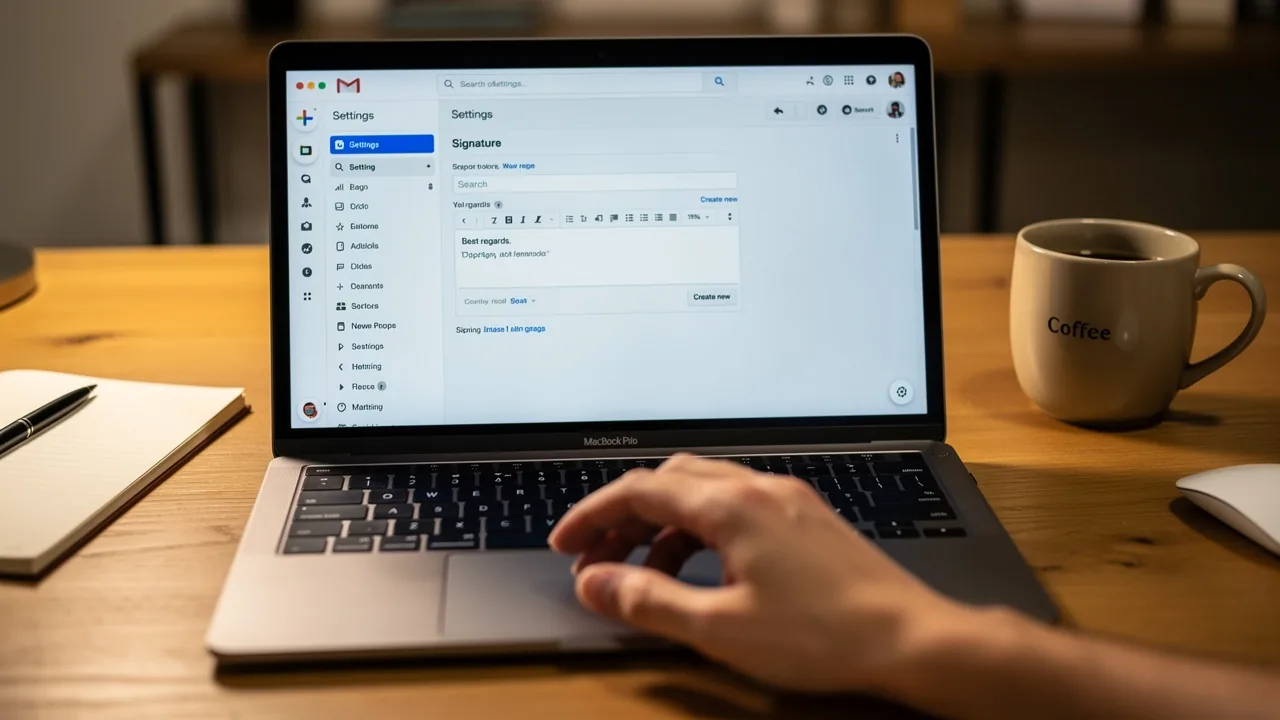
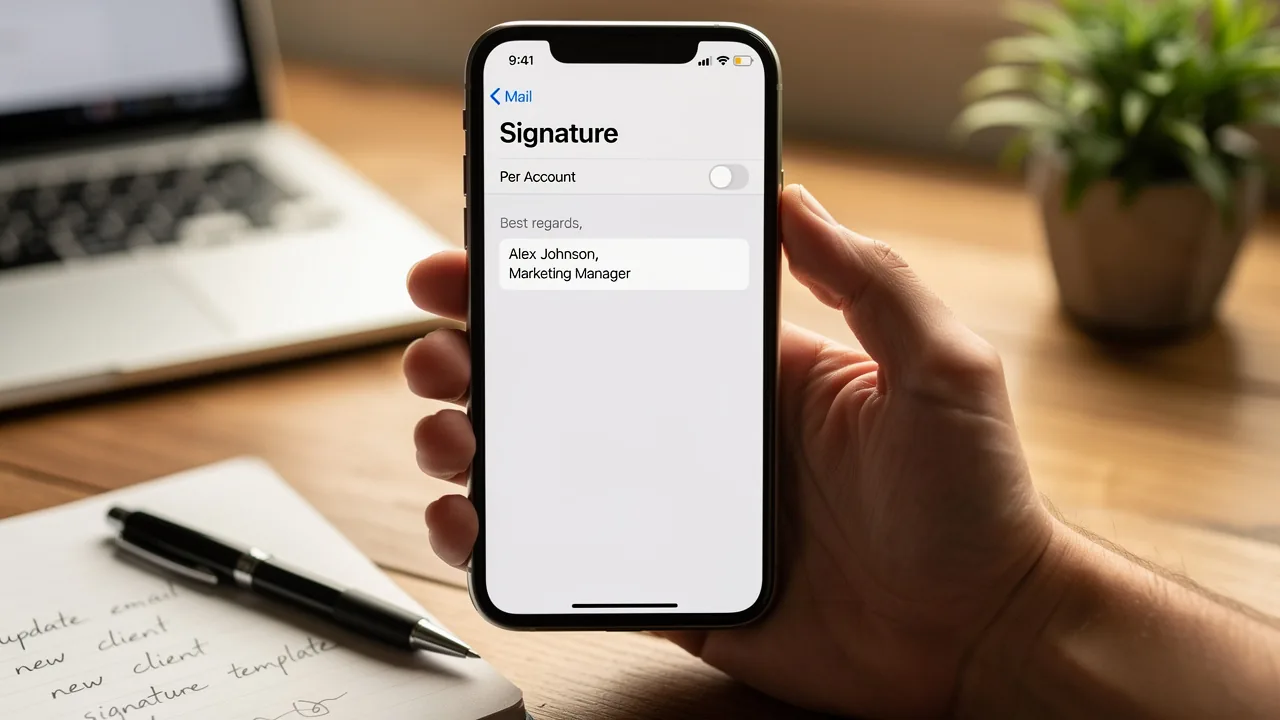
Master Where Signatures Are in Outlook 365: A Step-by-Step Guide
Managing email signatures in Outlook 365 is crucial for maintaining a professional image and ensuring brand consistency. This guide offers a comprehensive
Sophie Grant
Email Signature Specialist, Scribe
Introduction
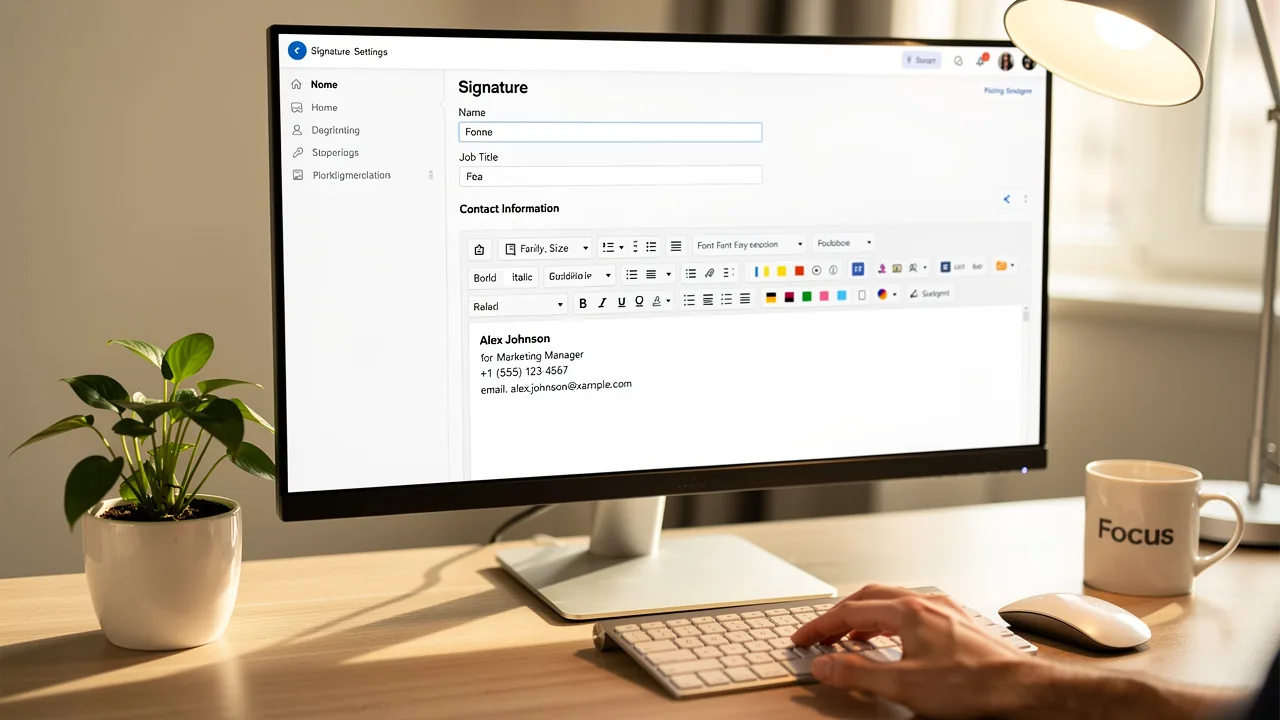
Managing email signatures in Outlook 365 is crucial for maintaining a professional image and ensuring brand consistency. This guide offers a comprehensive step-by-step approach to navigating signature storage locations, creating and updating signatures, and troubleshooting common issues. Organizations often struggle with the complexities of email signature management, leading to potential inconsistencies in brand representation. By implementing effective strategies, they can simplify management and enhance their marketing efforts. Implementing streamlined processes can significantly improve brand visibility and engagement, transforming how organizations communicate.
Identify Signature Storage Locations in Outlook 365
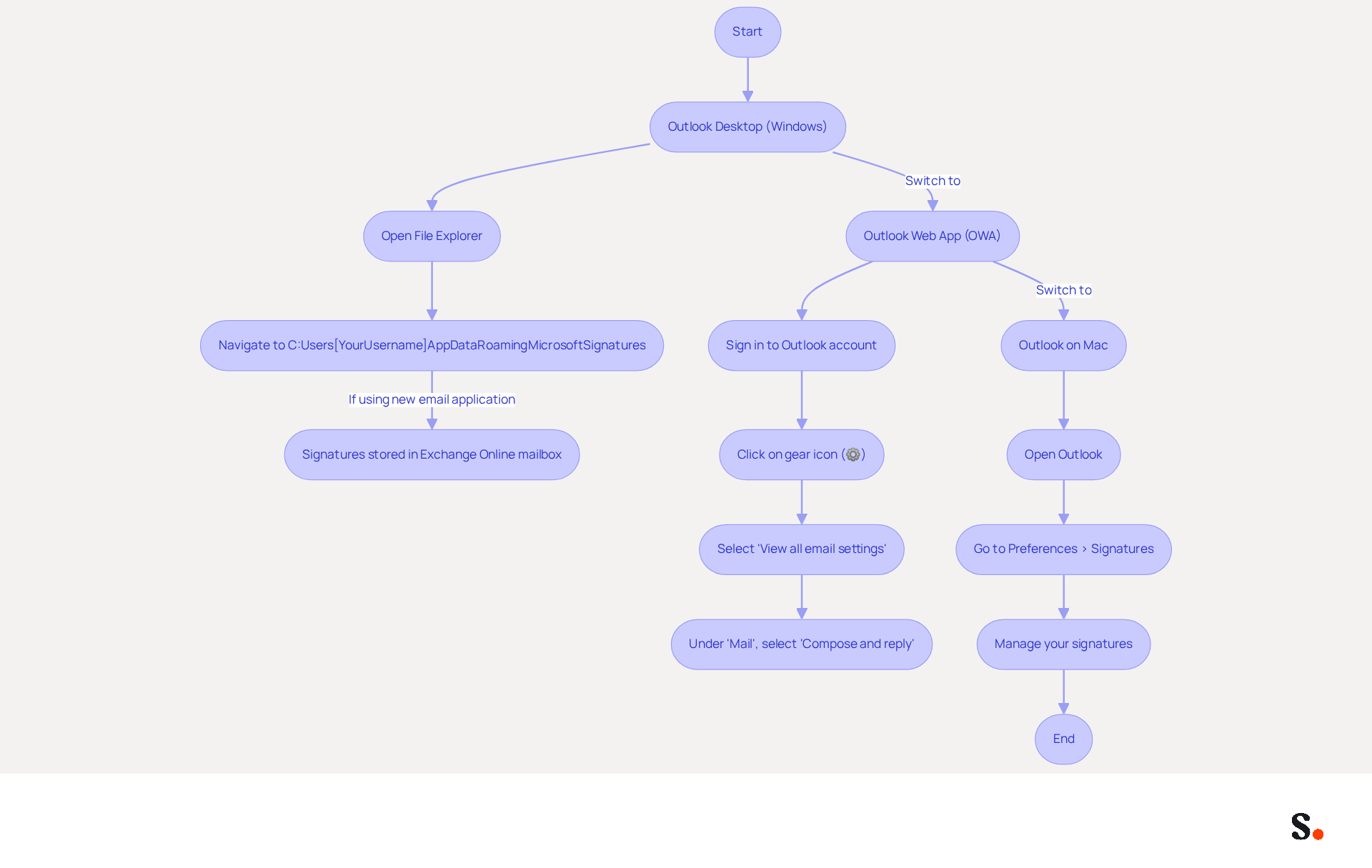
Understanding where signatures in Outlook 365 are stored is crucial for effective management and troubleshooting. You may wonder where signatures in Outlook 365 can be found, as they can be located in different areas depending on whether you are using the desktop application or the web version. Here’s how to identify these locations:
-
For Outlook Desktop (Windows):
- Open File Explorer and navigate to the following path:
C:\Users\[YourUsername]\AppData\Roaming\Microsoft\Signatures. This folder holds all your saved email templates. - If you are using the new email application, signatures are stored in your Exchange Online mailbox, which means they are not accessible via the local file system.
- Open File Explorer and navigate to the following path:
-
For Outlook Web App (OWA):
- Sign in to your Outlook account via a web browser. Click on the gear icon (⚙️) in the top right corner and select 'View all email settings'.
- Under 'Mail', select 'Compose and reply'. Here, you can view and modify your email identifiers directly.
-
For Outlook on Mac:
- Open Outlook and go to Preferences > Signatures. This will display the marks you have created and enable you to manage them.
Without this knowledge, you risk inefficiencies in your email communication that could impact your professional image.
Add or Update Your Email Signature in Outlook 365
An effective email footer in Scribe 365 can significantly enhance your branding and marketing efforts. Follow these steps to ensure your signature is professional and on-brand:
-
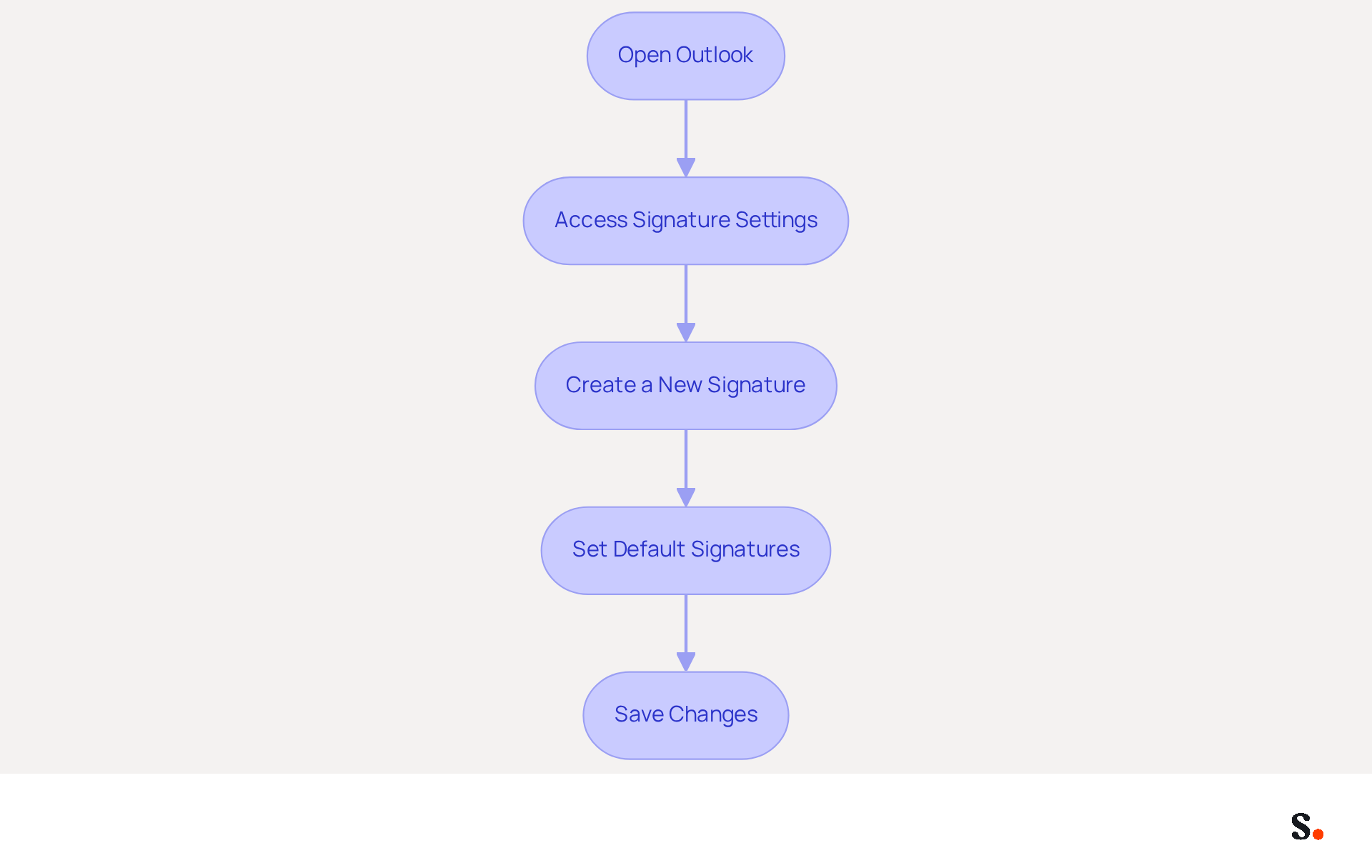
Open Outlook:
- Launch the Outlook application on your desktop or navigate to the Outlook web app.
-
Access Signature Settings:
- For Desktop: Go to
File>Options>Mail>Signatures. - For Web: Click on the gear icon (⚙️) and select 'View all Outlook settings', then go to 'Mail' > 'Compose and reply' to discover where is signatures in outlook 365.
- For Desktop: Go to
-
Create a New Signature:
- Click on
Newto create a new signature. Enter a name for your mark to easily identify it later. - In the editing box, type your name. You can format the text using the available tools (font, size, color, etc.).
- Include essential elements such as your full name, job title, company name, and at least one direct contact method. Consider incorporating a logo or a call-to-action button to boost engagement, as 52.6% of users include CTAs in their correspondence.
- Click on
-
Set Default Signatures:
- Choose your new signature as the default for new emails and replies/forwards if desired. This ensures consistency in all communications, a priority for many users.
-
Save Changes:
- Click
OKto save your signature settings. Ensure to test it by creating a new message to see how it looks.
- Click
By following these steps, you can ensure that your message footer is not only functional but also a powerful marketing tool. By optimizing your email signature, you not only improve communication but also leverage a strategic marketing advantage.
Troubleshoot Common Signature Issues in Outlook 365
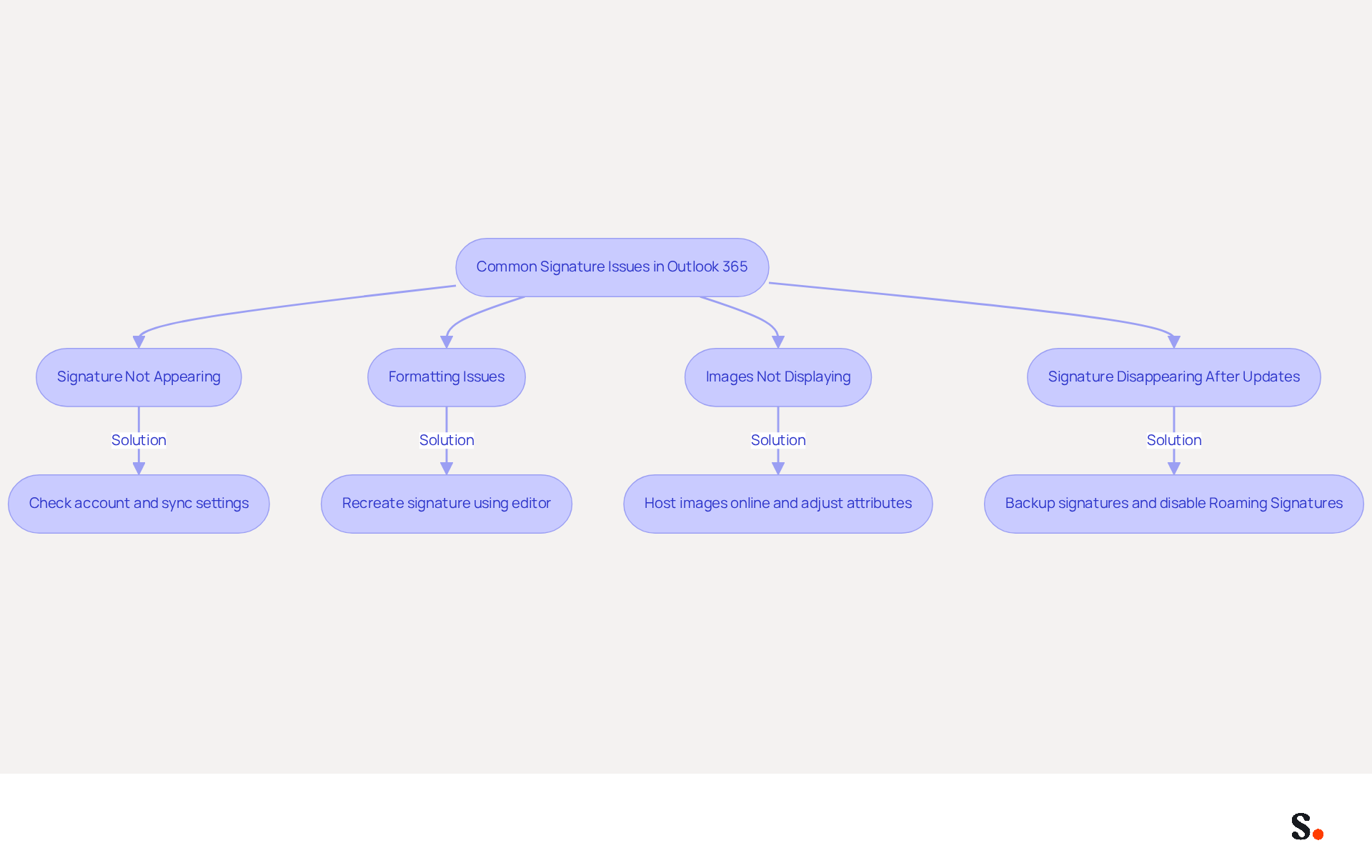
Despite having a well-established email signature, users frequently encounter challenges that can disrupt their professional communications. Here are some common problems and their solutions:
-
Signature Not Appearing:
- If you're using the web version, make sure you're logged into the right account where your saved signature is stored, since they might not sync across different accounts. To set your signature as the default for new emails and replies, you need to know where is signatures in Outlook 365, which can be verified in the settings under File > Options > Mail > Signatures.
-
- If your signature appears differently than expected, recreate it using the signature editor. Avoid copying and pasting from other sources, as this can introduce unwanted formatting. Instead, use plain text or HTML format for better compatibility. Keeping the layout simple can help prevent rendering issues across different email clients.
-
Images Not Displaying:
- Ensure that images are hosted online if you are using them in your signature. The email client may not show images that are stored locally, resulting in broken links in your email footer. Additionally, set the height and width attributes in the
<img>element without units to ensure proper display. Check the image size; large images may not load properly. For optimal display, set images to 96 DPI for older versions of the email client and 72 DPI for others.
- Ensure that images are hosted online if you are using them in your signature. The email client may not show images that are stored locally, resulting in broken links in your email footer. Additionally, set the height and width attributes in the
-
Signature Disappearing After Updates:
- Users often find their signatures vanish unexpectedly after updates, leading to frustration. If this happens, you may need to know where is signatures in Outlook 365 to recreate your signature. Always back up your files if you are using the desktop version to avoid losing them. Additionally, consider disabling Roaming Signatures via the Registry, as this can help maintain visibility of the identifiers. Check for any updates or patches from Microsoft that may address known issues, as updates can reset local settings and influence visibility of marks.
By implementing these solutions, users can ensure their email signatures remain intact and professional. Furthermore, syncing your Google Workspace with Scribe can simplify your management of correspondence identifiers, ensuring that any updates to your teammates' details are automatically reflected in Scribe. This not only saves time but also enhances brand consistency across your organization. Scribe's compliance with SOC 2 Type II, GDPR, and CCPA further ensures that your data is handled securely.
Leverage Automation Tools for Efficient Signature Management
For businesses aiming to enhance their electronic correspondence management, automation solutions are not just beneficial; they are essential. Here’s how to effectively utilize these tools:
-
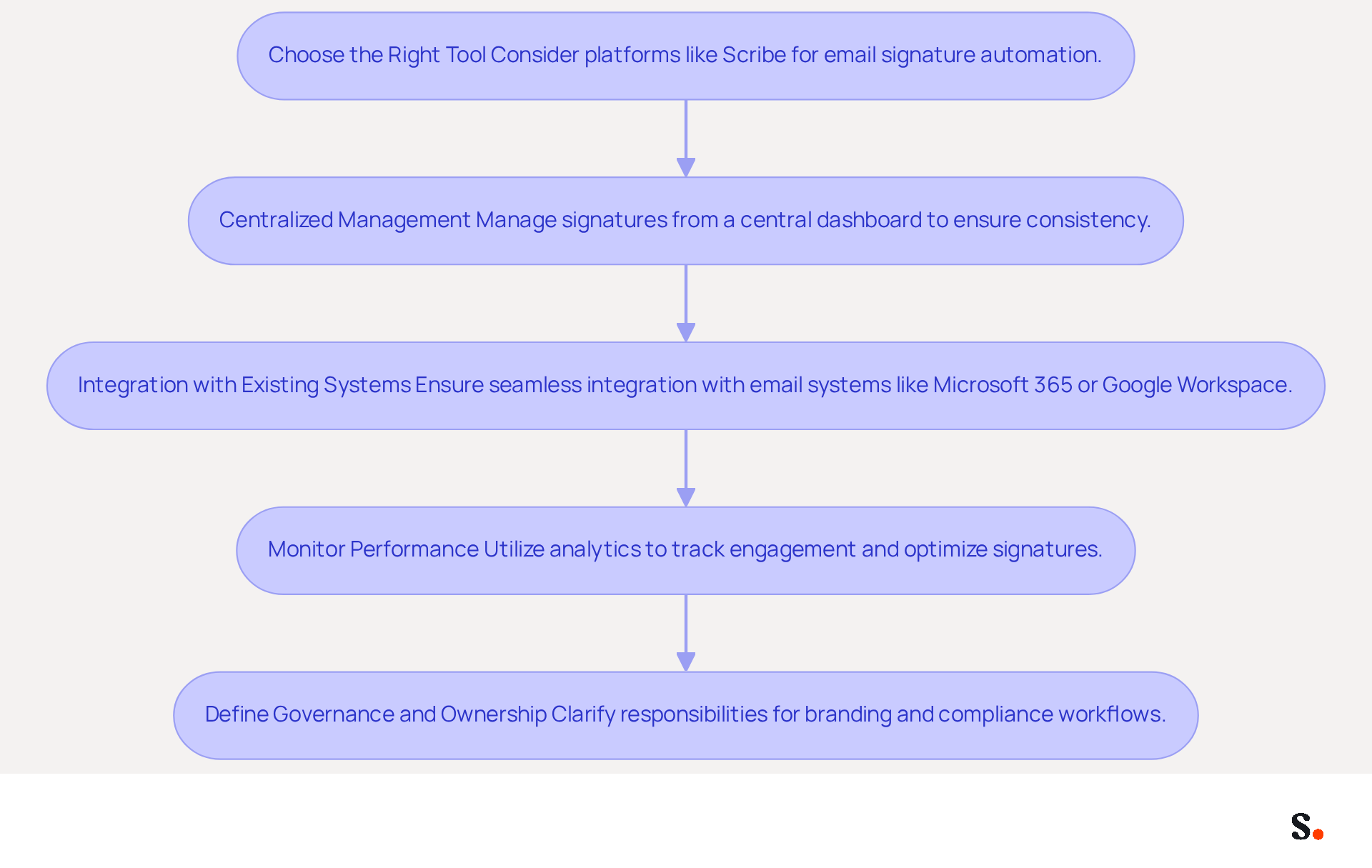
Choose the Right Tool:
- Consider platforms like Scribe, which automate the creation and management of email signatures across your organization. These tools allow easy updates and ensure brand consistency, enabling marketing teams to manage their identifiers independently after the initial IT setup.
- Look for features such as template creation, integration with email clients, and analytics tracking, which are essential for enhancing the effectiveness of your email branding efforts.
-
- Leverage automation tools to manage signatures from a central dashboard. Without centralized management, keeping email signatures updated across all users can lead to inconsistencies and confusion. This rapid deployment minimizes downtime and ensures that your branding is consistently represented across all communications.
- Create templates that align with your brand guidelines, simplifying the process for employees to generate compliant email footers.
-
Integration with Existing Systems:
- Ensure that the automation tool integrates seamlessly with your current email systems, such as Microsoft 365 or Google Workspace. This integration streamlines the implementation process and minimizes the learning curve for users, enhancing collaboration across teams.
-
- Utilize analytics features to track the performance of your email signatures. Monitoring engagement levels allows for data-driven decisions regarding future updates and optimizations. Key metrics to monitor include click-through rates (CTR), conversion rates, and engagement rates, which are crucial for assessing the effect of digital identifiers on marketing campaigns. Scribe users have reported an average click-through rate of 12% on banners, showcasing the effectiveness of well-managed branding.
-
Define Governance and Ownership:
- Before implementing automation, clarify responsibilities for branding, compliance, and approval workflows. This ensures that everyone understands their roles in maintaining brand integrity and compliance.
By adopting Scribe, organizations not only streamline their email signature management but also significantly boost their marketing effectiveness and brand consistency.
Conclusion
Mastering email signatures in Outlook 365 is crucial for projecting a professional image and ensuring brand consistency in communications. Understanding where signatures are stored, how to create and update them, and troubleshooting common issues can significantly enhance email interactions. Using tools like Scribe helps marketing teams take charge of signature management, making the process smoother and ensuring they stick to branding guidelines.
Key insights from this guide include:
- The importance of knowing the storage locations for signatures in different Outlook versions
- The steps to create and set default signatures
- Effective troubleshooting techniques for common signature problems
Additionally, leveraging automation tools not only simplifies management but also enhances marketing effectiveness. This is particularly evident in Scribe's average click-through rate of 12% on signature banners, showcasing the effectiveness of automated management.
Incorporating these strategies can transform email signatures from mere footers into powerful marketing tools. Organizations are encouraged to adopt solutions like Scribe to achieve 100% brand consistency and measurable ROI from their email communications. Taking control of email signature management not only enhances brand professionalism but also drives measurable results in marketing efforts.
Frequently Asked Questions
Where are signatures stored in Outlook 365 for the desktop application on Windows?
Signatures in Outlook 365 for the desktop application on Windows are stored in the following path: C:\Users[YourUsername]\AppData\Roaming\Microsoft\Signatures. This folder contains all your saved email templates.
How are signatures stored in the new email application of Outlook 365?
In the new email application of Outlook 365, signatures are stored in your Exchange Online mailbox and are not accessible via the local file system.
How can I find and manage signatures in the Outlook Web App (OWA)?
To find and manage signatures in the Outlook Web App, sign in to your Outlook account via a web browser, click on the gear icon (⚙️) in the top right corner, select 'View all email settings', and then under 'Mail', choose 'Compose and reply' to view and modify your email identifiers.
What steps should I follow to manage signatures in Outlook on Mac?
To manage signatures in Outlook on Mac, open Outlook and go to Preferences > Signatures. This will display the signatures you have created and allow you to manage them.
Why is it important to know where signatures are stored in Outlook 365?
Knowing where signatures are stored in Outlook 365 is crucial for effective management and troubleshooting, as it helps prevent inefficiencies in email communication that could impact your professional image.
List of Sources
- Identify Signature Storage Locations in Outlook 365
- Email Signatures vanishing - New Outlook | Microsoft Community Hub (https://techcommunity.microsoft.com/discussions/outlookgeneral/email-signatures-vanishing---new-outlook/4418809)
- Email Signature Statistics: A Closer Look at Email Signatures in 2026 (https://mysignature.io/blog/email-signature-statistics)
- 14 Key Email Signature Statistics to Know in 2026 (https://mailmodo.com/guides/email-signature-statistics)
- 40+ Email Signature Statistics for 2026 (Data + Insights) (https://wavecnct.com/blogs/email-signature-statistics)
- Add or Update Your Email Signature in Outlook 365
- Email Signature Statistics: A Closer Look at Email Signatures in 2026 (https://mysignature.io/blog/email-signature-statistics)
- 40+ Email Signature Statistics for 2026 (Data + Insights) (https://wavecnct.com/blogs/email-signature-statistics)
- Research Recap: Branded Email Signatures Increase Company Recognition, Trust - Demand Gen Report (https://demandgenreport.com/industry-news/research-recap-branded-email-signatures-increase-company-recognition-trust/47252)
- The impact of email signatures on your branding (https://signitic.com/en/resources/the-impact-of-email-signatures-on-your-branding)
- Email signature statistics: Why every business should optimize their email signatures — Stripo.email (https://stripo.email/blog/email-signature-statistics-why-every-business-should-optimize-their-email-signatures)
- Troubleshoot Common Signature Issues in Outlook 365
- Email Signature Troubleshooting - Problems & Solutions - Gimmio (https://blog.gimm.io/email-signature-troubleshooting)
- Outlook Signature Not Working in Office 365: Causes & Fixes (https://exclaimer.com/email-signature-handbook/outlook-signature-not-working-in-office-365)
- Outlook 365 signature problems (Outlook for Windows) - Microsoft Q&A (https://learn.microsoft.com/en-us/answers/questions/4574051/outlook-365-signature-problems-outlook-for-windows)
- Outlook Signature Disappears? 6 Common Problems + Fixes (https://conbool.com/blog/outlook-signature-disappears-fixes-problems)
- How to solve problems with email signatures in Microsoft 365? (https://mail-signatures.com/articles/problems-email-signatures-office-365)
- Leverage Automation Tools for Efficient Signature Management
- The impact of email signatures on your branding (https://signitic.com/en/resources/the-impact-of-email-signatures-on-your-branding)
- Automating Email Signatures: How IT Teams Streamline Processes & Reduce Risk (https://exclaimer.com/blog/streamlining-it-processes-automated-email-signatures)
- Email signature statistics: Why every business should optimize their email signatures — Stripo.email (https://stripo.email/blog/email-signature-statistics-why-every-business-should-optimize-their-email-signatures)
- Email Signature Trends 2026: Centralized Control & Automation | SIGNandGO posted on the topic | LinkedIn (https://linkedin.com/posts/signngo_email-signature-trends-to-watch-in-2026-activity-7401523471786217473-zAVL)
- Best Email Signature Management Software: Top 12 Tools (2026)
- NEWOLDSTAMP (https://newoldstamp.com/blog/email-signature-software)
Get started with Scribe
Create your signature in minutes
Free 14-day trial — no credit card.