Set Up Your Automatic Signature in Outlook: A Step-by-Step Guide
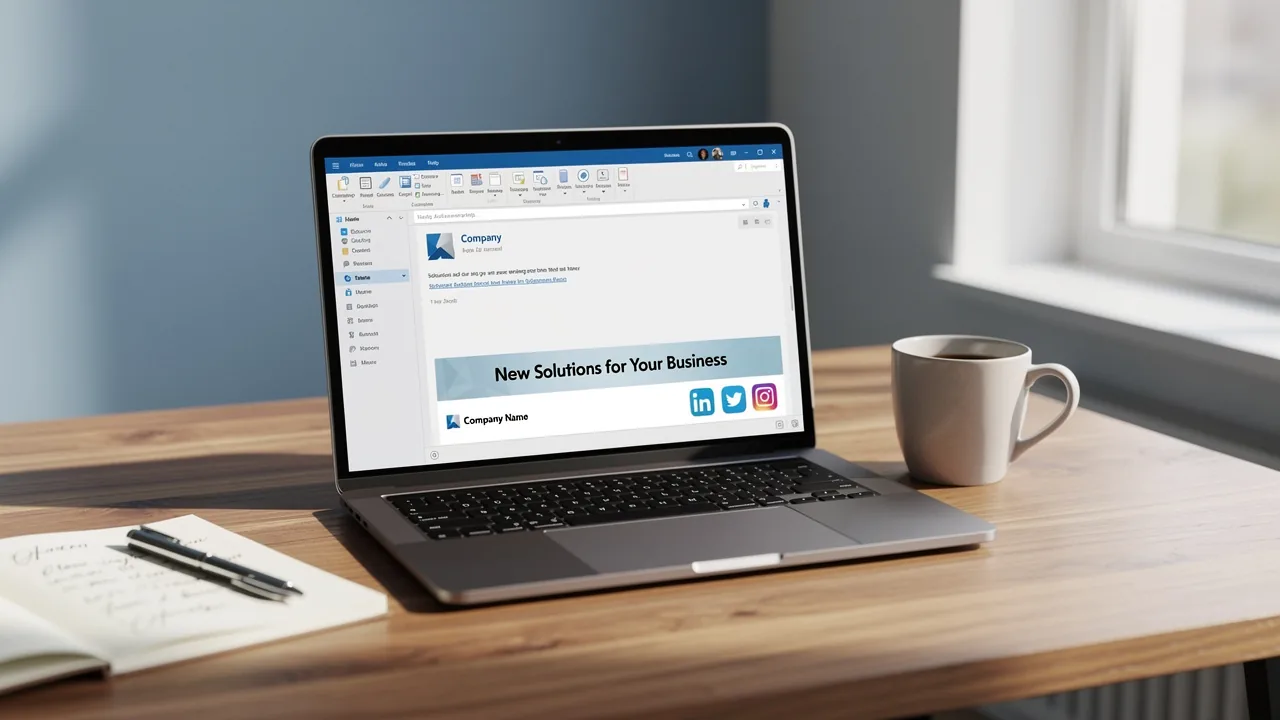
In an era where digital communication defines professional interactions, the role of a well-crafted email signature is crucial. Automatic signatures in Outlook
Sophie Grant
Email Signature Specialist, Scribe
On this page
Introduction
In an era where digital communication defines professional interactions, the role of a well-crafted email signature is crucial. Automatic signatures in Outlook not only enhance brand recognition but also streamline communication, ensuring that every email sent reflects a professional image. Despite the importance of email signatures, many professionals struggle with their setup and management. This guide will provide a clear process to overcome these challenges. By following this guide, you will learn how to create and integrate automatic signatures in Outlook, enhancing your email communications while ensuring compliance and brand consistency.
Understand the Importance of Automatic Signatures in Outlook
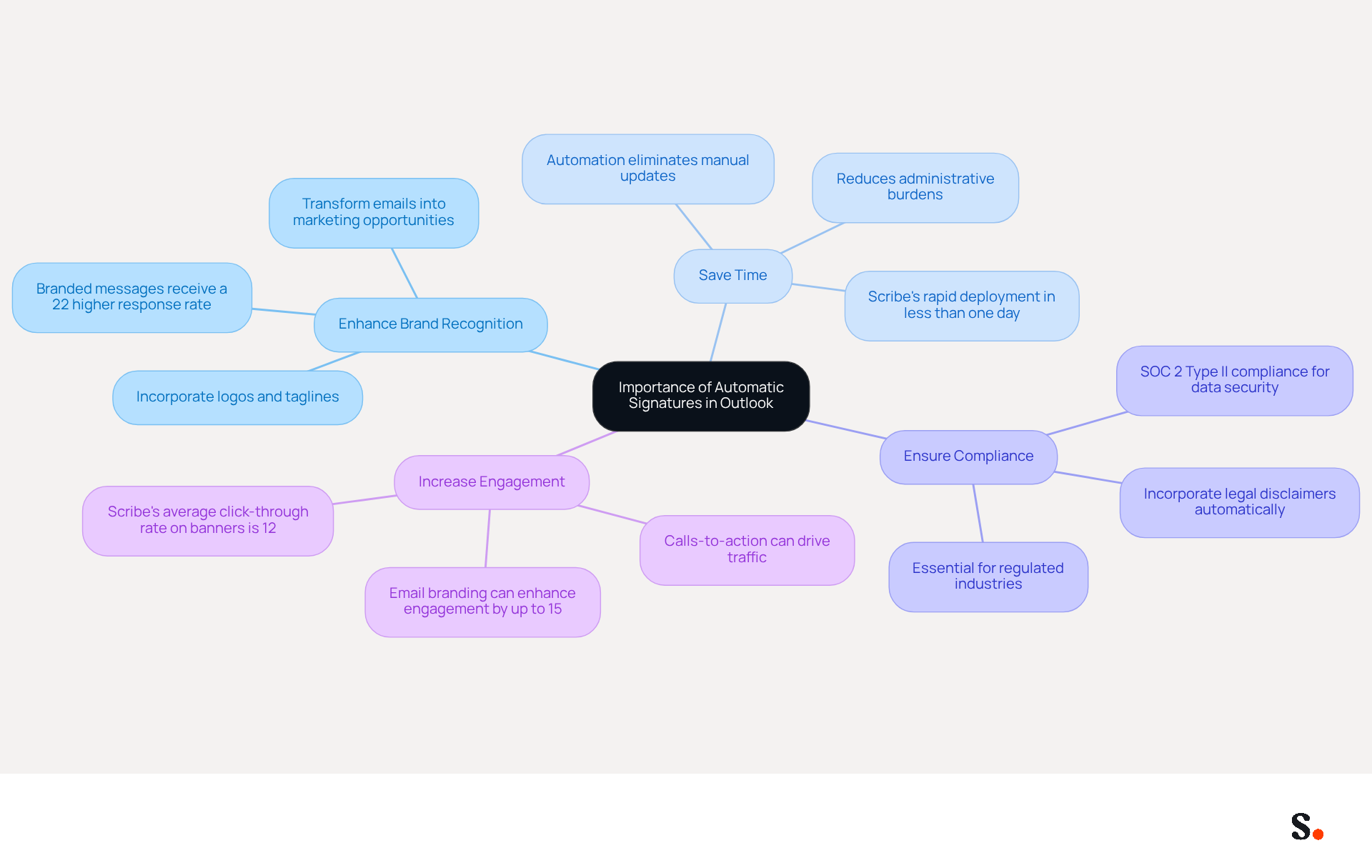
Inconsistent branding and missed engagement opportunities can hinder business communications. An automatic signature in Outlook empowers businesses to streamline communication and enhance branding. Their consistent application across communications is crucial for maintaining a professional image. By leveraging automatic signatures, businesses can:
- Enhance Brand Recognition: A well-crafted signature can incorporate logos, taglines, and social media links, transforming every email into a marketing opportunity. According to a study by XYZ Research, messages featuring branded identifiers receive a 22% higher response rate, significantly boosting company recognition and trust.
- Save Time: Automation removes the requirement for manual insertion of names in each message, streamlining communication processes. This efficiency is particularly beneficial as organizations grow, reducing administrative burdens and allowing employees to focus on core tasks. With Scribe, automated initials save time by auto-filling your teammates' marks using your business phone system as a data source, ensuring that mark information is always synced without any action needed from your colleagues. Furthermore, Scribe's rapid deployment enables Marketing teams to handle digital identifiers autonomously after the initial IT configuration, usually finalizing company-wide installations in less than one day.
- Ensure compliance by utilizing an automatic signature in Outlook, which can seamlessly incorporate legal disclaimers and company policies, guaranteeing that all outgoing communications adhere to regulatory requirements. Scribe's SOC 2 Type II compliance guarantees that your data is safe, making it especially vital in regulated industries where compliance is non-negotiable.
- Increase Engagement: Incorporating calls-to-action in closing lines can drive traffic to websites or promote special offers, effectively transforming routine communications into lead generation tools. Studies indicate that email branding marketing can enhance campaign engagement by up to 15%, maximizing the impact of every communication. Furthermore, the integration of Scribe with Aircall guarantees that any modifications made in your Aircall configuration will automatically be reflected in your branding, enhancing brand consistency across all communications. Scribe's average click-through rate on banners is 12%, showcasing its effectiveness in driving engagement.
Understanding these advantages makes it clear that having an automatic signature in Outlook is crucial for effective business communication.
Access Outlook Signature Settings
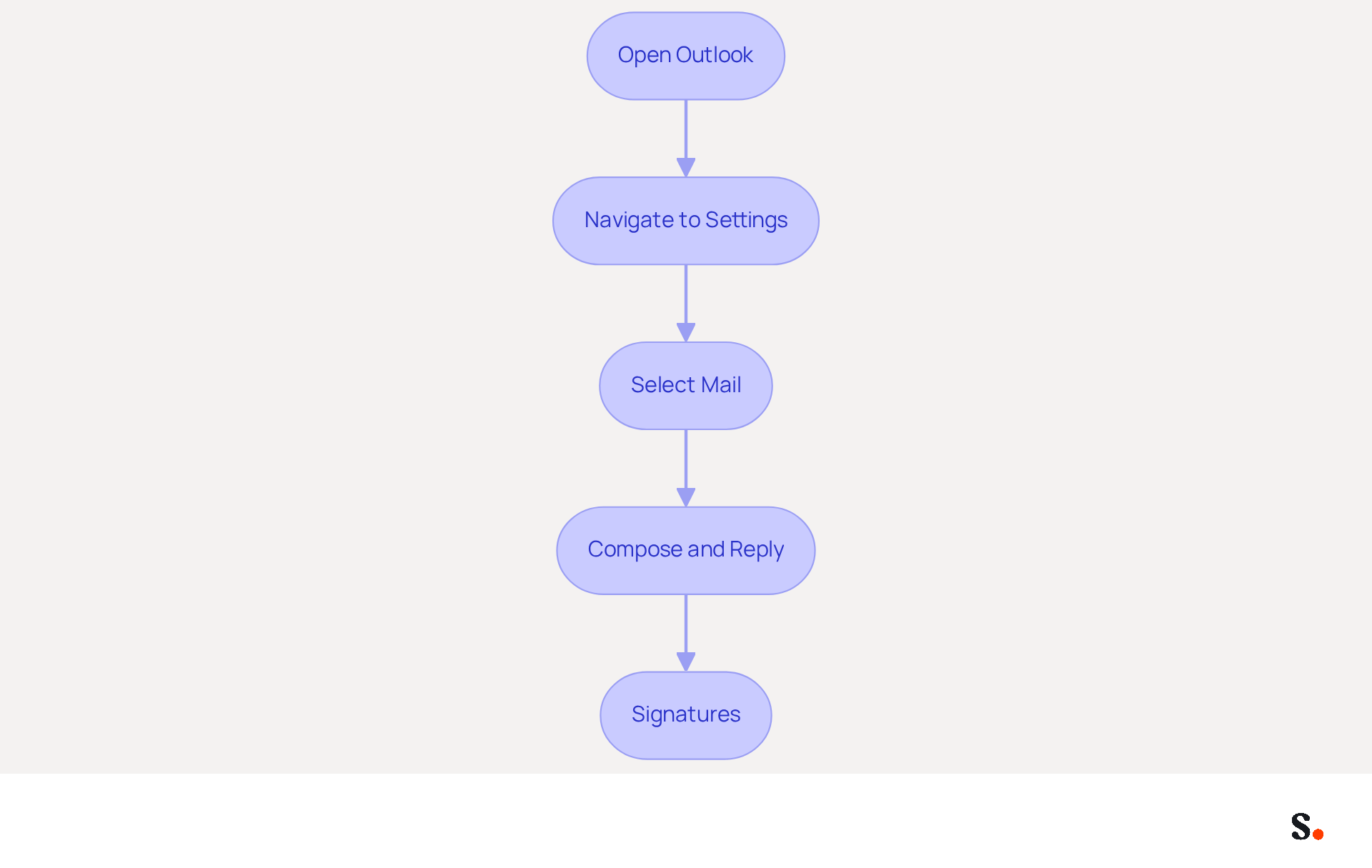
To effectively manage your email signature in Outlook, it is essential to follow a systematic approach:
- Open Outlook: Launch the Outlook application on your computer.
- Navigate to Settings: Click on the gear icon (⚙️) located in the top-right corner of the window.
- Select Mail: In the settings menu, scroll down and select 'Mail' from the list of options.
- Compose and Reply: Under the 'Mail' section, find and click on 'Compose and reply'.
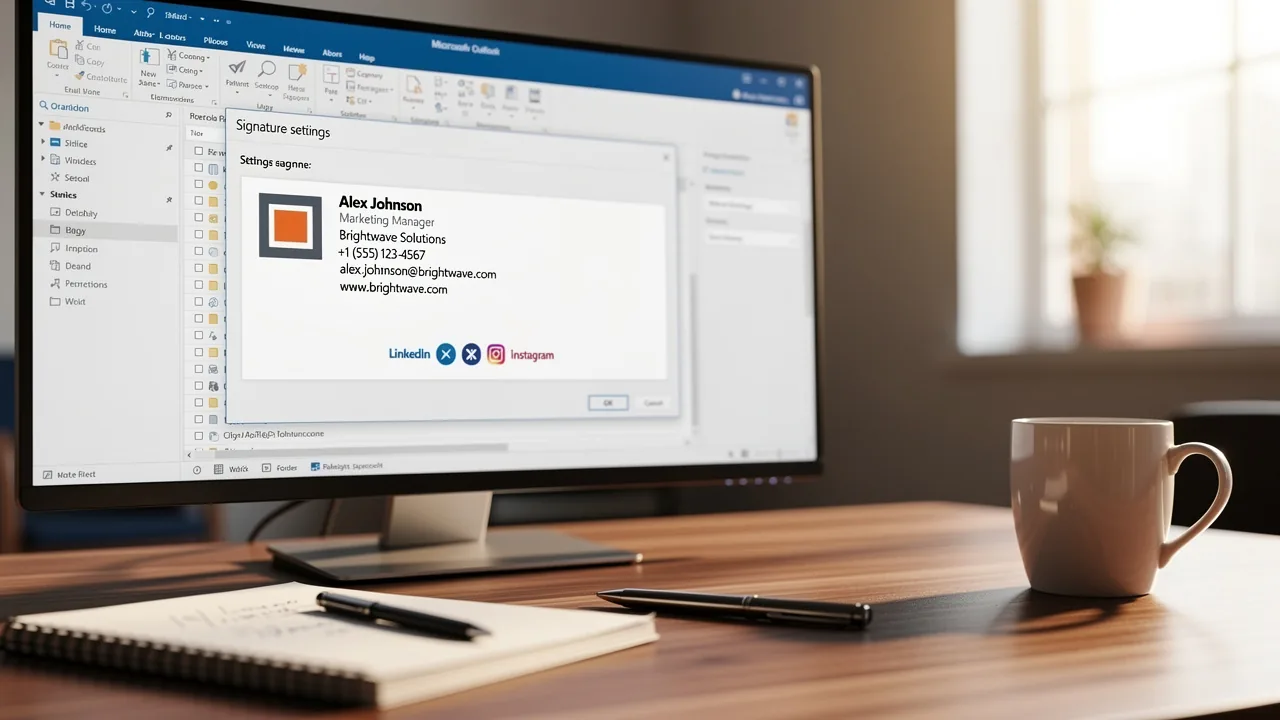
- Signatures: Look for the 'Email block' section, where you will find options to create and manage your email identifiers.
By following these steps, you will be able to create and customize your automatic signature in Outlook effectively.
Understanding the significance of electronic correspondence identifiers is crucial; 80% of participants believe a branded electronic correspondence identifier is essential for a company's brand identity, and 76% state it boosts trust in the sender. Despite this, many professionals struggle with managing their digital identifiers, leading to inconsistent branding. Research indicates that organizations with consistent branded digital identifiers experience over a 22% rise in response rates, highlighting the necessity for better management strategies. Regular audits and updates to your signature can significantly enhance your brand's visibility and credibility.
To streamline this process, syncing your Google Workspace with the application is highly beneficial. This integration necessitates granting access to connect with your provider, and you must be a Super Admin to grant these permissions. You can choose which teammates to sync, ensuring that only relevant data is updated. This integration enables automatic updates of your teammates' information, conserving time and ensuring that any modifications made in your provider are reflected in the platform without manual input. Scribe's SOC 2 Type II compliance guarantees that your data stays secure while you improve your brand's visibility and credibility through regular audits and updates to your email footer. By implementing these practices, you can significantly enhance your brand's credibility and engagement with clients.
Create and Customize Your Automatic Signature
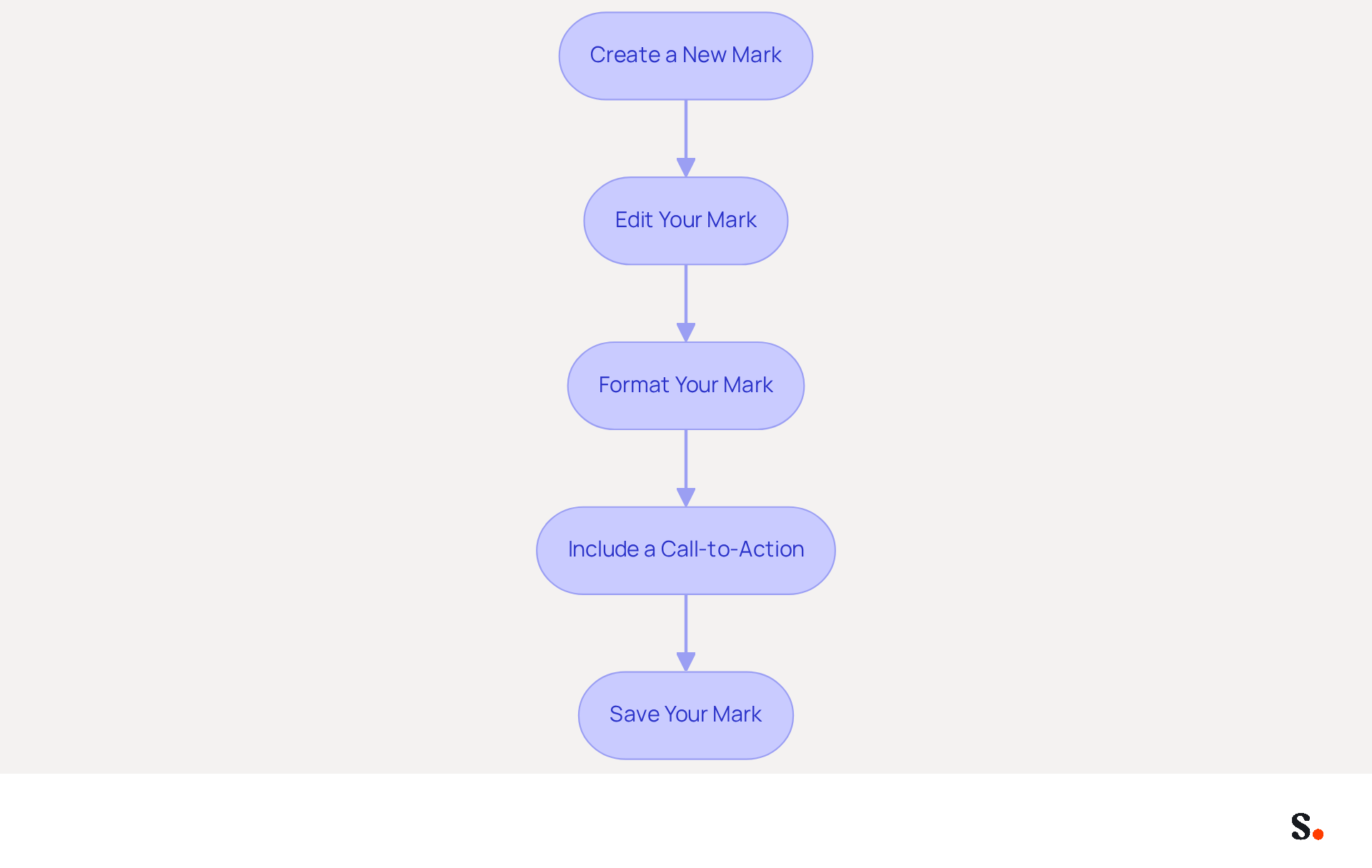
Creating a professional email signature in Outlook is essential for effective communication and brand representation. To create and customize your automatic signature in Outlook, follow these steps:
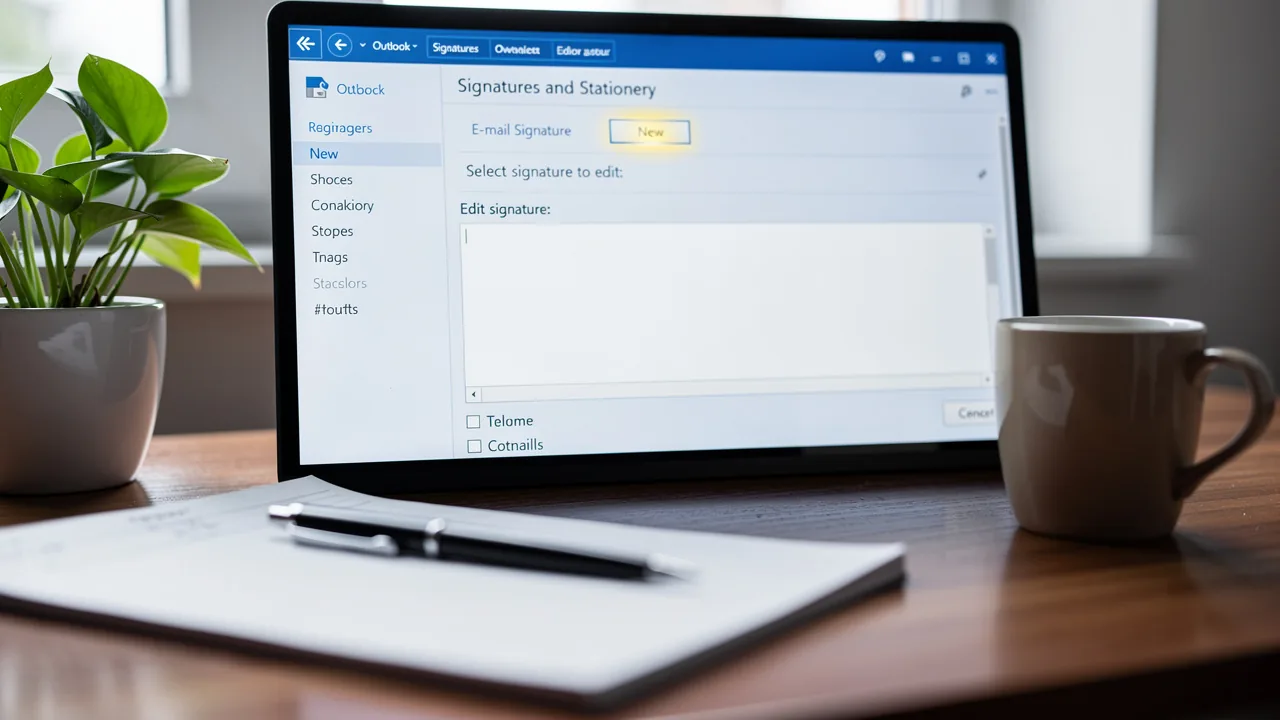
- Create a New Mark: In the 'Email mark' section, click on 'New' to create a new mark. Give it a distinct name for easy identification.
- Edit Your Mark: In the text box provided, type your desired mark content. You can include:
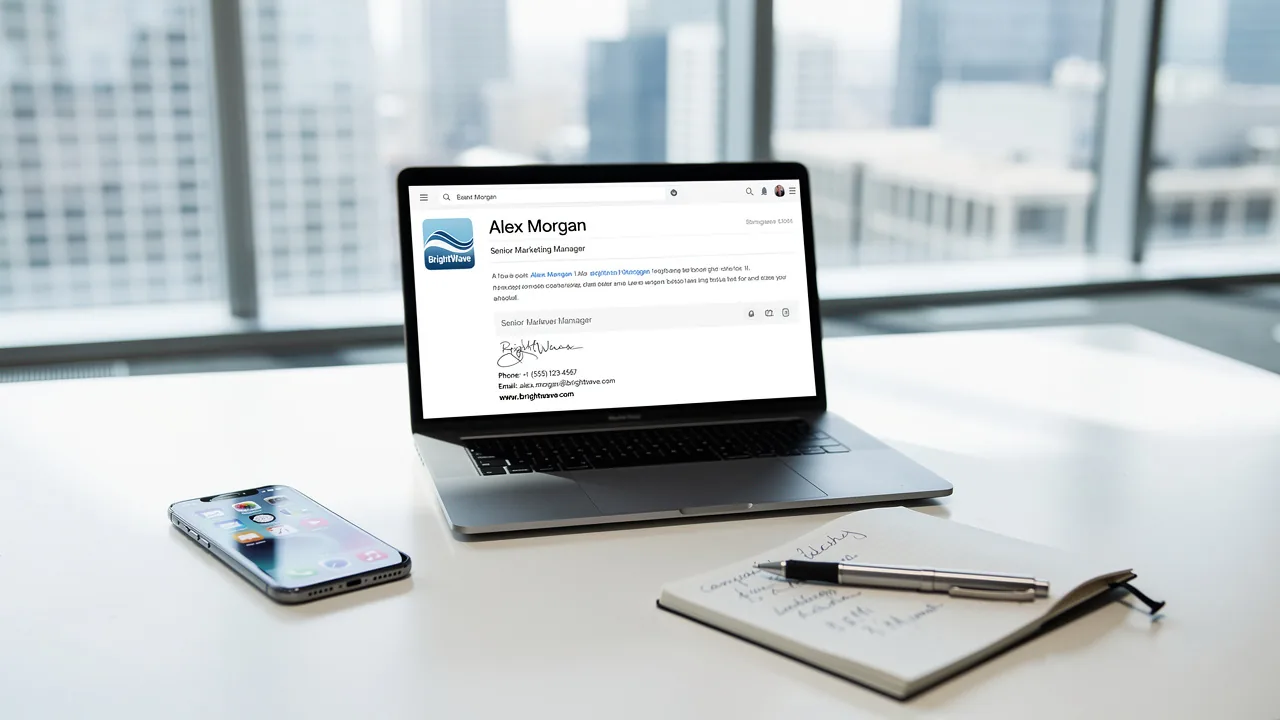
- Your name
- Job title
- Company name
- Contact information (phone number, email address)
- Links to social media profiles or company website
- Format Your Mark: Use the formatting tools to customize the appearance of your mark. You can change the font style, size, color, and add images or logos. To insert an image, click on the image icon and upload your logo.
- Include a Call-to-Action: Include a call-to-action, such as a link to your latest blog post or a promotional offer, to encourage engagement.
- Save Your Mark: Once you are satisfied with your design, click 'Save' to store your mark.
Following these steps creates a professional and customized digital identifier that enhances your brand's visibility. Furthermore, with Scribe, any modifications made in your Aircall configuration will automatically synchronize with your communication identifiers, ensuring brand consistency across all interactions. This automated management simplifies updates, saves time, and adheres to SOC 2 Type II compliance, ensuring secure data handling.
Integrate Your Signature into Outgoing Emails
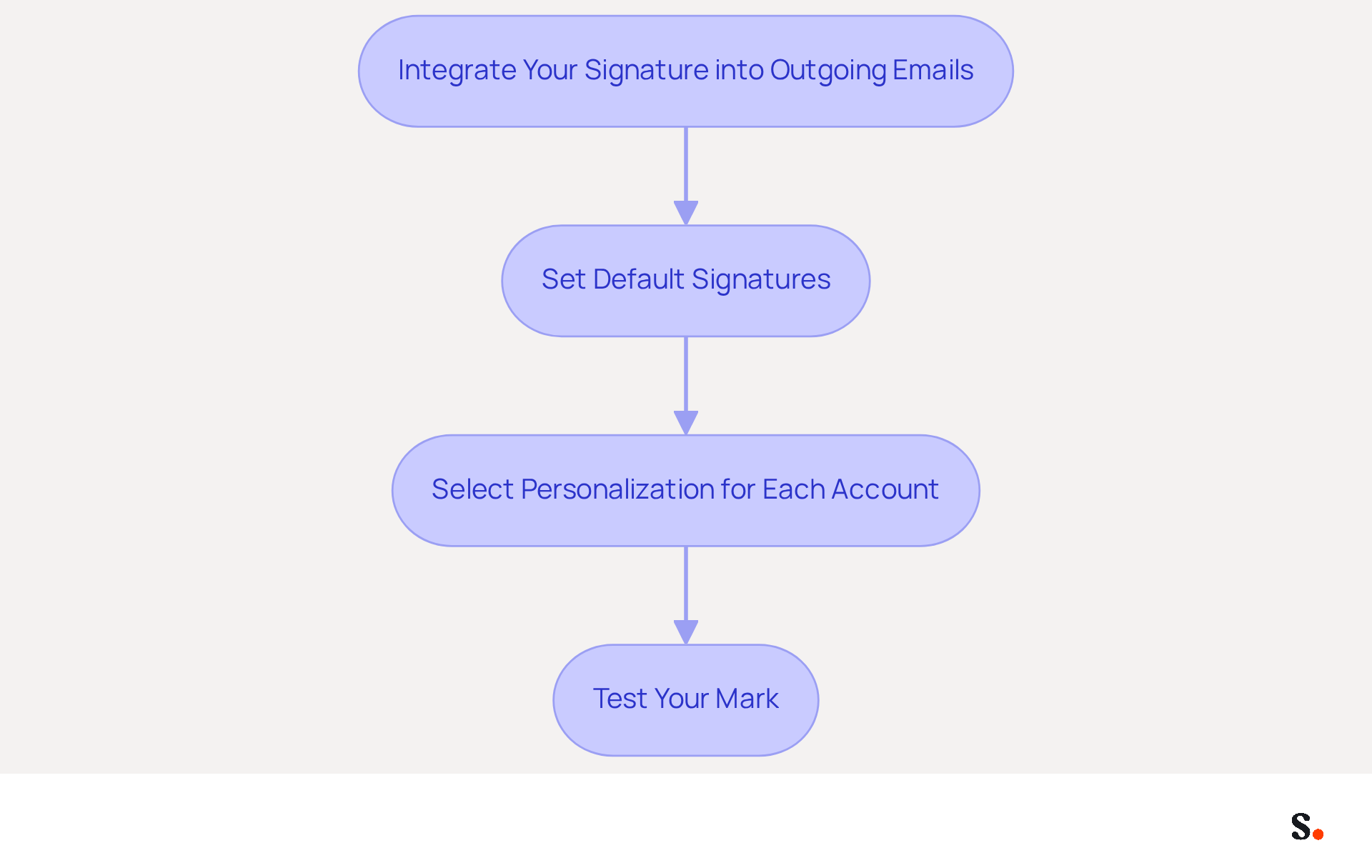
Integrating your newly created email signature into outgoing messages is crucial for enhancing professional communication. Follow these steps to ensure a seamless integration:
- Set Default Signatures: Navigate to the 'Email section' where you can establish your default templates for new messages and replies/forwards. Choose your newly created mark from the dropdown menus for both options.
- Select Personalization for Each Account: If you have multiple accounts configured in Outlook, ensure you choose the correct personalization for each account by selecting the suitable account from the dropdown menu.
- Test Your Mark: To ensure everything is configured correctly, create a new message and verify if your mark appears automatically at the bottom of the correspondence. If your signature does not appear, it may indicate a misconfiguration that needs addressing. If it does, you can be confident that your signature is set up correctly.
By completing these steps, the automatic signature in Outlook will automatically appear in all outgoing messages, boosting your professional communication. Research indicates that 52% of users consider a strong message footer essential for effective client connections, emphasizing the importance of this element in your communication strategy. Additionally, organizations that utilize centralized email signature management can ensure consistent application across all email clients, improving governance and compliance.
To grant permission for the application to connect with your Google Workspace and enable one-click synchronization, you need to be a Super Admin of your Google Workspace. Once granted, your teammates' data will be automatically updated in the application, reflecting any changes made in Google Workspace without manual input. This centralized management guarantees uniform application across all messaging clients, enhancing governance and compliance, particularly during the shift to the new platform, which is scheduled to impact Enterprise customers in March 2027. Scribe's SOC 2 Type II compliance ensures the security of your data, making it a trustworthy option for managing your email identifiers. Failing to implement a strong signature could hinder your ability to connect effectively with clients.
Troubleshoot Common Issues with Automatic Signatures
Experiencing issues with your automatic signature in Outlook can hinder your professional communication. Consider the following troubleshooting tips:
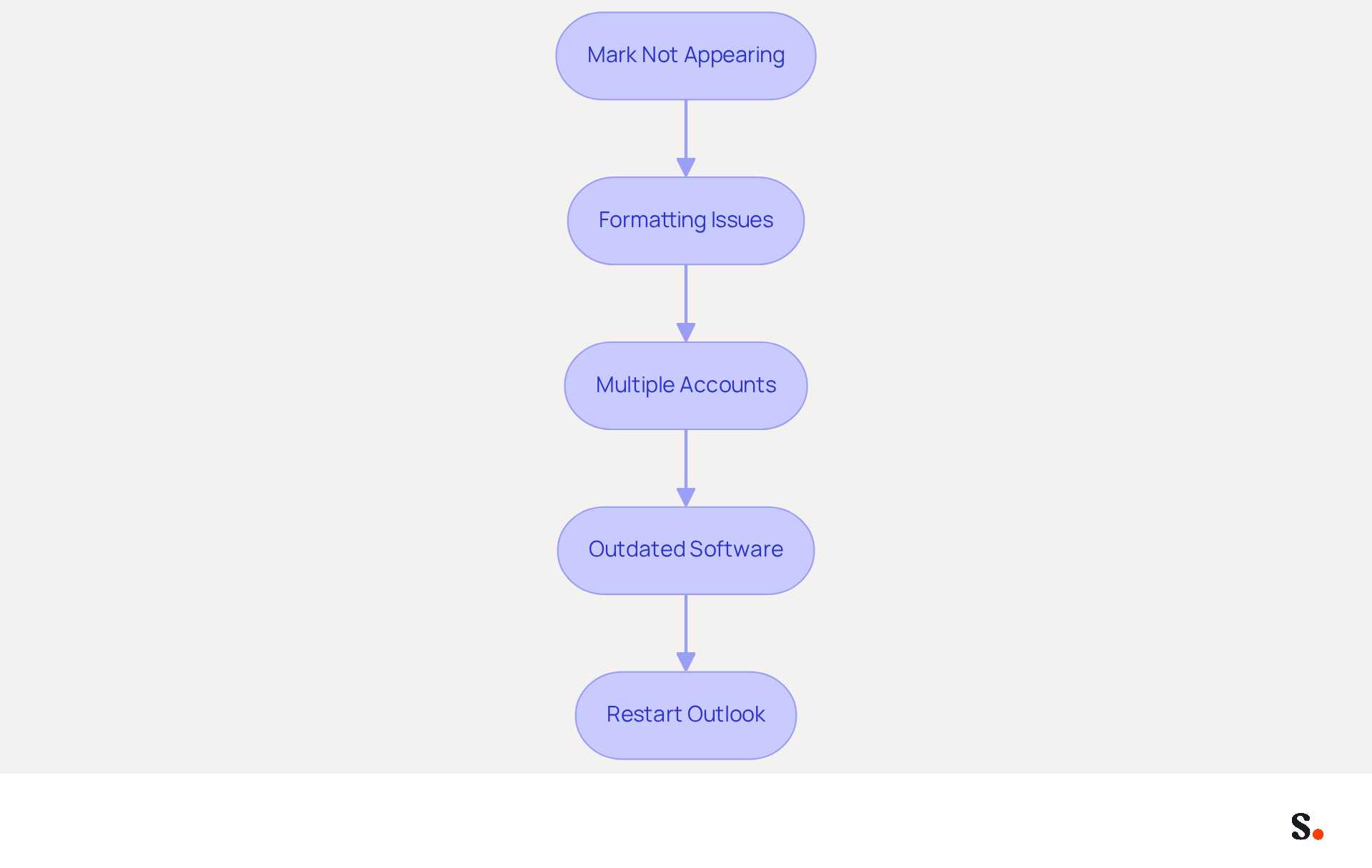
- Mark Not Appearing: Ensure that you have set your mark as the default for new messages and replies/forwards in the mark settings. Without this, the application may not apply your personal mark automatically.
- Formatting Issues: If your sign-off appears incorrectly formatted, try recreating it using plain text. Hidden formatting can often be detected by pasting your name into a plain text editor before copying it back into the email application.
- Multiple Accounts: Managing multiple accounts can lead to confusion if the correct identifiers are not selected in the settings. This is crucial for ensuring consistency across your communications.
- Outdated Software: Keeping your email application current is crucial, as older versions may contain bugs that impact the functionality of your email identifiers. Regular updates are essential to mitigate these issues.
- Restart Outlook: Sometimes, simply restarting Outlook can resolve issues with email formatting not appearing. This quick fix can refresh the application and clear minor glitches.
By following these troubleshooting steps, you effectively address common issues and ensure your automatic signature in Outlook functions correctly. This highlights the importance of efficient troubleshooting, as 35% of IT teams identify email signature management as one of their top two most time-consuming tasks. Addressing these issues promptly can significantly enhance your communication's professionalism and consistency.
Conclusion
Establishing an automatic signature in Outlook is a critical strategy for enhancing brand consistency and professionalism in business communications. Implementing an automatic signature helps organizations ensure that every email reflects their brand identity, meets compliance standards, and engages recipients.
Throughout this guide, key steps have been outlined to help users navigate the process of creating, customizing, and integrating their email signatures in Outlook. From accessing the signature settings to troubleshooting common issues, each section emphasizes the importance of maintaining a cohesive brand image and maximizing engagement opportunities. The integration of tools like Scribe further simplifies this process, allowing marketing teams to manage signatures independently while ensuring compliance with regulations such as SOC 2 Type II, GDPR, and CCPA.
In conclusion, the implementation of automatic signatures in Outlook is essential for any organization aiming to enhance its communication strategy. Organizations must prioritize setting up automatic signatures to enhance their professional communications. Embracing this practice will lead to improved brand recognition and engagement, ultimately driving better results in client interactions.
Frequently Asked Questions
Why are automatic signatures important in Outlook?
Automatic signatures in Outlook help streamline communication, enhance branding, ensure compliance, and increase engagement. They maintain a professional image and can transform every email into a marketing opportunity.
How do automatic signatures enhance brand recognition?
A well-crafted signature can include logos, taglines, and social media links, which can lead to a 22% higher response rate for messages featuring branded identifiers, boosting company recognition and trust.
What time-saving benefits do automatic signatures provide?
Automation eliminates the need for manual insertion of names in each message, reducing administrative burdens and allowing employees to focus on core tasks. Scribe's automated initials save time by syncing mark information without action needed from colleagues.
How does Scribe ensure compliance with automatic signatures?
Scribe allows for the seamless incorporation of legal disclaimers and company policies into automatic signatures, ensuring that all outgoing communications adhere to regulatory requirements. Scribe's SOC 2 Type II compliance also guarantees data safety.
In what ways can automatic signatures increase engagement?
By incorporating calls-to-action in closing lines, automatic signatures can drive traffic to websites or promote special offers, enhancing campaign engagement by up to 15%. Scribe's integration with Aircall ensures branding consistency across communications.
What steps are involved in accessing Outlook signature settings?
To access signature settings in Outlook, open the application, click on the gear icon, select 'Mail', then 'Compose and reply', and finally find the 'Email block' section to create and manage your email identifiers.
How can syncing Google Workspace with Outlook improve signature management?
Syncing Google Workspace allows for automatic updates of teammates' information, conserving time and ensuring that any modifications made in the provider are reflected in Outlook without manual input.
What is the significance of regular audits and updates to email signatures?
Regular audits and updates can significantly enhance a brand's visibility and credibility, as consistent branded digital identifiers can lead to over a 22% rise in response rates.
List of Sources
- Understand the Importance of Automatic Signatures in Outlook
- Why Automated Email Signatures Are a Smart Move for Your Business (https://aabyss.uk/blog/why-automated-email-signatures-are-a-smart-move-for-your-business)
- Why Email Signature Management Matters for Your Business (https://vectorchoice.com/blog/why-email-signature-management-is-more-important-than-you-think)
- Master Automatic Email Signatures: Boost Branding and Efficiency (https://scribe-mail.com/en-US/blog/master-automatic-email-signatures-boost-branding-and-efficiency)
- Top 3 Benefits of Using Email Signatures (https://opensense.com/blog/top-3-benefits-of-using-email-signatures)
- How Automated Email Signatures in Outlook Can Help Businesses Spread Their Marketing Message (https://linkedin.com/pulse/how-automated-email-signatures-outlook-can-help-businesses-spread-gc5we)
- Access Outlook Signature Settings
- 14 Key Email Signature Statistics to Know in 2026 (https://mailmodo.com/guides/email-signature-statistics)
- 40+ Email Signature Statistics for 2026 (Data + Insights) (https://wavecnct.com/blogs/email-signature-statistics)
- Email signature statistics: Why every business should optimize their email signatures — Stripo.email (https://stripo.email/blog/email-signature-statistics-why-every-business-should-optimize-their-email-signatures)
- Email Signature Statistics: A Closer Look at Email Signatures in 2026 (https://mysignature.io/blog/email-signature-statistics)
- Create and Customize Your Automatic Signature
- Top 10+ best practices for email signatures design in 2026 (https://mysignature.io/blog/email-signature-best-practices)
- Email Signature Design Trends in 2026: What Works and What to Drop (https://bulksignature.com/blog/email-signature-design-trends)
- 40+ Email Signature Statistics for 2026 (Data + Insights) (https://wavecnct.com/blogs/email-signature-statistics)
- Email Signature Trends 2026: What Designers Are Actually Using (https://markaplugin.com/blog/email-signature-trends-2026)
- Email signature statistics: Why every business should optimize their email signatures — Stripo.email (https://stripo.email/blog/email-signature-statistics-why-every-business-should-optimize-their-email-signatures)
- Integrate Your Signature into Outgoing Emails
- The New Outlook for Windows: An IT Guide to Email Signatures (https://exclaimer.com/email-signature-handbook/new-outlook-windows-email-signatures)
- Automatic Signature in Outlook: Adding and Changing with Ease - NEWOLDSTAMP (https://newoldstamp.com/blog/automatic-signature-in-outlook)
- Email Signature Statistics: A Closer Look at Email Signatures in 2026 (https://mysignature.io/blog/email-signature-statistics)
- 40+ Email Signature Statistics for 2026 (Data + Insights) (https://wavecnct.com/blogs/email-signature-statistics)
- How to add and change an email signature in Outlook | Microsoft Support (https://support.microsoft.com/en-us/outlook/mail/how-to-add-and-change-an-email-signature-in-outlook)
- Troubleshoot Common Issues with Automatic Signatures
- How to solve problems with email signatures in Microsoft 365? (https://mail-signatures.com/articles/problems-email-signatures-office-365)
- Outlook Signature Not Working in Office 365: Causes & Fixes (https://exclaimer.com/email-signature-handbook/outlook-signature-not-working-in-office-365)
- Why is my signature not showing up in Outlook | NewOldStamp - NEWOLDSTAMP (https://newoldstamp.com/blog/signature-not-showing-up-in-outlook)
- Outlook Signature Disappears? 6 Common Problems + Fixes (https://conbool.com/blog/outlook-signature-disappears-fixes-problems)
- Troubleshooting Email Signature Issues in Outlook (https://justanswer.com/email/lyeqn-email-signatures-no-longer-loading-automatically.html)
Get started with Scribe
Create your signature in minutes
Free 14-day trial — no credit card.