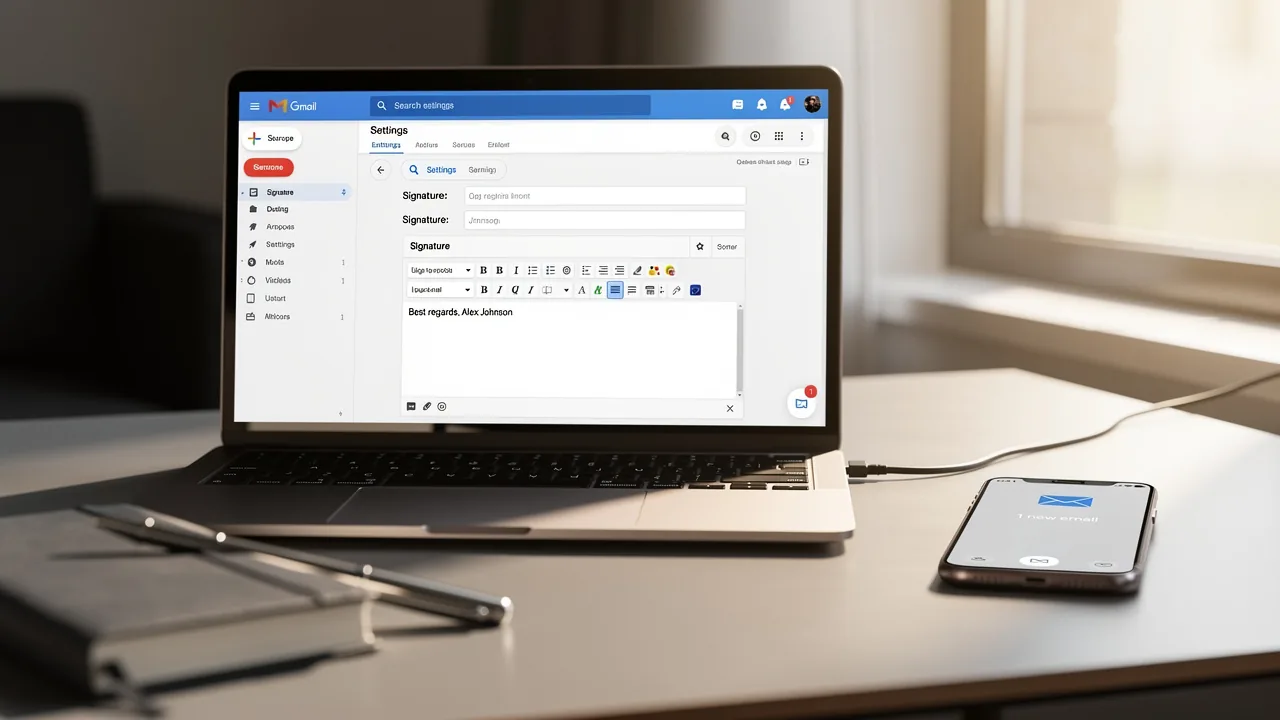
Set Your Signature for Gmail: A Step-by-Step Guide with Scribe
A professional email signature in Gmail is not merely a formality; it serves as a vital branding tool that enhances communication and engagement. With the
Sophie Grant
Email Signature Specialist, Scribe
Introduction
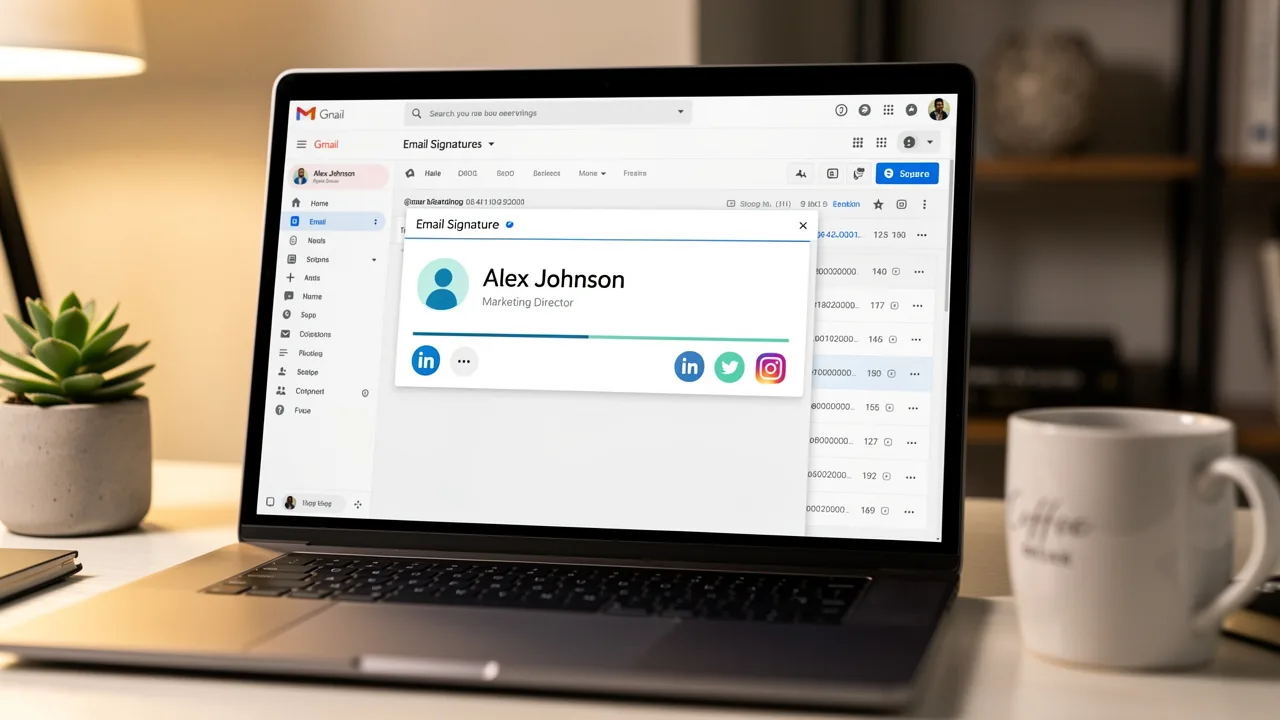
A professional email signature in Gmail is not merely a formality; it serves as a vital branding tool that enhances communication and engagement. With the right setup, an email signature can function as a digital business card, showcasing essential contact information and promoting brand identity. This struggle often results in inconsistent branding and missed opportunities. By leveraging tools like Scribe, organizations can streamline the signature creation process, ensuring consistency and professionalism while driving marketing effectiveness.
Understand Email Signatures in Gmail
An email footer serves as a crucial branding element that can significantly impact professional communication. Typically, it includes your name, title, company name, contact details, and often a logo or a quote. In Gmail, you can set a signature for Gmail that functions not only as a professional closure but also as a significant branding opportunity. A well-designed sign-off boosts your credibility and streamlines communication for your recipients. Additionally, it can incorporate links to your social media profiles or company website, effectively turning each message into a potential marketing channel.
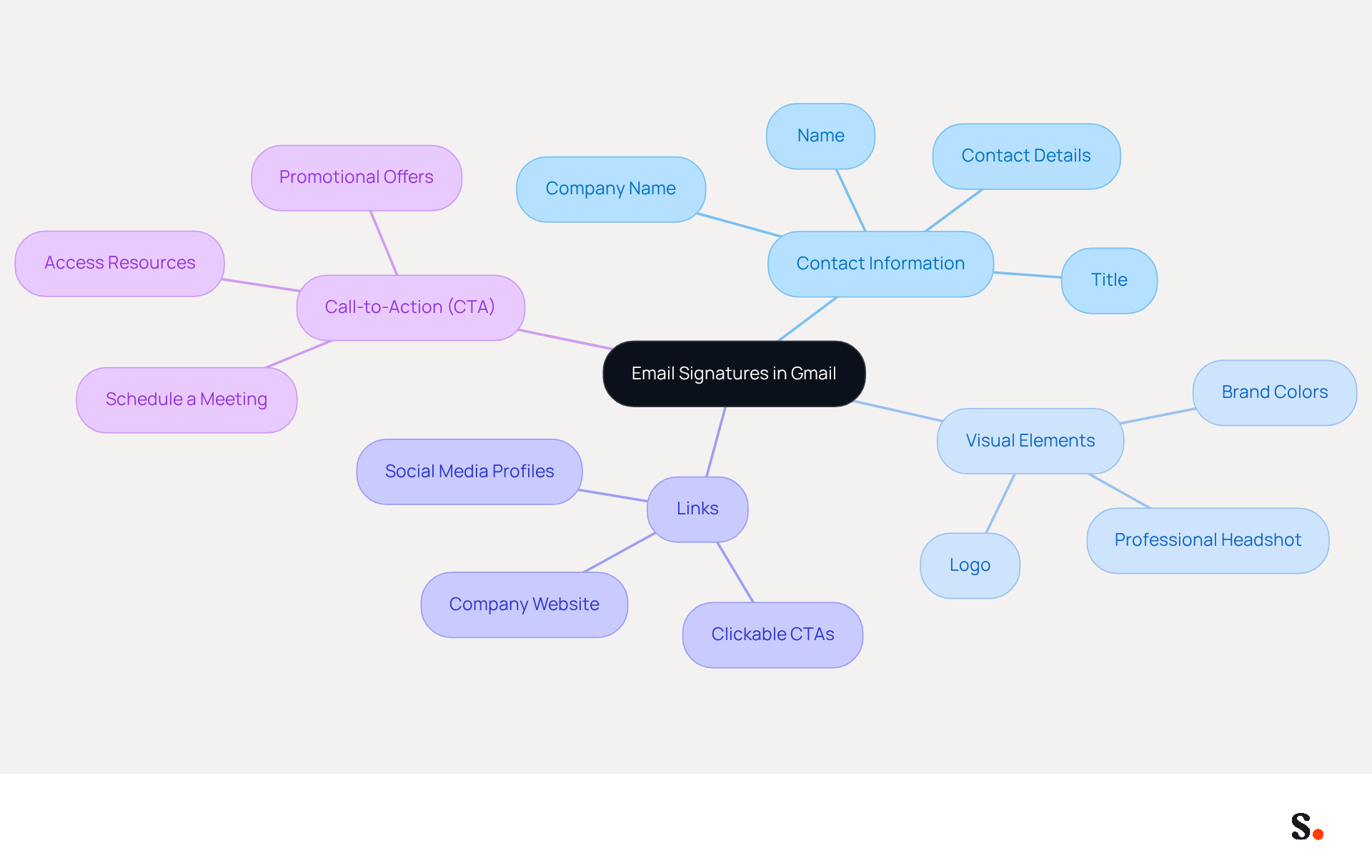
Key components of an effective email signature include:
- Contact Information: Ensure your name, title, and company name are clearly displayed.
- Visual Elements: Incorporate a logo or professional headshot to enhance brand recognition.
- Links: Add clickable links to your social media profiles and company website to drive traffic and engagement.
- Call-to-Action (CTA): Include a CTA button for scheduling meetings or accessing resources, making it easy for recipients to take action.
Current statistics reveal how crucial electronic identifiers are for effective branding: 78% of marketers believe a consistent branded sign-off is essential across all communications, and 67% anticipate that these identifiers will assist in generating leads this year. Furthermore, 41% of consumers feel less inclined to engage with brands that lack a professional email footer, underscoring why businesses must adopt this practice.
Recent trends in electronic correspondence emphasize hyper-personalization, the use of emojis, and animated GIFs to add personality while maintaining professionalism. For instance, companies are increasingly integrating dynamic content, such as personalized taglines and location-based details, to create tailored experiences for recipients. Case studies demonstrate the effectiveness of these strategies; for instance, healthcare communication that conveys competence and warmth fosters trust, while creative agency branding showcases design skills and attracts potential clients.
With Scribe, every modification made in your Aircall setup will automatically be reflected in your correspondence labels, ensuring seamless synchronization and improved brand consistency. This integration enables marketing teams to maintain control over their communication footers, ensuring that they are always current and aligned with Scribe's branding efforts. By utilizing Scribe's capabilities, organizations can ensure that their correspondence not only reflects their brand identity but also contributes to their marketing objectives effectively.
Expert insights emphasize the importance of electronic correspondence identifiers as a branding tool. A professional communication footer not only builds trust but also enhances engagement, making it a vital component of your overall marketing strategy. By implementing these strategies, you can set a signature for Gmail that transforms your email correspondence into a powerful branding tool.
Access Gmail Settings for Signature Setup
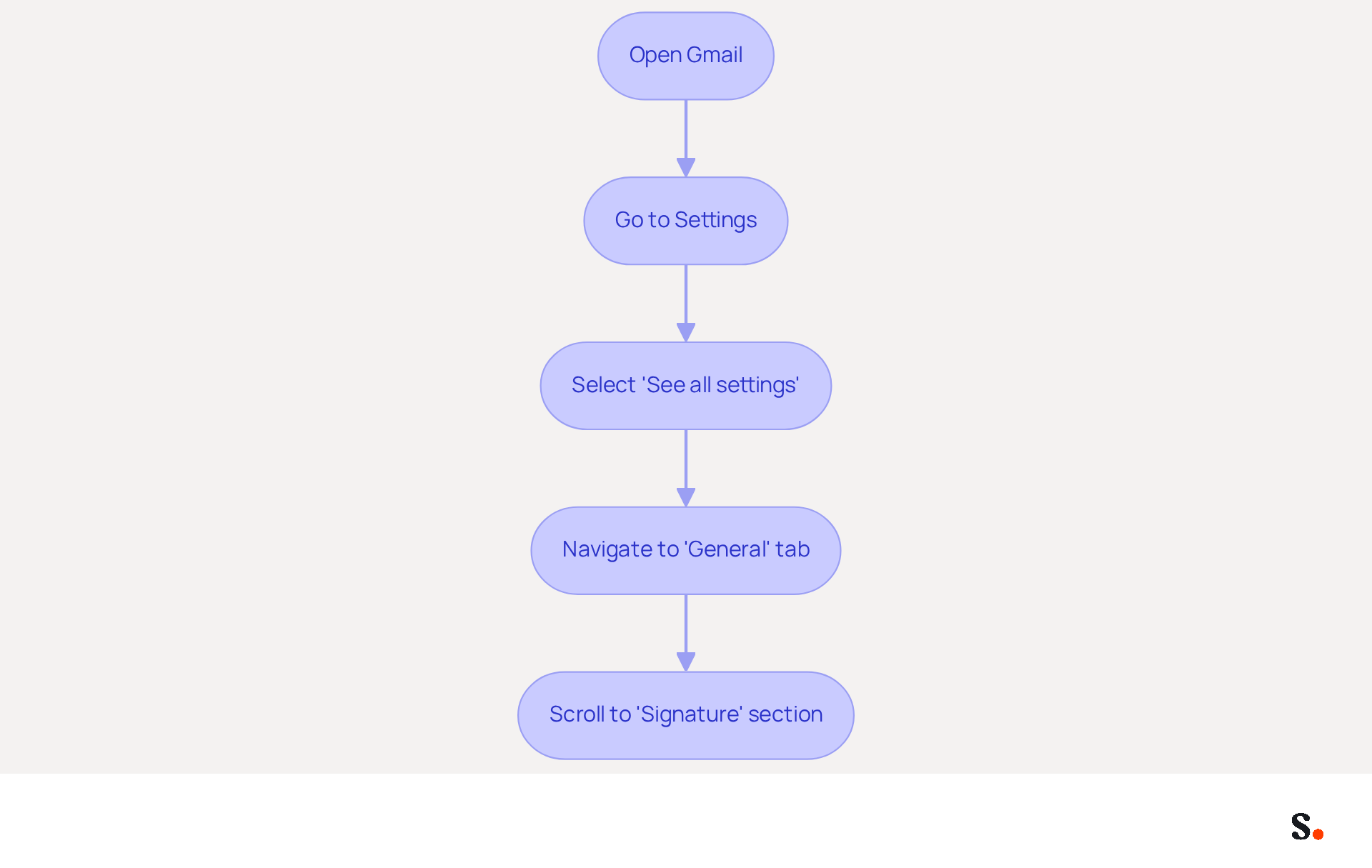
Creating a professional email signature is crucial for effective communication and branding. To set up your email signature in Gmail, follow these steps:
- Open Gmail: Log into your Gmail account on your computer.
- Go to Settings: Click on the gear icon located in the top right corner of the Gmail interface.
- Select 'See all settings': From the dropdown menu, click on 'See all settings' to access the full settings menu.
- Navigate to the 'General' tab: Ensure you are on the 'General' tab, which is usually the default tab in the settings menu.
- Scroll to the 'Signature' section: Look for the 'Signature' area further down the page, where you can create and manage your identifiers.
By following these steps, you can effectively set a signature for Gmail and customize your email signature. With 30.2% of users sending 11-25 messages each day, having a professional closing can greatly improve your branding and interaction. Moreover, integrating components such as social media links - present in 75.8% of digital correspondences, including platforms like LinkedIn (42.2%) and Instagram (69.3%) - can further engage your audience and promote your brand.
For organizations utilizing Scribe, syncing your Google Workspace with Scribe enables efficient one-click synchronization, ensuring that any modifications in your directory, such as updates to job roles or team shifts, are automatically reflected in your communications. This not only saves time but also enhances brand consistency across all communications. Scribe's SOC 2 Type II compliance ensures that your information stays protected, making it a trustworthy option for automated management of messages. Moreover, utilizing AI can improve personalization in your marketing efforts through customized sign-offs, reflecting the changing landscape of management. A well-crafted email signature can be the difference between a missed opportunity and a lasting connection.
Create and Customize Your Email Signature
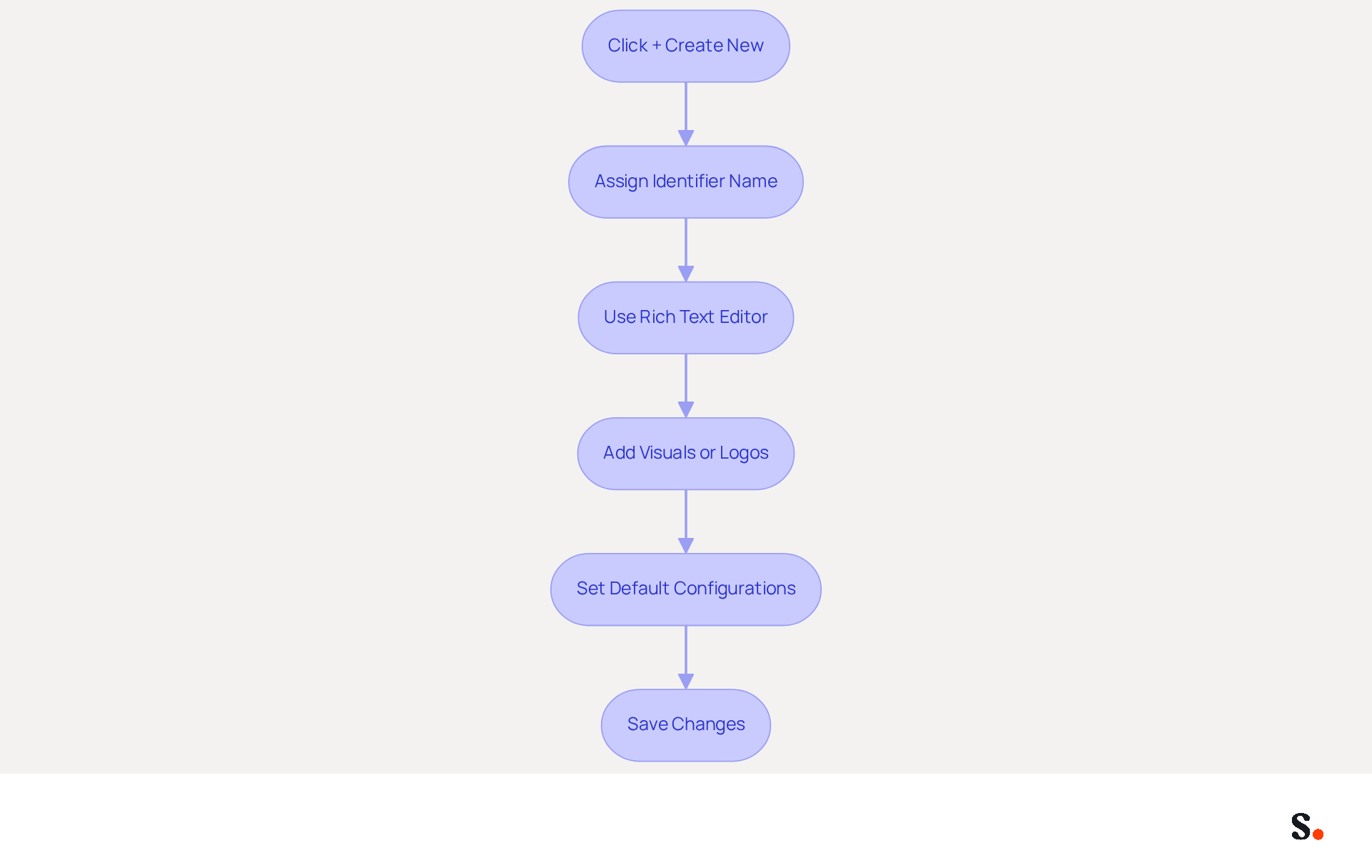
Creating a professional email signature for Gmail is essential for effective communication and brand visibility. To create and customize your email signature in Gmail using Scribe, follow these steps:
- In the Signature section: Click on the '+ Create new' button to initiate a new sign-off.
- Name your identifier: Assign a name that helps you recognize it later, especially if you plan to create multiple identifiers.
- Use the rich text editor: In the text box that appears, type your signature text. Utilize the formatting options to customize the font, size, color, and style. You can also add links, visuals, and social media icons.
- Add visuals or logos: To insert a visual, click on the visual icon in the editor. You can upload an image from your computer or insert a URL link to an image hosted online.
- Set default configurations: After creating your sign-off, scroll down to the 'Default settings' section to choose when this sign-off will be utilized (for new messages and replies/forwards).
- Save changes: Don’t forget to scroll to the bottom of the settings page and click 'Save Changes' to apply your new sign-off.
By following these steps, you will be able to set a signature for Gmail that not only reflects your professional identity but also enhances brand visibility. A well-designed digital signature can increase response rates by 22% and improve click-through rates by 15%, making it vital for effective communication. Additionally, with Scribe, your teammates' signing details are automatically synced with your HRIS, allowing for real-time updates without your team needing to take action. This seamless integration enhances consistency across your organization. You can trust Scribe to manage your data securely, thanks to its SOC 2 Type II compliance, giving you peace of mind while you focus on your email branding. Ensure your autograph includes essential elements such as your name, job title, company information, contact details, and social media links. It's also important to consider legal disclaimers and optimize your sign-off for mobile devices to maintain professionalism and compliance. Regularly monitoring the performance of your message footer can provide valuable insights into its effectiveness, allowing for continuous enhancement in your marketing strategy. Notably, users of Scribe achieve an average click-through rate of 12% on banner displays, further illustrating the effect of well-designed digital signatures. By leveraging Scribe, you not only enhance your professional image but also optimize your communication strategy for better engagement.
Integrate Scribe for Automated Signature Management
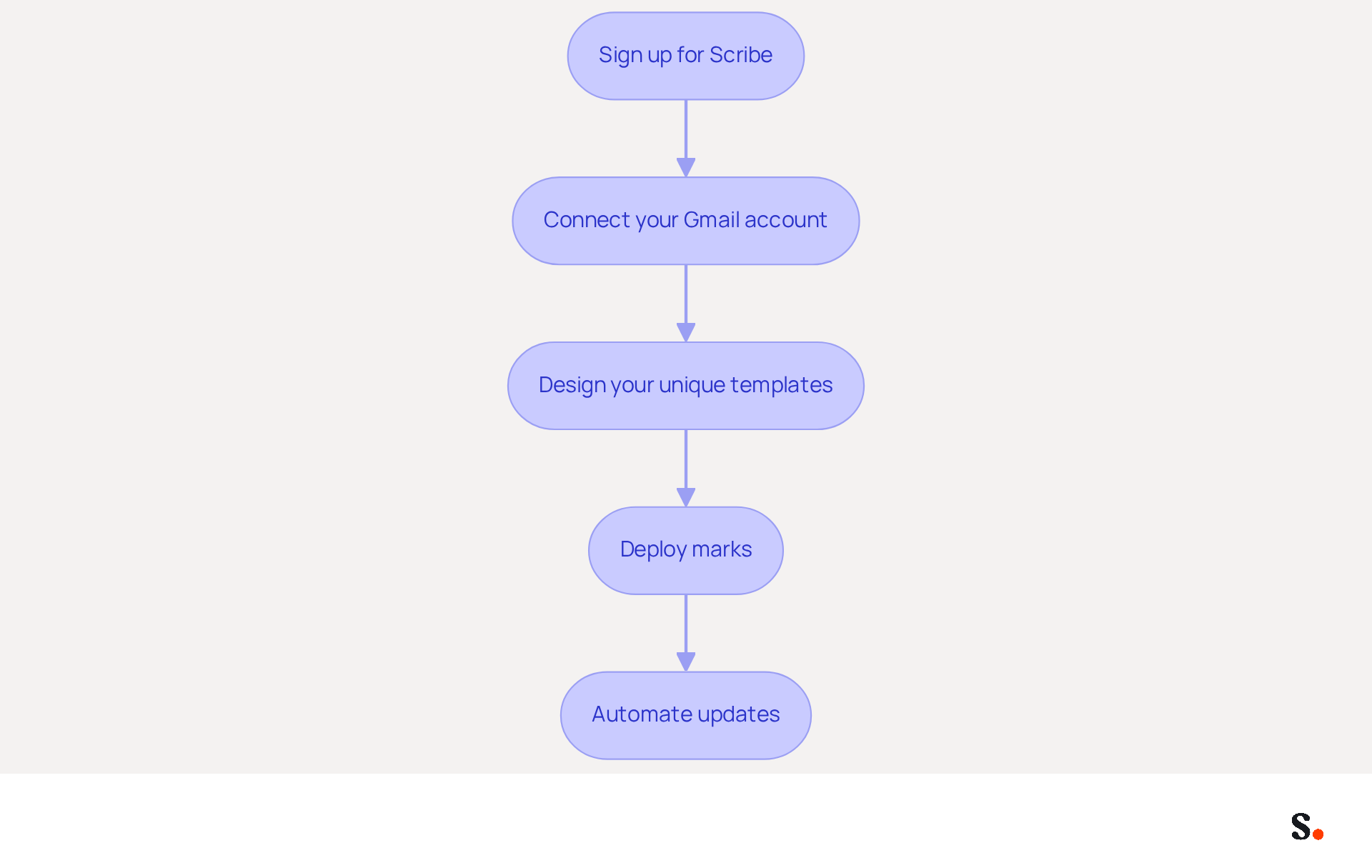
Managing email signatures can often be a tedious task, but Scribe offers a streamlined solution that enhances efficiency and brand consistency. To integrate Scribe for automated email signature management, follow these steps:
- Sign up for Scribe: Create an account on this platform if you haven’t already.
- Connect your Gmail account: After logging in, go to the integration settings and select Gmail. Authorize the application to access your Gmail account by following the prompts.
- Design your unique templates: Utilize Scribe’s user-friendly interface to create on-brand templates that can be uniformly applied across your organization.
- Deploy marks: With Scribe, distribute marks to your entire team with a single click, guaranteeing consistent branding in all communications.
- Automate updates: This platform automatically updates identifiers, so any changes made in the system will instantly appear in your Gmail account without manual input. Thanks to real-time synchronization with your business phone system, your teammates' information stays current without them having to lift a finger.
Incorporating Scribe simplifies your email signature management and allows you to set signature for Gmail, transforming your signatures into powerful marketing tools. This has led to a reported 14% increase in lead generation among businesses that use the platform, emphasizing its influence on marketing effectiveness. Furthermore, the platform is GDPR compliant, ensuring that your data is handled securely and in accordance with data protection regulations. With Scribe's SOC 2 Type II compliance, you can trust that your data is handled securely, further enhancing your organization's management of digital identifiers. As Scribe highlights, "Centralized management of electronic signatures is crucial for organizations aiming for brand consistency and effective communication." By adopting Scribe, organizations can set signature for Gmail to transform their email signatures into strategic marketing assets while ensuring compliance.
Troubleshoot Common Signature Setup Issues
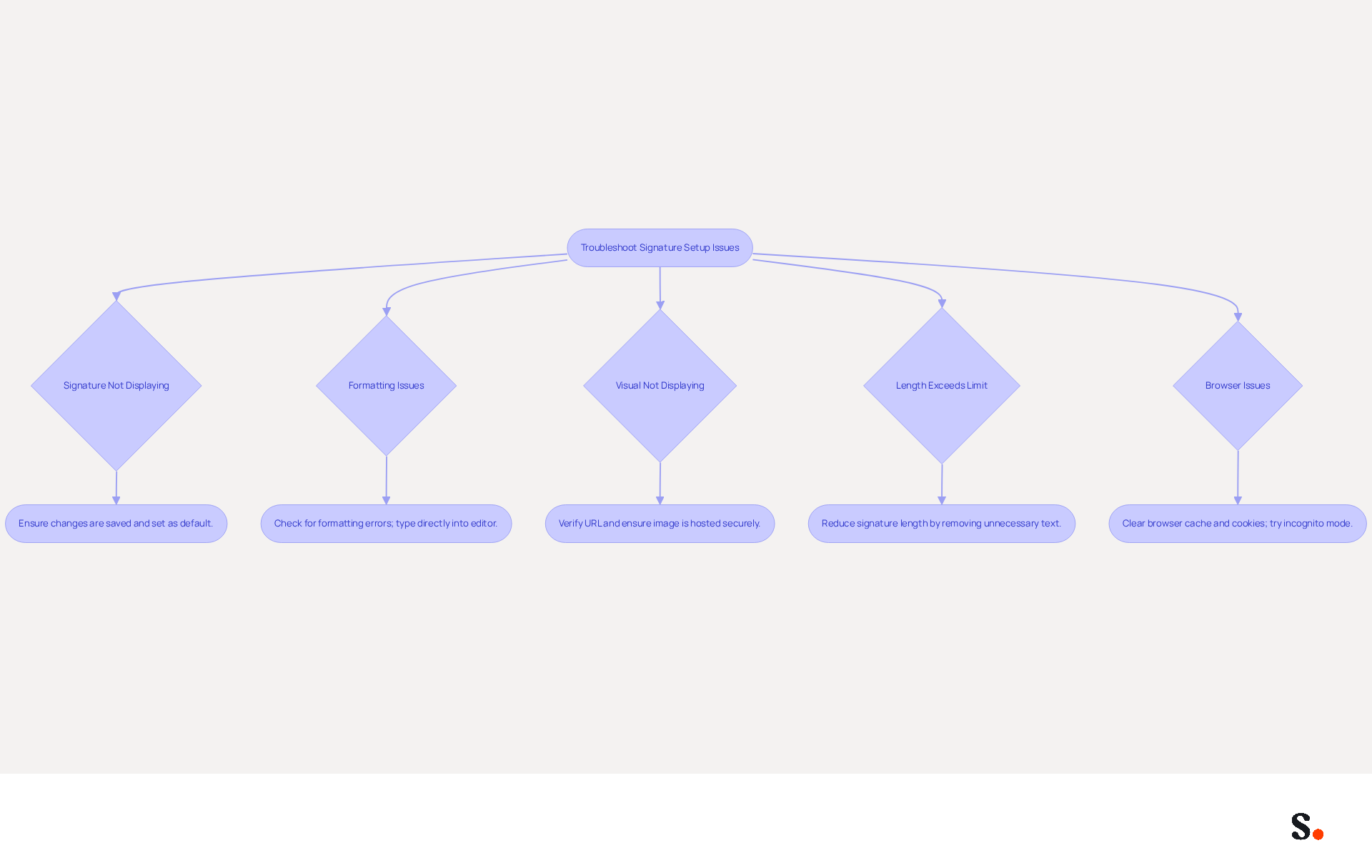
Setting up a signature for Gmail can sometimes present challenges that require careful attention. If you encounter issues while setting up your email signature, consider the following troubleshooting tips, which can be effectively managed through Scribe's integration with Google Workspace:
- Signature not displaying: Ensure that you have saved your changes in the settings. Return to the Signature section and verify that you have set signature for gmail as your default. Choosing to set signature for gmail as 'No signature' can prevent it from being displayed. With Scribe, any updates to your teammates' identifiers are automatically synced, reducing the chances of display issues.
- Formatting issues: If your mark appears different than expected, check for any formatting errors. Copying and pasting from other sources can introduce unwanted formatting. Instead, type directly into the editor to maintain consistency. Scribe's attribute feature helps maintain uniformity across all signatures, minimizing formatting discrepancies.
- Visual not displaying: If your logo or graphic isn’t showing up, double-check that the URL is correct and that the file is uploaded properly. Ensure the visual is hosted on a secure HTTPS server and is within the recommended size of 70-100 pixels high by 300-400 pixels wide, as larger visuals may not load correctly. Scribe ensures that visuals are properly integrated and displayed across all identifiers.
- Length exceeds limit: Managing email signature length can be challenging, especially when trying to include all necessary information. If you encounter an error notification regarding excessive length, you may need to set signature for gmail by reducing it by eliminating unnecessary text or visuals. Remember, your image also counts toward the character limit. This integration simplifies length management by ensuring only essential information is synced from Google Workspace.
- Browser issues: Sometimes, browser settings or extensions can interfere with Gmail. Clear your browser cache and cookies, or try accessing Gmail in incognito mode to see if the issue persists. Clearing your browser cache and cookies can help resolve settings that interfere with the display of your signature. The integration is designed to function smoothly across various browsers, decreasing the chances of such issues.
By addressing these issues, you enhance your professional image and communication effectiveness. Furthermore, syncing your Google Workspace with Scribe can greatly enhance your email handling. With this integration, you save time since it automatically updates your teammates' information, ensuring that any changes in Google Workspace are reflected in Scribe without manual input. Statistics indicate that 76% of consumers have greater trust in brands with branded identifiers, and incorporating core identity elements such as your full name, job title, company name, and one direct contact method is crucial for upholding a professional image. Furthermore, branded email signatures can lead to a 22% increase in response rates, underscoring their importance in effective email communication.
Conclusion
Setting a professional email signature in Gmail is a strategic move that significantly enhances branding and communication. With Scribe, organizations can create email signatures that are visually appealing, consistent, and compliant with industry standards. In this guide, we explored the essential steps for creating, customizing, and managing email signatures effectively, emphasizing the importance of integrating Scribe for seamless updates and brand consistency.
Key insights from this guide highlight the significance of including essential elements such as:
- Contact information
- Visuals
- Links to social media profiles
The integration of Scribe allows for automated management, ensuring that any changes made are instantly reflected across all communications. Moreover, the statistics from recent studies highlight how well-crafted email signatures can boost engagement and lead generation, with users experiencing an average click-through rate of 12% on signature banners.
In conclusion, adopting a professional email signature strategy through Scribe not only enhances individual communication but also contributes to a cohesive brand identity across the organization. By leveraging Scribe, organizations can ensure that every email sent reinforces their brand's commitment to professionalism and quality.
Frequently Asked Questions
What is the purpose of an email signature in Gmail?
An email signature serves as a crucial branding element that enhances professional communication by including your name, title, company name, contact details, and often a logo or quote. It boosts credibility and can incorporate links to social media profiles or company websites.
What are the key components of an effective email signature?
Key components include clear contact information (name, title, company name), visual elements (logo or professional headshot), clickable links to social media profiles and company website, and a call-to-action (CTA) button for scheduling meetings or accessing resources.
Why is having a professional email signature important for businesses?
A consistent branded sign-off is essential for effective communication, as 78% of marketers believe it is crucial. Additionally, 41% of consumers are less inclined to engage with brands lacking a professional email footer, highlighting its importance in branding and lead generation.
What recent trends are influencing email signatures?
Recent trends include hyper-personalization, the use of emojis, and animated GIFs to add personality while maintaining professionalism. Companies are integrating dynamic content, such as personalized taglines and location-based details, to create tailored experiences for recipients.
How can Scribe enhance the email signature setup process?
Scribe ensures that modifications made in your Aircall setup are automatically reflected in your correspondence labels, allowing for seamless synchronization and improved brand consistency. This helps marketing teams maintain control over their communication footers.
What steps should I follow to set up an email signature in Gmail?
To set up your email signature in Gmail, log into your account, click on the gear icon for settings, select 'See all settings', navigate to the 'General' tab, and scroll to the 'Signature' section to create and manage your signature.
How does integrating social media links in email signatures benefit branding?
Integrating social media links can engage your audience and promote your brand, as 75.8% of digital correspondences include such links, enhancing interaction and driving traffic to your profiles.
What compliance does Scribe offer for email signature management?
Scribe is SOC 2 Type II compliant, ensuring that your information stays protected while providing automated management of messages and enhancing brand consistency across communications.
List of Sources
- Understand Email Signatures in Gmail
- Email signature statistics: Why every business should optimize their email signatures — Stripo.email (https://stripo.email/blog/email-signature-statistics-why-every-business-should-optimize-their-email-signatures)
- Exclaimer Research: 67% of Marketers Expect Email Signatures to Support With Lead Gen In 2023 (https://businesswire.com/news/home/20230612141095/en/Exclaimer-Research-67-of-Marketers-Expect-Email-Signatures-to-Support-With-Lead-Gen-In-2023)
- Top email signature trends for companies in 2026 (https://bybrand.io/blog/trends-email-signatures)
- 20 best email signature design examples for 2026 — Stripo.email (https://stripo.email/blog/10-best-email-signature-design-examples)
- Access Gmail Settings for Signature Setup
- Email Signature Statistics: A Closer Look at Email Signatures in 2026 (https://mysignature.io/blog/email-signature-statistics)
- 45+ Clever and Professional Email Signature Quotes (https://bulksignature.com/blog/45-clever-and-professional-email-signature-quotes)
- Email signature statistics: Why every business should optimize their email signatures — Stripo.email (https://stripo.email/blog/email-signature-statistics-why-every-business-should-optimize-their-email-signatures)
- 40+ Email Signature Statistics for 2026 (Data + Insights) (https://wavecnct.com/blogs/email-signature-statistics)
- Email Signature Trends in Numbers: Infographic [2026] (https://mailtrap.io/blog/email-signature-trends/amp)
- Create and Customize Your Email Signature
- Email signature statistics: Why every business should optimize their email signatures — Stripo.email (https://stripo.email/blog/email-signature-statistics-why-every-business-should-optimize-their-email-signatures)
- 40+ Email Signature Statistics for 2026 (Data + Insights) (https://wavecnct.com/blogs/email-signature-statistics)
- How to create and customize email signatures in Gmail (https://revolgy.com/insights/blog/how-to-create-and-customize-email-signatures-in-gmail)
- How to create custom Gmail signature (https://foxnews.com/tech/how-to-create-custom-gmail-signature)
- Integrate Scribe for Automated Signature Management
- 40+ Email Signature Statistics for 2026 (Data + Insights) (https://wavecnct.com/blogs/email-signature-statistics)
- Scribe Review: Integrates with Google Workspace for my team | AppSumo (https://appsumo.com/products/scribe/reviews/integrates-with-google-workspace-for-my-82530?srsltid=AU7gw4Xl9khNNtPKY8wAjunpMe98KDi9OYwr5LLyk-pc4CzA1aLid_22)
- Why Scribe is the Best Email Signature Management Tool for Marketers (https://scribe-mail.com/en-US/blog/why-scribe-is-the-best-email-signature-management-tool-for-marketers)
- How to Manage Email Signature Centrally with Scribe: A Step-by-Step Guide (https://scribe-mail.com/en-US/blog/how-to-manage-email-signature-centrally-with-scribe-a-step-by-step-guide)
- Troubleshoot Common Signature Setup Issues
- 40+ Email Signature Statistics for 2026 (Data + Insights) (https://wavecnct.com/blogs/email-signature-statistics)
- Solving a Gmail signature problem (https://signitic.com/en/guides/solving-a-gmail-signature-problem)
- Fix Your Missing Gmail Signature: 8 Troubleshooting Steps & Best Practices | Newoldstamp - NEWOLDSTAMP (https://newoldstamp.com/blog/gmail-signature-not-showing-up)
- Troubleshoot issues with Gmail signatures - Gmail Help (https://support.google.com/mail/answer/11468381?hl=en)
- Gmail Signature Too Long or Not Showing? Fixes for Admins (https://patronum.io/gmail-signature-not-showing-or-too-long)
Get started with Scribe
Create your signature in minutes
Free 14-day trial — no credit card.