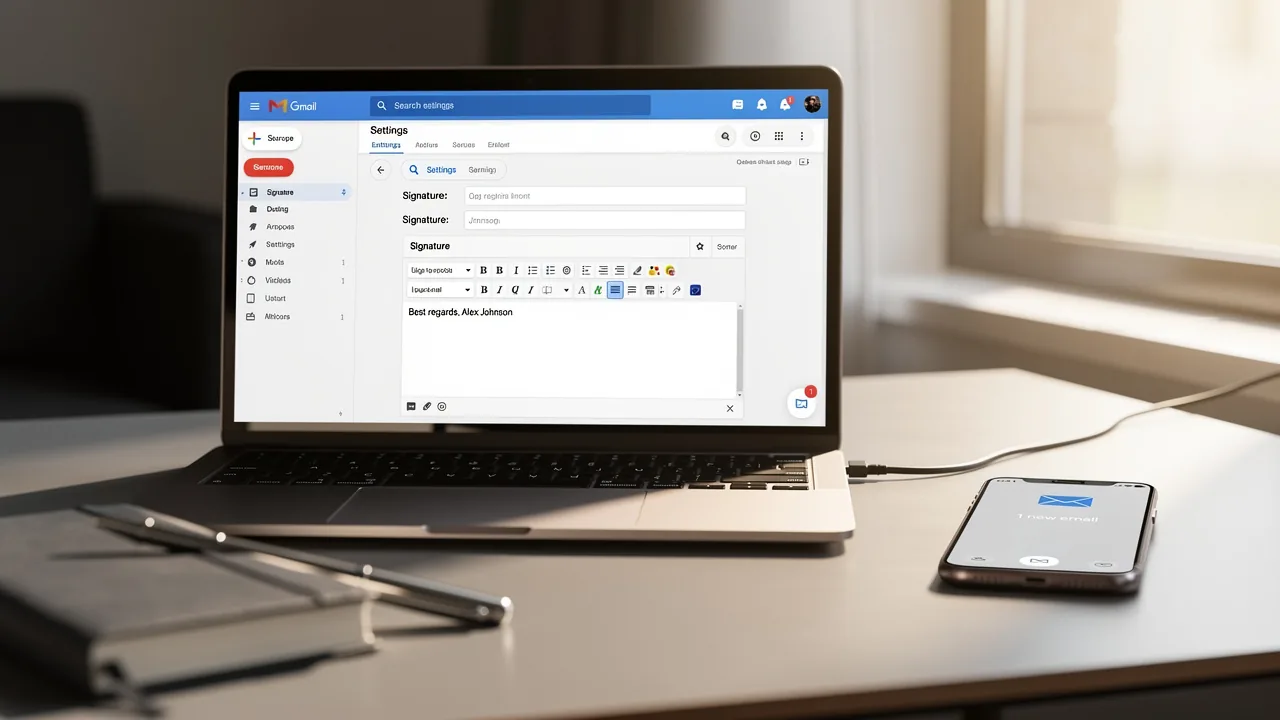
Where Are Outlook Signatures Stored? A Step-by-Step Guide
Navigating the storage locations of Outlook signatures is crucial for maintaining brand consistency and effective communication. As email remains a primary
Sophie Grant
Email Signature Specialist, Scribe
Introduction
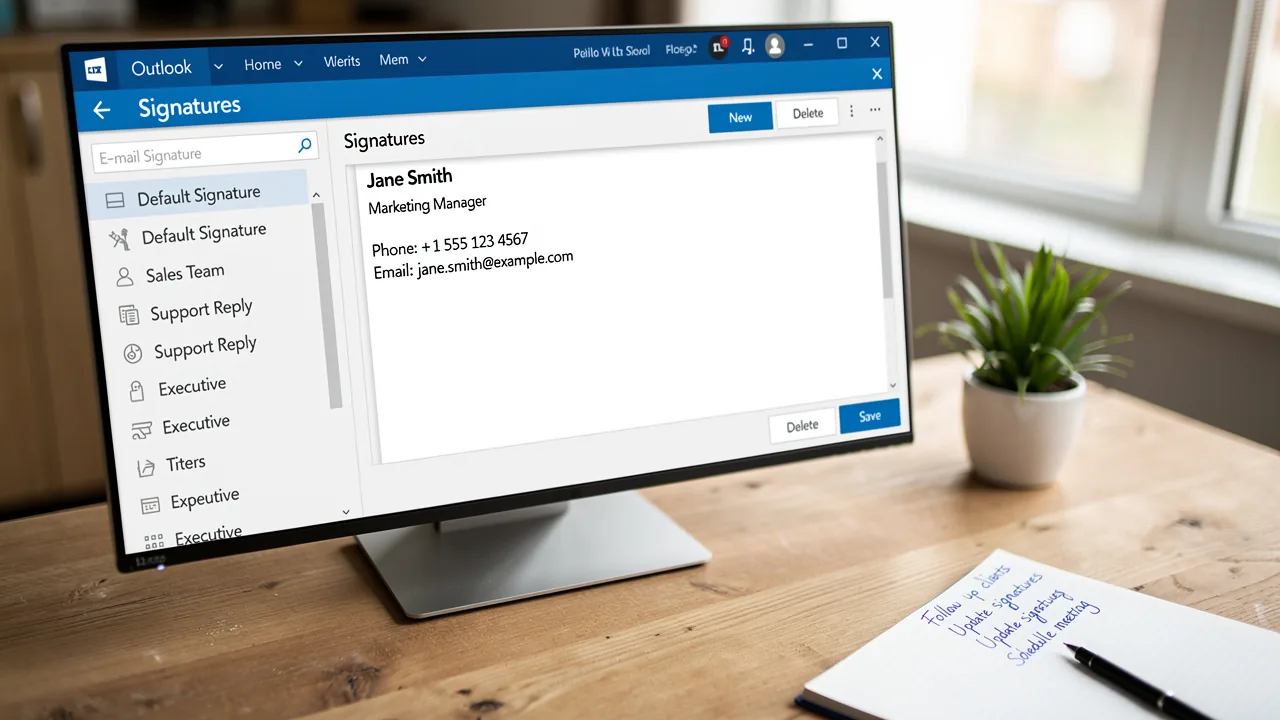
Navigating the storage locations of Outlook signatures is crucial for maintaining brand consistency and effective communication. As email remains a primary mode of interaction, users often struggle to find their signatures due to the differences in Outlook versions and storage methods. This confusion can lead to inconsistent branding and miscommunication. Understanding these complexities is vital for ensuring that email signatures are accessible and optimized across all devices.
Understand Outlook Signature Storage Locations
Understanding where Outlook signatures are stored is crucial for effective management and seamless transitions. These locations vary depending on the version you are using, and comprehending them is essential for efficient management, particularly for backing up or transferring documents. Here’s a breakdown:
-
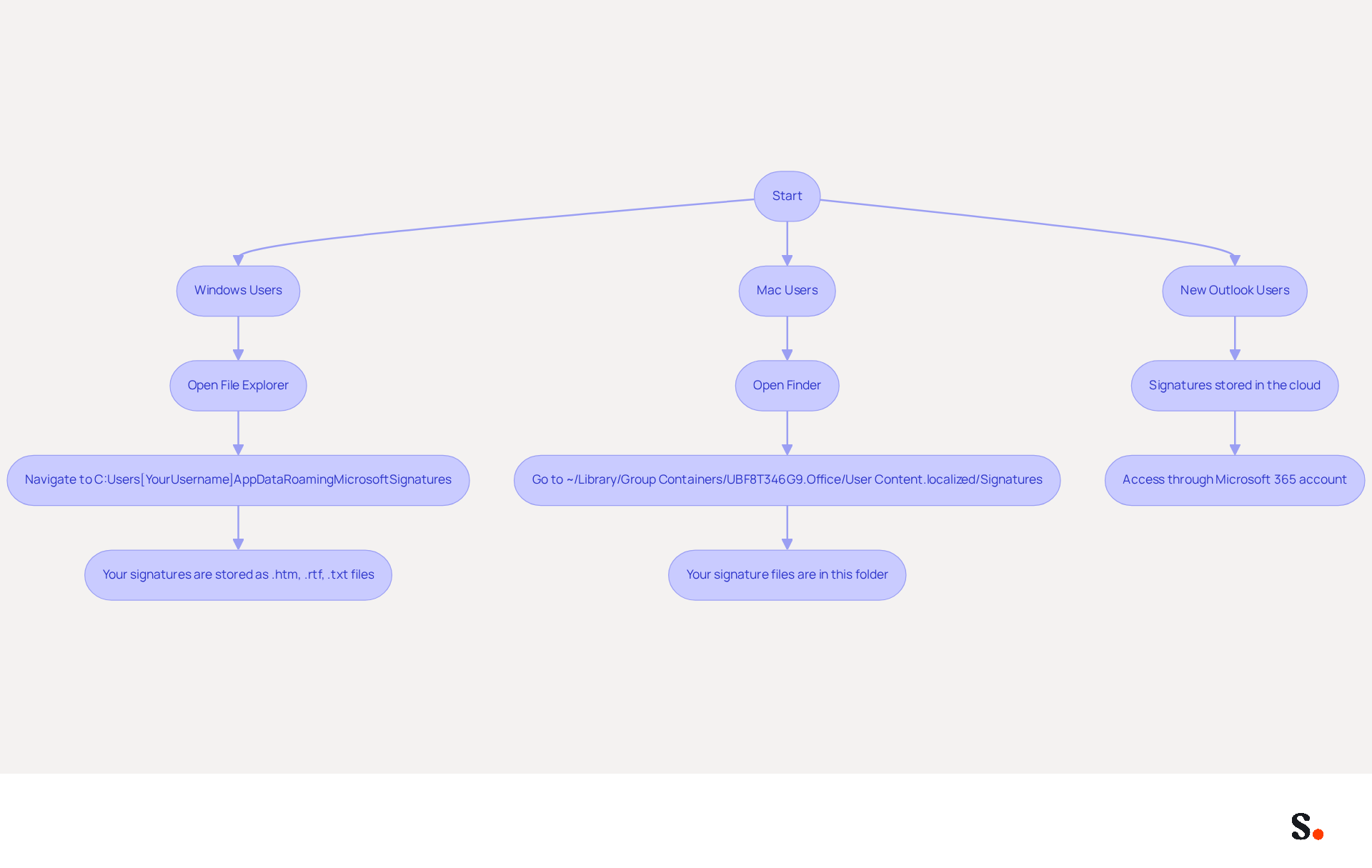
For Windows Users:
- Open File Explorer.
- Navigate to
C:\Users\[YourUsername]\AppData\Roaming\Microsoft\Signatures. - Your saved autographs will be available as
.htm,.rtf, and.txtfiles.
-
For Mac Users:
- Open Finder.
- Go to
~/Library/Group Containers/UBF8T346G9.Office/User Content.localized/Signatures. - This folder contains your signature files.
-
For New Outlook Users:
- Signatures are stored in the cloud and synchronized across devices, linked to your Microsoft 365 account. Access them through your Exchange Online mailbox.
Managing email signatures across different platforms can lead to confusion, especially regarding where Outlook signatures are stored, and potential data loss. As of 2023, mobile devices account for 46% of all email opens, indicating a significant trend towards mobile optimization. It's vital to make sure your signatures are mobile-friendly and accessible across all platforms as we move into 2024. Regularly backing up your identifiers is a crucial step to prevent loss during device changes or Outlook reinstallation. Moreover, as companies increasingly prioritize sustainability, integrating eco-friendly features into your digital communications can strengthen your brand's dedication to corporate social responsibility. This tool simplifies updates to your email identifiers while ensuring compliance with SOC 2 Type II standards and adhering to GDPR and CCPA regulations for secure data handling. If you are transitioning from classic email to the new version, remember that personal identifiers can be manually transferred by copying the content directly from the classic application to the new editor for personal identifiers. With Scribe's seamless integration with Calendly, any modifications made to your configuration will automatically sync, ensuring brand consistency across all communications. Our hands-on customer support is available to assist you with any issues, ensuring a smooth experience. By prioritizing these practices, you not only safeguard your brand's identity but also enhance your communication strategy.
Locate Signatures in Different Outlook Versions
It is essential for effective management to know where Outlook signatures are stored across various versions.
-
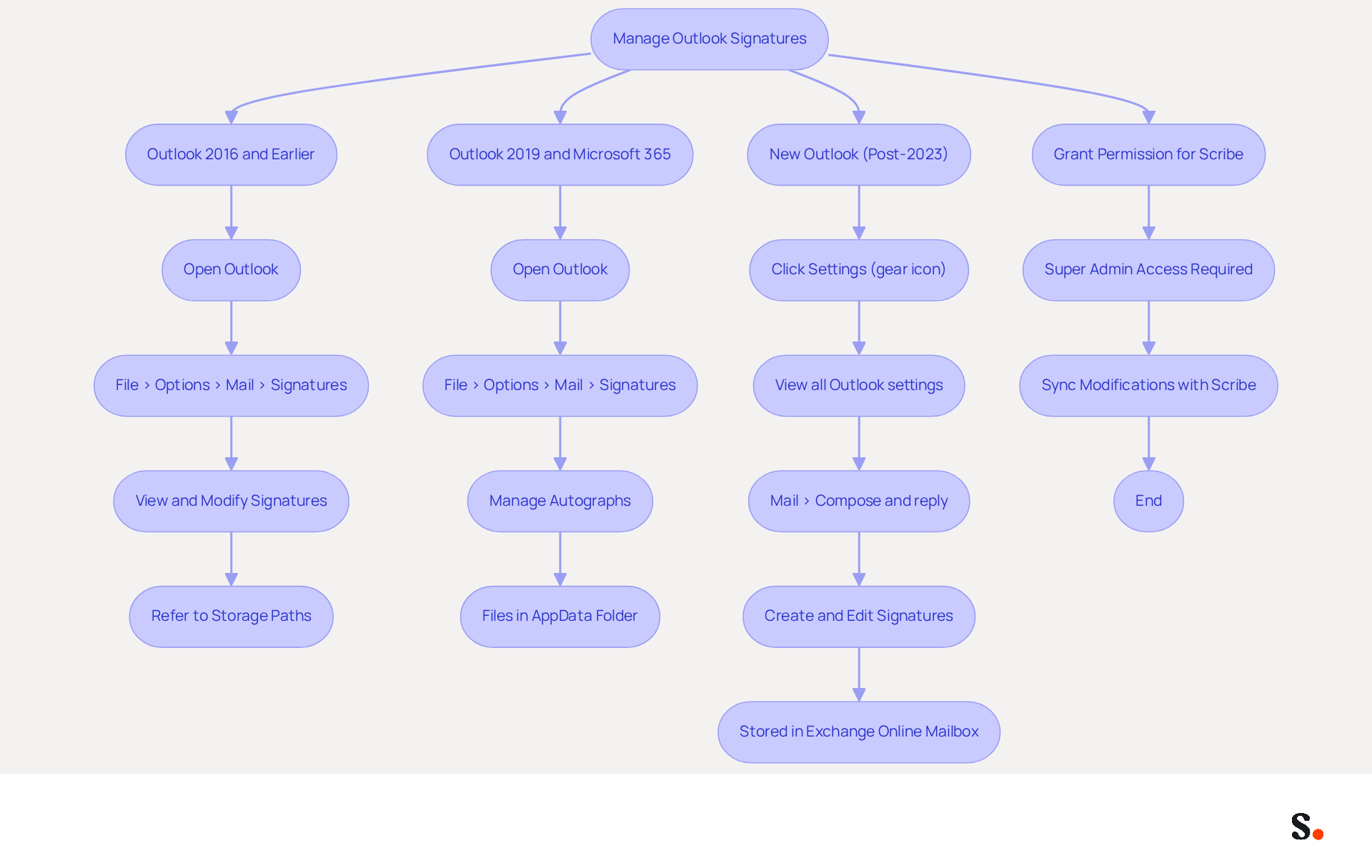
Outlook 2016 and Earlier:
- Open Outlook.
- Click on
File>Options>Mail>Signatures. - This action opens the Signatures and Stationery dialog, where you can view and modify your email signatures.
- For physical file locations, refer to the specified storage paths.
-
Outlook 2019 and Microsoft 365:
- Open Outlook and navigate to
File>Options>Mail>Signatures. - Similar to previous versions, you can manage your autographs here.
- The files remain in the same AppData folder as previously mentioned.
- Open Outlook and navigate to
-
New Outlook (Post-2023):
- In the new Outlook, signatures are managed through the cloud. To access them:
- Click on
Settings(gear icon) >View all Outlook settings>Mail>Compose and reply. - Here, you can create and edit your signatures, but note that they are stored in your Exchange Online mailbox, not locally.
To enable one-click synchronization with Scribe, you must grant permission for Scribe to connect with your provider. This requires Super Admin access to your service provider. Once permissions are granted, all modifications made in your provider directory will be automatically synced with Scribe, ensuring brand consistency across your organization.
Users may encounter issues with identifiers disappearing in the new email application, even though they are visible in sent messages. This inconsistency can undermine branding efforts and marketing effectiveness. Maintaining consistent branding across your organization is essential for maximizing marketing opportunities. With Scribe, you can ensure that all modifications made in your directory are automatically synced, enhancing your branding efforts while maintaining compliance with SOC 2 Type II standards. According to a DemandGen Report, 76-80% of marketers believe that branded digital identifiers enhance trust in the sender, making effective management of these identifiers essential for your marketing strategy.
By implementing these steps, you can effectively manage your email signatures across various Outlook versions and understand where Outlook signatures are stored, ensuring brand consistency and optimizing marketing opportunities with Scribe.
Troubleshoot Signature Issues in Outlook
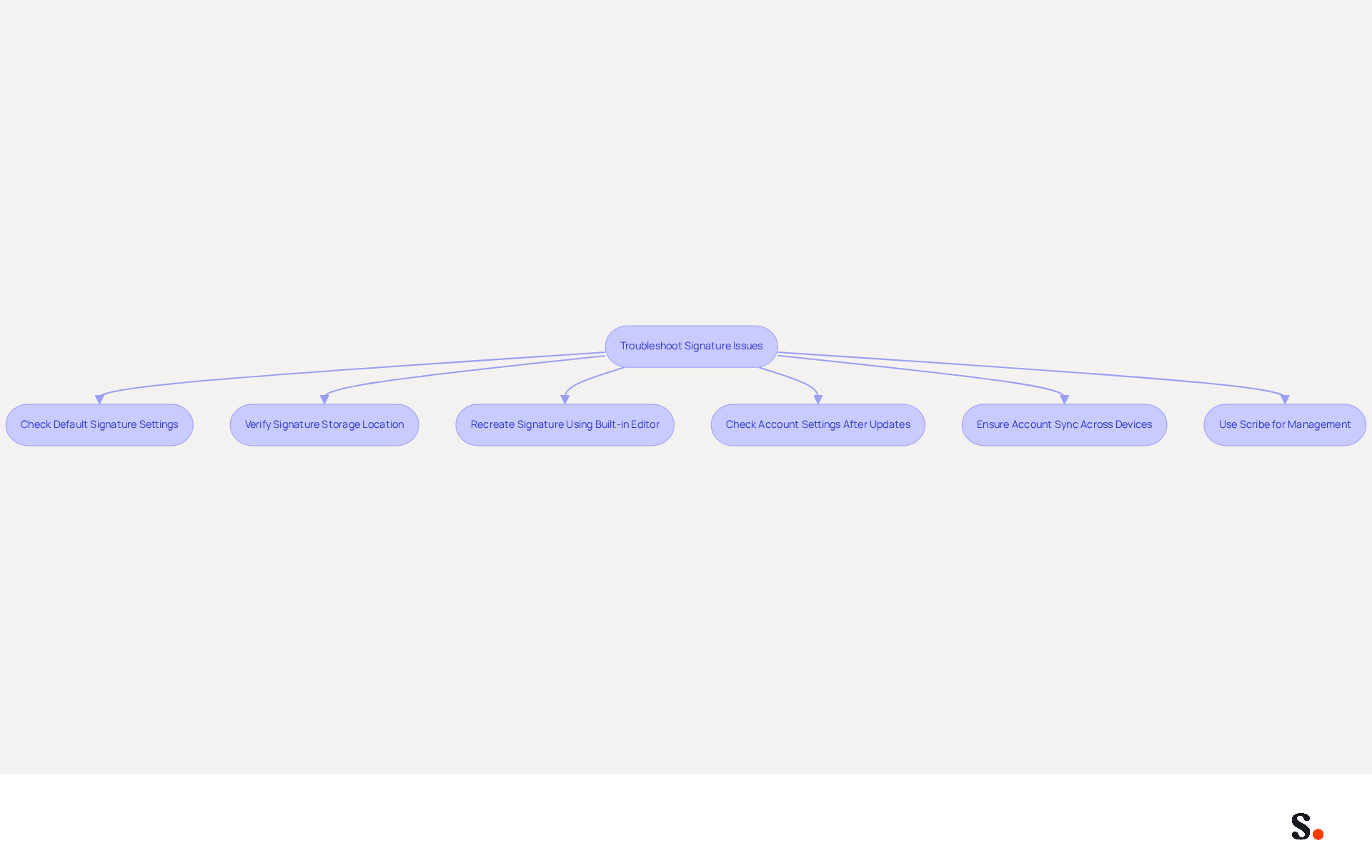
Issues with your Outlook signatures can disrupt effective communication. If your signature is not showing up, ensure that the correct signature is set as default for new emails and replies. To check where Outlook signatures are stored, navigate to File > Options > Mail > Signatures. For users of the new email application, it is important to confirm where Outlook signatures are stored, ensuring that your personal mark is in the cloud and not just locally, as this can influence visibility.
If you encounter formatting issues with your signature, recreate it using Outlook's built-in editor. Avoid copying and pasting from external sources, as this can introduce hidden formatting errors. Stick to plain text or HTML formats to maintain consistency across different email clients.
Updates can sometimes reset settings, leading to missing signatures. After an update, check your account settings again to ensure they are still configured correctly. If initials are absent, consider restoring them from a backup if available, as this can help recover lost configurations.
For users of the new Outlook, ensure you are logged into the same account on all devices. Signatures should sync automatically if you are using the same Exchange Online account. If issues persist, try logging out and back into your account to refresh the synchronization process.
Following these troubleshooting steps will help you resolve common signature issues, keeping your communications professional and consistent. Furthermore, using Scribe's integration with Google Workspace can greatly enhance your management of your correspondence identifiers. With automatic updates reflecting any changes made in your Google Workspace, you save time and ensure that your teammates' information is always current. Interestingly, nearly 44.4% of users refresh their digital footers every six months or less, emphasizing the significance of regular reviews to uphold accuracy and branding integrity. Moreover, approximately 25% of businesses are utilizing software to manage and standardize their sign-offs, and over 65% of marketers indicate that these sign-offs assist in enhancing their overall marketing performance. These insights highlight the importance of using effective tools such as Scribe to improve your management of electronic message identifiers.
Utilize Tools for Efficient Signature Management
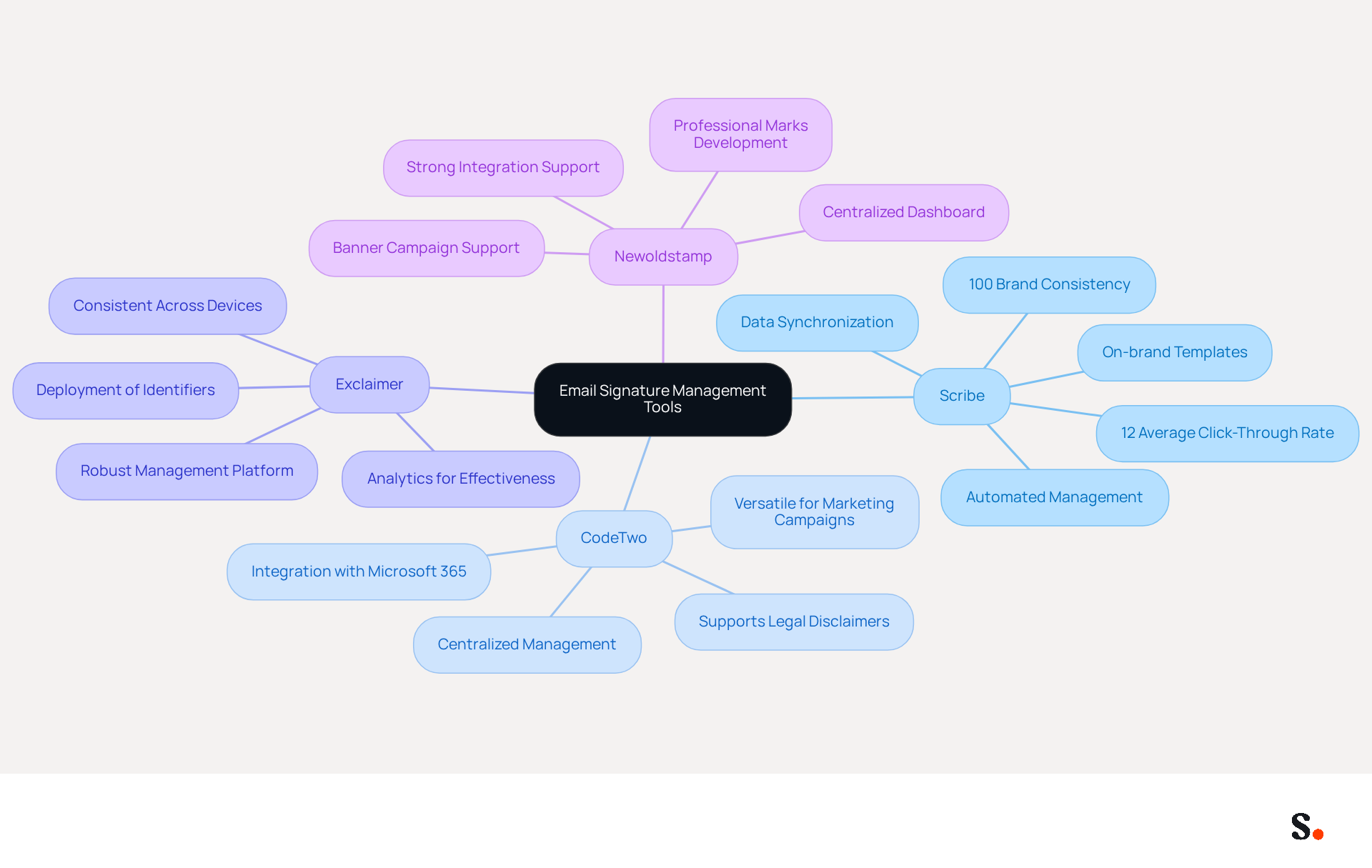
Managing email signatures can be a complex task, yet it is crucial for maintaining brand consistency and maximizing marketing potential. To enhance your email signature management, consider the following tools:
-
Scribe:
- Scribe automates the creation and management of email signatures, allowing you to update team signatures with a single click. This ensures your brand stays consistent and helps you make the most of every message you send. With features like on-brand templates and automated data synchronization, Scribe simplifies the management process, achieving 100% brand consistency and a 12% average click-through rate on campaigns.
-
CodeTwo:
- CodeTwo offers a comprehensive email signature management solution that integrates with Microsoft 365. It enables centralized management of endorsements across your organization, ensuring that all employees utilize the correct branding. This tool also supports legal disclaimers and marketing campaigns, making it a versatile choice for businesses.
-
Exclaimer:
- Exclaimer provides a robust platform for managing email signatures in Microsoft 365 and Outlook. It enables straightforward creation and deployment of identifiers, ensuring that they remain consistent across all devices. The tool also provides analytics to monitor the effectiveness of digital branding as marketing instruments, which can improve overall engagement.
-
Newoldstamp:
- Newoldstamp is another effective tool for managing email signatures. It enables the development of professional marks and supports banner campaigns to boost engagement. This tool is especially beneficial for businesses aiming to utilize their messaging footers as marketing channels.
Utilizing these tools streamlines your signature management, keeping your signatures current and aligned with your brand image. Choosing the right tool can significantly enhance your email communications and ensure your brand remains prominent in every interaction.
Conclusion
Understanding where Outlook signatures are stored is essential for effective email management and ensuring brand consistency. By familiarizing oneself with the storage locations across different versions of Outlook, users can easily back up, transfer, and manage their signatures, thereby enhancing their communication strategies.
The article outlined the specific paths for locating signatures on Windows and Mac, as well as in the new cloud-based Outlook. It emphasized the importance of maintaining mobile-friendly signatures and highlighted the need for regular backups to prevent data loss. Additionally, troubleshooting common signature issues was discussed, providing practical solutions to ensure that signatures appear correctly and consistently across all devices.
Given the critical role of digital communication, leveraging tools like Scribe can significantly streamline the management of email signatures. Automating updates and ensuring security compliance allows organizations to strengthen their brand presence and optimize marketing efforts. Adopting these practices safeguards brand identity and improves communication effectiveness, making it essential for businesses to prioritize efficient email signature management.
Frequently Asked Questions
Where are Outlook signatures stored for Windows users?
For Windows users, Outlook signatures are stored in the following location: C:\Users[YourUsername]\AppData\Roaming\Microsoft\Signatures. The saved signatures will be available as .htm, .rtf, and .txt files.
How can Mac users find their Outlook signatures?
Mac users can find their Outlook signatures by navigating to the folder: ~/Library/Group Containers/UBF8T346G9.Office/User Content.localized/Signatures. This folder contains the signature files.
Where are signatures stored for users of the new Outlook?
For users of the new Outlook, signatures are stored in the cloud and synchronized across devices, linked to their Microsoft 365 account. They can access these signatures through their Exchange Online mailbox.
Why is it important to understand Outlook signature storage locations?
Understanding where Outlook signatures are stored is crucial for effective management, backing up, or transferring documents, and preventing potential data loss during device changes or Outlook reinstallation.
What percentage of email opens are accounted for by mobile devices as of 2023?
As of 2023, mobile devices account for 46% of all email opens, highlighting the importance of ensuring that email signatures are mobile-friendly and accessible across all platforms.
What should users do to prevent loss of email signatures during transitions?
Users should regularly back up their email signatures to prevent loss during device changes or Outlook reinstallation.
How can users manually transfer personal identifiers when transitioning to the new Outlook?
Users can manually transfer personal identifiers by copying the content directly from the classic application to the new editor for personal identifiers.
What features does Scribe offer to enhance email signature management?
Scribe offers seamless integration with Calendly, ensuring that any modifications made to configurations automatically sync, maintaining brand consistency across all communications.
What support does Scribe provide for users experiencing issues?
Scribe provides hands-on customer support to assist users with any issues, ensuring a smooth experience in managing their email signatures.
List of Sources
- Understand Outlook Signature Storage Locations
- Outlook 365 Signature Location: Find Your Email Signature - NEWOLDSTAMP (https://newoldstamp.com/blog/outlook-signature-location)
- Outlook signature location & how to export, import, backup them (https://ablebits.com/office-addins-blog/outlook-signatures-location-export-backup)
- Email signature statistics and trends in 2024 (https://wisestamp.com/blog/email-signature-statistics)
- Where Is the Outlook Email Signature Location? (https://exclaimer.com/email-signature-handbook/outlook-signature-location)
- Email Signatures vanishing - New Outlook | Microsoft Community Hub (https://techcommunity.microsoft.com/discussions/outlookgeneral/email-signatures-vanishing---new-outlook/4418809)
- Locate Signatures in Different Outlook Versions
- Email Signatures vanishing - New Outlook | Microsoft Community Hub (https://techcommunity.microsoft.com/discussions/outlookgeneral/email-signatures-vanishing---new-outlook/4418809)
- 40+ Email Signature Statistics for 2026 (Data + Insights) (https://wavecnct.com/blogs/email-signature-statistics)
- How to Manage Signatures in Outlook (https://upslide.com/blog/how-to-manage-email-signatures-in-outlook)
- New email signature management and editor features in Outlook on the web | Topedia Blog (https://blog-en.topedia.com/2026/01/new-email-signature-management-and-editor-features-in-outlook-on-the-web)
- Email Signature Trends in Numbers: Infographic [2026] (https://mailtrap.io/blog/email-signature-trends/amp)
- Troubleshoot Signature Issues in Outlook
- Email signature statistics and trends in 2024 (https://wisestamp.com/blog/email-signature-statistics)
- Microsoft Acknowledges Outlook Email Service Issues - SSBCrack News (https://news.ssbcrack.com/microsoft-acknowledges-outlook-email-service-issues)
- 40+ Email Signature Statistics for 2026 (Data + Insights) (https://wavecnct.com/blogs/email-signature-statistics)
- Email signature statistics: Why every business should optimize their email signatures — Stripo.email (https://stripo.email/blog/email-signature-statistics-why-every-business-should-optimize-their-email-signatures)
- neowin.net (https://neowin.net/news/microsoft-admits-one-of-the-most-basic-useful-outlook-features-is-broken)
- Utilize Tools for Efficient Signature Management
- Best Email Signature Management Software: Top 12 Tools (2026)
- NEWOLDSTAMP (https://newoldstamp.com/blog/email-signature-software)
- Email Signature Trends 2026: Centralized Control & Automation | SIGNandGO posted on the topic | LinkedIn (https://linkedin.com/posts/signngo_email-signature-trends-to-watch-in-2026-activity-7401523471786217473-zAVL)
- 40+ Email Signature Statistics for 2026 (Data + Insights) (https://wavecnct.com/blogs/email-signature-statistics)
- Email signature management for teams & AI agents (https://scribe-mail.com/en-US)
- Email signature statistics: Why every business should optimize their email signatures — Stripo.email (https://stripo.email/blog/email-signature-statistics-why-every-business-should-optimize-their-email-signatures)
Get started with Scribe
Create your signature in minutes
Free 14-day trial — no credit card.