Where Are Outlook Signatures Stored on Windows 11? Find Out!
For professionals, understanding where Outlook signatures are stored on Windows 11 is crucial for maintaining a polished email image. With signatures saved
Sophie Grant
Email Signature Specialist, Scribe
On this page
- Introduction
- Understand Outlook Signature Storage Locations on Windows 11
- Locate the Signature Folder in Windows 11
- Backup and Restore Outlook Signatures on Windows 11
- Backup Your Signatures
- Restore Your Signatures
- Additional Insights
- Troubleshoot Signature Issues in Outlook on Windows 11
- Conclusion
- Frequently Asked Questions
- List of Sources
Introduction
For professionals, understanding where Outlook signatures are stored on Windows 11 is crucial for maintaining a polished email image. With signatures saved either locally or in the cloud, knowing how to access and manage these files can significantly enhance email efficiency and branding consistency. Users often struggle to find their email signatures, leading to inefficiencies in email management. Identifying effective strategies for navigating these storage paths and resolving common issues is essential.
Understand Outlook Signature Storage Locations on Windows 11
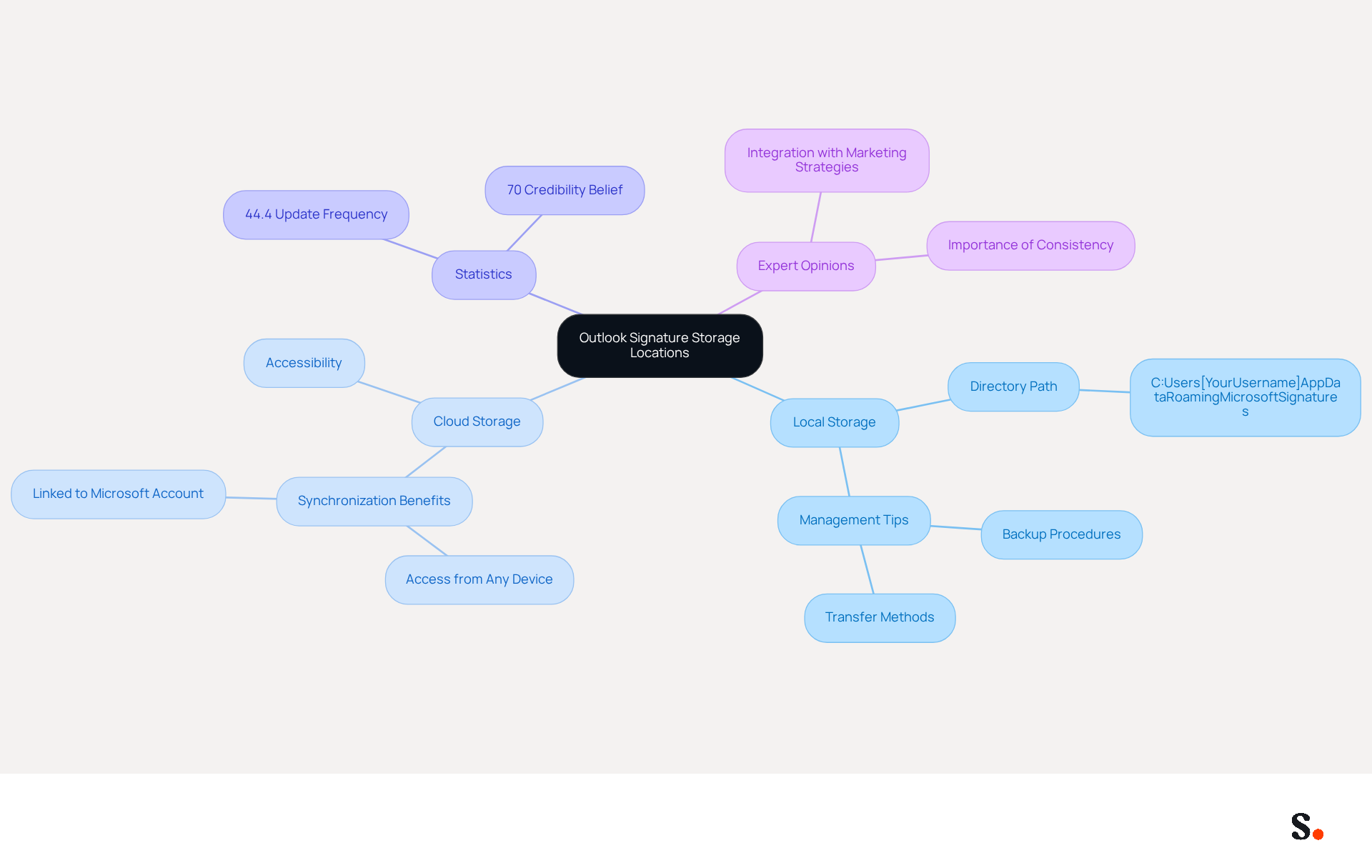
Understanding where Outlook signatures are stored in Windows 11 is crucial for effective management and seamless access. For the classic version, signatures are saved locally on your computer, typically found in the following directory: C:\Users\[YourUsername]\AppData\Roaming\Microsoft\Signatures. Conversely, the new Outlook within Microsoft 365 saves signatures in the cloud, enabling synchronization across devices. This means your signatures are linked to your Microsoft account and accessible from any device where you log into Outlook. Understanding where Outlook signatures are stored in Windows 11 is essential for efficient management of your identifiers, particularly regarding backing them up or transferring them to another device.
Statistics reveal that 44.4% of users update their contact details every six months or less, highlighting the need for efficient access to these files. Furthermore, 70% of users of professional identifiers believe that having a polished mark boosts their credibility, making it crucial to uphold consistency and accessibility in managing these elements. Expert opinions indicate that as email identifiers become increasingly integrated with marketing strategies, understanding their storage and management will play a pivotal role in enhancing professional credibility.
Locate the Signature Folder in Windows 11
A straightforward process for enhancing your email management involves knowing where are outlook signatures stored windows 11.
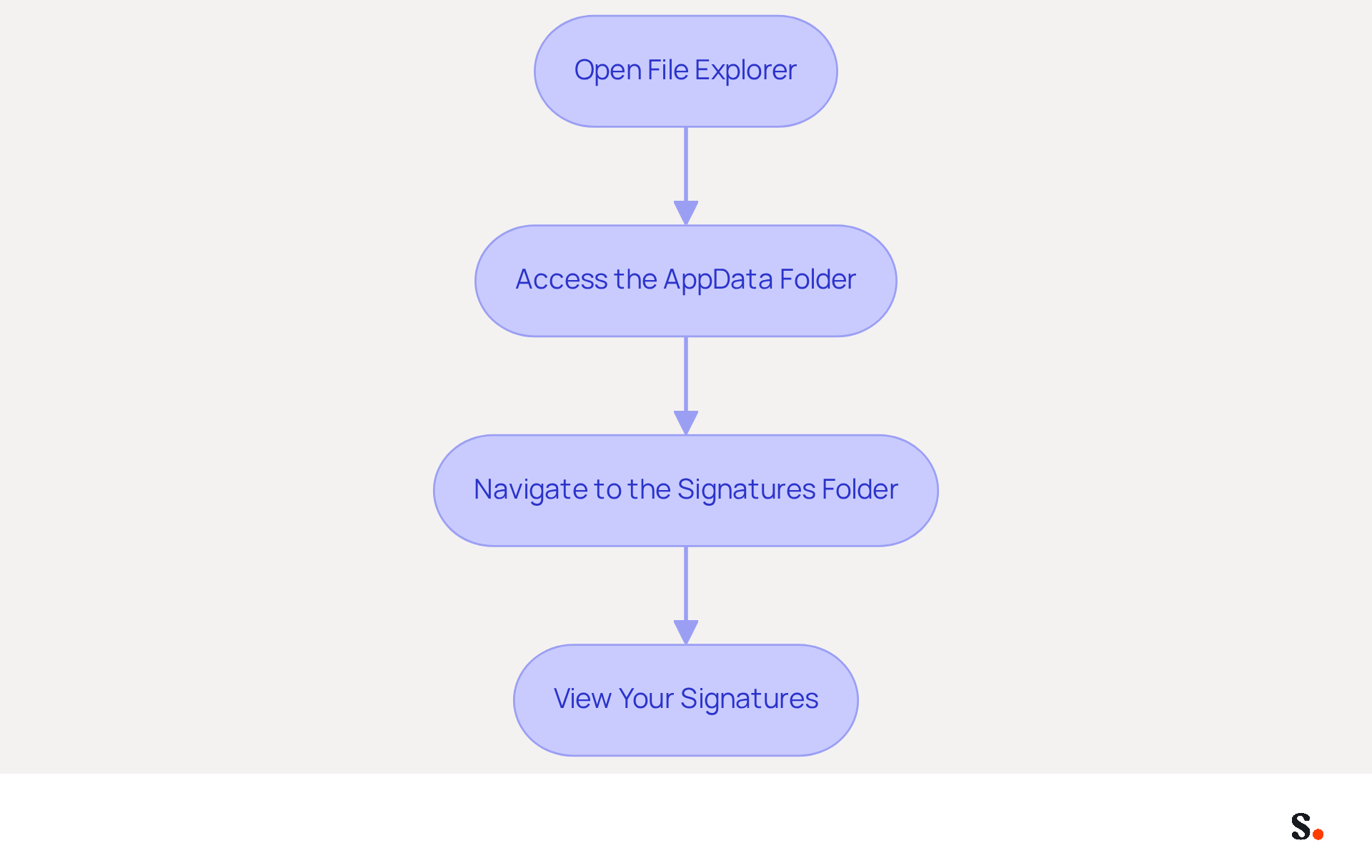
- Open File Explorer: Click on the folder icon in your taskbar or press
Windows + Eon your keyboard. - Access the AppData Folder: Since the folder for signatures is hidden by default, enable the viewing of hidden items. Click on the 'View' menu at the top, then select 'Hidden items'.
- Navigate to the Signatures Folder: In the address bar of File Explorer, type the following path and press
Enter:
C:\Users\YourUsername\AppData\Roaming\Microsoft\Signatures
ReplaceYourUsernamewith your actual Windows username. - View Your Signatures: In this folder, you will find all your saved signatures in various formats (HTML, RTF, and Plain Text). You can open these files with a text editor or HTML editor to make changes as needed.
To enable one-click synchronization with Scribe, grant it permission to connect with your service provider. Ensure you are a Super Admin of your service provider to provide these permissions. Many organizations struggle with managing their email signatures effectively, with 15% of IT teams identifying it as a top time-consuming task. A firm with 100 employees can produce roughly 60,000-80,000 branded impressions each month, emphasizing the considerable visibility and branding potential of digital identifiers. By integrating Scribe's one-click synchronization with your provider, you can streamline the management of these identifiers, ensuring they are always current and compliant with branding standards. Scribe's automated updates save time and enhance security, as it is SOC 2 Type II compliant, ensuring the safety of your data. Following these steps helps you keep your email identifiers accessible and well-managed.
Backup and Restore Outlook Signatures on Windows 11
Losing your Outlook signatures can lead to significant branding inconsistencies, making it essential to back them up properly.
Backup Your Signatures
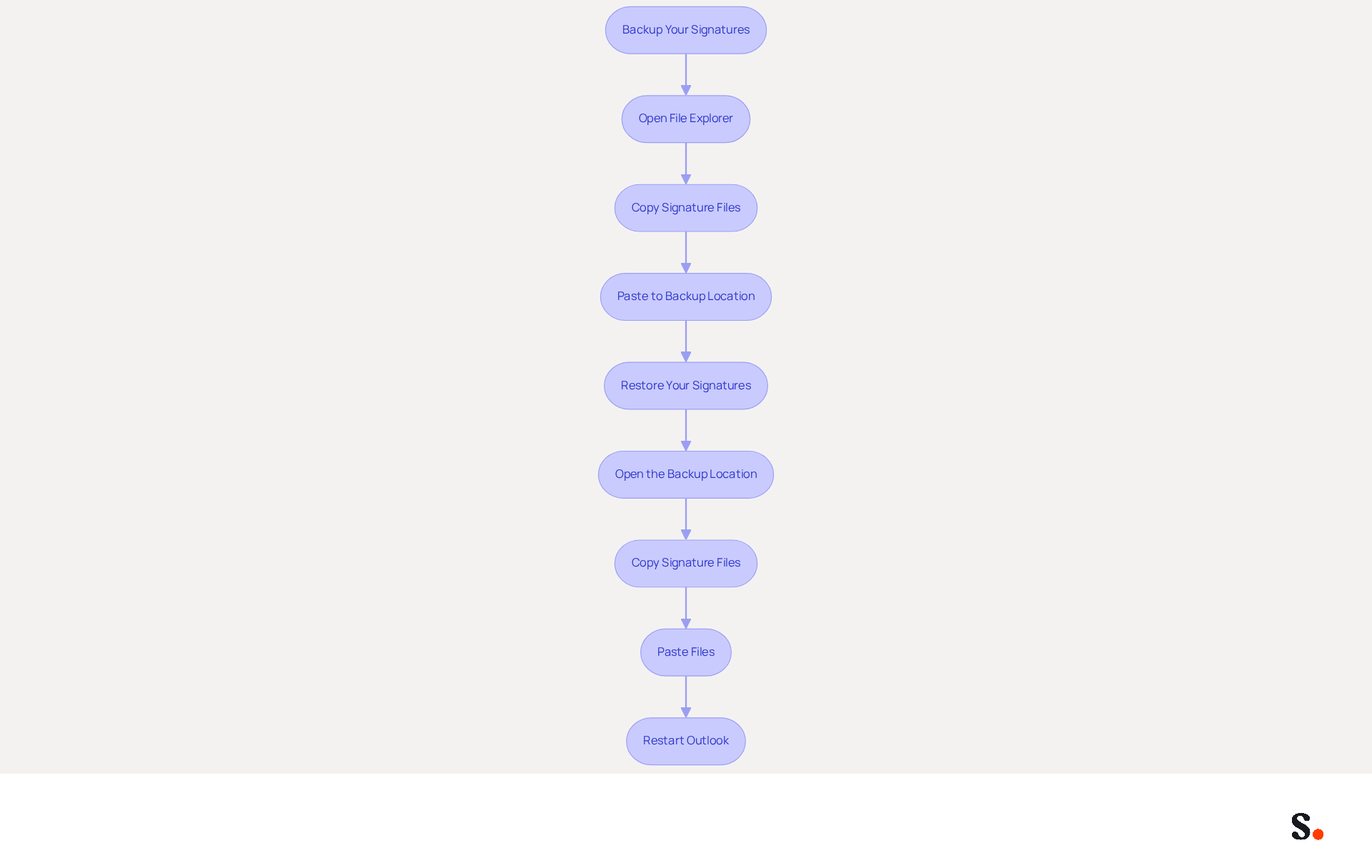
- To discover where Outlook signatures are stored in Windows 11, open File Explorer and paste the path
%userprofile%\AppData\Roaming\Microsoft\Signaturesinto the address bar. - Copy Signature Files: Select all the files in the Signatures folder by pressing
Ctrl + A, then right-click and choose 'Copy'. Each identifier consists of three files: .htm, .rtf, and .txt. To find out where Outlook signatures are stored in Windows 11, you can check the application settings. - Paste to Backup Location: Navigate to a secure location on your computer or an external drive. Right-click and choose 'Paste' to save your files.
Restore Your Signatures
- Open the Backup Location: Go to the location where you saved your backup files.
- Copy Signature Files: Select the files you want to restore, right-click, and choose 'Copy'. To find out where Outlook signatures are stored in Windows 11, you can check the application settings. Navigate back to the folder where Outlook signatures are stored in Windows 11 by using the same path as before.
- Paste Files: Right-click in the Signatures folder and select 'Paste' to restore your files.
- Restart Outlook: Simply close and reopen Outlook to make sure your restored email templates are ready for use.
Additional Insights
Statistics reveal that 44.4% of users update their email signatures 2-4 times a year, indicating a need for regular management to maintain professionalism and brand consistency. Research indicates that organizations that actively manage their electronic identifiers report over a 22% increase in response rates, emphasizing the significance of maintaining them up to date and effective. With Scribe's automated synchronization with Aircall, any modifications made in your Aircall configuration will automatically reflect in your Scribe profiles, ensuring brand consistency across communications. Additionally, Scribe's SOC 2 Type II compliance guarantees secure data handling, addressing the security concerns of Marketing Managers. By ensuring your email signatures are backed up and restored correctly, you safeguard your professional image and maintain brand integrity in all communications.
Troubleshoot Signature Issues in Outlook on Windows 11
If you encounter issues with your Outlook signatures, it is essential to follow these troubleshooting steps to ensure proper functionality:
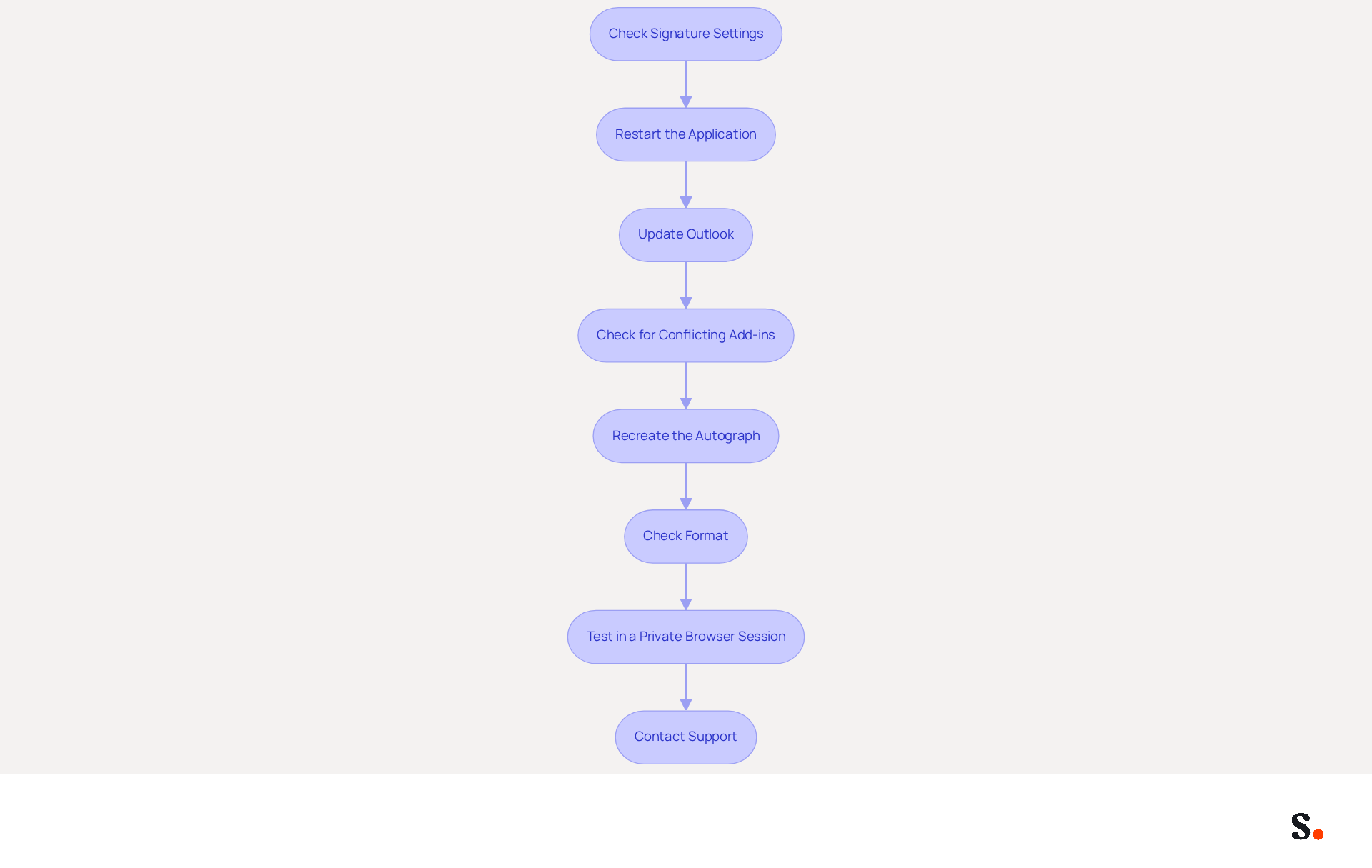
- Check Signature Settings: Open Outlook and navigate to
File > Options > Mail > Signatures. It’s important to note that many users often miss this setting, which can result in signatures not appearing. Ensure that the correct mark is selected for both new messages and replies/forwards. - Restart the Application: Sometimes, simply restarting the program can resolve temporary glitches. Close the application completely and reopen it to refresh its settings.
- Update Outlook: Ensure that your Outlook application is up to date. Go to
File > Office Account > Update Options > Update Nowto check for updates. Failing to update Outlook can lead to unresolved issues that hinder functionality. - Check for Conflicting Add-ins: Disable any add-ins that might interfere with functionality related to email signing. Navigate to
File > Options > Add-ins, and manage your add-ins accordingly. Conflicting add-ins are a frequent source of problems related to signatures. - Recreate the Autograph: If your autograph is still not displaying correctly, consider deleting it and creating a new one. This can resolve formatting issues that may have arisen, as different Outlook clients manage email footers in various ways. Case studies reveal that users often find success by recreating their personal marks or adjusting settings.
- Check Format: Make sure your format is set to HTML or Rich Text; Plain Text simply doesn’t support signatures. Go to
File > Options > Mail > Compose messagesto verify your settings. This is crucial, as many users unknowingly send messages in Plain Text, which removes identifiers. - Test in a Private Browser Session: If you're using Scribe on the web, testing the email footer behavior in a private browser session can help rule out browser-related issues. Open a private browsing window, log in to the web application, and send a test message to verify if the sign-off functions.
- Contact Support: If you’re still having trouble, don’t hesitate to contact Microsoft Support for personalized help.
Statistics show that over 52% of users encounter problems with messaging identifiers across various Outlook platforms, frequently associated with absent identifiers and formatting issues. Comprehending how identifiers are managed in each client is essential for effective troubleshooting. Additionally, expert advice emphasizes the importance of confirming where are outlook signatures stored windows 11 for both new messages and replies/forwards to prevent issues.
Conclusion
Effective email management hinges on understanding where Outlook signatures are stored on Windows 11. By knowing where these signatures are saved, users can easily access, back up, and restore their identifiers, ensuring brand consistency and professionalism in their communications.
The article outlines the specific paths for both local and cloud-stored signatures, providing a clear guide on how to locate, back up, and restore these important files. It emphasizes the significance of regular updates and management of email signatures, backed by data showing that consistent email signatures significantly enhance professional credibility. Additionally, troubleshooting tips are provided to help users resolve common issues that may arise with their signatures.
Maintaining control over email signatures is essential for any organization. Leveraging tools like Scribe can streamline this process, allowing marketing teams to manage signatures independently while ensuring compliance with security standards such as SOC 2 Type II. This proactive approach can lead to increased brand recognition and customer trust.
Frequently Asked Questions
Where are Outlook signatures stored in Windows 11 for the classic version?
In the classic version of Outlook, signatures are stored locally on your computer, typically found in the directory: C:\Users[YourUsername]\AppData\Roaming\Microsoft\Signatures.
How does signature storage differ in the new Outlook within Microsoft 365?
The new Outlook within Microsoft 365 saves signatures in the cloud, allowing for synchronization across devices. This means your signatures are linked to your Microsoft account and can be accessed from any device where you log into Outlook.
Why is it important to understand where Outlook signatures are stored?
Understanding where Outlook signatures are stored is essential for efficient management, particularly for backing them up or transferring them to another device.
What percentage of users update their contact details frequently?
Statistics reveal that 44.4% of users update their contact details every six months or less.
How do users perceive the importance of polished email identifiers?
About 70% of users of professional identifiers believe that having a polished mark boosts their credibility, making it crucial to maintain consistency and accessibility in managing these elements.
What role do email identifiers play in professional credibility?
Expert opinions indicate that as email identifiers become increasingly integrated with marketing strategies, understanding their storage and management will play a pivotal role in enhancing professional credibility.
List of Sources
- Understand Outlook Signature Storage Locations on Windows 11
- Email signature statistics and trends in 2024 (https://wisestamp.com/blog/email-signature-statistics)
- 40+ Email Signature Statistics for 2026 (Data + Insights) (https://wavecnct.com/blogs/email-signature-statistics)
- Microsoft Outlook email signatures will sync in the cloud (https://windowsreport.com/microsoft-outlook-email-signatures-cloud-sync)
- Outlook for Windows: Cloud Signatures Coming Soon (https://d365hub.com/posts/details/308ab044-f23c-4cae-a103-49a3c62fbbce/outlook-for-windows-cloud-signatures-coming-soon)
- Microsoft Working on Outlook Cloud Signatures - Petri IT Knowledgebase (https://petri.com/microsoft-working-outlook-cloud-signatures)
- Locate the Signature Folder in Windows 11
- Outlook 365 Signature Location: Find Your Email Signature - NEWOLDSTAMP (https://newoldstamp.com/blog/outlook-signature-location)
- Where Is the Outlook Email Signature Location? (https://exclaimer.com/email-signature-handbook/outlook-signature-location)
- Email Signature Trends in Numbers: Infographic [2026] (https://mailtrap.io/blog/email-signature-trends)
- 40+ Email Signature Statistics for 2026 (Data + Insights) (https://wavecnct.com/blogs/email-signature-statistics)
- Outlook email signature location backup (https://mail-signatures.com/articles/outlook-email-signature-location-and-backup)
- Backup and Restore Outlook Signatures on Windows 11
- 40+ Email Signature Statistics for 2026 (Data + Insights) (https://wavecnct.com/blogs/email-signature-statistics)
- The New Outlook for Windows: An IT Guide to Email Signatures (https://exclaimer.com/email-signature-handbook/new-outlook-windows-email-signatures)
- How to Back Up and Restore Outlook Signatures with PowerShell (https://seanshares.com/automation/backup-restore-outlook-signatures-powershell)
- How to Backup and Restore Signatures in Outlook? (https://extendoffice.com/documents/outlook/7010-outlook-backup-restore-signatures.html)
- Outlook signature location & how to export, import, backup them (https://ablebits.com/office-addins-blog/outlook-signatures-location-export-backup)
- Troubleshoot Signature Issues in Outlook on Windows 11
- 40+ Email Signature Statistics for 2026 (Data + Insights) (https://wavecnct.com/blogs/email-signature-statistics)
- Outlook Signature Not Working in Office 365: Causes & Fixes (https://exclaimer.com/email-signature-handbook/outlook-signature-not-working-in-office-365)
- How To Fix Signature On Outlook Email (Instant Solution) (https://saassnappy.com/blog/how-to-fix-signature-on-outlook)
- New Outlook Email Signature issues - Microsoft Q&A (https://learn.microsoft.com/en-us/answers/questions/4693449/new-outlook-email-signature-issues)
Get started with Scribe
Create your signature in minutes
Free 14-day trial — no credit card.