Where to Find and Manage Your Signature in Outlook Easily
Effective email signature management in Outlook is crucial for maintaining professional communication, yet many users find it challenging to navigate the
Sophie Grant
Email Signature Specialist, Scribe
Introduction
Effective email signature management in Outlook is crucial for maintaining professional communication, yet many users find it challenging to navigate the settings. This guide offers a clear pathway to not only find and edit email signatures but also to troubleshoot common issues that may arise.
With the right strategies and tools, such as Scribe, organizations can ensure brand consistency and enhance communication effectiveness, all while maintaining compliance with security standards like SOC 2 Type II.
Ineffective signature management can significantly hinder productivity. Explore strategies to enhance this process effectively and elevate your professional image with effective email signature management techniques.
Identify Signature Locations in Outlook
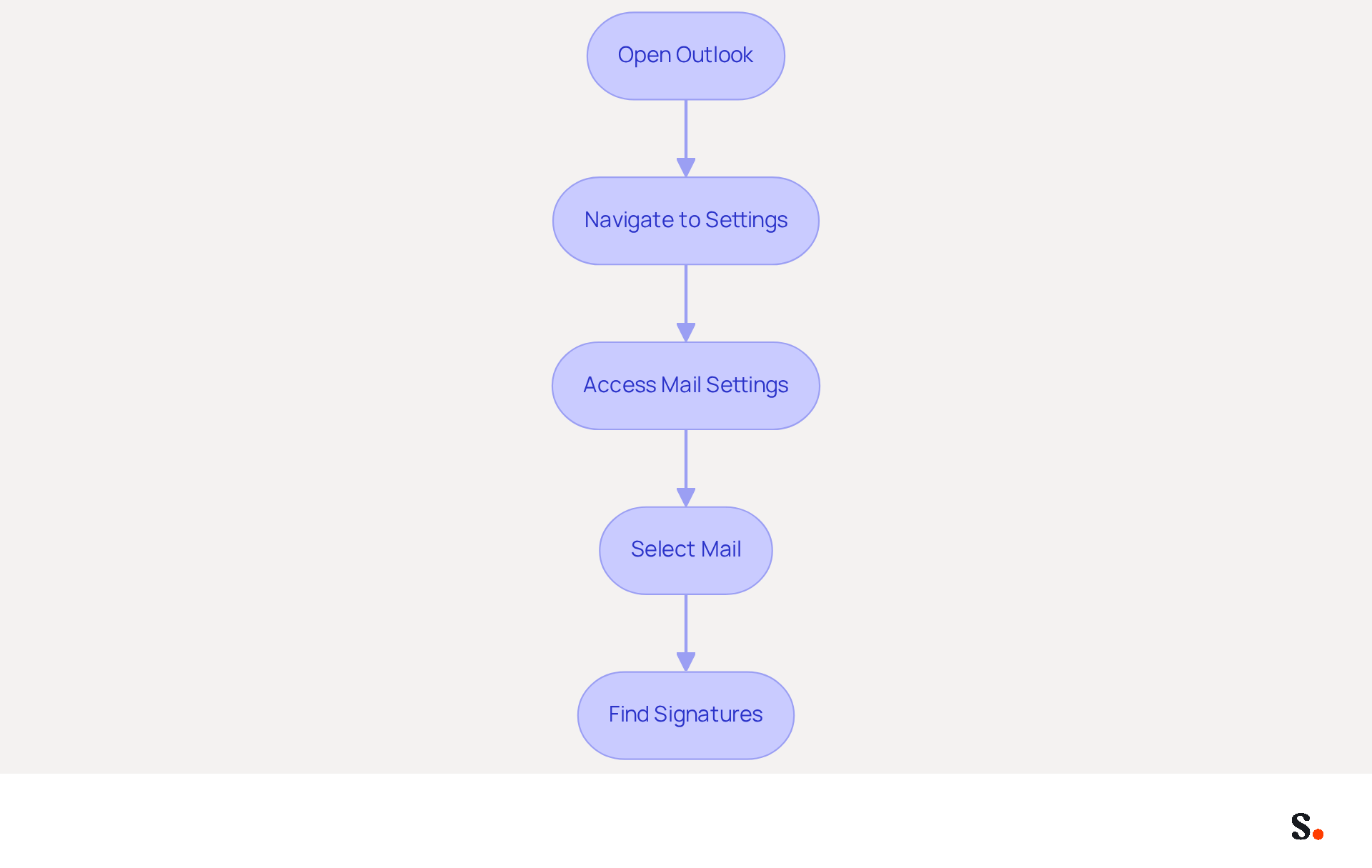
Many users find it straightforward to manage their email signatures in Outlook, but they often wonder where is your signature in Outlook when challenges arise. To locate and manage your email signatures in Outlook, follow these straightforward steps:
- Open the application: Launch the email program on your computer.
- Navigate to Settings: Click on the gear icon (⚙️) in the top-right corner of the window.
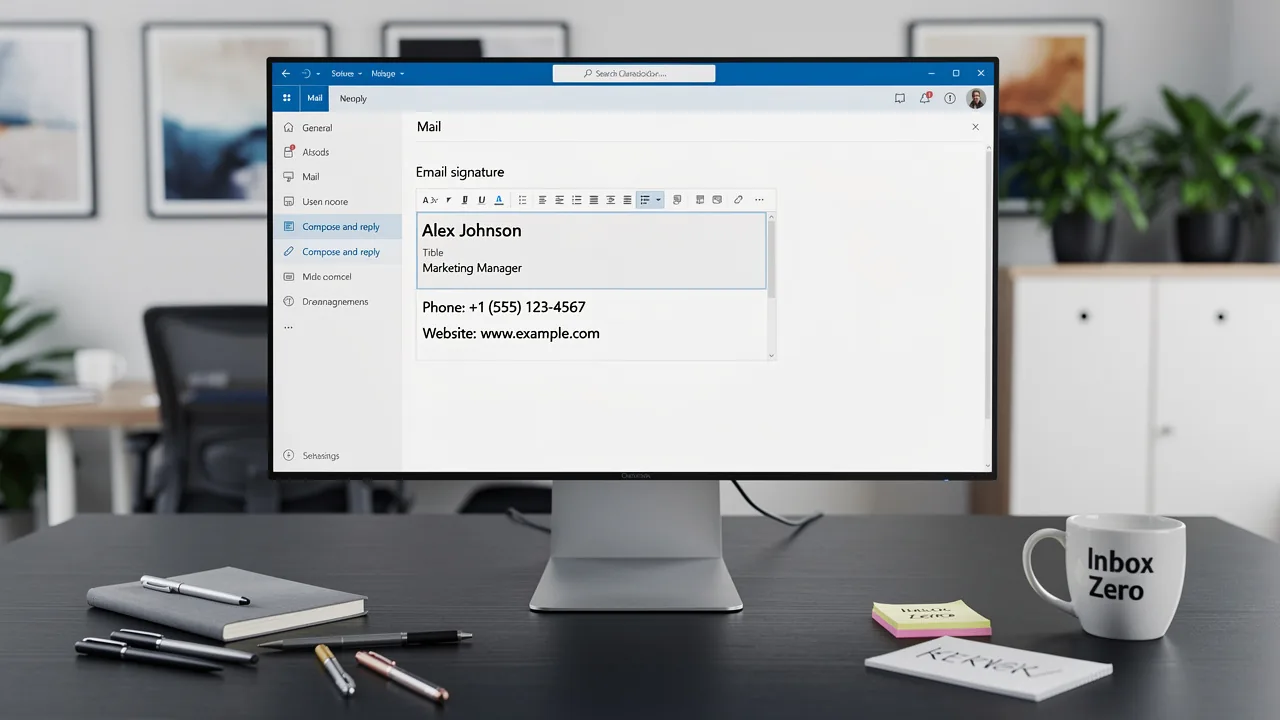
- Access Mail Settings: In the settings menu, select 'View all Outlook settings' at the bottom.
- Select Mail: Click on the 'Mail' tab in the left sidebar.
- Find Signatures: Under the 'Compose and reply' section, look for the 'Email closing' option. Here, you can view, create, or modify your signatures.
For users of the classic Outlook version, signatures are typically stored in the following directory:
- Path:
C:\Users\[YourUsername]\AppData\Roaming\Microsoft\Signatures
This path might be hidden; make sure to enable the viewing of hidden files in your File Explorer settings. Knowing where is your signature in Outlook is crucial for managing your email signatures effectively, particularly given that 91% of IT professionals indicate that DIY management of such identifiers can impede productivity. Additionally, 44.4% of users update their signatures only 2-4 times a year, which can lead to inconsistencies in branding and missed marketing opportunities.
To streamline this process, integrate the application with your Google Workspace. To set up one-click synchronization, simply grant access to your email provider, but remember, you’ll need to be a Super Admin to do this. You will have the option to select which teammates you want to sync with the application. Any modifications made in your Google Workspace, such as relocating teammates or updating their details, will be automatically reflected in the application without any manual input. This not only saves time but also enhances your branding consistency across all communications. With Scribe's SOC 2 Type II compliance, you can rest assured that your data is secure while you focus on maintaining a cohesive brand image. Ensuring your email signatures are consistently managed not only enhances your brand's image but also improves overall communication effectiveness.
Access and Edit Your Email Signature
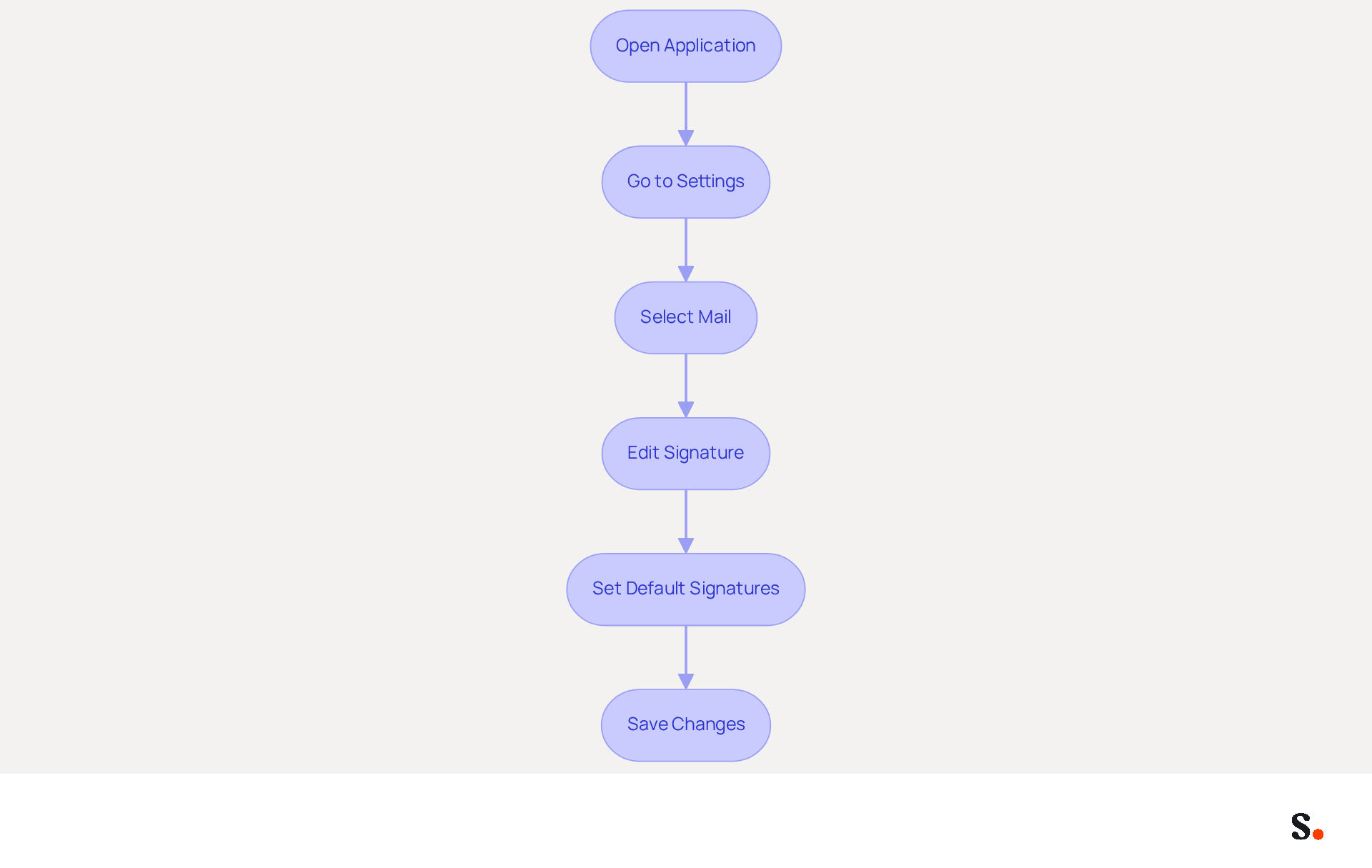
To effectively manage your email signature in Outlook, follow these straightforward steps:
- Open the application: Start the email program on your device.
- Go to Settings: Click on the gear icon (⚙️) in the top-right corner.
- Select Mail: In the settings menu, choose 'View all Outlook settings' and then click on 'Mail'.
- Edit Signature: Under the 'Compose and reply' section, find the 'Email closing' option. Here, you can:
- Create a New Signature: Click on 'New' to create a new signature. Enter a name for your mark and click 'OK'.
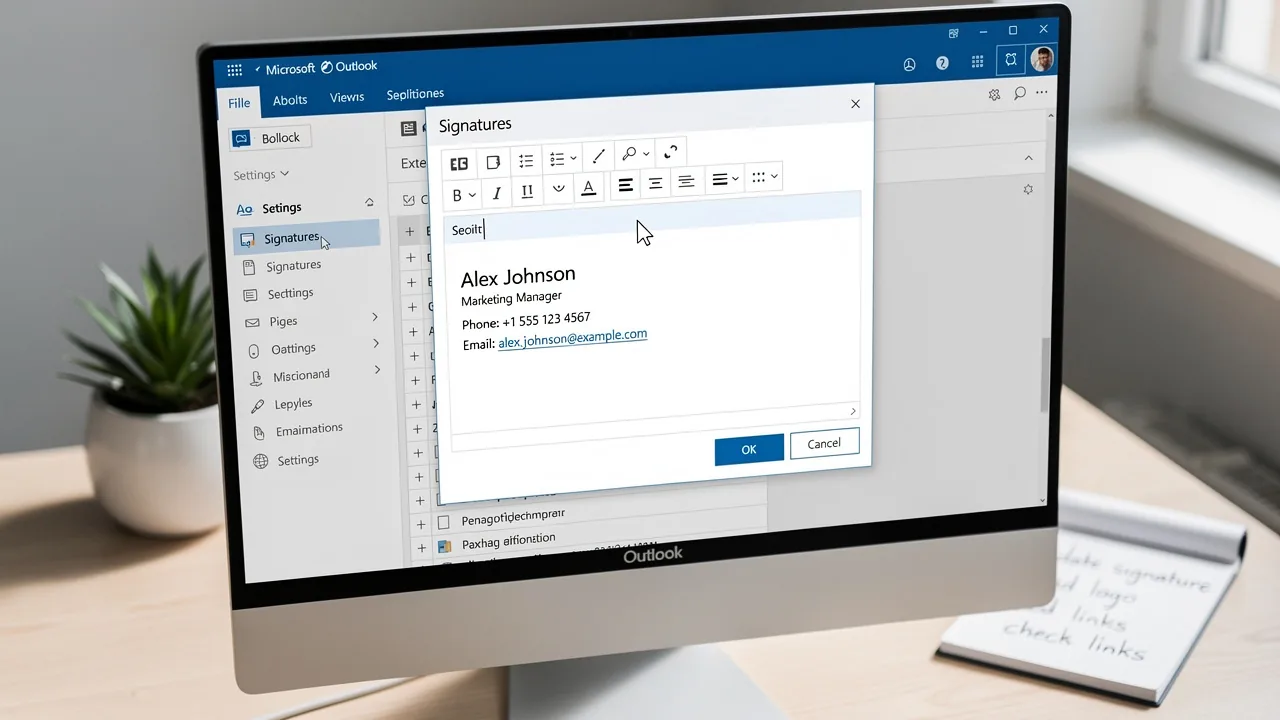
- Edit Existing Mark: Select the mark you wish to modify from the dropdown menu. Make your changes in the text box provided. You can format the text, add images, and include links as needed.
- Set Default Signatures: If you have multiple designs, you can establish a default one for new messages and replies/forwards.
- Save Changes: After making your edits, ensure you click 'Save' to apply the changes.
Many professionals believe that an updated contact footer is crucial for building trust and effective communication with clients. Moreover, using branded identifiers can lead to a 22% increase in response rates, highlighting their importance. Significantly, 44.4% of users modify their contact details 2-4 times annually, underscoring the need for consistent updates.
With Scribe's email signature management tool, you can automate this process, ensuring that your email identifiers are always in sync with your business phone system, such as Aircall. This means any modifications made in your Aircall configuration will automatically reflect in your documents, providing effortless updates and maintaining brand consistency. Furthermore, Scribe is SOC 2 Type II compliant, ensuring that your data is handled securely. As Yuliia Savchuk, a content writer at Stripo, states, "A message footer plays a significant role in maintaining a brand and generating leads, so you should approach its design thoughtfully." This ensures your communications remain professional and trustworthy, ultimately fostering stronger client relationships.
Troubleshoot Signature Issues
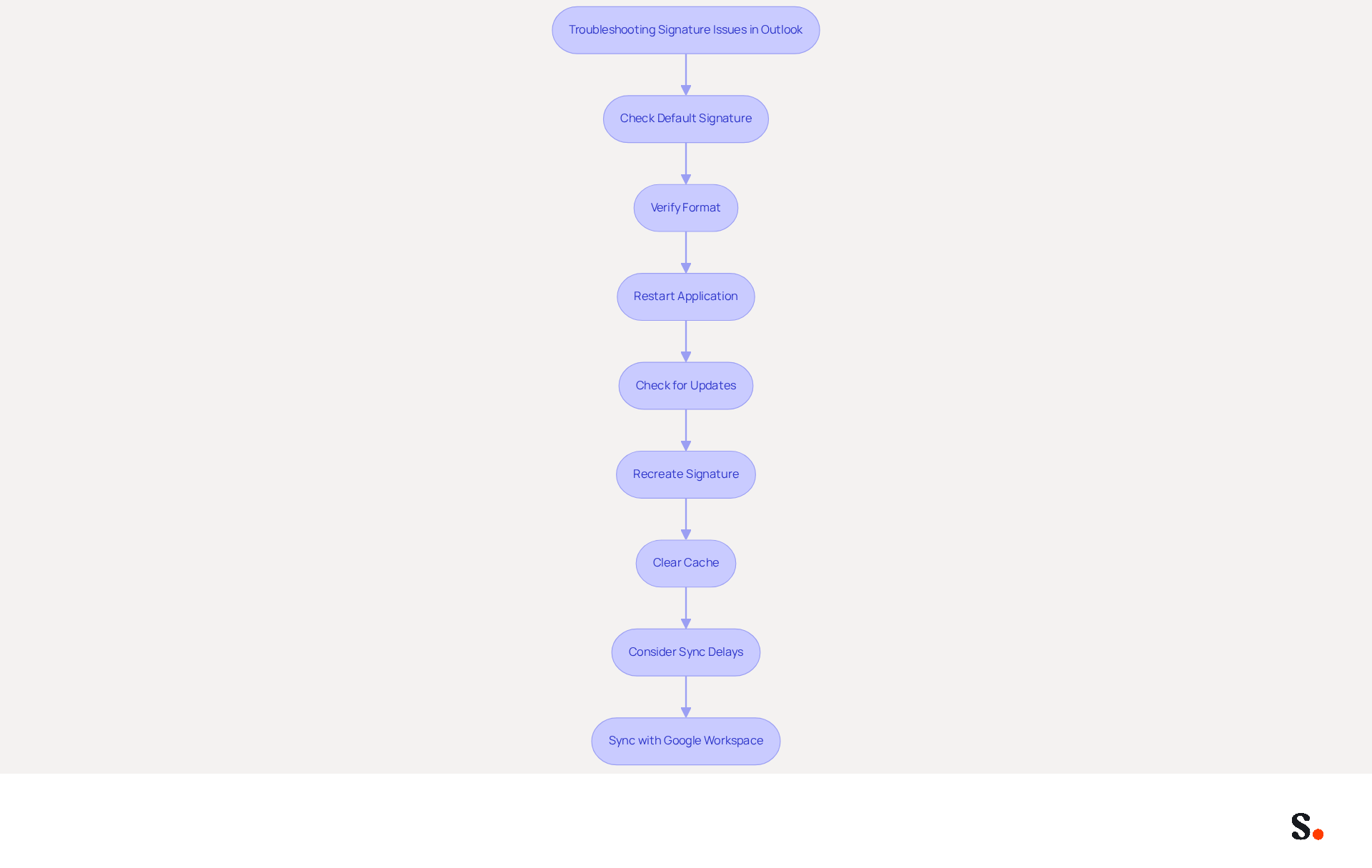
If where is your signature in Outlook is not displaying correctly, it can undermine your professional image. Consider the following troubleshooting steps:
- First, check where is your signature in Outlook to ensure your sign-off is set as the default for new emails and replies. A considerable number of users neglect this step, leading to unprofessional communications.
- Verify Format: Ensure you are sending messages in HTML format, as identifiers may not display correctly in plain text. This is essential because emails sent in plain text can result in formatting problems, making your closing appear unprofessional.
- Restart the Application: Sometimes, simply restarting the email program can resolve temporary glitches. Users have reported that this quick fix often restores missing identifiers.
- Check for Updates: Ensure that your Outlook application is up-to-date. Go to File > Office Account > Update Options > Update Now. Regular updates can prevent issues caused by outdated software, which is a common problem among users.
- Can you tell me where is your signature in Outlook? If your mark is still not displaying correctly, where is your signature in Outlook? Try deleting it and creating a new one. Recreating your signature often resolves formatting issues that have occurred, as many users find that this helps eliminate persistent problems.
- Clear Cache: If you are using the email application on the web, clearing your browser's cache can help resolve display issues. Stored data can disrupt how identifiers are displayed, resulting in inconsistencies.
- Consider Roaming Signature Sync Delays: Be aware that roaming sync delays can cause changes made in Outlook desktop to take time to appear in Outlook on the web. This can lead to confusion if you expect immediate updates across devices.
- Sync with Google Workspace: To enhance your management of your digital signatures, consider connecting your Google Workspace with Scribe. This integration saves time by automatically updating your teammates' contact information, ensuring that any changes in your Google Workspace-such as moving teammates between groups or updating their job positions-are reflected in Scribe without manual input. This not only enhances efficiency but also helps maintain brand consistency across all communications.
Addressing these issues not only resolves technical problems but also elevates your professional image. Branded messages increase trust, with 76% of recipients feeling more confident in the sender. Furthermore, 3% of IT teams recognize managing digital identifiers as one of their top two most time-consuming tasks, highlighting the necessity for effective solutions to these common issues. As noted by industry experts, 'Many Outlook email issues in Microsoft 365 come down to configuration mismatches rather than system faults,' emphasizing the importance of proper setup and management. Ensuring your email signature is correctly configured can significantly enhance your credibility and professionalism in all communications.
Explore Tools for Efficient Signature Management
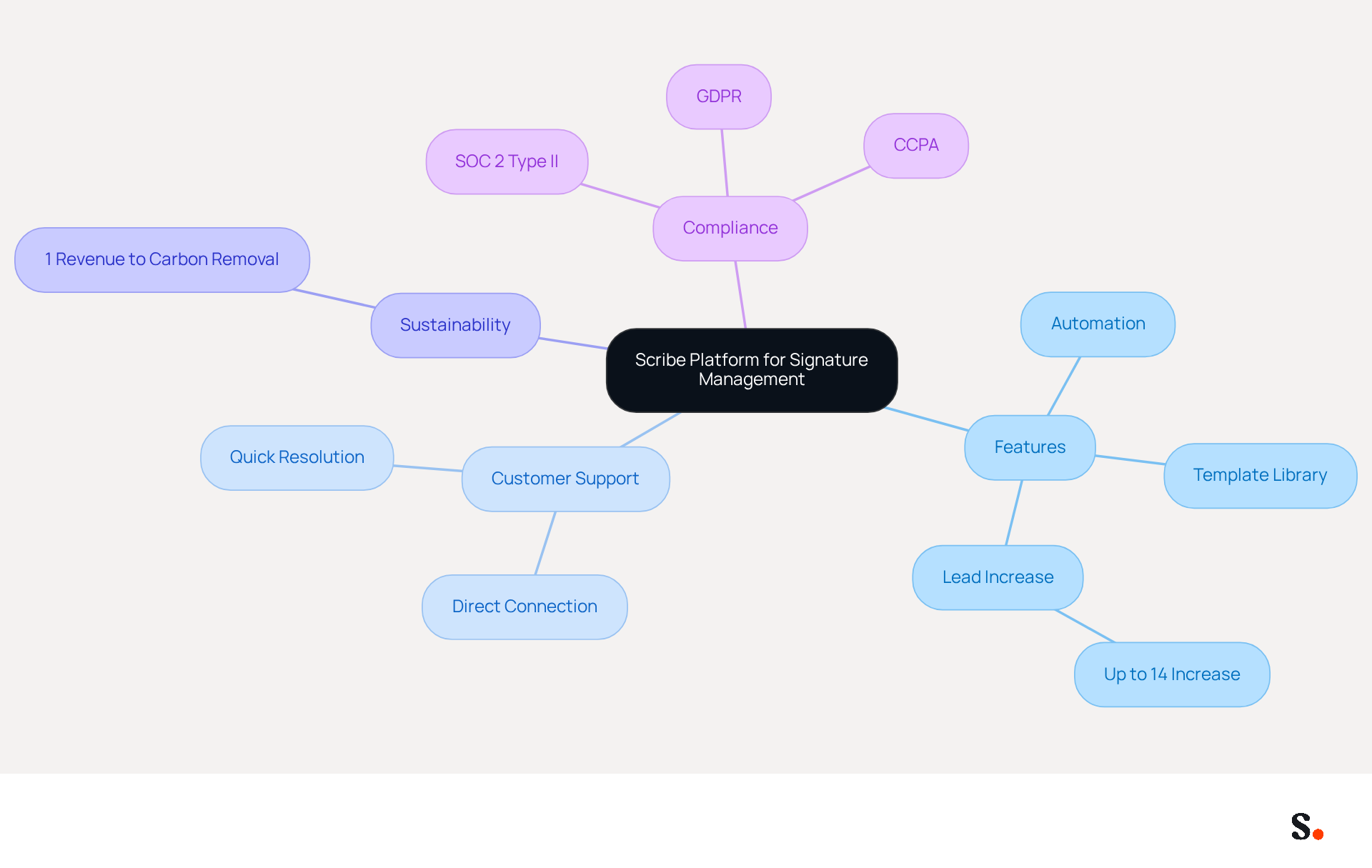
Managing digital signatures can often be a complex task, but Scribe offers a streamlined solution. This innovative platform automates the creation and management of these identifiers, allowing for easy updates and brand consistency across your organization. The extensive library of templates and visual editor enables teams to customize their signatures while preserving a professional look. This tool can increase leads by up to 14%, making it a valuable asset for enhancing marketing opportunities with every email.
The platform offers exceptional customer support, allowing users to connect with a representative directly for prompt assistance. This hands-on approach helps resolve issues quickly and efficiently. Furthermore, the organization actively contributes to environmental sustainability by directing 1% of its revenue to support emerging carbon removal technologies through Stripe Climate, showcasing a commitment to addressing climate change.
The platform also holds a SOC 2 Type II certification and complies with GDPR and CCPA, ensuring that your data is handled securely and responsibly. By choosing Scribe, you not only enhance your email communications but also contribute to a more sustainable future. The platform's unique features cater specifically to the needs of businesses looking to enhance their email communications effectively, allowing marketing teams to manage email signatures independently after the initial IT setup.
Conclusion
Effective management of email signatures is crucial for projecting a professional image and ensuring brand consistency. By understanding where to find and how to manage these signatures, users can enhance their communication effectiveness and avoid common pitfalls that can undermine their professionalism.
The article outlines clear steps for locating, editing, and troubleshooting email signatures in Outlook. Key insights include:
- The importance of keeping signatures updated to build trust with clients
- The benefits of integrating with tools like Google Workspace for seamless updates
- The value of using Scribe's automated management features to save time and ensure brand consistency
With Scribe's SOC 2 Type II compliance, users can also feel secure about their data while focusing on effective communication.
Poorly managed email signatures can lead to miscommunication and a lack of trust with clients. Organizations should prioritize efficient signature management solutions like Scribe to not only enhance their branding but also improve overall marketing performance. By implementing Scribe's solutions, organizations can significantly elevate their branding and marketing outcomes.
Frequently Asked Questions
How can I locate my email signatures in Outlook?
To locate your email signatures in Outlook, open the application, click on the gear icon (⚙️) in the top-right corner, select 'View all Outlook settings' at the bottom, click on the 'Mail' tab in the left sidebar, and look for the 'Email closing' option under the 'Compose and reply' section.
Where are signatures stored in the classic version of Outlook?
In the classic version of Outlook, signatures are typically stored in the directory: C:\Users[YourUsername]\AppData\Roaming\Microsoft\Signatures. This path may be hidden, so ensure that you enable the viewing of hidden files in your File Explorer settings.
Why is it important to manage email signatures effectively?
Effective management of email signatures is crucial because 91% of IT professionals indicate that DIY management can impede productivity. Additionally, 44.4% of users update their signatures only 2-4 times a year, which can lead to inconsistencies in branding and missed marketing opportunities.
How can I streamline the management of email signatures?
You can streamline the management of email signatures by integrating the application with your Google Workspace. By granting access to your email provider as a Super Admin, you can enable one-click synchronization, allowing any modifications made in Google Workspace to be automatically reflected in the application.
What are the benefits of using Scribe for email signature management?
Using Scribe for email signature management enhances branding consistency across communications, saves time through automatic updates, and ensures data security with Scribe's SOC 2 Type II compliance. This helps maintain a cohesive brand image and improves overall communication effectiveness.
List of Sources
- Identify Signature Locations in Outlook
- Outlook 365 Signature Location: Find Your Email Signature - NEWOLDSTAMP (https://newoldstamp.com/blog/outlook-signature-location)
- Where Is the Outlook Email Signature Location? (https://exclaimer.com/email-signature-handbook/outlook-signature-location)
- 40+ Email Signature Statistics for 2026 (Data + Insights) (https://wavecnct.com/blogs/email-signature-statistics)
- Email Signature Statistics: A Closer Look at Email Signatures in 2026 (https://mysignature.io/blog/email-signature-statistics)
- Outlook email signature location backup (https://mail-signatures.com/articles/outlook-email-signature-location-and-backup)
- Access and Edit Your Email Signature
- Email signature statistics: Why every business should optimize their email signatures — Stripo.email (https://stripo.email/blog/email-signature-statistics-why-every-business-should-optimize-their-email-signatures)
- Email Signature Statistics: A Closer Look at Email Signatures in 2026 (https://mysignature.io/blog/email-signature-statistics)
- How To Change An Email Signature In Outlook (https://forbes.com/sites/darreonnadavis/2023/07/15/how-to-change-an-email-signature-in-outlook)
- 40+ Email Signature Statistics for 2026 (Data + Insights) (https://wavecnct.com/blogs/email-signature-statistics)
- Troubleshoot Signature Issues
- Outlook Signature Not Working in Office 365: Causes & Fixes (https://exclaimer.com/email-signature-handbook/outlook-signature-not-working-in-office-365)
- 40+ Email Signature Statistics for 2026 (Data + Insights) (https://wavecnct.com/blogs/email-signature-statistics)
- Why Isn't My Signature Showing Up in Outlook? Common Causes Explained (https://scribe-mail.com/en-US/blog/why-isn-t-my-signature-showing-up-in-outlook-common-causes-explained)
- How to solve problems with email signatures in Microsoft 365? (https://mail-signatures.com/articles/problems-email-signatures-office-365)
- Explore Tools for Efficient Signature Management
- 10 Best Email Signature Software Reviewed In 2026 (https://thecmo.com/tools/best-email-signature-software)
- Best Email Signature Management Software: Top 12 Tools (2026)
- NEWOLDSTAMP (https://newoldstamp.com/blog/email-signature-software)
- Best Email Signature Managers for 2026 (https://textexpander.com/blog/best-email-signature-managers)
- Top 10 Email Signature Management Tools in 2026 (Compared) (https://mailbutler.io/blog/email/email-signature-management-tools)
- Email Signature Trends 2026: Centralized Control & Automation | SIGNandGO posted on the topic | LinkedIn (https://linkedin.com/posts/signngo_email-signature-trends-to-watch-in-2026-activity-7401523471786217473-zAVL)
Get started with Scribe
Create your signature in minutes
Free 14-day trial — no credit card.