4 Steps to Fix Your Outlook Signature Not Showing Issues
A poorly displayed email signature can undermine professionalism and create confusion in communication. The challenge of an Outlook signature not displaying
Sophie Grant
Email Signature Specialist, Scribe
Introduction
A poorly displayed email signature can undermine professionalism and create confusion in communication. The challenge of an Outlook signature not displaying correctly can lead to misunderstandings and a lack of professionalism. This guide will walk you through four essential steps to troubleshoot and fix common Outlook signature issues. By addressing these signature issues, users can significantly improve their email communication and uphold their brand's integrity. Let’s explore the key factors causing these signature display problems and how to effectively resolve them.
Identify Common Reasons for Signature Issues
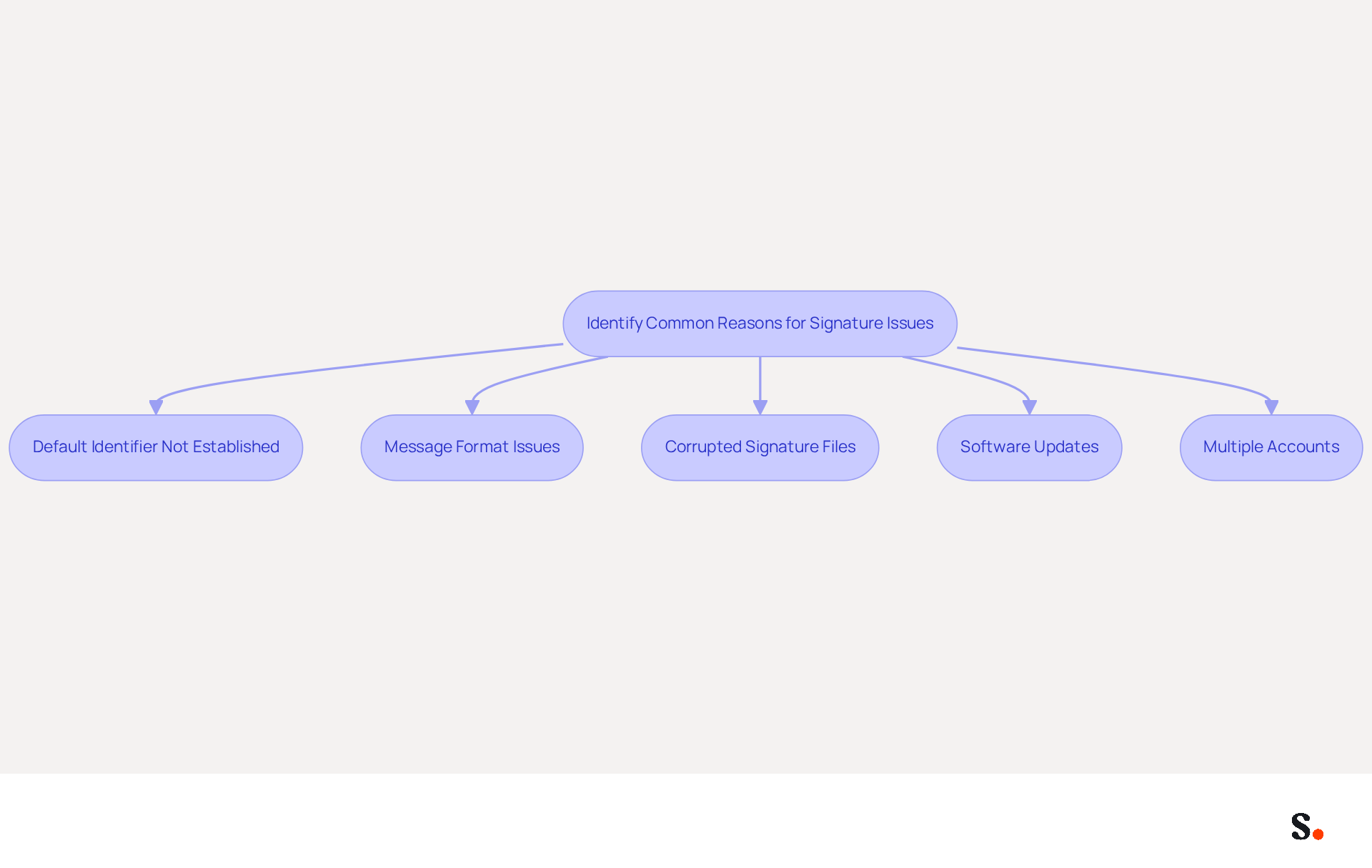
Understanding the reasons behind the issue of your Outlook signature not showing is essential for effective communication. Here are some common reasons:
- Default Identifier Not Established: Users frequently neglect to configure a default identifier for new messages or responses. Check your settings to confirm an identifier is assigned.
- Message Format Issues: If your correspondence is not set to HTML format, personalizations may not appear as intended. Ensure your email format is set to HTML in Outlook settings to avoid display problems.
- Corrupted Signature Files: A damaged signature file can lead to visibility issues. Recreating the signature can effectively resolve this problem.
- Software Updates: Recent updates to the email application can reset settings or introduce temporary glitches. Always check if your software is up to date and if any recent changes might have affected your settings.
- Multiple Accounts: For users managing multiple email accounts in Outlook, it's crucial to ensure that the correct sign-off is assigned to the specific account in use.
Identifying these common issues, such as the Outlook signature not showing, streamlines your troubleshooting efforts and directs your focus to the most likely causes of recurring problems. Research indicates that missing email signatures can lead to significant time inefficiencies for both employees and IT departments, highlighting the necessity of addressing these issues swiftly. By addressing these common issues, you can significantly improve your email communication and reduce unnecessary delays.
Verify Your Email Signature Setup in Outlook
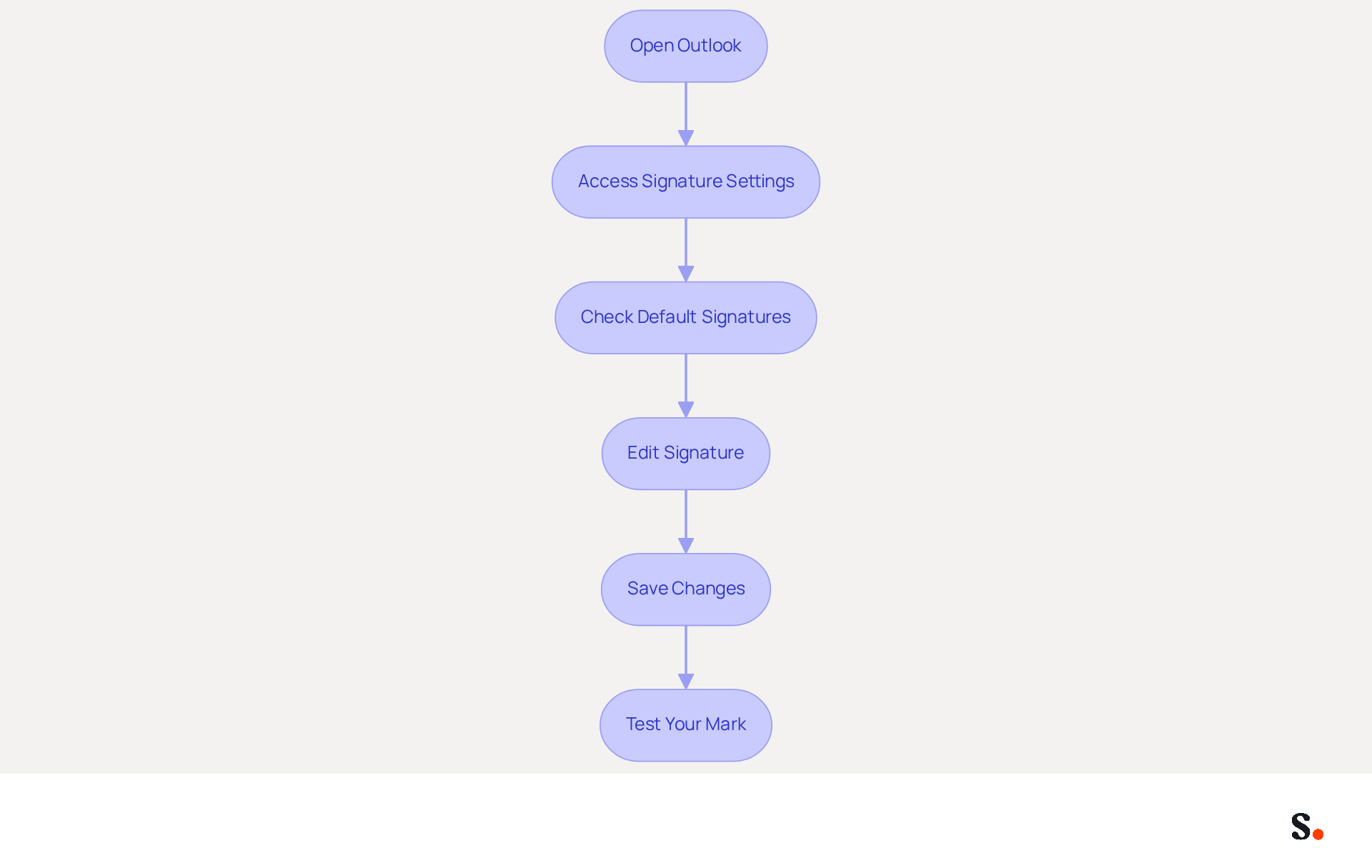
Properly configuring your email signature in Outlook is crucial for maintaining a professional image. To ensure your email signature is set up correctly in Outlook, follow these steps:
- Open Outlook: Launch the Outlook application on your computer.
- Access Signature Settings: Navigate to
File>Options>Mail>Signatures. - Check Default Signatures: In the Signatures and Stationery window, confirm that an identifier is selected for both
New messagesandReplies/forwards. If not, choose your preferred mark from the dropdown menus. - Edit Signature: If your mark is not displaying correctly, click on the name and review its content. Ensure it is formatted correctly and includes all necessary elements such as text, images, and links.
- Save Changes: After making any adjustments, click
OKto save your changes and exit the settings. - Test Your Mark: Create a new message to check if the mark appears as expected. If the outlook signature is not showing, revisit the settings to ensure everything is configured correctly.
Scribe's one-click synchronization allows for efficient management of identifiers across your organization. When you allow Scribe to connect with your provider, it automatically syncs any changes made in your directory, enhancing your branding efforts while maintaining compliance with SOC 2 Type II standards. This highlights the importance of keeping your contact details current, as 44.4% of users refresh them 2-4 times annually. Furthermore, 42% of consumers have a negative perception of a business when receiving an email lacking a branded identifier, underscoring the necessity for effective email signature management. As George El-Hage, Founder of Wave Connect, observes, 'A professional branded email footer enhances trust and credibility, positioning it as a brand asset.' By verifying your setup for signing, you can eliminate configuration errors that may be causing the outlook signature not showing issue. Moreover, a company with 100 employees produces around 60,000-80,000 branded impressions each month, highlighting the potential reach and influence of effective email branding. Ensuring your email signature is correctly set up not only enhances your brand's professionalism but also fosters trust with your audience.
Troubleshoot Signature Display Problems
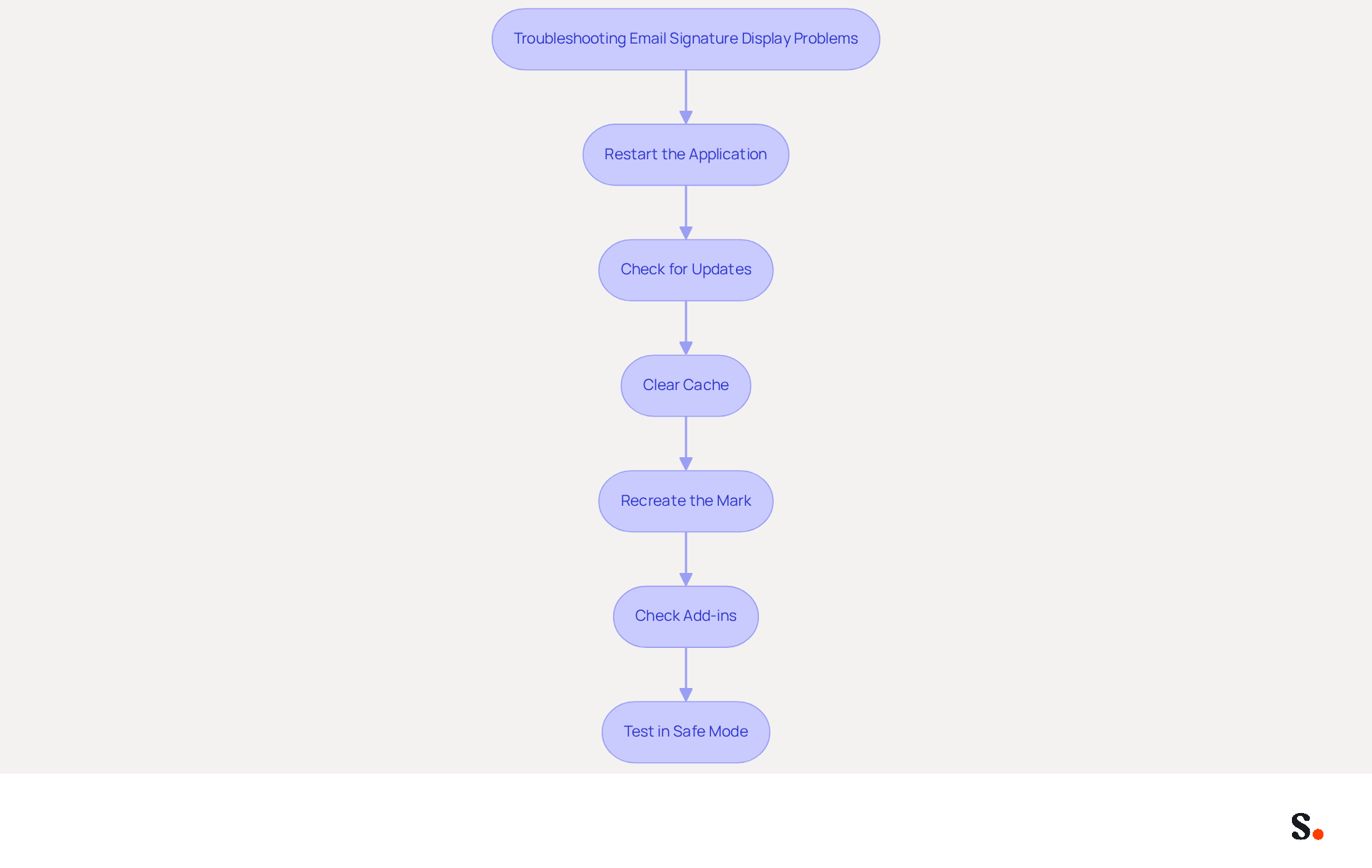
If your email signature is not displaying correctly, there are several troubleshooting steps you can take to resolve the issue:
- Restart the application: A quick restart of the program might just fix those temporary glitches. Close the application completely and reopen it.
- Check for Updates: Ensure that your email application is up to date. Go to
File>Office Account>Update Options>Update Now. - Clear Cache: Stored data can disrupt the display of the mark. Clear the Outlook cache by navigating to
File>Options>Advanced>Outlook Data File Settingsand selectingCompact Now. - Recreate the Mark: If the mark remains elusive, it may be necessary to delete and recreate it. Go back to
File>Options>Mail>Signatures, clickNew, and follow the prompts to set up your signature again. - Check Add-ins: Third-party add-ins can conflict with the email application's functionality. Disable any unnecessary add-ins by going to
File>Options>Add-ins, and manage them accordingly. - Test in Safe Mode: Launch the email application in Safe Mode by holding the
Ctrlkey while starting the program. This can help identify if the issue is caused by add-ins or other settings.
Statistics suggest that most Outlook issues in Office 365 arise from the desktop application, especially following updates. Furthermore, a case study emphasized that a user encountered ongoing formatting issues after copying their name from Google Docs, indicating that utilizing Word Online as an intermediary can assist in resolving such problems. Implementing these troubleshooting steps can help address the problem of the outlook signature not showing, resulting in a more reliable email signature display.
Utilize Automated Tools for Signature Management
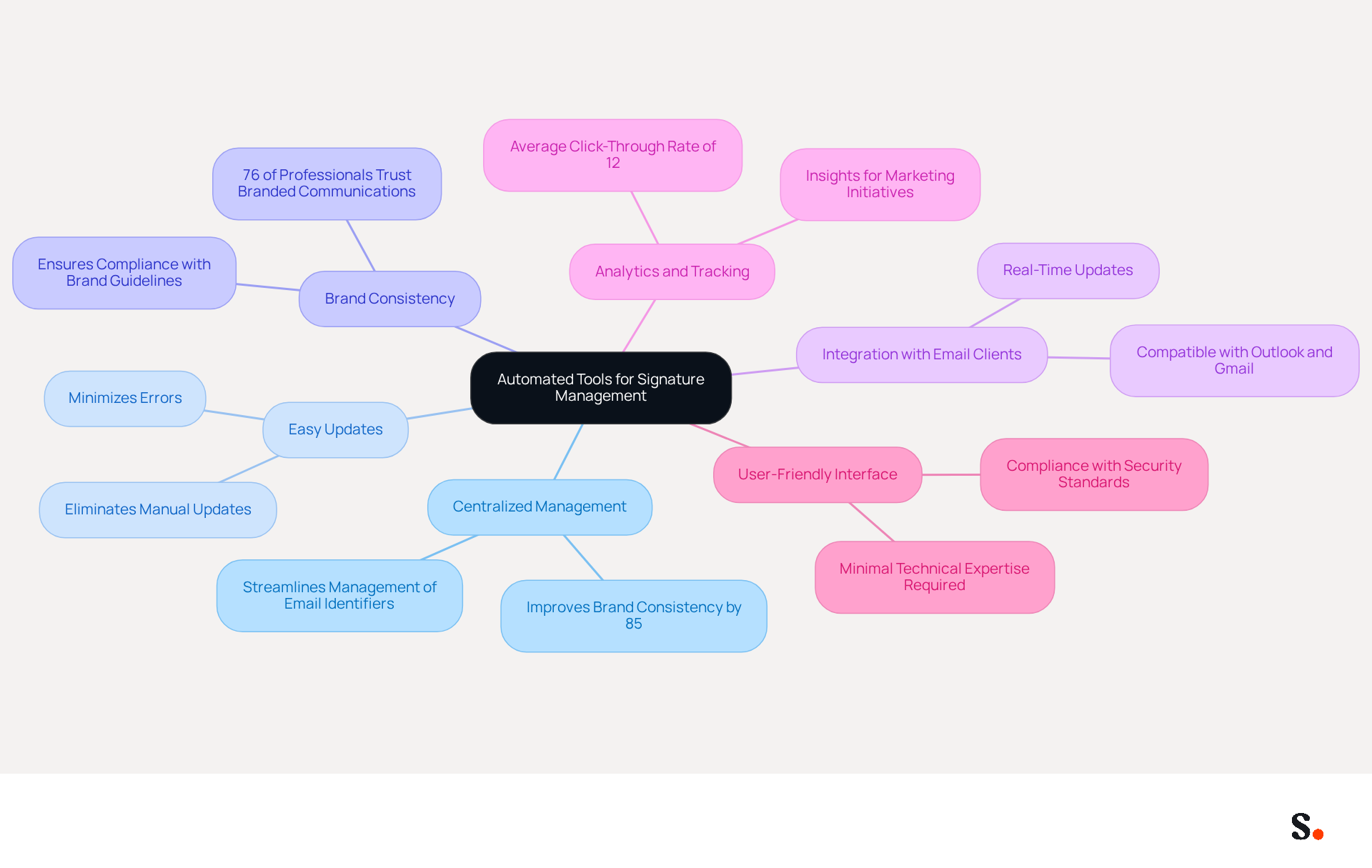
Managing digital signatures can be complex, but automated tools like Scribe simplify the process significantly. Here’s how these tools can help:
- Centralized Management: You can manage all your email identifiers from one place, making it easier to keep everything consistent. This centralized approach improves brand consistency by 85% and boosts your professional image.
- Easy Updates: With Scribe, you can eliminate manual updates and minimize errors. This automation saves time and integrates seamlessly into your workflow.
- Brand Consistency: Automated management of email footers through Scribe ensures that all marks comply with your brand guidelines, which is essential for conveying a professional image. Research shows that 76% of professionals have greater trust in senders with branded communications, emphasizing the significance of maintaining a unified brand identity.
- Integration with Email Clients: The tool integrates effortlessly with popular messaging clients like Outlook and Gmail, making it simple to implement without disrupting your workflow. This compatibility enables real-time updates, ensuring that your marks reflect the latest branding standards.
- Analytics and Tracking: Scribe provides analytics capabilities that enable you to monitor engagement and performance metrics associated with your branding, including an average click-through rate of 12% on banner displays. This capability offers valuable insights for marketing initiatives, allowing organizations to evaluate the effectiveness of their communication strategies.
- User-Friendly Interface: Designed for ease of use, Scribe requires minimal technical expertise to set up and use effectively, empowering marketing teams to manage digital identifiers independently after the initial IT setup. Additionally, this platform complies with security standards such as SOC 2 Type II, GDPR, and CCPA, ensuring that your data is managed securely.
By adopting Scribe, organizations not only streamline their processes but also elevate their brand's credibility in every interaction.
Conclusion
Many users struggle with email signature issues that can undermine their professional image. Understanding how to effectively manage your Outlook signature is crucial for maintaining a professional image in your communications. By troubleshooting common issues, users can ensure their email signatures display correctly, which enhances brand consistency and credibility. The importance of a well-configured signature cannot be overstated, as it serves as a vital touchpoint in every email interaction.
Key insights from the article highlight the necessity of:
- Verifying signature settings
- Addressing potential display problems
- Utilizing automated tools like Scribe for efficient management
Scribe not only simplifies the process of maintaining email signatures but also ensures compliance with security standards such as SOC 2 Type II, GDPR, and CCPA. By leveraging Scribe's capabilities, organizations can achieve a unified brand identity and improve engagement metrics, as the average click-through rate on signature banners can reach up to 12%.
Effectively managing your Outlook signature is key to building trust and professionalism in your communications. Embracing automated tools like Scribe can significantly streamline this process, allowing marketing teams to maintain control over their branding while ensuring compliance and security. This focus on email signature management can lead to stronger connections with clients and partners.
Frequently Asked Questions
What are common reasons for an Outlook signature not showing?
Common reasons include not establishing a default identifier, message format issues, corrupted signature files, software updates, and managing multiple accounts.
How can I check if a default identifier is set for my Outlook signature?
You can check your settings in Outlook to confirm if a default identifier is assigned for new messages or responses.
Why might my Outlook signature not appear as intended?
If your email correspondence is not set to HTML format, personalizations in your signature may not display correctly. Ensure your email format is set to HTML in Outlook settings.
What should I do if my signature file is corrupted?
If you suspect a corrupted signature file, recreating the signature can effectively resolve visibility issues.
How can software updates affect my Outlook signature?
Recent updates to the email application can reset settings or introduce temporary glitches, which may affect the visibility of your signature. Always check if your software is up to date.
What should I consider if I manage multiple email accounts in Outlook?
Ensure that the correct sign-off is assigned to the specific account you are using, as managing multiple accounts can lead to confusion regarding which signature is applied.
Why is it important to address issues with missing email signatures?
Missing email signatures can lead to significant time inefficiencies for both employees and IT departments, making it essential to address these issues swiftly to improve email communication.
List of Sources
- Identify Common Reasons for Signature Issues
- Outlook Signature Disappears? 6 Common Problems + Fixes (https://conbool.com/blog/outlook-signature-disappears-fixes-problems)
- Why is my signature not showing up in Outlook | NewOldStamp - NEWOLDSTAMP (https://newoldstamp.com/blog/signature-not-showing-up-in-outlook)
- How to solve problems with email signatures in Microsoft 365? (https://mail-signatures.com/articles/problems-email-signatures-office-365)
- Microsoft admits one of the most basic, useful Outlook features is broken (https://neowin.net/news/microsoft-admits-one-of-the-most-basic-useful-outlook-features-is-broken)
- Email Signatures vanishing - New Outlook | Microsoft Community Hub (https://techcommunity.microsoft.com/discussions/outlookgeneral/email-signatures-vanishing---new-outlook/4418809)
- Verify Your Email Signature Setup in Outlook
- Email Signature Trends in Numbers: Infographic [2026] (https://mailtrap.io/blog/email-signature-trends)
- How to add and change an email signature in Outlook | Microsoft Support (https://support.microsoft.com/en-us/outlook/mail/how-to-add-and-change-an-email-signature-in-outlook)
- Outlook: Adding Email Signatures (https://td.usnh.edu/TDClient/60/Portal/KB/Article/4666/Outlook-Adding-Email-Signatures)
- 40+ Email Signature Statistics for 2026 (Data + Insights) (https://wavecnct.com/blogs/email-signature-statistics)
- How do I make my email signature visible? - Microsoft Q&A (https://learn.microsoft.com/en-us/answers/questions/4627155/how-do-i-make-my-email-signature-visible)
- Troubleshoot Signature Display Problems
- Issues with email signature formatting - Microsoft Q&A (https://learn.microsoft.com/en-us/answers/questions/4645357/issues-with-email-signature-formatting)
- techzine.eu (https://techzine.eu/news/applications/131859/outlook-removes-signatures-after-update-heres-the-solution)
- Outlook Signature Not Working in Office 365: Causes & Fixes (https://exclaimer.com/email-signature-handbook/outlook-signature-not-working-in-office-365)
- How to solve problems with email signatures in Microsoft 365? (https://mail-signatures.com/articles/problems-email-signatures-office-365)
- Images are not displayed in emails, newsletters, or signatures in classic Outlook | Microsoft Support (https://support.microsoft.com/en-us/support/known-issues/images-are-not-displayed-in-emails-newsletters-or-signatures-in-classic-outlook)
- Utilize Automated Tools for Signature Management
- 40+ Email Signature Statistics for 2026 (Data + Insights) (https://wavecnct.com/blogs/email-signature-statistics)
- Why Email Signature Management Software is Essential for Marketing Success (https://scribe-mail.com/en-US/blog/why-email-signature-management-software-is-essential-for-marketing-success)
- Market Dynamics and Trends: An In-Depth Look at the Email Signature Software Market with Projected CAGR of 13.2% from 2026 to 2033 (https://linkedin.com/pulse/market-dynamics-trends-in-depth-look-email-signature-software-spkpf)
- 4 Best Practices for Your Work Email Signature Strategy (https://scribe-mail.com/en-US/blog/4-best-practices-for-your-work-email-signature-strategy)
Get started with Scribe
Create your signature in minutes
Free 14-day trial — no credit card.