5 Steps to Export Your Outlook Signature with Ease
Despite its critical role in digital communication, managing email signatures often presents challenges that can undermine brand consistency. With Microsoft
Sophie Grant
Email Signature Specialist, Scribe
Introduction
Despite its critical role in digital communication, managing email signatures often presents challenges that can undermine brand consistency. With Microsoft Outlook being a preferred choice for over 400 million users, understanding how to export and manage signatures effectively can significantly enhance an organization’s branding efforts. Despite its importance, many users struggle with the complexities of managing their email signatures.
How can one navigate these steps seamlessly to ensure a polished and cohesive email presence? This guide outlines five essential steps to export your Outlook signature with ease, empowering users to take control of their email branding. By mastering these steps, users can ensure their email signatures reflect their brand's professionalism and coherence.
Access Outlook Signature Settings
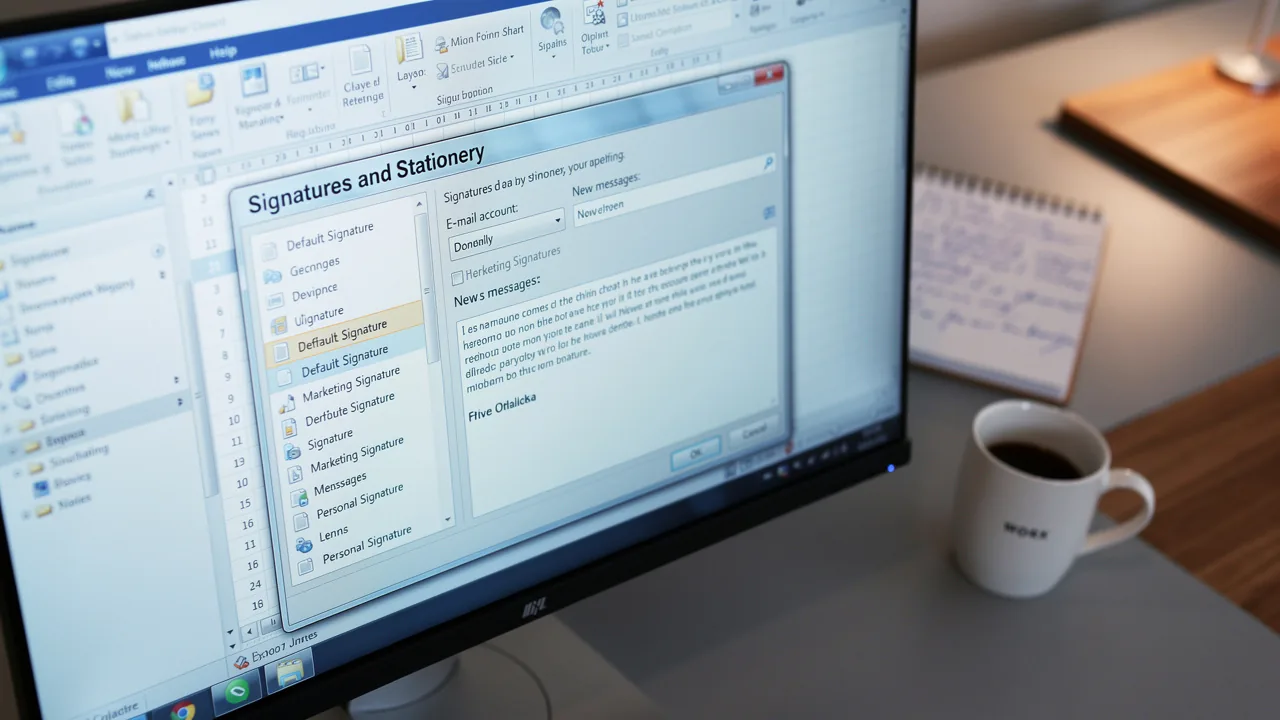
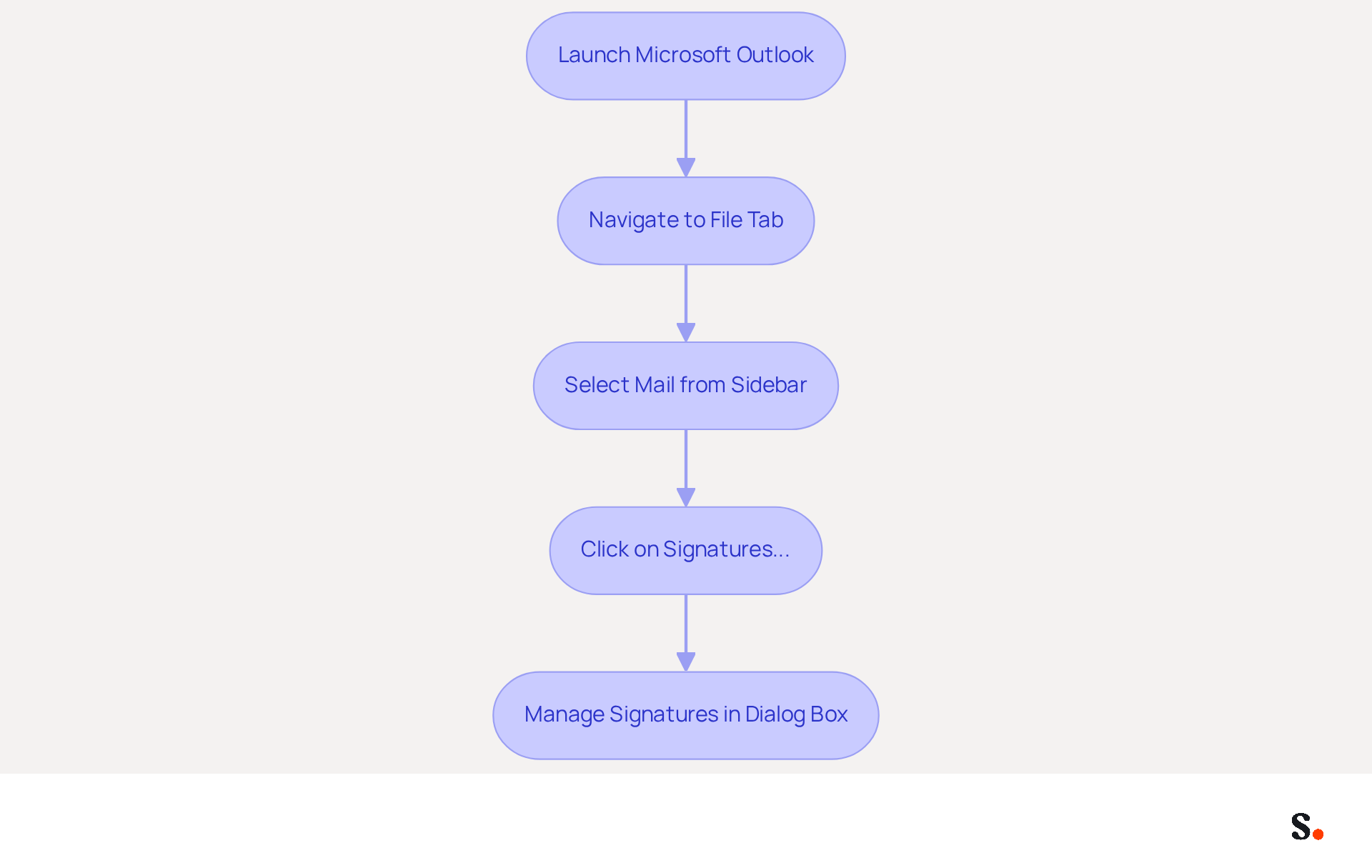
Managing email signatures effectively is crucial for maintaining brand consistency in professional communications. Begin by launching Microsoft Outlook on your computer. Next, navigate to the 'File' tab situated in the top left corner of the window. In the Outlook Options window, select 'Mail' from the left sidebar. Find the 'Signatures...' button and select it. This will open the Signatures and Stationery dialog box, allowing for effective management of your correspondence.
In 2026, Outlook continues to hold approximately 4.38% of the global messaging market share, with over 400 million active users, making it a preferred choice for businesses due to its robust features and seamless integration with Microsoft Office. Organizations utilizing Outlook for managing branding have reported improved brand consistency and enhanced communication efficiency. For instance, organizations utilizing Scribe have streamlined their email branding processes, ensuring that all team members present a unified brand image in their communications. By leveraging Scribe, organizations can ensure that their email communications reflect a cohesive brand identity, ultimately enhancing their professional image.
Select the Signature to Export
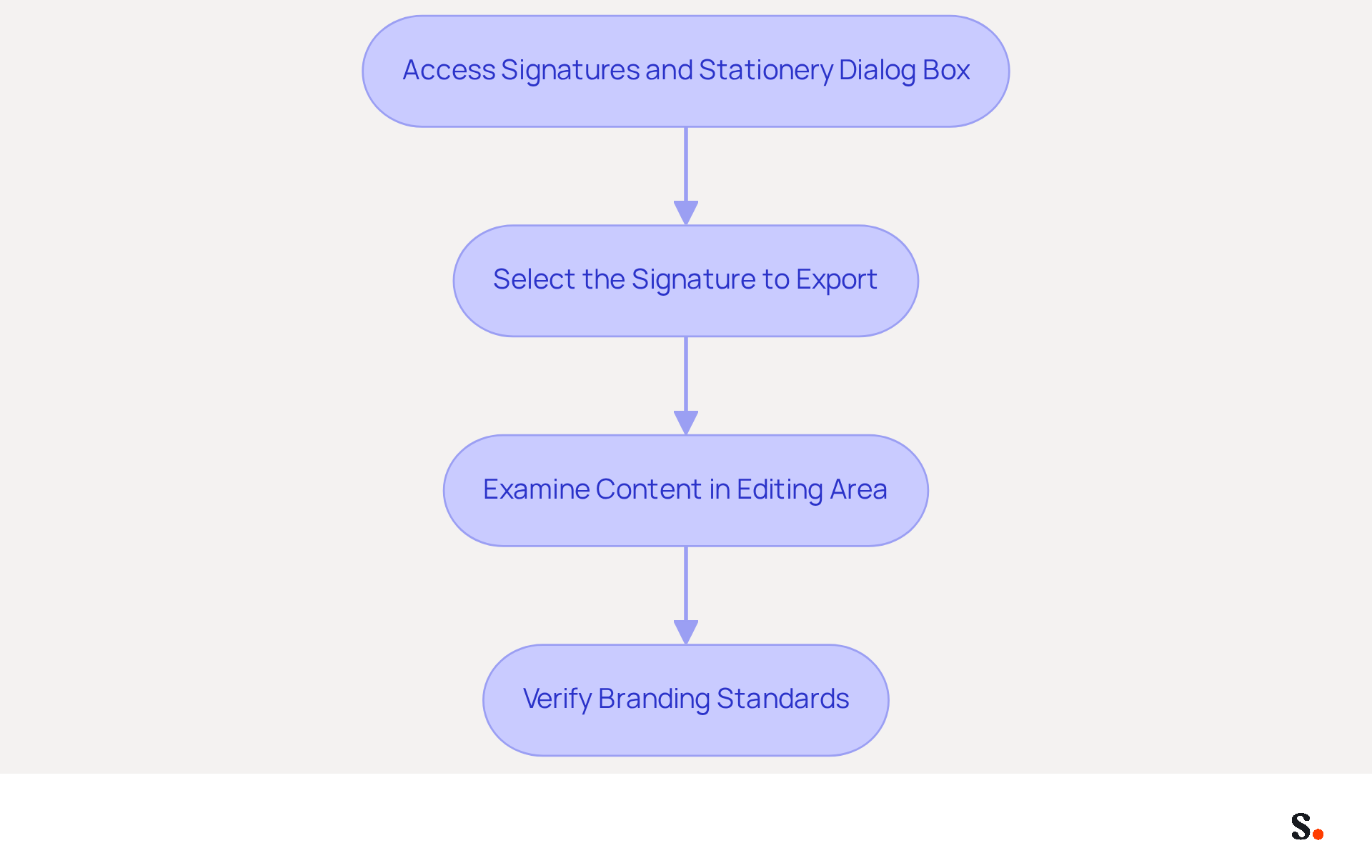
To ensure effective email branding, begin by accessing the Signatures and Stationery dialog box in Outlook, where you can manage your existing sign-offs.
- Select the specific mark you intend to export, as this choice is vital for maintaining consistent branding in your emails.
- It is essential to select the correct mark, as this decision will significantly impact your branding strategy in email communications.
- Next, examine the content of the selected identifier in the editing area to ensure it meets your branding standards.
- This verification process is critical to ensure that the mark aligns with your marketing objectives and presents a professional image, as research indicates that effective branding can boost trust by 76% and improve response rates by 22%.
Export the Selected Signature
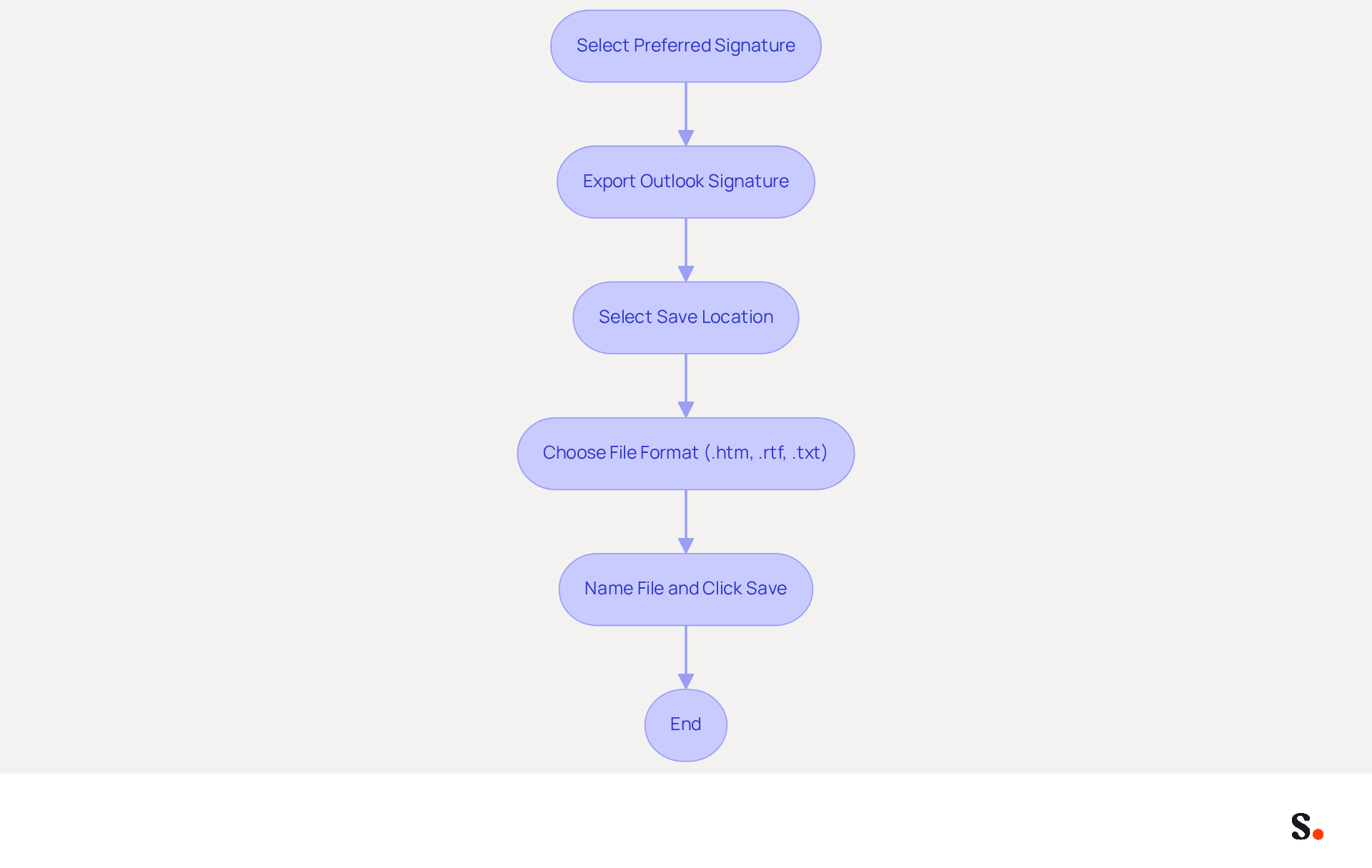
To effectively manage your email signatures, start by selecting your preferred sign-off and then proceed to export your Outlook signature. This step initiates the process to export Outlook signature, allowing you to save your signature in your chosen format. To ensure one-click synchronization with Scribe, you need to have Super Admin permissions from your service provider. This guarantees that your digital identifiers are consistently current throughout your organization.
Next, select a location on your computer where you wish to save the file. This step is vital for convenient access later, particularly given that 89.9% of professionals utilize just one digital format, underscoring the need for effective organization. Remember, the main objective of utilizing digital identifiers is branding and enhancing awareness, which highlights the significance of organization. This tool enhances this by enabling you to manage autographs independently after the initial IT setup, ensuring brand consistency. This independence allows for timely updates, reinforcing brand integrity.
In the 'Save as type' dropdown menu, select the format you prefer (usually .htm, .rtf, or .txt). Significantly, these formats are extensively utilized, with .htm being especially effective for preserving formatting across various messaging clients. Scribe's automated email footer management ensures that any changes made in your email provider are reflected in your footers without manual intervention, syncing teammate data daily at your local time.
Finally, to export your Outlook signature, name your file appropriately and click 'Save'. This will export Outlook signature to the chosen location, ensuring that it is prepared for future use. According to recent findings, a well-branded digital mark can enhance response rates by 22%, reinforcing the importance of maintaining a professional appearance in your communications. Ultimately, a well-managed email signature can significantly impact your professional image and communication effectiveness. With Scribe's SOC 2 Type II compliance, you can rest assured that your data is handled securely, allowing you to focus on your branding efforts.
Save the Exported Signature File
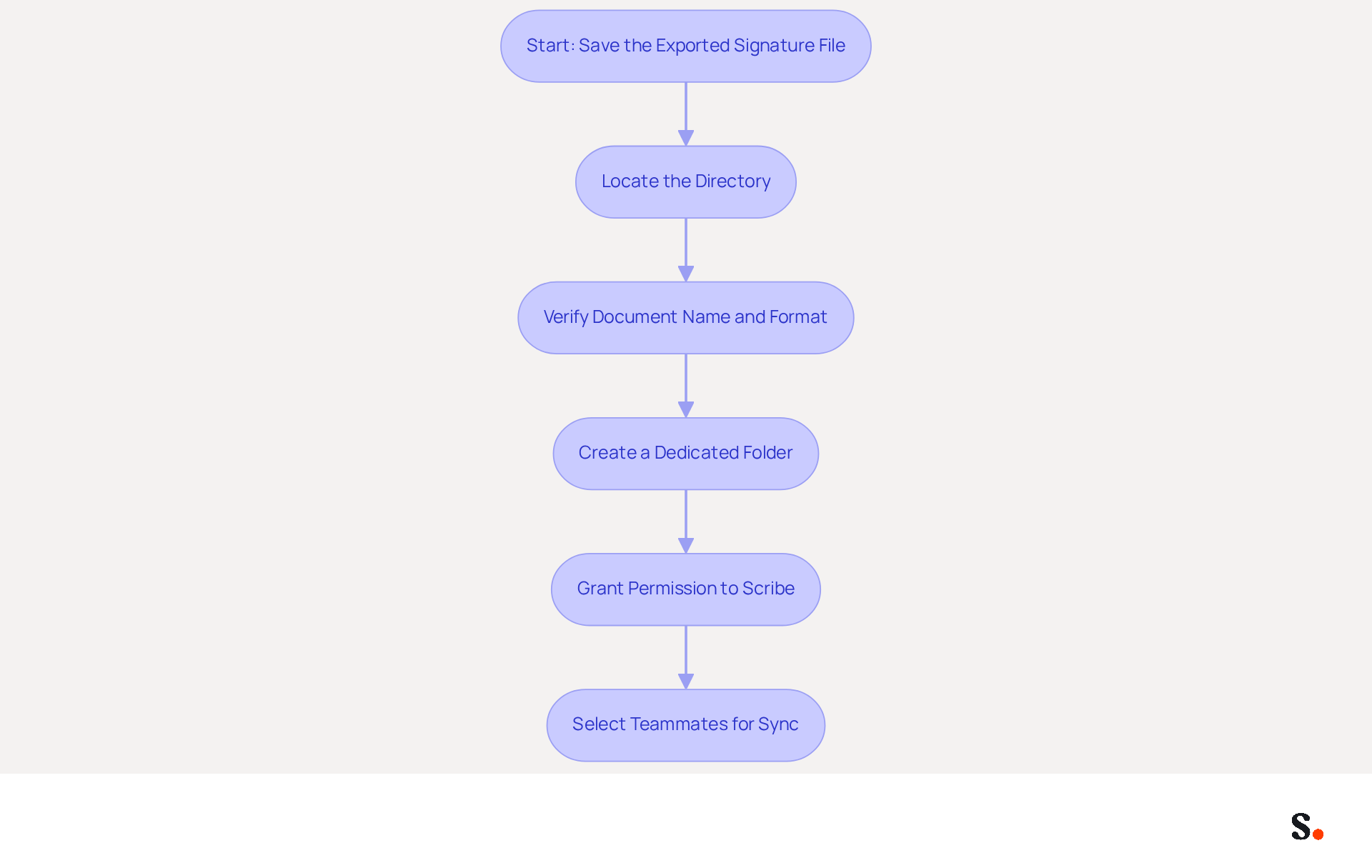
To ensure efficient email signature management, start by locating the directory where your exported document is saved. This guarantees you can easily find the document for future use. Verify that the document is named correctly and is in the suitable format, as each Outlook identifier is saved as three separate documents: .htm, .rtf, and .txt. Without proper organization, finding important documents can become a time-consuming task.
To improve your workflow, consider creating a dedicated folder specifically for your Outlook email templates. Given that 42% of all messages are opened on mobile devices, quick access to important files is essential. Moreover, 69% of consumers think a consistent, professional communication format is essential for businesses, emphasizing the necessity for effective organization. This efficiency translates into a more streamlined workflow, allowing for quicker access to essential files.
Additionally, to enable one-click synchronization, you must grant permission to Scribe to connect with your provider. You need to be a Super Admin of your email provider to provide these permissions. After granting access, you will have the option to select which teammates you want to sync. This integration allows for seamless updates, ensuring that any changes made in your Google Workspace-such as moving teammates or updating their information-are automatically reflected without manual input. This not only saves time but also enhances your branding consistency across all communications.
As highlighted by industry experts, "A professional branded email footer increases trust and credibility," making it essential to maintain an organized approach to your email footers. Scribe's SOC 2 Type II compliance further ensures the security of your data during this process.
Import the Signature into Outlook
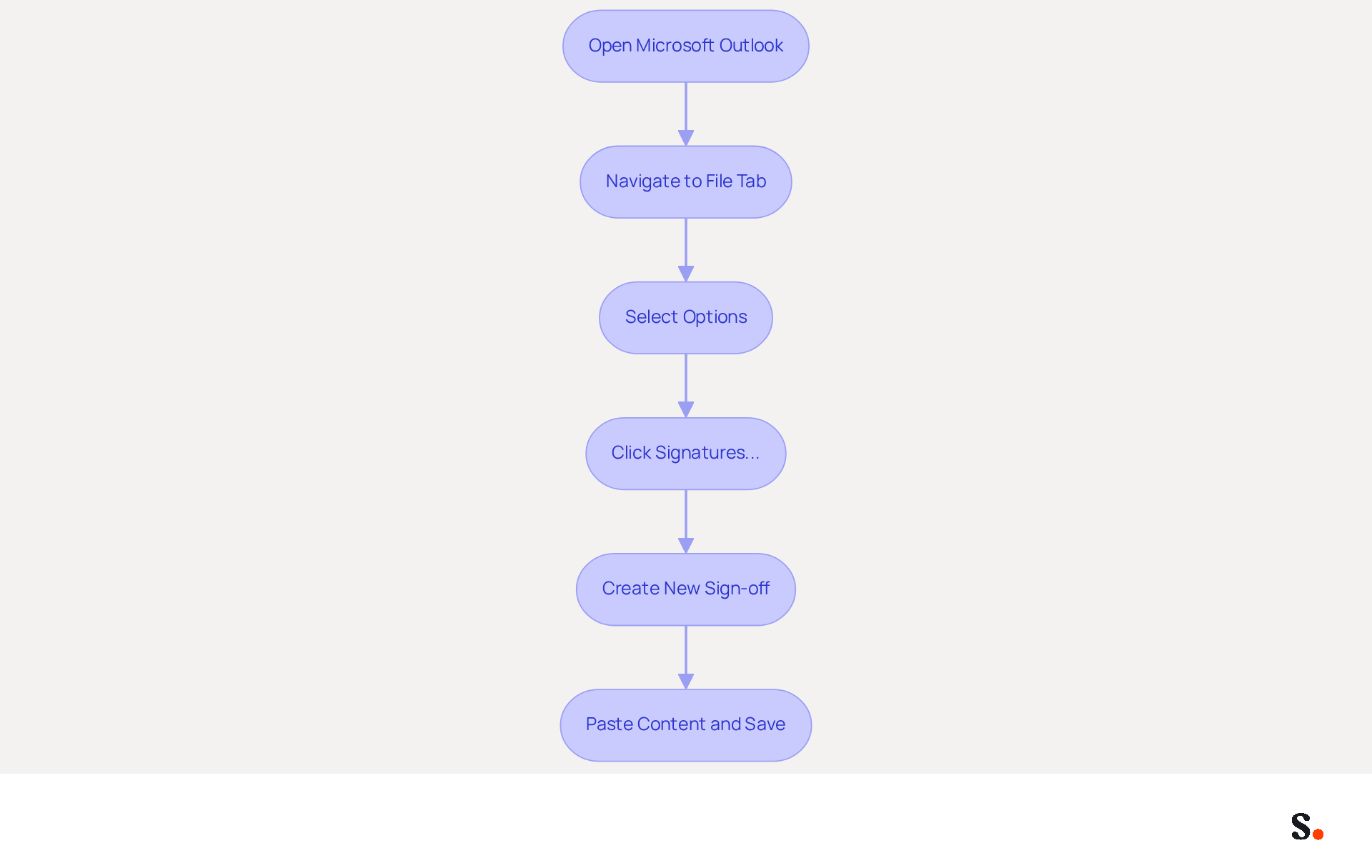
In an era where digital communication is paramount, ensuring a professional appearance is crucial for effective engagement. To set up your email signature in Microsoft Outlook, follow these steps:
- Open Microsoft Outlook and navigate to the 'File' tab.
- Select 'Options' and then click on 'Mail'.
- Click the 'Signatures...' button to export outlook signature in the Signatures and Stationery dialog box.
- Click 'New' to create a new sign-off.
- In the editing area, paste the content from your export outlook signature document. You can open the file in a text editor to copy the content easily.
- Name your new label and click 'OK' to save it.
Now that your signature is imported, you're all set to enhance your communications with a professional touch. As you set up your email signature, consider that in 2026, statistics show that 89.9% of users maintain a single digital identifier, highlighting the significance of a consistent and professional appearance in communications. Moreover, 42.2% of users acknowledge that marketing through messages is among the top three most effective promotional channels, emphasizing the importance of properly configuring message setups to enhance engagement. Expert insights indicate that engaging visuals and calls-to-action in digital formats can greatly improve user interaction, with 52.6% of users incorporating CTAs to prompt specific actions. By utilizing Scribe's streamlined one-click synchronization, you can ensure that your email signature not only reflects your brand but also serves as a powerful marketing tool while maintaining SOC 2 Type II compliance for secure data handling. By prioritizing a consistent email signature, you not only enhance your brand's professionalism but also leverage a vital marketing asset that can significantly impact user engagement.
Conclusion
Neglecting email signature management can undermine a professional image and dilute brand consistency. By following the outlined steps to export your Outlook signature, users can effectively streamline their branding efforts. This process not only enhances the visual appeal of emails but also reinforces the organization's identity, making it a vital aspect of professional correspondence.
The article detailed the necessary steps to:
- Access Outlook signature settings
- Select the appropriate signature for export
- Save it in a suitable format
It emphasized the importance of organization and proper management of email signatures, highlighting how tools like Scribe can facilitate this process. With Scribe's capabilities, organizations can ensure that their email signatures are consistently updated and aligned with their branding strategies, ultimately improving engagement and response rates.
Many organizations neglect the importance of email signatures, leading to a fragmented brand image. Failing to prioritize email signature management can result in lost opportunities for brand engagement and recognition. Utilizing tools that ensure synchronization and adherence to security standards allows businesses to strengthen their professional image and optimize marketing efforts. Ultimately, effective email signature management is not just a detail; it is a strategic advantage that can significantly influence brand perception and engagement.
Frequently Asked Questions
How do I access the Outlook signature settings?
To access the Outlook signature settings, launch Microsoft Outlook, click on the 'File' tab in the top left corner, select 'Mail' from the left sidebar, and then click on the 'Signatures...' button to open the Signatures and Stationery dialog box.
Why is managing email signatures important?
Managing email signatures is crucial for maintaining brand consistency in professional communications, which can enhance communication efficiency and improve the overall professional image of an organization.
What percentage of the global messaging market does Outlook hold?
As of 2026, Outlook holds approximately 4.38% of the global messaging market share, with over 400 million active users.
How can Scribe help with email branding?
Scribe helps organizations streamline their email branding processes, ensuring that all team members present a unified brand image in their communications, which enhances their professional image.
What should I do after selecting a signature to export?
After selecting a signature to export, examine the content in the editing area to ensure it meets your branding standards and aligns with your marketing objectives.
Why is it important to select the correct signature?
Selecting the correct signature is vital for maintaining consistent branding in your emails, as it significantly impacts your branding strategy and professional image.
What are the benefits of effective branding in email communications?
Effective branding in email communications can boost trust by 76% and improve response rates by 22%.
List of Sources
- Access Outlook Signature Settings
- Release notes for Outlook for Windows (new) - Office release notes (https://learn.microsoft.com/en-us/officeupdates/release-notes-outlook-new)
- What's new in new Outlook for Windows | Microsoft Support (https://support.microsoft.com/en-us/outlook/getstarted/what-s-new-in-new-outlook-for-windows)
- Outlook Statistics For 2026: Key Trends Shaping the Future (https://clean.email/blog/email-providers/outlook-statistics)
- New email signature management and editor features in Outlook on the web | Topedia Blog (https://blog-en.topedia.com/2026/01/new-email-signature-management-and-editor-features-in-outlook-on-the-web)
- Microsoft Updates Outlook Web Email Signature Management | Tobias Asböck posted on the topic | LinkedIn (https://linkedin.com/posts/tobiasasboeck_new-email-signature-management-and-editor-activity-7418365340369211392-RK9i)
- Select the Signature to Export
- Best Email Signature Quotes (2026) - HubSpot (https://hubspot.com/email-signature-generator/best-signature-quotes)
- Email Signature Trends in Numbers: Infographic [2026] (https://mailtrap.io/blog/email-signature-trends)
- 40+ Email Signature Statistics for 2026 (Data + Insights) (https://wavecnct.com/blogs/email-signature-statistics)
- Email Signature Statistics: A Closer Look at Email Signatures in 2026 (https://mysignature.io/blog/email-signature-statistics)
- Export the Selected Signature
- Email Signature Trends in Numbers: Infographic [2026] (https://mailtrap.io/blog/email-signature-trends/amp)
- 40+ Email Signature Statistics for 2026 (Data + Insights) (https://wavecnct.com/blogs/email-signature-statistics)
- Email Signature Statistics: A Closer Look at Email Signatures in 2026 (https://mysignature.io/blog/email-signature-statistics)
- How to Import and Export Email Signatures in Microsoft Outlook | Crossware365 (https://crossware365.com/blog/how-to-import-and-export-email-signatures-in-microsoft-outlook)
- Save the Exported Signature File
- 40+ Email Signature Statistics for 2026 (Data + Insights) (https://wavecnct.com/blogs/email-signature-statistics)
- Outlook signature location & how to export, import, backup them (https://ablebits.com/office-addins-blog/outlook-signatures-location-export-backup)
- How Do I Export/Import Outlook Signatures? (https://support.intermedia.com/app/articles/detail/a_id/10081/~/how-do-i-export/import-outlook-signatures)
- Import signature files from old (classic) to new outlook? - Microsoft Q&A (https://learn.microsoft.com/en-us/answers/questions/5520553/import-signature-files-from-old-classic-to-new-out)
- Import the Signature into Outlook
- Exclaimer Adds ‘Social Feeds' Feature To Email Signatures - Demand Gen Report (https://demandgenreport.com/industry-news/exclaimer-adds-social-feeds-feature-to-email-signatures/38649)
- Email Signature Statistics (2026) (https://emailsignature.to/statistics/email-signature-statistics)
- Email Signature Statistics: A Closer Look at Email Signatures in 2026 (https://mysignature.io/blog/email-signature-statistics)
- 40+ Email Signature Statistics for 2026 (Data + Insights) (https://wavecnct.com/blogs/email-signature-statistics)
Get started with Scribe
Create your signature in minutes
Free 14-day trial — no credit card.