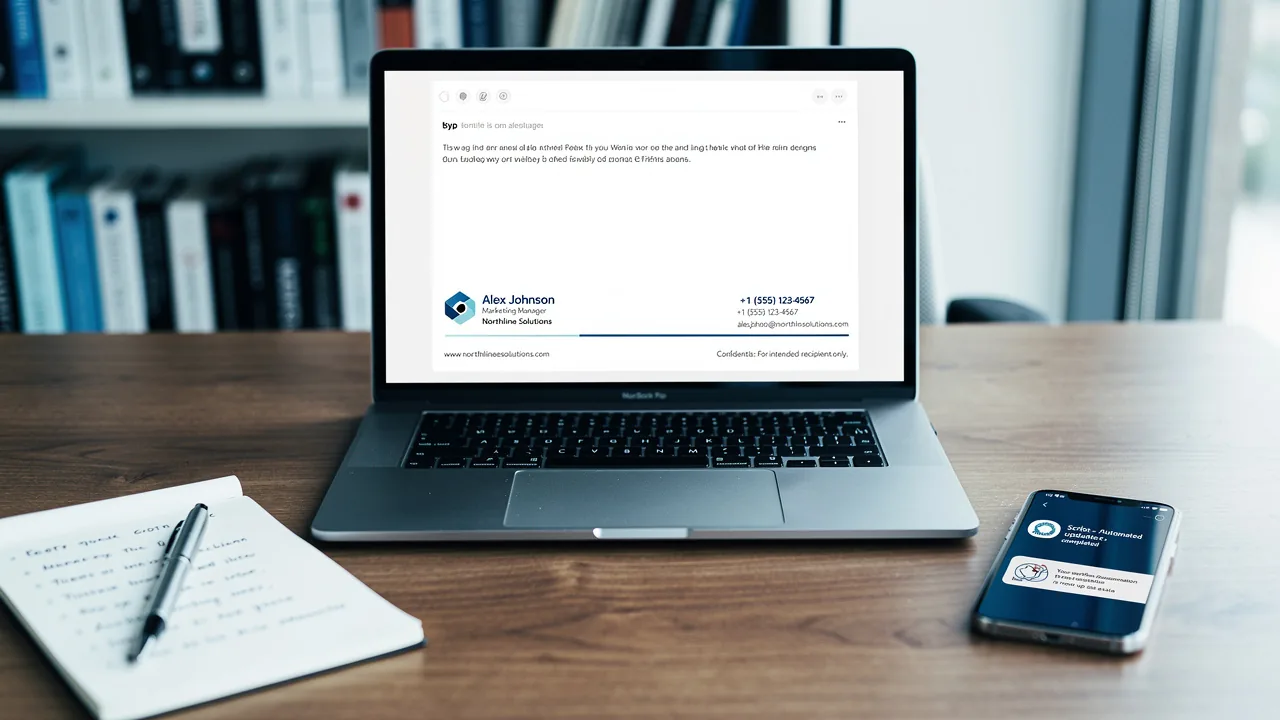
HubSpot Email Signature Generator: How to Use It, Fix It, and Roll It Out to Your Team
A practical guide to HubSpot's free email signature generator: create a signature, install it in Gmail, Outlook, Apple Mail and HubSpot CRM, fix the common problems, and know when to move to company-wide signatures.
Sophie Grant
Email Signature Specialist, Scribe

On this page
- What does the HubSpot email signature generator do, and is it free?
- Step by step: create your signature with HubSpot's generator
- How to install it in Gmail, Outlook, Apple Mail and HubSpot CRM
- Gmail
- Outlook
- Apple Mail
- HubSpot CRM (for one-to-one sales emails)
- Fix the common problems: Gmail "too long", mobile distortion, missing images, Outlook spacing
- Gmail says "signature is too long"
- The signature looks distorted on mobile
- Images don't show up
- Outlook adds spacing or breaks the layout
- When a generator stops working: 50+ employees, rebrands and compliance
- How to roll one design out to every employee with Scribe
- How do you get the same signature on HubSpot sales emails?
- Frequently asked questions
- Is the HubSpot email signature generator really free?
- Why does Gmail say my HubSpot signature is too long?
- Where do I add an email signature in HubSpot CRM now?
- Can a HubSpot admin set one signature for the whole team?
- Why is my generated signature distorted on mobile?
- Does Scribe integrate with HubSpot?
- Can I use my HubSpot generator design with Scribe?
- Next step
Last updated October 2026
TL;DR
- HubSpot's email signature generator is free, needs no HubSpot account, and turns your details, a logo and a template into HTML you can copy into Gmail, Outlook, Apple Mail or HubSpot CRM.
- Host your images first (HubSpot File Manager, your website or a CDN), keep the headshot small, and choose a simple single-column template. That avoids most of the problems people report.
- Gmail's "signature too long" error comes from a 10,000-character limit, and images count toward it. Shrink the image, drop social icons or simplify the template.
- In HubSpot CRM, the signature now lives under Settings > General > Email > Manage email signatures. The generator page still shows the older Profile & Preferences path.
- A generator makes one signature for one person. Past roughly 50 employees, or at the first rebrand, you need signatures managed centrally from your directory. A tool like Scribe does that in Gmail and Outlook. On HubSpot sales emails, Scribe works through your connected mailbox: it isn't a HubSpot app, and it doesn't touch HubSpot marketing emails.
HubSpot's free signature generator is one of the most used signature tools on the web, and for good reason: it's fast, it's free and the templates look clean. It's also behind a long list of HubSpot Community threads about signatures that break in Gmail, squash on phones or lose their images in Outlook.
This guide covers both sides. You'll learn how to use the generator properly, install the result in every major email client and in HubSpot CRM, and fix the known problems. The last part is for marketing and RevOps leads at larger companies: what changes when you need the same signature on hundreds of mailboxes, and on every rep's HubSpot sales email.
What does the HubSpot email signature generator do, and is it free?
Yes, it's free. HubSpot's generator is a browser-based builder. You don't need an account or a credit card, and there's no trial period. According to HubSpot's tool page, it offers 12 templates and works in four tabs, followed by a "Create Signature" button:
- Contact details: name, job title, email, phone and company, plus website and social links.
- Images: a profile picture, a company logo, or a handwritten signature. You can draw the handwritten signature, type it in one of the script fonts, or import it from an image URL.
- Template: the layout.
- Style: brand colors, font and font size.
When you're done, you can copy the rendered signature, copy the HTML source code, or send the signature to your own inbox.
| What the generator does well | What it doesn't do |
|---|---|
| Creates a clean, table-based HTML signature in minutes | Install the signature for you. Each person copies and pastes it. |
| Works for Gmail, Outlook, Apple Mail, Yahoo and HubSpot CRM | Update signatures after a rebrand or a title change |
| Formats your logo, headshot and social icons | Pull names and titles from your directory or HRIS |
| Costs nothing and needs no signup | Track views or clicks, or run banner campaigns |
| Is good for one person or a small team | Stop people from editing or deleting their signature |
Step by step: create your signature with HubSpot's generator
Do the prep in steps 1 and 2 before you open the tool. Most "my images don't show" problems start here.
- Host your images. The generator takes images as URLs. Upload your logo and headshot to an image host that gives you a direct public link, such as HubSpot's File Manager ("Copy URL"), your website or a CDN. HubSpot advises against Google Drive links, because they don't render reliably in email clients. Our guide to image hosting for email signatures explains the options.
- Size the images before you upload. HubSpot recommends a PNG logo with a transparent background, 200 to 300 px wide. Keep the headshot small too: one Community user fixed Gmail's length error by cutting a 1000×1000 headshot to 450×450.
- Open the generator and click Create my signature.
- Fill in your contact details. Only add what a recipient needs. Every extra line and icon adds HTML, and the length counts in Gmail.
- Add images. Paste the hosted URLs into the Images tab. The generator sizes them automatically.
- Pick a template. For mobile, a single-column layout is the safest choice. Wide two-column layouts are the ones that get squashed on phones.
- Set the style. Use a web-safe font such as Arial, Helvetica, Georgia or Verdana. Custom fonts fall back to defaults in most clients anyway.
- Click Create Signature, then copy either the signature or the source code. The right one depends on where you're pasting it (see the next section).
Save the source code in a text file. You'll want it later when you need to fix something or rebuild the design for a team.
How to install it in Gmail, Outlook, Apple Mail and HubSpot CRM
| Where | Copy from the generator | Where to paste |
|---|---|---|
| Gmail (web) | The rendered signature | Settings > See all settings > General > Signature |
| Outlook (new Outlook, web, classic) | The rendered signature | The signature settings, using "Keep Source Formatting" in classic Outlook for Windows |
| Apple Mail | The rendered signature | Mail > Settings > Signatures |
| HubSpot CRM | The source code | Settings > General > Email > Manage email signatures, in HTML mode |
Gmail
- In Gmail on the web, click the gear icon, then See all settings.
- On the General tab, scroll to Signature and click Create new.
- Paste the rendered signature into the editor. Gmail's signature editor has no HTML mode, so pasting source code shows raw code.
- Set it as the default for new emails and for replies and forwards.
- Click Save Changes at the bottom of the page.
Outlook
- Open the signature settings. In new Outlook and Outlook on the web, they're under Settings > Accounts > Signatures. In classic Outlook, open a new message and go to Message > Signature > Signatures.
- Create a new signature and give it a name.
- Paste the rendered signature. In classic Outlook for Windows, use the Keep Source Formatting paste option, as HubSpot recommends.
- Pick it as the default for new messages and replies, then save.
Apple Mail
- Go to Mail > Settings > Signatures, then select the account.
- Click +, name the signature, and paste the rendered signature.
- Uncheck "Always match my default message font" so your styling is kept.
- Choose the signature in the Signature dropdown for that account.
HubSpot CRM (for one-to-one sales emails)
HubSpot moved this setting. The generator page still says Profile & Preferences, but the current HubSpot Knowledge Base article (updated May 2026) gives this path:
- Click the settings icon in the top navigation bar.
- In the left sidebar, go to General, then the Email tab.
- In the Configure section, click Manage email signatures.
- Click HTML and paste the source code from the generator. Then save.
Two limits apply. First, multiple signatures need Sales Hub Professional or Enterprise and an assigned Sales Seat. Second, each user sets their own signature: there's no admin screen that pushes one design to everyone. With multiple signatures, you can set a different default for each connected inbox (Email tab > Actions > Edit default signature).
Fix the common problems: Gmail "too long", mobile distortion, missing images, Outlook spacing
| Symptom | Usual cause | Fix |
|---|---|---|
| Gmail: "signature is too long" | Over 10,000 characters, with images counted | Shrink the images, drop social icons or a button, use a simpler template |
| Squashed or distorted on phones | Wide multi-column table, fixed widths | A single-column template, explicit image width and height, fewer columns |
| Images missing for recipients | Image not publicly hosted, a Google Drive link, or images blocked by the recipient | A direct public HTTPS URL, then send a test to an outside address |
| Extra spacing or broken layout in Outlook | Paste formatting stripped or altered | Use "Keep Source Formatting", or paste in Outlook on the web |
| Formatting lost when copying | The browser didn't copy styles | Copy again in another, up-to-date browser, or paste the source code where the client allows HTML |
Gmail says "signature is too long"
Google's help center states that a Gmail signature can hold up to 10,000 characters, and that "your image also counts toward the character limit". Table-based HTML from any generator uses that budget quickly. Users in this HubSpot Community thread reported the error even when their HTML looked shorter than the limit. These fixes worked for them, roughly in this order:
- Shrink the headshot (for example from 1000×1000 to about 450×450) and use hosted images, never pasted or embedded ones.
- Remove social icons or the meetings button one at a time until the signature fits.
- Reload the Gmail settings page completely before you paste again.
- Use a simpler template with fewer nested tables.
For a full walkthrough, see how to fix Gmail's "signature is too long" error.
The signature looks distorted on mobile
Email clients don't support true responsive design the way browsers do. In the "Signature distorted on mobile" thread, the accepted advice is to use table-based layouts with inline CSS and to cap image widths. In another thread, a HubSpot responder recommended 32×32 px PNG social icons with explicit width and height attributes. In practice:
- Pick a single-column template, or one where the photo sits above the text.
- Keep the total width under about 500 px.
- Check your mobile app's own setting. In the Gmail app on iPhone, a "Mobile Signature" replaces your computer signature. The computer signature is used only if you haven't set a mobile one.
Images don't show up
- Open the image URL in a private browser window. If it asks you to sign in, recipients can't see it either.
- Replace Google Drive or Dropbox share links with a direct link to the image file.
- Outlook and some corporate gateways block remote images until the recipient allows them. You can't change that on your side, so make sure your name, phone number and links are text, not part of an image.
For Gmail-specific fixes, see Gmail signature images not showing.
Outlook adds spacing or breaks the layout
Classic Outlook for Windows renders HTML with Word's engine, so it can add space between table cells and image rows. Paste with Keep Source Formatting, avoid paragraph breaks inside the signature, and send a test to a Gmail address and to an Outlook address before you roll it out.
When a generator stops working: 50+ employees, rebrands and compliance
A generator is the right tool for one person. It becomes a problem when the same design has to live in many mailboxes, because each copy is a separate, hand-pasted piece of HTML that nobody controls.
| Situation | With a generator | With centrally managed signatures |
|---|---|---|
| New hire | They find the tool, copy someone's signature, or open a ticket | The signature appears when they're added to the directory |
| Promotion or new phone number | Depends on the person remembering | Updated from Entra ID, Google Workspace or the HRIS |
| Rebrand or new logo | Everyone regenerates and repastes, and adoption stalls | One publish updates every mailbox |
| Campaign banner for an event | Rarely happens | Scheduled and targeted by team |
| Legal disclaimer | Often deleted or out of date | Enforced in the template |
| Proving the signature works | No data | Views, clicks and CTR by signature and teammate |
The math is simple. At 200 employees, a logo change means 200 people regenerating and repasting a signature in Gmail or Outlook, plus HubSpot CRM for every rep. Some never do, so your brand looks inconsistent in front of customers for months. Our guide to company-wide email signature management covers the operating model, and email signature automation explains how the syncing works.
How to roll one design out to every employee with Scribe
If the generator design is what you want, keep it as the reference and rebuild it once as a managed template. Here is how that works in Scribe:
- Rebuild the design in the Scribe editor. Start from your generator output or from a template in the library. On the Enterprise plan, Scribe's designers can build a custom template for your brand.
- Connect your directory. Microsoft Entra ID or Google Workspace Directory sync is included on every plan. Names, titles, phone numbers and photos then fill in automatically through Smart Fields.
- Add per-person links. Booking links can sync from Calendly, Chili Piper or Cal.com on paid plans. For HubSpot Meetings, store each rep's meetings URL in a custom Smart Field, filled manually or by CSV.
- Deploy centrally. Use the one-click Google Workspace or Microsoft 365 integration. Teammates see the signature in the compose window, and nobody pastes anything. If someone edits their signature locally, Scribe replaces it with the approved version the next time they compose.
- Add server-side if you need full coverage. Server-side deployment adds the signature in transit, so it covers every device and app, including Gmail on Android and Apple Mail, and email that tools such as HubSpot send through the mailbox (next section).
Scribe says most teams finish setup in under 30 minutes: about 10 minutes for IT to connect the provider, and 15 to 20 minutes for Marketing to design and deploy. You can try it with a pilot group during the 14-day free trial. See pricing for plan details.
How do you get the same signature on HubSpot sales emails?
To be clear first: Scribe has no HubSpot integration and is not a HubSpot app. HubSpot sales emails get the Scribe signature because of how HubSpot sends them.
When a rep connects their Gmail or Microsoft 365 inbox, HubSpot sends one-to-one and sequence emails through that mailbox, using your company's email servers. Scribe's server-side deployment for Google Workspace and Microsoft 365 adds the signature to outgoing mail in transit. Scribe's documentation states that HubSpot sales emails, and any other CRM or sequencer connected to the mailbox, pick up the signature with no extra setup. The condition is that the From address belongs to a teammate whose signature you've installed.
| Email type | Gets the Scribe signature? |
|---|---|
| Emails written in Gmail or Outlook (including with HubSpot's extension or add-in) | Yes. They use the Gmail or Outlook signature that Scribe installs client-side. |
| One-to-one CRM emails and sequences sent through a connected Gmail or Microsoft 365 inbox | Yes, with Scribe server-side, if the From address is a teammate with an installed signature |
| HubSpot marketing emails | No. HubSpot sends them from its own servers, so they never reach the mail flow where Scribe adds signatures. |
One practical point: HubSpot also appends the user's own CRM signature to one-to-one emails. If you add Scribe server-side, send a test from the CRM before you roll out. If the email shows two signatures, clear the HubSpot CRM signature for those users.
To see which reps' signatures drive traffic and pipeline in HubSpot, add per-person UTM parameters to signature links. Our guide to tracking signature banner clicks in HubSpot and Salesforce covers that. If your reps also send from Salesforce, see the Salesforce email signature guide. For the full team setup, including booking links and the four-step checklist, see HubSpot email signatures for teams.
Frequently asked questions
Is the HubSpot email signature generator really free?
Yes. HubSpot's generator is free, needs no account or credit card, and has no trial period. You only need HubSpot CRM with Sales access if you want to use the signature for one-to-one emails sent from the CRM.
Why does Gmail say my HubSpot signature is too long?
Gmail signatures are limited to 10,000 characters, and images count toward that limit. Shrink your headshot and logo, remove social icons or buttons one at a time, reload the Gmail settings page, and paste again. A simpler single-column template also helps.
Where do I add an email signature in HubSpot CRM now?
Click the settings icon, go to General, open the Email tab, and click Manage email signatures in the Configure section. Click HTML to paste the generator's source code. The Profile & Preferences path shown on the generator page is out of date.
Can a HubSpot admin set one signature for the whole team?
Not natively. Each HubSpot user manages their own CRM signature, and multiple signatures need Sales Hub Professional or Enterprise with a Sales Seat. To enforce one design, manage signatures centrally in Gmail or Microsoft 365 with a signature management tool.
Why is my generated signature distorted on mobile?
Email apps don't support responsive layouts the way browsers do, so wide multi-column tables get squashed. Use a single-column template, keep it under about 500 px wide, and give images an explicit width and height. Also check whether your mobile app uses its own separate signature.
Does Scribe integrate with HubSpot?
No. Scribe has no HubSpot app. Scribe server-side adds signatures to HubSpot sales emails and sequences sent through a connected Gmail or Microsoft 365 inbox, as long as the sender has an installed signature. HubSpot marketing emails are sent from HubSpot's servers and don't get a Scribe signature.
Can I use my HubSpot generator design with Scribe?
Yes, as a reference. Rebuild the design once in Scribe's editor or start from its template library, then connect your directory so each person's details fill in automatically. Enterprise plans include a custom template designed by Scribe's team.
Next step
Use the generator for your own signature. When you need the same signature on every mailbox, and on your reps' HubSpot sales emails, set up one managed template in Scribe and deploy it to a pilot team during the 14-day free trial. No card is required.
Get started with Scribe
Create your signature in minutes
Free 14-day trial — no credit card.