Fix Your Gmail Signature Is Too Long Error in 4 Simple Steps
Crafting the ideal Gmail signature often presents challenges that can hinder effective email communication. With a strict character limit of 10,000 characters
Sophie Grant
Email Signature Specialist, Scribe
Introduction
Crafting the ideal Gmail signature often presents challenges that can hinder effective email communication. With a strict character limit of 10,000 characters, including hidden formatting and images, many users encounter the frustrating 'signature too long' error. This guide will help you streamline and optimize your Gmail signature for clarity and professionalism in every email.
What strategies can be employed to not only meet these limitations but also enhance the overall effectiveness of email communication?
Understand the Gmail Signature Character Limit
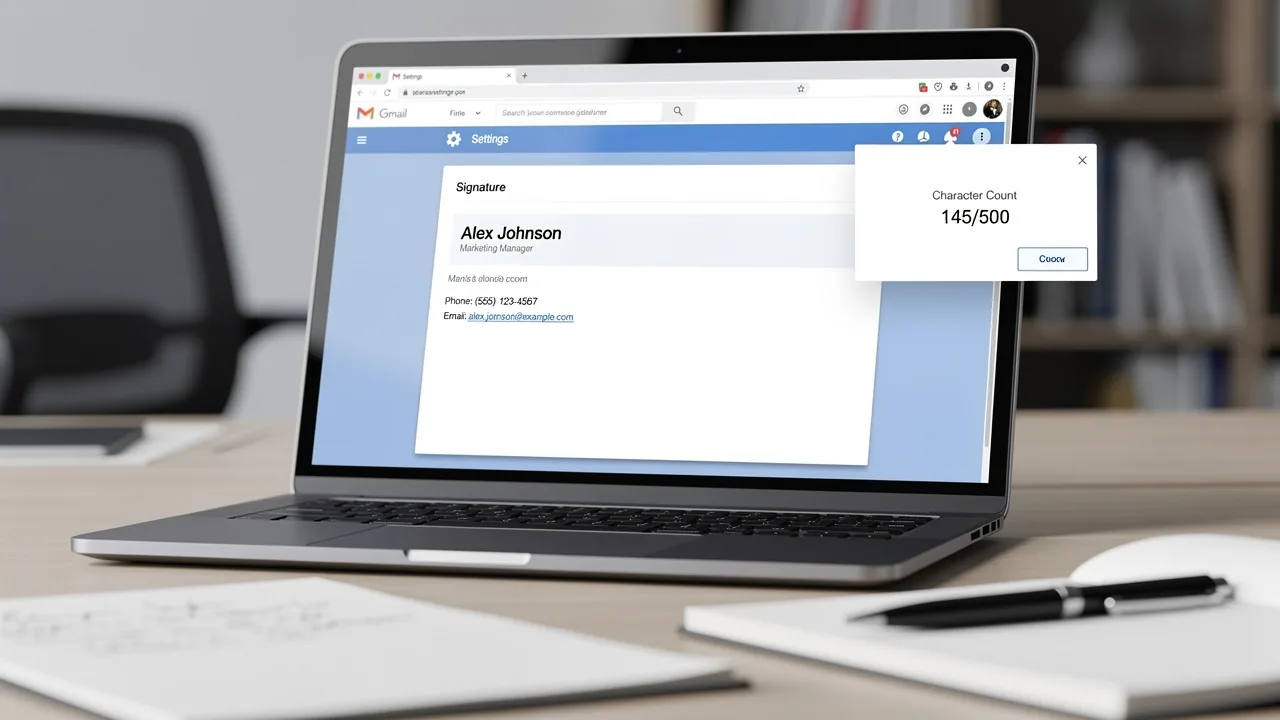
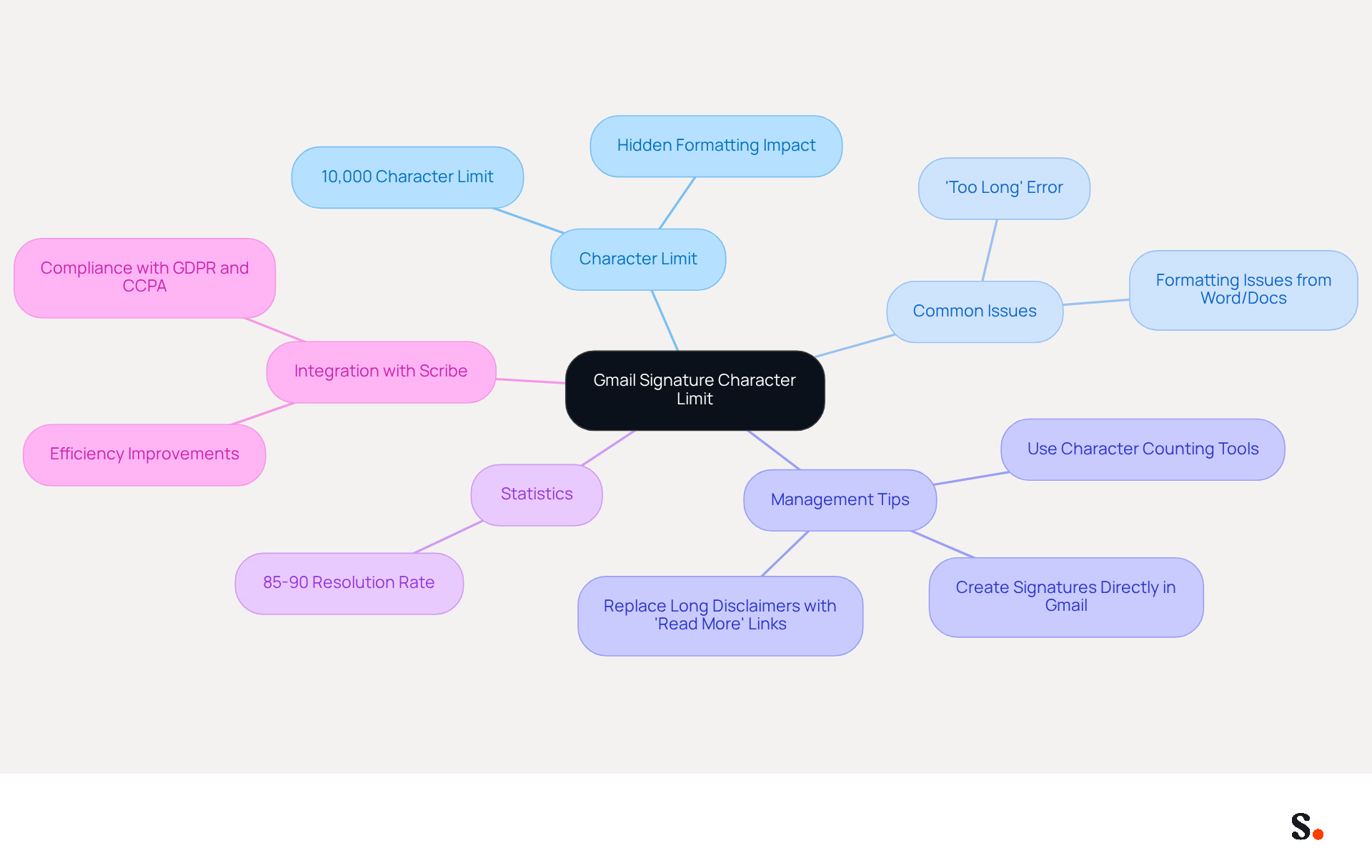
Understanding the character limit for email footers is crucial for effective email communication. The email service enforces a strict character limit of 10,000 characters for email footers, encompassing not only visible text but also hidden HTML formatting, images, and other markup. This limitation is crucial for resolving the 'too long' error, which can disrupt your workflow. If your Gmail signature is too long and exceeds this limit, it will display an error message, leading to disruption to your workflow.
To effectively manage the length of your sign-off, consider using online character counting tools or pasting it into a text editor that displays character counts. It's crucial to recognize that concealed formatting from applications like Microsoft Word or Google Docs can unintentionally raise the character count, even if the appearance seems straightforward. In fact, many users encounter issues due to leftover code when copying content from these editors.
By understanding these limitations and using effective methods, you can create an identifier that meets the platform's requirements, enhancing your email communication. Statistics indicate that 85% to 90% of email footer problems can be resolved by following the suggested steps. For example, users who create their identifiers directly in Gmail or utilize simplified HTML often maintain a lower character count, thus avoiding the issue where the Gmail signature is too long. Additionally, replacing lengthy legal disclaimers with a 'Read More' link can conserve character space while ensuring compliance.
By integrating Scribe with Google Workspace, you can simplify your message management. Syncing your Google Workspace with Scribe saves time by automatically updating your teammates' information, ensuring that any changes - like job positions or group assignments - are reflected in Scribe without manual input. This feature not only improves efficiency but also aids in maintaining brand consistency across all communications. Furthermore, Scribe is compliant with GDPR and CCPA, ensuring that your email management adheres to important data protection regulations. If you keep encountering problems, consider removing your current email footer and recreating it directly in the email platform to eliminate any hidden formatting that may be causing issues. Addressing these character count issues can significantly enhance your email communication effectiveness.
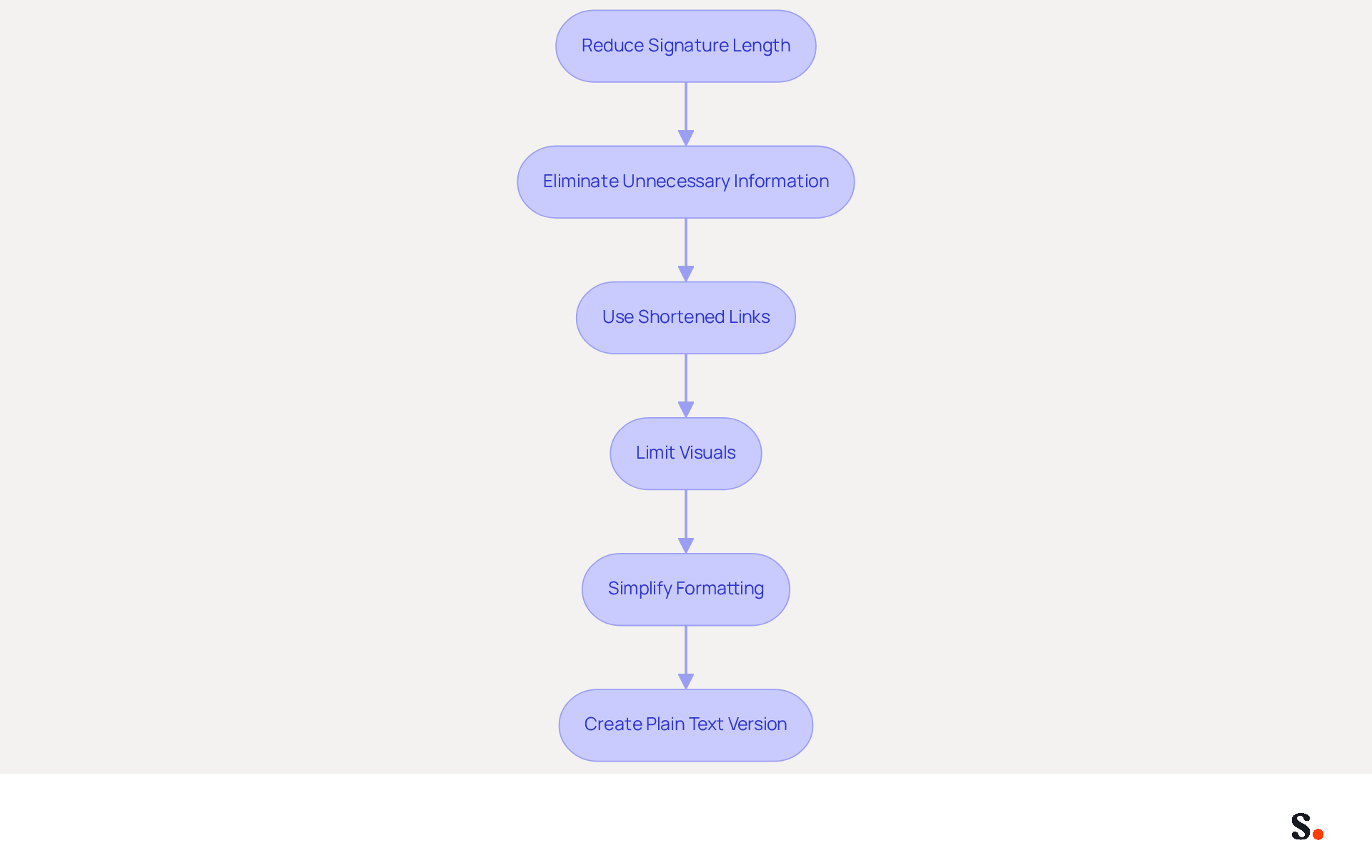
Reduce Signature Length with Effective Techniques
To enhance the professionalism of your Gmail signature, implementing effective reduction techniques is essential:
- Eliminate Unnecessary Information: Review your sign-off and remove any non-essential details. Focus on including only the most relevant information, such as your name, title, and contact information. This approach ensures clarity and upholds a professional standard.
- Use Shortened Links: If your email includes links, utilize URL shorteners like Bitly to condense long URLs. This can significantly reduce character count without sacrificing functionality, making your identifier more concise.
- Limit Visuals: Consider removing visuals from your signature or replacing them with smaller, optimized versions. Unoptimized visuals can lead to larger file sizes, complicating email management. Research indicates that large digital identifiers may incur costs exceeding $25,000 during future mail server migrations.
- Simplify Formatting: Avoid excessive formatting such as multiple fonts, colors, or styles. Stick to a clean, simple design that conveys professionalism without unnecessary embellishments. A well-organized sign-off can improve readability and engagement. Remember, a polished email footer is crucial for building credibility, especially for finance professionals.
- If possible, create a plain text version of your mark. This removes hidden formatting that can increase the character count, ensuring your mark is as compact as possible. Additionally, consider the environmental impact of large markings; reducing their size can contribute to sustainability efforts, as large markings increase ink, toner, and paper usage.
By applying these tactics, you can develop a more effective email footer, particularly if your Gmail signature is too long, ensuring compliance with size limitations while also enhancing your professional appearance. Ultimately, a streamlined email footer not only enhances your professional image but also supports efficient communication in a mobile-centric world.
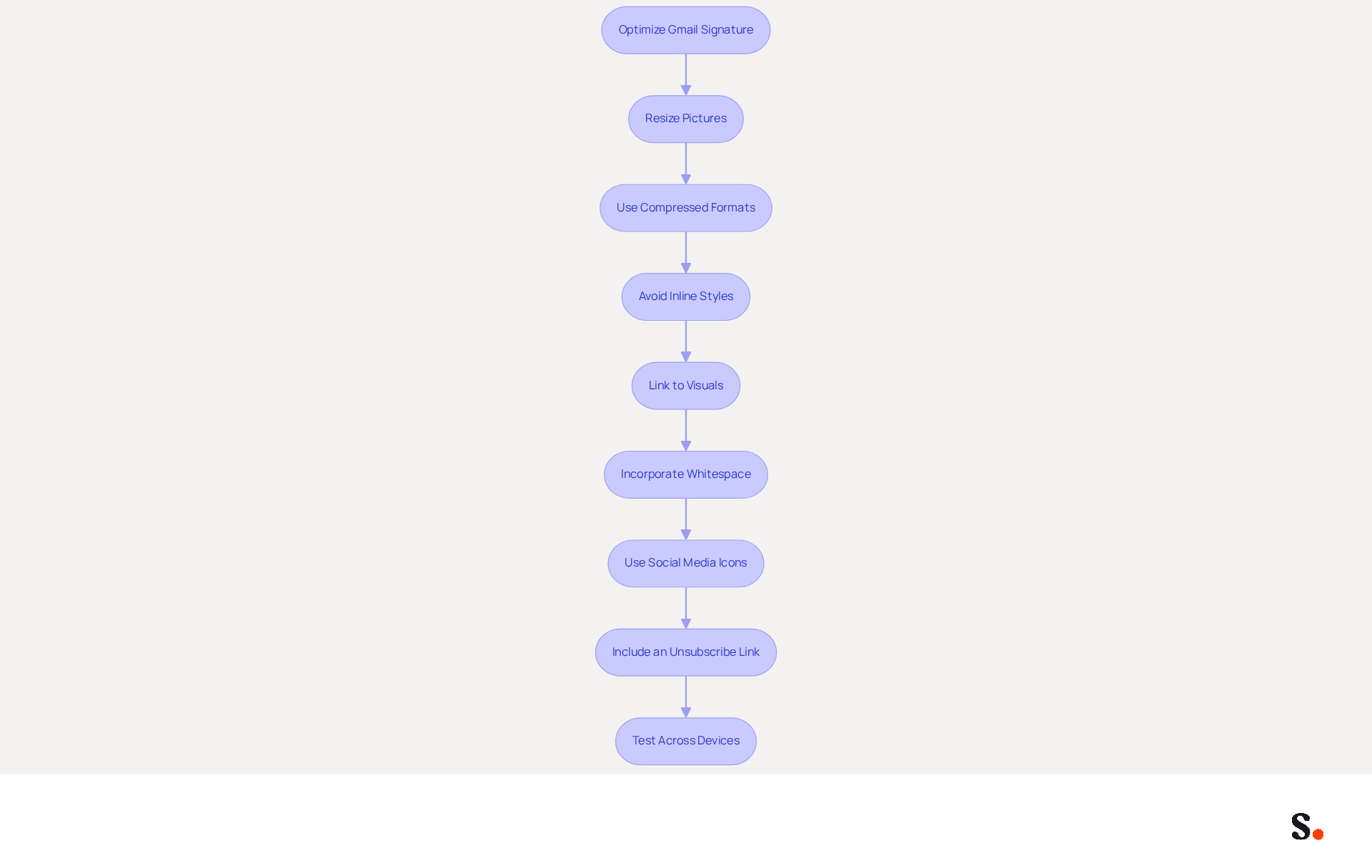
Optimize Images and Formatting for Compliance
To ensure your Gmail signature is both effective and compliant, consider these essential optimization tips:
- Resize Pictures: Utilize editing tools to adjust your visuals to optimal dimensions. Aim for a width of no more than 600 pixels and a height of 150 pixels. If you don’t resize images, you risk slow loading times, which can frustrate your recipients.
- Use Compressed Formats: Save visuals in compressed formats such as JPEG or PNG. These formats preserve quality while significantly reducing file size, contributing to a lower character count in your signature.
- Avoid Inline Styles: When adding visuals, steer clear of inline styles that can clutter your HTML code. Instead, utilize Gmail's built-in visual insertion tools to keep the code clean and efficient.
- Link to Visuals: Instead of embedding visuals directly in your footer, consider hosting them online and linking to them. This method significantly cuts down on the character count tied to image data.
- Incorporate Whitespace: Ensure your design includes sufficient whitespace to enhance readability and professionalism. A clean layout helps avoid clutter and makes essential information stand out.
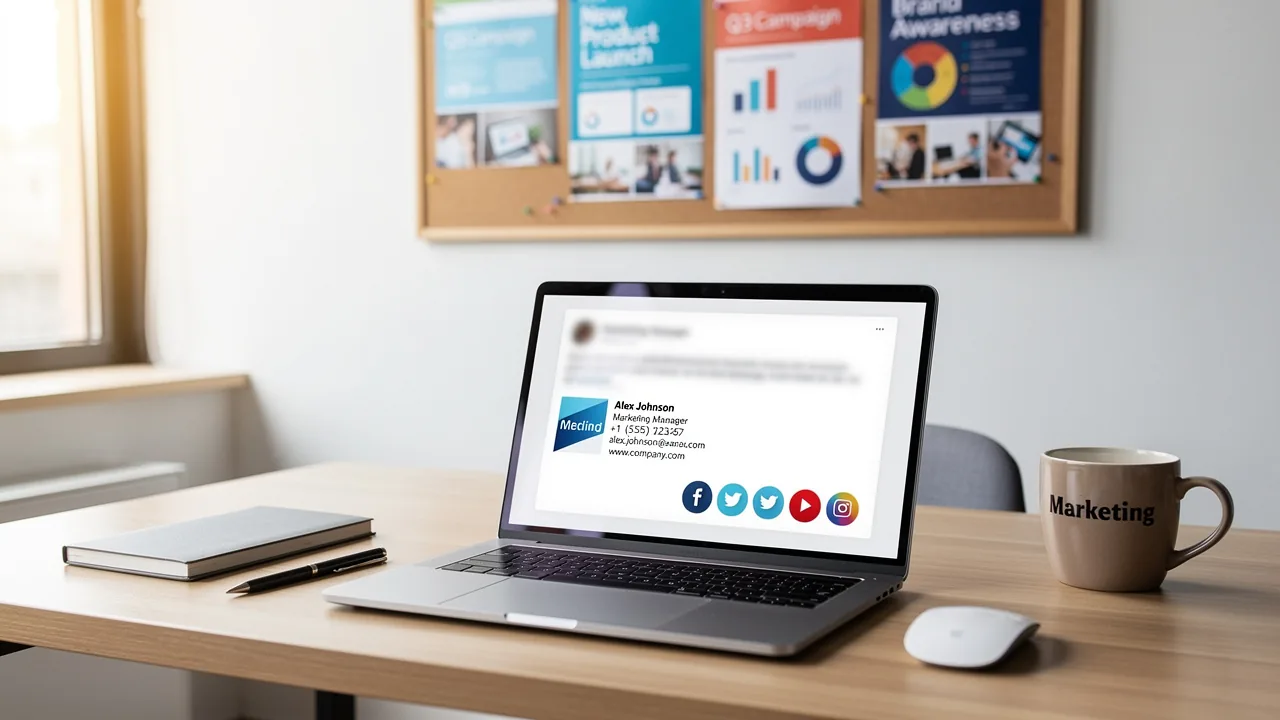
- Use Social Media Icons: Instead of text links, utilize social media icons for better visual appeal and recognition. This can enhance engagement and make your mark more appealing.
- Include an Unsubscribe Link: Including an unsubscribe link not only complies with privacy laws like CAN-SPAM and GDPR but also respects your recipients’ preferences.
- Test Across Devices: After optimizing your email footer, test it on various devices and email clients to ensure proper display. This step will help you identify any formatting issues that may arise, ensuring a consistent appearance across platforms.
Implementing these strategies can help address the problem that your Gmail signature is too long while also enhancing overall communication effectiveness.
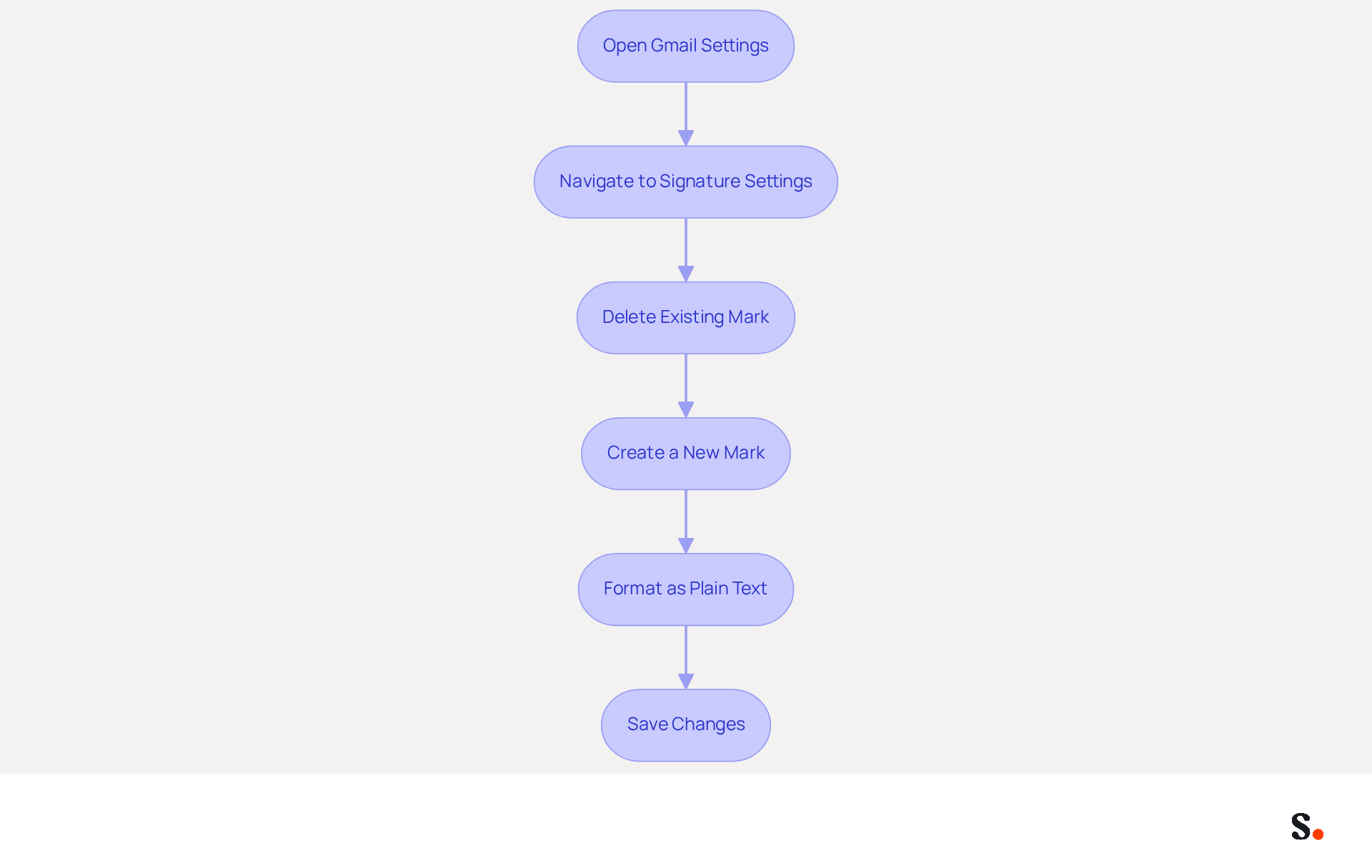
Rebuild Your Signature for a Fresh Start
If previous troubleshooting steps have not resolved your issues, rebuilding your signature from scratch may be the most effective approach. Follow these steps to create a fresh, optimized Gmail signature:
- Open Gmail Settings: Click the gear icon in the top right corner of your Gmail inbox and select 'See all settings'.
- Navigate to Signature Settings: Scroll down to the 'Signature' section under the 'General' tab.
- Delete Existing Mark: Remove any current mark completely to start anew.
- Create a New Mark: In the mark box, type your new mark. Keep it simple and adhere to optimization tips to enhance clarity and engagement.
- Format as Plain Text: Draft your name in a plain text editor first to avoid hidden formatting issues, then copy and paste it into Gmail.
- Save Changes: After creating your new identifier, scroll down and click 'Save Changes' to apply it. Send a test message to ensure your sign-off appears correctly.
A striking 89.9% of professionals stick to a single email format, frequently missing important updates, which emphasizes the necessity for a streamlined approach. By reconstructing your personal identifier, you can avoid common pitfalls such as exceeding Gmail's 10,000-character limit, which may lead to frustrating errors that disrupt communication, particularly when your Gmail signature is too long. Furthermore, a well-organized email footer can greatly improve brand visibility, with companies noting a 22% rise in response rates when utilizing professionally branded footers. This fresh start not only enhances your message's appearance but also strengthens your brand identity in every communication.
Furthermore, connecting your Google Workspace with Scribe enables automatic updates to your communication identifiers, ensuring that any modifications made to your teammates' details are reflected without manual input. This smooth synchronization saves you time and helps keep your brand identity consistent in every message, making it easier to maintain consistency across your organization. Scribe's SOC 2 Type II compliance and adherence to GDPR and CCPA ensure that your data is handled securely, providing peace of mind as you manage your email identifiers.
Troubleshoot Common Issues and FAQs
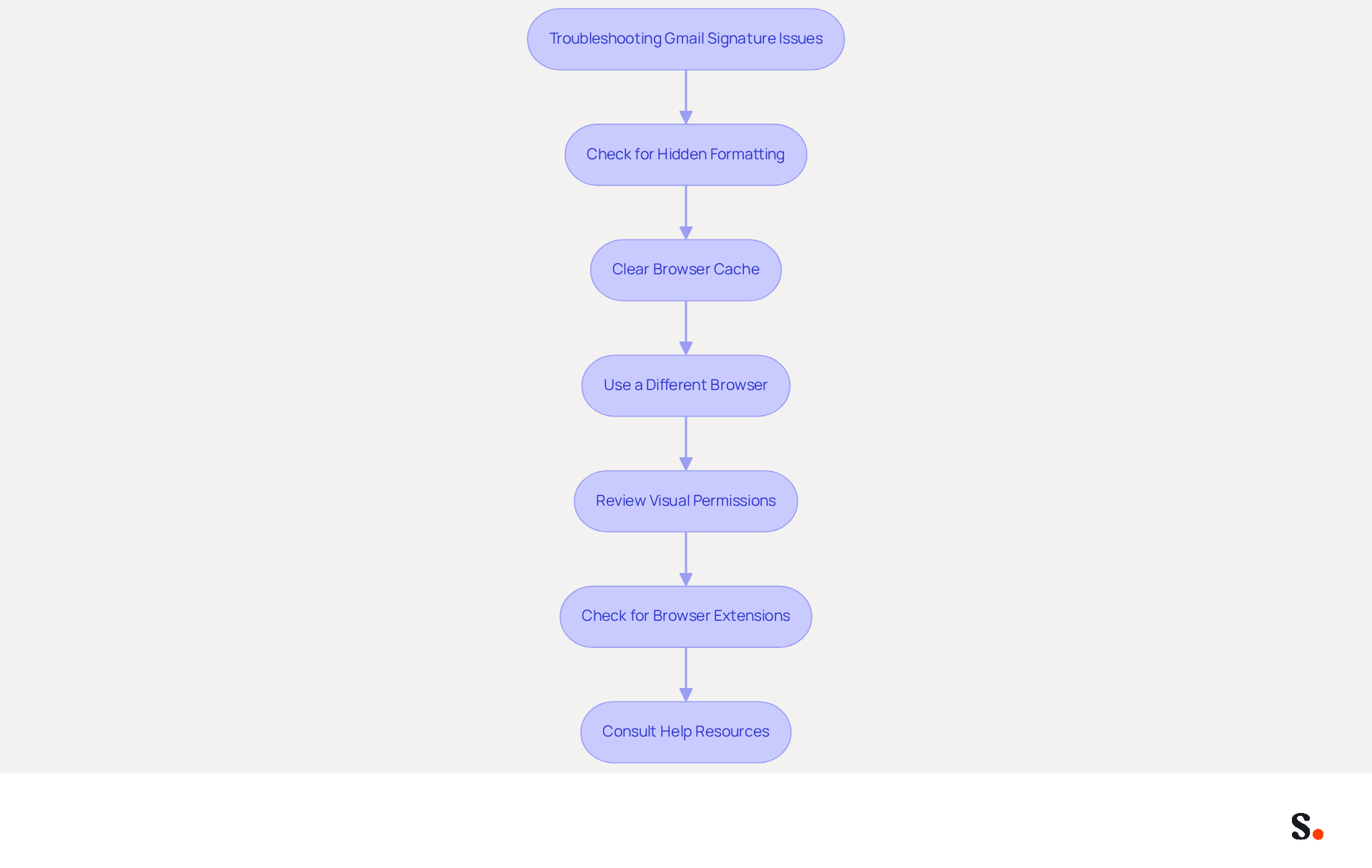
If your Gmail signature is too long, it can hinder your professional communication. Consider the following troubleshooting tips:
- Check for Hidden Formatting: Copying your name from another source may introduce hidden formatting. Paste it into a plain text editor first to remove any extraneous code.
- Clear Browser Cache: Browser cache can interfere with the functionality of the email service. Clear your browser cache and cookies, then try saving your signature again.
- Use a Different Browser: If issues persist, access Gmail from a different browser. Some browsers manage HTML differently, which can influence how your signature is saved.
- Review Visual Permissions: If your signature includes visuals, ensure they are publicly accessible if hosted online. Private photos may not display correctly. Additionally, host images on a reliable HTTPS server to ensure visibility for all recipients.
- Check for Browser Extensions: Certain browser add-ons may disrupt the formatting of your email and lead to display issues with your signature. Disabling these extensions can help resolve the problem.
- Consult Help Resources: If all else fails, refer to the official help resources or community forums for additional support. You may find solutions from other users who faced similar issues.
These steps can assist in resolving up to 90% of common issues related to signatures, ensuring your communications remain professional and effective. Remember, if your Gmail signature is too long, it should not exceed 10,000 characters to avoid truncation.
Additionally, consider syncing your Google Workspace with Scribe to streamline your signature management. This integration allows for automatic updates, ensuring that any changes in your team’s information are reflected in Scribe without manual input. With Scribe's SOC 2 Type II certification and compliance with GDPR and CCPA, you can focus on your marketing efforts while maintaining brand consistency across all email communications.
Conclusion
Effectively managing your Gmail signature is crucial for ensuring seamless professional communication. By recognizing the character limit and implementing strategies to streamline your signature, you can avoid the frustrating 'too long' error that disrupts your workflow. This guide offers actionable strategies to help you create a concise and compliant email footer that enhances your brand visibility.
Key techniques discussed include:
- Eliminating unnecessary information
- Using shortened links
- Optimizing images
- Simplifying formatting
These strategies not only help in adhering to Gmail's character restrictions but also contribute to a more polished and professional appearance. Additionally, rebuilding your signature from scratch can resolve hidden formatting issues that often lead to complications. Integrating Scribe with Google Workspace further simplifies this process, ensuring that your email signatures remain consistent and up-to-date across your organization.
A well-crafted Gmail signature does more than sign off your emails; it plays a key role in shaping your professional identity. By following the outlined steps and leveraging tools like Scribe, organizations can enhance their email communication, improve engagement, and maintain brand consistency. By adopting these strategies, you can ensure your email signatures serve as a powerful tool for professional engagement.
Frequently Asked Questions
What is the character limit for Gmail signatures?
The character limit for Gmail signatures is 10,000 characters, which includes visible text, hidden HTML formatting, images, and other markup.
What happens if my Gmail signature exceeds the character limit?
If your Gmail signature exceeds the character limit, it will display an error message indicating that it is too long, disrupting your workflow.
How can I manage the length of my Gmail signature?
You can manage the length of your Gmail signature by using online character counting tools or pasting it into a text editor that displays character counts.
Why might my signature have a higher character count than expected?
The character count may be higher than expected due to concealed formatting from applications like Microsoft Word or Google Docs, which can add hidden code when copying content.
What percentage of email footer problems can be resolved by following suggested steps?
Statistics indicate that 85% to 90% of email footer problems can be resolved by following the suggested steps.
What are some effective techniques to reduce the length of my Gmail signature?
Effective techniques include eliminating unnecessary information, using shortened links, limiting visuals, simplifying formatting, and creating a plain text version of your signature.
How can I eliminate unnecessary information from my signature?
Review your sign-off and remove any non-essential details, focusing on including only the most relevant information such as your name, title, and contact information.
What is the benefit of using URL shorteners in my signature?
Using URL shorteners like Bitly can significantly reduce character count without sacrificing functionality, making your signature more concise.
Why should I limit visuals in my signature?
Limiting visuals can prevent larger file sizes that complicate email management and may incur costs during future mail server migrations.
How does simplifying formatting improve my signature?
Simplifying formatting by avoiding excessive fonts, colors, or styles can enhance professionalism, improve readability, and engagement in your email communications.
What should I do if I keep encountering problems with my signature?
If you encounter problems, consider removing your current email footer and recreating it directly in the email platform to eliminate any hidden formatting issues.
How does integrating Scribe with Google Workspace help with email management?
Integrating Scribe with Google Workspace simplifies message management by automatically updating teammates' information, ensuring changes are reflected without manual input, and maintaining brand consistency.
Is Scribe compliant with data protection regulations?
Yes, Scribe is compliant with GDPR and CCPA, ensuring that your email management adheres to important data protection regulations.
List of Sources
- Understand the Gmail Signature Character Limit
- Gmail Signature Troubleshooting | WiseStamp Help Center (https://support.wisestamp.com/en/articles/13366705-gmail-signature-troubleshooting)
- Gmail Signature Too Long Error? Fix the 10,000 Character Limit Fast (https://exclaimer.com/email-signature-handbook/how-to-fix-the-gmail-signature-too-long-error)
- Gmail email signature too long message | Email Signature Rescue Blog (https://emailsignaturerescue.com/blog/gmail-email-signature-too-long-message)
- Reduce Signature Length with Effective Techniques
- Email Signature Best Practices - NEWOLDSTAMP (https://newoldstamp.com/blog/email-signature-best-practices)
- Email Signature Best Practices Guide With Examples - MailerLite (https://mailerlite.com/blog/email-signature-best-practices)
- Email signature statistics and trends in 2024 (https://wisestamp.com/blog/email-signature-statistics)
- Email Signature Size - How to Keep It Small, and Why - Gimmio (https://blog.gimm.io/email-signature-size)
- Email signature do’s & don’ts: from chaos to consistency and performance in every send (https://marketingtechnews.net/news/email-signature-dos-donts-from-chaos-to-consistency-and-performance-in-every-send)
- Optimize Images and Formatting for Compliance
- Email Signature Best Practices - NEWOLDSTAMP (https://newoldstamp.com/blog/email-signature-best-practices)
- Optimize Email Signature Images for Performance (https://support.xink.io/support/solutions/articles/1000332447-optimize-email-signature-images-for-performance)
- Email signature with ANY images is too long - Gmail Community (https://support.google.com/mail/thread/213646412/email-signature-with-any-images-is-too-long?hl=en)
- Email Signature Best Practices Guide With Examples - MailerLite (https://mailerlite.com/blog/email-signature-best-practices)
- Best Practices for Optimizing Mail Signature Image Size in Marketing (https://scribe-mail.com/en-US/blog/best-practices-for-optimizing-mail-signature-image-size-in-marketing)
- Rebuild Your Signature for a Fresh Start
- How to create custom Gmail signature (https://foxnews.com/tech/how-to-create-custom-gmail-signature)
- 40+ Email Signature Statistics for 2026 (Data + Insights) (https://wavecnct.com/blogs/email-signature-statistics)
- Read our guide for troubleshooting Gmail signatures issues (https://wisestamp.com/guides/how-to-fix-gmail-signature-not-showing)
- Fix Your Missing Gmail Signature: 8 Troubleshooting Steps & Best Practices | Newoldstamp - NEWOLDSTAMP (https://newoldstamp.com/blog/gmail-signature-not-showing-up)
- Gmail Signature Too Long Error? Fix the 10,000 Character Limit Fast (https://exclaimer.com/email-signature-handbook/how-to-fix-the-gmail-signature-too-long-error)
- Troubleshoot Common Issues and FAQs
- Gmail Signature Troubleshooting | WiseStamp Help Center (https://support.wisestamp.com/en/articles/13366705-gmail-signature-troubleshooting)
- justanswer.com (https://justanswer.com/email/ursdb-gmail-signature-images-not-showing-in-replies.html)
- Solving a Gmail signature problem (https://signitic.com/en/guides/solving-a-gmail-signature-problem)
- What To Do When Your Gmail Signature is Not Showing Up (https://appointlet.com/blog/gmail-signature-not-showing-up)
- Fix Your Missing Gmail Signature: 8 Troubleshooting Steps & Best Practices | Newoldstamp - NEWOLDSTAMP (https://newoldstamp.com/blog/gmail-signature-not-showing-up)
Get started with Scribe
Create your signature in minutes
Free 14-day trial — no credit card.