Best Practices for Exporting Outlook Signatures Effectively
Many organizations face challenges in maintaining a consistent brand image through email signatures, which can lead to a fragmented perception of
Sophie Grant
Email Signature Specialist, Scribe
Introduction
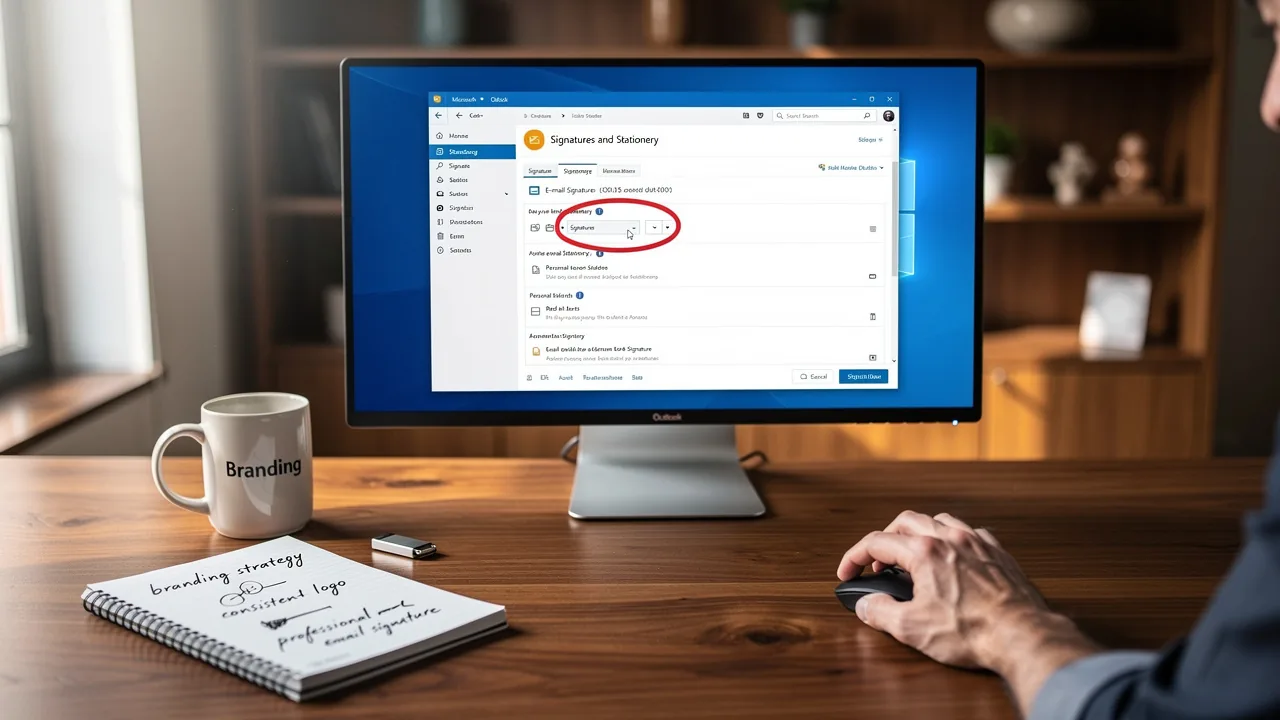
Many organizations face challenges in maintaining a consistent brand image through email signatures, which can lead to a fragmented perception of professionalism. With the average company generating tens of thousands of branded impressions each month, the stakes are high for ensuring that every communication reflects professionalism and trust.
We will explore effective strategies for exporting Outlook signatures, including insights into:
- Storage locations
- Import processes
- How automation tools like Scribe can enhance efficiency
By implementing these strategies, organizations can streamline their signature management while simultaneously enhancing their branding efforts.
Identify Signature Storage Locations in Outlook
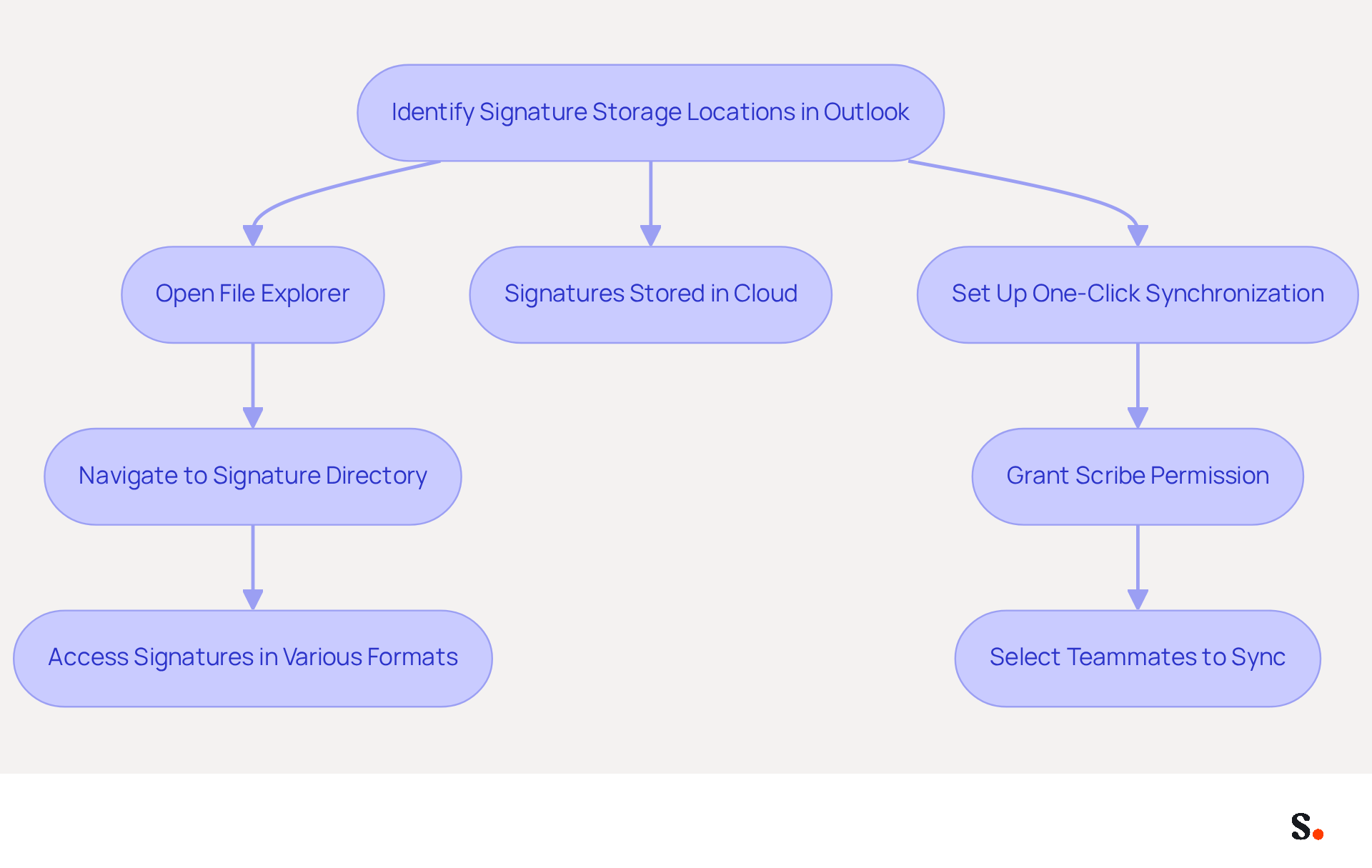
Understanding where your email identifiers are stored is essential for effective management in any organization. In Classic Outlook versions, signatures are typically saved in the following directory:
- Windows:
C:\Users\[YourUsername]\AppData\Roaming\Microsoft\Signatures
To access this folder:
- Open File Explorer.
- Navigate to the path above, replacing
[YourUsername]with your actual Windows username. - Here, you will find all your saved signatures in various formats, including .htm, .rtf, and .txt.
For users of the new email application, signatures are stored in the cloud and synchronized across devices. This allows access from any device logged into your Outlook account, simplifying management for organizations with multiple users. By integrating your Google Workspace with Scribe, you can automate the synchronization of teammate data, ensuring that any changes-such as updates to job positions or group assignments-are automatically reflected in the application without manual input. This efficiency not only saves time but also ensures consistent branding across all communications, which is vital for maintaining trust.
To set up one-click synchronization, simply grant Scribe permission to connect with your mail provider. You need to be a Super Admin of your service provider to grant these permissions. You will have the choice to select which teammates you wish to sync with Scribe, enabling customized management of your identifiers.
Current statistics show that a company with 100 employees produces roughly 60,000-80,000 branded impressions each month, based on 30-40 outbound messages per worker per day over 20 working days. This emphasizes the considerable effect of efficient management of branding on brand visibility. Furthermore, 76% of participants think that branded communication footers increase trust in the sender, making it crucial to uphold professional and consistent footers in all correspondences. Regular backups of email templates are also advised to avoid loss during device changes or reinstallation. With Scribe's SOC 2 Type II compliance, you can be confident that your data is secure while you streamline your email management. Inadequate management of email identifiers can lead to missed branding opportunities and reduced trust in communications.
Export Outlook Signatures Effectively
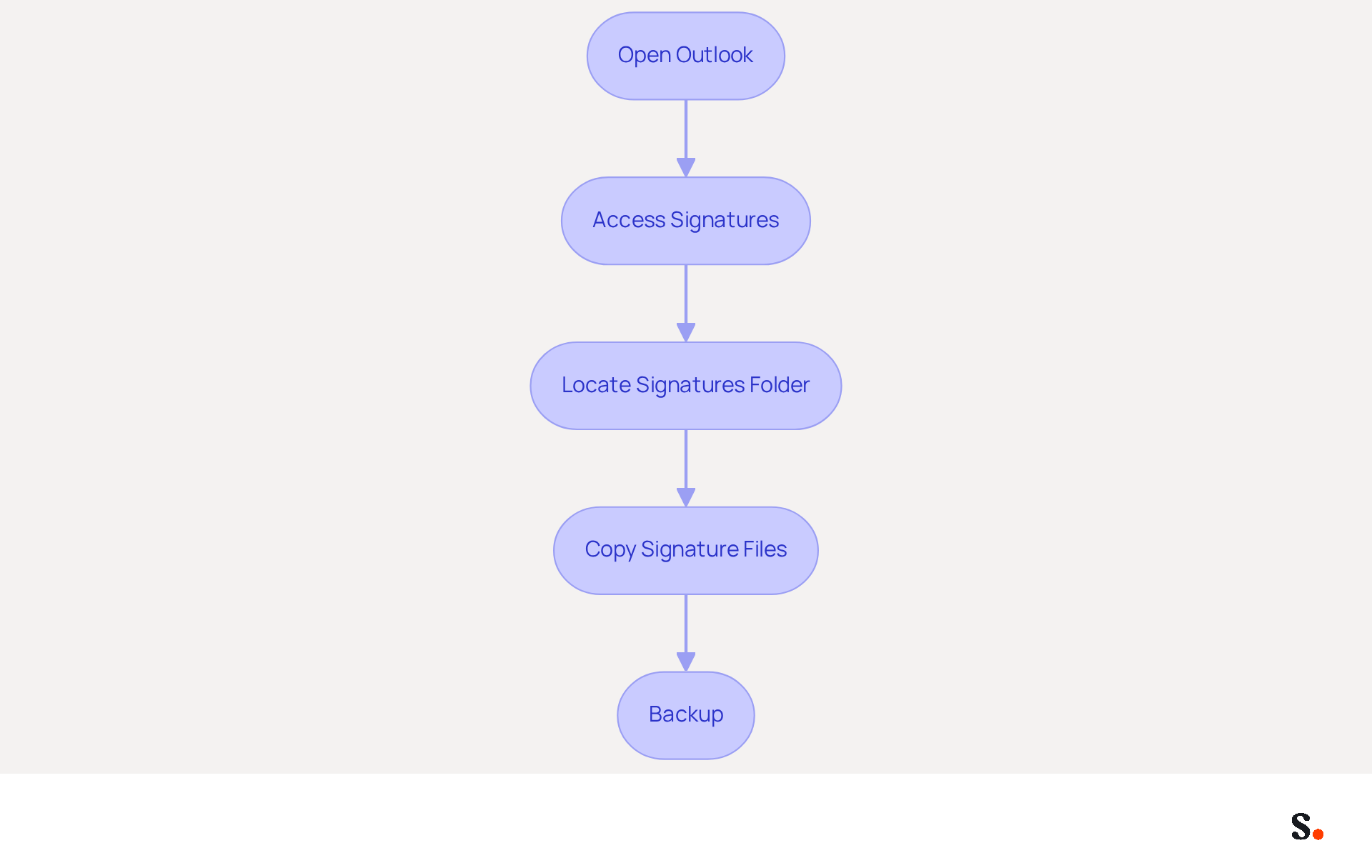
To ensure your email signatures are effectively managed and consistent, follow these straightforward steps:
- Open Outlook: Launch the Outlook application on your computer.
- Access Signatures: Navigate to
File>Options>Mail>Signatures.... - Locate Signatures Folder: Hold down the
Ctrlkey and click on theSignaturesbutton. This will open the folder where your autographs are kept. - Copy Signature Files: Choose the files you wish to export. You can copy them to a USB drive or another location on your computer for backup.
- Backup: Ensure you keep a copy of these files in a secure location to prevent loss.
Following these steps allows for the effective transfer and backup of your email signatures.
This highlights the importance of managing email signatures effectively, as a company with 100 employees can generate approximately 60,000-80,000 branded impressions each month. Furthermore, 44.4% of users modify their contact details 2-4 times annually, suggesting that consistent management is essential for brand uniformity. By exporting Outlook signatures and backing up your branding elements, you ensure that your identity remains intact and current, which is crucial for maintaining a professional image in all communications.
Scribe ensures that any changes in your Aircall or Calendly settings are seamlessly reflected in your branding elements, maintaining consistency across all platforms. Moreover, Scribe's SOC 2 Type II compliance guarantees secure data management, providing you with reassurance as you handle your email identifiers.
Import Signatures to Ensure Consistency
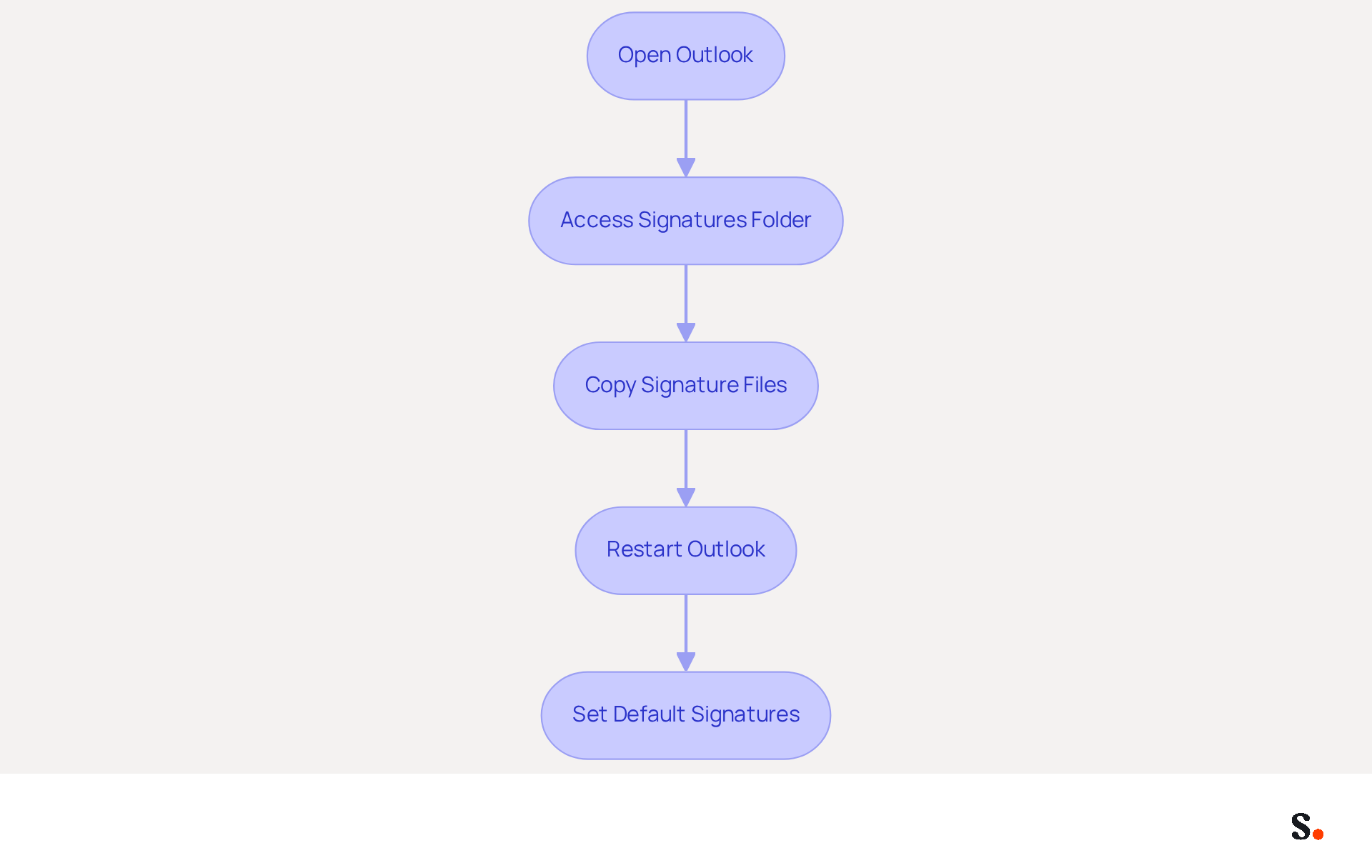
Without the right tools, exporting Outlook signatures while managing email signatures across multiple devices can be a daunting task. To import your Outlook signatures and maintain brand consistency with Scribe, follow these steps:
- Open Outlook: Launch the Outlook application on your new device.
- Access Signatures Folder: Navigate to the folder for stored signatures located at
C:\Users\YourUsername\AppData\Roaming\Microsoft\Signatures. - Copy Signature Files: Transfer the files you previously exported into this folder.
- Restart Outlook: Close and reopen Outlook to ensure the new additions are recognized.
- Set Default Signatures: Navigate to
File>Options>Mail>Signatures...to specify your default settings for new messages and responses.
To use one-click synchronization with Scribe, grant Super Admin permissions to connect with your service provider. This enables smooth updates, keeping your messages relevant and impactful. Companies employing consistent digital identifiers report a 22% increase in response rates and a 15% website click-through rate (CTR), enhancing both trust and engagement with recipients. Furthermore, 80% of businesses view a branded message footer as crucial for effective communication, emphasizing the significance of maintaining consistency in your branding. Regular updates to communication identifiers are also essential, as 44.4% of professionals refresh their identifiers 2-4 times a year.
Scribe makes this process easier with one-click synchronization, allowing for quick updates and ensuring that all modifications made in your provider directory are automatically reflected in your identifiers. Scribe's SOC 2 Type II compliance ensures the security of your data, making it a reliable option for managing your branding. As Yuliia Savchuk, a content writer at Stripo, observes, "A message footer plays a crucial role in maintaining a brand and generating leads, so you should approach its design thoughtfully." Without a streamlined approach, your brand's communication may suffer, leading to missed opportunities.
Leverage Automation for Signature Management
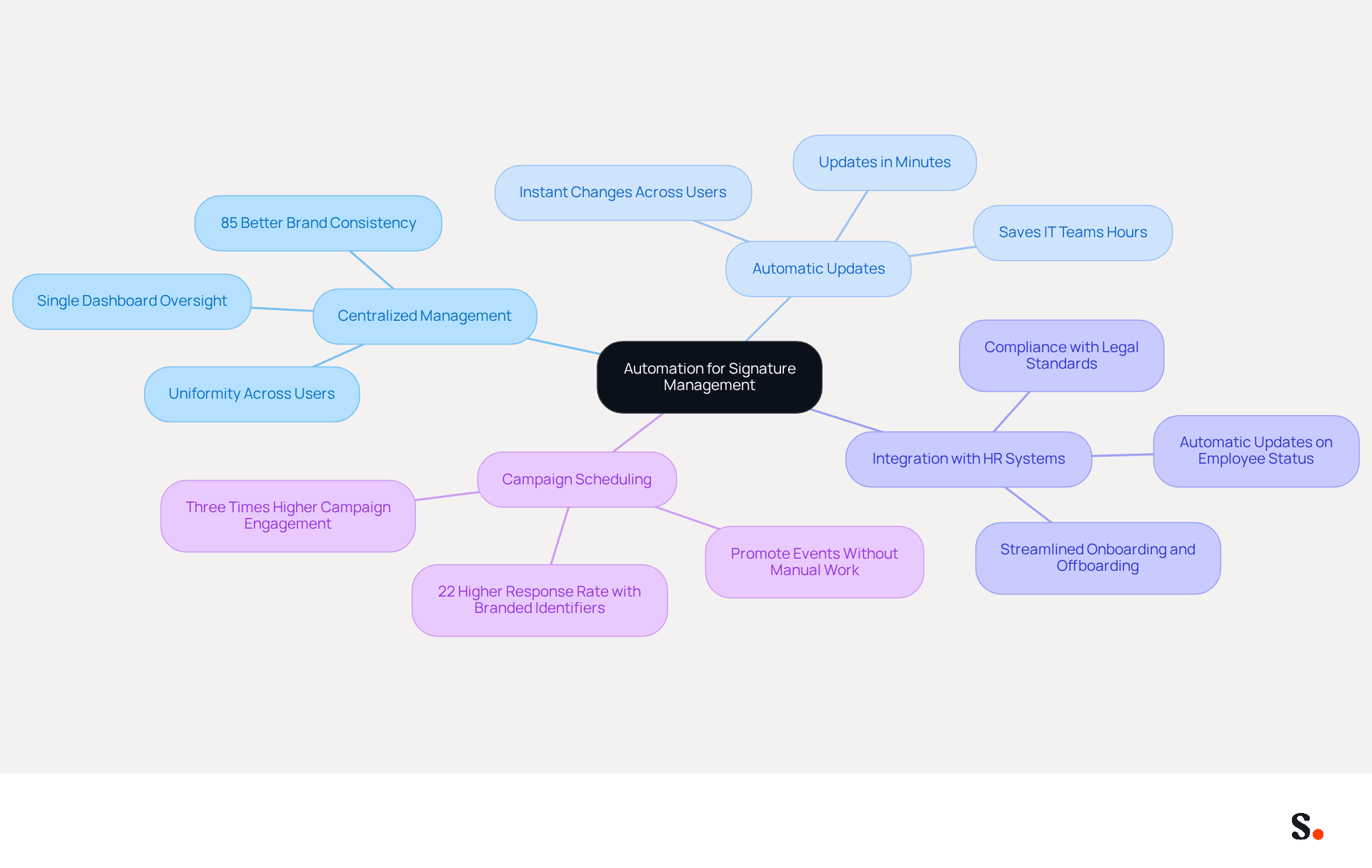
To enhance communication management, automation tools like Scribe are essential for improving organizational efficiency. Here’s how automation can benefit your email signature management process:
- Centralized Management: Scribe enables you to oversee all approvals from a single dashboard, ensuring uniformity across all users. This centralized approach enhances brand integrity and reduces the risk of inconsistencies that can damage brand integrity associated with manual updates.
- Automatic Updates: With this tool, updates to signatures - such as new branding or contact information - are automated. This capability automates updates, applying changes instantly across all users and freeing IT teams from hours of manual work.
- Integration with HR Systems: Scribe integrates seamlessly with HR systems, ensuring that approvals are automatically updated when employees join or leave the organization. This feature ensures that all approvals remain up-to-date and compliant, lessening the administrative load on IT teams.
- Campaign Scheduling: The platform allows you to arrange marketing campaigns through digital identifiers, enabling you to promote events or offers without manual intervention. This proactive strategy can enhance engagement, as companies using branded digital identifiers see a 22% higher response rate than those that don’t.
Moreover, Scribe's SOC 2 Type II certification and compliance with GDPR and CCPA mean your organization can confidently meet crucial security and privacy standards. By implementing automation with Scribe, you can enhance your management process for branding, ensuring that it remains consistent and professional while saving valuable time and resources. Organizations that embrace automated email signature management not only streamline their processes but also significantly boost engagement metrics, typically experiencing a threefold increase in campaign engagement, with an average click-through rate of 12% on signature banners, demonstrating the effectiveness of this approach.
Conclusion
Inconsistent email signatures can undermine a brand's professionalism and clarity in communication. Effective management of Outlook signatures is crucial for maintaining brand consistency and enhancing communication. By understanding the storage locations of signatures, utilizing efficient export and import processes, and leveraging automation tools like Scribe, organizations can ensure that their branding remains intact across all communications. This method saves time and builds trust and professionalism in every interaction.
Key insights from the article highlight the importance of regular updates and backups of email signatures, as well as the measurable benefits of consistent branding, such as increased engagement rates. With statistics showing that companies can generate tens of thousands of branded impressions monthly, the need for a streamlined signature management process becomes evident. Scribe's capabilities, including one-click synchronization and compliance with security standards, further enhance the effectiveness of managing email signatures.
In a world where digital communication is paramount, organizations must prioritize the management of their email signatures. When businesses adopt best practices and use automation, they can not only maintain brand integrity but also improve engagement and response rates. Ultimately, neglecting email signature management could hinder an organization's ability to convey its values effectively.
Frequently Asked Questions
Where are email signatures stored in Classic Outlook versions?
In Classic Outlook versions, signatures are typically saved in the directory: C:\Users[YourUsername]\AppData\Roaming\Microsoft\Signatures.
How can I access my email signature folder in Classic Outlook?
To access the email signature folder, open File Explorer and navigate to the path mentioned above, replacing [YourUsername] with your actual Windows username.
Where are signatures stored in the new email application?
In the new email application, signatures are stored in the cloud and synchronized across devices, allowing access from any device logged into your Outlook account.
How does integrating Google Workspace with Scribe help with signature management?
Integrating Google Workspace with Scribe automates the synchronization of teammate data, ensuring that any changes, such as updates to job positions or group assignments, are automatically reflected in the application without manual input.
What is required to set up one-click synchronization with Scribe?
To set up one-click synchronization, you need to grant Scribe permission to connect with your mail provider, and you must be a Super Admin of your service provider to grant these permissions.
How can I customize which teammates to sync with Scribe?
When setting up synchronization, you will have the choice to select which teammates you wish to sync with Scribe, enabling customized management of your identifiers.
What is the impact of efficient management of branding on brand visibility?
A company with 100 employees produces roughly 60,000-80,000 branded impressions each month, emphasizing the considerable effect of efficient branding management on visibility.
Why are branded communication footers important?
76% of participants believe that branded communication footers increase trust in the sender, making it crucial to maintain professional and consistent footers in all correspondences.
What should I do to avoid losing email templates?
Regular backups of email templates are advised to avoid loss during device changes or reinstallation.
How does Scribe ensure data security during email management?
Scribe is SOC 2 Type II compliant, which ensures that your data is secure while you streamline your email management.
List of Sources
- Identify Signature Storage Locations in Outlook
- Where are signatures stored for "New Outlook" - Microsoft Q&A (https://learn.microsoft.com/en-us/answers/questions/2128497/where-are-signatures-stored-for-new-outlook)
- Outlook 365 Signature Location: Find Your Email Signature - NEWOLDSTAMP (https://newoldstamp.com/blog/outlook-signature-location)
- 40+ Email Signature Statistics for 2026 (Data + Insights) (https://wavecnct.com/blogs/email-signature-statistics)
- Where Are Outlook Signatures Stored? A Step-by-Step Guide (https://scribe-mail.com/en-US/blog/where-are-outlook-signatures-stored-a-step-by-step-guide)
- Export Outlook Signatures Effectively
- 40+ Email Signature Statistics for 2026 (Data + Insights) (https://wavecnct.com/blogs/email-signature-statistics)
- Email Signature Statistics: A Closer Look at Email Signatures in 2026 (https://mysignature.io/blog/email-signature-statistics)
- 5 Steps to Export Your Outlook Signature with Ease (https://scribe-mail.com/en-US/blog/5-steps-to-export-your-outlook-signature-with-ease)
- How to export and reimport Outlook email signatures | Andrew Armstrong posted on the topic | LinkedIn (https://linkedin.com/posts/andrew-armstrong-59804196_how-to-export-and-reimport-outlook-email-activity-7390787331219427328-8bb2)
- Exporting Outlook Email Signatures: A Step-by-Step Guide | Andrew Armstrong posted on the topic | LinkedIn (https://linkedin.com/posts/andrew-armstrong-59804196_how-to-export-and-reimport-outlook-email-activity-7405218913589940224-frOG)
- Import Signatures to Ensure Consistency
- The impact of email signatures on your branding (https://signitic.com/en/resources/the-impact-of-email-signatures-on-your-branding)
- 40+ Email Signature Statistics for 2026 (Data + Insights) (https://wavecnct.com/blogs/email-signature-statistics)
- Import signature files from old (classic) to new outlook? - Microsoft Q&A (https://learn.microsoft.com/en-us/answers/questions/5520553/import-signature-files-from-old-classic-to-new-out)
- Email signature statistics: Why every business should optimize their email signatures — Stripo.email (https://stripo.email/blog/email-signature-statistics-why-every-business-should-optimize-their-email-signatures)
- Leverage Automation for Signature Management
- Automating Email Signatures: How IT Teams Streamline Processes & Reduce Risk (https://exclaimer.com/blog/streamlining-it-processes-automated-email-signatures)
- 4 Best Practices for Your Work Email Signature Strategy (https://scribe-mail.com/en-US/blog/4-best-practices-for-your-work-email-signature-strategy)
- How to Automate Email Signature Updates | Exclaimer (https://exclaimer.com/email-signature-handbook/automate-email-signature-updates)
- MSP Guide to Choosing the Right Email Signature Management Solution (https://channelpronetwork.com/2025/09/21/email-signature-management-msp-guide)
Get started with Scribe
Create your signature in minutes
Free 14-day trial — no credit card.