Change Your Email Signature in Outlook: A Step-by-Step Guide
Inconsistent email signatures can undermine professionalism and dilute brand identity. Email signatures in Outlook serve as vital tools for establishing
Sophie Grant
Email Signature Specialist, Scribe
Introduction
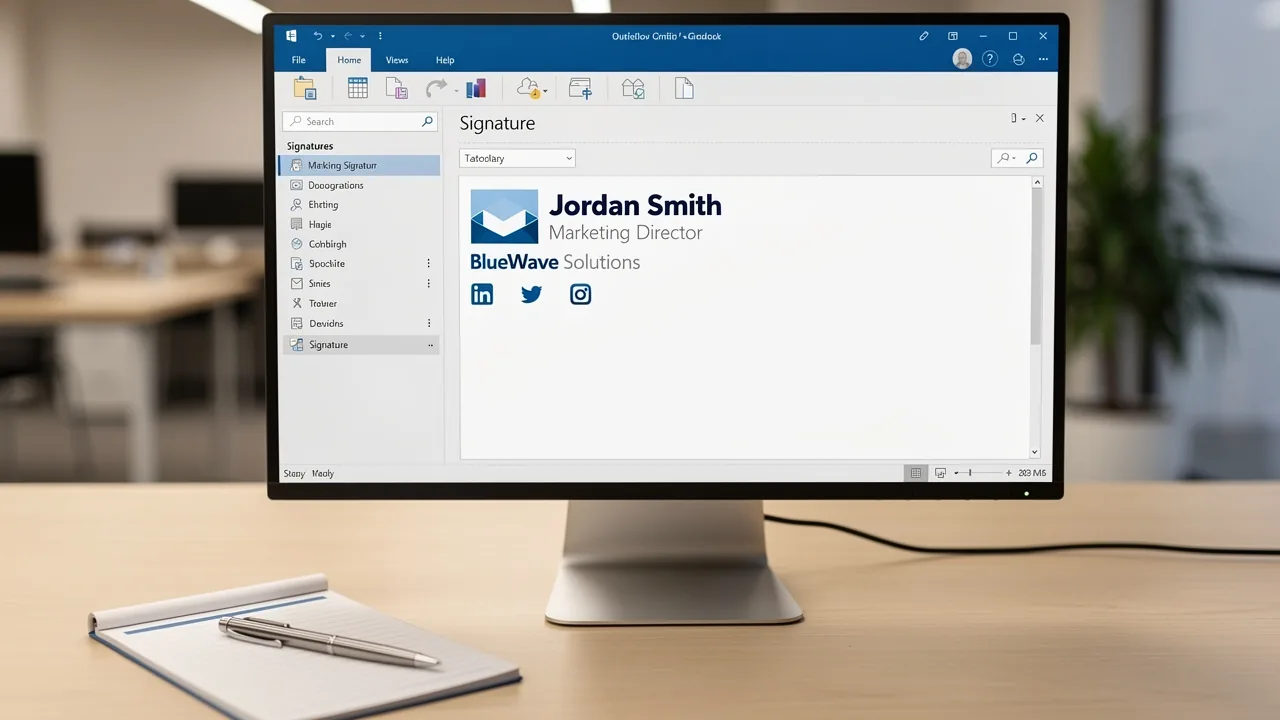
Inconsistent email signatures can undermine professionalism and dilute brand identity. Email signatures in Outlook serve as vital tools for establishing professionalism and reinforcing brand identity. As organizations recognize the importance of consistent messaging, effectively creating and managing these signatures becomes essential. However, many professionals struggle with the intricacies of signature settings, which can result in inconsistent branding and lost opportunities.
How can one navigate the process of changing an email signature in Outlook to ensure it reflects both personal professionalism and organizational branding? This guide will help you navigate the process of mastering email signatures in Outlook, ensuring your communications reflect your professionalism and brand.
Understand Email Signatures in Outlook
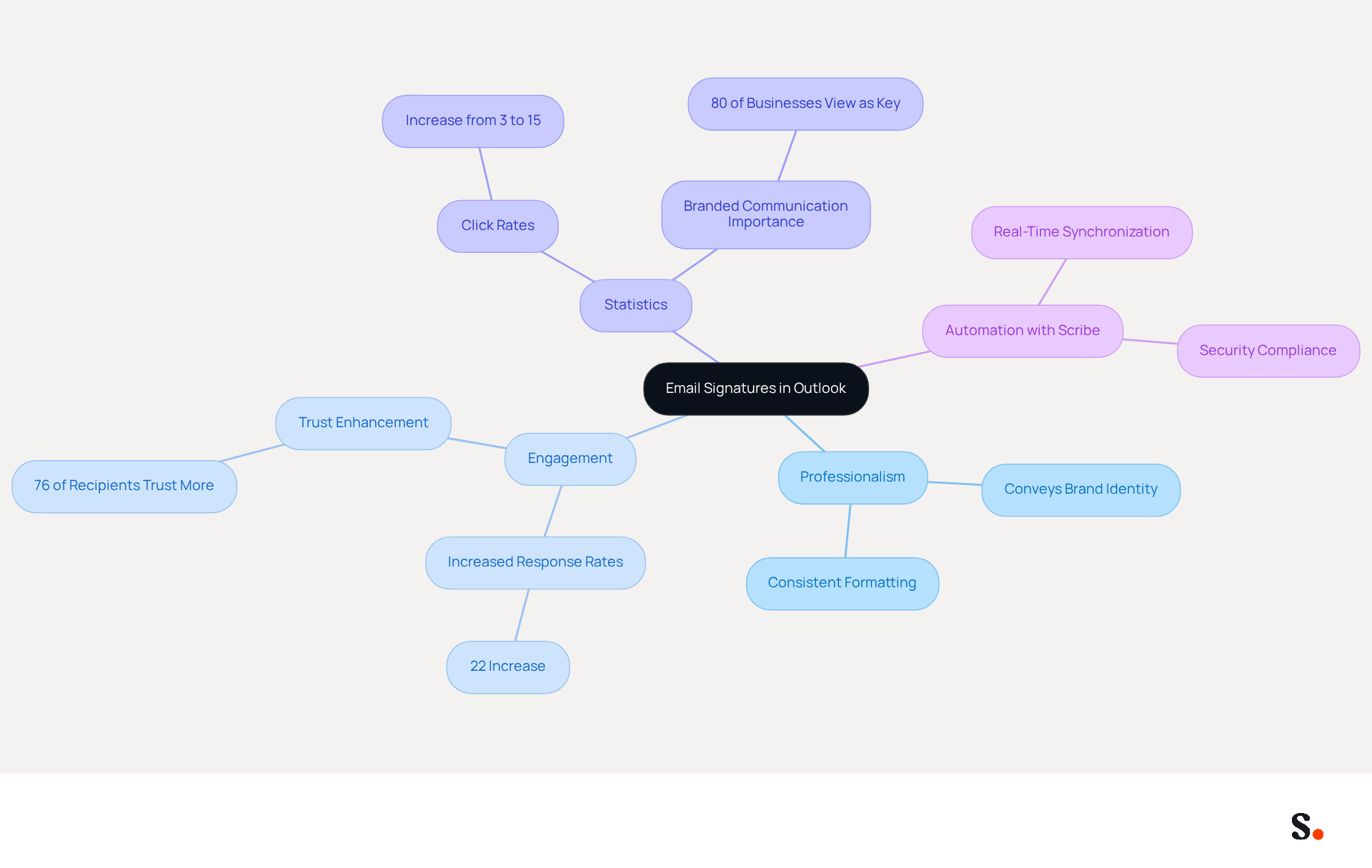
Email footers in Outlook serve as essential digital business cards, providing key information about the sender, such as their name, title, company, and contact details. They convey professionalism and reinforce brand identity through consistent formatting and design. A well-crafted sign-off provides recipients with essential contact information, which improves engagement and response rates. Research shows that organizations with consistent messaging formats experience a 22% increase in response rates and a rise in click rates from 3% to 15%.
Furthermore, sign-offs can include promotional features such as social media links or calls to action, turning each message into a potential marketing opportunity. For example, a multinational corporation that unified its digital communication formats across all regions experienced a 25% rise in traffic to particular landing pages, demonstrating the impact of consistent branding. With 80% of businesses acknowledging branded communication footers as vital, and 76% of recipients showing increased trust in senders who utilize them, the significance of these footers in professional correspondence cannot be overstated.
With Scribe, you can automate email management, ensuring your information is always up to date with real-time synchronization from your business phone system. Any modifications made in your Aircall configuration will automatically reflect in your Scribe settings, removing the necessity for manual updates. Scribe's SOC 2 Type II compliance guarantees that your data is handled securely, protecting against cyber threats such as phishing and data breaches. Regularly updating and managing these identifiers is crucial not only for enhancing brand image and credibility but also for ensuring compliance and security in your communications. The integration of Scribe not only streamlines email management but also fortifies your brand's credibility and security.
Access Signature Settings in Outlook
Managing email signatures effectively is essential for maintaining professionalism in digital communications. To access the signature settings in Outlook, follow these steps:
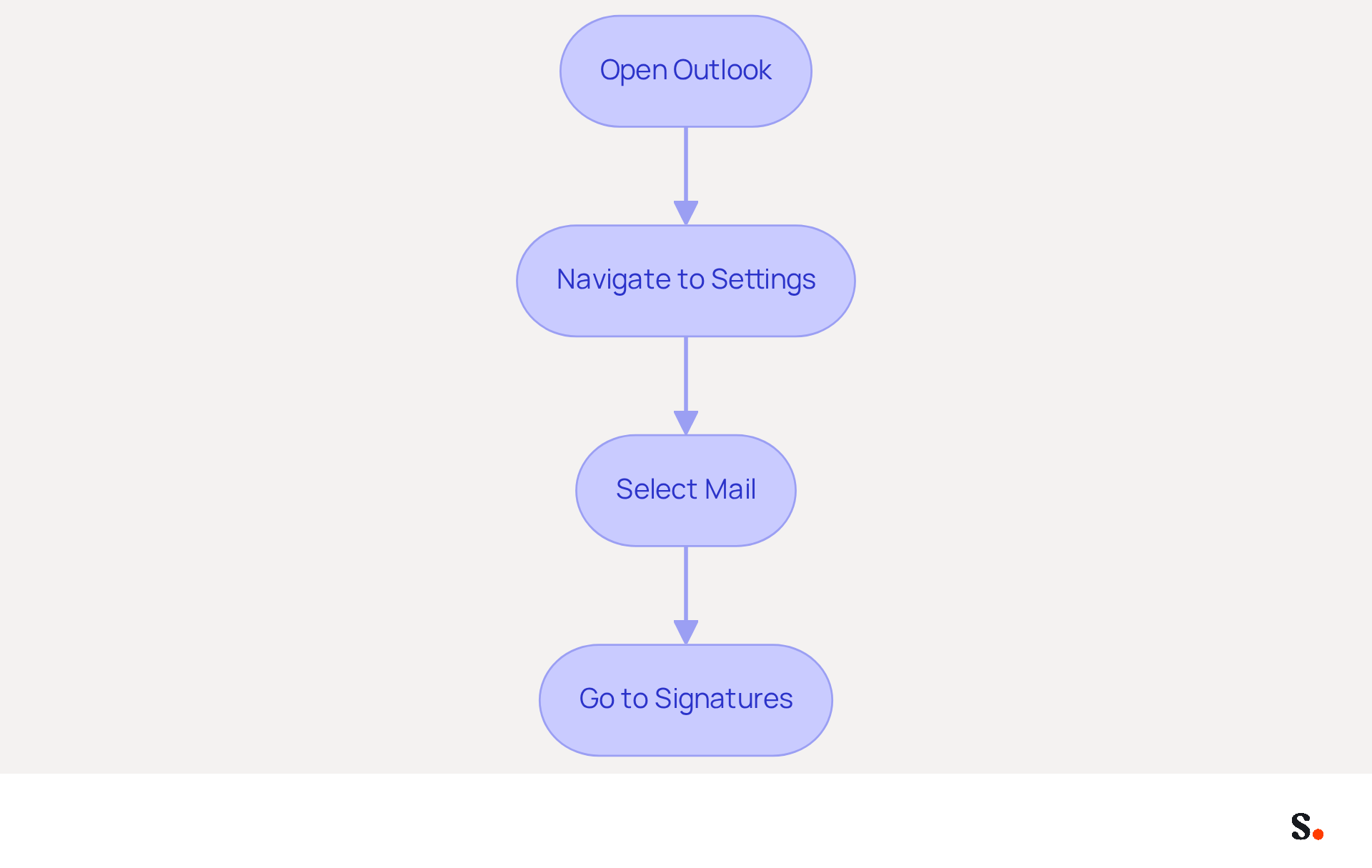
- Open Outlook: Launch the Outlook application on your computer.
- Navigate to Settings: Click on the gear icon (⚙️) located in the top-right corner of the window.
- Select Mail: In the settings menu, find and select 'Mail' from the list of options.
- Go to Signatures: Look for the 'Signatures' option under the 'Compose and reply' section. Click on it to access the management interface for sign-offs.
Here, you can easily use the changer signature outlook feature to create, update, or delete your email signatures, ensuring that your correspondences maintain a professional appearance. With over 400 million active users, the changer signature outlook feature is crucial for ensuring consistency across communications. Furthermore, research indicates that incorporating a well-crafted sign-off can boost engagement and enhance communication results. For example, organizations that employ management tools report a significant decrease in message clutter and enhanced brand visibility. This leads to improved engagement and a stronger brand presence. By implementing these steps, you not only enhance your professional image but also position your organization for greater communication success.
Create or Edit Your Email Signature
Creating a professional email changer signature outlook is crucial for effective communication. Follow these steps to create or edit your email signature:
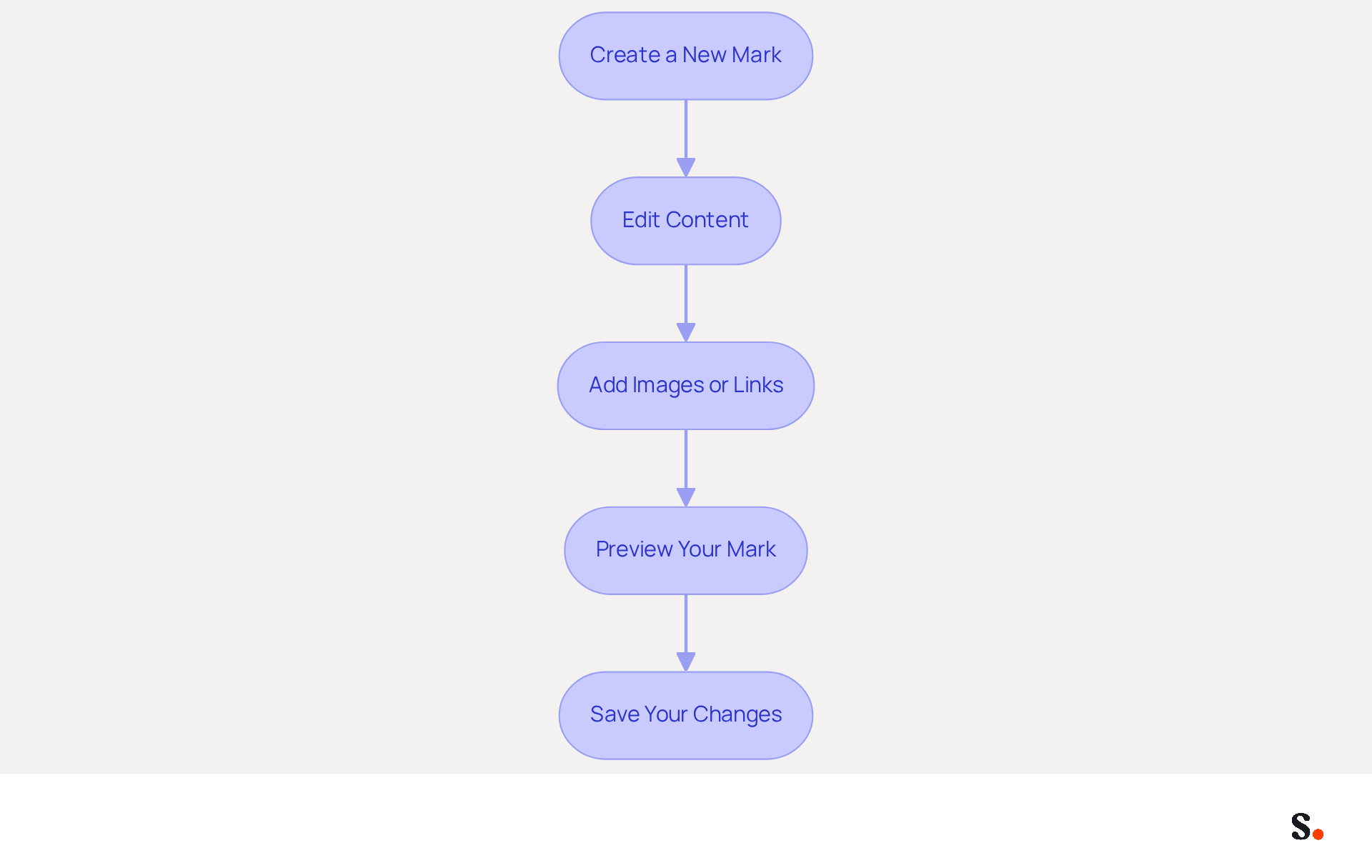
- Create a New Mark: In the Signatures and Stationery window, click on 'New' to create a new mark. Enter a name for your mark.
- Edit Content: Type your desired content for your sign-off in the editing box. Include essential details such as your name, title, organization name, and phone number. Utilize formatting options to adjust font style, size, and color to align with your branding guidelines.
- Add Images or Links: To enhance your email footer, use the 'Insert' option to add images, such as your company logo, or hyperlinks to your social media profiles. Incorporating social media links can significantly enhance engagement and visibility for your brand, as 75.8% of users include them in their profiles.
- Preview Your Mark: Ensure to preview your mark to see how it will appear in emails. Adjust as necessary until you are satisfied with the design. A well-crafted mark reflects professionalism and attention to detail. Research shows that 76% of consumers have greater trust in brands with branded identifiers, highlighting the significance of a refined design.
- Save Your Changes: Once you are satisfied with your mark, click 'OK' to save your changes. However, many professionals struggle to keep their contact details current; 44.4% of users refresh their contact details 2-4 times a year. This inconsistency can lead to missed opportunities and diminished trust. Regular updates uphold company integrity and contribute to a changer signature outlook, strengthening your professional image in every message sent.
With Scribe, any changes you make in your Aircall settings will automatically update your email signatures, ensuring consistency. By ensuring your email signature is consistently updated, you reinforce your brand's reliability and professionalism.
Save Changes and Set Default Signature
To ensure your email footer reflects your professionalism, it is essential to save your changes and set it as the default footer. Here’s how to do it:
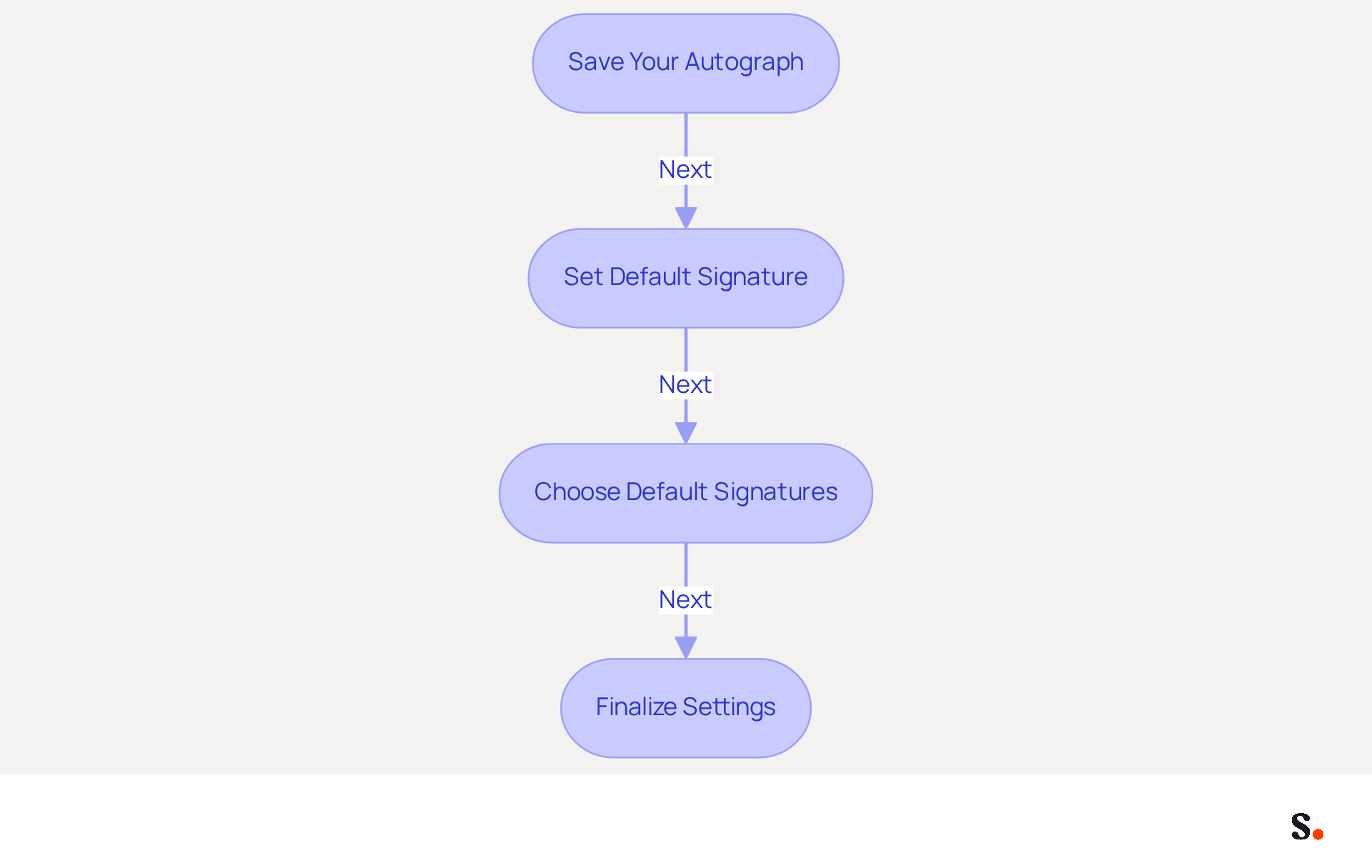
- Save Your Autograph: In the Signatures and Stationery window, click 'OK' to preserve your newly created or edited autograph.
- Set Default Signature: Back in the Signatures and Stationery window, you will see options to establish your default sign-off. Select your account from the dropdown menu.
- Choose Default Signatures: Under 'New messages', choose the mark you wish to set as the default for new correspondence. You can also select a different sign-off for replies and forwards if preferred.
- Finalize Settings: Click 'OK' to finalize your settings. Your mark will now automatically show up in your outgoing messages based on the preferences you chose.
Following these steps ensures your message footer is personalized and consistently applied, which enhances your professional image in every email. Scribe streamlines this process with automated synchronization, enabling easy updates to your identifiers without needing action from your team. To enable this, grant Scribe permission to connect with your service provider, and ensure you are a Super Admin to provide these permissions. Considering that the typical office employee sends 30-40 business messages each day, maintaining a professional and consistent closing is crucial for effective communication. Furthermore, 76% of consumers indicate heightened trust from receiving branded signatures, and companies utilizing consistent branded signatures have reported over a 22% rise in response rates. This underscores the critical role of email signatures in enhancing brand perception and communication effectiveness.
Conclusion
In the realm of professional communication, email signatures serve a purpose far beyond mere formality; they enhance brand identity and build trust. By following the outlined steps to create, edit, and manage email signatures, users can ensure their correspondence reflects professionalism and consistency. The integration of tools like Scribe further simplifies this process, allowing for real-time updates and compliance with security standards such as SOC 2 Type II, GDPR, and CCPA.
This guide underscores how crucial it is to keep email signatures updated and aligned with brand standards. Consistent messaging can lead to significant improvements in engagement rates, with studies showing a 22% increase in response rates for organizations that prioritize uniformity in their communications. Additionally, the ability to incorporate promotional elements within signatures transforms each email into a potential marketing opportunity, further amplifying brand visibility.
For organizations looking to boost their professional image and communication, managing email signatures effectively is essential. By leveraging Scribe's capabilities, businesses can achieve 100% brand consistency and measurable marketing ROI from their email signatures. Embracing these practices not only strengthens brand credibility but also positions organizations for greater success in their digital communications.
Frequently Asked Questions
What is the purpose of email signatures in Outlook?
Email signatures in Outlook serve as digital business cards, providing key information about the sender, such as their name, title, company, and contact details. They convey professionalism and reinforce brand identity.
How do email signatures impact engagement and response rates?
A well-crafted email signature provides recipients with essential contact information, which improves engagement and response rates. Research indicates that organizations with consistent messaging formats experience a 22% increase in response rates and a rise in click rates from 3% to 15%.
Can email signatures include promotional features?
Yes, email signatures can include promotional features such as social media links or calls to action, turning each message into a potential marketing opportunity.
What benefits did a multinational corporation experience by unifying its digital communication formats?
The corporation experienced a 25% rise in traffic to particular landing pages, demonstrating the impact of consistent branding.
How important are branded communication footers according to businesses and recipients?
80% of businesses acknowledge branded communication footers as vital, and 76% of recipients show increased trust in senders who utilize them.
How does Scribe enhance email management?
Scribe automates email management, ensuring that information is always up to date with real-time synchronization from your business phone system. Any modifications made in your Aircall configuration will automatically reflect in your Scribe settings.
What security measures does Scribe provide?
Scribe's SOC 2 Type II compliance guarantees that your data is handled securely, protecting against cyber threats such as phishing and data breaches.
Why is it important to regularly update and manage email signatures?
Regularly updating and managing email signatures is crucial for enhancing brand image and credibility, as well as ensuring compliance and security in communications.
List of Sources
- Understand Email Signatures in Outlook
- Exclaimer Research: 67% of Marketers Expect Email Signatures to Support With Lead Gen In 2023 (https://businesswire.com/news/home/20230612141095/en/Exclaimer-Research-67-of-Marketers-Expect-Email-Signatures-to-Support-With-Lead-Gen-In-2023)
- The impact of email signatures on your branding (https://signitic.com/en/resources/the-impact-of-email-signatures-on-your-branding)
- Email Signature Statistics: A Closer Look at Email Signatures in 2026 (https://mysignature.io/blog/email-signature-statistics)
- 40+ Email Signature Statistics for 2026 (Data + Insights) (https://wavecnct.com/blogs/email-signature-statistics)
- Access Signature Settings in Outlook
- How To Add An Email Signature in Outlook (2026) (https://hubspot.com/email-signature-generator/add-signature-outlook)
- Outlook: Adding Email Signatures (https://td.usnh.edu/TDClient/60/Portal/KB/Article/4666/Outlook-Adding-Email-Signatures)
- Outlook Statistics For 2026: Key Trends Shaping the Future (https://clean.email/blog/email-providers/outlook-statistics)
- Signature settings not available in New Outlook? - Microsoft Q&A (https://learn.microsoft.com/en-us/answers/questions/4710706/signature-settings-not-available-in-new-outlook)
- How to add and change an email signature in Outlook | Microsoft Support (https://support.microsoft.com/en-us/outlook/mail/how-to-add-and-change-an-email-signature-in-outlook)
- Create or Edit Your Email Signature
- Email Signature Statistics: A Closer Look at Email Signatures in 2026 (https://mysignature.io/blog/email-signature-statistics)
- Email Signature Essentials: Key Statistics to Know for 2023 (https://blog.hubspot.com/marketing/email-signature-statistics)
- 40+ Email Signature Statistics for 2026 (Data + Insights) (https://wavecnct.com/blogs/email-signature-statistics)
- Save Changes and Set Default Signature
- 40+ Email Signature Statistics for 2026 (Data + Insights) (https://wavecnct.com/blogs/email-signature-statistics)
- Email signature statistics: Why every business should optimize their email signatures — Stripo.email (https://stripo.email/blog/email-signature-statistics-why-every-business-should-optimize-their-email-signatures)
Get started with Scribe
Create your signature in minutes
Free 14-day trial — no credit card.