Comment faire une signature sur Outlook : Guide étape par étape
Creating an effective email signature is crucial for professionals aiming to enhance their brand's visibility and professionalism. An effective email signature
Sophie Grant
Email Signature Specialist, Scribe
On this page
- Introduction
- Understand the Basics of Email Signatures in Outlook
- Key Components of an Email Signature:
- Importance of Email Signatures:
- Create Your Professional Email Signature in Outlook
- Step 1: Open Outlook Settings
- Step 2: Access Signature Settings
- Step 3: Create a New Signature
- Step 4: Design Your Signature
- Step 5: Set Default Signatures
- Step 6: Save Your Signature
- Leverage Email Signatures for Brand Consistency and Marketing
- Consistent Branding
- Marketing Opportunities
- Tracking Performance
- Regular Updates
- Troubleshoot Common Email Signature Issues in Outlook
- Signature Not Appearing
- Formatting Issues
- Images Not Displaying
- Signature Disappearing
- Conclusion
- Frequently Asked Questions
- List of Sources
Introduction
Creating an effective email signature is crucial for professionals aiming to enhance their brand's visibility and professionalism. An effective email signature is not merely a digital sign-off; it is a vital branding tool that enhances professionalism and visibility in all communications.
Professionals must understand how to create a signature in Outlook to ensure brand consistency and capitalize on marketing opportunities. Many professionals struggle to create signatures that align with their branding goals.
What key steps can ensure that an email signature looks professional and serves as a strategic asset in digital correspondence? Without a strategic approach to email signatures, professionals risk undermining their brand's potential impact in digital communications.
Understand the Basics of Email Signatures in Outlook
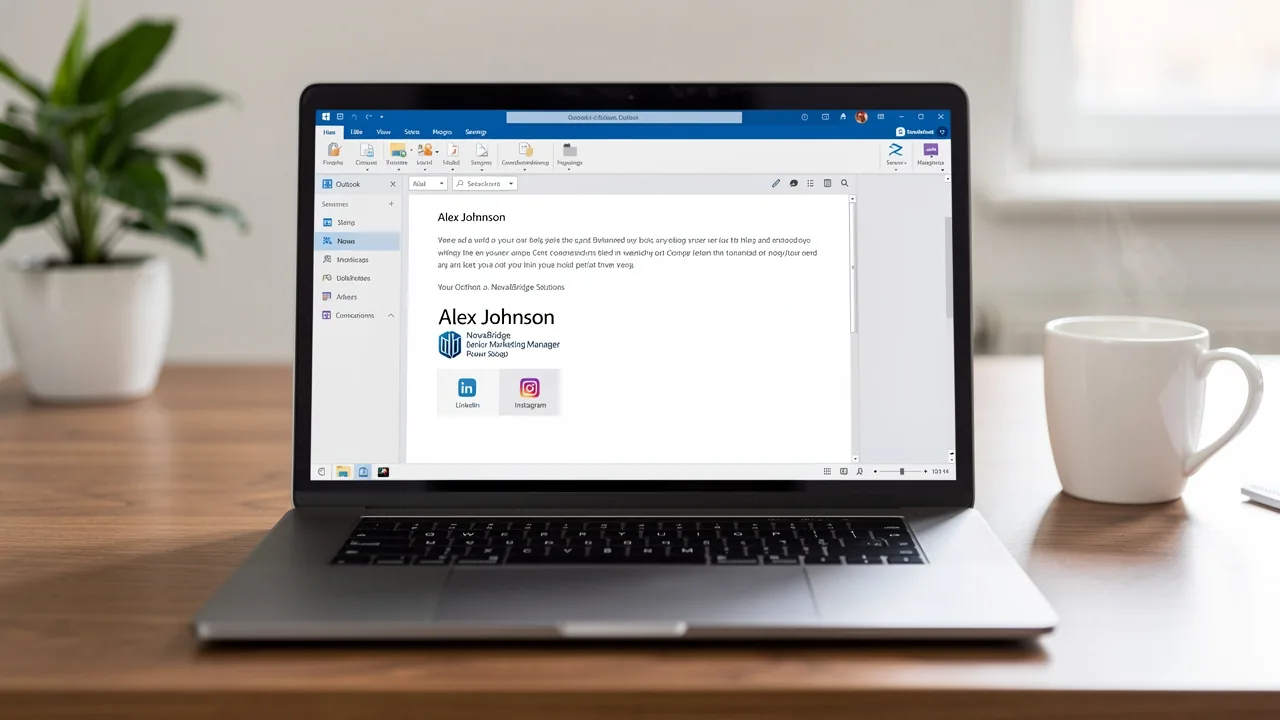
A message footer is not just an afterthought; it is a critical element of professional communication that enhances your brand's visibility. It typically includes your name, job title, company name, contact information, and often a logo or links to social media profiles. In Outlook, learning comment faire une signature sur outlook allows you to customize email footers to reflect your brand's identity, turning them into effective marketing tools.
Key Components of an Email Signature:
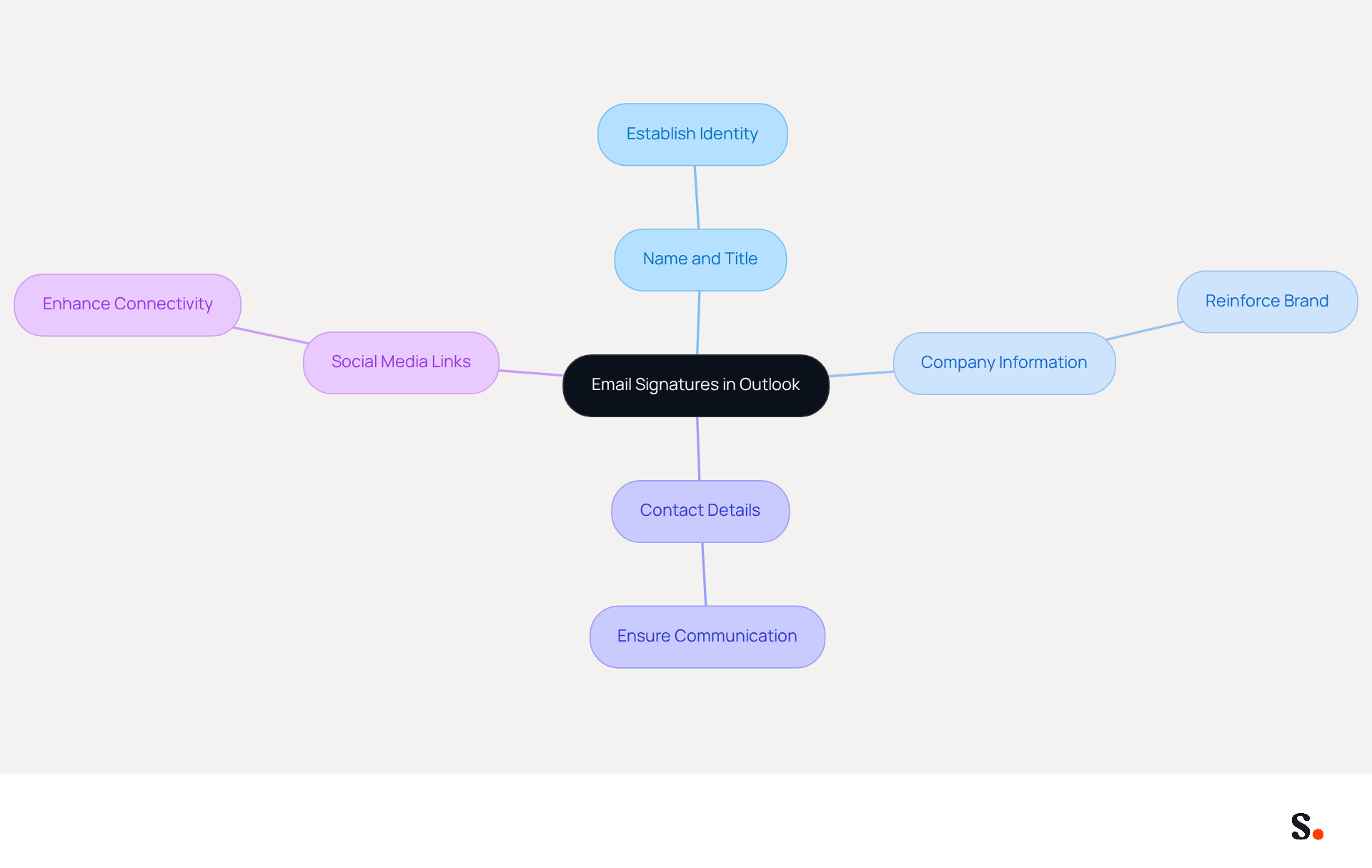
- Name and Title: Clearly state your name and position to establish identity.
- Company Information: To reinforce brand identity and recognition, include your company name and logo, which is essential when you
comment faire une signature sur outlook. - Contact Details: To ensure easy communication, provide your phone number and contact address, and if you need assistance, you can learn
comment faire une signature sur outlook. - Social Media Links: Optionally, add links to your professional social media profiles to enhance connectivity and engagement, which can be included when you learn
comment faire une signature sur outlook.
Importance of Email Signatures:
- Professionalism: A well-crafted signature conveys professionalism and attention to detail, which is essential in building trust with clients. Establishing trust with clients becomes challenging without a well-crafted signature, which is why it's important to know
comment faire une signature sur outlook. Research shows that 52% of professionals believe a strong digital identifier is crucial for effective communication. - Brand Consistency: To achieve uniform branding across all communications, it's essential to know
comment faire une signature sur outlook, which enhances brand recognition and makes it easier for clients to identify your organization. This increase in click-through rates highlights the effectiveness of consistent branding in digital communications. Organizations using branded digital identifiers often seek guidance oncomment faire une signature sur outlook, as they see a 15% rise in website click-through rates compared to those lacking them. - Marketing Opportunities: Digital correspondences can include promotional banners or calls to action, effectively transforming every message into a marketing opportunity. Dynamic digital identifiers have demonstrated an average click-through rate of 4%, considerably higher than conventional marketing messages.
Understanding these basics helps you see how a professional email signature in Scribe can enhance communication and serve as a strategic marketing tool, as well as how to comment faire une signature sur outlook.
Create Your Professional Email Signature in Outlook
It is essential for effective communication and brand consistency to understand comment faire une signature sur Outlook. To create your email signature in Outlook, follow these steps:
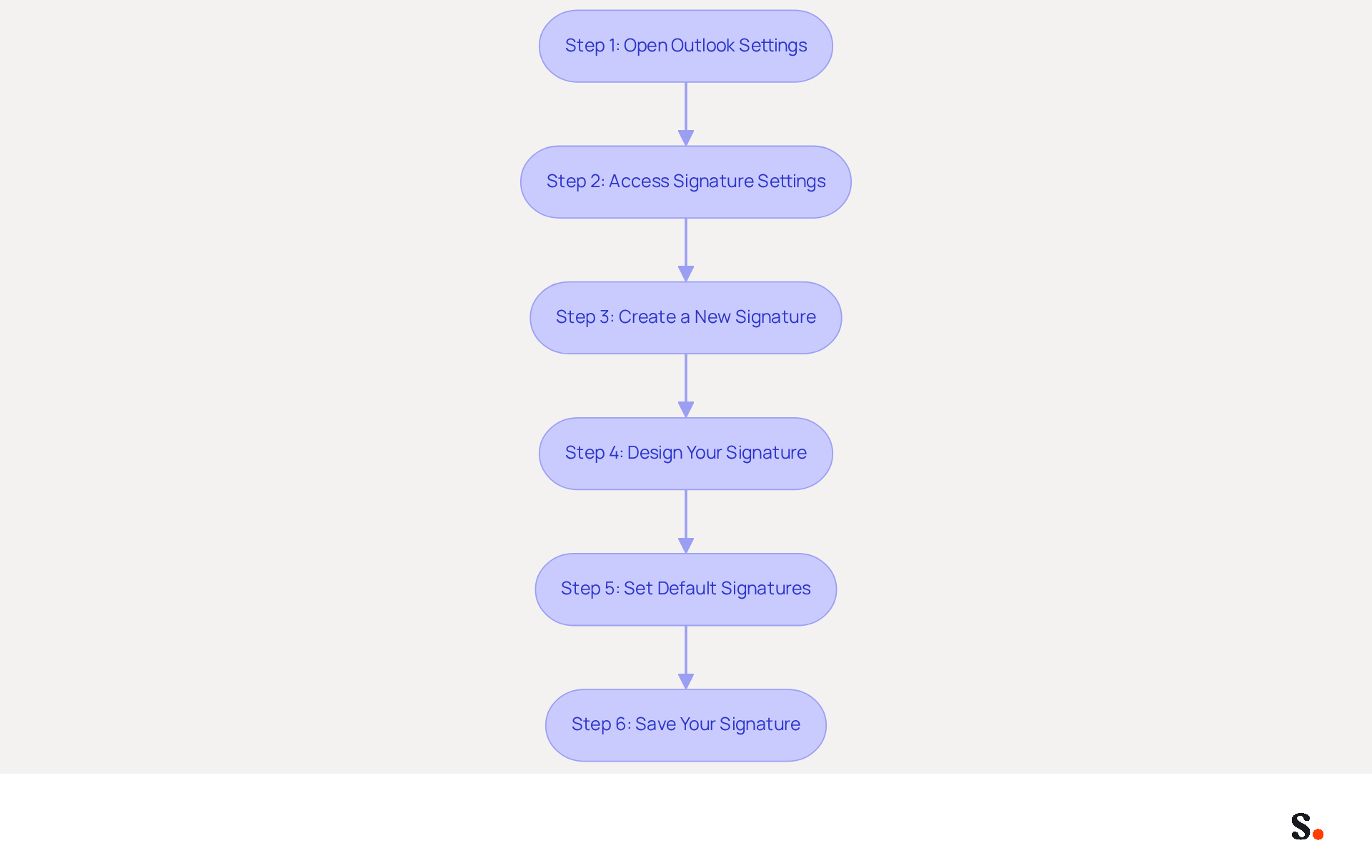
Step 1: Open Outlook Settings
- Launch the email application and click on the File tab in the top left corner.
- Select Options from the menu.
Step 2: Access Signature Settings
- In the Outlook Options window, click on Mail in the left sidebar to understand comment faire une signature sur outlook.
- To understand comment faire une signature sur outlook, click on the Signatures... button located in the Compose messages section.
Step 3: Create a New Signature
- In the Signatures and Stationery window, click on New to understand comment faire une signature sur outlook.
- Enter a name for your sign-off (e.g., 'Professional Sign-off') and click OK.
Step 4: Design Your Signature
- In the Edit signature box, type your desired content. You can format the text using the formatting toolbar (font, size, color, etc.).
- To add images (like your logo), click on the Insert Picture icon and select the image file from your computer.
Step 5: Set Default Signatures
- Under Choose default option, you can learn comment faire une signature sur outlook by selecting your email account from the dropdown menu.
- Set your new identifier as the default for new messages and/or replies/forwards if desired.
Step 6: Save Your Signature
- Click OK to save your settings.
- Close the Outlook Options window.
By following these steps on comment faire une signature sur outlook, your email signature will seamlessly integrate into your outgoing messages, enhancing your communication with a polished and branded touch. By integrating Scribe, any modifications made in your Google Workspace will automatically sync with your correspondence identifiers, saving you time and ensuring brand consistency across all communications. This synchronization not only simplifies the management of your correspondence identifiers but also ensures adherence to SOC 2 Type II and GDPR, addressing critical data security issues. Branded digital identifiers can result in a 22% increase in response rates and a 15% rise in click-through rates to company websites, making them an essential tool for effective communication. Furthermore, a typical company with 100 employees produces between 60,000 to 80,000 branded impressions each month, highlighting the potential of email branding as a high-ROI channel. Without a streamlined approach to email signature management, companies risk losing valuable branding opportunities and engagement with their audience.
Leverage Email Signatures for Brand Consistency and Marketing
Email identifiers are essential tools that can significantly enhance your branding and marketing efforts. Here’s how to leverage them effectively:
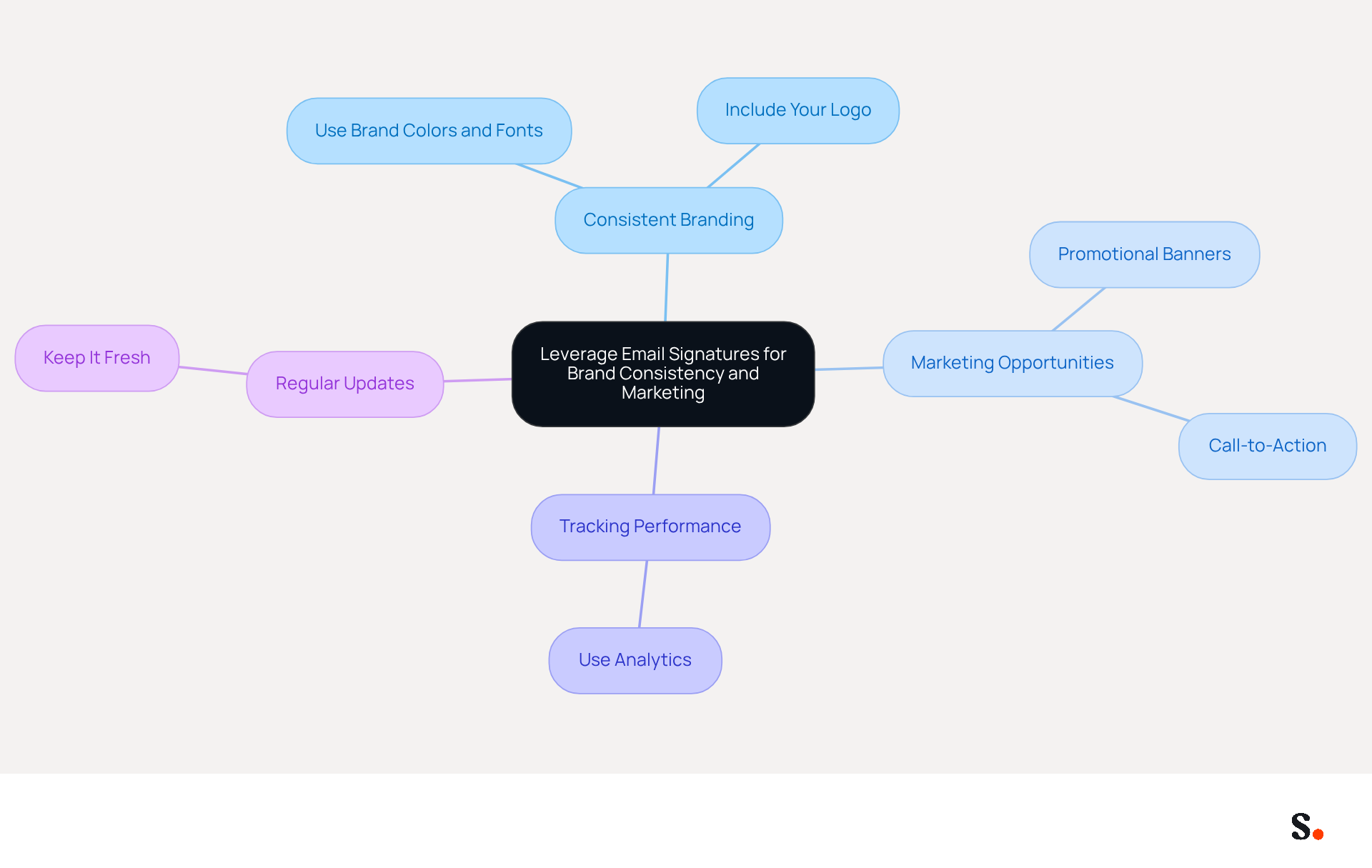
Consistent Branding
- Use Brand Colors and Fonts: Ensure that your signature reflects your brand’s visual identity by consistently applying your brand colors and fonts. This uniformity enhances recognition and trust among recipients.
- Include Your Logo: Adding your company logo reinforces brand recognition and professionalism, making your communications instantly identifiable.
Marketing Opportunities
- Promotional Banners: Incorporate a banner that highlights current offers or events. This approach can significantly boost traffic and engagement, with digital identifiers achieving an average click-through rate of 4%, which is higher than traditional marketing messages. With Scribe, every modification made in your Aircall configuration will automatically be reflected in your correspondence templates, ensuring that your promotional content is always current.
- Call-to-Action (CTA): Integrate a clear CTA, such as “Schedule a Meeting” or “Visit Our Website,” to encourage recipients to take action. This strategy can boost engagement and result in higher conversions, with marketing campaigns utilizing digital signatures demonstrating a 15% rise in leads.
Tracking Performance
- Use Analytics: If your email signature includes links, implement tracking parameters to analyze click-through rates and engagement. This information is crucial for enhancing future marketing approaches and showcasing ROI, as effective digital identifiers can produce quantifiable outcomes, including a 22% rise in clicks.
Regular Updates
- Keep It Fresh: Failing to update your signature can lead to missed opportunities and outdated information. Regularly update your signature to reflect new promotions, changes in contact information, or branding updates. This strategy ensures your signature remains relevant and effective, enabling you to leverage every message as a marketing opportunity.
By neglecting these strategies, you risk losing potential engagement and brand recognition. When you use your email signature strategically, you not only enhance brand consistency but also transform each message into a valuable marketing tool, especially with Scribe's automated synchronization features.
Troubleshoot Common Email Signature Issues in Outlook
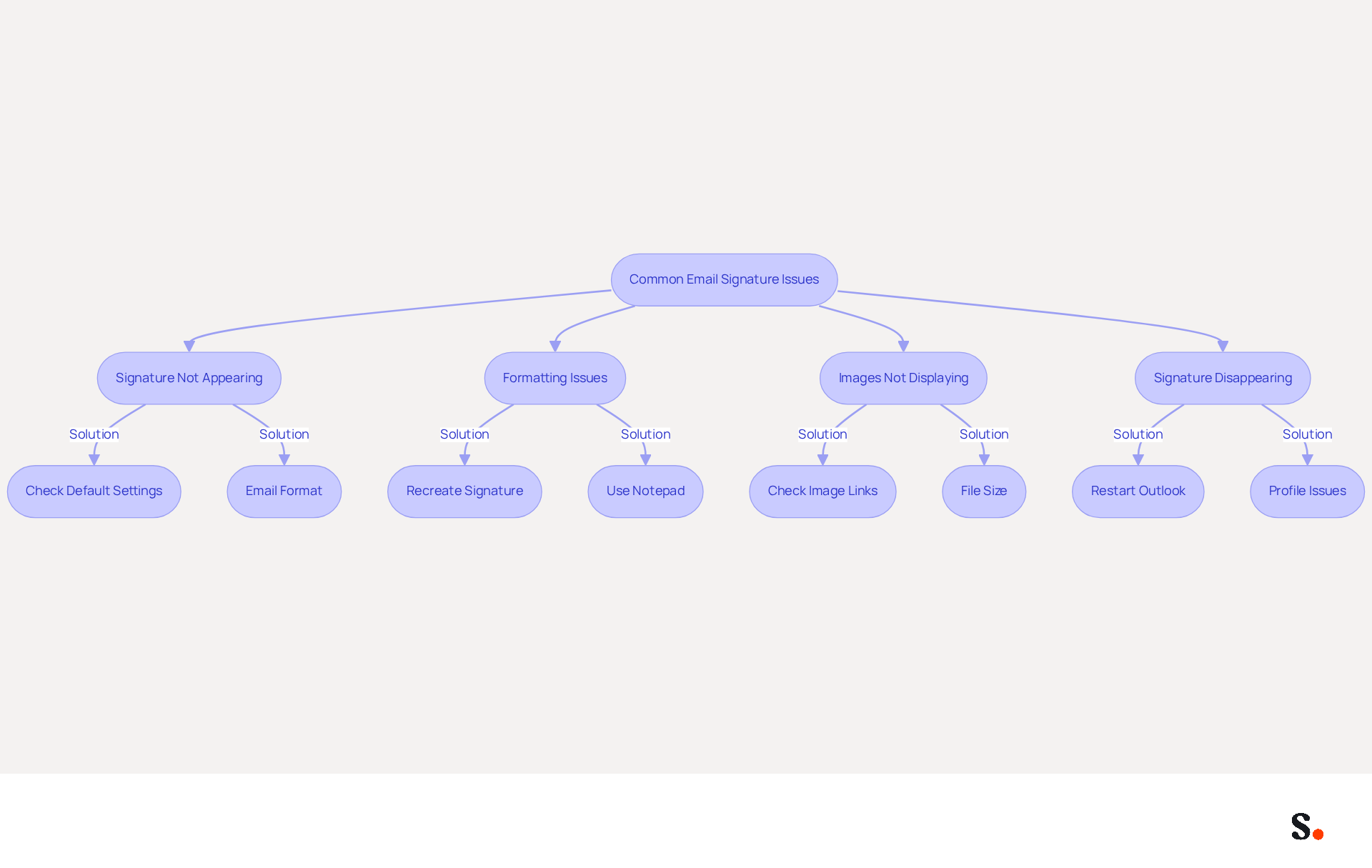
Even with a well-configured messaging footer, challenges can still arise that impact your email professionalism. Here are some common problems and their solutions:
Signature Not Appearing
- Check Default Settings: First, check your default settings to ensure your signature is set for new emails and replies. Navigate to File > Options > Mail > Signatures to verify this setting. Research shows that 90% of the time, signatures don’t appear because they aren’t set as the default.
- Email Format: Make sure you are composing emails in HTML format, as plain text may not display images or formatting correctly.
Formatting Issues
- Recreate Signature: If your signature appears misaligned or improperly formatted, misalignment can undermine your professional image, making it crucial to address formatting issues promptly. Try recreating it. Use the Shift + Enter key to create line breaks without adding extra spacing. This can help resolve double spacing issues that undermine professionalism.
- Use Notepad: If you copy text from another source, it may carry hidden formatting. Paste it into Notepad first to strip any formatting, then copy it back into the signature editor to ensure a clean format.
Images Not Displaying
- Check Image Links: If you are using images hosted online, ensure the links are correct and accessible. For local files, confirm they are saved in a compatible format (e.g., PNG, JPEG). Large visuals can also cause Outlook to freeze during lengthy conversations, so optimizing graphics for web use is essential.
- File Size: Large pictures may not display correctly. Optimize images for web use to ensure they load properly and do not hinder email performance.
Signature Disappearing
- Restart Outlook: Sometimes, simply restarting Outlook can resolve temporary glitches that cause signatures to disappear.
- Profile Issues: If the problem continues, consider creating a new email profile to reset settings. This method can effectively resolve issues with signature alignment across devices, ensuring consistency. Furthermore, be mindful that the 'signature cloud settings' feature in Outlook can replace previously established message identifiers, which may lead to vanishing signatures. To address this, disabling Roaming Identifiers via the Registry or switching to a central management solution like Scribe can effectively resolve this issue. By syncing your Google Workspace with Scribe, any changes in your team’s information will be automatically reflected, saving you time and ensuring consistency.
Implementing these solutions not only resolves issues but also reinforces your commitment to effective communication.
Conclusion
A professional email signature in Outlook is more than just a technical detail; it is a crucial element of effective communication and brand representation. By mastering the steps to design and implement a signature, individuals can enhance their professional image while ensuring brand consistency across all email interactions.
Throughout this guide, we have highlighted the importance of email signatures, emphasizing their role in establishing professionalism, reinforcing brand identity, and providing marketing opportunities. Key components such as including contact details, social media links, and promotional banners can significantly impact engagement and recognition. However, many professionals struggle with ensuring their signatures function correctly across different platforms. Troubleshooting common issues is essential to maintain functionality and effectiveness, allowing for seamless communication.
A well-designed email signature turns each email into a powerful branding tool, highlighting the need for professionals to focus on this critical element of their communication. By using tools like Scribe, organizations can keep their email signatures consistent and compliant with important standards such as SOC 2 Type II, GDPR, and CCPA. Embracing these practices will not only enhance individual professionalism but also strengthen their organization's brand presence in an increasingly digital world.
Frequently Asked Questions
What is the purpose of an email signature in Outlook?
An email signature is a critical element of professional communication that enhances brand visibility. It typically includes your name, job title, company name, contact information, and often a logo or links to social media profiles.
What are the key components of an email signature?
The key components of an email signature include your name and title, company information (name and logo), contact details (phone number and address), and optional social media links.
Why are email signatures important for professionalism?
A well-crafted email signature conveys professionalism and attention to detail, which is essential for building trust with clients. Research indicates that 52% of professionals believe a strong digital identifier is crucial for effective communication.
How do email signatures contribute to brand consistency?
Email signatures help achieve uniform branding across all communications, enhancing brand recognition and making it easier for clients to identify your organization. Consistent branding can lead to a 15% rise in website click-through rates.
Can email signatures be used for marketing purposes?
Yes, email signatures can include promotional banners or calls to action, transforming every message into a marketing opportunity. Dynamic digital identifiers have shown an average click-through rate of 4%, which is significantly higher than conventional marketing messages.
How can I customize my email signature in Outlook?
You can customize your email signature in Outlook by following specific steps to include your name, title, company information, contact details, and optional social media links, effectively reflecting your brand's identity.
List of Sources
- Understand the Basics of Email Signatures in Outlook
- 40+ Email Signature Statistics for 2026 (Data + Insights) (https://wavecnct.com/blogs/email-signature-statistics)
- Email Signature Trends 2026: Centralized Control & Automation | SIGNandGO posted on the topic | LinkedIn (https://linkedin.com/posts/signngo_email-signature-trends-to-watch-in-2026-activity-7401523471786217473-zAVL)
- Email signature statistics: Why every business should optimize their email signatures — Stripo.email (https://stripo.email/blog/email-signature-statistics-why-every-business-should-optimize-their-email-signatures)
- Why Team Email Signatures Matter More Than You Think: The Hidden Impact on Brand Trust and Customer Experience (https://getmailbird.com/why-team-email-signatures-matter-brand-trust)
- Why Email Signatures Must Be In Your 2026 Marketing Plan | Rocketseed (https://rocketseed.com/blog/2026-marketing-plan-email-signatures)
- Create Your Professional Email Signature in Outlook
- Email Signature Essentials: Key Statistics to Know for 2023 (https://blog.hubspot.com/marketing/email-signature-statistics)
- Email Signature Statistics: A Closer Look at Email Signatures in 2026 (https://mysignature.io/blog/email-signature-statistics)
- Email signature statistics and trends in 2024 (https://wisestamp.com/blog/email-signature-statistics)
- 40+ Email Signature Statistics for 2026 (Data + Insights) (https://wavecnct.com/blogs/email-signature-statistics)
- Email signature statistics: Why every business should optimize their email signatures — Stripo.email (https://stripo.email/blog/email-signature-statistics-why-every-business-should-optimize-their-email-signatures)
- Leverage Email Signatures for Brand Consistency and Marketing
- 12 clever ways to use your email signature to support your marketing campaigns (https://blog.hubspot.com/blog/tabid/6307/bid/31054/10-clever-ways-your-email-signature-can-support-your-marketing.aspx)
- 2026 Marketing Trends: Email Signatures as a Marketing Tool (https://bluechiptt.com/blog/5-marketing-trends-for-2026-and-how-your-email-signature-fits-in)
- 6 Ways to Use Email Signature to Support Marketing Campaigns (https://clearout.io/blog/use-email-signature-to-support-marketing-campaigns)
- 10 ideas for marketing campaigns in email signatures (https://signitic.com/en/resources/10-ideas-for-marketing-campaigns-in-email-signatures)
- Why Email Signatures Must Be In Your 2026 Marketing Plan | Rocketseed (https://rocketseed.com/blog/2026-marketing-plan-email-signatures)
- Troubleshoot Common Email Signature Issues in Outlook
- How to solve problems with email signatures in Microsoft 365? (https://mail-signatures.com/articles/problems-email-signatures-office-365)
- Outlook Signature Disappears? 6 Common Problems + Fixes (https://conbool.com/blog/outlook-signature-disappears-fixes-problems)
- 4 Steps to Fix Your Outlook Signature Not Showing Issues (https://scribe-mail.com/en-US/blog/4-steps-to-fix-your-outlook-signature-not-showing-issues)
- Fix My Email Signature Not Showing in Outlook: 4 Easy Steps (https://scribe-mail.com/en-US/blog/fix-my-email-signature-not-showing-in-outlook-4-easy-steps)
- Outlook Signature Not Working in Office 365: Causes & Fixes (https://exclaimer.com/email-signature-handbook/outlook-signature-not-working-in-office-365)
Get started with Scribe
Create your signature in minutes
Free 14-day trial — no credit card.