Create a Microsoft Word Email Signature Template in 5 Easy Steps
Despite the importance of email signatures, many professionals find the process daunting. Crafting a professional email signature is more than just a digital
Sophie Grant
Email Signature Specialist, Scribe
On this page
- Introduction
- Understand the Importance of Email Signatures
- Gather Essential Information for Your Signature
- Create Your Email Signature Template in Microsoft Word
- Customize Your Signature for Brand Consistency
- Implement Your Signature in Microsoft Outlook
- Conclusion
- Frequently Asked Questions
- List of Sources
Introduction
Despite the importance of email signatures, many professionals find the process daunting. Crafting a professional email signature is more than just a digital sign-off; it’s a vital component of brand identity and communication strategy. A well-designed signature not only enhances brand recognition but also serves as a marketing tool that can drive engagement and establish professionalism.
However, many professionals struggle with the intricacies of creating an effective email signature template in Microsoft Word. Failing to create an effective signature can lead to missed opportunities for brand engagement and professionalism.
In this guide, we’ll explore the essential steps to create a compelling email signature template that resonates with your audience and reinforces your brand.
Understand the Importance of Email Signatures
Many professionals overlook the significance of email footers, yet they play a crucial role in shaping career identity. A well-designed email signature serves multiple purposes:
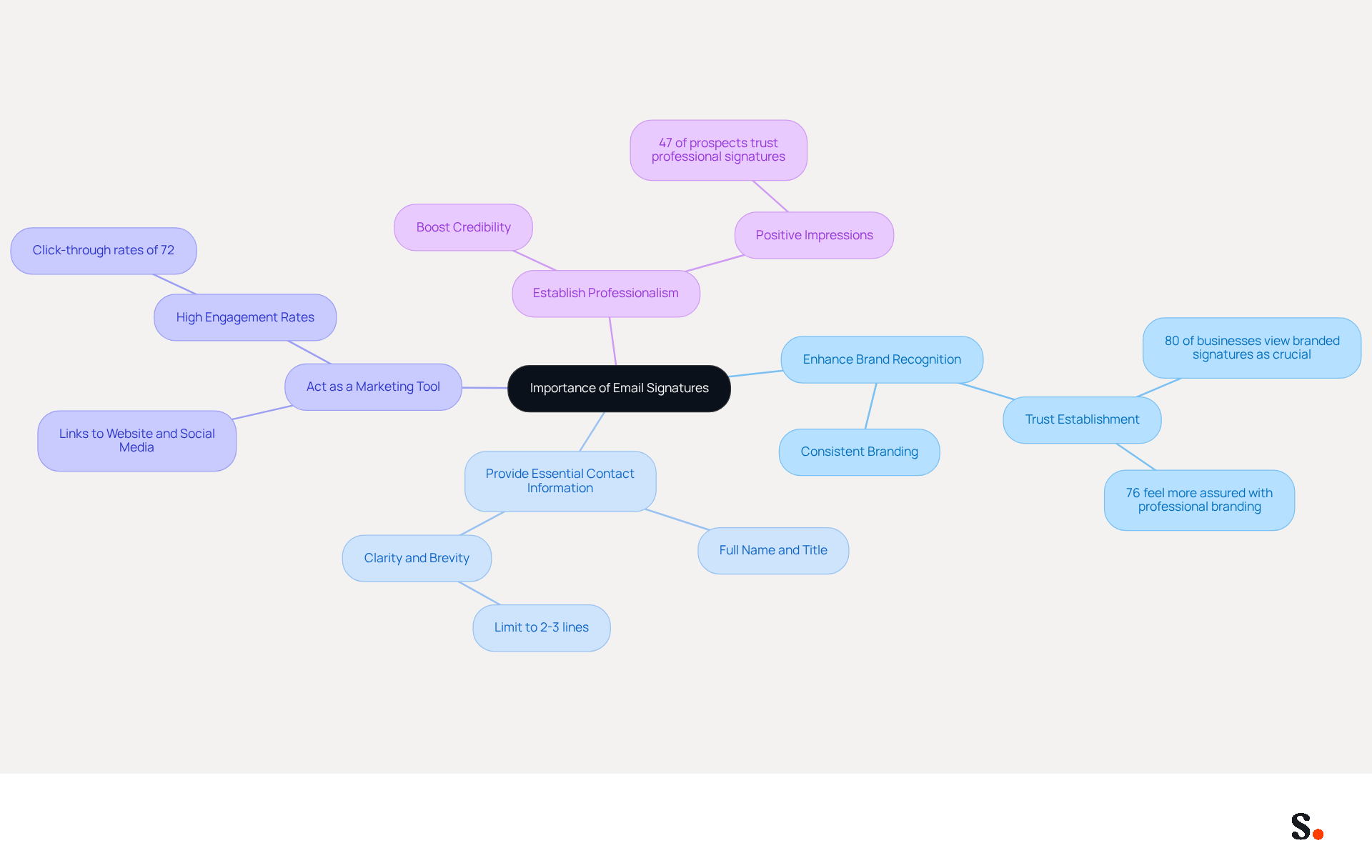
- Enhance Brand Recognition: Consistent application of logos, colors, and fonts reinforces your brand identity with every email sent. For instance, 80% of businesses view branded electronic identifiers as crucial for establishing trust, while 76% of recipients feel more assured when receiving messages from senders with professional branding.
- Provide Essential Contact Information: Including your full name, title, and contact details ensures recipients can easily reach you. A well-organized sign-off should prioritize clarity and brevity, ideally limited to two to three lines of text, to avoid overwhelming the reader.
- Act as a Marketing Tool: Signatures can incorporate links to your website, social media, or promotional campaigns, transforming every message into a potential marketing opportunity. This strategic alignment can lead to increased engagement, with click-through rates from email footers reaching as high as 72%.
- Establish Professionalism: A polished email signature not only boosts your credibility but also leaves a great impression on clients and colleagues. Regular use of professional identifiers can enhance perception of Scribe, with 47% of prospects indicating that such identifiers increase their trust in the sender.
By recognizing these advantages, you can appreciate the significance of investing time in creating an effective digital identifier that not only reflects your brand but also serves as a powerful marketing tool.
Gather Essential Information for Your Signature
Before embarking on the design of your email signature, it is crucial to gather essential information that will enhance its effectiveness:
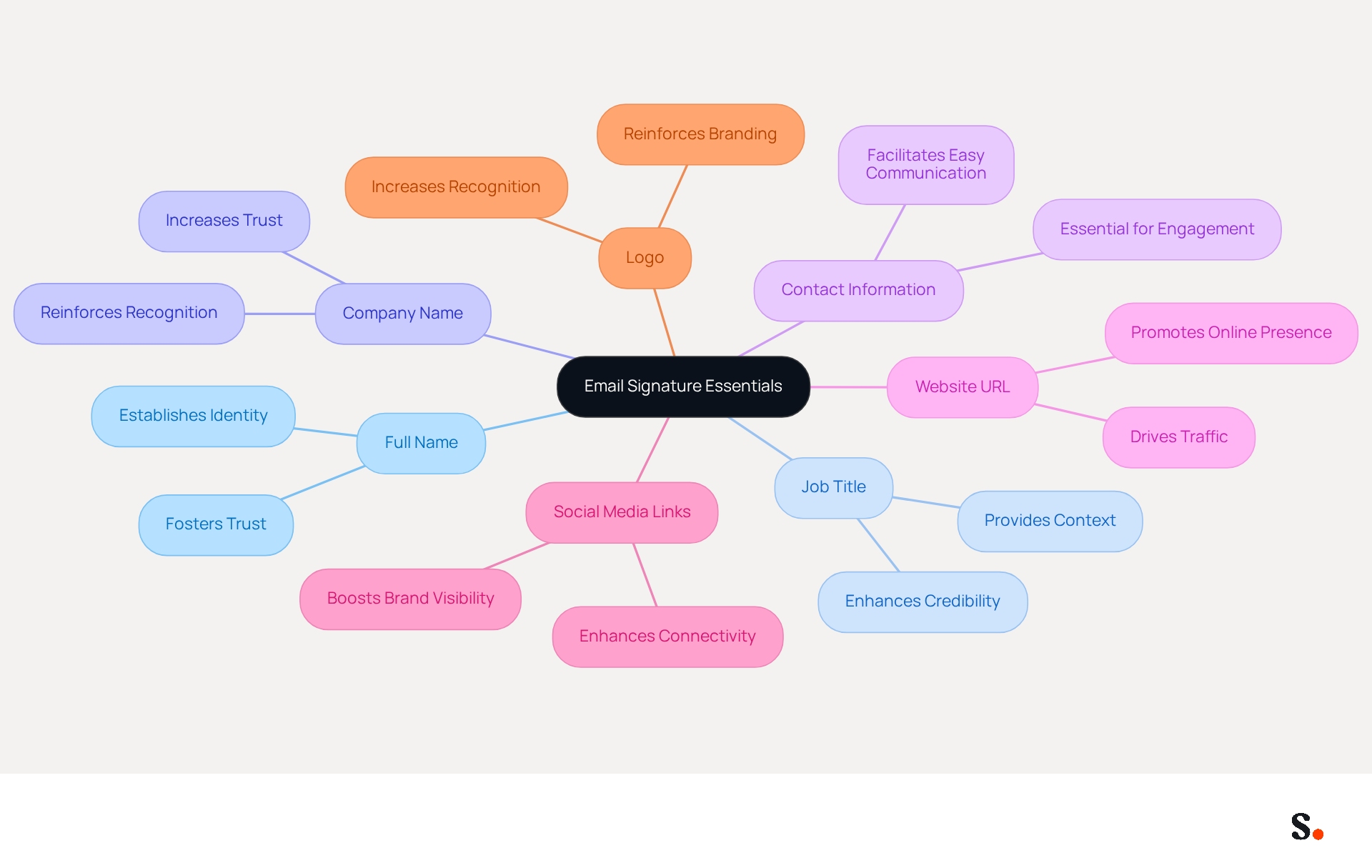
- Full Name: Your first and last name should be prominently displayed.
- Job Title: Include your current position to provide context to your recipients.
- Company Name: Clearly state the name of your organization.
- Contact Information: Add your phone number and email address for easy communication.
- Website URL: Link to your company’s website to drive traffic.
- Social Media Links: Include links to work-related social media profiles, such as LinkedIn, to enhance connectivity.
- Logo: If applicable, include your company logo to reinforce branding.
When you have this information ready, it makes crafting your signature much easier. Plus, linking your Google Workspace with Scribe saves you time, as any updates to your team’s details will automatically reflect in your emails. This smooth integration not only improves consistency across your identity but also enables effortless management of your digital identifiers, ensuring that your marketing efforts are always aligned.
Create Your Email Signature Template in Microsoft Word
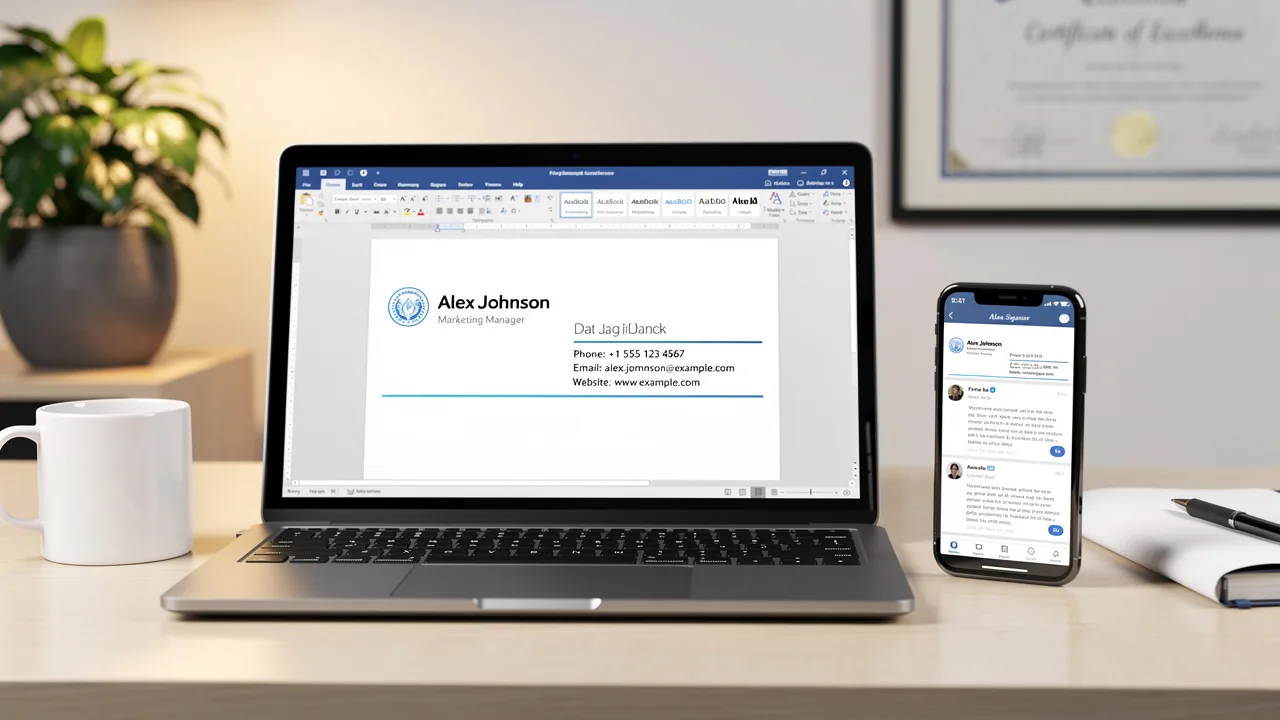
Creating a professional microsoft word email signature template can significantly enhance your brand's identity and communication effectiveness.
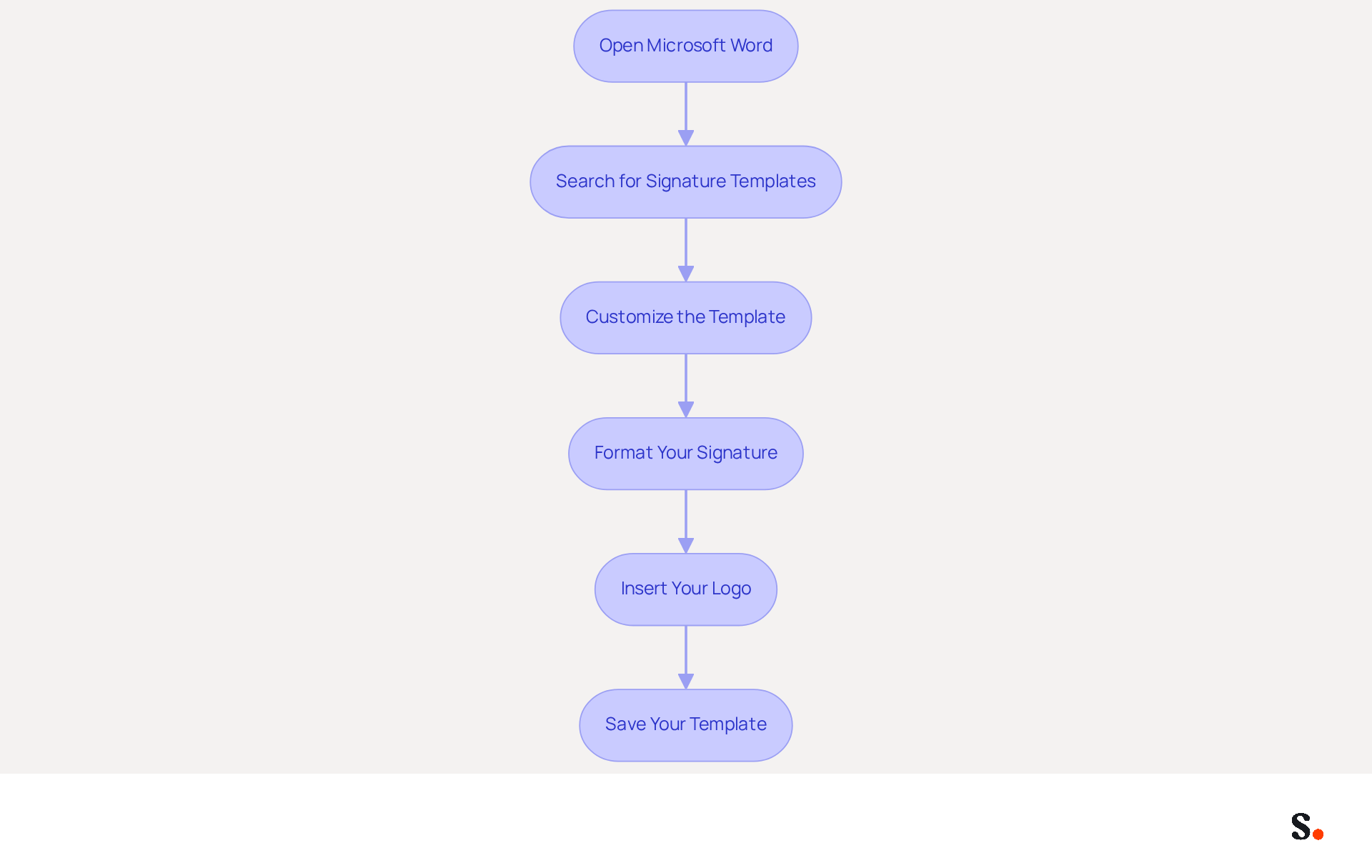
- Open Microsoft Word: Launch the application and create a new document.
- Search for Signature Templates: Navigate to the 'File' menu, select 'New', and search for 'Email Signature' templates. Choose one that aligns with your branding style.
- Customize the Template: Double-click on the selected template to open it. Replace the placeholder text with your information, including your name, title, and contact details.
- Format Your Signature: Adjust the font, size, and colors to adhere to your brand guidelines. Ensure the layout is tidy and polished, with a recommended font size of 14-16px for readability. Maintain a line height of 1.5 and include 10-15px padding between elements for optimal white space.
- Insert Your Logo: If applicable, insert your logo by clicking 'Insert' > 'Pictures' and selecting your logo file. Resize it appropriately to maintain a balanced design.
- Save Your Template: Once satisfied with your design, save the document as a Word template for future use. Before copying the signature to Outlook, remember to remove the table borders for a cleaner appearance.
Following these steps will result in a professional microsoft word email signature template that enhances your brand's communication and identity. Scribe's automated management ensures that your email identifiers are consistently synchronized with your business phone system, enhancing operational efficiency. This automated management not only saves time but also guarantees brand consistency across all communications. Additionally, Scribe's SOC 2 Type II compliance ensures that your data is handled securely. In 2026, consider incorporating dynamic elements, as dynamic digital identifiers are anticipated to replace static ones, and ensure mobile compatibility to maximize engagement. Effective endorsements can drive up to 40% higher click rates through strategic call-to-action placement. Embracing these advancements will not only streamline your communication but also position your brand at the forefront of digital engagement strategies.
Customize Your Signature for Brand Consistency
Without a well-crafted email signature, your brand risks losing recognition and professionalism. To ensure your email signature consistently reflects your brand, consider the following customization tips:
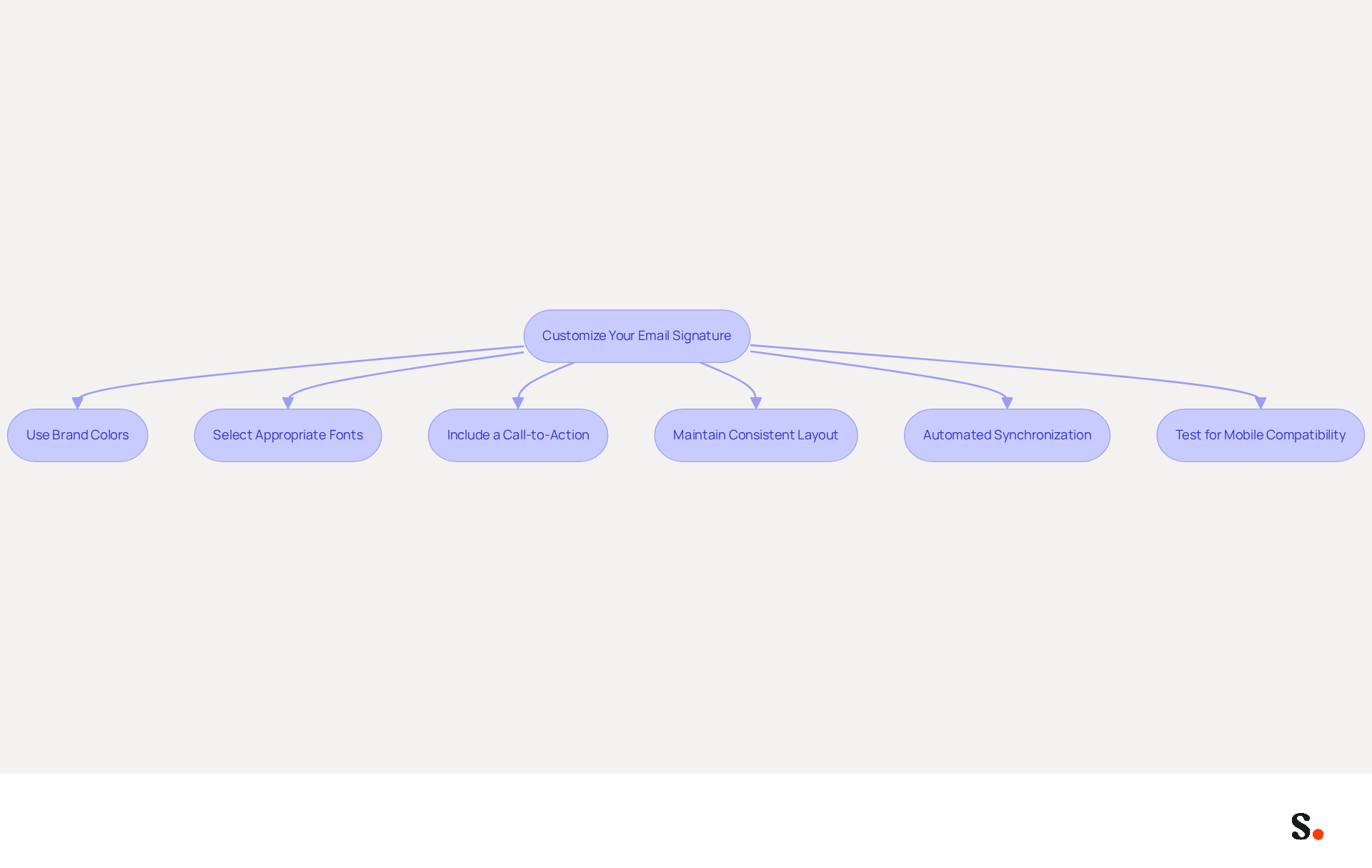
- Use Brand Colors: Incorporate your company’s color palette into the signature design. This can be applied to text, borders, or background colors, reinforcing identity.
- Select Appropriate Fonts: Choose fonts that align with your brand’s typography. Opt for easy-to-read and professional styles to maintain a polished appearance.
- Include a Call-to-Action: Add a call-to-action (CTA) button or link, such as 'Schedule a Meeting' or 'Visit Our Website', to encourage engagement and drive traffic.
- Maintain Consistent Layout: Ensure that the layout of your branding is uniform with other marketing materials. This includes consistent spacing, alignment, and overall design to enhance professionalism.
- Automated Synchronization: Leverage Scribe's integration with Aircall and Calendly to ensure that any changes made in your Aircall configuration are automatically reflected in your correspondence. This smooth synchronization keeps everything consistent and saves you valuable time, allowing your marketing team to focus on other strategic initiatives.
- Test for Mobile Compatibility: Verify how your mark appears on mobile devices to ensure it remains professional and readable, as a significant portion of messages are accessed on smartphones.
By personalizing your branding with these tips and utilizing Scribe's automated synchronization features, you will reinforce your brand identity in every communication, ultimately enhancing professionalism and engagement. Implementing these strategies will not only enhance your brand's visibility but also foster stronger connections with your audience.
Implement Your Signature in Microsoft Outlook
To effectively implement your newly created email signature in Microsoft Outlook, follow these straightforward steps:
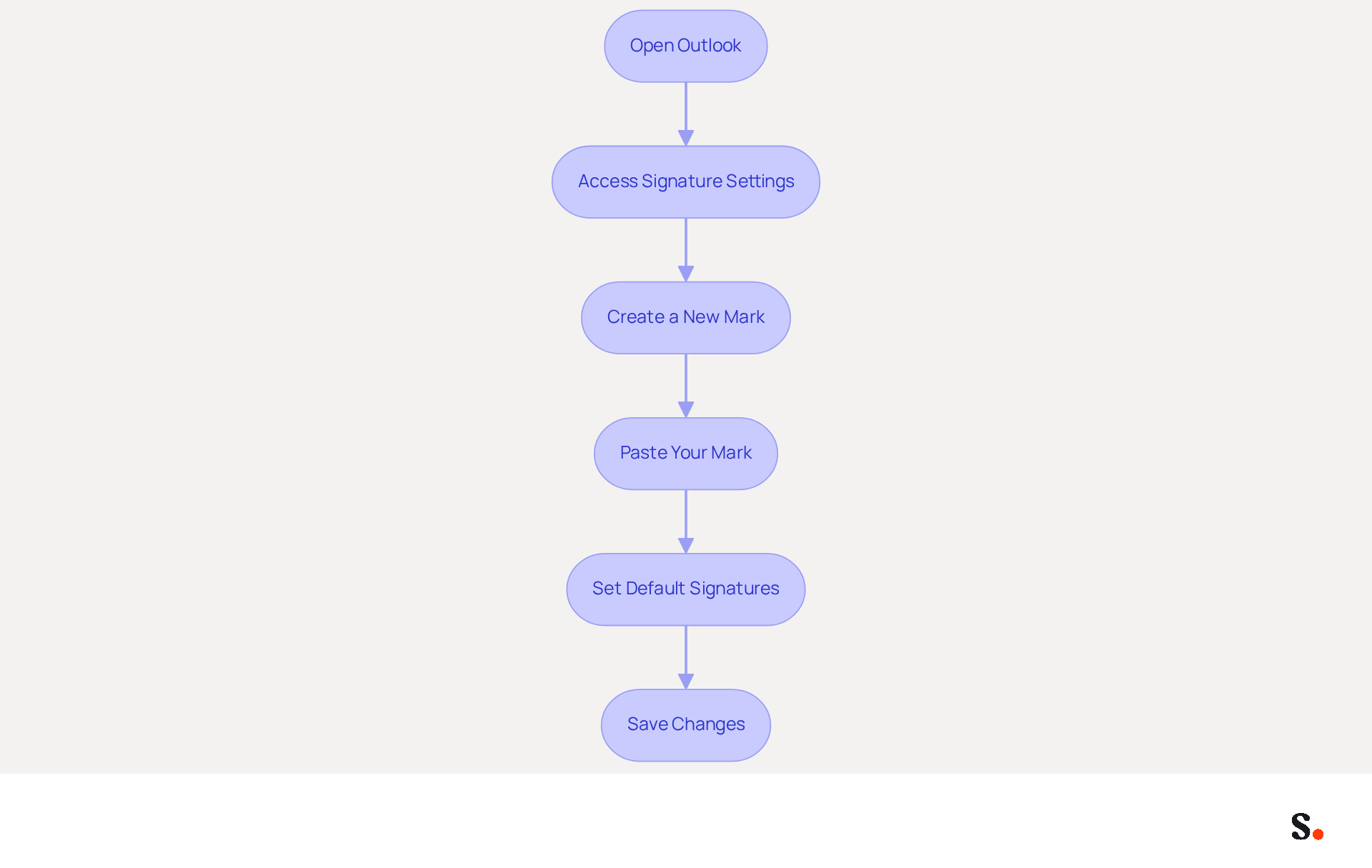
- Open Outlook: Launch the Microsoft Outlook application on your computer.
- Access Signature Settings: Click on 'File' > 'Options' > 'Mail' > 'Signatures'.
- Create a New Mark: In the Signatures and Stationery dialog box, click 'New' and give your mark a name.
- Paste Your Mark: Open your Word document with the template, select all (Ctrl + A), and copy (Ctrl + C). Then, paste (Ctrl + V) it into the 'Edit label' box in Outlook.
- Set Default Signatures: Select your new sign-off as the default for new messages and replies/forwards if desired.
- Save Changes: Click 'OK' to preserve your new settings.
By following these steps, your correspondence footer will be successfully integrated into Outlook, ready to enhance your professional communications. Studies indicate that a well-crafted email signature can boost sender trust by as much as 57%. Furthermore, with over 50% of messages accessed on mobile devices, ensuring your closing is optimized for mobile is essential for effective communication. To enhance your email signature effectively, keep it concise (4-6 lines max) and ensure accessibility with a minimum font size of 11px and a color contrast ratio of at least 4.5:1. Testing your identifier across various messaging platforms is also advised to ensure compatibility and avoid formatting problems.
Moreover, by syncing your Google Workspace with Scribe, you can save time and ensure that any modifications made to your teammates' information are automatically reflected in their communication details. This seamless integration not only enhances brand consistency but also allows for effortless updates, ensuring that your communications remain professional and current. Additionally, integrating with Calendly enables automatic updates to your scheduling links in email footers, further enhancing your communication. Scribe's SOC 2 Type II compliance guarantees secure data handling, making it a reliable choice for organizations looking to streamline their email signature management.
Conclusion
Crafting a professional email signature template in Microsoft Word is more than just a design choice; it’s a strategic decision that can significantly impact brand perception. Following these steps allows professionals to transform their email signatures into effective tools for brand recognition and essential communication, reinforcing their professionalism.
The article emphasizes the importance of gathering essential information, customizing the signature for brand consistency, and implementing it seamlessly in Microsoft Outlook. Key insights include:
- The necessity of using brand colors and fonts
- Incorporating calls-to-action
- Ensuring mobile compatibility
Additionally, leveraging tools like Scribe for automated synchronization can significantly streamline the management of email signatures, ensuring that branding remains consistent across all communications.
Investing time in a well-crafted email signature can truly elevate a professional's communication strategy. By embracing these best practices, individuals can not only improve their brand visibility but also foster stronger connections with their audience. As digital communication evolves, a well-crafted email signature will be essential for maintaining a competitive edge in professional branding.
Frequently Asked Questions
Why are email signatures important for professionals?
Email signatures play a crucial role in shaping career identity, enhancing brand recognition, providing essential contact information, acting as a marketing tool, and establishing professionalism.
How do email signatures enhance brand recognition?
Consistent application of logos, colors, and fonts in email signatures reinforces brand identity, with 80% of businesses viewing branded electronic identifiers as crucial for establishing trust.
What essential contact information should be included in an email signature?
An email signature should include your full name, job title, company name, phone number, email address, website URL, and links to work-related social media profiles.
How can email signatures act as a marketing tool?
Email signatures can incorporate links to websites, social media, or promotional campaigns, turning every message into a potential marketing opportunity, with click-through rates from email footers reaching as high as 72%.
What impression does a polished email signature leave on clients and colleagues?
A polished email signature boosts credibility and leaves a great impression, with 47% of prospects indicating that professional identifiers increase their trust in the sender.
What information should I gather before designing my email signature?
You should gather your full name, job title, company name, contact information, website URL, social media links, and company logo if applicable.
How does linking Google Workspace with Scribe benefit email signature management?
Linking Google Workspace with Scribe allows for automatic updates to your team’s details, improving consistency across your identity and enabling effortless management of digital identifiers.
List of Sources
- Understand the Importance of Email Signatures
- Research Recap: Branded Email Signatures Increase Company Recognition, Trust - Demand Gen Report (https://demandgenreport.com/industry-news/research-recap-branded-email-signatures-increase-company-recognition-trust/47252)
- 4 Best Practices for Your Company Email Signature Strategy (https://scribe-mail.com/en-US/blog/4-best-practices-for-your-company-email-signature-strategy)
- How email signatures can drive brand awareness and organic traffic - NEWOLDSTAMP (https://newoldstamp.com/blog/email-signature-brand-awareness)
- Why Email Signatures Must Be In Your 2026 Marketing Plan | Rocketseed (https://rocketseed.com/blog/2026-marketing-plan-email-signatures)
- The impact of email signatures on your branding (https://signitic.com/en/resources/the-impact-of-email-signatures-on-your-branding)
- Gather Essential Information for Your Signature
- 4 Best Practices for Your Company Email Signature Strategy (https://scribe-mail.com/en-US/blog/4-best-practices-for-your-company-email-signature-strategy)
- Best Email Signature Examples (2026) (https://signatureforemail.com/blog/view/best-email-signature-examples-2026)
- The ultimate guide to email signatures in 2026 (https://signitic.com/en/resources/email-signature)
- Email Signature Best Practices for 2026 (+ 15 Pro Examples) (https://wavecnct.com/blogs/email-signature-best-practices-2026)
- Best practices for business email signatures in 2026 (https://bybrand.io/blog/best-practices)
- Create Your Email Signature Template in Microsoft Word
- Email Signature Best Practices for 2026 (+ 15 Pro Examples) (https://wavecnct.com/blogs/email-signature-best-practices-2026)
- Email signature statistics and trends in 2024 (https://wisestamp.com/blog/email-signature-statistics)
- Email Signature Trends 2026: What Designers Are Actually Using (https://markaplugin.com/blog/email-signature-trends-2026)
- How to create a professional signature in Microsoft Word for Outlook - TechRepublic (https://techrepublic.com/article/how-to-signature-microsoft-word-outlook)
- Email Signature Best Practices - NEWOLDSTAMP (https://newoldstamp.com/blog/email-signature-best-practices)
- Customize Your Signature for Brand Consistency
- Top email signature trends for companies in 2026 (https://bybrand.io/blog/trends-email-signatures)
- Top 10+ best practices for email signatures design in 2026 (https://mysignature.io/blog/email-signature-best-practices)
- Email Signature Best Practices for 2026 (+ 15 Pro Examples) (https://wavecnct.com/blogs/email-signature-best-practices-2026)
- Why Email Signatures Must Be In Your 2026 Marketing Plan | Rocketseed (https://rocketseed.com/blog/2026-marketing-plan-email-signatures)
- Implement Your Signature in Microsoft Outlook
- How to add and change an email signature in Outlook | Microsoft Support (https://support.microsoft.com/en-us/outlook/mail/how-to-add-and-change-an-email-signature-in-outlook)
- New email signature management and editor features in Outlook on the web | Topedia Blog (https://blog-en.topedia.com/2026/01/new-email-signature-management-and-editor-features-in-outlook-on-the-web)
- How to Add Email Signature in Outlook Desktop (2026) (https://wavecnct.com/blogs/email-signature-in-outlook-desktop)
- How to Update Your Outlook Signature (2026) (https://getinboxzero.com/blog/post/how-to-update-signature-in-outlook)
- How to Add a Signature in Outlook (2026 Microsoft Guide) | Reclaim (https://reclaim.ai/blog/how-to-add-a-signature-in-outlook)
Get started with Scribe
Build a professional email signature
Free 14-day trial — no credit card.