Create an Outlook Email Signature Template in 5 Simple Steps
A professional email signature serves as a crucial branding tool that shapes business perception. With the right Outlook email signature template
Sophie Grant
Email Signature Specialist, Scribe
On this page
- Introduction
- Understand the Importance of Email Signatures for Branding
- Create Your Email Signature Template in Outlook
- Incorporate Branding Elements to Enhance Your Signature
- Integrate Your Signature with Email Clients and Tools
- Troubleshoot Common Issues with Your Email Signature
- Conclusion
- Frequently Asked Questions
- List of Sources
Introduction
A professional email signature serves as a crucial branding tool that shapes business perception. With the right Outlook email signature template, organizations can enhance their professionalism, increase brand awareness, and even drive marketing initiatives with every email sent. Many professionals find it challenging to create a signature that effectively represents their brand.
How can one ensure that their email signature not only looks polished but also serves as a strategic asset in their communication toolkit?
In this guide, we’ll explore the key steps to crafting an effective Outlook email signature template that boosts your brand's presence and credibility with every email.
Understand the Importance of Email Signatures for Branding
Email identifiers are crucial for shaping your brand's digital presence and can significantly influence perceptions of professionalism. A well-designed outlook email signature template serves multiple purposes that can elevate your brand.
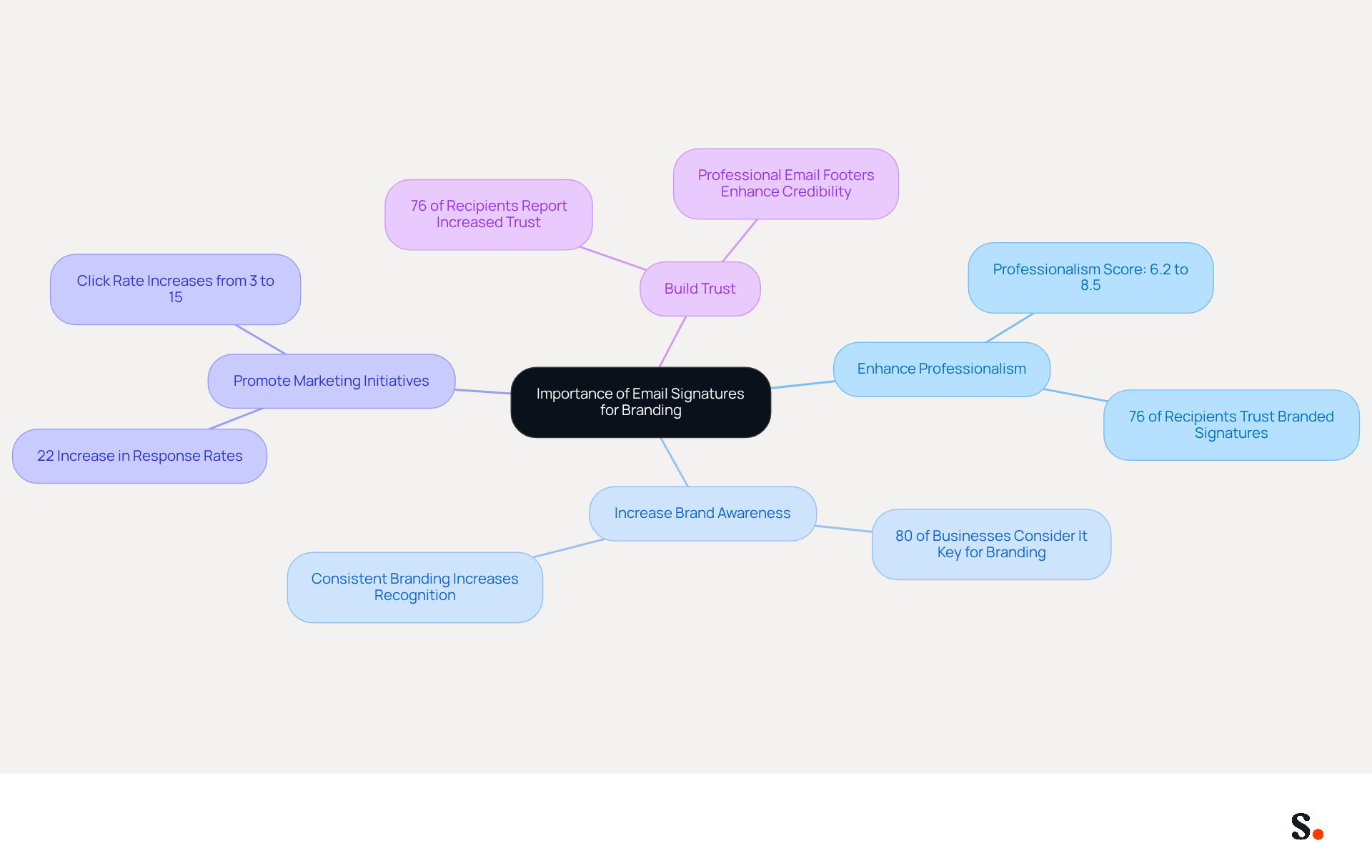
- Enhance Professionalism: Consistent branding in email signatures conveys professionalism and meticulous attention to detail. Businesses that employ branded identifiers report an increase in their professionalism score from 6.2 to 8.5 out of 10. Furthermore, 76% of recipients indicate heightened trust in senders with branded identifiers.
- Increase Brand Awareness: Incorporating your company logo, tagline, and contact information reinforces brand recognition with every message sent. In fact, 80% of businesses consider a branded digital identifier as a key component for branding.
- Promote Marketing Initiatives: Digital correspondences can include links to your latest campaigns, social media profiles, or even a call-to-action, transforming every message into a marketing opportunity. Organizations that implement consistent branding see a 22% rise in response rates, and the click rate to websites from messages with branded elements increases from 3% to 15%, demonstrating a clear increase in engagement metrics.
- Build Trust: A professional email footer enhances credibility and fosters trust with recipients, making them more likely to engage with your content. Research shows that 76% of recipients report increased trust in senders with branded identifiers.
By utilizing this tool, businesses can easily manage their outlook email signature template, ensuring that their team's signatures are always up-to-date and consistent. By syncing with your business phone system, Scribe allows for effortless updates, reflecting any changes made in your Aircall configuration in real-time. This not only enhances consistency but also ensures compliance with SOC 2 Type II standards, safeguarding your data. As mentioned, "Email footers are more than just endings - they are strategic marketing tools that strengthen your identity and support core business goals." By recognizing these advantages, you can value the importance of investing time in creating an effective message template that not only represents your brand but also acts as a strategic marketing asset.
Create Your Email Signature Template in Outlook
Creating an Outlook email signature template is essential for effective communication and branding. To create your email signature template in Outlook, follow these steps:
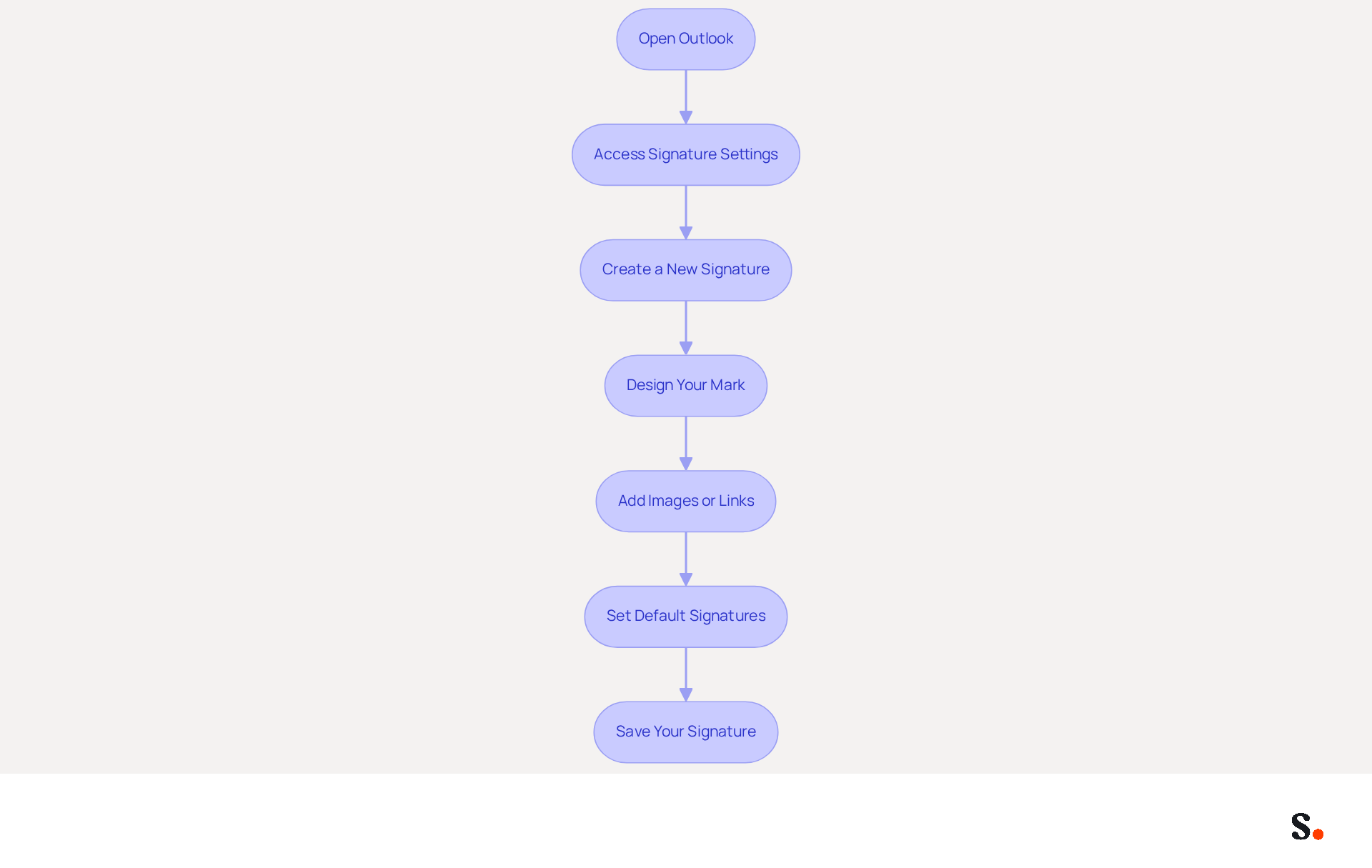
- Open Outlook: Launch the Outlook application on your computer.
- Access Signature Settings: Click on 'File' in the top-left corner, then select 'Options'. In the Mail category, click on 'Signatures'.
- Create a New Signature: In the Signatures and Stationery window, click 'New'. Enter a name for your mark and click 'OK'.
- Design Your Mark: In the editing box, type your desired content for your mark. Include fundamental identity elements such as your full name, job title, and company name, as these components are crucial in professional correspondence. You can format the text using the available options (font, size, color).
- Add Images or Links: To include a logo or image, click on the image icon and upload your file. For links, highlight the text and click the hyperlink icon to add a URL. Adding social media icons can boost audience engagement; studies show that 76% of consumers trust brands that communicate consistently.
- Set Default Signatures: Choose your new sign-off as the default for new messages and replies/forwards if desired. Outlook allows multiple identifiers for different accounts, enabling customized communication.
- Save Your Signature: Click 'OK' to save your changes and exit the settings.
Following these steps will equip you with a polished Outlook email signature template that enhances your professional image. Regularly refreshing your identifier is crucial; it's important to note that many users refresh their digital identifiers several times a year, which helps maintain brand consistency. Furthermore, organizations that uphold consistent branded digital identifiers report over a 22% increase in response rates, emphasizing the effect of a well-crafted mark on engagement. With Scribe, you can automate the handling of these endorsements, ensuring that any updates are effortlessly synced from your HRIS, preserving uniformity across your organization. Scribe's SOC 2 Type II compliance ensures that your data is managed securely, making it the perfect solution for organizations pursuing 100% consistency in identity and measurable marketing ROI from digital representations.
Incorporate Branding Elements to Enhance Your Signature
To effectively convey your brand identity through email signatures, it is essential to incorporate key elements that resonate with your audience:
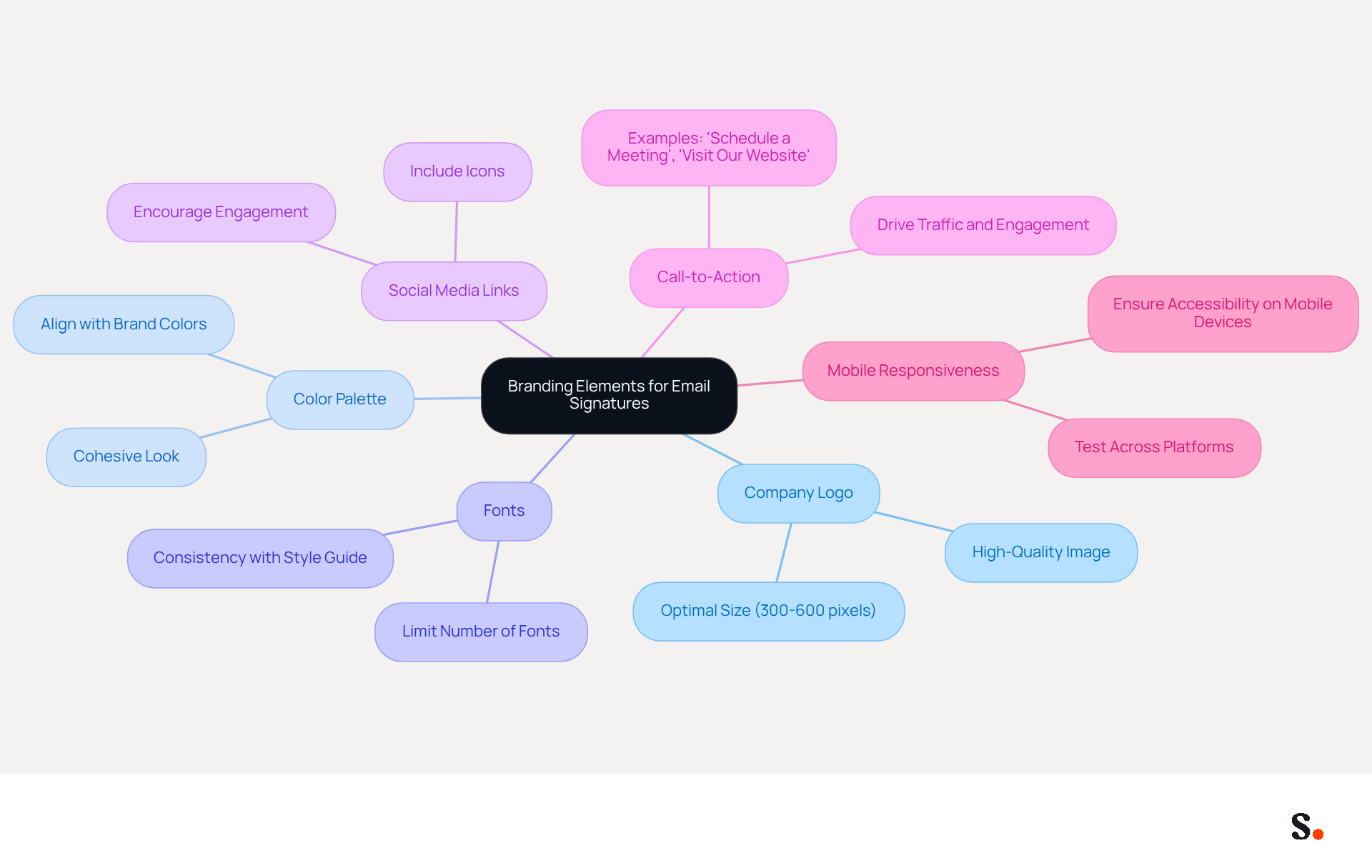
- Company Logo: A high-quality logo image enhances brand recognition. Aim for a size between 300-600 pixels wide to maintain clarity and avoid distortion.
- Color Palette: Incorporate your color scheme into the text and background of your Scribe for a cohesive look that aligns with your overall marketing strategy.
- Fonts: Select fonts that are consistent with your brand's style guide. Limiting the number of different fonts will help maintain a clean and professional look.
- Social Media Links: Include icons that link to your company’s social media profiles. This encourages engagement and helps connect with your audience across platforms.
- Call-to-Action: Adding a call-to-action button or link, such as 'Schedule a Meeting' or 'Visit Our Website', can significantly drive traffic and enhance engagement.
- Mobile Responsiveness: Ensure that your email footer is mobile-responsive, as a significant number of emails are opened on mobile devices. This ensures that key information is accessible regardless of the device used.
Furthermore, with Scribe's automated synchronization with Aircall, any modifications made in your Aircall configuration will automatically be reflected in your Scribe profiles. This feature saves time and ensures brand consistency across all communications.
When you thoughtfully incorporate these elements, your correspondence not only looks professional but also becomes a powerful branding tool. Statistics show that 80% of businesses view branded electronic identifiers as essential for branding. Additionally, 76% of recipients feel that branded markers increase trust in the sender. By implementing these strategies, businesses can elevate their brand presence and foster greater trust with their audience. Ultimately, a well-crafted email signature can serve as a vital touchpoint in building lasting relationships with your clients and prospects.
Integrate Your Signature with Email Clients and Tools
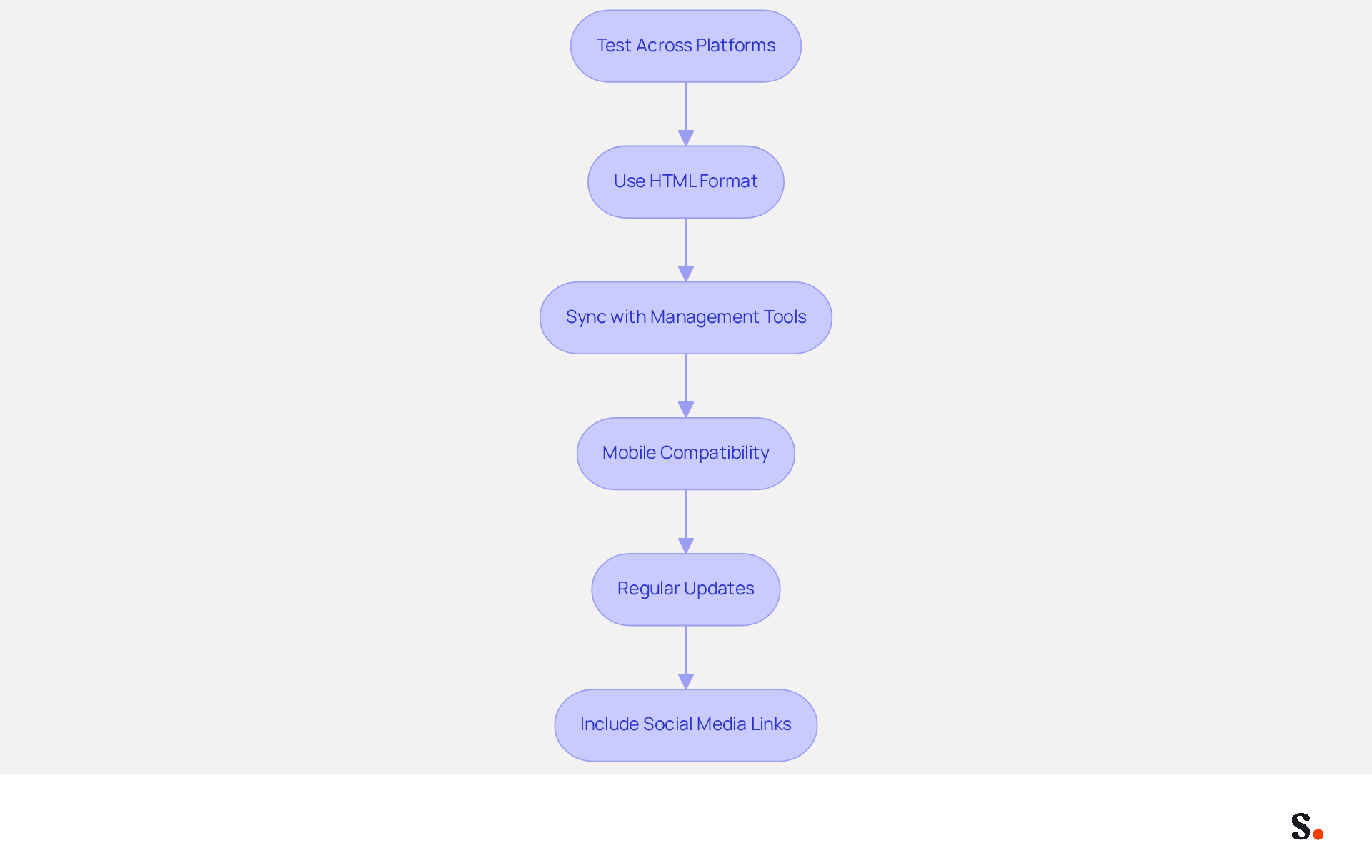
To achieve a seamless integration of your email signature across various platforms, it is essential to follow specific steps:
- Test Across Platforms: Send test messages to accounts on various platforms such as Gmail, Yahoo, and Apple Mail to evaluate how your identifier appears. Adjust formatting as necessary to maintain consistency. Emails featuring branded designs see a 22% higher response rate compared to those that do not. This underscores the importance of a well-integrated design.
- Use HTML Format: For email footers that include images or complex formatting, consider using HTML. This format ensures proper display across all clients. You can create an HTML email footer using a code editor or an online generator.
- Sync with Management Tools: If you utilize management tools, ensure your signature is uploaded and synced correctly. Without proper integration, managing email signatures can become cumbersome and error-prone. By granting access to connect with your Google Workspace, you can simplify one-click synchronization, enabling automatic updates and ensuring consistency across all emails sent from your organization. This integration streamlines the process, ensuring that any changes in your Google Workspace-like moving teammates or updating their information-are automatically reflected. Additionally, Scribe is SOC 2 Type II compliant and adheres to GDPR and CCPA standards, ensuring the safety of your data. Notably, 28.7% of businesses leverage digital identifiers to boost their branding and awareness efforts, making this step essential.
- Mobile Compatibility: Check how your mark appears on mobile devices. Considering that many users access messages on their phones, ensure your closing is adaptable and visually appealing on smaller screens.
- Regular Updates: Periodically review and update your personal mark to reflect any changes in branding or contact information. Significantly, 44.4% of professionals refresh their contact details 2-4 times annually, highlighting the necessity for regular assessments to ensure effectiveness. Keeping your mark up to date enhances its effectiveness and maintains brand integrity. Additionally, be mindful of any legal obligations for electronic communications that may differ by location or sector.
- Include Social Media Links: Enhance networking opportunities by adding social media links in your correspondence footer. This practice is common and can significantly improve engagement with recipients.
Neglecting these steps could result in lost branding opportunities and diminished professional presence.
Troubleshoot Common Issues with Your Email Signature
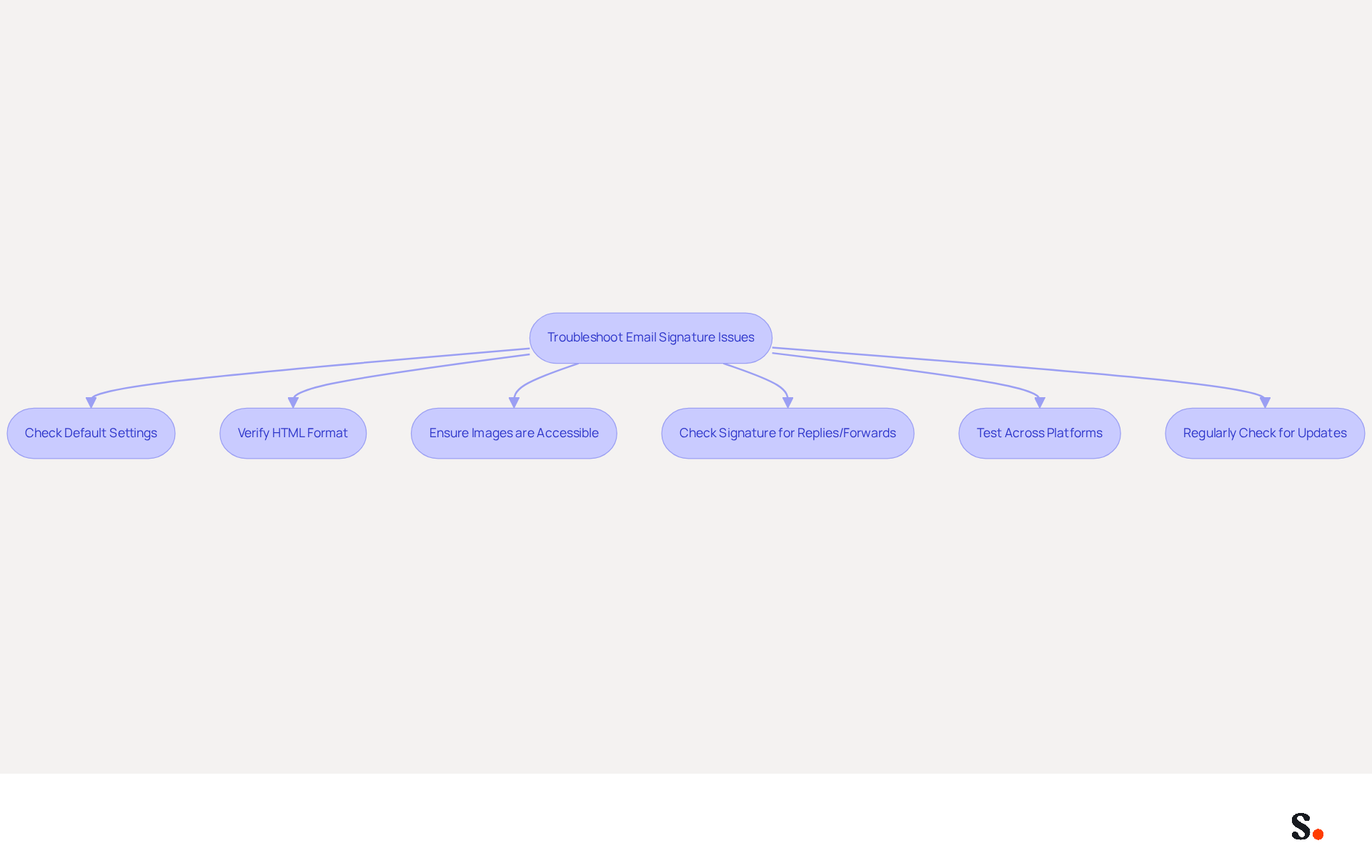
Encountering issues with your email signature can undermine your professional image. If your signature is not displaying, ensure it is set as the default for new messages and replies/forwards in the signature settings. This step is often overlooked by users, which can lead to confusion. With Scribe's automated synchronization with Aircall, any changes made in your Aircall configuration will automatically reflect in your Scribe branding, ensuring brand consistency.
If your mark appears differently when sent, verify that you are using HTML format. Many users struggle with maintaining consistent formatting across different email clients. Scribe's automated updates assist in reducing formatting problems, ensuring your mark appears professional across all communications.
Ensure that images are hosted online and accessible. If you are embedding images, confirm they are properly sized and formatted to avoid display issues. Images not displaying can cause considerable delays for employees and IT departments alike. Scribe's adherence to SOC 2 Type II standards guarantees secure management of your assets.
Check your settings to ensure the mark is enabled for replies and forwards. You may need to reselect it in the settings, as this is a common oversight. Experts agree that a well-configured Outlook email signature template is crucial for maintaining a professional image. Scribe's integration with Aircall helps prevent such oversights by keeping your identifiers updated automatically.
Test your mark in various messaging platforms and adjust the formatting as needed. Using standard fonts and sizes can help maintain a consistent appearance, reducing the likelihood of issues. Regularly checking for updates ensures that your messaging application is functioning correctly and that your personal mark displays as intended. Scribe's automated management enables seamless updates, ensuring your organization's professionalism is maintained in every communication.
By implementing these solutions, you not only resolve common issues but also reinforce your brand's professionalism in every interaction.
Conclusion
An effective Outlook email signature template is essential for establishing a strong brand identity and professionalism. By implementing the strategies discussed, businesses can transform their email signatures into powerful branding tools that reinforce their image with every correspondence.
However, many organizations struggle with ensuring their email signatures are consistent across platforms, making integration and troubleshooting essential. This automation not only saves time but also mitigates risks associated with outdated information, further enhancing branding efforts.
Ultimately, taking the time to craft a well-designed email signature template can really change how your brand is perceived and how engaged your audience feels. Investing in a well-crafted email signature template can redefine how your brand is perceived in every interaction.
Frequently Asked Questions
Why are email signatures important for branding?
Email signatures are crucial for shaping a brand's digital presence and can significantly influence perceptions of professionalism. A well-designed email signature enhances professionalism, increases brand awareness, promotes marketing initiatives, and builds trust with recipients.
How does a branded email signature enhance professionalism?
Consistent branding in email signatures conveys professionalism and attention to detail. Businesses with branded identifiers report an increase in their professionalism score from 6.2 to 8.5 out of 10, and 76% of recipients indicate heightened trust in senders with branded identifiers.
What elements should be included in an email signature?
An email signature should include fundamental identity elements such as your full name, job title, company name, logo, tagline, and contact information. Additionally, links to social media profiles and marketing campaigns can be included to enhance engagement.
How can email signatures promote marketing initiatives?
Email signatures can include links to the latest campaigns, social media profiles, or calls-to-action, transforming every message into a marketing opportunity. Organizations with consistent branding see a 22% rise in response rates and an increase in click rates to websites from messages with branded elements.
How can I create an email signature template in Outlook?
To create an email signature template in Outlook, follow these steps: 1. Open Outlook and click on 'File', then select 'Options'. 2. In the Mail category, click on 'Signatures'. 3. Click 'New' to create a new signature and enter a name. 4. Design your signature by typing your desired content and formatting it. 5. Add images or links as needed. 6. Set your new signature as the default for new messages and replies/forwards if desired. 7. Click 'OK' to save your changes.
How often should I refresh my email signature?
It is important to regularly refresh your email signature to maintain brand consistency. Many users update their digital identifiers several times a year to ensure they reflect current information and branding.
How does Scribe assist with managing email signatures?
Scribe allows businesses to easily manage their email signature templates, ensuring that team signatures are always up-to-date and consistent. It syncs with business phone systems and HRIS, reflecting any changes in real-time while ensuring compliance with SOC 2 Type II standards for data security.
List of Sources
- Understand the Importance of Email Signatures for Branding
- The impact of email signatures on your branding (https://signitic.com/en/resources/the-impact-of-email-signatures-on-your-branding)
- Email signature statistics: Why every business should optimize their email signatures — Stripo.email (https://stripo.email/blog/email-signature-statistics-why-every-business-should-optimize-their-email-signatures)
- Research Recap: Branded Email Signatures Increase Company Recognition, Trust - B2BMX INSIGHTS (https://demandgenreport.com/industry-news/research-recap-branded-email-signatures-increase-company-recognition-trust/47252)
- 2026 Marketing Trends: Email Signatures as a Marketing Tool (https://bluechiptt.com/blog/5-marketing-trends-for-2026-and-how-your-email-signature-fits-in)
- Why Email Signatures Must Be In Your 2026 Marketing Plan | Rocketseed (https://rocketseed.com/blog/2026-marketing-plan-email-signatures)
- Create Your Email Signature Template in Outlook
- How To Add An Email Signature in Outlook (2026) (https://hubspot.com/email-signature-generator/add-signature-outlook)
- 40+ Email Signature Statistics for 2026 (Data + Insights) (https://wavecnct.com/blogs/email-signature-statistics)
- Email Signature Best Practices for 2026 (+ 15 Pro Examples) (https://wavecnct.com/blogs/email-signature-best-practices-2026)
- 4 Best Practices for Your Outlook Signature Line in Marketing (https://scribe-mail.com/en-US/blog/4-best-practices-for-your-outlook-signature-line-in-marketing)
- Incorporate Branding Elements to Enhance Your Signature
- Research Recap: Branded Email Signatures Increase Company Recognition, Trust - B2BMX INSIGHTS (https://demandgenreport.com/industry-news/research-recap-branded-email-signatures-increase-company-recognition-trust/47252)
- Best Practices for a Correct Email Signature That Boosts Branding (https://scribe-mail.com/en-US/blog/best-practices-for-a-correct-email-signature-that-boosts-branding)
- The impact of email signatures on your branding (https://signitic.com/en/resources/the-impact-of-email-signatures-on-your-branding)
- Email signature statistics: Why every business should optimize their email signatures — Stripo.email (https://stripo.email/blog/email-signature-statistics-why-every-business-should-optimize-their-email-signatures)
- Integrate Your Signature with Email Clients and Tools
- Email signature statistics: Why every business should optimize their email signatures — Stripo.email (https://stripo.email/blog/email-signature-statistics-why-every-business-should-optimize-their-email-signatures)
- Email Signature Trends 2026: Centralized Control & Automation | SIGNandGO posted on the topic | LinkedIn (https://linkedin.com/posts/signngo_email-signature-trends-to-watch-in-2026-activity-7401523471786217473-zAVL)
- 40+ Email Signature Statistics for 2026 (Data + Insights) (https://wavecnct.com/blogs/email-signature-statistics)
- WiseStamp Sets a New Standard for Email Signature Creation (https://prnewswire.com/news-releases/wisestamp-sets-a-new-standard-for-email-signature-creation-302689811.html)
- Troubleshoot Common Issues with Your Email Signature
- How to solve problems with email signatures in Microsoft 365? (https://mail-signatures.com/articles/problems-email-signatures-office-365)
- justanswer.com (https://justanswer.com/email/lyeqn-email-signatures-no-longer-loading-automatically.html)
- Email Signature Troubleshooting - Problems & Solutions - Gimmio (https://blog.gimm.io/email-signature-troubleshooting)
- 4 Steps to Fix Your Outlook Signature Not Showing Issues (https://scribe-mail.com/en-US/blog/4-steps-to-fix-your-outlook-signature-not-showing-issues)
- Troubleshoot issues with Gmail signatures - Gmail Help (https://support.google.com/mail/answer/11468381?hl=en)
Get started with Scribe
Build a professional email signature
Free 14-day trial — no credit card.