Customize Your Gmail Signature with Scribe: A Step-by-Step Guide
While often overlooked, the customization of an email signature is vital for reinforcing brand identity and improving communication. With Scribe, organizations
Sophie Grant
Email Signature Specialist, Scribe
Introduction
While often overlooked, the customization of an email signature is vital for reinforcing brand identity and improving communication. With Scribe, organizations can streamline this process, ensuring that every email sent reflects their brand consistently and professionally. Navigating Gmail's settings can often lead to frustration for users. Organizations can leverage Scribe's tools to create standout Gmail signatures while avoiding common pitfalls.
Access Gmail Settings for Signature Customization
Managing email signatures can be a tedious task, but learning how to customize Gmail signature can simplify the process.
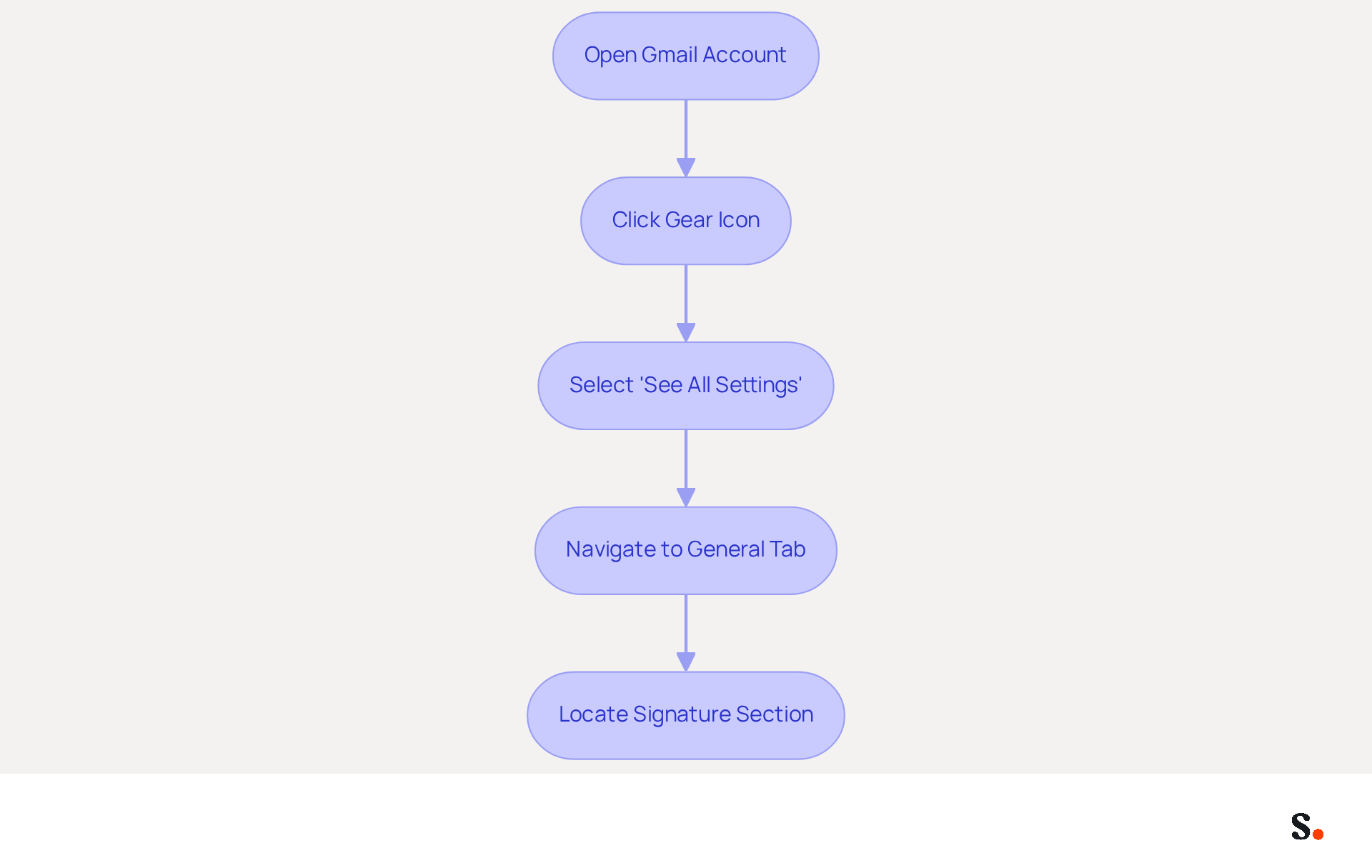
- Open your Gmail account in a web browser.
- Click on the gear icon located in the top right corner of the page to access the settings menu.
- Select 'See all settings' from the dropdown menu.
- In the settings menu, navigate to the 'General' tab to learn how to customize Gmail signature.
- Scroll down until you locate the 'Signature' section, where you will be able to customize your Gmail signature or modify your mark.
Syncing your Google Workspace with Scribe allows any changes to your teammates' information to automatically update their email footers. This saves time and ensures brand consistency across your organization. This automation streamlines the process and complies with SOC 2 Type II standards, which means your data is handled securely. Additionally, with the auto-fill feature, you can easily populate identification information for your teammates, further enhancing efficiency.
It's important to keep your email footer updated. Research indicates that branded footers can boost sender trust by 76%, and adding social media links can enhance engagement by 75.8%. Incorporating these elements into your email footer not only enhances your professional image but also fosters stronger connections with your audience.
Create Your Signature Using Scribe's Tools
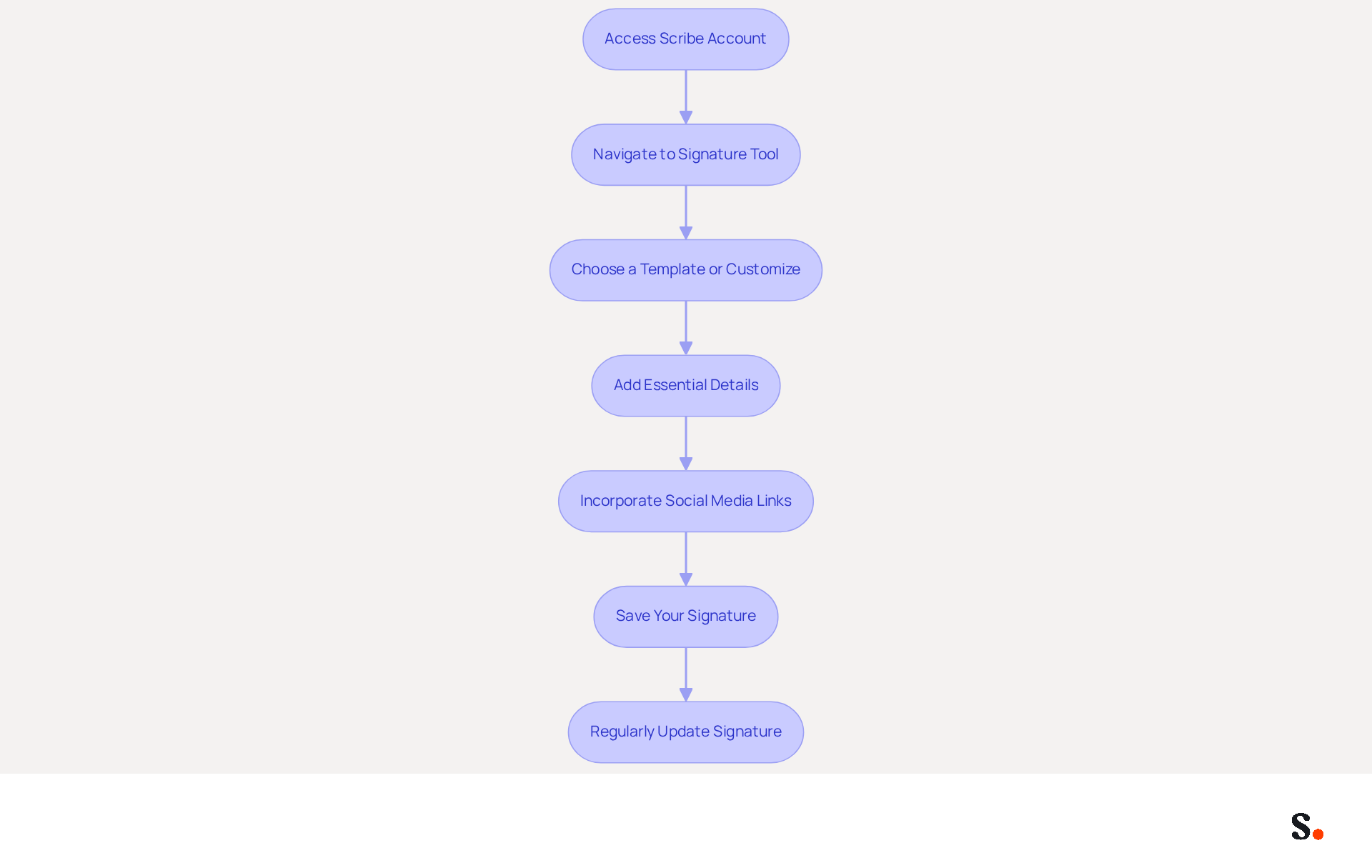
Creating a professional email signature is essential for establishing your brand identity and enhancing communication effectiveness, especially when you customize Gmail signature. To begin, access your Scribe account and navigate to the tool to customize Gmail signature. Scribe simplifies the process of creating your email signature, making it easy for anyone to customize Gmail signature effortlessly.
Choose a template that reflects your brand's aesthetic, or you can customize your Gmail signature with a design that stands out. You can customize your Gmail signature by including essential details such as your name, job title, company logo, and any other pertinent information. A well-crafted signature, which you can customize in your Gmail signature, enhances brand perception; 80% of respondents consider it crucial for brand identity.
Leverage Scribe's features to customize Gmail signature by incorporating social media links, promotional banners, or call-to-action buttons. Incorporating dynamic banners can increase click-through rates by 22%, significantly enhancing email engagement. Once you are satisfied with your design, save your mark.
Failing to update your signature regularly may result in a disconnect between your current branding and your email communications; 44.4% of users refresh their identifiers 2-4 times a year, ensuring that your branding remains consistent and effective. By prioritizing regular updates, you ensure that your ability to customize Gmail signature remains a powerful tool for brand consistency and recognition.
Apply Your Signature in Gmail Settings
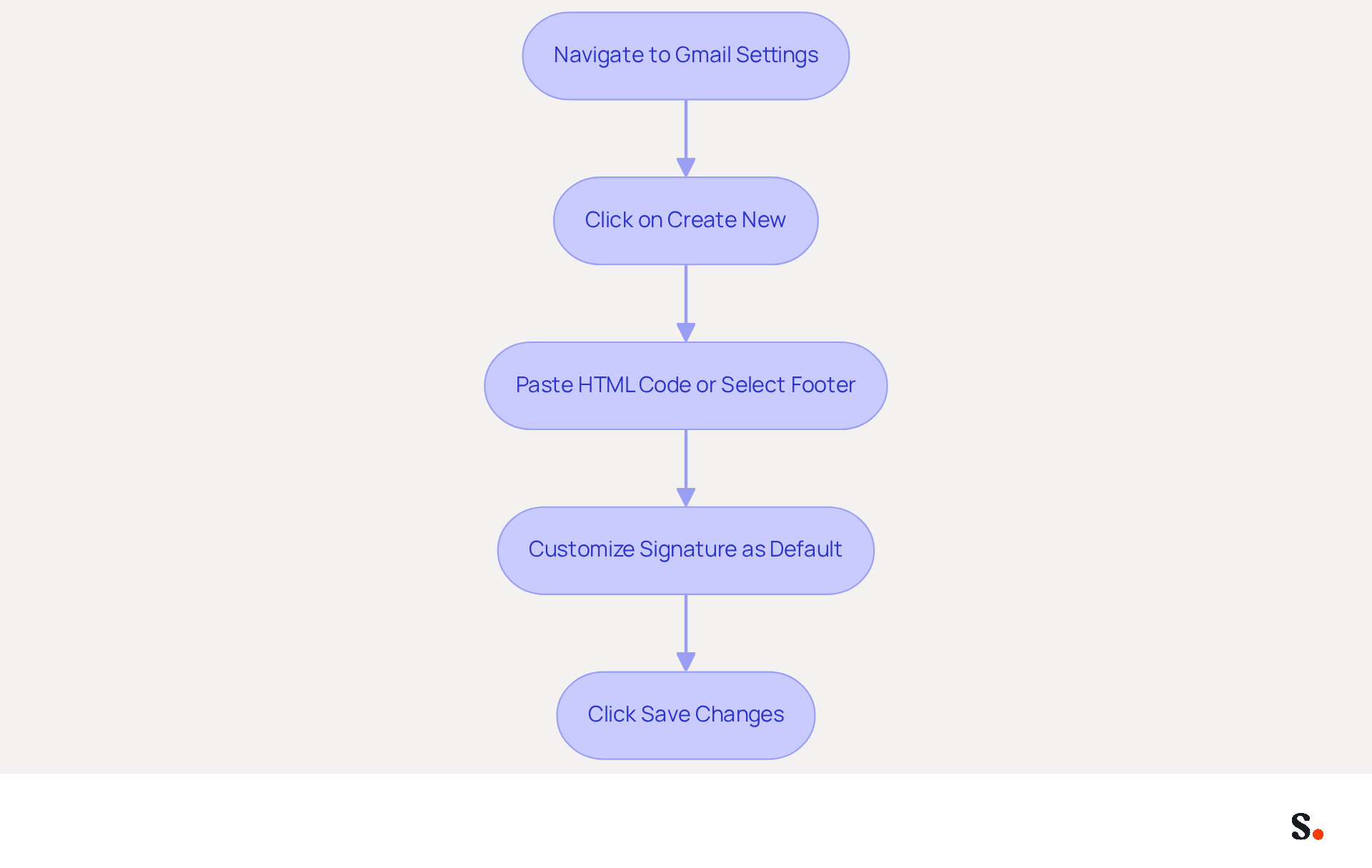
- Navigate back to the Gmail settings menu where you initially accessed the 'Signature' section.
- In the 'Signature' section, click on 'Create new' to customize your Gmail signature if you haven't already established a sign-off.
- Paste the HTML code provided by Scribe into the box for your email footer, or select your saved footer from the dropdown menu.
- If preferred, you can customize your Gmail signature to set your new sign-off as the default for new messages and replies/forwards.
- To finalize your new signature after you customize your Gmail signature, click 'Save Changes' at the bottom of the settings page.
To enable one-click synchronization, ensure you grant Scribe permission to connect with your service provider. You must be a Super Admin of your service provider to provide these permissions.
Effectively managing digital identifiers can significantly boost your brand's visibility. A company with 100 employees can generate between 60,000 to 80,000 branded impressions monthly, showcasing the potential reach of well-crafted branding. Furthermore, messages with branded identifiers can enhance response rates by 22%. Establishing a professional closing is vital, as 42% of consumers view businesses negatively when they receive messages lacking a branded signature. As noted by Yuliia Savchuk, a well-designed signature is crucial for maintaining brand integrity and generating leads.
By syncing your Google Workspace with the application, you can optimize this process. This tool enables one-click synchronization, ensuring that any modifications made in your provider directory are automatically reflected in this tool. This means you save time and maintain brand consistency without manual updates. Furthermore, Scribe's SOC 2 Type II compliance ensures the security of your data, making it a reliable option for managing your digital identifiers.
Troubleshoot Common Signature Issues
To ensure your email signature displays correctly, follow these essential steps.
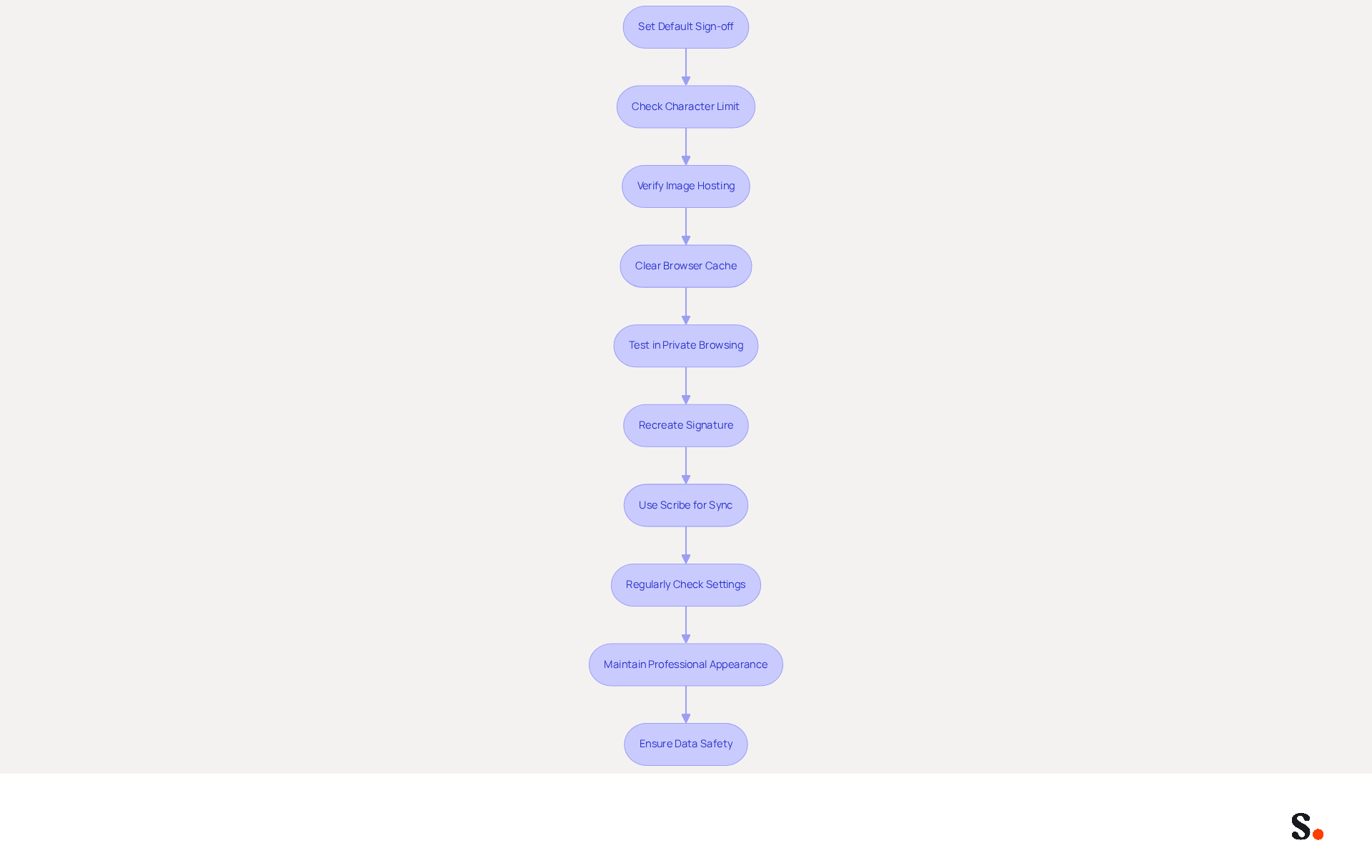
- Confirm that your sign-off is set as the default in Gmail settings to ensure it appears correctly in all outgoing messages.
- Check that your mark does not exceed Gmail's character limit of approximately 10,000 characters, as surpassing this limit can lead to truncation.
- If images are not appearing, confirm they are hosted on a secure server (HTTPS) and that the sharing permissions are set to 'Anyone with the link' to avoid display issues.
- Clear your browser's cache and cookies, as this can often resolve various display issues related to email branding.
- Additionally, test your mark in private browsing mode or different browsers to identify any browser-specific issues.
- If issues persist, recreate your mark in the application and reapply it in Gmail for proper formatting.
- Scribe's one-click synchronization with Google Workspace enables automatic updates of your teammates' email footers, saving time and ensuring brand consistency.
- Regularly check your signature settings to confirm they are correctly applied, as this is a common cause of display issues.
- By regularly verifying your settings, you can maintain a professional appearance in all communications.
- Remember, Scribe is SOC 2 Type II compliant, ensuring the safety of your data.
Conclusion
Customizing your Gmail signature with Scribe is not just about aesthetics; it’s a crucial step in maintaining brand integrity. Scribe's tools enable users to create attractive signatures that showcase their brand identity and simplify management. This approach empowers marketing teams to maintain control over email signatures, ensuring that every outgoing message reinforces the company's branding.
In this guide, we’ve walked through the key steps to customize your Gmail signature effectively, from accessing Gmail settings to applying your signature using Scribe's intuitive features. The importance of regular updates cannot be overstated; without them, email signatures can quickly become outdated, leading to inconsistencies in branding. This efficiency allows marketing teams to focus on strategic initiatives rather than getting bogged down in signature management. Additionally, research shows that a well-crafted email signature can increase engagement rates by up to 30% and enhance brand perception.
Ultimately, investing time in customizing your Gmail signature with Scribe is a strategic move that can yield measurable marketing ROI. As organizations strive for 100% brand consistency, utilizing Scribe's capabilities ensures that every email sent is a reflection of the brand's values and professionalism. Embrace this opportunity to enhance your email communications and foster stronger connections with your audience.
Frequently Asked Questions
How can I access Gmail settings for signature customization?
To access Gmail settings for signature customization, open your Gmail account in a web browser, click on the gear icon in the top right corner, select 'See all settings' from the dropdown menu, and navigate to the 'General' tab.
Where can I find the signature section in Gmail settings?
In the settings menu, scroll down until you locate the 'Signature' section, where you can customize or modify your Gmail signature.
How does syncing Google Workspace with Scribe benefit email signatures?
Syncing Google Workspace with Scribe allows any changes to your teammates' information to automatically update their email footers, saving time and ensuring brand consistency across your organization.
What standards does Scribe comply with regarding data handling?
Scribe complies with SOC 2 Type II standards, which means your data is handled securely.
What features does Scribe offer to enhance email signature efficiency?
Scribe offers an auto-fill feature that allows you to easily populate identification information for your teammates, enhancing efficiency in managing email signatures.
Why is it important to keep your email footer updated?
Keeping your email footer updated is important because research indicates that branded footers can boost sender trust by 76%, and adding social media links can enhance engagement by 75.8%.
How can incorporating elements into my email footer improve my professional image?
Incorporating elements such as branded footers and social media links into your email footer enhances your professional image and fosters stronger connections with your audience.
List of Sources
- Access Gmail Settings for Signature Customization
- Email Signature Statistics: A Closer Look at Email Signatures in 2026 (https://mysignature.io/blog/email-signature-statistics)
- Email signature statistics: Why every business should optimize their email signatures — Stripo.email (https://stripo.email/blog/email-signature-statistics-why-every-business-should-optimize-their-email-signatures)
- 40+ Email Signature Statistics for 2026 (Data + Insights) (https://wavecnct.com/blogs/email-signature-statistics)
- How to create custom Gmail signature (https://foxnews.com/tech/how-to-create-custom-gmail-signature.amp)
- How to Change Your Email Signature in Gmail: 2026 Guide (https://tryellie.com/ar/blog/how-to-change-your-email-signature-in-gmail)
- Create Your Signature Using Scribe's Tools
- 40+ Email Signature Statistics for 2026 (Data + Insights) (https://wavecnct.com/blogs/email-signature-statistics)
- Create a Professional CEO Signature in 4 Simple Steps (https://scribe-mail.com/en-US/blog/create-a-professional-ceo-signature-in-4-simple-steps)
- Scribe vs Signite (https://signitic.com/en/best-email-signature-software-comparison/scribe-vs-signite)
- Email Signature Statistics: A Closer Look at Email Signatures in 2026 (https://mysignature.io/blog/email-signature-statistics)
- WiseStamp Sets a New Standard for Email Signature Creation (https://prnewswire.com/news-releases/wisestamp-sets-a-new-standard-for-email-signature-creation-302689811.html)
- Apply Your Signature in Gmail Settings
- 40+ Email Signature Statistics for 2026 (Data + Insights) (https://wavecnct.com/blogs/email-signature-statistics)
- Email Signature Trends in Numbers: Infographic [2026] (https://mailtrap.io/blog/email-signature-trends)
- Email signature statistics: Why every business should optimize their email signatures — Stripo.email (https://stripo.email/blog/email-signature-statistics-why-every-business-should-optimize-their-email-signatures)
- Email Signature Statistics: A Closer Look at Email Signatures in 2026 (https://mysignature.io/blog/email-signature-statistics)
- Best Email Signature Quotes (2026) - HubSpot (https://hubspot.com/email-signature-generator/best-signature-quotes)
- Troubleshoot Common Signature Issues
- Troubleshoot issues with Gmail signatures - Gmail Help (https://support.google.com/mail/answer/11468381?hl=en)
- What To Do When Your Gmail Signature is Not Showing Up (https://appointlet.com/blog/gmail-signature-not-showing-up)
- Email Signature Troubleshooting - Problems & Solutions - Gimmio (https://blog.gimm.io/email-signature-troubleshooting)
- Solving a Gmail signature problem (https://signitic.com/en/guides/solving-a-gmail-signature-problem)
- Fix Your Missing Gmail Signature: 8 Troubleshooting Steps & Best Practices | Newoldstamp - NEWOLDSTAMP (https://newoldstamp.com/blog/gmail-signature-not-showing-up)
Get started with Scribe
Create your signature in minutes
Free 14-day trial — no credit card.