Gmail Mobile Signature Same as Desktop? A Google Workspace Decision Guide
Learn whether Gmail mobile signatures match desktop settings, how iOS and Android differ, and which Google Workspace path fits.
Sophie Grant
Email Signature Specialist, Scribe

On this page
- Gmail mobile and desktop signatures are not automatically the same
- Overview
- Separate Gmail web defaults from mobile signature settings
- Key Highlights
- Configure the Gmail mobile signature separately on iPhone and iPad
- Use configuration checks to explain a missing or different mobile signature
- Choose the Android deployment path separately from the iOS app path
- Decide between separate mobile settings and managed Google Workspace deployment
- Prepare the managed deployment around users, groups, and sending identities
- Use the record as a rollout gate
- Pilot web, iOS, and Android outcomes before a full rollout
- Use managed controls for signature assignment and checks
- Keep the decision within the documented evidence
- Choose the next configuration path for your Google Workspace users
- What should an administrator verify before choosing a Gmail signature path?
- Are Gmail mobile signatures automatically the same as desktop signatures?
- What should I do if my Gmail mobile signature does not appear?
- How can I configure a Gmail mobile signature on an iPhone or iPad?
- What steps should I take to troubleshoot a missing or different mobile signature?
- Sources
Gmail mobile and desktop signatures are not automatically the same
Gmail mobile signatures are not automatically the same as Gmail desktop signatures. Gmail on a computer lets you set different defaults for new messages and replies, or choose a different signature for an individual email. The Gmail app on iPhone and iPad uses a separate Mobile Signature setting.
The distinction gives you two practical paths. For a small, local need, configure the applicable mobile setting separately and compare it with your Gmail web defaults. For a Google Workspace rollout across teams, devices, groups, and sending identities, use a deployment process that accounts for the client path instead of treating mobile and desktop as one setting.
The short answer is simple: check the client first. Gmail web, Gmail on iOS, and Gmail on Android do not represent the same configuration surface.
The difference matters because a signature can be present in one sending path and absent or different in another. Gmail on a computer supports defaults for new emails and replies, while Gmail on iPhone or iPad requires you to open the app's settings, enable Mobile Signature, and add or edit the mobile text. A desktop change therefore should not be treated as proof that the mobile app has the same content.
If you manage Google Workspace, extend the check beyond the visible text. Identify which clients your team uses, which organizational units and groups need different assignments, and whether people send from aliases or send-as identities. Those inputs determine whether separate app configuration is practical or whether a managed deployment is the better fit.
Overview
Gmail signatures follow the client and identity through which you send. Gmail on a computer supports separate defaults for new messages and replies, and you can choose a different signature for an individual email. Gmail on iPhone or iPad has its own Mobile Signature setting. A Google Workspace deployment adds another layer: you choose the signature-data source, map organizational units and groups, select an installation method for Gmail clients, and account for aliases and send-as identities.
Use this sequence to decide what to do:
- Identify the sending path. Separate Gmail web, Gmail on iOS, and Gmail on Android in your inventory.
- Compare the settings. Check the web defaults and the relevant mobile configuration rather than assuming they match.
- Choose the operating model. Use separate app-level settings when the requirement is local; use a managed Google Workspace deployment when you need an administratively coordinated rollout.
- Map the identities. Include organizational units, groups, aliases, and send-as addresses before assigning signatures.
- Pilot the result. Test representative users and client paths before extending the configuration.
For a managed rollout, match the installation method to the Gmail clients and identities in scope. This choice does not mean that every Gmail client uses one shared setting automatically.
For a managed rollout, start with the scope rather than the signature artwork. Decide which users, groups, organizational units, sending identities, and devices belong in the first phase. Then select the installation method that matches those conditions and test the result in the actual Gmail paths your team uses.
The practical decision is not whether a single desktop value should be copied everywhere. The practical decision is whether your organization needs a separate mobile configuration or a managed deployment that accounts for client paths and identity assignments. A deployment plan should resolve those inputs before you change every user's signature.
Separate Gmail web defaults from mobile signature settings
Gmail on a computer stores signature choices around the message you are composing. You can set one default for new emails, another default for replies, or select a different signature for a particular email. That gives you multiple web choices even before you consider mobile.
Treat those choices as web behavior. A selected desktop default describes what Gmail on a computer can add or what you can choose in that composer; it does not establish the content of a mobile app setting.
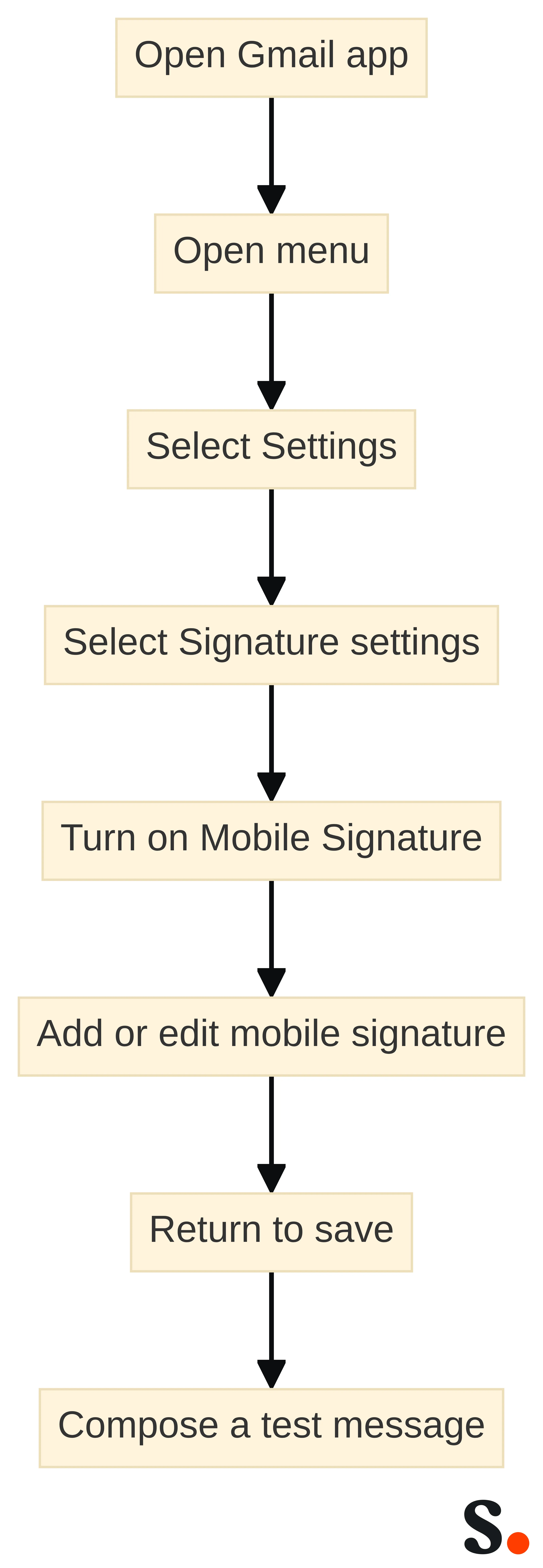
Gmail on iPhone or iPad uses a separate Mobile Signature control. The relevant path is Gmail app, Settings, Signature settings, Mobile Signature, then the field where you add or edit the mobile signature. Save the change by returning from the setting.
The mobile field is therefore a distinct configuration point. If your desktop signature contains more information than your mobile version, compare the two deliberately. If the mobile field is empty, a message sent from the app can follow a different outcome from a message composed on the web.
The comparison rule is straightforward: check the setting where the message is composed. For Gmail web, inspect the new-message and reply defaults and any signature chosen for the individual email. For Gmail on iOS, inspect Mobile Signature in the app. Do not use the presence of a desktop signature as a substitute for checking the mobile setting.
This approach also helps you explain a difference without guessing. The two paths expose different controls, so a mismatch can result from configuring one path while leaving the other unchanged. Correct the setting that belongs to the client you need to fix.
For an individual mailbox, separate configuration may be enough. You can set the web defaults on the computer and then enter the mobile signature in the Gmail app. For a team, repeating that work by hand creates an administrative choice: continue managing each client setting separately, or define a deployment path that handles the organization, client methods, and sending identities together.
Key Highlights
The Gmail mobile signature decision comes down to five checks. Use them before you change a production configuration.
- Separate the clients. Gmail web and the Gmail app on iPhone or iPad expose different signature settings. Android needs its own deployment decision rather than an assumption that the iOS path applies.
- Check the mobile field. On iPhone or iPad, open Signature settings, turn on Mobile Signature, and add or edit the signature.
- Choose the management boundary. A local app-level change suits a narrow requirement. Before a managed rollout, document the signature-data source, organizational units, groups, Gmail client method, aliases, and send-as identities.
- Pilot before expansion. Test representative users and the client paths in scope before a full rollout.
Your next action is to write down the paths that must work: Gmail web, iOS, Android, or a combination. Then record the identities and organizational assignments involved. If you cannot name those conditions, do not select a deployment method yet; first define the rollout scope.
The central takeaway is that mobile and desktop should be compared, not presumed identical. A separate setting is a configuration task. A managed deployment is an organizational rollout that needs a client and identity map.
Configure the Gmail mobile signature separately on iPhone and iPad
The Gmail app on iPhone or iPad has a separate path for configuring the mobile signature. Follow these steps on the device where you need the setting:
- Open the Gmail app.
- Open the menu at the top left.
- Select Settings.
- Under Compose and Reply, select Signature settings.
- Turn on Mobile Signature.
- Add or edit the mobile signature.
- Return from the setting to save the change.
The setting belongs to the Gmail app on the iPhone or iPad. After saving it, compose a test message in that app and inspect the inserted signature before treating the mobile path as configured.
The iPhone or iPad signature should be compared with the Gmail web defaults, not copied conceptually from them. Gmail on a computer supports separate defaults for new emails and replies and lets you choose another signature for an individual email. The iOS app instead exposes Mobile Signature under its own settings.
Use a short comparison record for each account:
- The text configured for new messages on Gmail web.
- The text configured for replies on Gmail web.
- The mobile signature configured in the iOS app.
- The sending identity used for the test.
This record tells you which path needs correction when the displayed signatures differ. It also prevents you from changing the web default when the issue is in the mobile app.
The iOS procedure covers the Gmail app on iPhone and iPad. It does not establish how Android should be configured, and it does not turn a mobile signature into a shared organizational setting. If you need the same managed outcome across many Google Workspace users, move from individual app configuration to a deployment plan that includes your client mix and identity assignments.
Use configuration checks to explain a missing or different mobile signature
A missing or different mobile signature should first be treated as a configuration-path question. Gmail web and the Gmail app on iPhone or iPad use different controls, so check the setting that belongs to the client where the message was composed.
Use this order:
- Identify whether the message was composed in Gmail web or the Gmail mobile app.
- Inspect the relevant web default or Mobile Signature setting.
- Confirm that the setting contains the intended text.
- Compose a new test message in the same client.
- Compare the result with the signature expected for that path.
The Gmail web check starts with the message type. Gmail on a computer lets you set a default for new emails, a different default for replies, or another signature for an individual email. A signature that appears in a new message may therefore not be the same signature selected for a reply.
Check both web defaults before changing the template. Then inspect the signature selector in the specific message if you chose a signature manually. Your test should match the message type that showed the problem; otherwise, you may compare the wrong web path.
The iPhone and iPad check starts in the Gmail app. Open Settings, select Signature settings, and inspect Mobile Signature. If the control is not turned on or the field does not contain the intended text, correct that mobile setting and save it by returning from the screen.
Compose a fresh message in the app after the change. This separates the configuration check from an older draft and gives you a direct test of the mobile path.
Gmail signatures are added to the end of Gmail messages, and you can optionally include an image. Check the end of the test message rather than looking only near the opening text. If your signature contains an image, inspect the complete signature area as part of the same test.
These checks explain the configuration differences established for Gmail web and iOS. They do not justify assuming that every missing mobile signature has the same cause. If the relevant setting is populated and the result still differs, record the client, message type, account, and sending identity before changing the rollout. That record gives you a defined case to investigate instead of replacing settings broadly.
Choose the Android deployment path separately from the iOS app path
Gmail on Android requires a separate deployment decision from Gmail on iPhone or iPad. The iOS procedure uses the Gmail app's Mobile Signature setting; it should not be presented as the Android installation method. For Google Workspace, we support automated Gmail signature deployment with client-side and server-side options, and we provide server-side installation for Google Workspace.
For the managed Android path, server-side installation is limited to Business and Enterprise plans. Android app-level settings and Android server-side installation are different paths, so plan eligibility for the managed path should not be used to describe what a local app setting does.
Use this decision sequence for Android:
- List the Android users and sending identities. Include the organizational units, groups, aliases, and send-as addresses that need coverage.
- Separate local from managed scope. Decide whether you are correcting a single app configuration or deploying a Google Workspace signature across an organization.
- Check the plan boundary. Use server-side Android installation only within the supplied Business and Enterprise boundary.
- Select the installation method. We support client-side and server-side options for automated Google Workspace deployment, including server-side installation.
- Test an Android message. Compare the actual result with the expected signature for the selected identity and client.
Decide between separate mobile settings and managed Google Workspace deployment
The choice between separate mobile settings and managed Google Workspace deployment depends on the scope you need to control. Separate settings address a client-level requirement. Managed deployment addresses an organizational rollout involving people, clients, groups, and sending identities.
| Decision criterion | Separate mobile settings | Managed Google Workspace deployment |
|---|---|---|
| Primary scope | A specific Gmail mobile app or a small number of accounts | An organization, its client paths, and its sending identities |
| Configuration work | Set Gmail web defaults and configure the applicable mobile setting separately | Determine the signature-data source, map organizational units and groups, choose the installation method, and address aliases and send-as identities |
| iOS path | Use Mobile Signature in the Gmail app on iPhone or iPad | Include iOS in the client inventory and test the selected deployment path separately |
| Android path | Handle the applicable local app configuration as a distinct task | Use the supplied Business and Enterprise boundary for server-side Android installation and select the supported deployment method |
| Administrative model | Repeat or document changes at the account or device level | We support central installation, automated deployment, and client-side or server-side options for Google Workspace |
| Rollout control | Test the specific account and app | Pilot representative users before a full rollout |
Use the left column when the requirement is limited to a mobile setting and you can manage that setting directly. Use the right column when you need a coordinated Google Workspace deployment across users and supported clients.
Prepare the managed deployment around users, groups, and sending identities
A managed Google Workspace Gmail signature deployment should begin with four administrative inputs: the source of signature data, the organizational units and groups that determine scope, the installation method for each Gmail client, and the aliases or send-as identities that need their own treatment.
Write these inputs down before assigning a template. The signature is the visible result, but the deployment decision depends on where its data comes from, who receives it, how it reaches each client, and which identity appears in the From field.
The signature-data source determines which information a deployment can use. Decide which directory or approved data source supplies the fields used in the signature. Record the field names and the source values you expect during the pilot.
This step gives you a concrete basis for checking the rendered signature. If the source is unclear, you cannot tell whether a difference comes from the client path or from the data assigned to the user. Resolve the source before broad installation.
The organizational-unit and group map shows which users need the same assignment and where different assignments are required. List the groups and organizational units in scope, then identify the people and exceptions associated with each rule.
Keep the map tied to the actual Google Workspace structure. A generic department list is not enough if the deployment uses organizational units or groups to determine the installation scope. Approve the mapping before the pilot so the test represents the assignment logic you intend to use.
The Gmail client method should be selected separately for Gmail web, iOS, and Android. Google Workspace deployment supports client-side and server-side options, but the appropriate method depends on the client path and the scope you need to cover. For Android server-side installation, apply the supplied Business and Enterprise plan boundary.
Record the selected method beside each client in your deployment table. This prevents an Android assumption from being carried into iOS or a web configuration from being treated as a mobile configuration.
Aliases and send-as identities need explicit treatment in the deployment plan. Identify every address from which a person sends and decide which signature assignment belongs to each identity. Include those identities in the pilot rather than testing only the primary address.
A message can be composed from a different identity than the one you used for the first test. Testing the primary address alone can therefore leave an assignment gap. Make the identity part of the test record and correct the mapping before expanding the deployment.
A useful deployment record contains these fields:
- User or test account.
- Organizational unit and group membership.
- Primary address, alias, or send-as identity.
- Gmail client: web, iOS, or Android.
- Installation method selected for that client.
- Expected signature assignment.
- Observed result from the test message.
Use the record to connect each outcome to a specific assignment and client path. Do not approve the full rollout until the representative cases have a defined expected result and an observed result.
Use the record as a rollout gate
The record should do more than preserve test results. It should show whether each deployment input has a corresponding observed result, so an administrator can distinguish an untested path from a failed one.
- Check client coverage. Confirm that every intended Gmail path in the first phase—web, iOS, and Android—has a representative case. If a path is in scope but absent from the record, mark it as untested. Do not treat a result from one client as evidence for another.
- Check identity coverage. Compare the primary address, aliases, and send-as identities selected for the pilot with the identities that the rollout will cover. If an identity is intended but not tested, keep it outside the approved pilot scope until it has a defined expected assignment and an observed result.
- Check assignment logic. Compare the expected assignment with the relevant Google Workspace data source, group or organizational-unit mapping, and user case. This separates a client-method question from an assignment question without changing settings broadly.
- Check method eligibility. Confirm that the selected installation method is recorded for the client being tested. For an Android server-side case, confirm that the Business and Enterprise boundary applies before treating the case as part of that path.
Use three review labels: pass when the tested result matches the expected assignment; revise when the mismatch can be tied to a recorded data, mapping, identity, or client-method input; and untested when the intended path lacks a representative case. A revise label calls for correcting the defined input and rerunning that case. An untested label calls for expanding the pilot, not for assuming the result.
This gate is particularly useful when replacing manual, account-level work with a managed process. It gives the administrator a comparison record for the client and identity combinations that matter, while keeping the deployment decision tied to documented inputs. After any change to a group, organizational unit, data source, alias, send-as identity, or installation method, rerun the affected representative case and update the record before extending the change.
The record also protects the boundary of the evidence. A passing case supports the selected client, identity, assignment, and method that were actually tested; it does not establish that an untested client or identity will behave the same way. Keep those dimensions visible in the review summary. That makes the rollout decision proportionate to what was checked and preserves a clear reason for any case that remains outside scope.
Pilot web, iOS, and Android outcomes before a full rollout
A Google Workspace Gmail signature deployment should be piloted with representative users before a full rollout. The pilot should reflect the actual conditions you plan to support, not just an administrator's Gmail web account.
Pilot cases should cover the decision points in your deployment plan:
- A Gmail web user who sends a new message.
- A Gmail web user who replies to a message.
- An iPhone or iPad user with Mobile Signature configured separately.
- An Android user on the selected deployment path.
- A user assigned through each relevant group or organizational unit.
- A user who sends from an alias or send-as identity.
Use the supplied Business and Enterprise boundary when selecting an Android server-side case. If the pilot does not represent a client, identity, or assignment in your intended rollout, add a representative case before approving the expansion.
Each pilot case should be run as an actual send-path test. For Gmail web, test both the new-message and reply defaults where both matter. For iPhone or iPad, inspect Mobile Signature in the Gmail app before composing the test. For every client, inspect the end of the message because Gmail adds the signature there and can include an image.
Record the client, message type, account, sending identity, expected assignment, and observed signature. A short record is more useful than a general statement that the deployment worked.
The pilot should be reviewed by exception. If the observed result matches the expected assignment, retain the case as a passing reference. If it differs, identify whether the mismatch belongs to the data source, group or organizational-unit mapping, client method, alias or send-as identity, or mobile configuration. Correct the defined condition and rerun that case before expanding the rollout.
A pilot is a gate, not a substitute for deployment planning. It shows how the selected method behaves for the tested cases. Keep the full identity and client map current as you add users, groups, or sending paths, and use the same representative cases when you make a later configuration change.
Use managed controls for signature assignment and checks
Managed Google Workspace deployment organizes assigned signatures instead of relying on repeated local edits. We allow central installation of email signatures for all team members. Those capabilities address the rollout method. They do not remove the need to define clients, groups, organizational units, aliases, send-as identities, and plan boundaries before installation.
We sync data from Google Workspace, organize signatures by team, company, or country, and automatically assign them by department, role, or another field. Use those assignment dimensions to express the structure you already maintain rather than creating a separate manual list for every person.
Before rollout, compare the assignment fields with your deployment map. If your map is based on groups or organizational units but your assignment rule uses a different field, resolve that difference in the pilot. A clear relationship between the source data and the assignment rule makes a later change easier to trace.
Central installation is useful when you need to apply a defined signature assignment across your team rather than ask each person to repeat the same setup. Use it after the client and identity scope has been mapped. Start with the representative cases from the pilot, then expand the assigned scope once those cases produce the expected results.
We re-apply signatures on compose, and Scribe Radar checks them daily against brand guidelines. Treat those controls as part of the managed operating model. They give you defined places to inspect when a signature changes: the compose path and the brand-guideline check.
Keep the inspection connected to the assignment map. If a user reports a difference, record the client, account, sending identity, group or organizational unit, and message type before changing the assignment. That preserves the distinction between a local client issue and an organizational assignment issue.
A managed rollout can use this maintenance sequence:
- Record the requested change and the affected identity or group.
- Identify the source field, assignment rule, and client paths involved.
- Update the defined assignment rather than editing unrelated mobile settings.
- Recheck a representative Gmail web, iOS, or Android case as applicable.
- Review the resulting signature on compose and through the available brand-guideline check.
- Extend the change only after the representative result is understood.
This sequence keeps a mobile difference tied to the correct configuration layer. It also prevents a change to one client from being treated as a universal correction.
A managed model can give your IT team a defined deployment structure while leaving signature assignments connected to team, company, country, department, role, or another field supported by the configuration. Use the model that matches your ownership and assignment rules. Keep the first rollout narrow enough to test every client and identity that matters.
Keep the decision within the documented evidence
The practical decision is narrower than a promise that every Gmail client will display one automatically synchronized signature. Gmail web supports separate defaults for new messages and replies, iPhone and iPad use a separate Mobile Signature setting, and Google Workspace deployment offers client-side and server-side options. Use those distinctions to choose and test a path.
The configuration checks in this guide cover the web defaults, the iOS Mobile Signature setting, the message type, and the location of the inserted signature. They are a bounded starting path. If those checks do not explain the result, preserve the client, identity, assignment, and message details and investigate that defined case rather than assuming a universal cause.
The Android decision also has a defined boundary: server-side installation applies within the supplied Business and Enterprise plan scope. Keep that path separate from app-level mobile configuration, and do not use the iOS procedure as proof of Android behavior.
For a consequential Google Workspace rollout, a qualified professional should decide individual suitability for your environment. You can still prepare the deployment by mapping data, groups, organizational units, clients, aliases, send-as identities, and representative pilot cases before that decision.
Choose the next configuration path for your Google Workspace users
Your next configuration path depends on the scope of the problem. For a local mobile requirement, configure the applicable app setting separately and compare the result with the Gmail web defaults. For an organizational requirement, document the signature-data source, groups and organizational units, aliases, and send-as identities before choosing a client installation method, then pilot representative users before a full rollout.
For Android server-side installation, keep the Business and Enterprise plan boundary in view. Choose the path that matches your users, devices, identities, and deployment scope, then test the actual message path before expanding it.
A clear client and identity map gives you the basis for a controlled rollout. Once the map and representative tests are ready, proceed with the configuration path that fits your Google Workspace users.
What should an administrator verify before choosing a Gmail signature path?
Are Gmail mobile signatures automatically the same as desktop signatures?
No, Gmail mobile signatures are not automatically the same as desktop signatures. Users must configure mobile signatures separately in the Gmail app on iOS and Android.
What should I do if my Gmail mobile signature does not appear?
If your Gmail mobile signature does not appear, check the Mobile Signature settings in the Gmail app on your device to ensure it is enabled and correctly configured.
How can I configure a Gmail mobile signature on an iPhone or iPad?
To configure a Gmail mobile signature on an iPhone or iPad, open the Gmail app, go to Settings, select Signature settings, turn on Mobile Signature, and then add or edit your signature.
What steps should I take to troubleshoot a missing or different mobile signature?
To troubleshoot a missing or different mobile signature, check the relevant settings in both Gmail web and the mobile app, confirm that the correct signature is configured, and test by sending a message from the affected client.
Get started with Scribe
Create your signature in minutes
Free 14-day trial — no credit card.