Google Workspace Signature Deployment: A Validation-First Decision Guide for IT Administrators
Plan Google Workspace Signature Deployment with a validation-first guide to directory data, Gmail clients, sender identities, and rollout.
Sophie Grant
Email Signature Specialist, Scribe

On this page
- Define the acceptance record before deployment
- Set the baseline for managed-signature tests
- Test directory data and assignment rules
- Run the Gmail client acceptance matrix
- Record the implementation path and its owner
- Test installation behavior by client
- Test aliases and send-as identities
- Close manual-signature exceptions with a migration record
- Pilot representative groups and clients
- Expand only after the pilot passes
- Retire conflicting manual processes
- Use the administrator preflight checklist
- What should administrators verify before choosing a deployment path?
- What is the process for deploying Gmail signatures in Google Workspace?
- How does directory synchronization affect Gmail signature deployment?
- What are the supported Gmail clients for signature deployment?
- Can Google Workspace signatures be personalized for individual users?
- What considerations should be made when migrating from manual signatures to a managed deployment?
- What are the limitations regarding aliases and send-as addresses in Google Workspace?
- What steps should be taken before expanding the pilot deployment of Gmail signatures?
- Sources
Define the acceptance record before deployment
Treat a Google Workspace signature rollout as an acceptance-testing exercise, not as a template exercise. Define one test case for each combination of directory data, assignment rule, Gmail client, sender identity, and expected output that matters to the rollout. Record the evidence for each result and assign an owner to every failure. The acceptance record then shows which cases passed, which require retesting, and which remain outside scope.
Treat the rollout as a sequence of decisions:
- Establish the directory fields that will populate each signature.
- Map departments, groups, organizational units, and exceptions to assignments.
- Match the installation method to Gmail on the web, iOS, and Android.
- Resolve aliases, send-as addresses, and the boundary around shared-mailbox import.
- Pilot representative people and clients before expanding the rollout.
- Retire conflicting manual instructions only after the pilot passes.
This sequence keeps a finished-looking signature from concealing an assignment, identity, or client problem.
The central artifact is an acceptance record, not a comparison of deployment approaches. Evaluate the managed option by defining its boundaries first: the source of identity data, the target population, the clients in scope, the sender identities involved, and the evidence required for a successful pilot. Start there, then build the template around the verified operating model.
Get started with Scribe
Manage signatures across your whole team
Free 14-day trial — no credit card.
Set the baseline for managed-signature tests
Managed Google Workspace signature deployment places assignment and installation under an administrator-controlled process instead of asking each person to copy HTML, choose an image, and update Gmail settings individually. For acceptance testing, treat that distinction as a change in ownership: the test owner verifies the assignment and result instead of asking an employee to correct the setting.
Manual maintenance gives each person responsibility for several decisions: which signature to use, which contact details to enter, when to change a title or phone number, and whether a reply or forwarded message should use the same format. That model may fit a small, stable group with few variations. It becomes harder to govern when departments use different templates, directory records change, or the same person sends from more than one address.
The operational difference is ownership. With manual maintenance, support requests usually begin with an individual Gmail setting. With managed deployment, you define the assignment rule, the data source, the installation path, and the exception owner before people send messages.
A managed approach does not remove the need for decisions. It moves those decisions into an assignment and validation process. Scribe lets administrators assign templates by department, team, region, or the whole company and personalize each person's signature with smart fields. Decide which organization structure should control each assignment, document the exceptions, and give every exception a test case before deployment.
To decide whether manual maintenance is still workable, record the number of signature variants, the number of sender identities, the Gmail clients in use, and the frequency of directory changes. If those conditions vary across your organization, compare the work of maintaining individual settings with the work of maintaining a shared assignment and validation process. Choose the model whose ownership you can describe clearly.
Test directory data and assignment rules
Create a targeting map that connects each signature decision to a maintained organizational attribute. Include:
- The department, team, region, or organizational unit that identifies the person.
- The group membership or exception that changes the assigned template.
- The directory fields required for personalization, such as name, title, photo, or contact details.
- The owner of each field and the process for correcting an empty or outdated value.
- The expected result when someone moves between departments or changes role.
- The rule used when a person matches more than one assignment.
Scribe's enterprise documentation supports assignment by department, team, region, or the whole company and personalization with smart fields. Scribe also supports directory synchronization with Google Workspace Directory. Use that structure as the deployment map, then test how your own groups and organizational units correspond to it.
Directory changes should have a defined signature consequence. With a connected directory, Scribe applies the correct signature when a new hire appears and carries directory title changes through to the signature. That does not mean every directory field is ready for publication automatically. Check field ownership, formatting, blanks, and exceptions before treating the directory as the source for a production rollout.
Resolve targeting conflicts before the pilot rather than during a broad rollout. For each group or organizational unit, write down the expected template, the fields it uses, and the exception rule that takes precedence. Then test a person who belongs to the ordinary population and another person who sits at the boundary between two assignments. Your pilot should show not only that data can populate a signature, but also why a particular version was selected.
Run the Gmail client acceptance matrix
| Gmail environment | Deployment question | Validation action |
|---|---|---|
| Web | Does the assigned signature appear while composing, replying, and forwarding? | Test a new message, a reply, and a forward for each representative assignment. |
| iOS | Does the centrally installed signature appear in the supported mobile workflow? | Test the same person on iOS and compare the sender identity, fields, links, and formatting. |
| Android | Is server-side installation required for the Android scope? | Confirm the plan and advanced IT setup, then send a test message from the Android Gmail workflow. |
| Multiple clients | Does the chosen method produce the intended result across every client in scope? | Compare received messages, not only the compose view. |
Android requires a deliberate boundary in this rollout. Treat server-side installation as the path to validate for Gmail on Android, and confirm that the selected plan covers it. Scribe's server-side installation is available on Business and Enterprise plans rather than the Free plan, and the setup requires advanced IT work. Record the plan, setup owner, test devices, and received-message checks before selecting a production path.
For every client in scope, distinguish between what the sender sees before sending and what the recipient receives. Check the visible name, title, address, links, images, spacing, and assigned version. Repeat the test for a new message, a reply, and a forward where those paths are part of your workflow. A compose-window result answers only the compose-window question; it does not establish coverage for another client or sender identity.
Record the implementation path and its owner
| Implementation path | Personalization and targeting | Maintenance demand | Appropriate question |
|---|---|---|---|
| Admin console Append footer | Applies the same text to every outgoing message for an organizational unit and does not personalize it per person. | The footer remains a fixed administrative setting, so changes to individual data need another process. | Is a uniform footer enough for the organization unit? |
Gmail API users.settings.sendAs |
Can write a per-person signature. | Requires scripts and ongoing maintenance. | Can your team own the script lifecycle, permissions, error handling, and change testing? |
| Signature-management platform | Can support centrally assigned templates, directory-based data, and client-specific installation paths. | The platform configuration and rollout still need ownership, testing, and exception handling. | Do you need a managed assignment model across people, groups, organizational units, and clients? |
The implementation path should follow the requirement that is hardest to satisfy. If every person can use the same text, an organizational-unit footer may be enough. If each person needs a distinct signature and your team can maintain code, the Gmail API is a possible path that carries a script-maintenance obligation. If you need assignment rules, directory data, staged rollout, and coverage across supported clients, evaluate a managed platform against the matrix rather than assuming a single administrative setting will cover the whole deployment.
Compare the paths by ownership as well as by functionality. Ask who will update signature content, who will correct directory data, who will maintain scripts or configuration, who will handle exceptions, and who will decide when a change is ready for production. A path that appears simple at launch can still create a recurring support obligation. Put that obligation in the decision record before approving the rollout.
Test installation behavior by client
Use a delivery-behavior record to distinguish the two installation methods. Scribe supports both client-side and server-side signature deployment for Google Workspace and Gmail. Client-side installation places the signature in the composing experience, where it can be inspected before sending. Server-side installation adds the signature to messages from any device or client; Scribe describes that path as an advanced setup requiring IT and makes it available on the Business and Enterprise plans. For each case, record where the signature should appear, whether the sender must see it before sending, the client under test, and the received-message evidence.
Choose server-side installation when the requirement is to add signatures from any device or client, including the Android scope defined for this rollout. Scribe supports server-side deployment for Google Workspace and Gmail, and its server-side installation is available on Business and Enterprise plans. The path requires advanced IT setup. Confirm message routing, sender identities, formatting, replies, forwards, and received-message output during the pilot before expanding it.
Do not treat client-side and server-side installation as interchangeable labels in your rollout record. Write down where the signature should appear, whether the sender must see it before sending, which clients must be covered, and who owns the technical setup. Then use those conditions to select the path and design the test cases. If the requirements differ by client, document the combination rather than forcing every client into the same test.
Test aliases and send-as identities
Aliases and send-as addresses should be treated as separate identity cases in the deployment design. A person may compose from a primary address in one workflow and a secondary address in another, so your test plan should record which signature is expected for each sender identity. The Gmail API's users.settings.sendAs method can write a per-person signature, but it requires scripts and maintenance; that makes sender-identity behavior an explicit ownership and testing question.
Build an identity inventory before choosing pilot people. For each primary address, alias, and send-as address, record:
- The display name and address that recipients should see.
- The department, group, or organizational unit that should determine the assignment.
- Whether the identity needs the same signature as the primary address or a distinct version.
- The Gmail clients from which the identity is used.
- The expected behavior for new messages, replies, and forwards.
- The owner who can approve a change to that identity's signature.
Do not treat an alias as proof that the same signature will appear in every client or sending path. Send a message from each identity and compare the received output.
Google Workspace has no shared-mailbox import in this deployment scope. If your organization uses a shared address, record it as a boundary rather than adding it to an employee-import assumption. Decide how that address is represented, who owns its signature content, and which supported installation path will be tested. Keep the boundary visible in the rollout record so a successful employee test is not mistaken for shared-address coverage.
Set an acceptance condition for every sender identity before the pilot begins. The condition should identify the expected address, display name, assigned version, client, and message type. If an identity cannot be mapped to a supported assignment or installation path, leave it outside the approved rollout population until its owner has made a separate decision.
Close manual-signature exceptions with a migration record
Treat manual Gmail signatures as the baseline for migration acceptance. The baseline should distinguish intentional variations from accidental differences and connect each current behavior to a test case. Compare the expected managed output with the baseline so that an address, link, role label, or sender-specific choice is not lost without an explicit exception.
Capture the current state in a compact register:
- The people, departments, groups, and organizational units currently using each signature version.
- The primary address, aliases, and send-as addresses associated with each version.
- The fields that come from the directory and the fields people type manually.
- The differences between new messages, replies, and forwards.
- The Gmail clients used by the group, including web, iOS, and Android.
- The owner of each exception and the reason the exception exists.
- The manual instructions, saved templates, or support procedures that tell people how to update signatures.
Use one row per meaningful combination of population, sender identity, client, and signature behavior. A short inventory with ownership and context gives you a migration baseline.
The migration target should preserve required identity information while removing conflicting steps. Compare the manual inventory with the proposed directory fields, assignments, client coverage, and sender-identity rules. Mark each item as retained, replaced, intentionally removed, or unresolved. Leave unresolved items in the pilot queue; do not turn them into silent exceptions after launch.
Use representative artifacts rather than relying on memory. Collect the current signature versions, the instructions people follow, the sender identities that matter, and examples from each client in scope. You are not trying to preserve every historical variation. You are identifying the conditions the managed process must either support, replace with an approved rule, or exclude explicitly.
Pilot representative groups and clients
A pilot should test the deployment decisions that can change the result, not only the appearance of one signature. Scribe supports a staged rollout by department so teams can validate each group before expanding deployment. Use that staged capability to select representative cases from the directory and the client matrix.
Select pilot cases that cover the boundaries in your rollout plan:
- A standard person with a complete directory record.
- A person in each department, group, or organizational unit with a distinct assignment.
- A person with an alias or send-as address.
- A new or recently changed directory record.
- A person who sends from Gmail on the web.
- A person who sends from iOS.
- An Android person if server-side installation is in scope.
- A known manual-signature exception.
The list should represent the rules, not merely contain a large number of people. A carefully chosen exception can reveal an assignment or identity problem that standard cases will not expose.
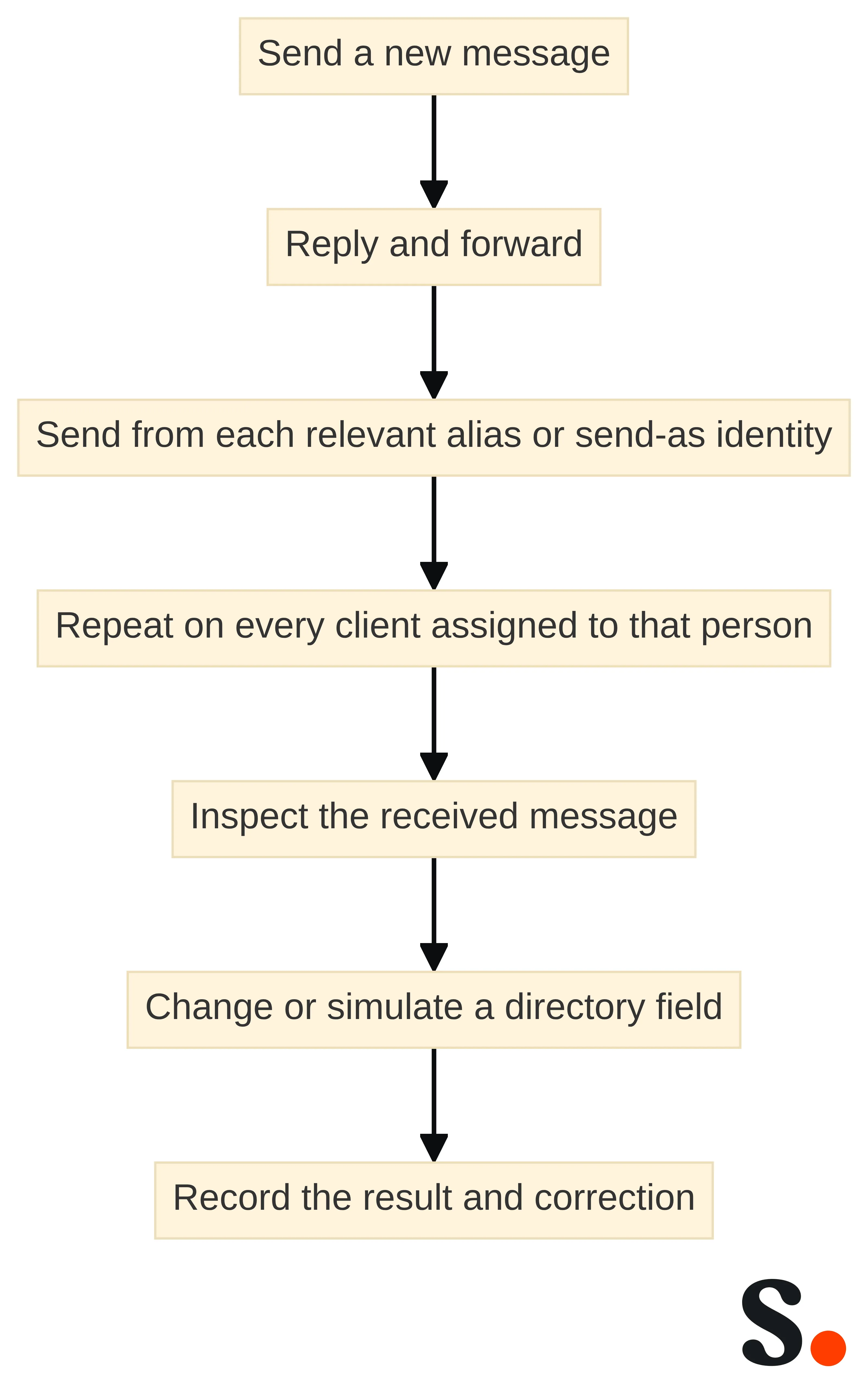
Run a consistent test set for every pilot case:
- Send a new message from the primary address.
- Reply to a message and forward a message.
- Send from each relevant alias or send-as identity.
- Repeat the test on every client assigned to that person.
- Inspect the received message for the expected name, title, address, links, images, and assignment.
- Change or simulate a directory field that should flow into the signature, then retest according to your approved change process.
- Record the result, the failed condition, the owner, and the correction.
A pilot passes only when the result is explainable for each tested case. A visually correct message from one browser is not enough to approve a multi-client rollout.
Keep the pilot record structured. For each test, capture the assignment inputs, installation path, client, sender identity, message type, expected result, observed result, and disposition. Classify a failure as a data issue, targeting issue, client issue, sender-identity issue, formatting issue, or unresolved requirement. That classification gives the next owner a concrete correction instead of a general report that the signature did not work.
To make the record usable for approval, keep four layers separate:
- Expected behavior: the assignment inputs, installation path, client, sender identity, and message type that define the case.
- Observed evidence: the received message or other result inspected, the fields compared, and the exact condition that passed or failed.
- Disposition: pass, fail, blocked, or intentionally out of scope, with an owner and next action. A blocked case is not a pass merely because no defect was observed.
- Retest link: the correction made and the case to rerun after that correction.
Use the same case identifier when a correction is retested so the new result does not erase the original failure. Keep an exception tied to the assignment or identity that caused it, rather than recording only that a person had trouble. If the expected behavior changes, record that as a changed requirement and define a new expected result; do not quietly overwrite the earlier acceptance condition. This makes the pilot useful after rollout because an administrator can distinguish an untested boundary, a corrected defect, and an approved exclusion. It also gives the owner a clear stopping point: a case is ready to close only when its observed result matches the current expected behavior or has an explicit out-of-scope decision.
Do not expand the pilot population merely because standard cases pass. Add at least one case for every exception that could change the assignment or message output. If a boundary case has no approved behavior, pause that branch and record the decision required. A clear exclusion is more useful than treating an untested identity or client as covered.
Expand only after the pilot passes
Expansion should be a gate, not an automatic next step. Scribe supports an all-at-once rollout or a staged rollout by department so teams can validate each group before proceeding. Use the staged option when groups, organizational units, sender identities, or clients have different failure conditions. Use an all-at-once rollout only when the assignment map, client scope, identity inventory, and pilot results support the same decision for the full population.
Set the expansion gate in concrete terms:
- Every pilot assignment resolves to the intended template.
- Directory fields populate the expected values, with a documented response for blanks or stale data.
- Web and iOS tests pass for the relevant plan and population.
- Android tests pass through the approved server-side path when Android is in scope.
- Primary addresses, aliases, and send-as identities produce the intended received messages.
- Replies and forwards have the approved behavior.
- Exceptions have an owner and a next action.
- IT knows which installation path is active and who handles future changes.
Do not expand because the template looks correct in the editor. Expand when the operating conditions have produced the expected messages.
Directory-driven changes should be part of the expansion decision. A new hire appearing in the connected directory should receive the correct assignment, and a directory title change should flow through to the signature under the documented process. Test those changes in a controlled group before treating automatic updates as part of the production routine.
For a staged rollout, define the order before enabling the next group. Start with a population whose directory data, client mix, and sender identities are understood. Review the pilot record, resolve failed conditions, and repeat the relevant tests after each correction. Then approve the next group using the same gate rather than changing the acceptance standard as coverage expands.
At each expansion gate, create a short approval snapshot rather than relying on a general statement that the pilot passed. Identify the population being added, the assignment rules it uses, the clients and sender identities included, the cases still blocked, and the owner of each remaining action. Carry forward unresolved cases when they affect a later group; do not assume that a new group inherits the result of a different client, alias, or organizational-unit test. If a case is intentionally excluded, state the boundary and the condition that would bring it back into scope. If a correction changes the assignment, directory field, installation path, or expected sender behavior, rerun the affected case before approval. This creates a consistent handoff between groups and makes the reason for each expansion visible even when the rollout is completed in several stages.
Retire conflicting manual processes
Manual signature instructions should be retired only after the managed path has passed its pilot and the ownership model is clear. Removing instructions too early can leave people without a reliable signature while the new assignment rules are still being corrected. Keeping every old instruction indefinitely can create two competing sources of truth.
Retire the old process in a controlled order:
- Record the final approved assignment, client, and sender-identity behavior.
- Identify the manual settings, saved snippets, templates, and help-desk instructions that conflict with it.
- Replace those instructions with the owner and escalation path for the managed deployment.
- Tell people what action, if any, they still need to take in their Gmail client.
- Keep the manual inventory as a reference for exceptions and rollback decisions.
- Re-test a representative message after the old instructions are removed.
The goal is not to make people responsible for reproducing the managed signature. The goal is to make the active process unambiguous.
Assign ongoing ownership before the rollout is considered complete. IT should own the deployment path, plan and client boundaries, and technical exceptions. The team responsible for directory data should own field accuracy and organizational changes. Marketing or another approved content owner can manage signature content where that operating model has been agreed. Scribe enables automatic or manual addition of team members to email signatures, so define who decides when a person is added automatically and when an exception requires a manual action.
Keep a change record for assignments, directory-field mappings, sender identities, client coverage, and manual-process retirement. When a signature changes, identify which population is affected, which test cases must be repeated, and who approves the result. That record keeps a later content update from being treated as a harmless visual edit when it changes an assignment or sender identity.
Use the administrator preflight checklist
A Google Workspace signature deployment is ready for the next step when you can answer these questions without relying on person-by-person instructions:
- Which directory provides the name, title, contact, and other signature fields?
- How do departments, groups, and organizational units map to assignments?
- Which Gmail clients are in scope: web, iOS, Android, or more than one?
- Does the selected plan cover the required installation path?
- Is Android being handled through the required server-side installation path?
- Which primary addresses, aliases, and send-as identities need separate tests?
- How will the deployment handle a shared address, given that Google Workspace has no shared-mailbox import in this scope?
- Which manual signatures and instructions must be retired?
- Which representative people and clients passed the pilot?
- Who owns directory corrections, signature content, deployment changes, and exceptions?
If any answer is unresolved, keep that item in the rollout plan instead of assuming the template will compensate for it.
The deployment path should match your directory structure, sender identities, clients, plan, and ability to validate changes. Confirm those conditions first, then use a representative pilot to establish the production path. A qualified professional should decide whether the specific configuration fits your organization's requirements. When the conditions are confirmed, you can move from manual signature maintenance to a managed rollout with a clear owner and a defined boundary.
What should administrators verify before choosing a deployment path?
What is the process for deploying Gmail signatures in Google Workspace?
Deploying Gmail signatures in Google Workspace involves determining the source of signature data, mapping organizational units and groups, selecting the appropriate installation method for Gmail clients, and addressing aliases and send-as identities. It's essential to pilot the deployment with representative users before a full rollout.
How does directory synchronization affect Gmail signature deployment?
Directory synchronization allows signature data to be automatically populated from the Google Workspace Directory, ensuring that signatures are personalized for each user based on their directory information.
What are the supported Gmail clients for signature deployment?
Gmail signatures can be deployed across various clients, including Gmail on the web, iOS, and Android. It's important to confirm the installation method for each client, especially since server-side installation is required for Android.
Can Google Workspace signatures be personalized for individual users?
Yes, Google Workspace signatures can be personalized for individual users by utilizing directory fields such as name, title, and contact information.
What considerations should be made when migrating from manual signatures to a managed deployment?
When migrating from manual signatures, it's crucial to inventory current signatures, identify necessary directory fields, and ensure that all required information is retained in the new managed system. Testing should be conducted to validate that the new deployment meets all user needs.
What are the limitations regarding aliases and send-as addresses in Google Workspace?
Google Workspace does not support shared-mailbox import, which means that aliases and send-as addresses must be managed carefully. Each alias or send-as identity may require a distinct signature, and it's important to define how these will be handled during the deployment.
What steps should be taken before expanding the pilot deployment of Gmail signatures?
Before expanding the pilot deployment, ensure that all pilot assignments resolve correctly, directory fields are populated accurately, and that tests for all relevant Gmail clients pass. Additionally, confirm that any exceptions have clear ownership and next actions defined.
Get started with Scribe
Manage signatures across your whole team
Free 14-day trial — no credit card.