Outlook Signature Management: Choosing the Right Approach for Your Organization
Compare Outlook signature options by ownership, coverage, campaign control, measurement, and IT dependency for your team.
Sophie Grant
Email Signature Specialist, Scribe

On this page
- Start with the decision: control, coverage, or campaign operations
- Overview
- Define what organization-wide Outlook signature management must accomplish
- When individual Outlook signatures are enough
- When Microsoft 365 administrative or server-side controls fit
- When to evaluate a managed signature platform
- Compare ownership, deployment, and update workflow
- Match the approach to mobile, BYOD, policy, and campaign requirements
- Separate brand control from campaign measurement
- Map Scribe’s stated capabilities to the marketing workflow
- Ask these questions before selecting an approach
- Define the IT-to-Marketing operating boundary
- Choose the approach that matches your operating model
- What should a marketing team verify before implementing Outlook signature management?
- What are the main approaches to managing Outlook signatures across an organization?
- How can I ensure consistent email signatures across multiple devices?
- What factors should I consider when deciding on an email signature management approach?
- What are the benefits of using a managed signature platform?
- How do I measure the effectiveness of email signatures in my marketing campaigns?
- What should I document before implementing an email signature management solution?
- Can I customize email signatures for different departments or roles within my organization?
- What are the limitations of using Exchange Online for email signature management?
Start with the decision: control, coverage, or campaign operations
The right Outlook signature approach depends on where the signature is assembled and who owns its lifecycle. A local user can create a signature for one mailbox or device; an administrator can apply a server-side disclaimer or manage a client-side configuration; a managed platform can centralize templates, updates, targeting, and measurement. Your decision should start with the operating model, not with a feature list.
Marketing teams that need rich banners and promotional content should evaluate client-side or managed approaches because the cited comparison recommends client-side signatures for customer-facing teams with those requirements. Organizations that prioritize strict IT control and policy enforcement should evaluate server-side or administrator-configured client-side approaches. A deployment guide published May 14, 2026, also identifies Exchange Online transport rules and third-party signature-management platforms as distinct organization-wide paths. Choose the branch that matches your ownership, coverage, and campaign requirements.
Microsoft Support explains that signatures stored locally on one device may not be available when you use Outlook on another device, while account-managed signatures can be used across supported Outlook experiences where available. That distinction makes device coverage an early decision point. If your team needs a consistent experience across more than one sending context, document the required contexts before selecting a deployment method.
Get started with Scribe
Manage signatures across your whole team
Free 14-day trial — no credit card.
Overview
Organization-wide signature management is the coordinated work of defining signature content, assigning fields to people or departments, deploying that content, handling updates, and measuring campaign activity where required. A 2026 deployment guide identifies three broad organization-wide approaches: Google Workspace methods, Microsoft 365 Exchange Online transport rules, and third-party signature-management platforms. For an Outlook-centered team, the practical comparison is between user-managed signatures, Microsoft 365 or administrative controls, and a managed platform.
The three models place responsibility in different hands:
- User-managed signatures: Each person creates or changes a signature in Outlook or through an account-managed setting where available. This can suit a small scope, but the operating responsibility remains distributed.
- Administrative or server-side controls: An administrator applies a policy or transport rule. The organization gains central control over the sending path, while formatting and compose-time visibility may be limited.
- Managed signature platforms: A central dashboard can support organization-wide templates, updates, directory synchronization, deployment modes, permissions, and analytics, depending on the platform and configuration.
The choice is not only about where text is stored. It determines who can change content, when the signature appears, how department differences are handled, and which team owns recurring work.
A useful evaluation separates four questions: who owns the template, where the signature is assembled, which sending contexts must receive it, and what you need to measure after deployment. Technical checklists for signature platforms commonly include directory synchronization, deployment modes, cross-platform rendering, role-based permissions, field-level governance, and the division of IT and Marketing responsibilities. Software reviews also list centralized management, customizable templates, click-through-rate analytics, CRM integration, real-time updates, and rule-based signatures as common capabilities. Treat each item as a requirement to test rather than as an automatic result.
Define what organization-wide Outlook signature management must accomplish
Your organization-wide requirements should describe the work the signature system must handle, not merely the appearance of the final block. Write the requirements before comparing approaches so that a visually attractive template does not hide an ownership or coverage problem.
Use this requirement checklist:
- Template ownership: Decide whether Marketing, IT, or another team owns the master template and who approves changes.
- Field control: Identify fixed brand elements, personal fields, department fields, legal text, and campaign content. Decide which fields users may edit.
- Update workflow: Define how a change moves from draft to approval to deployment, and whether an update must reach everyone at once.
- Deployment coverage: List the Outlook sending contexts your team uses and distinguish the contexts that are mandatory from those that are optional.
- Department rules: Decide whether sales, support, executives, regions, or brands need different signatures or banners.
- Campaign operations: Specify whether Marketing needs scheduled promotional content, audience rules, or a way to change campaign content without editing every mailbox.
- Measurement: Define whether you need clicks, click-through rates, conversions, revenue attribution, or only a record of which campaign was active.
- Data and integrations: Identify whether directory data, CRM data, APIs, webhooks, or other systems must participate in the workflow.
- Governance: Assign permissions, review responsibilities, exception handling, and the point at which IT must be involved.
A centralized dashboard is useful only when it maps to these decisions. The checklist turns a general request for consistent signatures into a testable operating brief.
The acceptance criteria should describe a completed change in practical terms. For example, you might require that an approved template update reach the intended group, that controlled fields remain unchanged, that different departments receive the correct variant, and that campaign results can be connected to the defined measurement event. Cross-client previews, directory synchronization, role-based access, and field-level locks are all evaluation criteria identified in technical guidance. Your team should record the required behavior before it evaluates a provider or deployment mode.
To make the review comparable, apply the same test brief to each approach under consideration. Use one representative template, one controlled personal field, one department-specific variation, and one campaign element. Then record where each item is assembled, who changes it, when the change becomes visible, and what evidence confirms the result. For a server-side method, separately note what appears only after sending and what is absent from the sender's Sent Items copy. For a client-side or managed method, note whether the required compose-time behavior and governed fields are present. This does not establish universal compatibility; it creates a consistent way to expose an unmet requirement before organization-wide deployment.
When individual Outlook signatures are enough
Individual Outlook signatures are enough when one person or a small group can own the content, the required scope is limited, and organization-wide campaign control is not part of the job. The cited comparison identifies user-managed client-side signatures as an option for small-scale organizations that prefer signatures but do not have a central IT team. This path keeps setup close to the person who sends the email.
Local Outlook storage creates a specific boundary: Microsoft Support says a signature created and stored on one device may not be available when you use Outlook on another device. Microsoft Support also describes account-managed signatures as a way to use the same signature across supported Outlook experiences where available. You should therefore treat device and account scope as separate requirements, not assume that a local signature follows the mailbox everywhere.
A user-managed workflow can be practical when the signature changes rarely and the personal fields are simple. Use a short release checklist:
- Name the required fields and approved wording.
- Identify the account or device setting that owns the signature.
- Test the signature in each sending context that matters to you.
- Record who changes it when a role, phone number, or campaign detail changes.
This approach is a fit only when the distributed ownership is acceptable. If Marketing needs one approved update, department-specific rules, or campaign reporting across the organization, move to the next management model rather than asking each person to maintain a copy.
The practical boundary for individual management is coordination. Use it when your priority is a personal signature with limited organizational dependency. Do not use it as the default for a campaign program that requires central updates, rich promotional content, or shared measurement.
When Microsoft 365 administrative or server-side controls fit
Microsoft 365 administrative or server-side controls fit organizations that want the sending environment to apply a centrally managed disclaimer or signature. Exchange Online transport rules can append server-side disclaimers, but the approach has limited formatting and does not add the signature to the sender's Sent Items copy. The result is central control at the mail-flow stage rather than a full compose-time signature editor.
A cited Microsoft Q&A response says a server-side signature can be appended when messages are sent from web, desktop, or mobile email. That behavior can matter when your organization sends from more than one device or application, but the statement does not establish compatibility for every Outlook configuration. Treat the sending contexts that matter to your organization as explicit acceptance tests.
Server-side and administrator-managed approaches trade compose-time control for centralized enforcement. The cited comparison recommends server-side or administrator-configured client-side signatures when strict IT control and policy enforcement are the main objectives. The technical comparison also distinguishes server-side mail-flow rules from a client-side Outlook add-in: the rule does not display the signature while composing, while the add-in can provide compose-time visibility. That distinction affects how users review the final message before sending.
Choose this route when the main requirement is centrally applied policy, broad sending-path coverage, or a controlled administrative boundary. Ask whether limited formatting, absent Sent Items visibility, and no compose-time preview are acceptable for your brand and campaign work. If Marketing needs rich promotional content, the cited comparison points toward a client-side approach instead. The direct action is to document the required appearance and sending contexts before selecting a transport-rule design.
When to evaluate a managed signature platform
Evaluate a managed signature platform when signature work has become a recurring cross-team operation. The trigger is usually a combination of central template ownership, department or role rules, frequent updates, multiple sending contexts, campaign content, or measurement requirements. A deployment guide says third-party platforms can support branded HTML, department targeting, dynamic fields, and broad email-client coverage through directory synchronization and central deployment.
A managed platform may bring several operating functions into one workflow. A centralized dashboard described by SyncSignature can create and edit organization-wide templates, push updates to users, preview rendering across Gmail, Outlook, Apple Mail, and mobile clients, and maintain a single source of truth for email branding. A technical checklist recommends examining directory synchronization, client-side, server-side, and hybrid deployment modes, cross-platform rendering, role-based permissions, field-level locks, and the division of IT and Marketing responsibilities. A software review lists analytics, CRM integration, real-time updates, and rule-based signatures among common software capabilities.
A managed platform should make ownership visible rather than merely moving the work into another dashboard. Ask which team creates the template, which team controls governed fields, who approves campaign content, and how exceptions are handled. The technical checklist specifically identifies role-based access, field-level locks, and separate IT and Marketing responsibilities as evaluation criteria. Your implementation should assign those responsibilities before the first organization-wide update.
A platform is the appropriate branch when you need a repeatable operating process rather than a one-time signature installation. It does not remove the need to define deployment scope, supported sending contexts, permissions, data sources, or campaign measurement. Choose a platform only after those requirements are written down and converted into tests.
Compare ownership, deployment, and update workflow
The following comparison puts the three approaches against the same operating criteria. The managed-platform column describes capabilities that platforms may provide; it is not a promise that every platform uses the same deployment mode or supports every sending context.
| Criterion | Individual Outlook settings | Microsoft 365 administrative or server-side controls | Managed signature platform |
|---|---|---|---|
| Primary owner | Each user or mailbox owner | IT or the administrator responsible for mail flow and policy | Assigned administrators, Marketing, or other role-based owners |
| Where the signature is assembled | In an Outlook or account-managed setting where available | At an administrative or mail-flow layer, depending on the method | Through a platform's client-side, server-side, or hybrid deployment mode |
| Update workflow | Users change their own copies | An administrator changes the central rule or configuration | A central dashboard may edit templates and push updates to users |
| Department targeting | Manual user-by-user variation | Administrative rules may provide policy-based variation | Directory data, rule-based signatures, and department targeting may support variation |
| Compose-time visibility | Usually part of the local signature experience | Exchange transport rules do not add the signature to the compose view | Depends on the selected deployment mode and product configuration |
| Sent Items visibility | Depends on where the signature is created | Exchange transport rules do not add the signature to the sender's Sent Items copy | Depends on the deployment mode and product behavior |
| Campaign control | Limited to what each user changes | Suited to centrally applied content, with limited formatting in transport rules | May support rich templates, banners, scheduling, or rules; test each required function |
| Measurement and integrations | Not inherently centralized | Not inherently a campaign analytics workflow | Software reviews list analytics and CRM integration; APIs or webhooks may add system connections |
| IT dependency | Low central involvement, but distributed maintenance | High administrative ownership | Requires an initial governance decision, then can divide ongoing work by role |
| Best fit | Small scope and simple personal signatures | Strict policy control or centrally applied mail-flow content | Central templates, recurring updates, department rules, campaign operations, or measurement |
The table gives you a starting point, not a universal ranking. Select the column whose ownership and trade-offs match your requirements, then test the exact deployment path.
Use the comparison by marking each row as required, preferred, or out of scope. A required compose-time preview rules out approaches that add content only after sending. A required department workflow calls for directory, rule, or administrative support. A required Marketing-owned update process calls for explicit permissions and field controls. The action is to resolve every required row before choosing the implementation.
For each approach, keep a short decision record with four fields: the requirement being tested, the person responsible for validating it, the observed behavior, and the remaining limitation. This prevents a broad label such as “centralized” from standing in for the specific result your team needs. A method may centralize policy while limiting formatting, or centralize templates while leaving deployment and measurement questions unresolved. Compare those trade-offs directly, and escalate only the unresolved requirements that affect mail flow, access, data, or required sending contexts.
Match the approach to mobile, BYOD, policy, and campaign requirements
Your sending context should determine the branch you evaluate first. The cited comparison distinguishes the needs of policy-driven organizations, mobile or BYOD-heavy organizations, teams using encrypted email, multi-brand organizations, and customer-facing teams that need promotional content. These contexts do not produce one universal answer.
Use these decision branches:
- Strict IT control or policy enforcement: The cited comparison recommends server-side or administrator-configured client-side signatures. Start by defining the policy elements that must be centrally applied, then test the resulting formatting and message visibility.
- Mobile or BYOD-heavy sending: The comparison identifies server-side signatures as a common fit when messages are composed and sent from iOS or Android mobile devices. List the mobile contexts your organization actually requires and test those contexts before deployment.
- Rich banners or promotional content: The comparison recommends client-side signatures for customer-facing teams that need rich branding, banners, and promotional content. Start with the campaign layout and the editing workflow, then establish how the content reaches the required users.
- Encrypted or S/MIME-signed email: The comparison identifies client-side signatures when signatures must be included within encrypted emails. Treat encryption and signing behavior as a separate technical requirement rather than assuming that a mail-flow rule will meet it.
- Multiple brands or departments: The comparison points to administrator-managed client-side signatures when variations depend on department or job title. Define the source of each field and the rule that selects each variant.
Each branch ends with a different test. Choose the test that matches your operating condition, and do not infer compatibility with a particular Outlook client or tenant from the category alone.
Outlook device behavior is a separate consideration from ownership. Microsoft Support says locally stored signatures may not be available on another device, while a Microsoft Q&A response says server-side signatures can be appended when messages are sent from web, desktop, or mobile email. Those statements describe different layers of the workflow. Record whether you need a signature visible while composing, added at send time, or available across supported account-managed experiences, then evaluate the approach against that requirement.
Separate brand control from campaign measurement
Brand control and campaign measurement are separate acceptance criteria. A central template can govern names, titles, logos, links, and campaign content without proving that a click or conversion can be measured. Conversely, an analytics feature does not by itself establish that every signature uses the approved design.
Brand control requires an owner, a master template, governed fields, update permissions, and a deployment path. A centralized dashboard described by SyncSignature can edit organization-wide templates, push updates, preview rendering across several mail environments, and maintain a single source for email branding. Technical guidance also recommends field-level locks and role-based permissions. Translate those concepts into concrete tests: change one approved field, attempt to change one locked field, assign two department variants, and inspect the resulting messages.
Campaign measurement requires a defined event and a defined destination. Decide whether your team needs impressions, clicks, click-through rates, conversions, revenue attribution, CRM activity, or a smaller reporting set. A software review lists click-through-rate analytics and CRM integration among common capabilities, while a technical checklist treats integrations and directory data as separate evaluation areas. Specify the measurement question before you ask whether a platform can answer it.
Use two release gates for every campaign signature:
- Brand gate: Confirm the correct template, fields, department rules, permissions, and deployment behavior.
- Measurement gate: Confirm the event definition, tracking path, destination system, reporting owner, and interpretation of the result.
The two gates prevent a campaign from being approved because it looks correct while its reporting path remains undefined. Keep the gates separate and assign an owner to each one.
Map Scribe’s stated capabilities to the marketing workflow
Scribe allows Marketing and IT teams to create email signatures aligned with their company's branding, and Scribe enables centralized installation of email signatures for all team members. Those stated capabilities map to the first two requirements in a marketing workflow: shared content creation and organization-wide installation. They do not, by themselves, decide which Outlook sending contexts or administrative boundaries your organization requires.
Scribe can measure the revenue-channel effectiveness of email signatures. Scribe shows which clicks became customers through one tracking SDK, and Scribe allows conversion tracking to measure the effectiveness of email signatures. Use those capabilities only after defining the conversion event, the customer outcome, and the reporting owner. The measurement result still depends on the tracking design and the interpretation your team applies to it.
Scribe provides a REST API with endpoints for data ranging from signature status to conversions. Scribe also enables real-time events through webhooks to Zapier, n8n, or your own systems. These capabilities give you integration questions to answer: which status or conversion data should move into another system, which event should trigger an action, and who owns the resulting workflow.
Scribe fits an operating model in which Marketing and IT share responsibility for branded signatures while central installation and connected measurement are defined as explicit workflows. Set the boundary before implementation: IT should own the environment, access, and deployment decisions that require administrative authority; Marketing should own approved signature content and campaign changes within the permissions you assign. Then use the REST API, tracking SDK, or webhooks only where a documented business process requires the connection.
Scribe's stated capabilities address branded creation, centralized installation, revenue-channel measurement, conversion tracking, API access, and webhook events. They do not establish a specific Outlook, Microsoft 365, tenant, browser, or client compatibility result in this guide. Keep platform selection tied to your deployment tests: define the required sending contexts, ownership split, campaign workflow, and measurement event before treating the stated capabilities as a fit for your organization.
Ask these questions before selecting an approach
A preselection question set turns a broad request for consistent Outlook signatures into a practical evaluation. Use the questions below with the people who own Marketing, IT, identity, mail flow, analytics, and campaign approval.
The answers should produce more than a vendor shortlist. Organize them into an operating brief that states the required signature content, deployment contexts, ownership boundaries, approval path, measurement event, and unresolved risks. Mark each answer as confirmed, requiring a test, or outside the current scope. This distinction is useful when a capability is described generally but the organization still needs to verify its particular sending workflow. It also gives Marketing and IT a shared basis for deciding whether a limitation is acceptable, requires a different deployment mode, or should prevent selection. After the review, retain the brief with the acceptance results so later template or campaign changes can be evaluated against the same operating model.
- Who owns the master template, and who approves changes?
- Which fields are fixed, which fields come from directory data, and which fields may a user edit?
- Which Outlook sending contexts must receive the signature?
- Must the signature appear while composing, in Sent Items, at send time, or across more than one of those stages?
- Does the organization need mobile or BYOD coverage, and which devices or applications are in scope?
- Does a transport rule's limited formatting meet the brand requirement?
- Do different departments, roles, regions, or brands need different templates?
- Who can publish, schedule, pause, or replace campaign content?
- Which signature elements require field-level locks or role-based permissions?
- What event counts as a click, conversion, customer, or revenue outcome?
- Which CRM, directory, API, webhook, or reporting system must receive data?
- What does IT configure initially, and what can Marketing change afterward without an IT ticket?
- How will you handle exceptions such as shared mailboxes, unusual departments, or a user who needs a different approved signature?
- What test will determine that the selected approach is ready for organization-wide deployment?
A provider or internal administrator should answer each question in operational terms. Record the answer, owner, and test result rather than accepting a general statement that the approach is centralized.
Define the IT-to-Marketing operating boundary
The IT-to-Marketing boundary determines whether central control becomes a workable process or another source of tickets. Technical guidance identifies separate IT and Marketing responsibilities, role-based access, and field-level locks as evaluation criteria. Scribe allows Marketing and IT teams to create branded signatures and enables centralized installation, so your operating brief should assign those activities instead of leaving ownership implied.
A practical responsibility split can look like this:
- IT or the administrator: Decide the deployment boundary, identity or directory inputs, access roles, mail-flow implications, and required sending contexts.
- Marketing: Own approved content, campaign objectives, department messaging, change requests, and campaign reporting questions.
- Design or brand stakeholders: Approve visual rules, locked elements, and exceptions to the standard template.
- Analytics or revenue operations: Define conversion events, reporting destinations, and the interpretation of campaign results.
- Shared owner: Approve releases, document exceptions, and decide when a change requires an environment or access review.
Scribe's REST API and webhooks can connect signature status, conversion data, or events to other systems, but a connection should have a named owner and a defined business action.
The lifecycle should have four visible stages: define the template, approve the change, deploy the change, and review the result. A centralized dashboard described by SyncSignature supports template editing, organization-wide updates, cross-client previews, and a single source for email branding; technical guidance adds permissions and field governance to the evaluation. Use those ideas to document your own handoff: Marketing submits an approved content change, the responsible owner checks governed fields and deployment scope, and the assigned team reviews the resulting message and measurement path.
Escalation should be based on the type of change. A new campaign message may stay within Marketing's approved content workflow, while a change to directory fields, deployment mode, permissions, mail flow, or required device coverage should return to IT or the administrator. This boundary keeps routine campaign work separate from changes that can affect the sending environment.
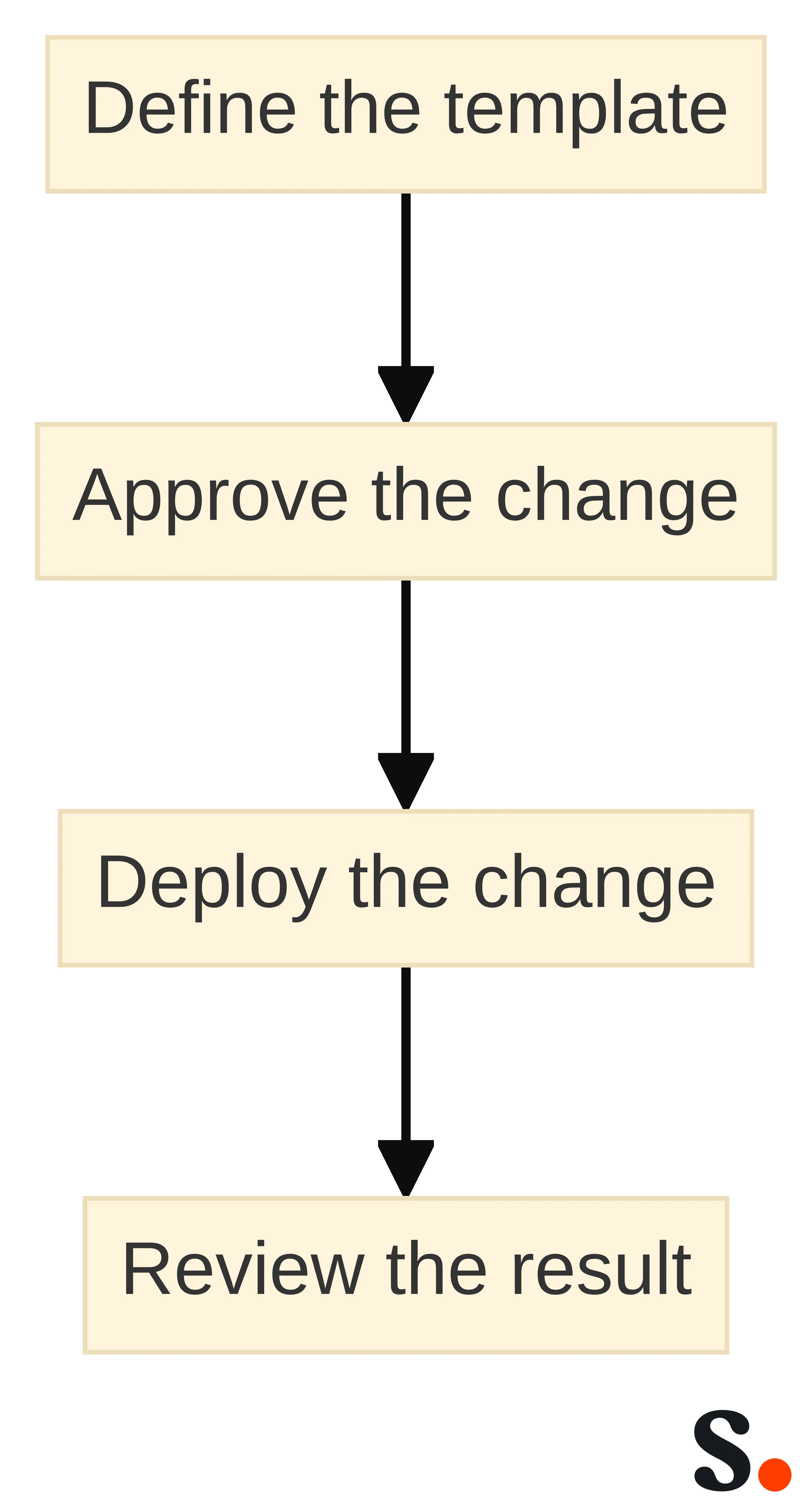
Choose the approach that matches your operating model
Your approach should match the work your organization needs to own. Choose individual Outlook settings when the scope is small, the signature is simple, and distributed maintenance is acceptable. Choose Microsoft 365 administrative or server-side controls when central policy, mail-flow application, or broad sending-path coverage matters more than rich compose-time editing. Evaluate a managed platform when Marketing needs shared templates, recurring updates, department rules, campaign operations, measurement, or a defined IT-to-Marketing handoff.
Take four practical steps next:
- Inventory the Outlook sending contexts, departments, brands, and campaign requirements you must support.
- Mark each requirement as a need for local control, administrative enforcement, centralized content, or measurement.
- Assign the IT, Marketing, brand, and reporting owners before you test a deployment.
- Run one representative signature and one campaign workflow through the defined acceptance criteria.
A qualified Microsoft 365 or email administrator should decide tenant-specific implementation and individual suitability for your organization. Once the ownership, deployment, and measurement boundaries are clear, select the workflow that satisfies those conditions rather than adding capabilities your team does not need.
What should a marketing team verify before implementing Outlook signature management?
What are the main approaches to managing Outlook signatures across an organization?
Organizations can choose from user-managed signatures, administrative or server-side controls, and managed signature platforms. Each approach varies in terms of ownership, deployment, and update workflows.
How can I ensure consistent email signatures across multiple devices?
To maintain consistency, consider using account-managed signatures or a managed signature platform, as local signatures may not be available across different devices.
What factors should I consider when deciding on an email signature management approach?
Evaluate factors such as the need for central control, the complexity of signature content, the frequency of updates, and the requirement for campaign tracking and measurement.
What are the benefits of using a managed signature platform?
A managed signature platform can provide centralized control over templates, real-time updates, analytics for measuring campaign effectiveness, and support for multiple sending contexts.
How do I measure the effectiveness of email signatures in my marketing campaigns?
Define specific metrics such as click-through rates, conversions, and revenue attribution, and ensure your chosen management approach supports tracking these metrics.
What should I document before implementing an email signature management solution?
Document requirements for template ownership, update workflows, deployment contexts, department-specific rules, and measurement criteria to ensure a successful implementation.
Can I customize email signatures for different departments or roles within my organization?
Yes, many management approaches, especially managed platforms, allow for department-specific variations in signatures based on predefined rules.
What are the limitations of using Exchange Online for email signature management?
Exchange Online transport rules have limited formatting options and do not display signatures in the sender's Sent Items, which may not meet all branding requirements.
Get started with Scribe
Manage signatures across your whole team
Free 14-day trial — no credit card.