How to Add Your Signature in Gmail: A Step-by-Step Guide
Creating a professional email signature in Gmail is essential for effective communication and brand consistency. With over 62% of users relying on Gmail for
Sophie Grant
Email Signature Specialist, Scribe
Introduction
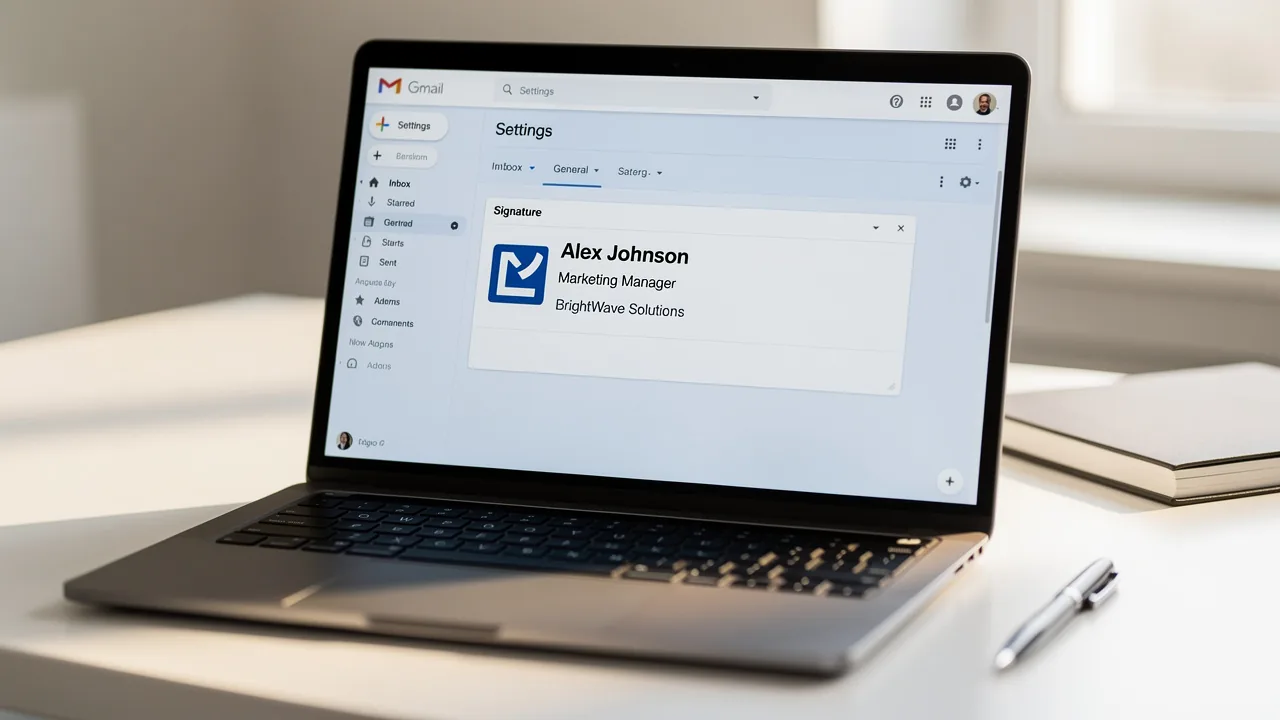
Creating a professional email signature in Gmail is essential for effective communication and brand consistency. With over 62% of users relying on Gmail for their messaging needs, a well-crafted signature is essential for establishing a professional image. This guide outlines the critical steps for:
- Creating email signatures
- Customizing email signatures
- Managing email signatures in Gmail
Ensuring that each message sent maintains a consistent and professional image is crucial. However, users may face challenges such as:
- Signatures not displaying correctly
- The need to switch between multiple signatures for various campaigns
Understanding these challenges is key to mastering email signature management.
Access Gmail Settings to Add Your Signature
To effectively manage your email signatures, follow these structured steps to ensure consistency and professionalism.
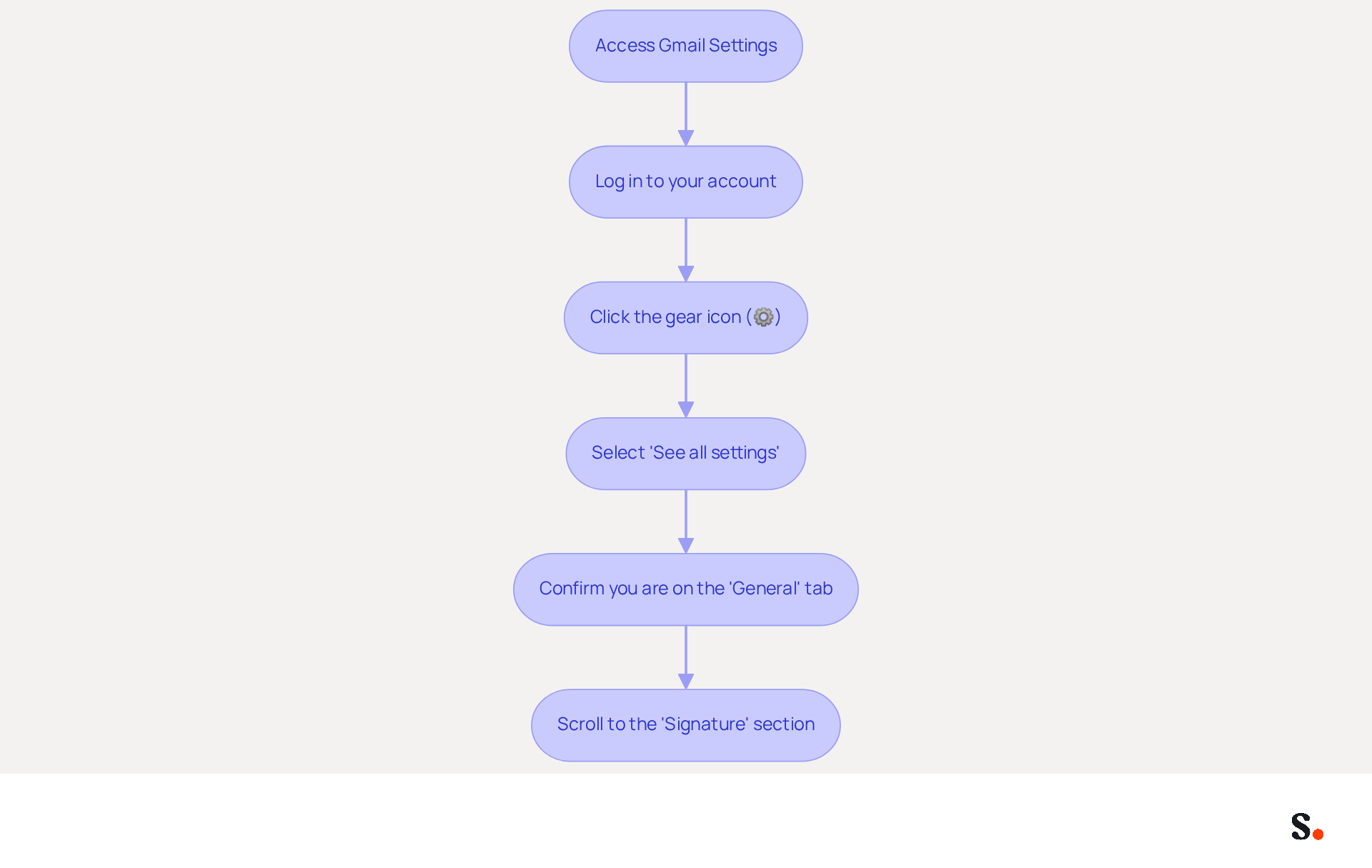
- Begin by accessing your email account through your web browser.
- Log in to your account as necessary.
- Locate and click the gear icon (⚙️) in the top right corner of the email interface.
- Select 'See all settings' from the dropdown menu.
- Confirm that you are on the 'General' tab, the default view.
- Scroll to the 'Signature' section for adding signature in Gmail to manage your email signature.
Given that Gmail is the leading messaging client, used by 62.2% of users in 2023, managing communication identifiers effectively is essential for branding and interaction. A well-crafted sign-off significantly boosts interaction, with branded messages yielding a 22% higher response rate. Regular updates are vital; approximately 44.4% of users refresh their digital identifiers every six months or less, maintaining consistent branding. Syncing Google Workspace with Scribe automates message management, saving time and ensuring that updates to teammates' information are reflected automatically. This integration enhances brand consistency and supports SOC 2 Type II compliance for secure data handling. Following these steps will establish a professional email footer that accurately reflects your brand identity while adding signature in Gmail for efficient updates.
Create and Customize Your Email Signature
Adding signature in Gmail is essential for creating a professional email that enhances effective communication and brand representation.
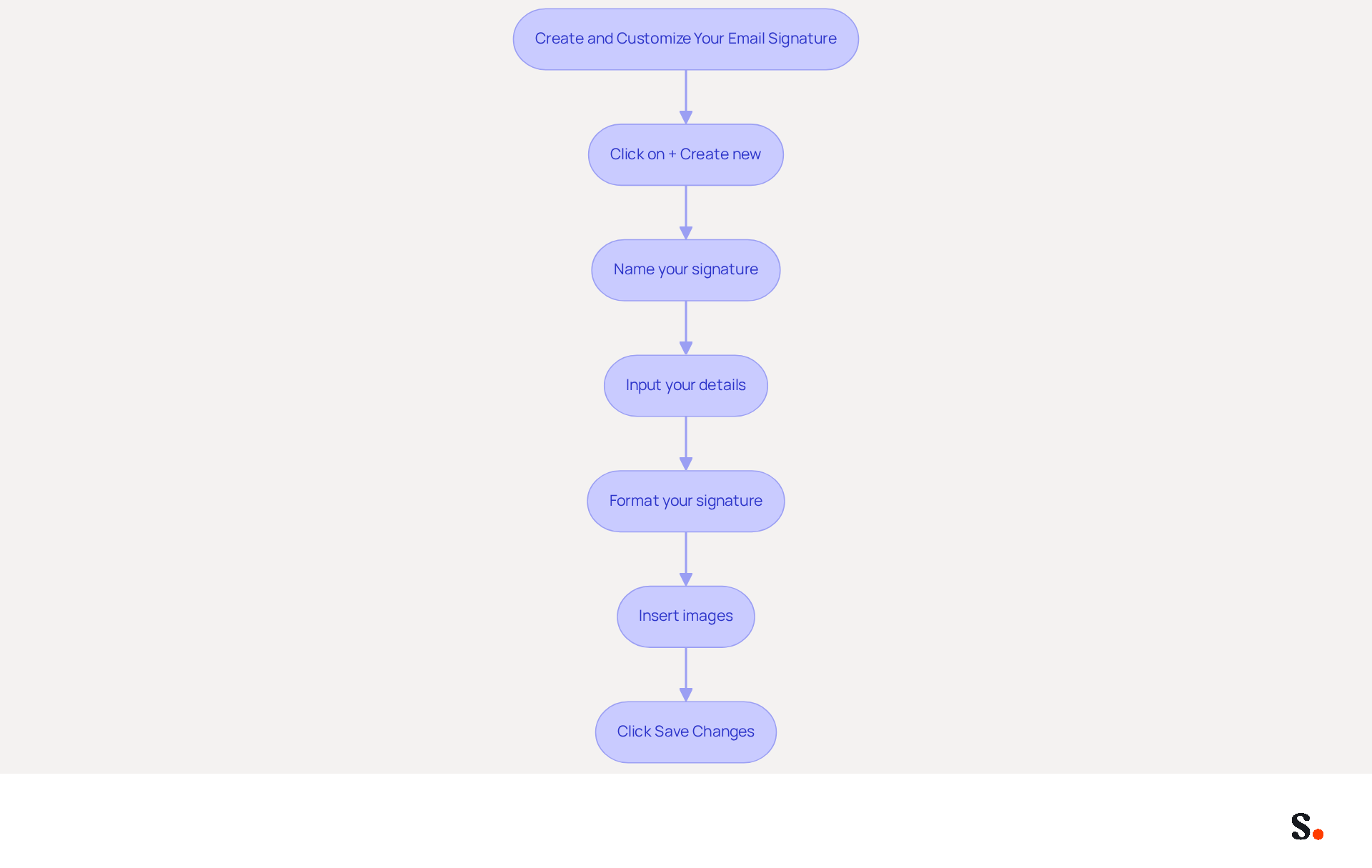
- In the 'Signature' section, click on the '+ Create new' button to begin the process of making a new sign-off.
- A dialog box will prompt you to name your mark. Choose a name that reflects its purpose, such as 'Professional Signature'.
- After naming your unique mark, a text box will appear where you can input your details. Include essential information like your name, job title, company name, and any other relevant contact details.
- Utilize the formatting options available (font style, size, color) to personalize the appearance of your mark. You can also add links to your social media profiles or website to enhance connectivity.
- If desired, insert images such as your company logo or a personal photo by clicking on the 'Insert image' icon in the formatting toolbar.
- Once you are satisfied with your autograph, scroll down and click 'Save Changes' at the bottom of the settings page.
To set up one-click synchronization, you must be a Super Admin of your provider. Grant Scribe permission to connect. With Scribe, your team's signatures stay up-to-date and in sync with your business phone system effortlessly. This real-time synchronization means that any changes made in your connected source will automatically reflect in the application, saving you time and ensuring brand consistency. Additionally, Scribe is SOC 2 Type II compliant, guaranteeing the safety of your data throughout the process. By automating your email signature management, you not only save time but also enhance your brand's professionalism and consistency through adding signature in Gmail.
Manage Multiple Signatures for Different Campaigns
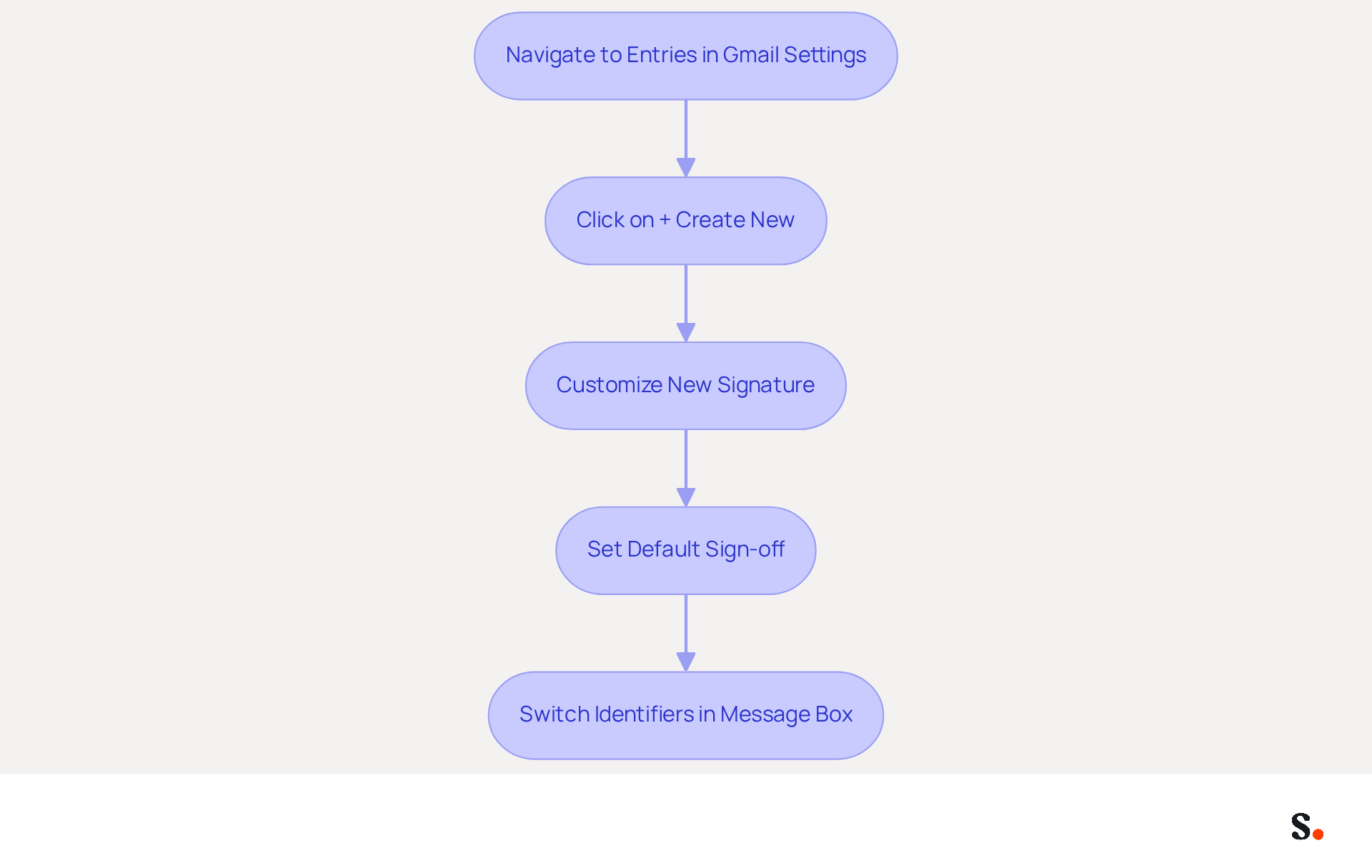
- To create additional entries, navigate back to the 'Entries' section in Gmail settings.
- Click on the '+ Create new' button to add another signatory. Name it appropriately based on its intended use, such as 'Marketing Campaign Signature.'
- Customize this new emblem using the same steps outlined previously, ensuring it aligns with your branding and campaign goals.
- To establish a default sign-off for new messages or responses, scroll to the 'Defaults for sign-offs' section below the sign-off editor. Here, you can choose which sign to use for new messages and replies/forwards.
- When creating a new message, switch between different identifiers easily by clicking on the pen icon in the message box toolbar and selecting the preferred identifier from the dropdown menu.
Many marketing initiatives struggle to achieve optimal engagement. Studies show that electronic correspondence often achieves a click-through rate of around 4%, significantly higher than traditional marketing messages. By strategically managing different identifiers for various campaigns, you can tailor your messaging to specific audiences, thereby maximizing engagement and conversion opportunities. Furthermore, with Scribe, every modification made in your Aircall configuration will automatically be reflected in your correspondence identifiers, ensuring brand consistency and effortless updates. This automated synchronization simplifies management and ensures compliance with SOC 2 Type II, GDPR, and CCPA, safeguarding your data.
Troubleshoot Common Signature Issues
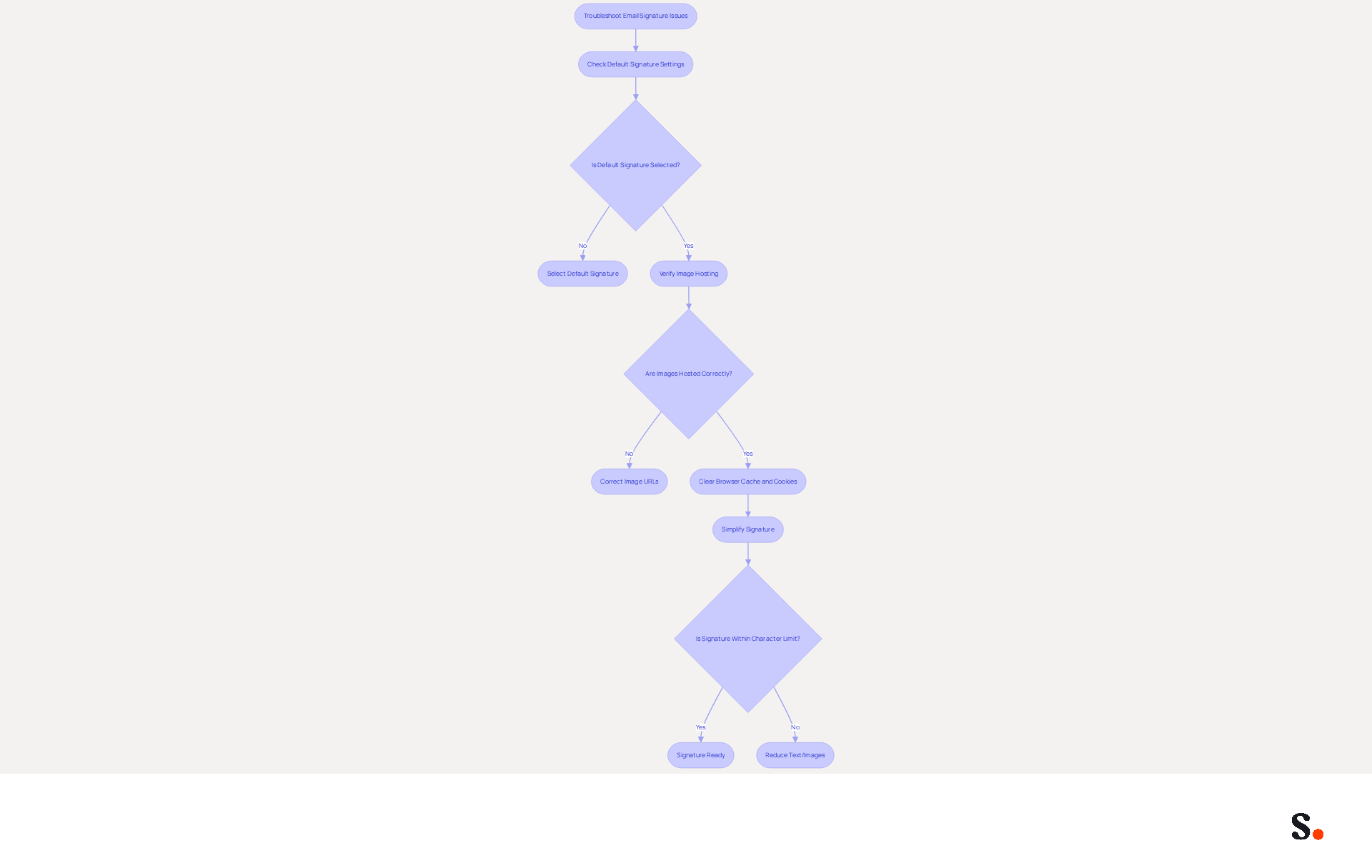
Adding signature in Gmail is crucial for ensuring your email signature displays correctly and maintaining a professional image. To ensure your mark appears in messages, confirm that it is selected as the default mark in the 'Mark defaults' section of your Gmail settings. Additionally, verify that the 'No identification' option is not selected for the email account you are using.
If images in your email footer are not displaying, ensure that they are hosted on a reliable server and that their URLs are correct and publicly accessible. Clearing your browser cache and cookies can help resolve display issues with your email signature.
Managing email signatures can be challenging, especially when they exceed character limits. Simplify your signature by reducing text or removing unnecessary images to stay within the email service's character limit of 10,000. For additional assistance, consult Gmail's help resources or community forums for further troubleshooting tips.
Failure to address these issues may result in problems with adding signature in Gmail, which can impact your professional communication.
Conclusion
Creating an email signature in Gmail is essential for establishing a professional image in your communications. By following the outlined steps, users can create, customize, and manage their email signatures effectively, ensuring that every message sent reflects their brand identity and professionalism.
Throughout this guide, key aspects such as:
- Accessing Gmail settings
- Creating and customizing signatures
- Managing multiple signatures for different campaigns
- Troubleshooting common issues
have been thoroughly covered. The integration of Scribe enhances this process by automating updates and ensuring compliance with security standards like SOC 2 Type II, GDPR, and CCPA, which is crucial for safeguarding data while maintaining brand consistency.
Mastering email signatures can truly enhance how effectively you engage in communication. Using Scribe enables organizations to maintain brand consistency and achieve measurable marketing ROI through their email signatures. A well-crafted email signature not only enhances your professional image but also drives measurable results in your communications.
Frequently Asked Questions
How do I access Gmail settings to add my signature?
To access Gmail settings, log in to your email account through your web browser, click the gear icon (⚙️) in the top right corner, select 'See all settings' from the dropdown menu, and ensure you are on the 'General' tab. Then, scroll to the 'Signature' section to manage your email signature.
Why is managing email signatures important?
Managing email signatures is important for maintaining consistency and professionalism in communication. A well-crafted sign-off can significantly boost interaction, with branded messages yielding a 22% higher response rate.
How often should I update my email signature?
It is recommended to update your email signature regularly, as approximately 44.4% of users refresh their digital identifiers every six months or less to maintain consistent branding.
What is the benefit of syncing Google Workspace with Scribe for email signatures?
Syncing Google Workspace with Scribe automates message management, saving time and ensuring that updates to teammates' information are reflected automatically. This integration enhances brand consistency and supports SOC 2 Type II compliance for secure data handling.
What is the significance of having a professional email footer?
A professional email footer accurately reflects your brand identity and contributes to effective communication, helping to establish a strong brand presence in your interactions.
List of Sources
- Access Gmail Settings to Add Your Signature
- Email Signature Statistics: A Closer Look at Email Signatures in 2026 (https://mysignature.io/blog/email-signature-statistics)
- 40+ Email Signature Statistics for 2026 (Data + Insights) (https://wavecnct.com/blogs/email-signature-statistics)
- 14 Key Email Signature Statistics to Know in 2026 (https://mailmodo.com/guides/email-signature-statistics)
- Email signature statistics: Why every business should optimize their email signatures — Stripo.email (https://stripo.email/blog/email-signature-statistics-why-every-business-should-optimize-their-email-signatures)
- Email Signature Essentials: Key Statistics to Know for 2023 (https://blog.hubspot.com/marketing/email-signature-statistics)
- Create and Customize Your Email Signature
- Signature marketing: Triple your conversions with your signatures (https://mailbutler.io/blog/email/signature-marketing)
- How to create custom Gmail signature (https://foxnews.com/tech/how-to-create-custom-gmail-signature)
- 10 ideas for marketing campaigns in email signatures (https://signitic.com/en/resources/10-ideas-for-marketing-campaigns-in-email-signatures)
- Email signature marketing: everything you need to know (https://templafy.com/email-signature-marketing-everything-you-need-to-know)
- The Good and Bad of Email Signature Marketing | Associations Now (https://associationsnow.com/2022/06/put-signature-good-bad-email-signature-marketing)
- Manage Multiple Signatures for Different Campaigns
- How to Leverage an Email Signature Marketing Campaign for CX (https://gorgias.com/blog/email-signature-marketing)
- News from Google (https://workspace.google.com/blog/gmail/launch-your-email-marketing-campaigns-effectively-gmail)
- 6 Ways to Use Email Signature to Support Marketing Campaigns (https://clearout.io/blog/use-email-signature-to-support-marketing-campaigns)
- 12 clever ways to use your email signature to support your marketing campaigns (https://blog.hubspot.com/blog/tabid/6307/bid/31054/10-clever-ways-your-email-signature-can-support-your-marketing.aspx)
- 10 ideas for marketing campaigns in email signatures (https://signitic.com/en/resources/10-ideas-for-marketing-campaigns-in-email-signatures)
- Troubleshoot Common Signature Issues
- Troubleshoot issues with Gmail signatures - Gmail Help (https://support.google.com/mail/answer/11468381?hl=en)
- Fix Your Missing Gmail Signature: 8 Troubleshooting Steps & Best Practices | Newoldstamp - NEWOLDSTAMP (https://newoldstamp.com/blog/gmail-signature-not-showing-up)
- Why Is My Gmail Signature Not Showing Up? Common Causes Explained (https://scribe-mail.com/en-US/blog/why-is-my-gmail-signature-not-showing-up-common-causes-explained)
- 40+ Email Signature Statistics for 2026 (Data + Insights) (https://wavecnct.com/blogs/email-signature-statistics)
- Gmail Signature Troubleshooting | WiseStamp Help Center (https://support.wisestamp.com/en/articles/13366705-gmail-signature-troubleshooting)
Get started with Scribe
Create your signature in minutes
Free 14-day trial — no credit card.