How to Change Your Email Signature on Gmail: A Step-by-Step Guide
In an era where digital communication defines professional interactions, managing email signatures effectively is paramount. This guide provides a
Sophie Grant
Email Signature Specialist, Scribe
Introduction
In an era where digital communication defines professional interactions, managing email signatures effectively is paramount. This guide provides a comprehensive, step-by-step approach to changing your email signature on Gmail, ensuring users can easily customize their signatures to reflect their brand identity.
Navigating the complexities of email signature management can be challenging. A well-crafted email signature not only enhances your professional image but also ensures consistency across platforms.
Access Gmail Signature Settings
Managing email signatures can often be a tedious task, but learning how to change email signature on Gmail can simplify the process.
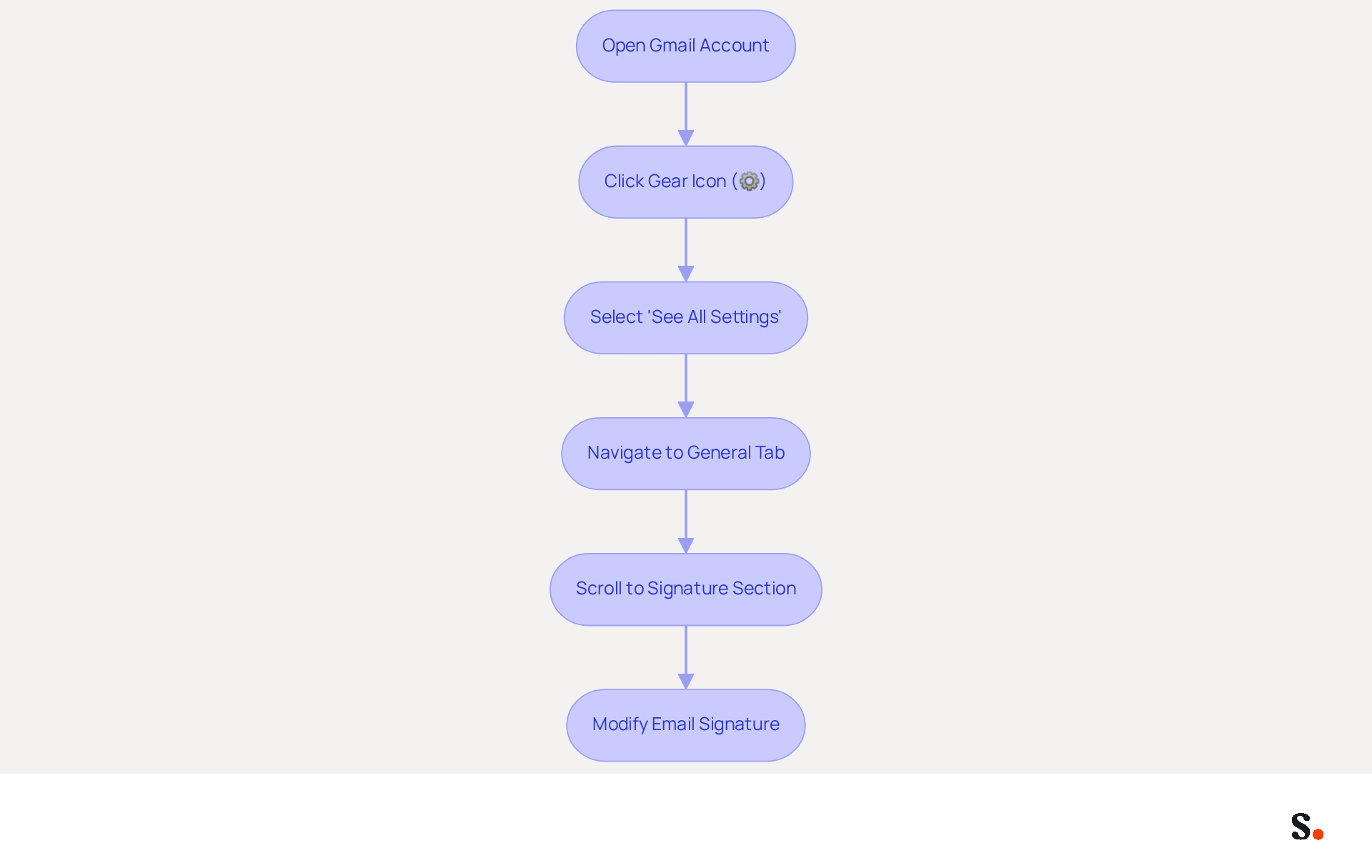
- Open your Gmail account in a web browser.
- In the top right corner, click on the gear icon (⚙️) to open the Settings menu.
- Select 'See all settings' from the dropdown menu.
- In the Settings menu, navigate to the 'General' tab.
- Scroll down until you find the 'Signature' section. Here, you will find options on how to change email signature on Gmail or modify your message footer.
Scribe automatically syncs modifications made in your Google Workspace with your correspondence labels, ensuring brand consistency and saving time on manual revisions. This smooth integration enables effortless management of your messages, reflecting any changes in your team’s information without extra input. You can avoid the manual addition of teammates, as their information is automatically synced with Scribe, allowing you to auto-fill their information using our attribute feature. Frequent updates to your contact information can greatly improve brand visibility, with 44.4% of users refreshing their details 2-4 times annually. Including social media links, CTAs, and legal disclaimers enhances the effectiveness of your emails, as 52.6% of users include a call-to-action in their emails, driving engagement and conversions. By implementing these strategies, you will understand how to change email signature on Gmail, making your email signatures a vital asset in your marketing efforts.
Create and Customize Your Email Signature
It is essential for effective communication and brand representation to know how to change email signature on gmail.
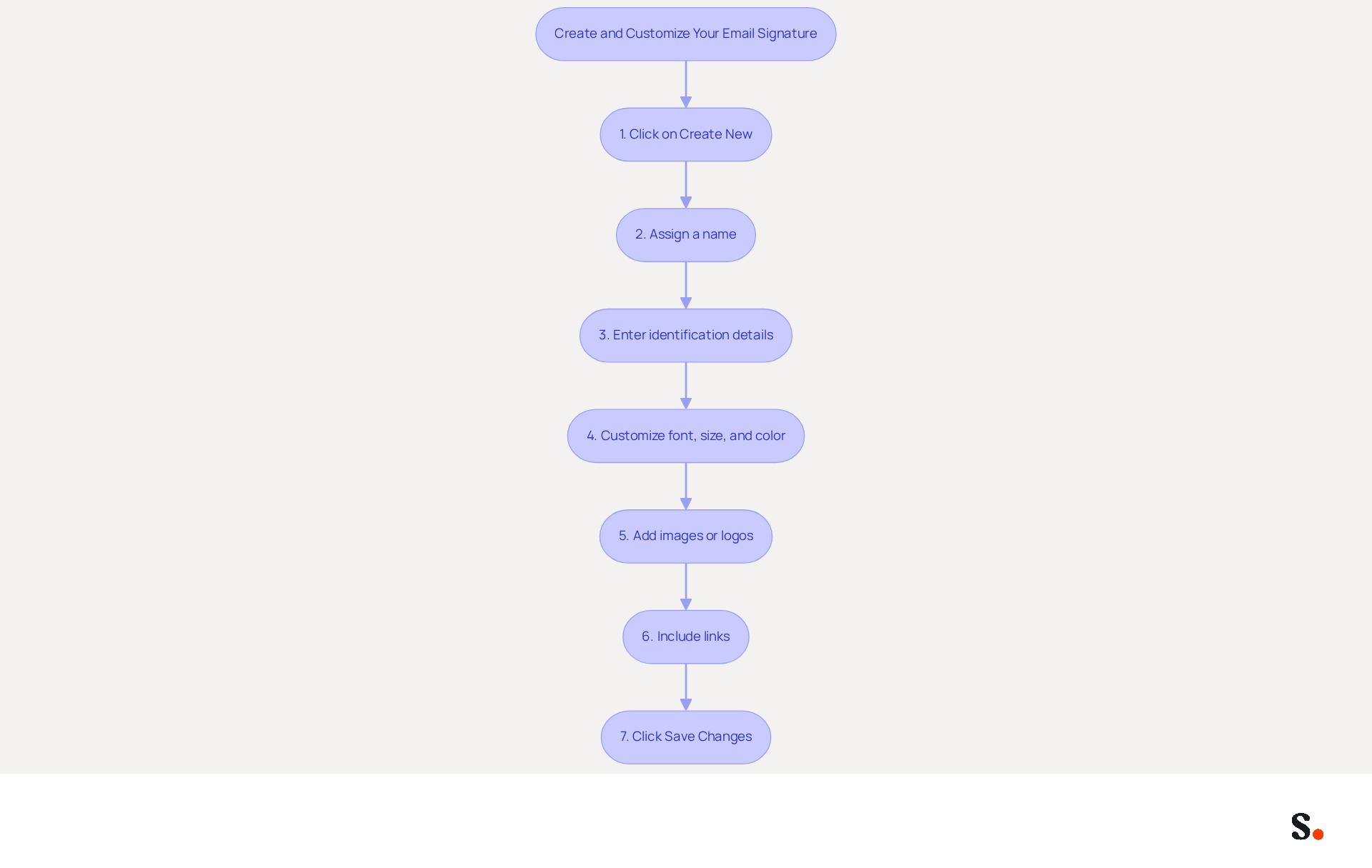
- In the 'Signature' section, click on 'Create New' to initiate a new mark.
- Assign a name to your mark for easy identification.
- Use the text box to enter your identification details, including your name, title, company name, and contact information.
- Customize the font, size, and color using the available formatting options to ensure clarity and professionalism.
- To add images or logos, click on the image icon and upload your desired image, ensuring it is hosted at an HTTPS URL to avoid display issues.
- If you wish to include links (e.g., to your website or social media), highlight the text and click the link icon to insert the URL. Keep in mind that a sensible ceiling for links is five to maintain focus.
- Once you are satisfied with your autograph, scroll down and click 'Save Changes' at the bottom of the page to understand how to change email signature on gmail.
To achieve the best results, use two or three colors in your signature. Additionally, keep it to a maximum of seven lines to maintain clarity. Neglecting to update your signature can lead to outdated information, which may confuse recipients and weaken your brand's impact. Regular updates to your signature can significantly enhance your professional image and ensure consistent branding.
Manage Multiple Signatures for Different Contexts
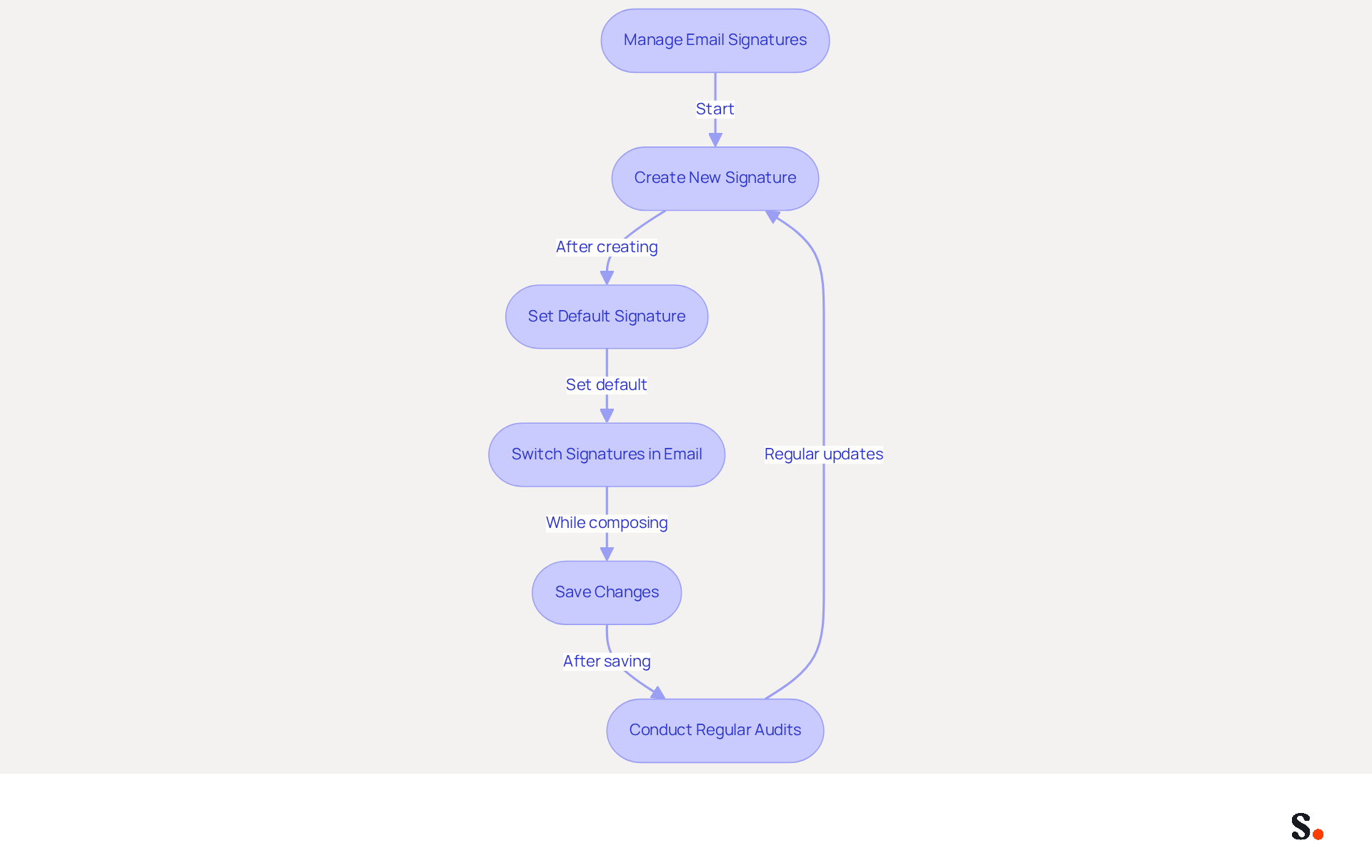
Effectively managing how to change email signature on Gmail is crucial for maintaining professional communication standards. In the 'Signature' section of the Settings, after creating multiple designs, you can find out how to change email signature on Gmail to set a default option for new messages and responses. This feature is vital because 89.9% of professionals use a single electronic identifier, yet having multiple options allows for tailored communication. Furthermore, 25.1% of organizations employ email footers to ensure consistent corporate communication, highlighting the importance of effectively managing multiple footers in a corporate environment. With Scribe, these endorsements can be automatically synchronized with your business phone system, ensuring that any updates are reflected in real-time without manual input, all while adhering to SOC 2 Type II compliance for data security.
To set a default sign-off, select your preferred option from the dropdown menu next to 'Defaults for sign-offs.' This guarantees that your communications uphold a consistent brand identity, which is crucial since 80% of respondents think a branded communication mark is an important aspect of a company's image. Moreover, 76% indicate that branded communications enhance their trust in the sender, emphasizing the importance of this practice. Scribe's integration with Google Workspace enables effortless modifications, conserving time and guaranteeing precision.
When drafting a new email, you can easily switch between different sign-offs by clicking on the pen icon in the message toolbar and selecting the one you wish to use. This flexibility is particularly beneficial for professionals who manage different roles or audiences, enhancing engagement and response rates. With Scribe, your teammates' identification information is always synchronized, allowing you to concentrate on your communication instead of manual modifications.
If you need to create a new mark, just click 'Create New' and follow the customization steps again. Regular updates to your identifiers are essential, as 31.6% of users only refresh their identifiers every few years, which can lead to miscommunication and lost opportunities. Conducting regular audits is recommended to ensure that all information remains current and relevant. Scribe's automated synchronization means that any changes in your Google Workspace, such as moving teammates from one group to another or updating their information, will be automatically reflected in Scribe without any input on your part.
Remember to save any modifications you make to your identifiers by clicking 'Save Changes' at the bottom of the settings page. This step is essential to guarantee that your updates are implemented, as messages with professionally branded designs can make recipients feel 47% more confident in your communication. As Yuliia Savchuk from Stripo observes, 'A well-thought-out design enables you to incorporate multiple buttons in your footer, such as scheduling a meeting and accessing a map,' highlighting the significance of careful design in digital correspondence. Inconsistent branding can undermine trust and clarity in your communications.
Troubleshoot Common Signature Issues
To ensure your email signature displays correctly, follow these essential guidelines:
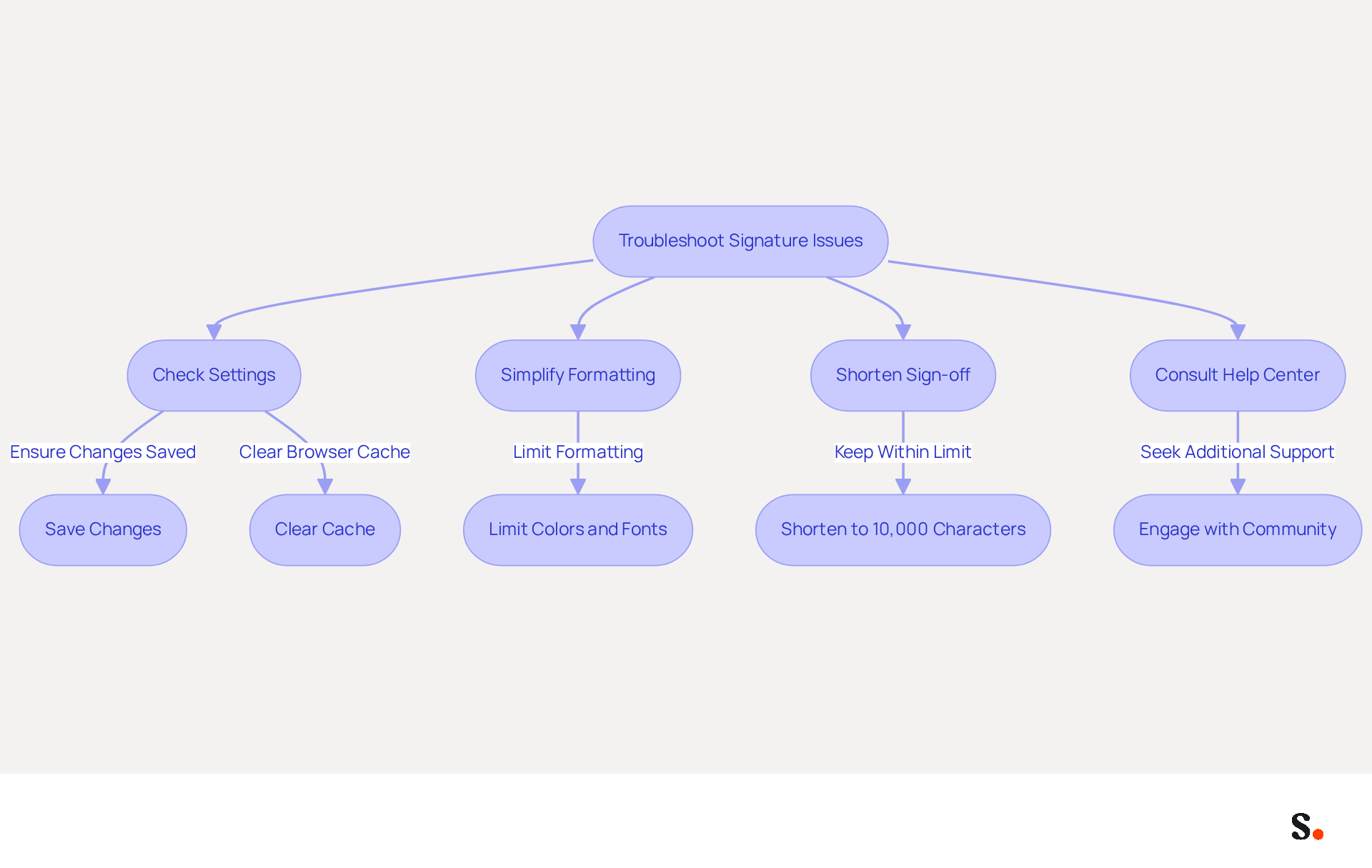
- If your signature is not displaying correctly, check the following:
- Ensure you have saved your changes in the Settings.
- Clear your browser cache and cookies regularly, as outdated data can cause display issues. This practice ensures your signature remains visible and functions correctly.
- Verify that the image links are correct and hosted on publicly accessible servers; images must be accessible for proper display.
- If you encounter formatting issues, consider simplifying your signature by limiting colors and fonts. Excessive formatting can lead to rendering problems across different email clients, particularly in Gmail.
- If your sign-off exceeds Gmail's character limit of approximately 10,000 characters, consider shortening it to ensure it displays correctly. A concise signature not only meets technical requirements but also enhances clarity.
- For persistent issues, consult the Gmail Help Center or community forums for additional support. Engaging with these resources can provide insights into common problems, as users frequently encounter similar issues, making these resources invaluable.
Syncing your Google Workspace with Scribe can truly streamline your email management. By automatically updating your teammates' information - like job positions or group changes - you eliminate the need for manual updates, ensuring your signatures remain accurate. This integration not only saves time but also enhances brand consistency across your organization.
Conclusion
Inconsistent email signatures can undermine a professional image and dilute brand identity. Mastering the process of changing your email signature on Gmail is essential for maintaining a professional image and ensuring brand consistency. Following these steps allows users to create, customize, and manage their signatures effectively, leading to improved engagement and stronger trust in professional communications. This guide highlights the importance of keeping signatures updated and tailored for different situations, which can significantly impact engagement and trust in professional correspondence.
Key insights from this guide include the seamless integration of Scribe with Google Workspace, allowing for automatic updates and synchronization of team information. This feature not only saves time but also ensures that all communications reflect the most current branding and contact details. Additionally, the ability to manage multiple signatures caters to diverse professional needs, reinforcing the importance of personalized communication in today’s business landscape.
Ultimately, neglecting your email signature could mean losing valuable connections and opportunities in your professional journey. By leveraging tools like Scribe, teams can achieve 100% brand consistency and measurable marketing ROI from their email communications. Embrace the power of a well-crafted email signature to enhance your professional image and drive engagement, ensuring that every message leaves a lasting impression.
Frequently Asked Questions
How can I access the Gmail signature settings?
To access the Gmail signature settings, open your Gmail account in a web browser, click on the gear icon (⚙️) in the top right corner, select 'See all settings' from the dropdown menu, navigate to the 'General' tab, and scroll down to the 'Signature' section.
What can I do in the Signature section of Gmail settings?
In the Signature section, you can change your email signature or modify your message footer.
How does Scribe help with managing email signatures in Gmail?
Scribe automatically syncs modifications made in your Google Workspace with your correspondence labels, ensuring brand consistency and saving time on manual revisions.
What feature does Scribe offer for auto-filling teammate information?
Scribe allows you to auto-fill teammate information using its attribute feature, eliminating the need for manual addition.
How often do users typically update their contact information?
Approximately 44.4% of users refresh their contact details 2-4 times annually.
What elements can enhance the effectiveness of email signatures?
Including social media links, calls-to-action (CTAs), and legal disclaimers can enhance the effectiveness of your emails, as 52.6% of users include a CTA in their emails to drive engagement and conversions.
Why is it important to manage email signatures effectively?
Effective management of email signatures can improve brand visibility and make your email signatures a vital asset in your marketing efforts.
List of Sources
- Access Gmail Signature Settings
- 40+ Email Signature Statistics for 2026 (Data + Insights) (https://wavecnct.com/blogs/email-signature-statistics)
- 14 Key Email Signature Statistics to Know in 2026 (https://mailmodo.com/guides/email-signature-statistics)
- Email Signature Statistics: A Closer Look at Email Signatures in 2026 (https://mysignature.io/blog/email-signature-statistics)
- Gmail 2026 Deliverability Update: The New Rules | MailShrine (https://usepanda.email/blog/gmail-2026-update)
- Email signature statistics: Why every business should optimize their email signatures — Stripo.email (https://stripo.email/blog/email-signature-statistics-why-every-business-should-optimize-their-email-signatures)
- Create and Customize Your Email Signature
- Email Signature Best Practices - NEWOLDSTAMP (https://newoldstamp.com/blog/email-signature-best-practices)
- The Complete Email Signature Guide 2026: Best Practices and Policy (https://opensense.com/complete-email-signature-guide)
- Email Signature Trends 2026: Centralized Control & Automation | SIGNandGO posted on the topic | LinkedIn (https://linkedin.com/posts/signngo_email-signature-trends-to-watch-in-2026-activity-7401523471786217473-zAVL)
- Email Signature Design Trends in 2026: What Works and What to Drop (https://bulksignature.com/blog/email-signature-design-trends)
- Top 10+ best practices for email signatures design in 2026 (https://mysignature.io/blog/email-signature-best-practices)
- Manage Multiple Signatures for Different Contexts
- How to Create and Use Multiple Signatures in Gmail - NEWOLDSTAMP (https://newoldstamp.com/blog/more-than-one-signature-in-gmail)
- Email signature statistics: Why every business should optimize their email signatures — Stripo.email (https://stripo.email/blog/email-signature-statistics-why-every-business-should-optimize-their-email-signatures)
- How do I manage multiple signatures with Gmail? (https://signitic.com/en/guides/how-do-i-manage-multiple-signatures-with-gmail)
- 40+ Email Signature Statistics for 2026 (Data + Insights) (https://wavecnct.com/blogs/email-signature-statistics)
- Google Workspace Updates: Create and use multiple signatures in Gmail (https://workspaceupdates.googleblog.com/2020/03/multiple-signatures-gmail.html)
- Troubleshoot Common Signature Issues
- Email Signature Troubleshooting - Problems & Solutions - Gimmio (https://blog.gimm.io/email-signature-troubleshooting)
- Fix Your Missing Gmail Signature: 8 Troubleshooting Steps & Best Practices | Newoldstamp - NEWOLDSTAMP (https://newoldstamp.com/blog/gmail-signature-not-showing-up)
- Solving a Gmail signature problem (https://signitic.com/en/guides/solving-a-gmail-signature-problem)
- Why Is My Gmail Signature Not Showing Up? Common Causes Explained (https://scribe-mail.com/en-US/blog/why-is-my-gmail-signature-not-showing-up-common-causes-explained)
- Troubleshoot issues with Gmail signatures - Gmail Help (https://support.google.com/mail/answer/11468381?hl=en)
Get started with Scribe
Create your signature in minutes
Free 14-day trial — no credit card.