How to Change Your Signature Block in Outlook: 5 Easy Steps
Changing your signature block in Outlook is crucial for projecting a professional image in business communications. With over 400 million active users, Outlook
Sophie Grant
Email Signature Specialist, Scribe
Introduction
Changing your signature block in Outlook is crucial for projecting a professional image in business communications. With over 400 million active users, Outlook serves as a critical tool for organizations aiming to enhance their branding and communication consistency. This guide offers a straightforward approach to updating email signatures, ensuring that every message reflects the organization's identity and values.
Signature issues can lead to miscommunication and a lack of professionalism. Addressing these issues promptly is crucial for maintaining client trust and engagement.
Access Signature Settings in Outlook
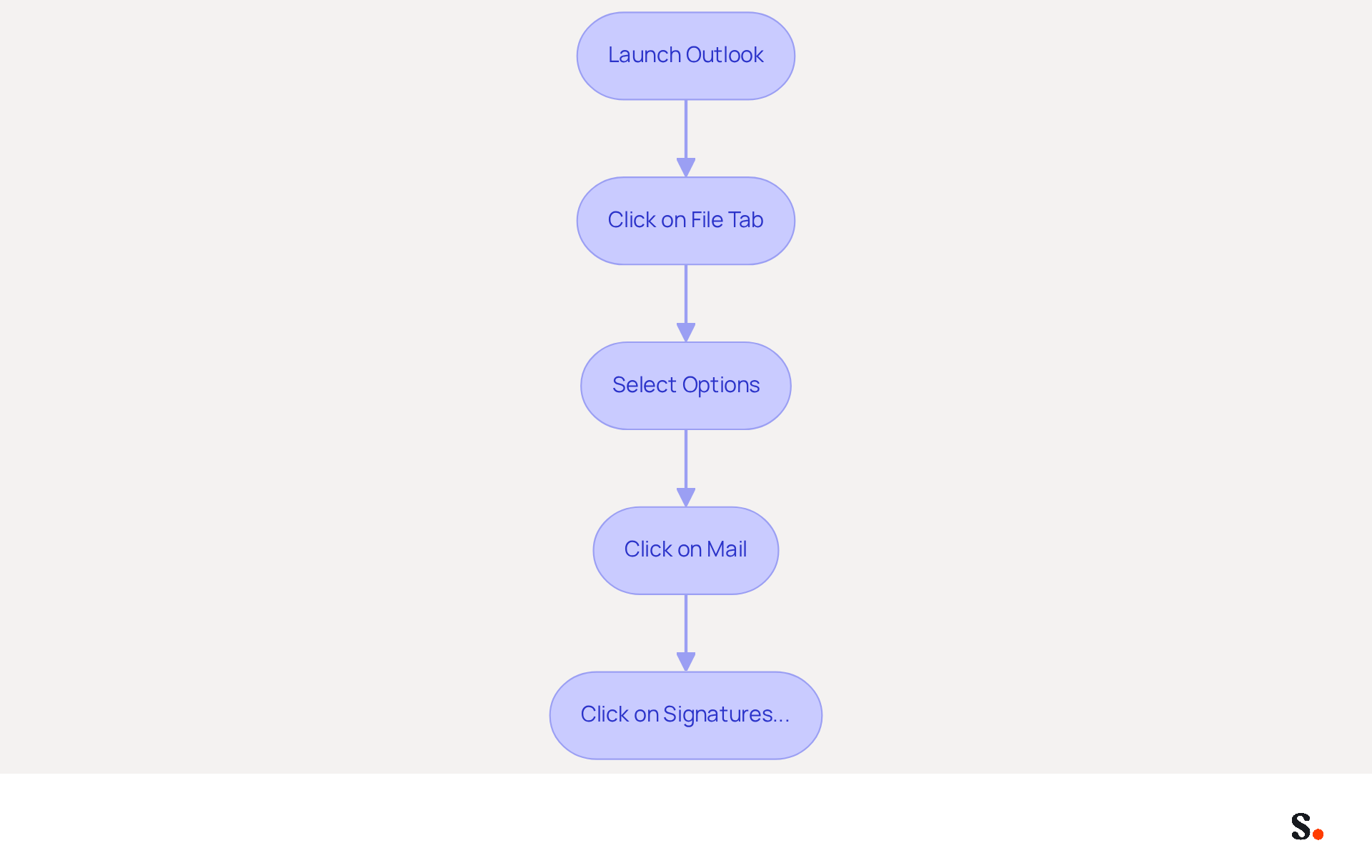
- Launch the Outlook application on your computer.
- Click on the 'File' tab located in the top-left corner of the window.
- From the menu, select 'Options' to open the Outlook Options dialog box.
- In the left pane, click on 'Mail'.
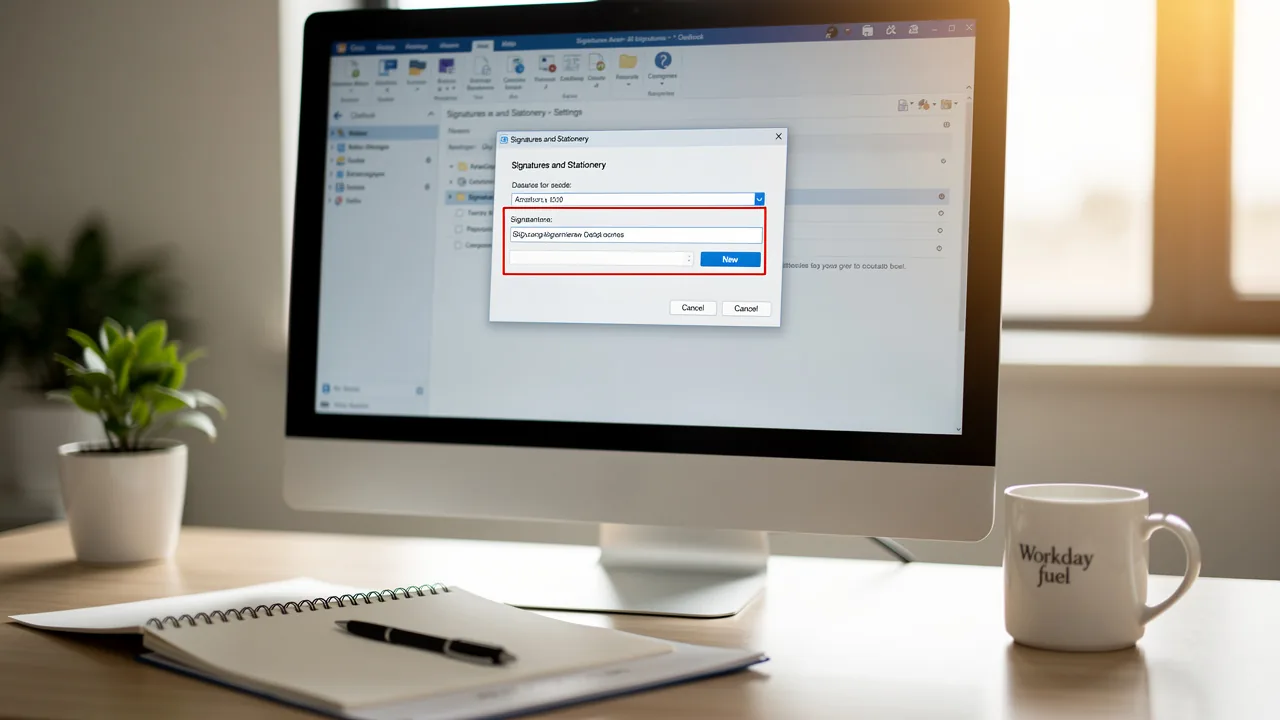
- Locate the 'Signatures...' button and click on it. This will open the Signatures and Stationery dialog box, enabling you to manage your correspondence.
To effectively manage your email signatures, learn how to change your signature block in Outlook by following these straightforward steps. With over 400 million active users, Microsoft Outlook is a favored option for businesses, especially for its advanced communication organization tools and seamless integration with Microsoft Office. Numerous organizations have effectively enhanced their Outlook consistency, ensuring a professional image across all communications. As IT experts highlight, maintaining updated and consistent electronic communication identifiers is essential for effective branding and interaction.
Syncing your Google Workspace with the application saves time and automatically updates your email signatures. Changes in your Google Workspace, such as moving teammates or updating their information, will be reflected in the application without manual input. This synchronization not only keeps your branding consistent but also meets security standards, with Scribe being SOC 2 Type II compliant. Syncing also enables auto-filling information using attributes, further simplifying the process. Many users encounter send-receive errors, which can disrupt communication and affect productivity, highlighting the importance of effective email management.
Create or Edit Your Email Signature
It is essential for effective communication to know how to change your signature block in Outlook when creating a professional email signature.
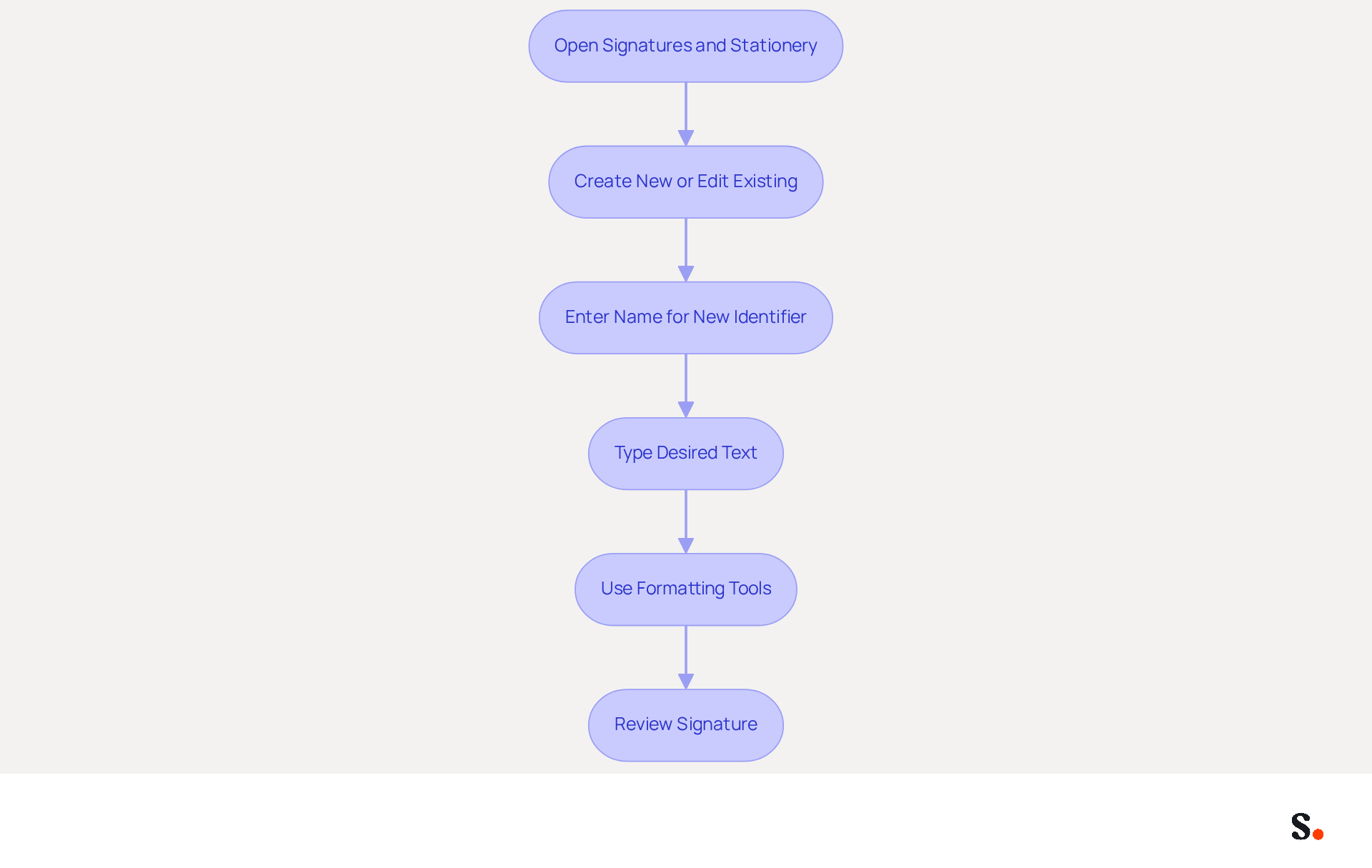
- To learn how to change your signature block in Outlook, open the Signatures and Stationery dialog box. Click on 'New' to create a new document or select an existing one from the list to edit.
- If you are creating a new identifier, enter a name for it in the pop-up window and click 'OK' to proceed.
- In the editing area, type your desired text. Include essential details such as your name, title, company name, and contact information to enhance professionalism and recognition.
- Make sure to use the formatting tools to personalize your sign-off. Select suitable fonts, sizes, colors, and styles that correspond with your identity, ensuring readability and visual appeal.
- Review your signature for clarity and consistency. Aim for a clean design that reflects your image, incorporating elements like a company logo or social media links to maximize engagement.
To enable one-click synchronization with Scribe, you must have Super Admin permissions for your service provider. This ensures seamless integration with your Google Workspace. Any modifications made in your messaging provider will automatically update in the application, saving you time and ensuring brand consistency. Additionally, Scribe's SOC 2 Type II compliance ensures that your data remains secure throughout this automated management process. This tool also automatically syncs teammate information from your email provider, improving your email management experience. Understanding how to change your signature block in Outlook can enhance your professional image and build trust and recognition with your contacts.
Format Your Signature for Professional Appeal
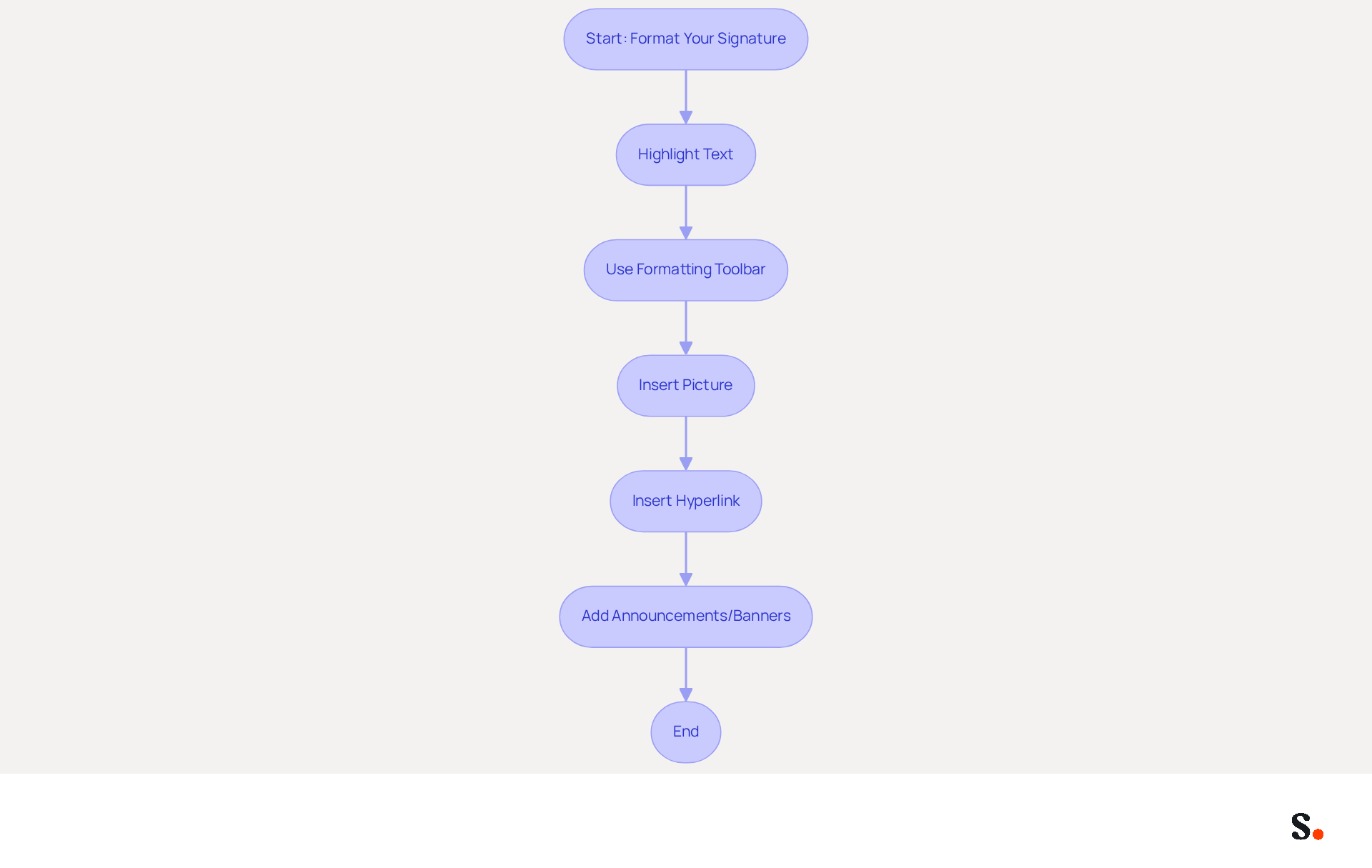
Managing email signatures can often be a tedious task, but Scribe simplifies this process significantly. In the editing area, highlight the text you wish to format to ensure it stands out. This tool saves time by auto-filling your teammates' initials from your business phone system, ensuring information is always synced effortlessly.
Utilize the formatting toolbar to adjust the font style, size, and color, selecting options that reflect your company's branding for a cohesive look. Scribe's automated synchronization guarantees that changes in your Aircall configuration are instantly reflected in your signatures, maintaining brand consistency.
To incorporate images, such as your company logo or a professional headshot, click on the 'Insert Picture' icon and choose the image file from your computer. Adding a visual element, like your company logo, can really boost your credibility.
For hyperlinks to your website, social media profiles, or important resources like reports and case studies, highlight the desired text, click on the 'Insert Hyperlink' icon, and enter the relevant URL. This not only drives traffic but also encourages engagement with your brand.
You might also want to add time-sensitive announcements or promotional banners to turn your emails into effective marketing tools. By leveraging Scribe's capabilities, you not only streamline your email signature management but also enhance your brand's professionalism and reliability.
Set Signature Preferences for Email Usage
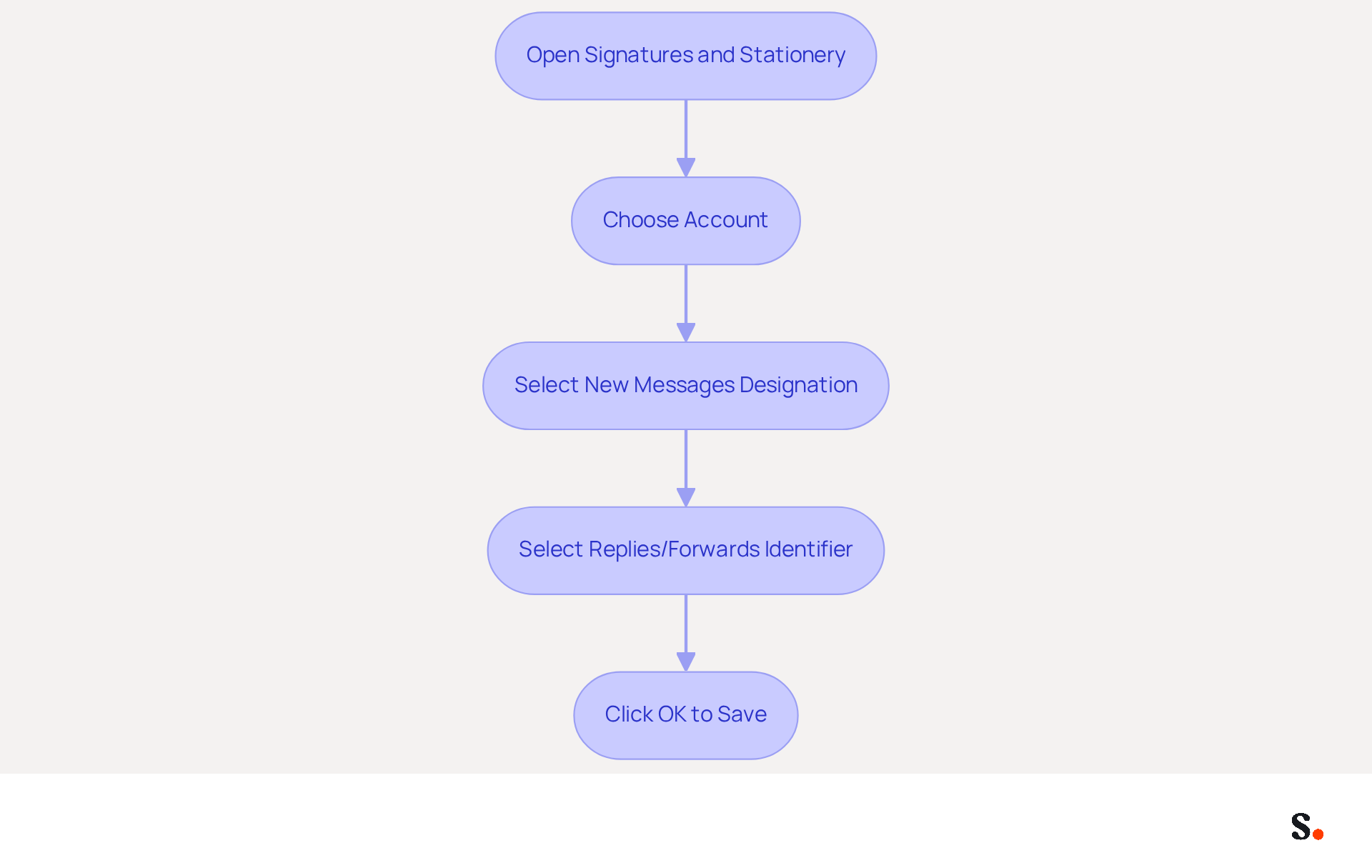
- Open the Signatures and Stationery dialog box and locate the 'Choose default option' section.
- From the drop-down menu, choose the account you wish to link with the sign-off.
- For 'New messages', select the designation you wish to apply to all new emails.
- For 'Replies/forwards', choose the identifier you wish to use for responses and forwarded messages.
- Click 'OK' to save your preferences.
To maintain professionalism in communications, it is essential to manage multiple identifiers effectively. Marketing managers emphasize that consistent digital identifiers serve as virtual business cards, which can enhance brand awareness and establish a more professional image. Businesses that improve their use of electronic correspondence footers report better engagement and lead generation. Recent data indicates that users prefer sign-offs that include essential contact information and branding elements, underscoring the significance of a well-crafted sign-off in business communications.
To enable one-click synchronization, you must grant permission to connect with your provider, requiring Super Admin access. This allows you to select specific teammates for synchronization, ensuring that all modifications made in your directory are automatically reflected in your identifiers. With Scribe's daily synchronization of team member data, managing digital identifiers becomes more effective, allowing for quick updates. Moreover, Scribe's SOC 2 Type II compliance guarantees that your data is managed securely, providing you with reassurance as you optimize your management of electronic correspondence. Ultimately, effective management of digital identifiers can significantly impact client perceptions and business success.
Troubleshoot Signature Issues in Outlook
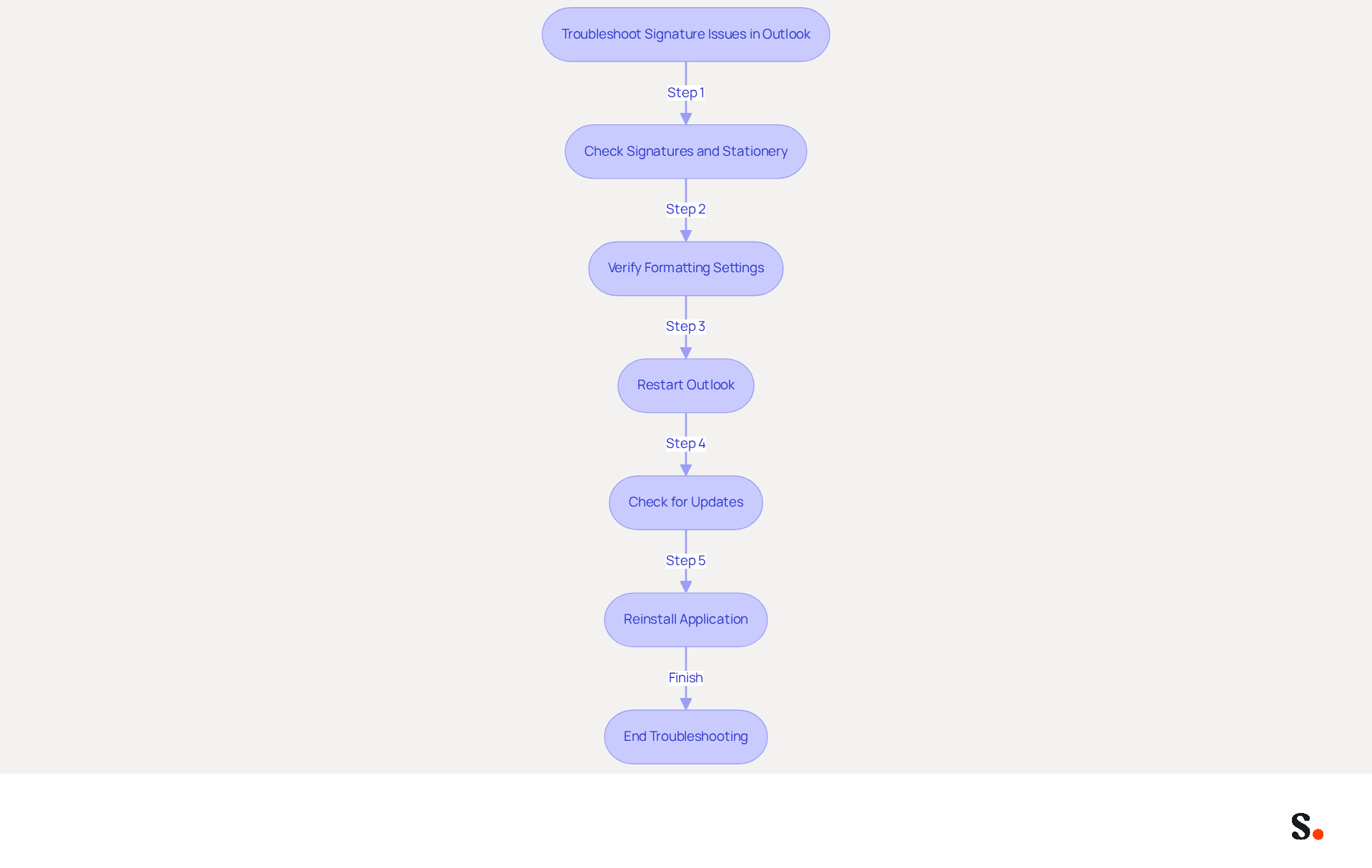
It is crucial for maintaining a professional image to know how to change your signature block in Outlook so that your email signature displays correctly. If your mark is not showing in messages, revisit the Signatures and Stationery dialog box to understand how to change your signature block in Outlook and confirm that the correct mark is selected for both 'New messages' and 'Replies/forwards.' This step is crucial. In fact, 42% of consumers view businesses negatively if their emails lack a branded mark, highlighting the importance of proper setup.
If the signatory's formatting is incorrect, you should learn how to change your signature block in Outlook by examining the formatting settings in the editor. Adjustments may be necessary to ensure consistency and professionalism, as 64-70% of respondents believe a professional branded mark enhances trust and credibility.
Restart Outlook to verify how to change your signature block in Outlook and see if the changes take effect. This straightforward action can frequently fix minor issues that may hinder the display of names correctly.
If issues persist, check for updates to Outlook. Keeping your application current can resolve bugs that impact functionality related to how to change your signature block in Outlook.
As a last resort, consider reinstalling the application. This can help eliminate persistent issues that may arise from corrupted files or settings, ensuring a smoother experience when learning how to change your signature block in Outlook. Addressing these issues promptly can significantly enhance your brand's credibility and customer trust.
Conclusion
Changing your signature block in Outlook is crucial for projecting a professional image in digital communications. This guide has outlined the straightforward steps necessary to create, edit, and manage your email signatures effectively. These techniques help users maintain a consistent and professional brand image in their correspondence.
Key insights discussed include:
- The importance of formatting your signature for visual appeal
- Setting preferences for different email types
- Troubleshooting common issues that users often encounter when managing their email signatures, which can lead to inconsistencies in branding
Employing tools such as Scribe can streamline the management of email signatures, ensuring compliance with security standards such as SOC 2 Type II. This ensures that your email signatures not only look professional but also adhere to best practices in data management.
Mastering email signature management can really change how clients perceive your business and contribute to its success. Organizations are encouraged to prioritize this aspect of their communication strategy, as a well-crafted signature not only enhances your professional image but also plays a vital role in building trust and engagement with clients. Embrace these practices to elevate your professional image and drive meaningful interactions in your correspondence.
Frequently Asked Questions
How do I access the signature settings in Outlook?
To access the signature settings in Outlook, launch the Outlook application, click on the 'File' tab in the top-left corner, select 'Options' from the menu, click on 'Mail' in the left pane, and then click on the 'Signatures...' button to open the Signatures and Stationery dialog box.
Why is it important to manage email signatures in Outlook?
Managing email signatures in Outlook is important for maintaining a professional image across communications, ensuring consistency in branding, and enhancing effective communication.
How can I create or edit my email signature in Outlook?
To create or edit your email signature in Outlook, open the Signatures and Stationery dialog box, click on 'New' to create a new signature or select an existing one to edit. Enter a name for the new signature, type your desired text, and use formatting tools to personalize it. Review your signature for clarity and consistency.
What details should I include in my email signature?
Your email signature should include essential details such as your name, title, company name, and contact information. You may also incorporate elements like a company logo or social media links to enhance professionalism and engagement.
How does syncing Google Workspace with Outlook benefit my email signatures?
Syncing Google Workspace with Outlook saves time by automatically updating your email signatures based on changes in your Google Workspace, ensuring consistent branding and compliance with security standards. It also allows for auto-filling information using attributes.
What permissions are needed for one-click synchronization with Scribe?
To enable one-click synchronization with Scribe, you must have Super Admin permissions for your service provider, which ensures seamless integration with your Google Workspace.
What compliance standard does Scribe meet regarding data security?
Scribe is SOC 2 Type II compliant, ensuring that your data remains secure throughout the automated management process of email signatures.
List of Sources
- Access Signature Settings in Outlook
- Message Statistics Report (https://outlookfreeware.com/en/products/all/OutlookReportMessagesStatistics)
- Outlook Statistics For 2026: Key Trends Shaping the Future (https://clean.email/blog/email-providers/outlook-statistics)
- Exchange Email Activity Report - Microsoft 365 admin (https://learn.microsoft.com/en-us/microsoft-365/admin/activity-reports/email-activity-ww?view=o365-worldwide)
- Outlook Statistics And Facts (2025) (https://electroiq.com/stats/outlook-statistics)
- How To Update Your Signature In Outlook On Desktop And Web App (https://news18.com/tech/how-to-update-your-signature-in-outlook-on-desktop-and-web-app-8789167.html)
- Create or Edit Your Email Signature
- Email Signature Best Practices - NEWOLDSTAMP (https://newoldstamp.com/blog/email-signature-best-practices)
- How To Change An Email Signature In Outlook (https://forbes.com/sites/darreonnadavis/2023/07/15/how-to-change-an-email-signature-in-outlook)
- Email Signature Statistics: A Closer Look at Email Signatures in 2026 (https://mysignature.io/blog/email-signature-statistics)
- Email Signature Best Practices for 2026 (+ 15 Pro Examples) (https://wavecnct.com/blogs/email-signature-best-practices-2026)
- Email Signature Best Practices Guide With Examples - MailerLite (https://mailerlite.com/blog/email-signature-best-practices)
- Format Your Signature for Professional Appeal
- Email Signature Best Practices - NEWOLDSTAMP (https://newoldstamp.com/blog/email-signature-best-practices)
- Email Signature Trends 2026: What Designers Are Actually Using (https://markaplugin.com/blog/email-signature-trends-2026)
- "Email Signature Trends for 2026: What's In, What's Out" | Crossware posted on the topic | LinkedIn (https://linkedin.com/posts/crossware-ltd_new-year-new-trends-even-for-your-email-activity-7394554686046908416-vD_O)
- Best Email Signature Examples (2026) (https://signatureforemail.com/blog/view/best-email-signature-examples-2026)
- Set Signature Preferences for Email Usage
- Set a default signature for one email address, and a different default signature for another - Microsoft Q&A (https://learn.microsoft.com/en-us/answers/questions/4691511/set-a-default-signature-for-one-email-address-and)
- How To Change An Email Signature In Outlook (https://forbes.com/sites/darreonnadavis/2023/07/15/how-to-change-an-email-signature-in-outlook)
- How to add and change an email signature in Outlook | Microsoft Support (https://support.microsoft.com/en-us/outlook/mail/how-to-add-and-change-an-email-signature-in-outlook)
- How To Add An Email Signature in Outlook (2026) (https://hubspot.com/email-signature-generator/add-signature-outlook)
- Tips for Adding a Default Signature to Your Microsoft Outlook Email (https://tech42llc.com/tips-for-adding-a-default-signature-to-your-microsoft-outlook-email)
- Troubleshoot Signature Issues in Outlook
- 10 Common Issues in the New Outlook. How to Solve Them? | eWay-CRM (https://eway-crm.com/blog/technology/10-common-issues-in-the-new-outlook-and-how-to-solve-them)
- How to solve problems with email signatures in Microsoft 365? (https://mail-signatures.com/articles/problems-email-signatures-office-365)
- Troubleshooting Email Signature Issues in Outlook (https://justanswer.com/email/lyeqn-email-signatures-no-longer-loading-automatically.html)
- 40+ Email Signature Statistics for 2026 (Data + Insights) (https://wavecnct.com/blogs/email-signature-statistics)
Get started with Scribe
Build a professional email signature
Free 14-day trial — no credit card.