How to Change Your Signature in Gmail on Computer: Step-by-Step Guide
Many professionals struggle to create email signatures that effectively represent their brand, especially in a digital landscape dominated by Gmail
Sophie Grant
Email Signature Specialist, Scribe
Introduction
Many professionals struggle to create email signatures that effectively represent their brand, especially in a digital landscape dominated by Gmail. Understanding how to change your signature on a computer is essential for ensuring brand consistency and enhancing engagement. In this guide, we’ll explore:
- How to customize email signatures
- Common challenges
- Tools like Scribe to simplify the process
Without a strategic approach to email signatures, organizations risk losing valuable opportunities for engagement and brand alignment.
Access Gmail Settings to Change Your Signature
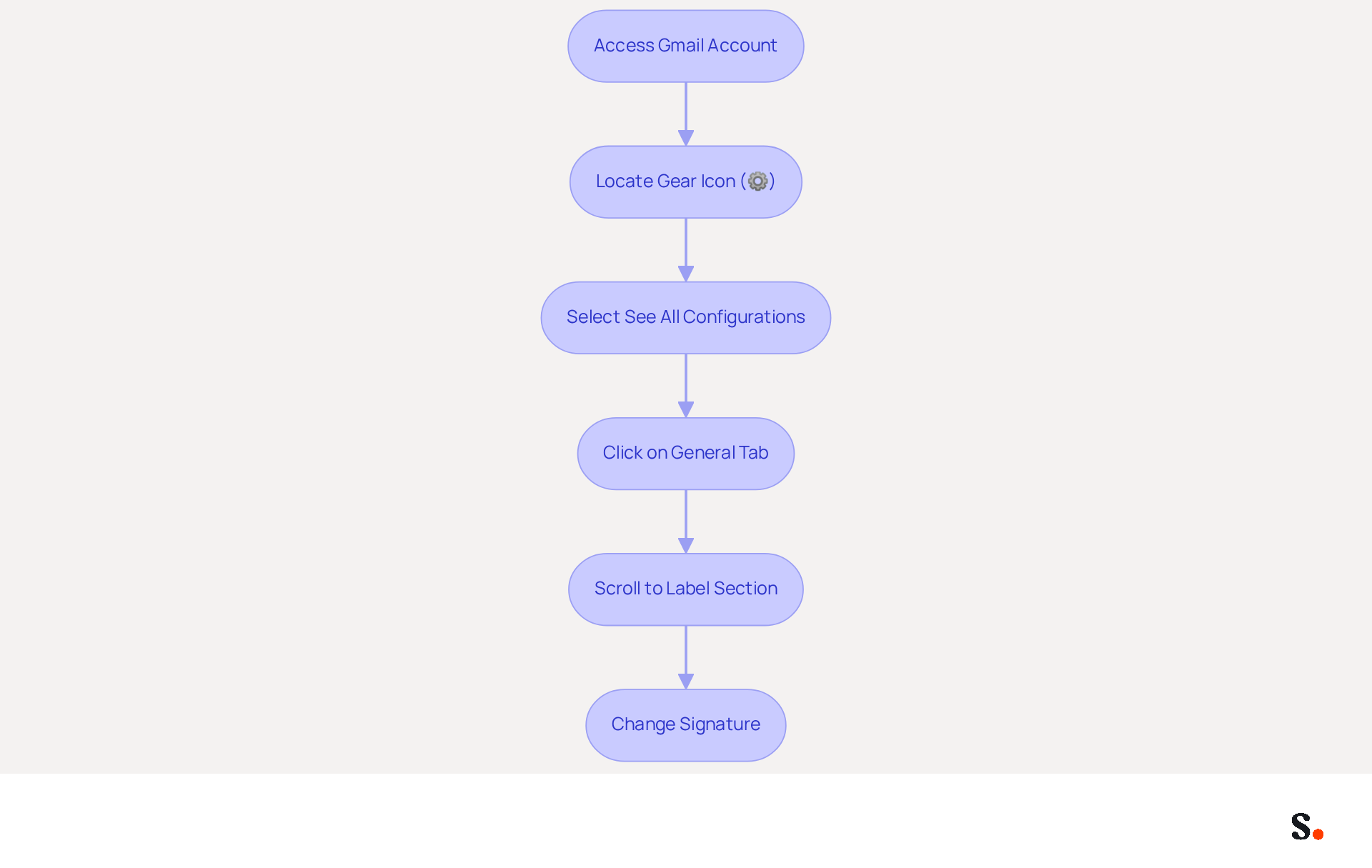
To effectively manage your email signatures, you should first learn how to change signature in Gmail on computer by accessing your Gmail account. Locate the gear icon (⚙️) in the top right corner of the Gmail interface; this will lead you to the configuration menu. Select 'See all configurations' from the dropdown menu to view the complete settings available for your account. On the settings page, the first step is to click on the 'General' tab. Scroll down to find the 'Label' section, where you will discover how to change signature in Gmail on computer.
As of 2026, Gmail continues to be a dominant platform for professional communication, relied upon by millions. Managing branded communication effectively is crucial for maintaining brand consistency; studies show that 76-80% of marketers agree that branded identifiers significantly enhance sender trust. Regularly updating your branding can lead to improved engagement, as messages with branded elements see a 22% higher response rate. By ensuring your email footer reflects your current role and company branding, you can significantly enhance your professional communication and marketing efforts.
Create or Edit Your Signature with Customization Options
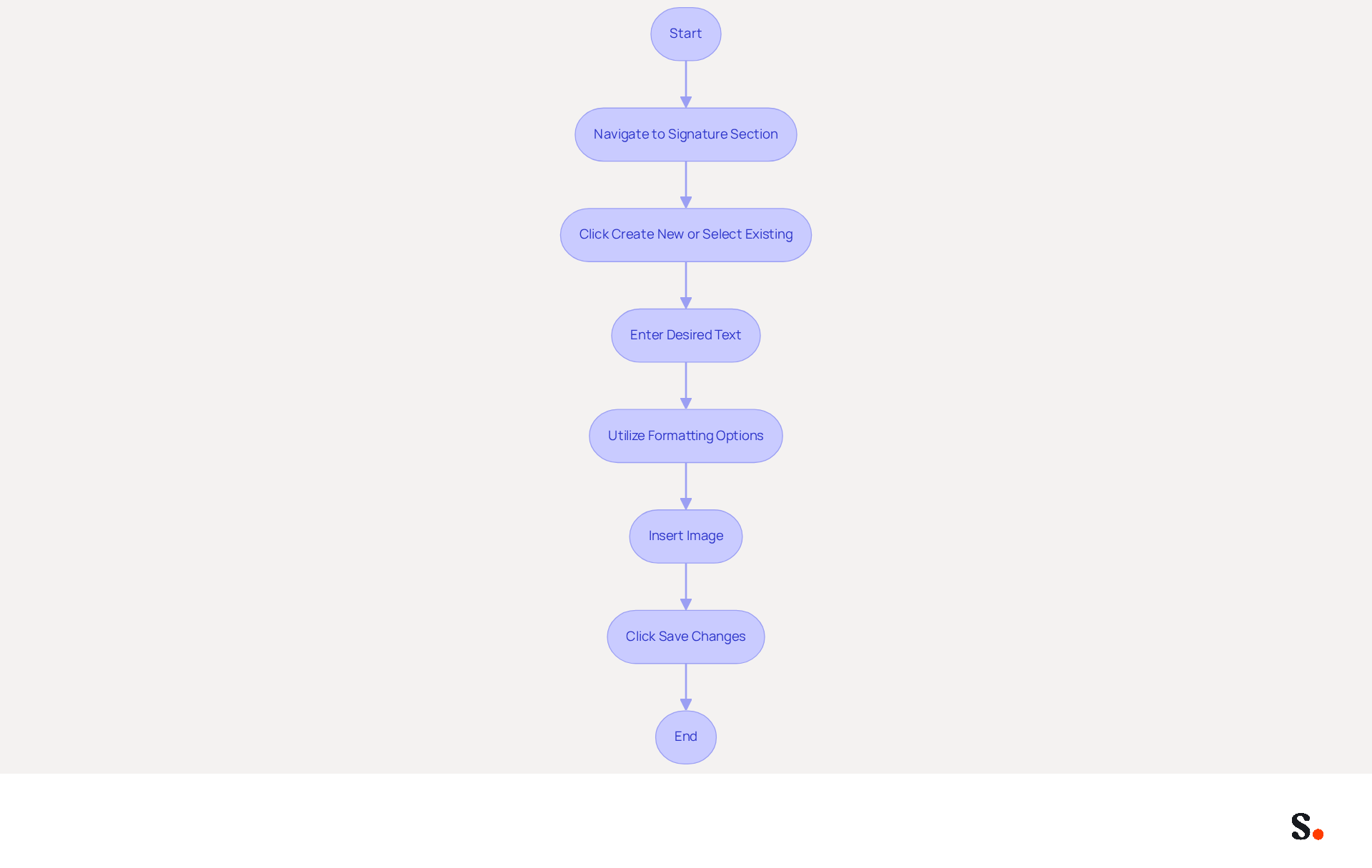
To understand how to change signature in Gmail on computer, navigate to the 'Signature' section and click on 'Create new' or select an existing mark. Scribe automatically syncs your teammates' identification information with your business phone system, so any changes in your Aircall configuration are updated in real-time without requiring action from your team.
Enter your desired text in the text box, including essential details such as your name, title, company name, and contact information. A professional correspondence footer should include at least these components to ensure clarity and credibility. Research shows that 42% of consumers feel negatively toward businesses that lack a branded closing, highlighting the importance of maintaining professionalism in your communications. Scribe's automated email management ensures that your branding remains consistent across all communications.
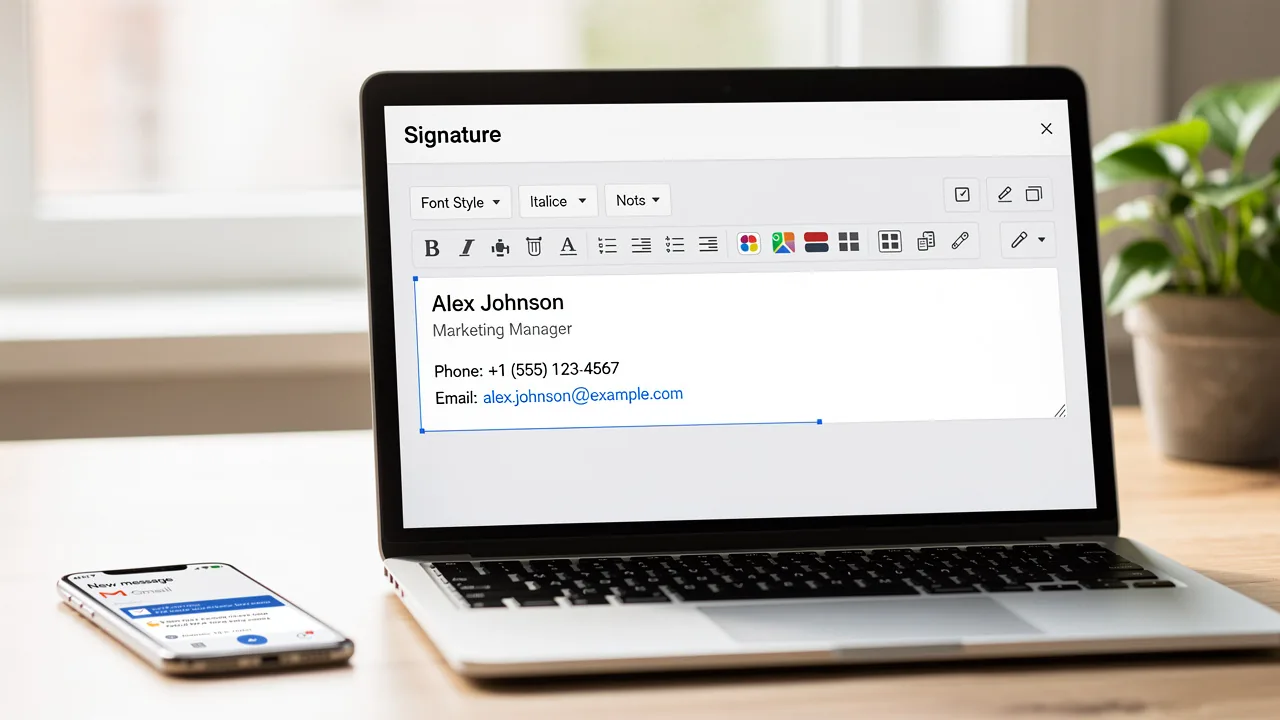
Utilize the formatting options available (font style, size, color) to personalize the appearance of your mark. Incorporating brand colors and fonts that align with your company's guidelines can enhance brand recognition. You may also include links to your social media profiles or website, as over half of users (52.6%) incorporate a call-to-action (CTA) in their messages to drive engagement. Organizations utilizing centralized management with Scribe report 85% improved brand consistency across teams, which is essential for effective marketing.
To insert an image, such as a logo, click on the image icon in the formatting toolbar. Upload your image from your computer or insert a URL. Make sure your logo is no larger than 200x50 pixels and under 50 KB to keep a polished appearance. Additionally, the maximum width should be 600 pixels. Scribe's SOC 2 Type II compliance ensures that your data is handled securely throughout this process.
Once you are satisfied with your autograph, scroll down and click 'Save Changes' at the bottom of the settings page to understand how to change signature in Gmail on computer. By regularly updating your signature, you reinforce your brand's presence and professionalism in every communication. Remember to keep the HTML straightforward and test your design across various messaging clients to ensure functionality and formatting. With Scribe, you can handle these updates effortlessly, ensuring your digital identifiers are always current and compliant.
Manage Multiple Signatures for Different Scenarios
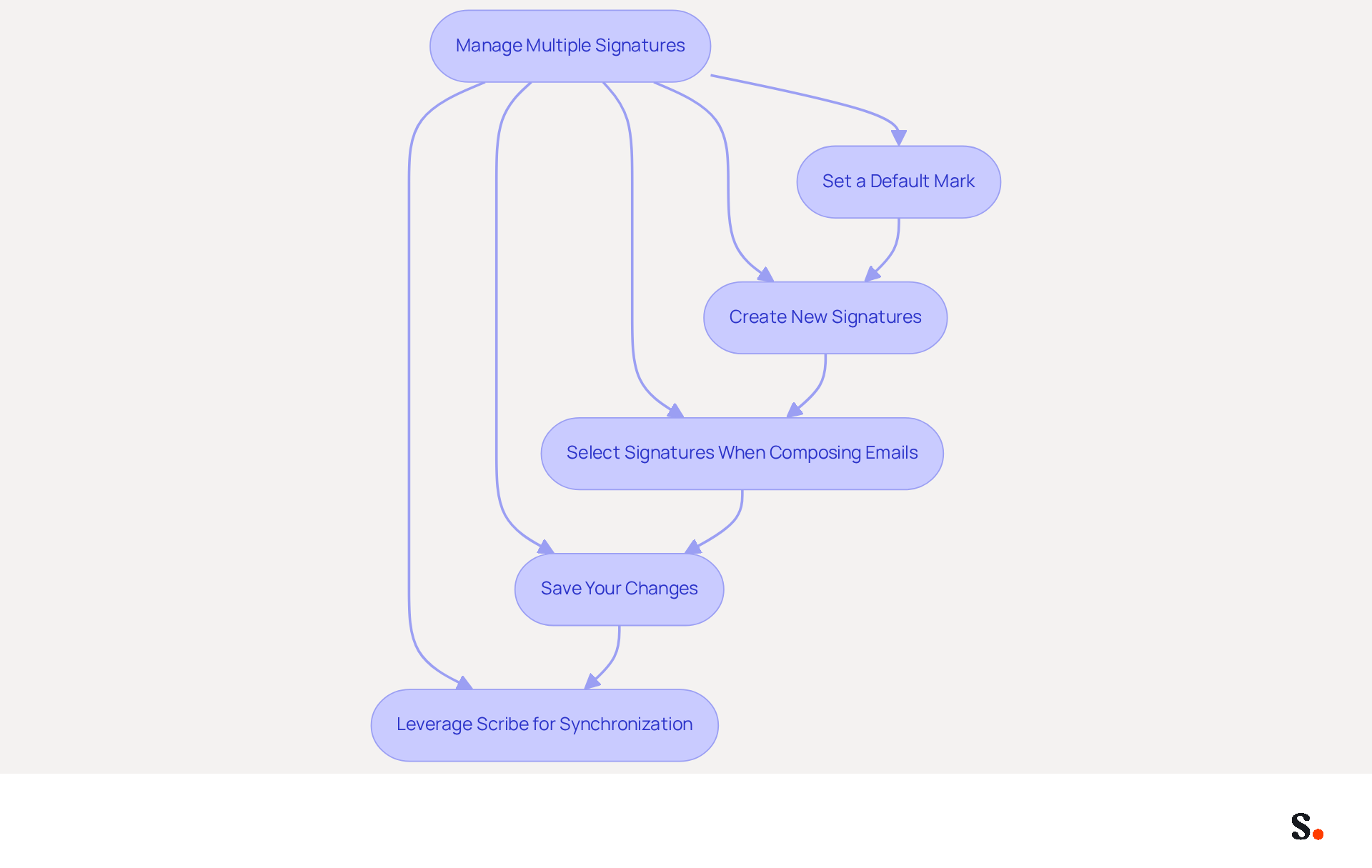
Effective management of multiple identifiers in Gmail is crucial for enhancing professionalism and engagement in communication. Scribe ensures that any changes you make in your Aircall settings are instantly reflected in your email identifiers, maintaining brand consistency. Here’s how to effectively manage your signatures:
- Set a Default Mark: In the 'Mark' section of Gmail settings, after creating multiple marks, you can designate a default mark for new emails and replies. This ensures consistency in your communications.
- Create New Signatures: To add a new mark, click 'Create new' and follow the customization steps. This flexibility enables you to modify your sign-off for various contexts, including understanding how to change signature in gmail on computer for both formal correspondence and casual interactions.
- Select Signatures When Composing Emails: When drafting a new message, click on the pen icon at the bottom of the compose window. From the dropdown menu, choose the preferred sign to use for that message. This feature makes it easy to choose the right identity for each email, depending on who you’re communicating with.
To learn how to change signature in gmail on computer, follow these steps. To understand how to change signature in gmail on computer, you can easily adjust the default sign-off for new messages and responses by selecting it from the 'Default sign-off' dropdown in the 'Sign-off' section of settings. This is particularly useful for seasonal campaigns or specific marketing initiatives.
- Save Your Changes: Always remember to save your changes after managing your documents to ensure that your updates are applied.
Many businesses struggle with maintaining a consistent brand identity across various communication channels. Moreover, this effective management leads to increased engagement and better communication outcomes. By leveraging these strategies and utilizing Scribe's automated synchronization capabilities, you can significantly elevate your email communication and strengthen your brand's presence.
Troubleshoot Common Issues with Your Gmail Signature
To maintain a professional image in your email communications, it is essential to learn how to change signature in Gmail on computer to ensure your email signatures are displayed correctly.
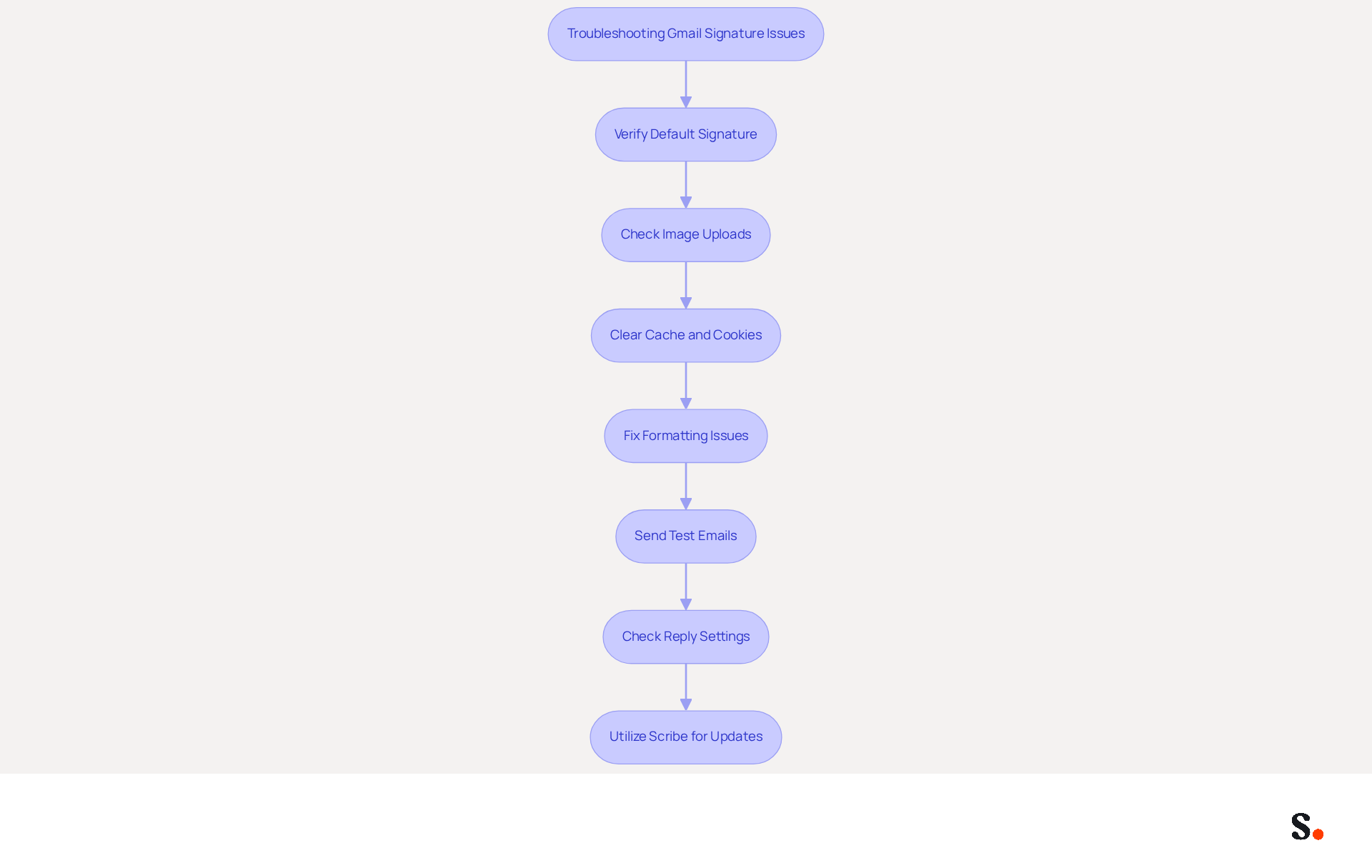
- To ensure your mark appears, verify that you have selected a default mark in the settings. If the 'No sign-off' option is checked in the compose window, switch it to your preferred closing.
- If images are not displaying, confirm that they are uploaded correctly and that the image URLs are publicly accessible. Using reliable hosting for images is crucial to avoid display issues.
- Clear your browser's cache and cookies, as this often resolves display issues with email markings. If problems continue, consider using a private browsing window or switching to a different browser.
- For formatting problems, remove any extra spaces or formatting from the text box. Ensure that 'Plain Text' mode is disabled in the compose window to maintain HTML formatting.
- Consistently verify your sign-off by sending messages to yourself or colleagues to ensure it appears correctly across various devices and mail clients. By doing this, you can keep your professional image sharp and your branding consistent. Additionally, syncing your Google Workspace with Scribe streamlines this process, as any changes made to your teammates' information will automatically update in Scribe, saving you time and ensuring accuracy.
- Be aware that Gmail may conceal identifiers in message threads. To ensure your mark appears in replies, check the option 'Insert this mark before the text quoted in the answers' in your settings.
- Research shows that 75.1% of businesses use digital identifiers to enhance their branding and marketing efforts, making it crucial to address any issues with them swiftly. By leveraging Scribe's capabilities, you can discover how to change signature in Gmail on computer, ensuring that your email signatures are always up-to-date and reflective of your brand. Addressing these issues promptly can enhance your brand's visibility and professionalism in every email interaction.
Conclusion
The process of changing your email signature in Gmail is crucial for maintaining a professional image and ensuring brand consistency. By following the outlined steps, users can easily navigate Gmail's settings to create, edit, and manage their signatures effectively. This process can significantly improve engagement rates, as a well-crafted signature often leads to better communication outcomes.
Throughout the guide, key insights were shared on the importance of a professional email signature, including the necessity of incorporating essential details and branding elements. The ability to manage multiple signatures for different contexts allows for greater flexibility and personalization in communication. Additionally, troubleshooting common issues ensures that signatures display correctly, further solidifying a professional image.
By mastering this process, organizations can significantly improve their communication effectiveness and brand perception. Using tools like Scribe can really simplify how you manage your email signatures, ensuring that branding remains consistent and compliant with security standards such as SOC 2 Type II, GDPR, and CCPA. By prioritizing email signature management, organizations can not only enhance their marketing ROI but also build lasting relationships with their audience. Embrace the power of a well-designed email signature to elevate your professional communications and reinforce your brand identity in every interaction.
Frequently Asked Questions
How do I access Gmail settings to change my signature?
To access Gmail settings, log into your Gmail account and locate the gear icon (⚙️) in the top right corner. Click on it and select 'See all configurations' from the dropdown menu.
Where do I find the option to change my email signature in Gmail?
Once you are on the settings page, click on the 'General' tab. Scroll down to find the 'Label' section, where you can change your signature.
Why is it important to manage email signatures effectively?
Managing email signatures effectively is crucial for maintaining brand consistency. Studies show that 76-80% of marketers believe branded identifiers enhance sender trust, and regularly updating branding can lead to improved engagement.
What impact does a branded email signature have on response rates?
Messages with branded elements see a 22% higher response rate, making it beneficial to ensure your email footer reflects your current role and company branding.
How does updating my email signature enhance professional communication?
By ensuring your email signature reflects your current role and company branding, you can significantly enhance your professional communication and marketing efforts.
List of Sources
- Access Gmail Settings to Change Your Signature
- 40+ Email Signature Statistics for 2026 (Data + Insights) (https://wavecnct.com/blogs/email-signature-statistics)
- 14 Key Email Signature Statistics to Know in 2026 (https://mailmodo.com/guides/email-signature-statistics)
- Email signature statistics: Why every business should optimize their email signatures — Stripo.email (https://stripo.email/blog/email-signature-statistics-why-every-business-should-optimize-their-email-signatures)
- Create or Edit Your Signature with Customization Options
- 40+ Email Signature Statistics for 2026 (Data + Insights) (https://wavecnct.com/blogs/email-signature-statistics)
- How to create custom Gmail signature (https://foxnews.com/tech/how-to-create-custom-gmail-signature)
- Email Signature Design Trends in 2026: What Works and What to Drop (https://bulksignature.com/blog/email-signature-design-trends)
- Top 10+ best practices for email signatures design in 2026 (https://mysignature.io/blog/email-signature-best-practices)
- Manage Multiple Signatures for Different Scenarios
- 40+ Email Signature Statistics for 2026 (Data + Insights) (https://wavecnct.com/blogs/email-signature-statistics)
- How do I manage multiple signatures with Gmail? (https://signitic.com/en/guides/how-do-i-manage-multiple-signatures-with-gmail)
- Email signature statistics: Why every business should optimize their email signatures — Stripo.email (https://stripo.email/blog/email-signature-statistics-why-every-business-should-optimize-their-email-signatures)
- How to Create and Use Multiple Signatures in Gmail - NEWOLDSTAMP (https://newoldstamp.com/blog/more-than-one-signature-in-gmail)
- Troubleshoot Common Issues with Your Gmail Signature
- Troubleshoot issues with Gmail signatures - Gmail Help (https://support.google.com/mail/answer/11468381?hl=en)
- Email Signature Statistics: A Closer Look at Email Signatures in 2026 (https://mysignature.io/blog/email-signature-statistics)
- Fix Your Missing Gmail Signature: 8 Troubleshooting Steps & Best Practices | Newoldstamp - NEWOLDSTAMP (https://newoldstamp.com/blog/gmail-signature-not-showing-up)
- Solving a Gmail signature problem (https://signitic.com/en/guides/solving-a-gmail-signature-problem)
- Fixing Signature Issues in Gmail (https://teachers.tech/fixing-signature-issues-in-gmail)
Get started with Scribe
Create your signature in minutes
Free 14-day trial — no credit card.